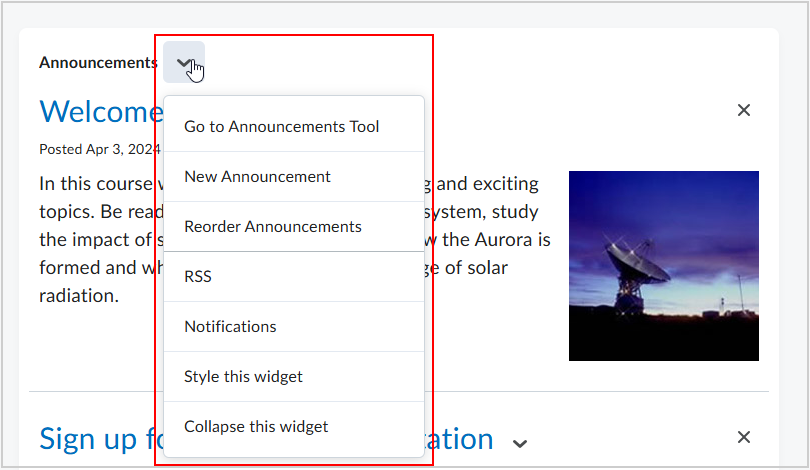
You can add, remove, and edit widgets on a widget-based homepage if you have the required permissions.
Add or remove widgets on a homepage
- From Admin Tools, select Homepage Management.
Select the homepage name you want to edit.
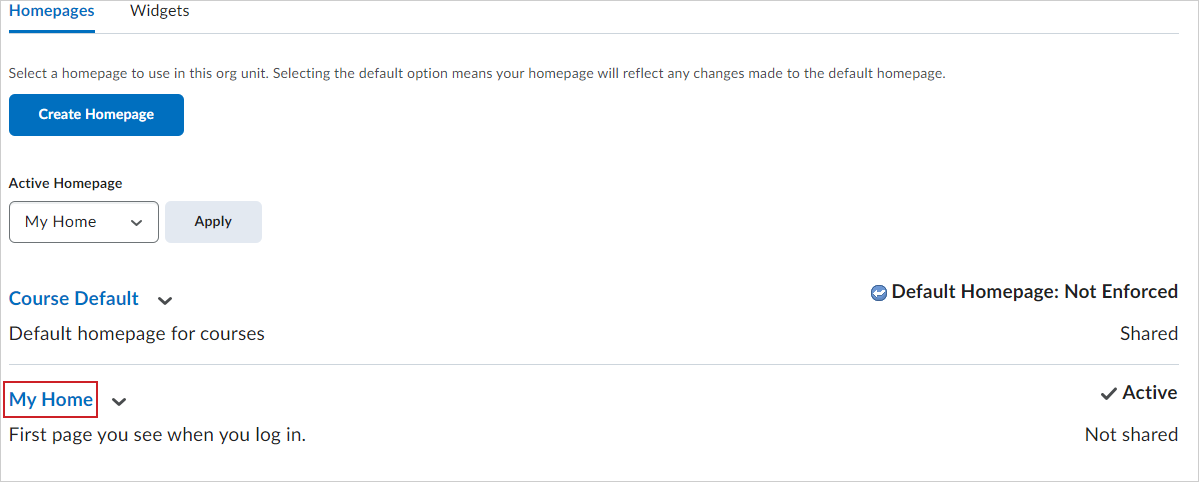
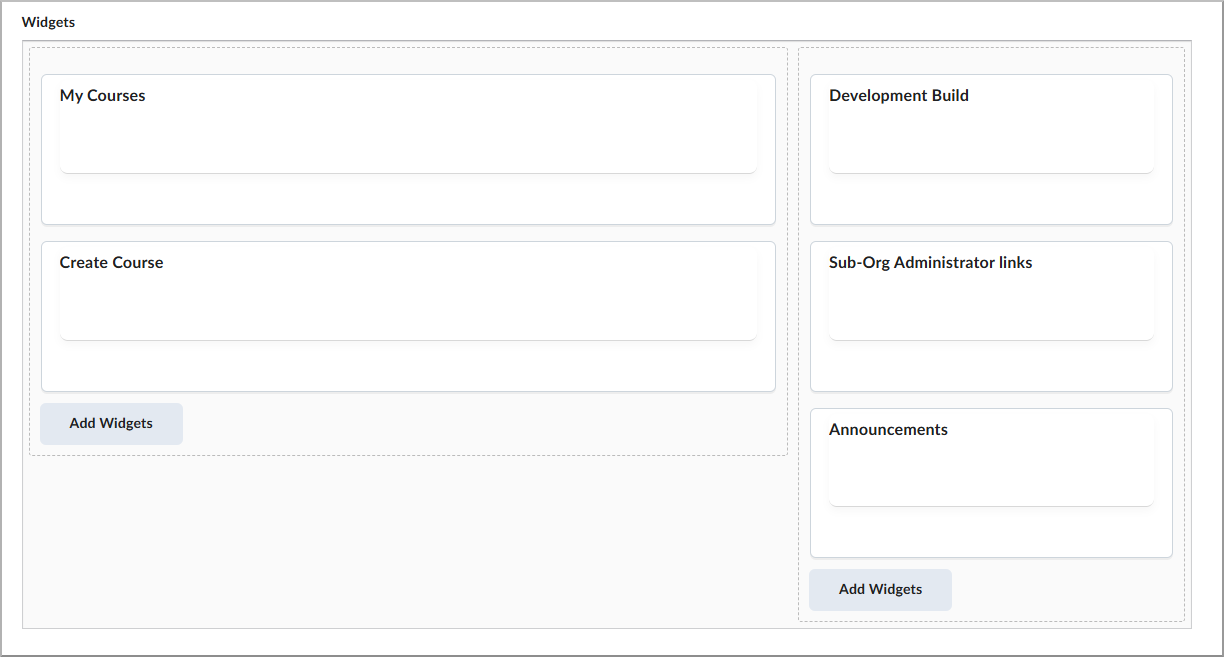
On the Edit Homepage page, in the Widgets area, do one or more of the following:
- Select Add Widgets to add widgets to the panels on your homepage.
- Select Remove beside the widget you want to remove.
Select a widget to edit its available options (for example, hide the title bar, change the widget name,
or restrict minimizing).
- Select Save.
Watch how to add widgets to a homepage
Edit a widget from the homepage
Depending on the widget, you can style, customize, or edit it directly from the homepage.
- To find the widget you want to update, go to the homepage that contains the widget.
To open widget options, select Actions for the widget.
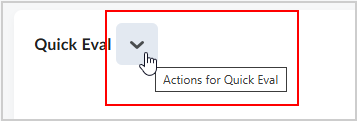
To update the widget, select the option you want (for example, Customize or Edit), make your
changes, and then select Save.