Use Awards Administration to manage awards configuration for your org units from a centralized location in D2L Brightspace. Instead of updating multiple configuration variables in the Config Variable Browser, you can manage key Awards settings, such as awards issuing details, notification options, and sharing options, from a single tool.
Settings configured in Awards Administration override the corresponding configuration variable values for the selected org unit and all descendant org units unless those values are overridden at a lower org unit level.
This tool helps administrators apply consistent award settings across an organization while still allowing flexibility for sub-organizations.
Understanding inherited settings
Awards Administration uses org unit inheritance to manage settings across your organization structure.
When you configure a setting from a higher org unit level, descendant org units inherit that value unless the setting is overridden at a lower level. Resetting a setting restores inheritance from the parent org unit.
Awards Administration allows you to:
Enable Awards Administration
To enable access to Awards Administration
- Navigate to Admin Tools > Roles and Permissions.
- Select the role you want to update.
- Go to the Awards section.
- Enable the Manage Award Administration permission.
- Click Save.
After you enable the permission, Awards Administration appears in the Admin Tools menu for users with that role.
Awards Administration permission levels
Organization-level administration
Administrators with organization-level permissions can:
- Configure global awards settings.
- Apply changes across the entire organization.
- Ensure consistency without editing multiple configuration variables.
Changes made at this level override configuration variables for the organization (OrgUnitId) and cascade to all descendant org units. For example, if an administrator updates the Issuer Name setting at the organization level, all departments, course templates, and course offerings inherit that value unless it is overridden in a lower org unit.
Sub-organization administration (Distributed Administration)
If your organization uses Distributed Administration, sub-organization (sub-org) administrators can also access this tool.
With the appropriate permissions, sub-org administrators can:
- Configure awards settings for their specific org unit.
- Override inherited configuration values.
- Tailor awards behavior to local needs.
These changes apply only to the selected org unit and its descendants.

|
Important: In distributed administration environments, we do not recommend using this tool in the following scenarios because inheritance and override behavior may become difficult to predict across org units:
- Highly complex, multi-layered organization structures with more than two vertically nested sub-organizations.
- Sub-organizations assigned to multiple parent org units.
|
Configure Awards settings
The following table lists the available Awards Administration settings and the config variables they control.
| Setting |
Config Variable |
|---|
| Award Issuing Details > Issuer Name |
d2l.Tools.Awards.IssuerName |
| Award Issuing Details > Issuer URL |
d2l.Tools.Awards.IssuerUrl |
| Award Issuing Details > Issuer Contact |
d2l.Tools.Awards.IssuerContact |
| Award Issuing Details > Display Certificate ID |
d2l.Tools.Awards.DisplayCertificateId |
| Notifications > New Award Email |
d2l.Tools.Awards.AwardEmail |
| Notifications > Expiring Award Email |
d2l.Tools.Awards.ExpiryEmail |
| Sharing > Brightspace Profile |
d2l.Tools.Awards.D2LProfileIntegrationEnabled |
| Sharing > External Digital Credentials |
d2l.Tools.Awards.DigitalCredentialSharingEnabled |
| Sharing > LinkedIn |
d2l.Tools.Awards.LinkedInEnabled |
| Sharing > Public URL |
d2l.Tools.Awards.PublicAwardsEnabled |
To access the Awards Administration tool, you must have the appropriate organization-level permission. The settings you can view or change may vary based on your permissions. For more information, refer to Awards permissions.
To configure Awards settings
- Navigate to one of the following locations:
- For organization level access, click Admin Tools > Awards Administration.
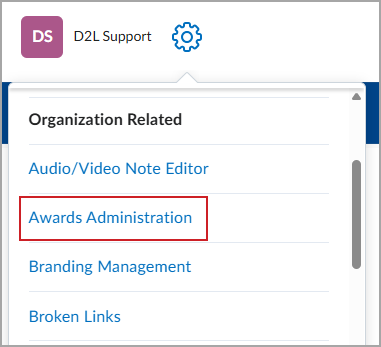
- For sub-organization level access, navigate to the sub-organization Homepage, then Course Admin > Awards Administration.
- Configure the available Awards settings.
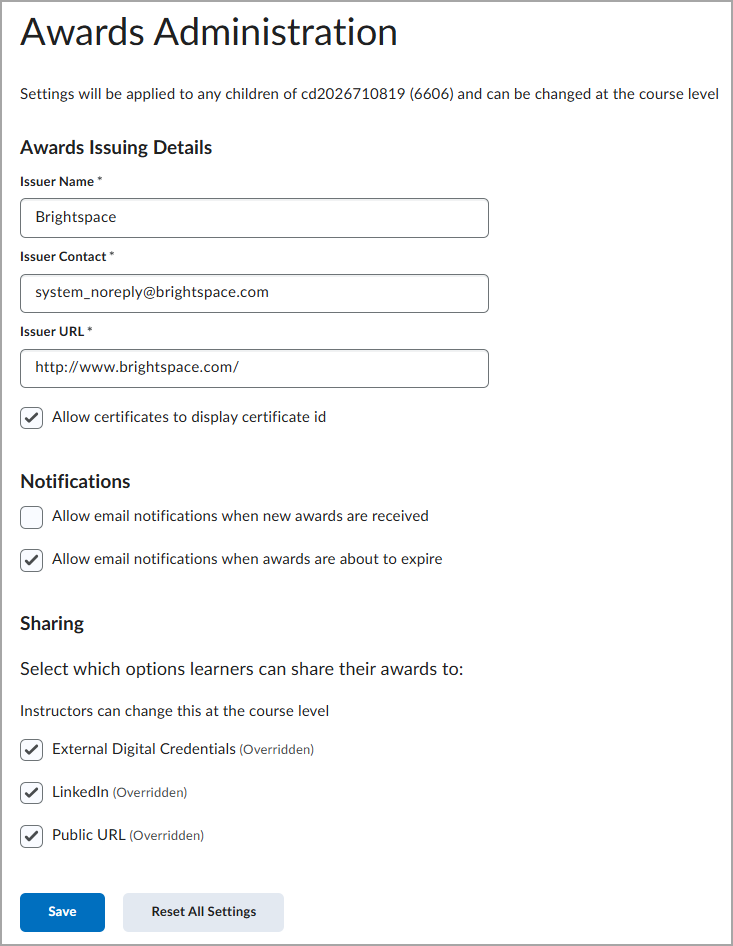
 | Note: If (Overridden) appears beside an option, the setting has been changed at the current org unit level and is no longer inherited from the parent org unit. |
- Click Save.
When you save a setting in Awards Administration, the setting automatically cascades to descendant org units. You do not need to configure cascading separately.
Reset Awards settings to defaults
When settings are reset to their default values, they inherit values from the parent org unit.
To reset Award Issuing Details to defaults
- Navigate to one of the following locations:
- For organization-level access, click Admin Tools > Awards Administration.
- For sub-organization level access, navigate to the sub-organization Homepage, then Course Admin > Awards Administration.
- Click Reset to Default in the field you want to reset. This option is only visible when the setting differs from the default value.

- Click Save.
To reset all Awards settings to the default settings of the parent org unit
- Navigate to one of the following locations:
- For organization-level access, click Admin Tools > Awards Administration.
- For sub-organization level access, navigate to the sub-organization Homepage, then Course Admin > Awards Administration.
- Click Reset All Settings. This button is only enabled when settings differ from the default values.
- Click Save.