As a Sub-org administrator, you can set a default navbar and a default homepage layout at the Sub-org unit level so that it is automatically applied to all newly created course offerings in your Sub-org unit.

|
Important: You must ensure that your Sub-org administrator role has the required Navbars permissions set at the Sub-org unit level to access navbar options. Contact your organization administrator and refer to the Apply role permissions to your Sub-org administrator role section of the Set up Distributed Administration page for more details.
|
Create a new default course navbar
The first step is to set a default navbar to be used on all course homepages in your Sub-org unit.

|
Tip: If you have already created a navbar that you want to use as a default for all newly created courses in your Sub-org unit, you can click the navbar name to edit it, and ensure that it is set to be applied to All descendants of your Sub-org unit. |
To create a new default course navbar
- As a Sub-org administrator, navigate to your Sub-org unit homepage.
- From your Sub-org unit navbar, click the Navbar Options (...) menu and select Manage All Course Navbars.
- From the Navbars tab, click Create Navbar.
- Enter a Name and optionally add a Description.
- Click Add Links and do the following:
- From the Add Links dialog, search for links.
- Select any links you want added to your default course navbar.
- Click Add.
- Under Available To, click Add Org Units and do the following:
- Select your Sub-org unit.
- Under Options, select All descendants. This ensures that any course offering created within your Sub-org unit has this navbar applied to it.
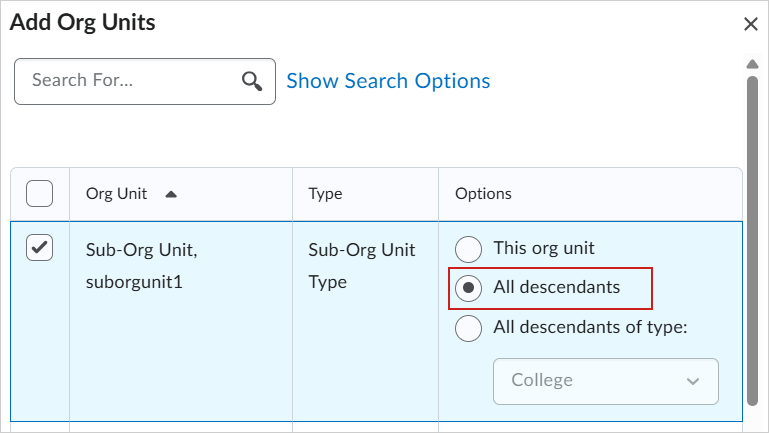
- Click Insert.
- Click Save and Close.
Your new navbar is ready to be set as the default for all descendants (courses) of your Sub-org unit.
Set your course navbar as the default
Once you have created a default course navbar to use, you can set it as the default. This applies the navbar to any newly created coursed within your Sub-org unit.
|
Important: When you set your navbar as the default, this default only applies when you create a new course offering in your Sub-org unit. Existing course offerings maintain their original navbars.
|
To set your course navbar as the default
- From the Navbars tab, locate your new course navbar.
- Click the Actions menu (arrow icon) and select Set as the default.
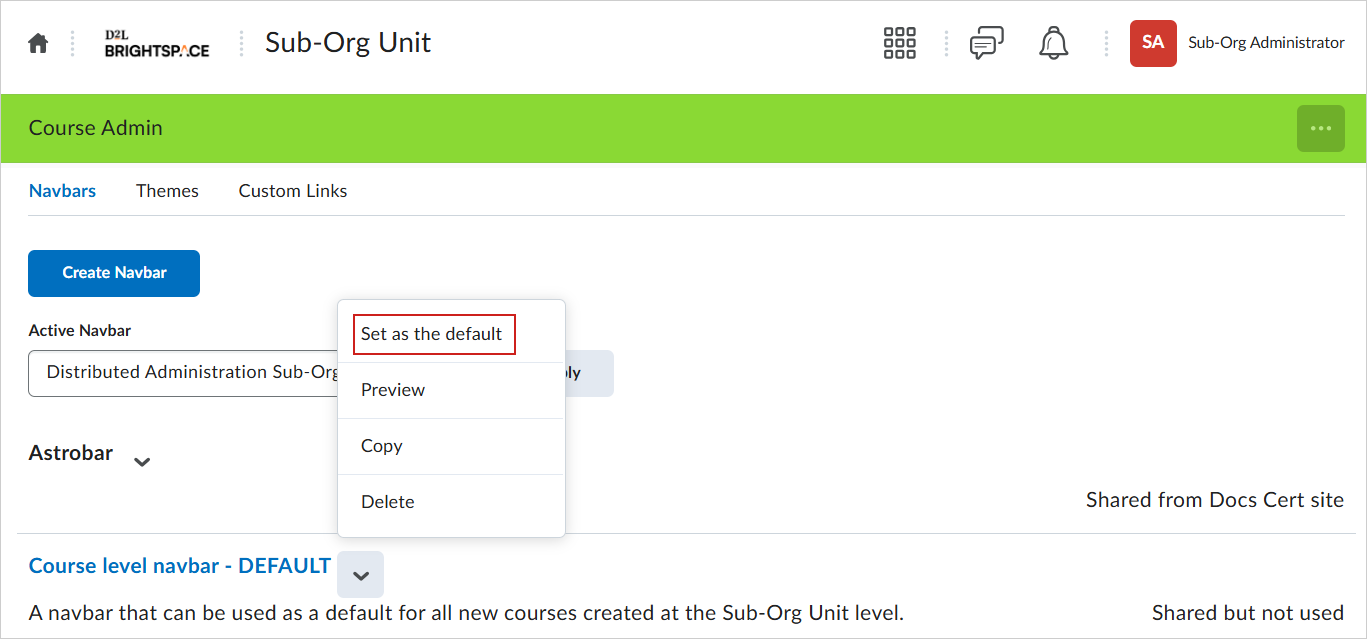
Your default navbar is now applied to all descendants (including new courses created) within your Sub-org unit.
Create a new default homepage layout
You can also apply a default homepage layout to all newly created courses in your Sub-org unit.
To create a new default course homepage layout
- As a Sub-org administrator, navigate to your Sub-org unit homepage.
- From your Sub-org unit homepage, click the Homepage Options (...) menu and select Manage Homepages.
- From the Homepages tab, click Create Homepage.
- Enter a homepage Name and optionally enter a Description.
- Under Available To, click Add Org Units and do the following:
- Select your Sub-org unit.
- Under Options, select All descendants. This ensures that any course offering created within your Sub-org unit has this layout applied to it.
- Click Insert.
- Select a homepage Type.
- Configure your homepage Header, Layout, and Widgets.
- Click Save and Close.
Set your course homepage as the default
Once you have created a default course homepage, you can set it as the default. This applies your course homepage to all newly created courses within your Sub-org unit.
|
Important: Do not select Force Homepage. This will force your default homepage layout across the entire organization and is not compatible with a Distributed Administration setup.
When you set your course homepage as the default, this default only applies when you create a new course offering in your Sub-org unit. Existing course offerings maintain their original course homepage layouts.
|
To set your course homepage layout as the default
- From the Homepages tab, locate your default course homepage layout.
- Click the Actions menu (arrow icon) and select Make Default.
Your default course homepage is applied to any newly created courses that are descendants of your Sub-org unit.