Createspace provides a centralized workspace where instructional design teams can create, organize, and manage reusable learning content before deploying it to Brightspace. You can build content once, deploy it across multiple courses, and keep learning experiences consistent by syncing updates from a single source.
Createspace enablement requirements
To enable the Createspace environment for your organization, configure the following settings and permissions:
- Turn on Createspace in Organization Tools.
- Turn on Content Service in Organization Tools to enable the Content and Asset Libraries.
- In Roles & Permissions, enable Createspace > View Createspace for applicable roles at the organization level.
- In Roles & Permissions, enable Createspace > Can receive notifications from Createspace to support automated deployment and synchronization alerts.

|
Important: When the Createspace tool is enabled, the standalone Media Library link is removed from the Admin Tools menu. The Asset Library provides the media management functionality previously available from the Media Library. |
Access Createspace
Administrators can access Createspace through the following entry points:
- From the navbar, select Createspace.
- From Admin Tools, select Createspace.
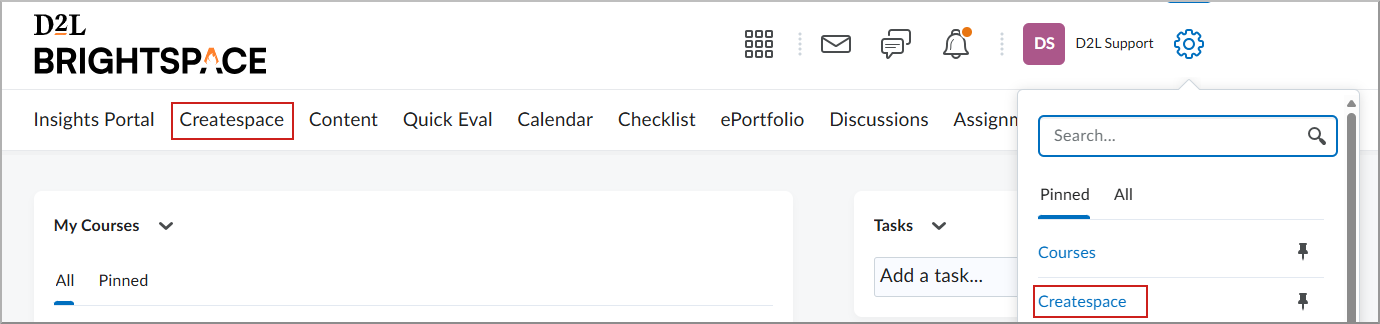
Administrative dashboard overview
The Createspace Dashboard provides an overview of content creation and source course activity across the organization:
- Libraries: Provides access to the Content Library for reusable objects, the Asset Library for multimedia files, and the H5P Library for interactive content.
- Recent Source Courses: Displays the most recently created or modified source courses, which serve as the authoritative source for course re-offering.
- Recent Content: Displays the latest learning objects, including quizzes, assignments, and pages, being authored or updated within the library.

|
Note:
- Administrators can use Impersonation to troubleshoot user access in Createspace. The impersonated user’s initials appear in the Createspace navigation bar.
- To end an impersonation session, return to Brightspace and end the session from the navigation bar.
|
Synchronization and versioning
Createspace provides versioning and synchronization tools for managing learning materials. Through Version History, administrators and designers can track revisions, restore previous versions, and maintain content integrity. The synchronization workflow allows authorized users to push updates from the central library to all linked course offerings, reducing the manual effort required to maintain multi-section courses.
|
Important: Synchronization is currently supported for pages, modules, assignments, and discussions. Synchronization for quizzes is planned for a future release. |
Technical considerations for administrators
- Reporting and Data Sets: Createspace uses a unique organization unit type for modules and objects created within the library. This may impact organizational reporting and Brightspace Data Sets (BDS).
- Deployment Scope: In the current release, the Deploy action is primarily available at the Module level. The Deploy action is available for all Content Library objects Module, Assignment, Quiz, Discussion, and Page. The deploy action allows sending the activity to any selected Brightspace Course. This enables material to go to multiple courses as part of a single action.
Visual tour of Createspace
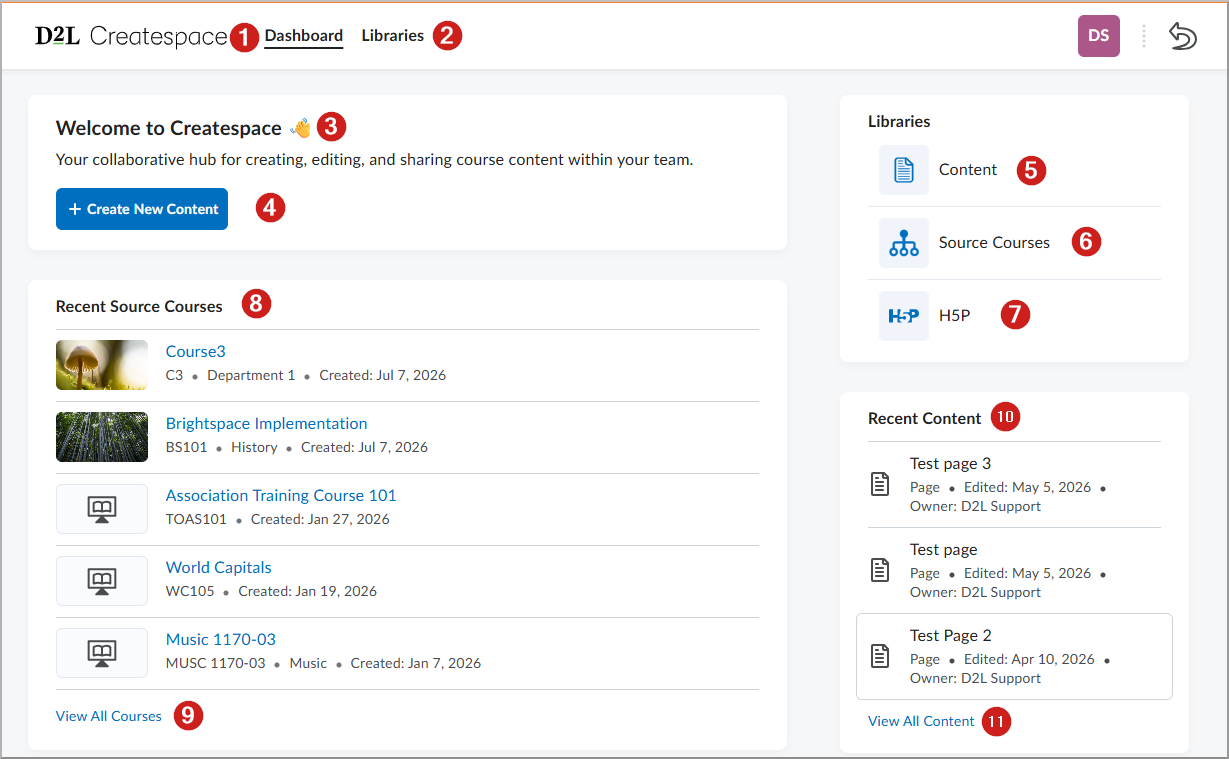
- Dashboard: The primary landing page for monitoring organizational authoring activity.
- Libraries: Provides access to all reusable content repositories.
- Source Courses: Provides an area for managing master course models and re-offering workflows.
- H5P: Provides centralized management of interactive Learning Tools Interoperability (LTI) content.
- View All Content: Opens the complete organizational library with filtering and search capabilities.