Createspace lets you organize and manage video, audio, images, Sharable Content Object Reference Model (SCORM) packages, documents, and content objects in folders. To support collaboration, you can add other users as collaborators on a folder. Collaborators can view, upload, and manage the assets and content objects in the shared folder.
To add users as collaborators, you must have the following permissions:
- Content Service > Can Manage All Objects (administrators) or Content Service > Can Manage Folder Collaborators (all other users)
- Users > Search for [Role]
- Createspace > Can receive notifications from Createspace
If you do not have permission to search for users, you can still create folders, but you cannot add collaborators.
Adding collaborators
You can add collaborators when you create a new folder or edit an existing one.
To add a collaborator:
- From Createspace, click Libraries.
- Select the Content Library, or click Select a Library (arrow) and select Asset Library.
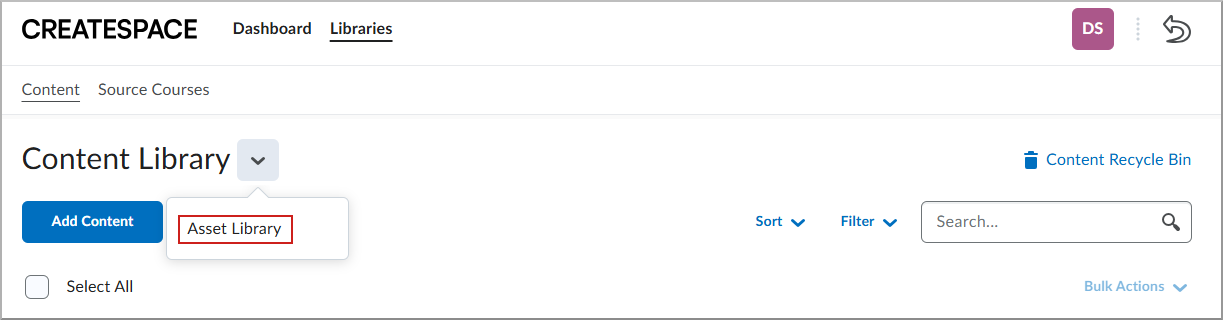
- Do one of the following:
- To add a collaborator to a new folder, click Create Folder.
- To add a collaborator to an existing folder, click the Actions menu next to the folder name and select Edit.
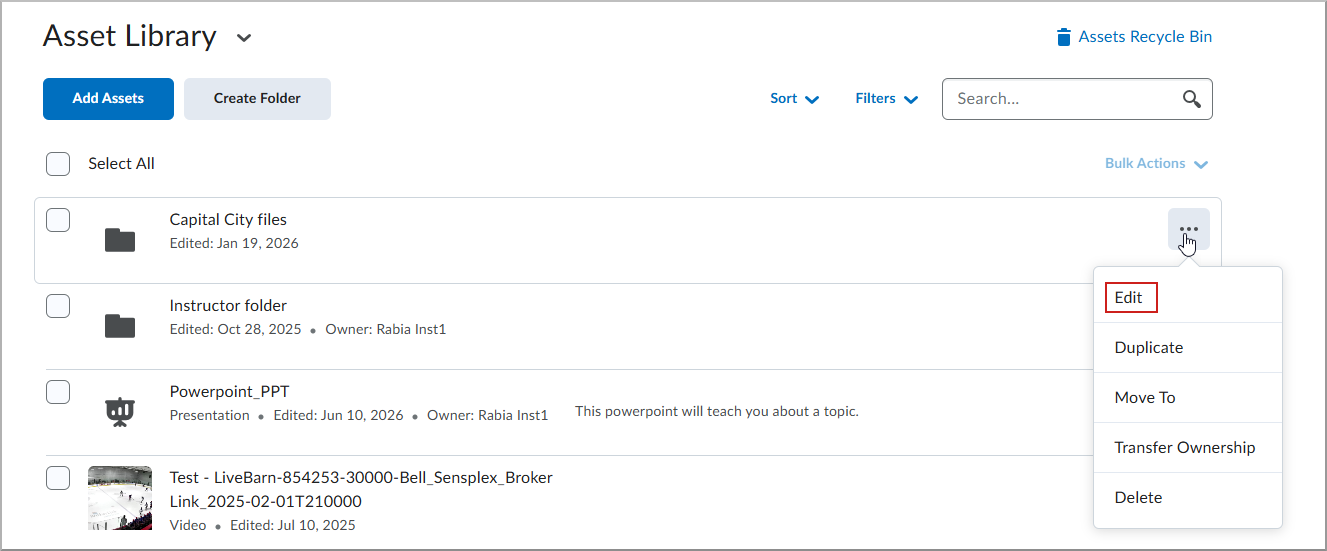
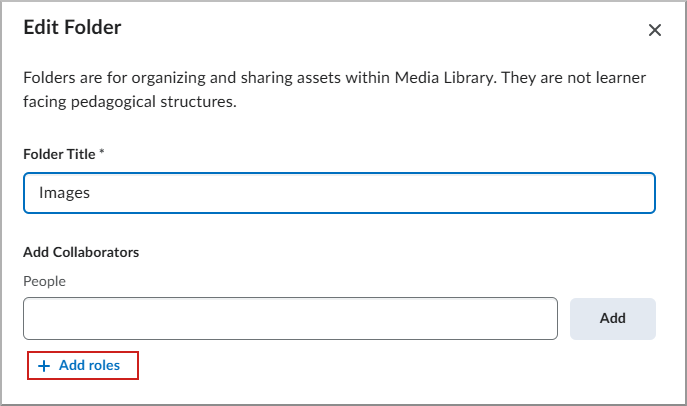
- Enter a Folder Title.
- To add collaborators, do one of the following:
- Start typing the name of the user in the Add Collaborators field and select the user from the drop-down list.
- Click Add roles to share the folder with selected roles so they can access the folder and make changes to its contents.
- Click Add to include the users in the collaborators list.
- Click Save.

|
Tip: When you add a collaborator, they receive a notification in their Update Alerts on the navbar, provided they have the Can receive notifications from Createspace permission. |
Remove a collaborator
You can remove collaborators from folders if you have the appropriate permissions.
- Do one of the following:
- From the navbar, click Createspace.
- From Admin Tools, click Createspace.
- Navigate to the Content Library or Asset Library.
- Locate the folder, click More Actions, and select Edit.
- In the Share with list, select the collaborator you want to remove.
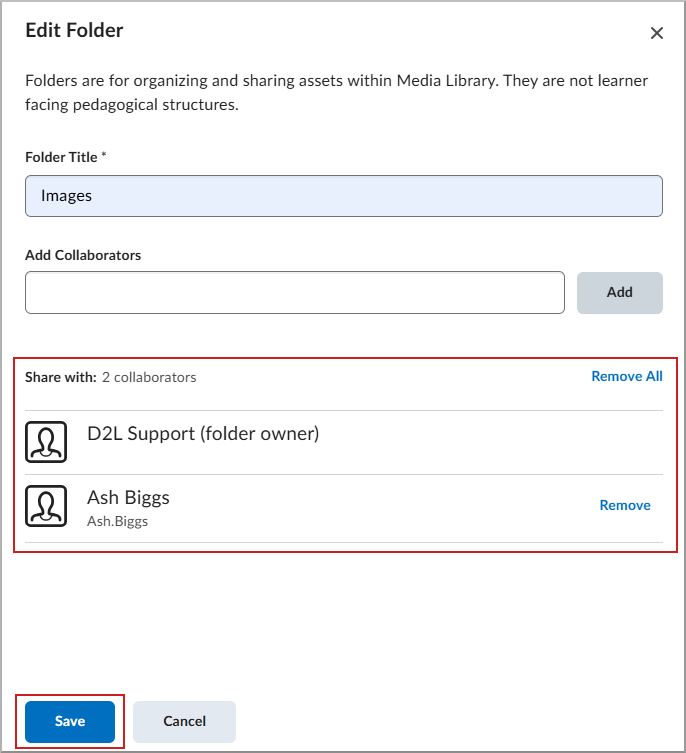
- Click Remove.
- Click Save.
The collaborator is removed from the folder. Any assets they added no longer appear in their library, but the assets remain available using the search bar.