In the Config Variable Browser, in the Tools > Awards area, the d2l.Tools.Awards variables are enabled by default at the organization level.
Features of the tool can be turned off for specific courses. If you set an Org value that is different from the System value, the Org value overrides the System value. You can also choose not to use the Awards tool during course creation.
Org unit-level configuration
Select Awards configuration variables can now be set at the Organizational Unit (Org Unit) level. Previously, these settings were only available at the organization level and applied to all org units.
Administrators can now override values for individual org units and their descendants to support different departmental or group needs.
To apply override values to an Org Unit and its descendants:
- Create an override value for the Org Unit (for example, a department or sub-organization).
- Add the Org Unit type to the Cascading Org Unit Types section.
For example, if you add an override value for a department, that Org Unit type must be added to Cascading Org Unit Types for all child org units to inherit the override values instead of the organization-level value.
When the Restrict award to Course and its child org units option is selected on the New Award page, issuer details (name, URL, and contact) are automatically populated using Org Unit-level configuration values. This reduces manual input and helps ensure consistency.
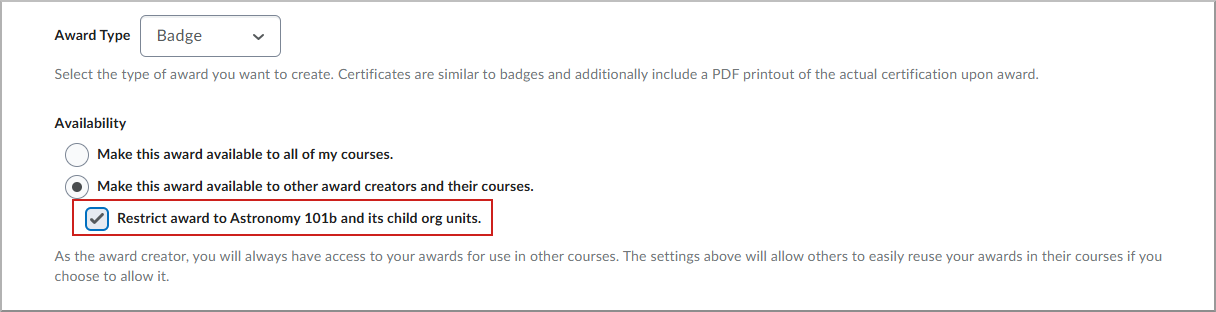
The following table lists Awards configuration variables, their types, default values, and descriptions.
Awards configuration variables
| Variable |
Type |
Default |
Description |
|---|
d2l.Tools.Awards.AwardEmail
|
System; Org; OrgUnit |
ON |
Enable email notifications for new awards received. |
d2l.Tools.Awards.AwardUserId
|
System; Org |
169 |
The Service User ID used for all auto-awarding. |
d2l.Tools.Awards.ClasslistSortAscending
|
OrgUnit |
OFF |
Set the default sort direction for the classlist awards view to ascending. |
d2l.Tools.Awards.D2LProfileIntegrationEnabled
|
System; Org |
OFF |
Allow users to share their awards to their Brightspace profile and profile card. |
d2l.Tools.Awards.DefaultClasslistSortField
|
OrgUnit |
AwardCount |
Set the default sort field for the classlist awards view. |
d2l.Tools.Awards.DigitalCredentialSharingEnabled
|
Org; OrgUnit |
OFF |
Allow users to share their awards using Export Digital Credential. Once enabled, instructors can allow learners to export and share awards publicly. |
d2l.Tools.Awards.DisplayAwardEarnedNotification
|
OrgUnit |
ON |
Allow users to control which Org Units trigger a pop-up when an award is issued. |
d2l.Tools.Awards.EPortfolioIntegrationEnabled
|
System; Org |
OFF |
Allow users to send their awards to Brightspace ePortfolio. |
d2l.Tools.Awards.ExpiryEmail
|
System; Org; OrgUnit |
ON |
Enable email notifications for impending award expiry. |
d2l.Tools.Awards.IconCreationLinkEnabled
|
Org |
ON |
Make the icon creation tool link available when set to true. |
d2l.Tools.Awards.IconCreationUrl
|
Org |
openbadges.me
|
The URL of the external icon creation tool. |
d2l.Tools.Awards.IssuerContact
|
System; Org; OrgUnit |
N/A |
Set the default issuer contact information shown in award metadata. |
d2l.Tools.Awards.IssuerName
|
System; Org; OrgUnit |
Brightspace |
Set the default issuer name shown in award metadata. |
d2l.Tools.Awards.IssuerUrl
|
System; Org; OrgUnit |
brightspace.com
|
Set the default URL value for the issuer of the award. |
d2l.Tools.Awards.OpenBadgesGateway
|
System; Org |
https://bip.brightspace.com/{tenantId} |
Org-specific path to D2L's OpenBadges gateway service. |
d2l.Tools.Awards.PublicAwardsEnabled
|
Org; OrgUnit |
ON |
Allow users to generate public URLs to share awards externally. |
d2l.Tools.Awards.LinkedInEnabled
|
Org; OrgUnit |
OFF |
Allow users to add awards to their LinkedIn profiles. |
d2l.Tools.Awards.IssuerLinkedInID
|
Org; OrgUnit |
19667 |
Default LinkedIn organization ID used in Awards/LinkedIn integration. |
d2l.Tools.Awards.DisplayCertificateId
|
OrgUnit |
OFF |
Determine whether the Certificate ID is shown when sharing via:
- PDF
- Public link
- LinkedIn
- Digital credential export
|