Use Deploy to copy the contents of a single source course to multiple inactive course offerings in one action. The course offerings remain linked to the source course, allowing you to track deployments across your organization.

|
Important: Deploying overwrites all existing content, class progress, and grades in each destination course. You can deploy only to courses with the Inactive status. By default, content is placed in the first module of each destination course. |
Before you begin
- Ensure the destination course offerings have the Inactive status.
- Confirm that you have the following permissions:
- Manage Courses > See Source Courses Tab
- Manage Courses > Deploy Source Courses
- Createspace > Receive notifications from Createspace. This permission is required to receive navbar alerts when deployment jobs are complete.
- At the organization level, enable Manage Courses > Has Access to the Manage Courses tool.
- Confirm that you also have the following permissions to reset courses and copy course components:
- Import/Export/Copy Components > Copy Components into Org Unit
- Import/Export/Copy Components > Copy Components out of Org Unit
- Course Management Console > See Course Reset
- Access the Source Courses library from the navbar or Dashboard.
- Click the Actions menu for the source course and select Deploy.
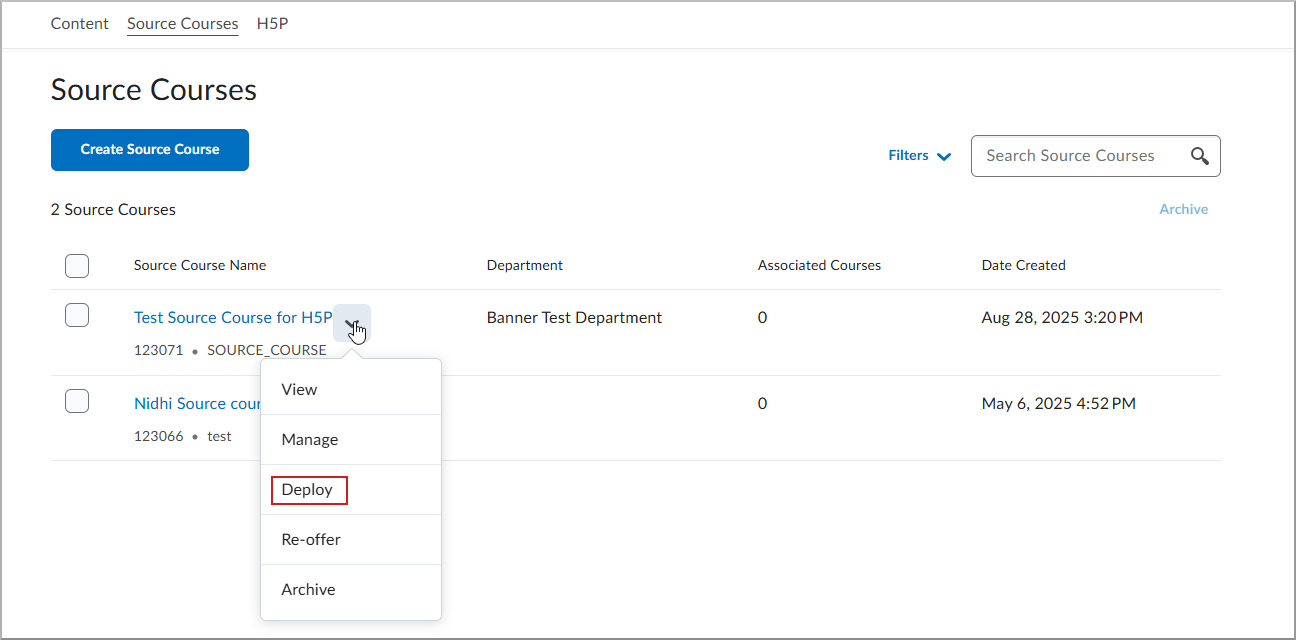
- On the Deploy Source Course screen, select the course offerings with the Inactive status that you want to deploy to.
- Click Deploy.
- In the Deploy Course confirmation dialog, click Deploy.
When deployment is complete, a notification appears in Update Alerts on the navbar.