If a learner has duplicate Brightspace accounts, you can merge two user accounts so their earned awards are consolidated into a single profile. When you merge accounts, Brightspace transfers all earned awards from the source user to the destination user. The destination user keeps their existing data and inherits the source user’s earned awards, helping you maintain accurate award history and certification transcripts. Only an administrator should perform this action.
What transfers when you merge users
The destination user receives the source user’s:
- Earned awards (active and expired)
- Award metadata, including:
- Awarded by
- Criteria
- Evidence
- Issued date
- Expiry date
The following awards are not transferred:
- Revoked awards
- Awards created by the source user
Additional transfer rules:
- The destination user is enrolled in course offerings that the source user was directly enrolled in.
- Cascading enrollments are not transferred.
- Class progress is not transferred.
After the merge:
- The source user is deleted.
- Data sets are updated to reflect user status, enrollments, and issued awards.
Required permissions for Merge Users
To merge users, ensure your role has the following permissions:
- Users > Can Merge Users
- Users > See the User Management tool
- Users > Search [Role]
- Users > Enrol [Role]
- Users > View Users’ email addresses
Merge two user accounts and transfer awards
Once you have the required permissions, you can merge two user accounts and transfer earned awards to a destination user.
To merge two user accounts and transfer earned awards to a destination user
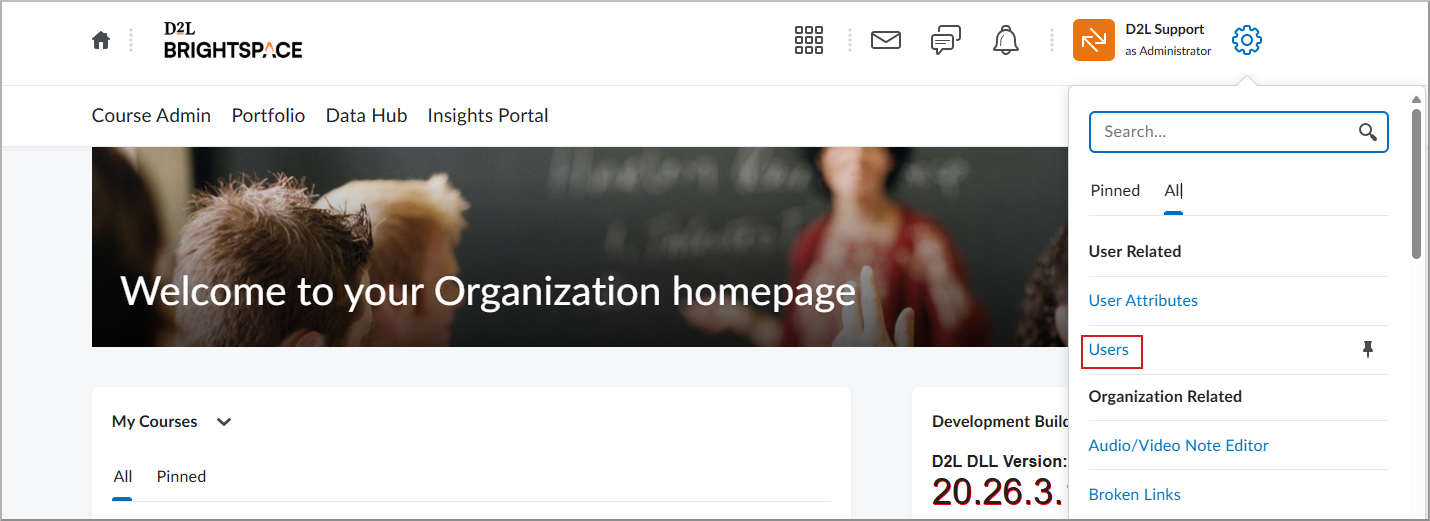
- From the Admin Tools menu, select Users.
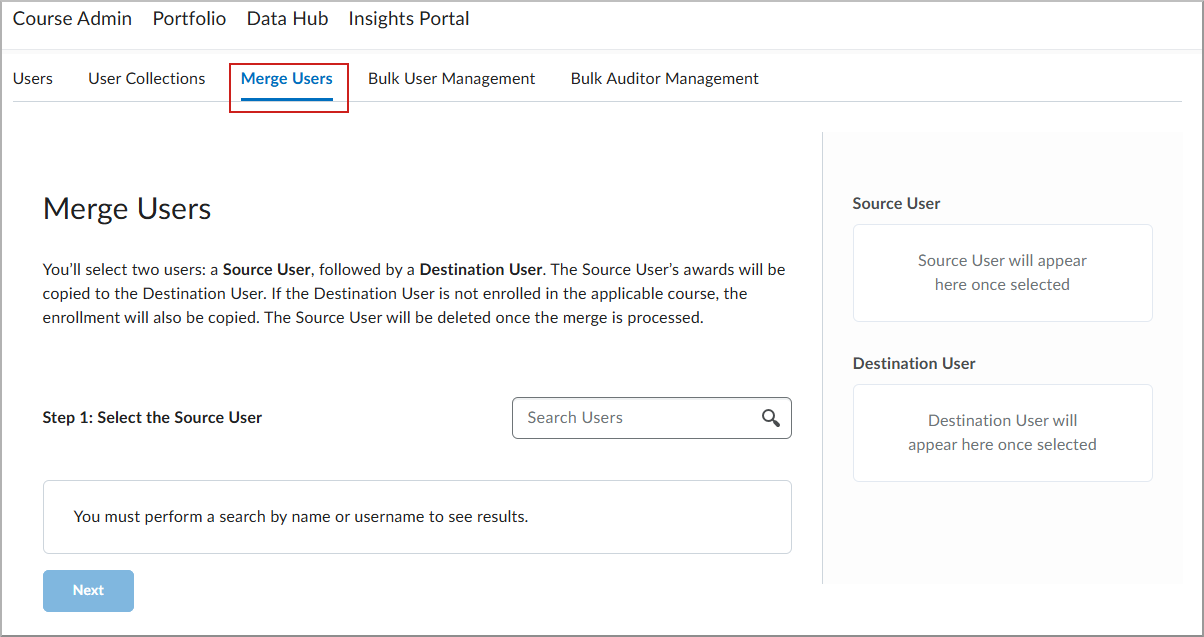
- On the User Tools page, select the Merge Users tab.
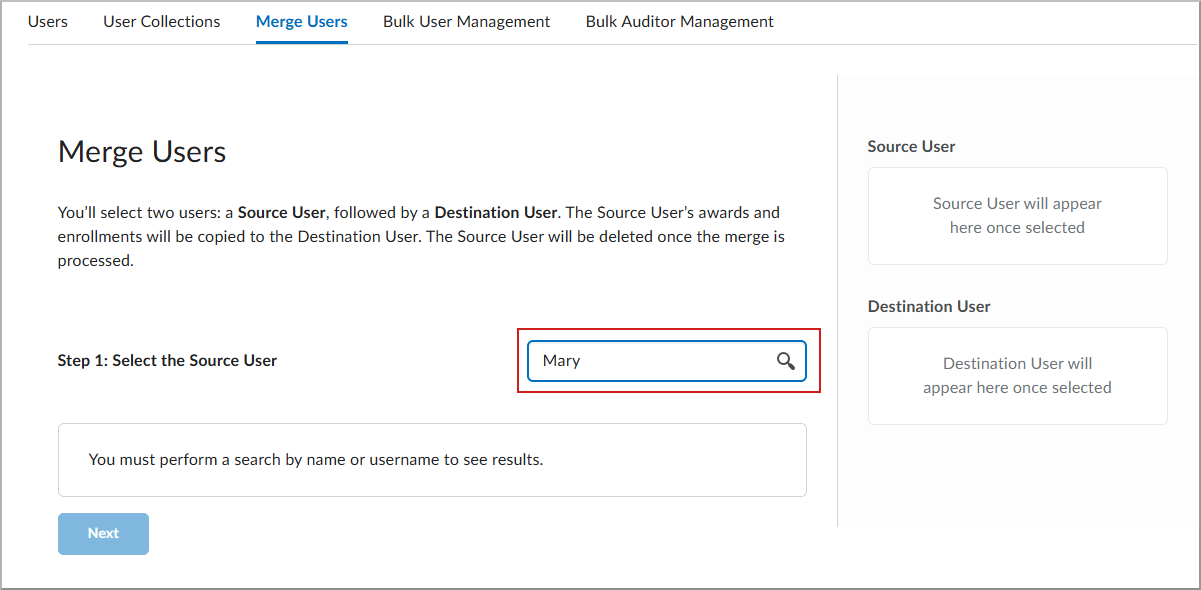
- To find the source account, enter the user’s information in Search Users, and then select the Search icon (magnifying glass).
- To set the source account, select the user from the results and confirm the Source User section updates to the selected user.
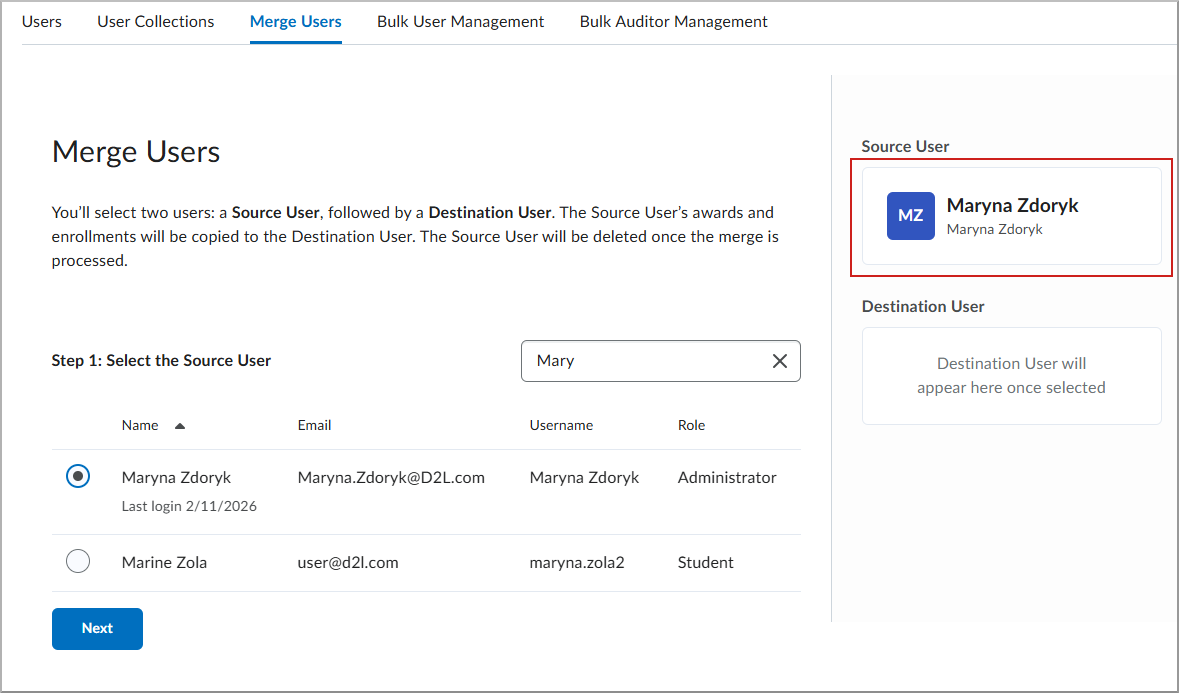
- Click Next.
- To find the destination account, enter the user’s information in Search Users, and then select the Search icon (magnifying glass).
- To set the destination account, select the user from the results and confirm the Destination User section updates to the selected user.
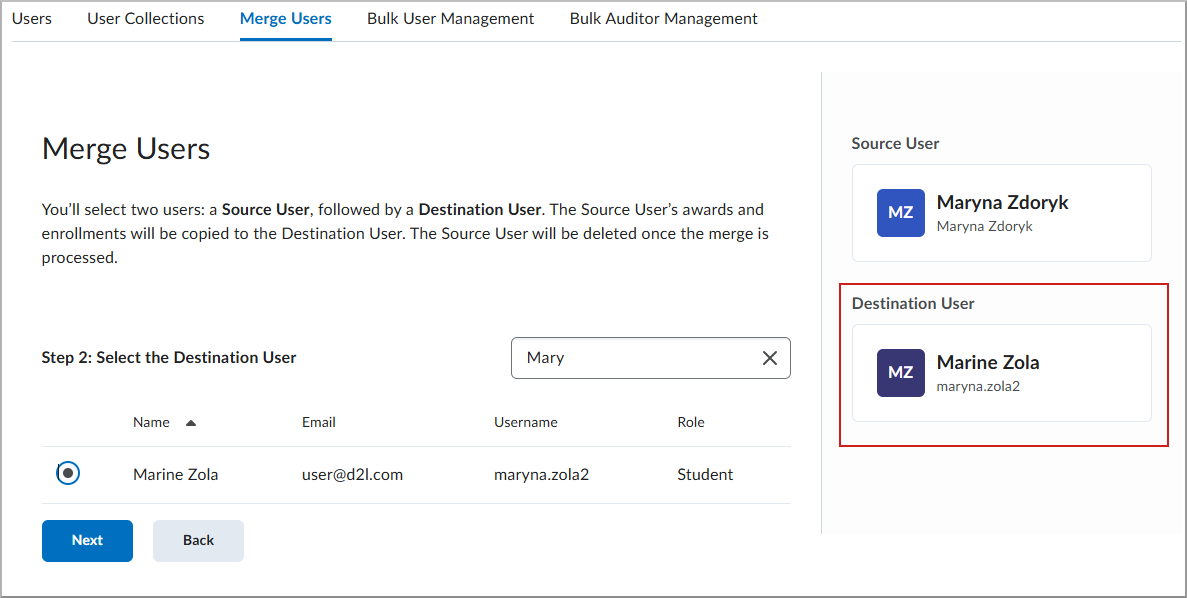
- Select Next.
- Under Step 3: Select Information to Copy, select any of the following components to transfer:
- In the Confirm Merge dialog, select Merge Users.
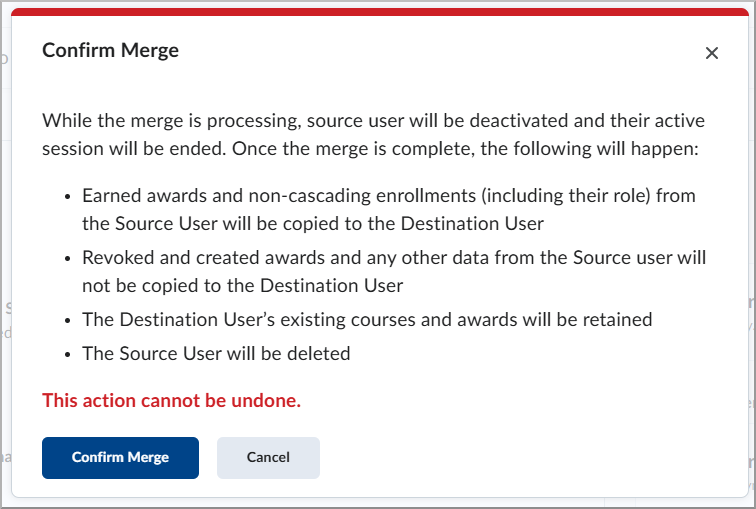
 | Important: After you complete the merge, Brightspace deletes the source user. Ensure you select the correct destination user before you confirm, because you cannot undo this action. |
After the merge completes, a notification appears in Update Alerts.