Permissions
The following permissions must be given to allow users to interact with Analytics Builder:
- Insights > See Insights Portal Tool grants access to the Insights Portal and lets users access Analytics Builder.
- Analytics Builder > Can Use Analytics Builder gives users Reader access to Analytics Builder.
- Analytics Builder > Can Manage Analytics Builder gives users Author access to Analytics Builder.
Analytics Builder automatically creates groups based on roles that have the Analytics Builder > Can Use Analytics Builder permission. For more information, refer to Share dashboards with role-based groups.
Add Readers in Analytics Builder

|
Note: Analytics Builder is only intended for non-learner personas and allows a maximum of 20,000 readers. Ensure that only users who need access have the Analytics Builder > Can Use Analytics Builder permission to keep your viewership below this limit. |
Readers must have an organization-level role with the Analytics Builder > Can Use Analytics Builder permission.
Readers can:
- Export Dashboards to CSV, Excel, or PDF.
- Create and update threshold alerts.
Readers cannot:
- Create or update dashboards, datasets, data sources, Super-Fast Parallel In-memory Calculation Engine (SPICE) datasets, email reports, or shared folders.
- Share dashboards, datasets, or analyses.
- Rename shared folders.
- Subscribe to email reports.
- View SPICE capacity.
- Add or run anomaly detection.
For details, refer to Reader Workflows in Analytics Builder.
Add Authors in Analytics Builder
Authors must have an organization-level role with both the Analytics Builder > Can Use Analytics Builder and Analytics Builder > Can Manage Analytics Builder permissions, and they must be assigned an author license by another administrator with the Can Manage Analytics Builder permission. Most organizations have two author licenses. Authors do not need to have the same organizational role as one another.
To assign author licenses:
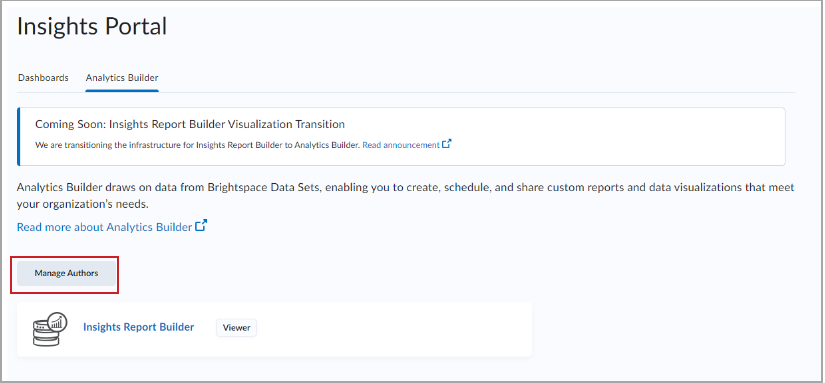
- In Insights Portal, open the Analytics Builder tab and click Manage Authors.
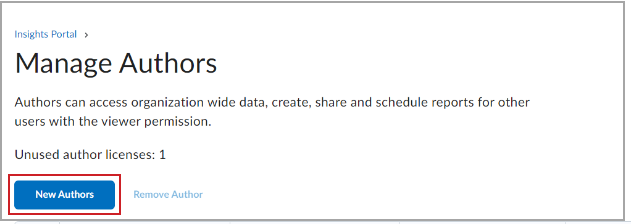
- Click New Authors.
- Search for the user and org level role you want to assign an author license to.
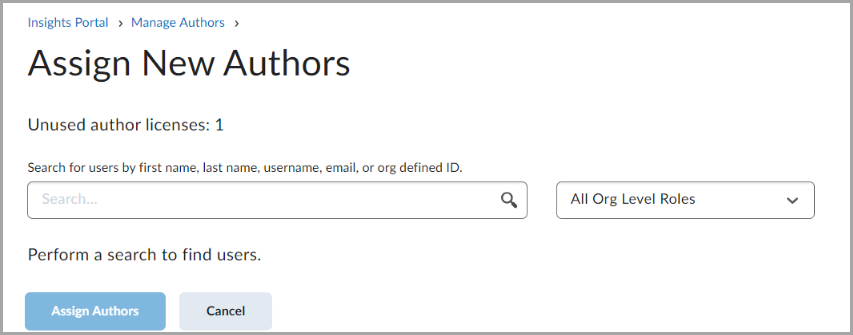
- Click Assign Authors.
Authors can:
- Export Dashboards to CSV, Excel, and PDF.
- Share analyses, dashboards, and datasets.
- Create and update all datasets.
- Create and update all Super-Fast Parallel In-memory Calculation Engine (SPICE) datasets.
- View SPICE capacity.
- Create and update email reports.
- Subscribe to email reports.
- Create or update threshold alerts.
- Upload data from external sources to create and update datasets.
Authors cannot:
- Add and run anomaly detection.
- Create and update all data sources.
- Create or rename shared folders.
For details, refer to Author Workflows in Analytics Builder.
Use the SPICE Capacity Usage dashboard
The SPICE Capacity Usage dashboard is a pre-built dashboard that displays details about your organization's SPICE allocation. It refreshes daily and includes all datasets for your organization, including those created by other authors.
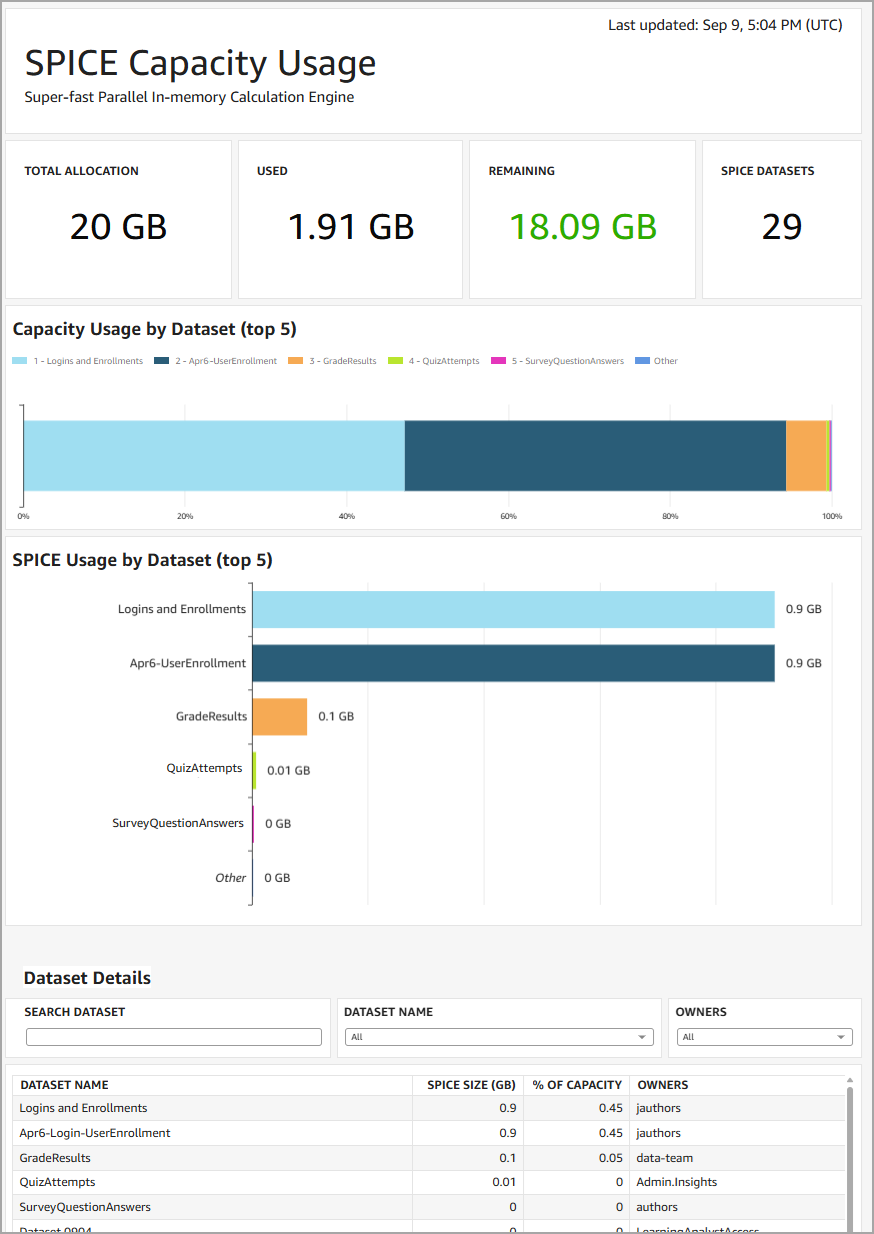
To access the dashboard:
- Navigate to the Insights Portal.
- Under the Analytics Builder tab, click Analytics Builder.
- Click the Dashboards tab.
- Search for "SPICE Capacity Usage".
You can create alerts to be notified when SPICE usage reaches certain levels.
To set automatic SPICE alerts:
- Navigate to the SPICE Capacity Usage dashboard.
- Hover over the KPI metric you want to monitor (such as Remaining).
- Click Create alert.
- Enter a condition and threshold (such as "Is below 0").
- Click Save.
To manage existing alerts, click Alerts on the dashboard toolbar.
Convert a dataset from SPICE to Direct Query
You can reduce your organization's SPICE consumption by converting an existing SPICE dataset to use Direct Query mode when the underlying data doesn't require SPICE's in-memory acceleration. Not all SPICE datasets are eligible; refer to Supported external data sources below for restrictions.
To convert a dataset from SPICE to Direct Query mode:
- Navigate to the SPICE Capacity Usage dashboard.
- Identify a dataset that is using SPICE and copy its name.
- Open the Datasets tab.
- Search for the name of the dataset, click the details icon, and click Edit.
- Do one of the following:
- If using the new data prep experience, open the SPICE dropdown in the upper right and select Direct query.
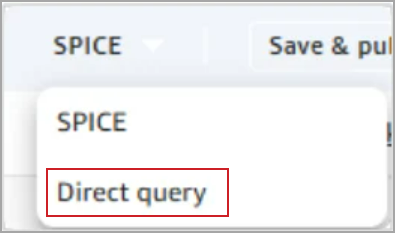
- If using the legacy experience, locate Query mode in the lower left and select the Direct query option.
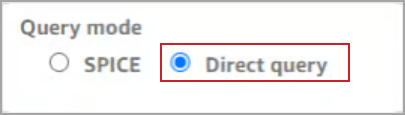
- Click Save & publish.
Tips for reducing SPICE consumption
If converting a dataset from SPICE to Direct Query is not possible, you may be able to reduce the amount of SPICE consumed by using the following optimizing techniques:
- Exclude or remove columns that are not required by analyses, dashboards, or filters.
- Apply filters to limit the rows imported in SPICE, such as date range filters.
- Remove unused calculated fields that are materialized in the dataset.
- Convert fields stored as strings into dates, integers, or decimals.
- Reduce data granularity before importing external data into Analytics Builder, such as converting transaction-level data into daily or monthly summaries.
Delete a SPICE dataset
Consider removing an existing SPICE dataset when it is no longer referenced by any active dashboard or analysis. This is often the case for datasets created for a one-time or time-boxed reporting need that has since concluded, or for datasets that duplicate data already available through another dataset.
To check if a SPICE dataset is being referenced elsewhere:
- Navigate to the SPICE Capacity Usage dashboard.
- Identify a dataset that is using SPICE and copy its name.
- Open the Datasets tab.
- Search for the name of the dataset and click on it.
- Locate the Usage information in the lower corner.
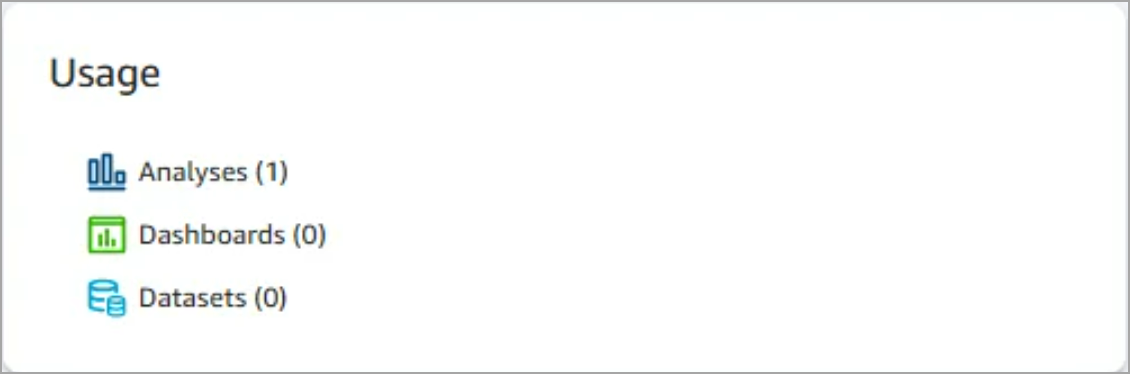
To delete a SPICE dataset:
- Navigate to the SPICE Capacity Usage dashboard.
- Identify a dataset that is using SPICE and copy its name.
- Open the Datasets tab.
- Search for the name of the dataset, click the details icon, and click Delete.
- Review the affected users and usage in the confirmation dialog.
- Click Delete.

|
Important: After converting or deleting a SPICE dashboard, changes to your SPICE usage do not immediately appear in the SPICE Capacity Usage dashboard. Allow up to a day for updated usage to be reflected.
|
Supported export formats for Analytics Builder resources
The Author and Reader roles have specific formats for assets that they can export from specific areas.
On the Analysis area:
- Author can export to PDF using File > Export to PDF
- Author can access exports using File > Exports
- Reader cannot access Analysis
On the Analytics Builder dashboard:
- Author and Reader can export to PDF using the Export button > Generate PDF
- Author and Reader can access exports using the Export button > View Exports
From the visual on the Analytics Builder dashboard:
- Author and Reader can export CSV using the Ellipsis on the visual > Export to CSV
From tables and pivot tables:
- Author and Reader can export Excel files.
Import data from external sources into Analytics Builder
If importing data from external sources is enabled for your organization, authors can upload external data to Analytics Builder to create fully customized datasets for your organization.
Analytics Builder supports the following file formats for uploads:
- CSV
- TSV
- ELF
- CLF
- JSON
- XLSX
External data sources require a public IP address to connect to Analytics Builder. Connections to private resources within a Virtual Private Cloud (VPC) are not supported.
|
Important: To enable external data capabilities, your organization must have signed a contract addendum. This feature is not included in the standard Performance+ package.
|
In Analytics Builder, you cannot create custom SQL queries that use two different data sources. However, you can import datasets from two sources and join them to create a custom dataset that integrates the information.
When creating or editing a dataset, you can choose between SPICE or Direct Query, depending on the data source. However, note that SPICE usage is limited based on your Performance+ contract for all datasets in Analytics Builder (BDS and external data combined).
The following table lists the available data sources you can upload to Analytics Builder to create and customize reports and dashboards:
| Data source type |
Direct Query |
SPICE |
| File upload |
Not supported |
Supported |
| MySQL |
Supported |
Supported |
| PostgreSQL |
Supported |
Supported |
| ORACLE |
Supported |
Supported |
| SQL Server |
Supported |
Supported |
| Aurora |
Supported |
Supported |
| MariaDB |
Supported |
Supported |
| Presto |
Supported |
Supported |
| Spark |
Supported |
Supported |
| Teradata |
Supported |
Supported |
| Snowflake |
Supported |
Supported |
| Timestream |
Supported |
Supported |
| Exasol |
Supported |
Supported |
| Databricks |
Supported |
Supported |
| Trino |
Supported |
Supported |
| Starburst |
Supported |
Supported |
Unsupported data sources
The following external data sources are not supported in Analytics Builder:
- S3
- S3 Analytics
- Athena
- RDS
- Redshift
- AWS IoT Analytics
- Amazon OpenSearch Service
Create a new dataset using external data sources
Once enabled for your organization, you can access your external data sources from Analytics Builder to create new datasets and edit existing datasets.
To create a new dataset with external data sources:
- Navigate to the Insights Portal.
- Under the Analytics Builder tab, click Analytics Builder.
- Click the Datasets tab > New Dataset.
- Select the external data source you want to use.
- Prepare the data for use.
To add external data sources to existing datasets:
- Navigate to the Insights Portal.
- Under the Analytics Builder tab, click Analytics Builder.
- Click the Datasets tab. Edit an existing dataset and select Add data.
- Select Data Source or Upload a file.
- Select the external data source you want to use.
- Prepare the data for use.
|
Note: Consider the following best practices before uploading any external data into Analytics Builder:
- Ensure that authors have the appropriate authority and user consent to share all data, including personal data or confidential information, with D2L.
- Confirm that the data sharing complies with your organization’s data sharing and protection policies, and the applicable laws and regulations that apply to all users in your organization.
|