You can create a blank source course or create one by copying an existing course directly within the Source Courses library. Source courses act as master copies that you can deploy to multiple course offerings. You can synchronize updates and track deployments from the Associated Course Offerings list.

|
Important: A source course must always have a course template attached to it as a direct parent. If a source course is not a child of a course template, the Re-offer functionality will not work. |
Create a source course
You can create a blank source course or start from an existing course to copy its structure and settings.
- From the navbar, click Libraries and select Source Courses.
- From the dashboard, click Source Courses in the Libraries widget.
- Click Create Source Course.
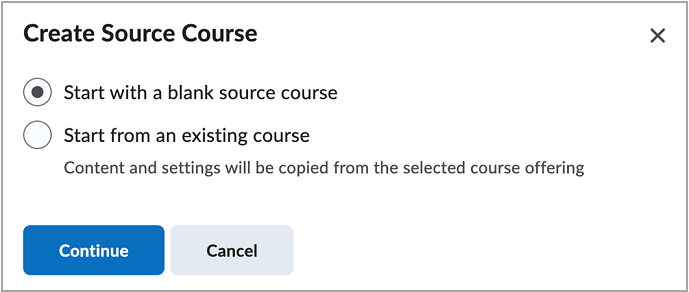
To create a blank source course:
- From the Create Source Course dialog, select Start with a blank source course and click Continue.
- Enter a Name and Code for your source course.
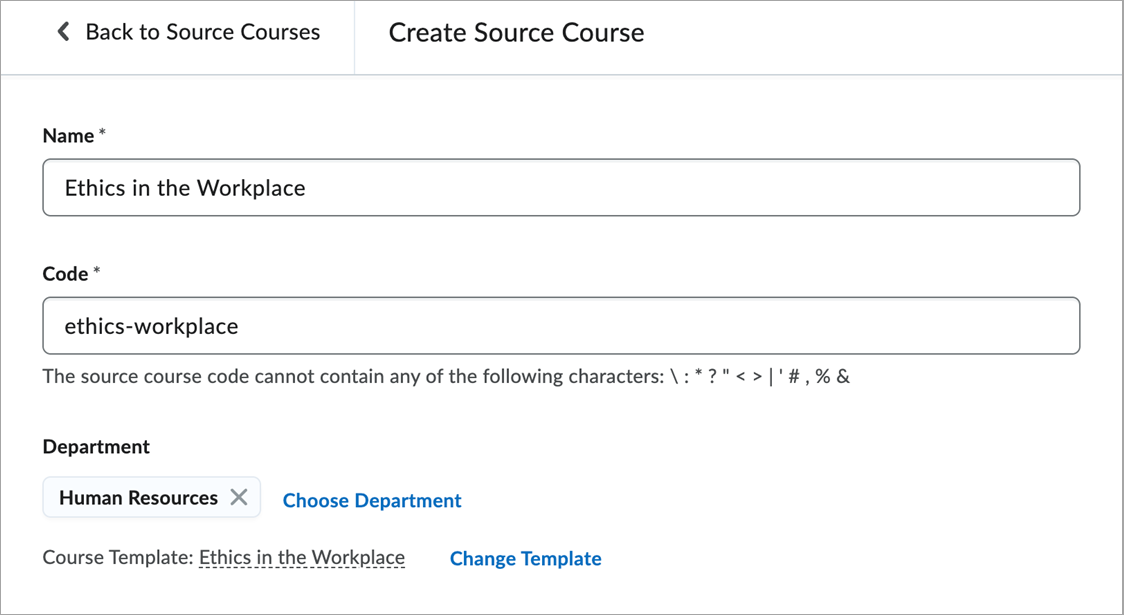
- Do one of the following:
- Click Change Template to select an existing template.
- Click Create Course Template, enter a Name and Code, and click Save.
- Optionally, select a Department.
- Click Save or Save and Manage.
To create a source course from an existing course:
- From the Create Source Course dialog, select Start from an existing course.
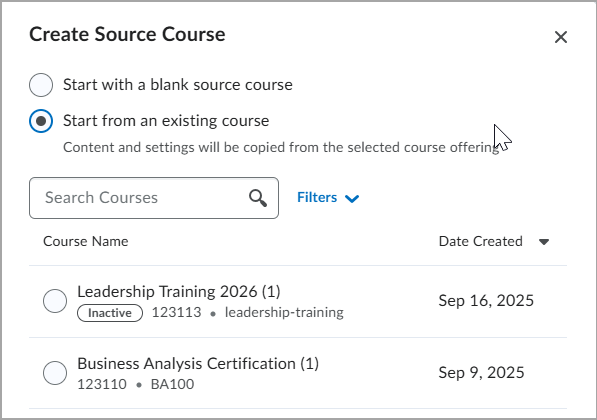
- Search for or select the existing course you want to copy.
- Click Create Source Course.
- In the Source Course Creation in Progress dialog, click Close. You can continue working while the copy process runs in the background.
Once the content and settings are copied, a notification stating Source Course [course name] creation complete appears in your Update Alerts on the navbar.
Manage source courses from Source Course Information
The Source Course Information page is available on the Course Administration page in source courses and course offerings that were re-offered from source courses.
- From the Source Courses library, click the Actions menu for the course you want to manage and select Manage.
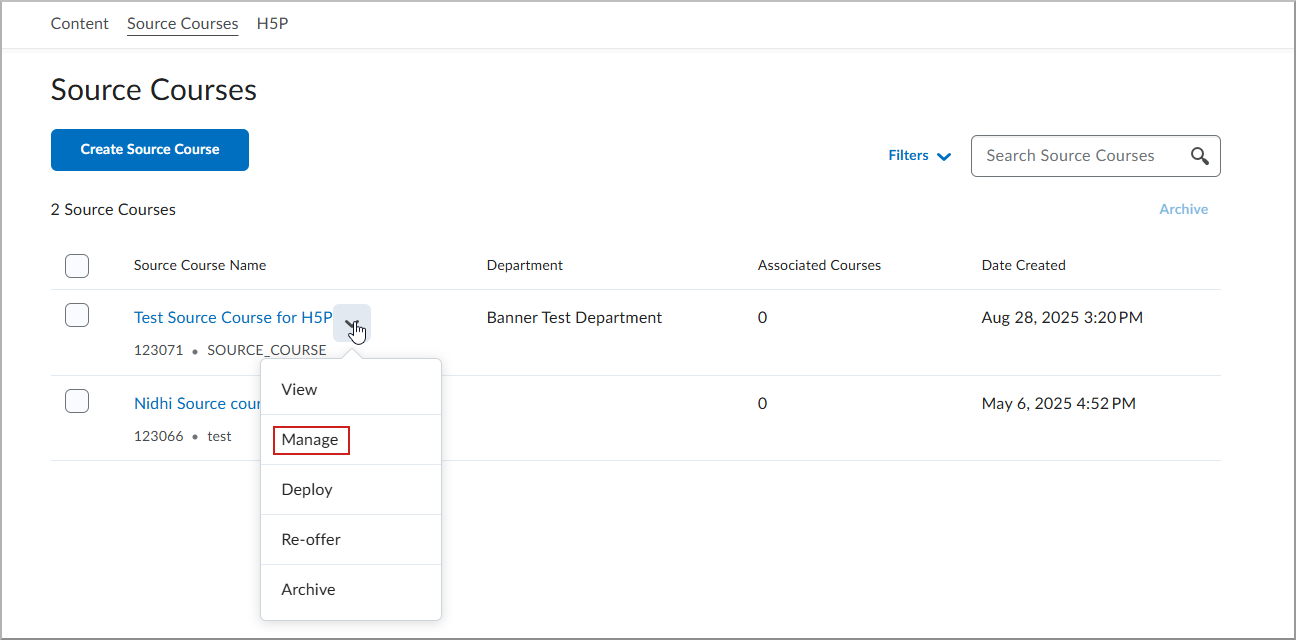
- On the Course Administration page, click Source Course Information.
- On the Source Course Information page, perform any of the following actions:
- Under Course Image, click Browse to select an image for the course. After uploading your file, click Add.
- For your Homepage Banner, select the Display the image in a banner on the course homepage check box to ensure your image appears on the course homepage.
- Enter a Name for your source course. You can also select Translate Name, which opens the Translate Name dialog where you can add the source course name in other supported languages.
- Enter a Code for your source course.
- Under Locale, select a locale for your source course. You can Force Locale for all users of the source course by selecting the Override locale preferences check box.
- Under Path, click Choose Destination to select the root folder where your course's content-related files are stored in Brightspace. After selecting the destination, click Select a Path.
- For Address Book, select the Show course address book check box if you want the address book to appear for your source course.
- In the Description field, enter a description for your source course.
- In Associated Course Offerings, view the re-offered courses for this source course. Click the name of a course offering in the list to navigate to the re-offered course's homepage.
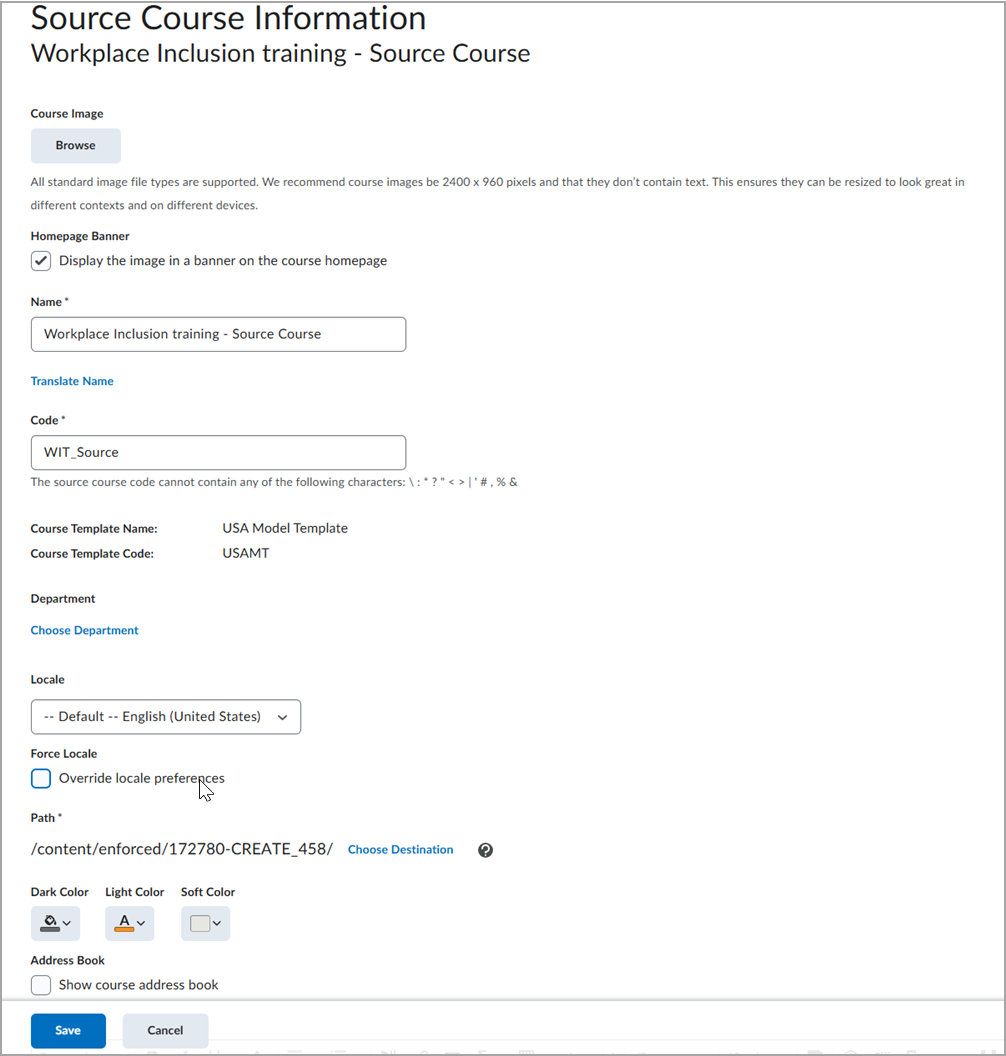
- Click Save.
Tool limitations in Source Courses
A source course serves as a content model for course offerings only. The following tools are not recommended for use in a source course because they require active learner enrollments or live course data:
- Accommodations
- Attendance
- Class Progress
- Classlist
- ePortfolio
- Seating Chart
Archive a source course
- Access the Source Courses library.
- Select the Source Courses tab and click Archive from the context menu of the source course you want to archive.
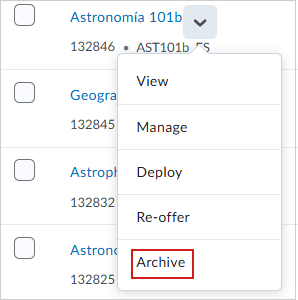
- Click Archive to confirm.

|
Note: Archiving a source course does not automatically delete the course offerings that were previously deployed from it. |
Delete a source course
- Access the Source Courses library.
- Click the Actions menu for the course and select Manage.
- On the Course Administration page, select Delete.
|
Note: If a source course has associated course offerings, you must first archive those offerings or remove the parent-child relationship before you can archive or delete the source course. Deleting a source course does not delete the course offerings previously deployed from it, but it does break the synchronization link. |