You can use the Users tool to enroll users into a specific org unit in Brightspace. When you enroll a user into an org unit, you must also choose their role within that org unit. For example, you can search for an existing user and enroll that user in an org unit such as a department or course offering as an administrator, instructor, or learner user role that you have created and configured with specific role permissions.

|
Important: You must first create a new user and create a role with specific role permissions before you can enroll a user in that role.
To enroll a user into your course offering, you must have the following permissions:
- Users > Search for '[role]' at the organization level: This allows you to search for the user's organizational-level role.
- Users > Enroll '[role]' at the course offering level: This enables you to enroll a user into the course offering with the specified role.
To change a user's role in your course offering, you need the following permissions:
- Users > Search for '[role]' at the course offering level for the user's existing role.
- Users > Enroll '[role]' at the course offering level for both the user's current role and the new role you wish to assign.
For information about org units and the different org unit types available in Brightspace, refer to About Org administration.
For information about creating a new user, refer to Create an individual user.
For information about how to create a new user role, refer to Managing roles and permissions.
|
Enroll a user with the Users tool
The Users tool enables you to individually enroll users into a course and provide each user with specific role permissions in that course.
To enroll a user into a specific org unit
- From the Admin Tools menu, click Users.
- Search for a specific user, or click Search to display all users.
- Click a user.
- From the Edit User page, click the Enrollments tab.
- In the Search For field, type the course you want to enroll the user in or click
 Search to see all the possible org units.
- To change the user's role in the org unit, click the Select a new role icon beside the org unit you want to enroll the user in.
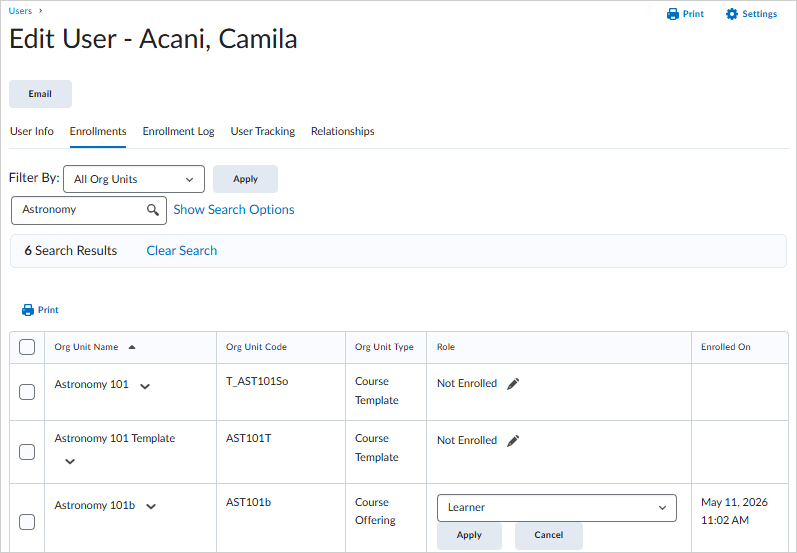
- Select the user's role from the drop-down list and click Apply.
The specific user is enrolled in that org unit as the selected role.
