The Question Library is a central repository where you can create, store, and reuse questions within your course. You can organize questions into sections by type or topic, making it easier to locate and reuse them in quizzes, surveys, and self-assessments.
With the Question Library, you can:
- Create and organize questions in one central location
- Reuse questions across quizzes, surveys, and self-assessments
- Import questions from other Brightspace tools or external files
- Manage question settings such as points and difficulty
You can use the Question Library to maintain a consistent set of questions and reduce the time required to build assessments across course offerings.

|
Tip: Create and manage your questions in the Question Library to keep them organized and easy to reuse across quizzes, surveys, and self-assessments. You can also import questions created in other tools back into the Question Library to keep everything in one place. |
Common tasks
Get started with these tasks:
Requirements
To access the Question Library tool, you need the following permissions:
If you do not have access, contact your organization administrator.
Visual tour of the Question Library
Access the Question Library from the following tools:
- Navigate to Quizzes, Surveys, or Self Assessments.
- From the tool navigation, click Question Library.
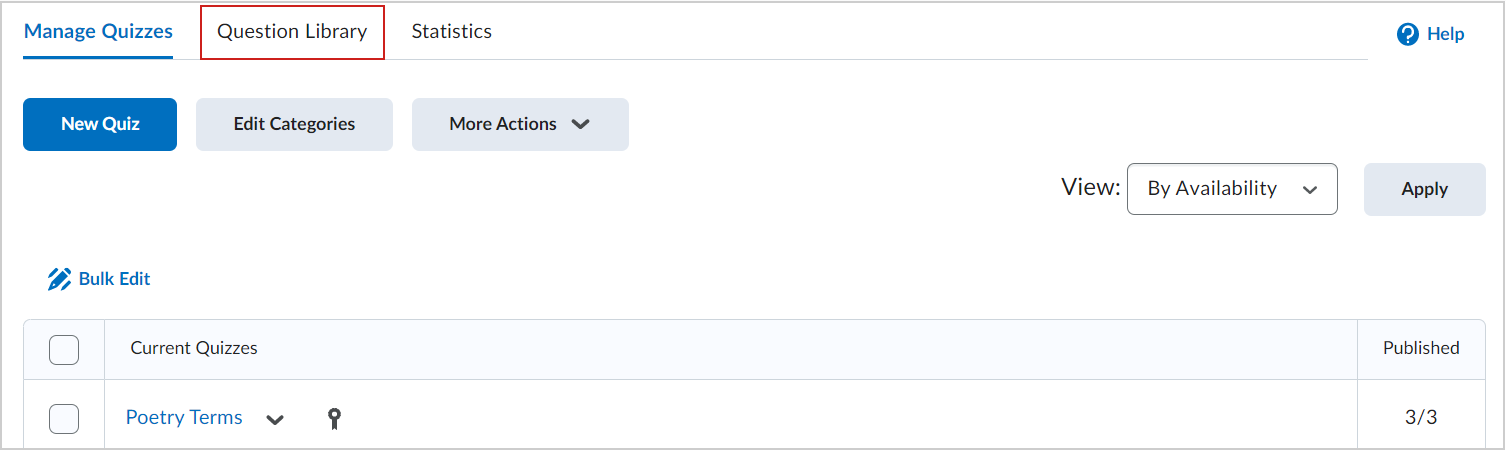
The following image highlights the main areas of the Question Library.
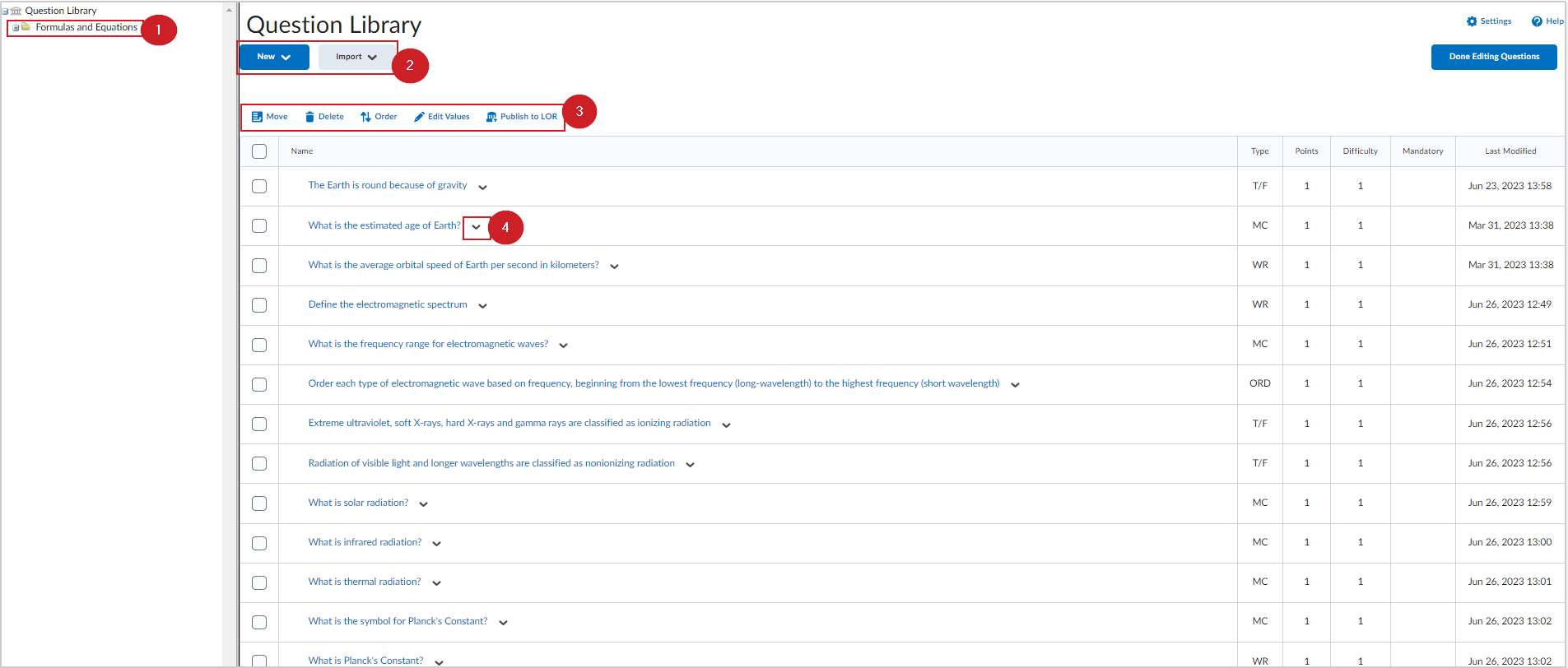
- Preview all the sections within your Question Library.
- Sections act like folders where individual questions can be grouped together.
- Sections can contain other sections and individual questions. Clicking on the drop-down menu provides instructors with the ability to edit settings for the chosen section.
- Click New to create a new section within the Question Library or an existing source in Brightspace, like Quizzes, Surveys, or Self-Assessments. Click Import to add questions to the Question Library from either an external file or an existing quiz, survey, or self-assessment in Brightspace.
- The Question Library admin bar provides instructors with several options:
- Move: move questions into sections or sections into other sections.
- Delete: delete questions or sections from the Question Library.
- Order: rearrange questions or sections within the Question Library.
- Edit Values: edit the number of points, the level of difficulty, or change the mandatory status of individual quiz questions.
Instructors can click on the drop-down menu of individual questions to edit and preview the item selected or to view the attempts made to the chosen question.
Video: Overview of the Question Library
The following video provides an overview of the Question Library.