Use the Enter Grades page to view learner grades, enter or update scores, evaluate submissions, and review progress across your course. You can grade an individual learner, update one grade item for multiple learners, or use Spreadsheet View to enter many numeric grades at once.
Choose how to enter grades
| If you want to... |
Use... |
|---|
| Review or update all grades for one learner. |
The learner's name on the Enter Grades page. |
| Enter or update grades for one grade item or category. |
The grade item or category Actions menu. |
| Evaluate an assignment, discussion, or quiz submission. |
The activity icon beside the learner's grade. |
| Enter many numeric grades in a grid. |
Switch to Spreadsheet View. |
Open the Enter Grades page
- From your course navbar, click Grades.
- Click the Enter Grades tab.

Enter Grades page overview
The Enter Grades page provides an overall view of learners, grade categories, grade items, and final grades.
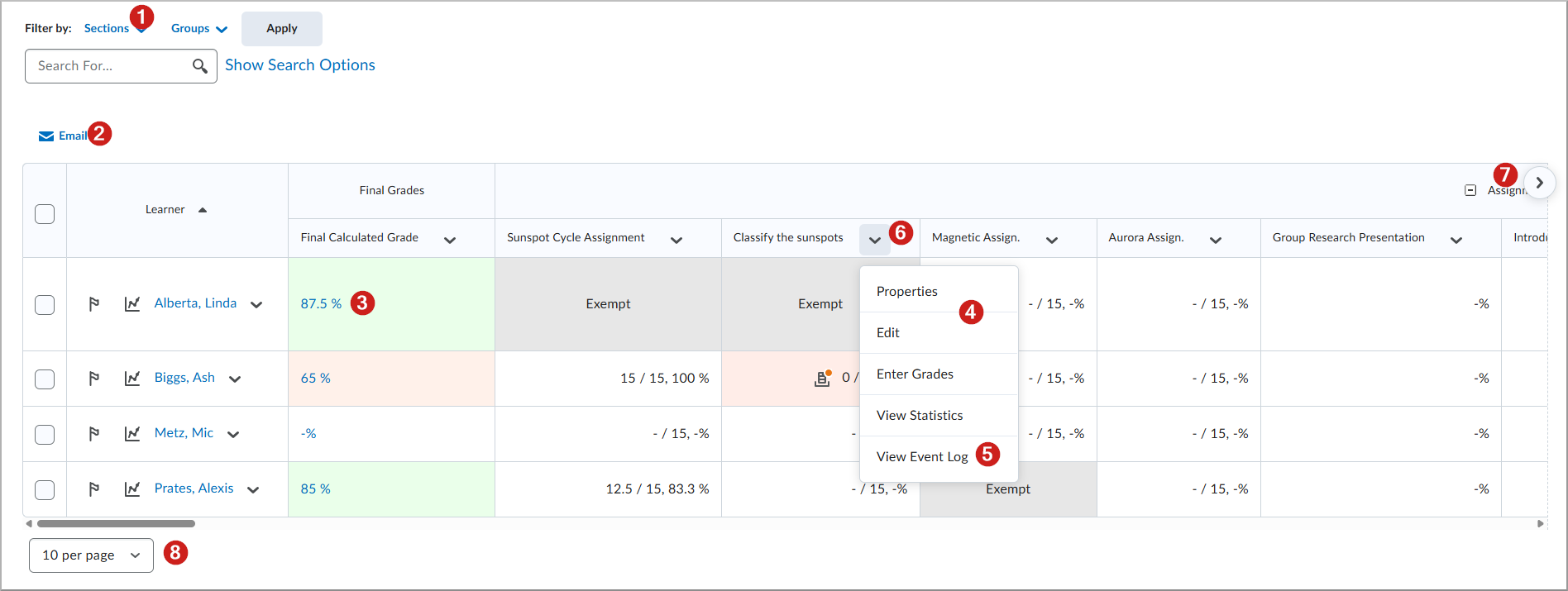
- Filter learners by Sections or Groups.
- Select learners to send a bulk email.
- Open learner submissions for evaluation.
- Review and update grade items across the course.
- Open the Event Log to review grade history.
- Use a column Actions menu to open available grade item commands. Select a column heading to sort when sorting is available.
- Use the horizontal navigation controls and scroll bar to view additional grade items.
- Change Results per page to display more learners when additional values are available.

|
Tips:
- Use the navigation arrows and the scroll bar at the bottom of the grade grid to move across grade columns.
- To show more learners on each page, change Results per page. Depending on your organization's configuration, available options can include 20, 50, 100, or 200 learners per page.
- If a weighted grade book does not total 100%, review the top-level category and grade item weights on the Manage Grades page. For more information, refer to Manage Grades in the Grades tool.
|
Enter grades for an individual learner
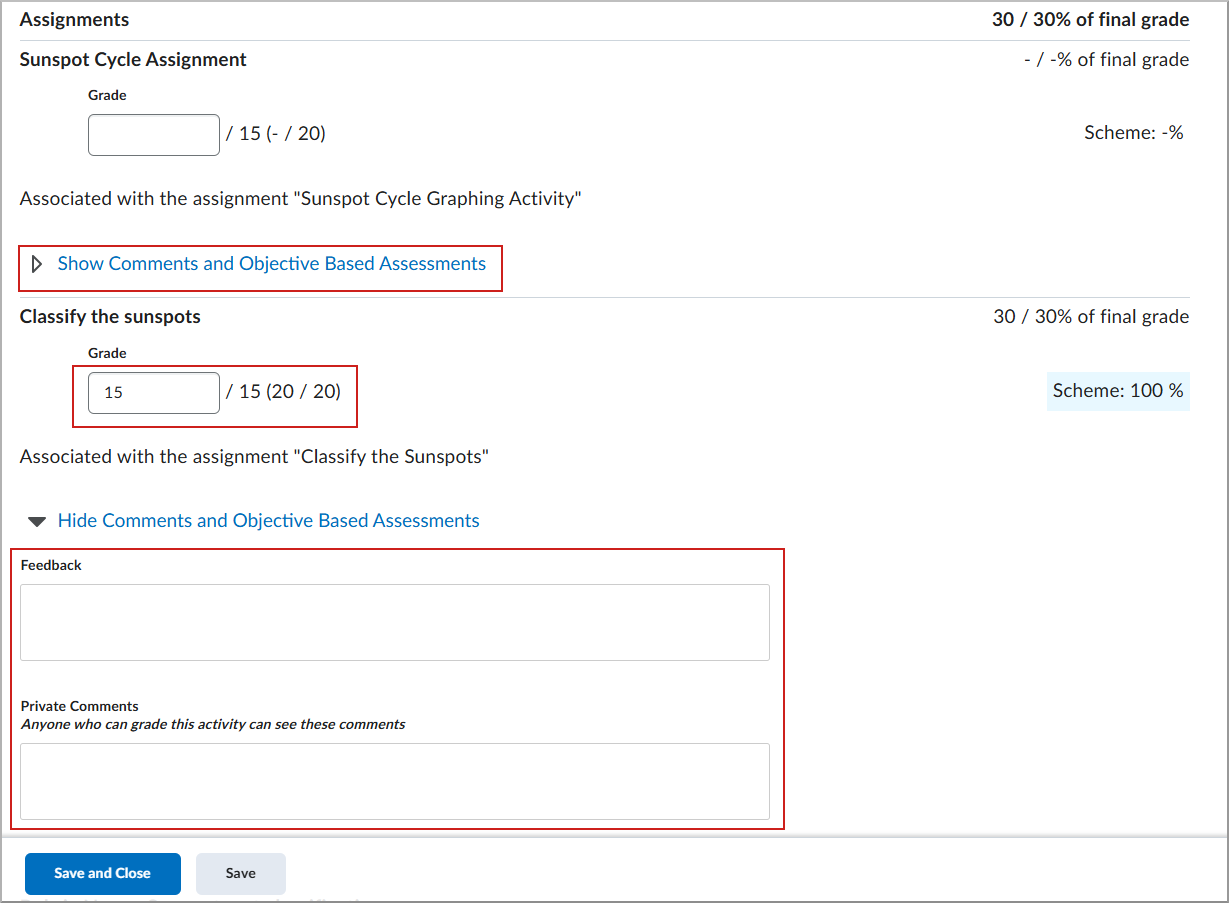
Open a learner’s grade summary to review or update multiple grades and provide feedback.
- From your course navbar, click Grades.
- Click the Enter Grades tab.
- Click the learner’s name.
- On the User Details page, enter or update scores in the Grade fields.
- To add feedback or private comments, click Show Comments and Objective-Based Assessments or Show Comments depending on your implementation.
- Enter learner-facing feedback in the Feedback field.
- To share comments with others who can grade the activity, enter them in the Private Comments field.
- Click Save and Close.
Enter grades for a grade item or category
Use this workflow when you want to enter or update grades for multiple learners on one grade item or category.
- From your course navbar, click Grades.
- Click the Enter Grades tab.
- Open the Actions menu for the grade item or category.
- Click Enter Grades.
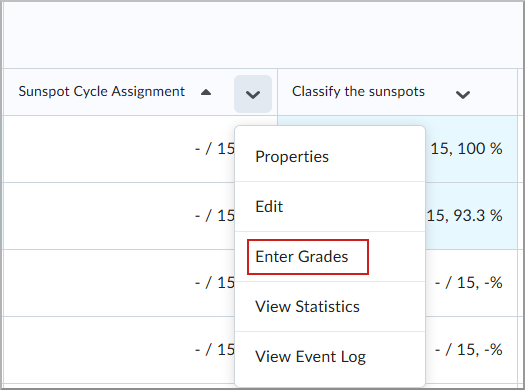
- Enter or update the grades.
- Click Save and Close.

|
Note: For a group assignment, Brightspace applies the shared group grade to all group members. You can override the shared grade for an individual group member by assigning that learner a different score. |
Evaluate learner submissions from Grades
You can open associated Assignments, Discussions, and Quizzes submissions directly from the Enter Grades page. You can also use Quick Eval to review submissions from across your courses.
- From your course navbar, click Grades.
- Click the Enter Grades tab.
- Locate the learner and grade item you want to evaluate.
- Click the associated activity icon beside the learner's grade to open the submission or assessment.

|
Note:
- Each activity type has its own icon.
- A new submission indicator (orange dot) means the activity requires attention. For details, refer to Gradebook icons and notifications.
- Quick Eval does not display activities or submissions for a user who is explicitly enrolled in more than 1,000 courses.
|
Enter grades in Spreadsheet View
Use Spreadsheet View to enter or overwrite numeric grades directly in the grade grid.
- From your course navbar, click Grades.
- Click the Enter Grades tab.
- Click Switch to Spreadsheet View.

- Locate the learner and grade item you want to update.
- Enter the new grade value.

- Click Save.
- To return to the standard grade grid, click Switch to Standard View.

The grades are updated in the grade book.
Clear grades
Use Clear Grades to remove a recorded grade from one or more learners.

|
Important: You cannot undo the Clear Grades action. To restore a cleared grade, you must enter the grade again. |
- From your course navbar, click Grades.
- Click the Enter Grades tab.
- Open the Actions menu for the grade item and select Enter Grades.

- Select the check box beside each learner whose grade you want to remove.

- Click Clear Grades.
- In the confirmation dialog, click Yes.
Videos: Enter grades
Watch the following videos for an overview of entering grades and grading in Brightspace.