Use assignments to provide efficient, timely, and meaningful grading and feedback. Create and edit assignments, review submission details, evaluate submissions, associate assignments with rubrics and competencies, and return submissions with grades and feedback. On paper and observed in person assignment formats are also available.
The Create and Edit Assignments page has a fully immersive layout consistent with other areas of Brightspace, including Discussions, Quizzes, and Content, where you can upload and create a new assignment.
Refer to Configure Advanced Assessments for Assignments for detailed steps on configuring Advanced Assessments workflows for individual and group assignments.
To help you find the information you need quickly, use the links below to navigate directly to each step or topic:
Create a new assignment in the Classic Content Experience
You can create a new assignment from Content in the Classic Content Experience.
Watch this video to learn how to create a new assignment from Content in the Classic Content Experience. Review the written steps below.
To create an assignment in the Classic Content Experience
- In Content, select the module where you want to create an assignment.
- Click Upload/Create.
- Click New Assignment.
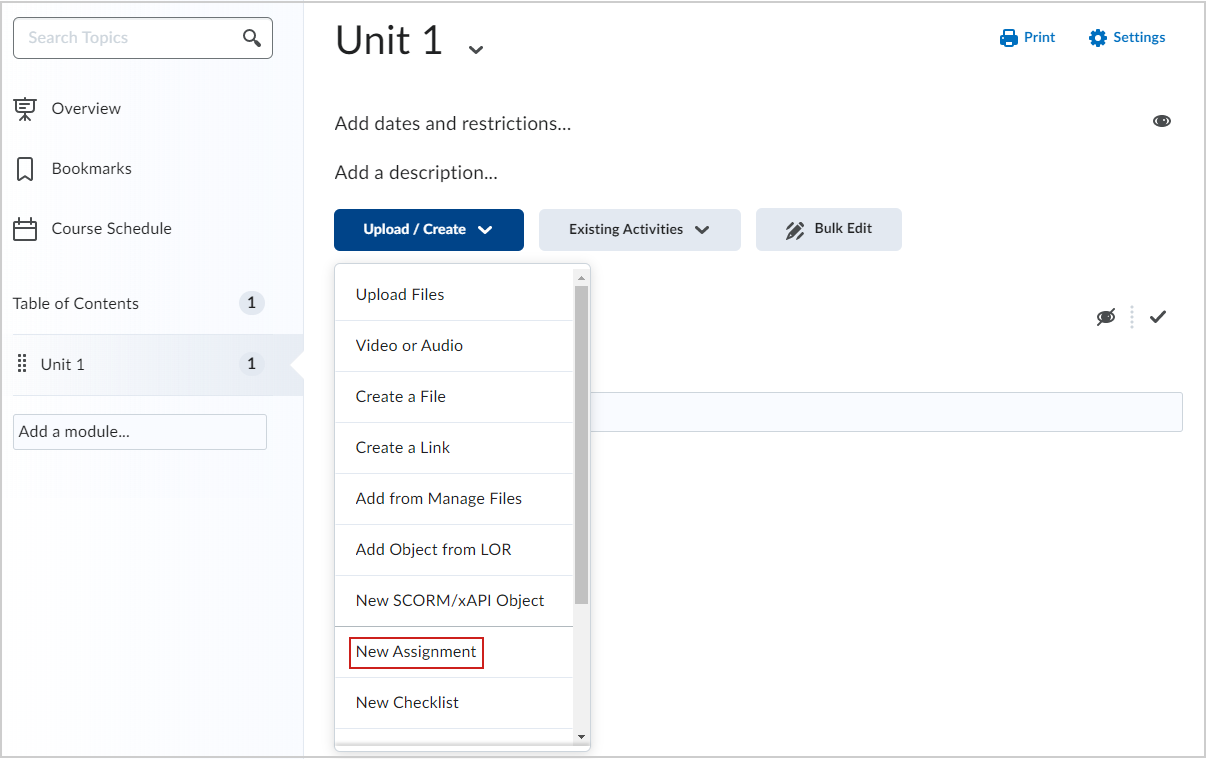
Create a new assignment in the Content Experience
You can also create a new assignment from Content in the Content Experience.
Watch this video to learn how to create a new assignment from Content. Review the written steps below.
To create an assignment from the Content Experience
- From your course homepage, navigate to Content.
- In your desired module, click Create New.
- On the What would you like to create? page, click Assignment.
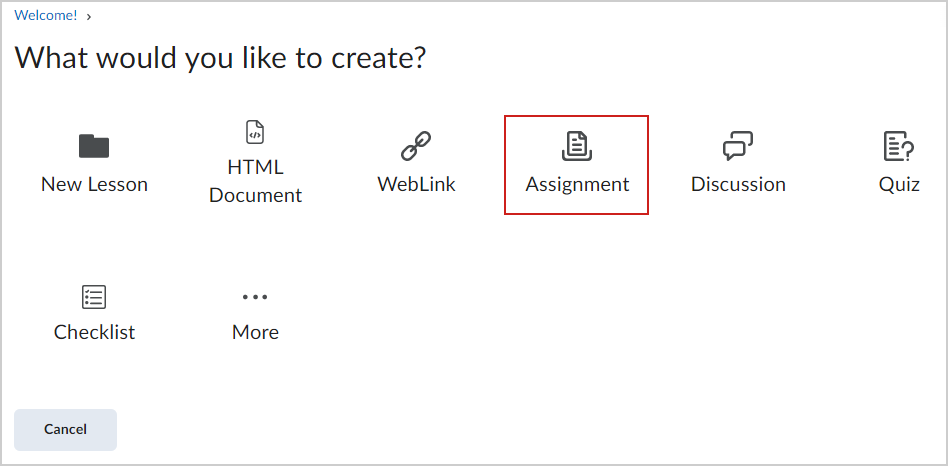
You can also create an assignment directly from the Assignments tool.
To create an assignment from the Assignments tool
- Navigate to Assignments.
- Click New Assignment.
Add an assignment title, grade out of, due date, and instructions
When creating a new assignment, enter basic details such as name, grading information, due date, and instructions.

|
Tip: You can set assignment availability dates without setting a due date. Conversely, you can set a due date without setting availability dates. |
To fill in assignment details
- From the New Assignment page, enter an Assignment Title.
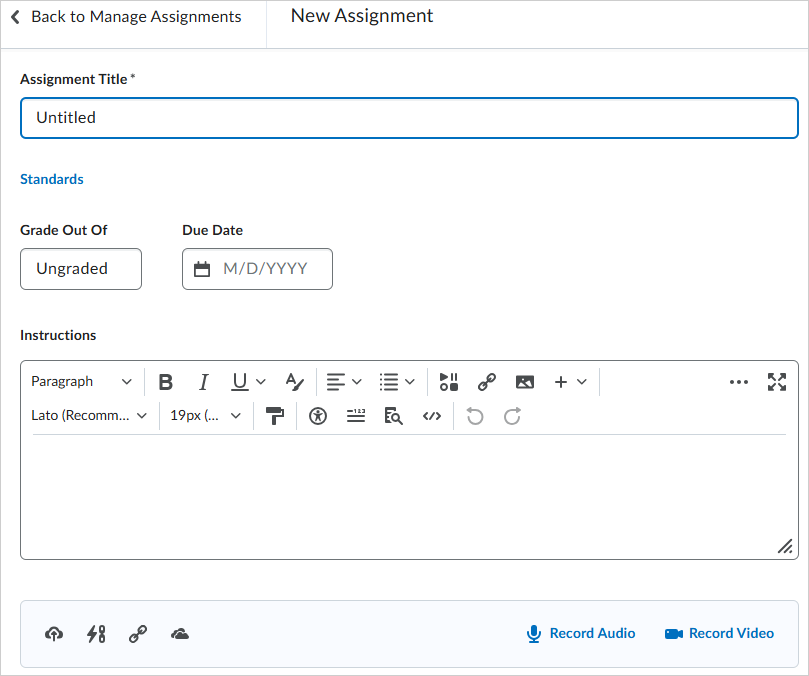
- For Grade Out Of, enter the number of points.
- Select whether the assignment will appear in the Grade Book by clicking the drop-down menu.
- Edit or Link to Existing: Create and link to a new grade item or link to an existing grade item.
- Not in Grade Book: Do not associate the assignment with a grade item.
- Reset to Ungraded: Do not assign points to the assignment.
- Enter the Due Date.
- Enter Instructions for the assignment.
- If you do not wish to configure your assignment further, toggle the assignment to Visible and click Save and Close.
The new assignment is created and available to learners.
Set start, end, and availability dates
You can further customize your assignment by setting availability dates.
To set a start date and end date
- From the New Assignment page, expand Availability Dates & Conditions.
- Set a Start Date and an End Date.
- Select an availability option:
- Visible with access restricted: The assignment appears before or after the date but cannot be opened.
- Visible with submission restricted: The assignment appears and can be opened, but submissions are not allowed.
- Hidden: The assignment does not appear until the start date.
- Select Add availability dates to Calendar if desired.
The assignment is updated with the specified dates.
Create a release condition for your assignment
You can add release conditions that must be met before an assignment becomes visible.
To create a new release condition
- Expand Availability Dates & Conditions.
- Under Release Conditions, click Add Release Condition and select Create New.
- Select a Condition Type.
- Select the Assignment Submission Folder.
- Click Create.
- Click Save and Close.
Manage special access for your assignment
Use Manage Special Access to set different availability dates for specific users.
To make your assignment available to select users
- Expand Availability Dates & Conditions.
- Click Manage Special Access.
- Select an access option.
- Click Add Users to Special Access.
- Configure due and availability dates.
- Click Save, then Save and Close.
You can choose submission type, file restrictions, and notification options.
To configure submission settings
- Expand Submission & Completion.
- Select a Submission Type.
- Configure file limits and extensions if applicable.
- Select a Submissions option.
- Enter a Notification Email if desired.
- Click Save and Close.
Add a rubric to an assignment
You can associate rubrics with an assignment.
To add a rubric
- On the Assignments page, click Edit Assignment.
- Expand Evaluation & Feedback.
- Click Add Rubric > Add Existing.
- Select a rubric and click Add Selected.
Add external learning tools to an assignment
If enabled, you can add external learning tools that process submissions and generate reports.
To add an external learning tool
- Navigate to Assignments.
- Edit or create an assignment.
- Expand Evaluation & Feedback.
- Click Add External Tool.
- Configure tool settings.
After adding a tool, a card appears in the External Learning Tools section displaying the tool and its configuration options.
Submit a preview assignment
You can submit a preview assignment to test the evaluation workflow.
To preview an assignment submission
- Navigate to Assignments.
- Click More Actions > Preview.
- Select an assignment.
- Select Allow this preview submission to be available in the folder.
- Click Add a File and upload a test submission.
- Click Submit.
- Click Exit Preview.
You now have access to the evaluation workflow for your preview submission.