Before you create grade categories and grade items, choose the grading system that best matches your course design. Your grading system determines how Brightspace calculates final grades throughout your course and affects how grade items contribute to those calculations.
If you're unsure which grading system to use, refer to Grading system types.
Before you begin
Before configuring your grade book, consider the following:
- Review your course syllabus to determine whether final grades are based on percentages or total points.
- Decide whether you will use a Calculated Final Grade or an Adjusted Final Grade.
- Determine which grading scheme learners will see, such as percentages, letter grades, or pass / fail.
- Decide how you want to organize assessments into grade categories.

|
Important: Changing your grading system after learners have been graded recalculates final grades using the new grading system. Although learner scores are retained, how those scores contribute to the final grade changes. If you must change your grading system after grading has begun, review your grade book carefully before releasing final grades.
|
Choose your grading system
- From your course navbar, select Grades.
- Click Settings.

- Select the Calculation Options tab.
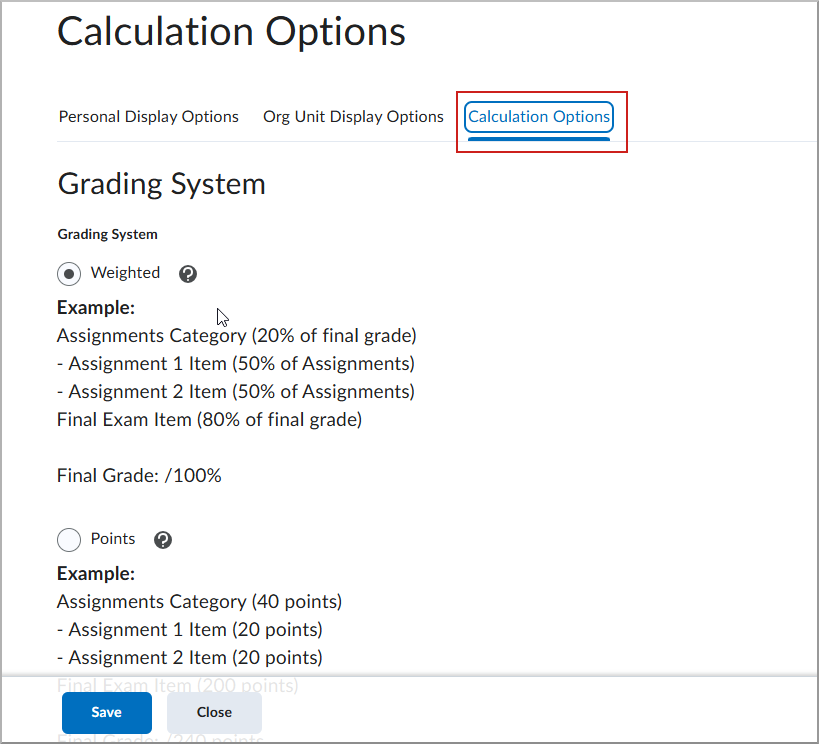
- Select your preferred grading system.
- Click Save.

|
Tip: If you're creating a new course, use the Setup Wizard. It guides you through the recommended grade book configuration process, including selecting a grading system, configuring calculation options, choosing a grade scheme, and reviewing display settings.
|
Next steps
After selecting your grading system, continue setting up your grade book.
- Create grade categories and grade items to organize assessments and build your grade structure.
- Create grading schemes to display grades as letter grades, achievement levels, pass/fail results, or other custom grade values.
- Configure grade settings to review grade calculations, display options, and final grade settings.
- Review your grade book using the Setup Wizard before learners begin submitting work.