Automatic zero grading helps keep grades current when required work is not submitted. When the feature is enabled, Brightspace automatically assigns a score of zero (0) to supported activities after the due date passes. This gives instructors a clearer view of missing submissions and gives learners a more accurate view of their current grade.
Automatic zero grading does two things:
- Assigns a zero to supported activities that are not submitted before the due date.
- Marks the zero as system-assigned, so instructors can distinguish it from a manually entered zero. In Grade History, these changes are attributed to D2L Support or System (User ID 169).
Decide when to use automatic zero grading
Use automatic zero grading when missed work should count against the grade. This is usually appropriate for required activities where no submission or completion should result in a zero.
Common examples include:
- Required assignments that are not submitted or evaluated by the due date.
- Asynchronous quizzes that are started but not submitted on time.
- Learning Tools Interoperability (LTI) activities that are incomplete or have not sent a score by the due date.

|
Tip: Use automatic zero grading for missing required work. Use an exemption when the activity should not apply to the learner. |
How automatic zero grading works
When automatic zero grading is enabled, Brightspace checks supported activities with due dates. If the due date or special access due date passes and no qualifying submission, completion, or score is present, Brightspace assigns a zero within approximately 15 minutes after the due date passes.

|
Important: Automatic zero grading only applies to supported activities with future due dates at the time the setting is enabled. It does not apply retroactively to activities whose due dates have already passed. |
Supported activities
Automatic zero grading runs for the following activities if they have a grade association and a future due date:
Supported activities for automatic zero grading
| Supported activity type |
Automatic zero is assigned when |
|---|
| Assignments (File, Text) |
The activity due date or special access due date is missed without a submission or evaluation. |
| Learning Tools Interoperability (LTI) activity |
The LTI completion status is not complete or a score has not been received by the due date. |
| Asynchronous quiz |
A user has not submitted any attempts, or a quiz is in progress but not submitted before the due date. |
Unsupported activities
Automatic zero grading is not triggered by the following activity types:
- Discussions: Topics do not currently support the submission event required to trigger the zero.
- Synchronous quizzes: These do not have due dates.
- Checklists and Surveys: These do not have grade associations.
- SCORM objects: These use a separate AlwaysSubmitZeroGrade configuration.
- Self-Assessments: These are not graded activities.
- On-paper and observed in-person assignments: These assignments can have due dates, but Brightspace cannot determine when work is completed, so automatic zero grading is not supported.
View automatic zero grades
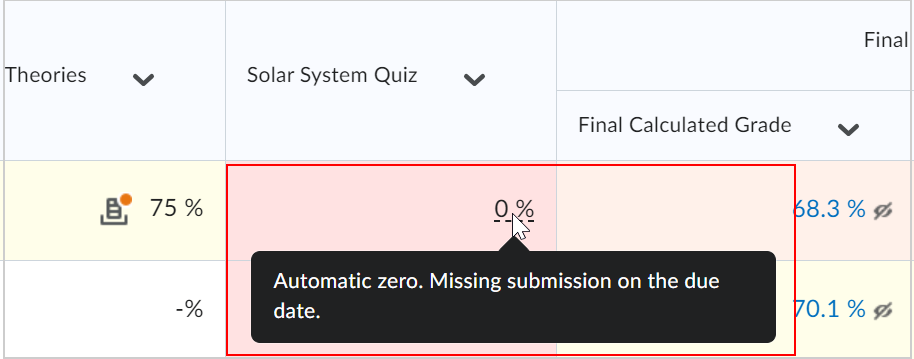
Instructors can identify system-assigned zeros in the grade book. On Enter Grades, automatic zeros appear with a dashed underline. Hover over the zero to display the following tooltip: Automatic zero. Missing submission on the due date.
Learner experience and default overdue message
Learners receive a zero (0) grade with a default overdue message in Grades > Comments & Assessments. This message is dynamic. It appears once the zero is assigned and is automatically removed if the activity is hidden or once the End Date passes.
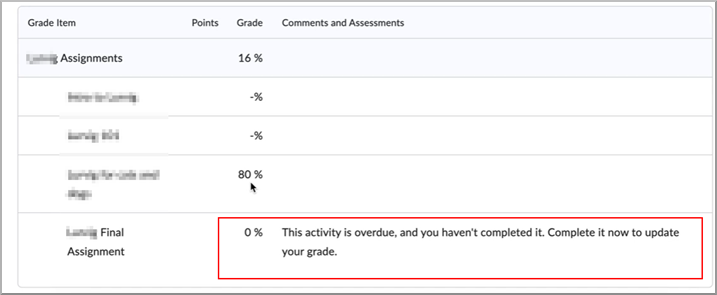
The overdue message remains visible until the activity is hidden or the end date passes.
Additional considerations
- Special Access: Brightspace respects special access due dates. If a learner has an extended due date, the zero is not assigned until that due date passes.
- Timing: Automatic zero grading follows the same local time zone behavior as course due dates for both instructors and learners.
- Late Submissions: If a learner submits work after an automatic zero is assigned, the zero is overwritten by the new submission status.
- Course Copy: This setting persists during course copy. If it is enabled in the source course, it is enabled in the destination course.
- New Enrollments: Users who enroll after a due date has passed do not receive retroactive automatic zeros.
- Exporting Grades: Automatic zero is a grade book setting and is not exported as part of an exported grade file.
Frequently asked questions
Can learners submit work after receiving an automatic zero?
Yes. If the activity remains available, instructors can grade the submission after it is received. The new grade replaces the automatic zero.
Does automatic zero grading override exemptions?
No. If an activity is exempted for a user, automatic zero grading is not applied, even if the due date passes.
Does special access affect automatic zero grading?
Yes. Automatic zero grading respects the special access due date. If special access is added after the original due date has already passed, the existing automatic zero remains until the activity is manually evaluated.
Does automatic zero grading apply retroactively?
No. Automatic zero grading only applies to supported activities with future due dates after the feature has been enabled.
Related topics