Createspace provides a centralized workspace where instructional design teams can create, organize, and manage reusable learning content before deploying it to Brightspace. You can build content once, deploy it across multiple courses, and keep learning experiences consistent by syncing updates from a single source.
Createspace requirements
To access the Dashboard in Createspace, the following settings and permissions must be in place:
- Turn on Createspace in Organization Tools.
- In Roles & Permissions, enable Createspace > View Createspace.
- In Roles & Permissions, enable Createspace > Can receive notifications from Createspace to support content synchronization.
- In Roles & Permissions enable:
- Createspace > View Createspace
- Createspace > Can receive notifications from Createspace to support content synchronization.
- Createspace > Can Copy to Createspace to allow users to save course content to the library.
Access Createspace
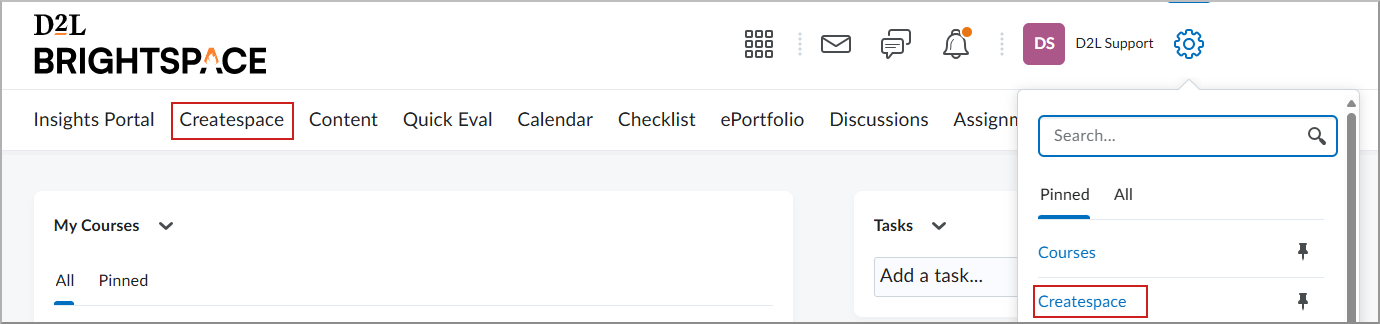
- From the navbar, select Createspace.
- From Admin Tools, select Createspace.

|
Note: The Createspace navbar option only appears if it has been added to your course navbar. For more information, refer to Customize your course navbar. |
Dashboard overview
Your Dashboard contains widgets that provide guidance, quick links, and help you prioritize your work:
- Welcome to Createspace: Introduces Createspace and its capabilities.
- Libraries: Displays available libraries, including the Content, Asset, and H5P libraries.
- Recent Source Courses: Shows source courses you or your team recently created.
- Recent Content: Shows Content Library items, including quizzes, that were recently created or edited.
|
Note:
- When you impersonate a user in Brightspace, you can access Createspace if the impersonated user has the correct permissions. The impersonated user’s display picture or initials appear in the navigation bar.
- To stop impersonation, return to Brightspace and end the session from the navigation bar.
|
Visual tour of Createspace
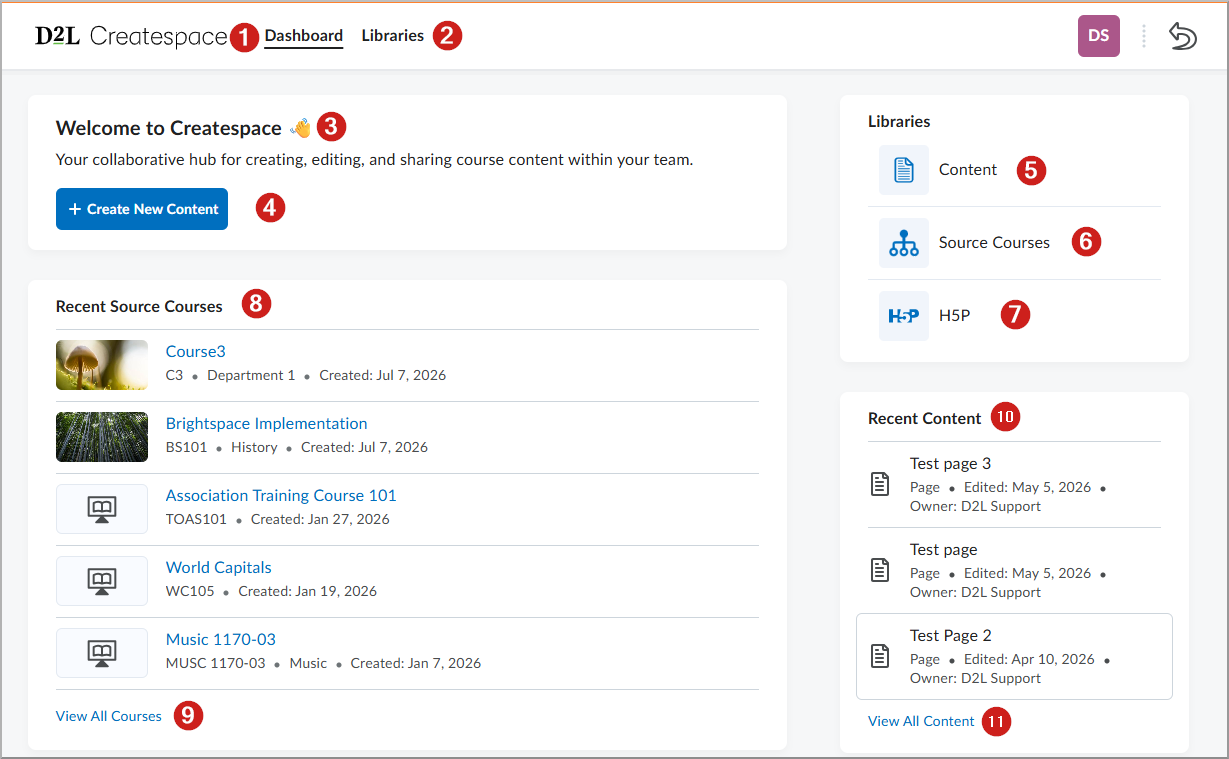
- Dashboard: Your home view for Createspace. It summarizes what is new and what you can do next. To return here from anywhere, select Dashboard in the top navigation.
- Libraries: Organizational repositories of reusable items. To open libraries, select Libraries in the top navigation to view the Content, Asset, and H5P libraries.
- Welcome to Createspace: An overview panel with links to core actions. To get started, review the text in this panel and follow the links.
- Create New Content: A primary action to build reusable learning objects. To create content, select Create New Content or Add content, choose a content type, and follow the prompts.
- Content: A shortcut to the Content Library, where you manage reusable modules, topics, assignments, pages, and quizzes. To view reusable content, select Content.
- Source Courses: A curated set of courses you can draw content from. To browse source courses, select Source Courses.
- H5P: Provides a centralized view of your H5P assets, allowing you to create, edit, and organize interactive content before deploying it to your courses.
- Recent Source Courses: The source courses you or your team most recently created or accessed, including title, code, subject, and creation date. To open a course, select its course title.
- View All Source Courses: The full catalog of available source courses. To browse every source course, select View All Courses.
- Recent Content: Content objects that were recently created or edited. To open an item, select its title.
- View All Content: The complete Content Library with filtering and search capabilities. To manage the full library, select View All Content, and then use filtering or search to narrow the results.
Content synchronization and versioning
Createspace allows you to manage revisions using version control. When you update a learning object in Createspace, you can synchronize those changes to all course offerings where the object has been deployed, helping ensure that deployed content remains up to date.
|
Note: Synchronization is currently available for assignments, pages, and discussions. |