A grading scheme controls how grades are displayed in Brightspace. You can use a grading scheme to display percentages, letter grades, achievement levels, pass/fail results, or other custom values.
Your organization may already provide grading schemes that you can use in your course. Create a custom grading scheme only when the available organization schemes do not meet your grading requirements.
Choose the right grading scheme
Grading scheme options
| If you want to... |
Use... |
|---|
| Display grades as percentages. |
The Percentage grading scheme |
| Display grades as letter grades, such as A, B, or C. |
A custom grading scheme configured with letter grade ranges |
| Display a simple pass or fail result. |
A custom grading scheme configured with pass and fail ranges |
| Display custom achievement levels, proficiency labels, or other values. |
A custom grading scheme configured with the values and ranges you need |

|
Tip: Review the organization grading schemes available in your course before creating a custom scheme. An existing scheme may already meet your needs. |
Understand grade ranges and assigned values
A grading scheme contains one or more ranges. Each range defines how a numeric grade is displayed.
- Symbol: The value displayed in Grades, such as A, Pass, Proficient, or Needs Improvement.
- Start %: The minimum percentage included in the range. The range continues up to, but does not include, the next range's starting percentage.
- Color: An optional visual indicator used in Grades.
- Assigned Value %: The numeric percentage Brightspace records when you select the range for a Selectbox grade item. Brightspace uses this percentage and the item's maximum points to calculate the points earned.
Example: If a learner earns 72% and the B range begins at 70%, Brightspace displays B wherever the grading scheme is shown.
For a Selectbox grade item, the assigned value determines the numeric result recorded in the grade book. For example, if the assigned value for B is 75% and the grade item is worth 20 points, Brightspace records 15 out of 20 points.
How rounding affects grading scheme symbols
Brightspace applies a grading scheme using the underlying percentage value, which may contain more decimal places than the grade displayed to instructors or learners.
For example, a grade may display as 80% after rounding but remain slightly below 80% in the underlying calculation. If the next grading scheme range begins at 80%, Brightspace may display the symbol for the lower range.
|
Tip: When defining grade ranges, consider the calculation precision and displayed decimal places used in your course. Review grades near a range boundary to confirm that the resulting symbols match your grading policy. |
For information about displayed decimal places, refer to Define settings in the Grades tool.
Navigate to grading schemes
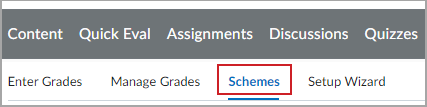
- From your course navbar, select Grades.
- Click the Schemes tab.
Review organization grading schemes
Organization grading schemes are created and shared by your organization. You can review these schemes, set an available scheme as the course default, or copy a scheme to create a course-level version that you can edit.
- From your course navbar, select Grades.
- Click the Schemes tab.
- On the Schemes tab, locate the Organization Schemes section.

- Click the name of the scheme you want to review.
- Review the scheme properties and grade ranges.
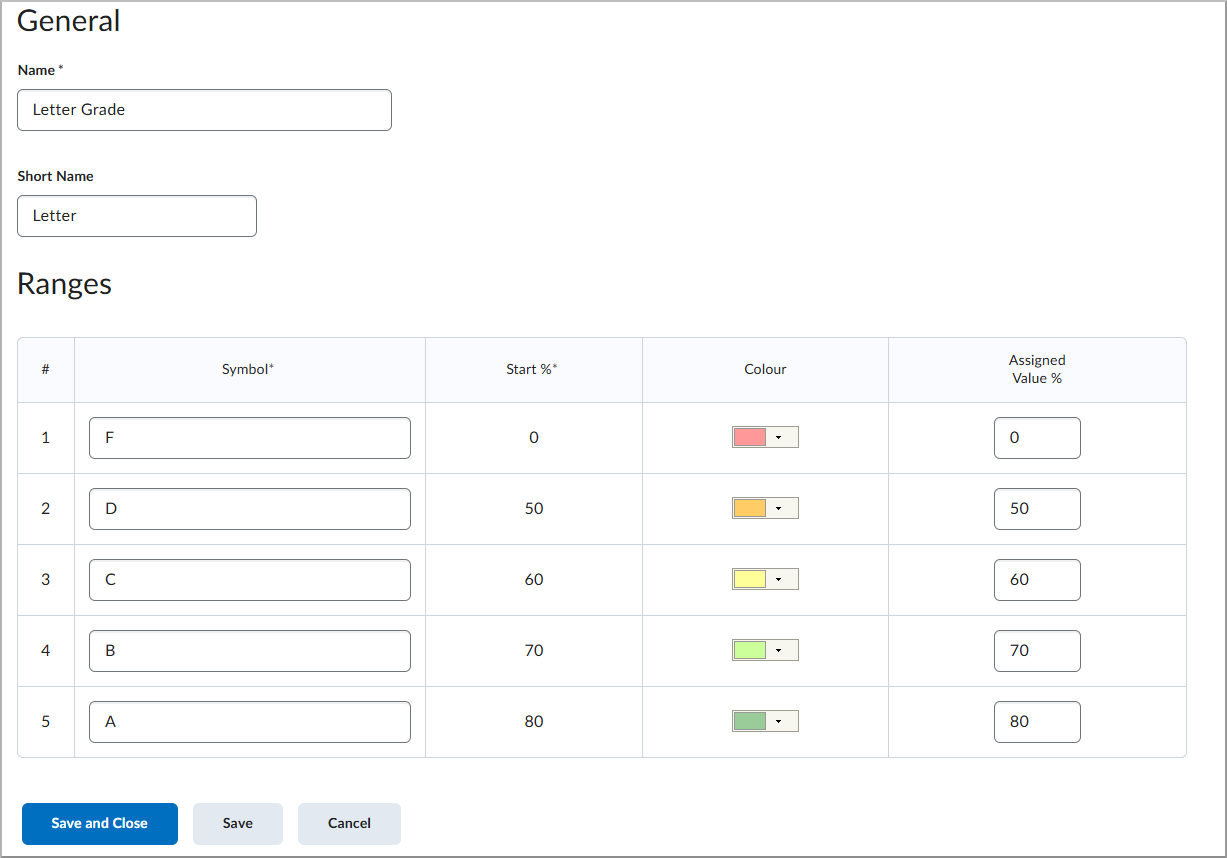
- Click Save and Close.

|
Note: Organization-level schemes can only be deleted by administrators with the appropriate permissions. |
Create a custom grading scheme
Create a custom grading scheme when the organization schemes available in your course do not match your grading requirements.
To create the scheme, open the New Scheme page, enter the basic information, and then configure the grade ranges.
- From your course navbar, select Grades.
- Click the Schemes tab.
- Click New Scheme.

- Enter the scheme details. For more information, refer to Enter basic information.
- Define the values included in the scheme. For more information, refer to Configure grade ranges.
In the Basic Information section of the New Scheme page, complete the following fields:
- Name: The full name of the grading scheme.
- Short Name: An abbreviated name used where space is limited.
Configure grade ranges
In the Ranges section, configure the following properties for each grade range:
- Symbol: The value displayed in Grades, such as A+, Pass, Proficient, or Needs Improvement.
- Start %: The minimum percentage included in the range. The range continues up to, but does not include, the next range's starting percentage.
- Color: An optional color used as a visual indicator in Grades.
- Assigned Value %: The numeric percentage Brightspace records when you select the range for a Selectbox grade item. Brightspace uses this percentage and the item's maximum points to calculate the points earned.
To add more ranges, enter the number of additional ranges and click Add Ranges.
After you enter the basic information and configure the grade ranges, click Save and Close.
Set a grading scheme as the course default
The default grading scheme is applied to new grade items unless you select a different scheme for an individual item.
- From your course navbar, select Grades.
- Click the Schemes tab.
- In the Set as Default column, click the check mark beside the grading scheme you want to use.
|
Note: You can apply a different grading scheme to an individual grade item when you create or edit the item. |
Copy a grading scheme
Copy an existing course or organization grading scheme when you want to create a similar course-level scheme that you can edit.
- From your course navbar, select Grades.
- Click the Schemes tab.
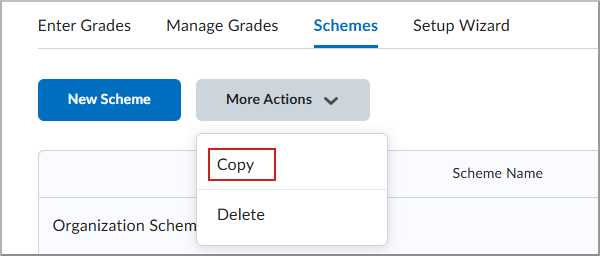
- On the Schemes tab, click More Actions > Copy.
- Select the grading scheme you want to copy.
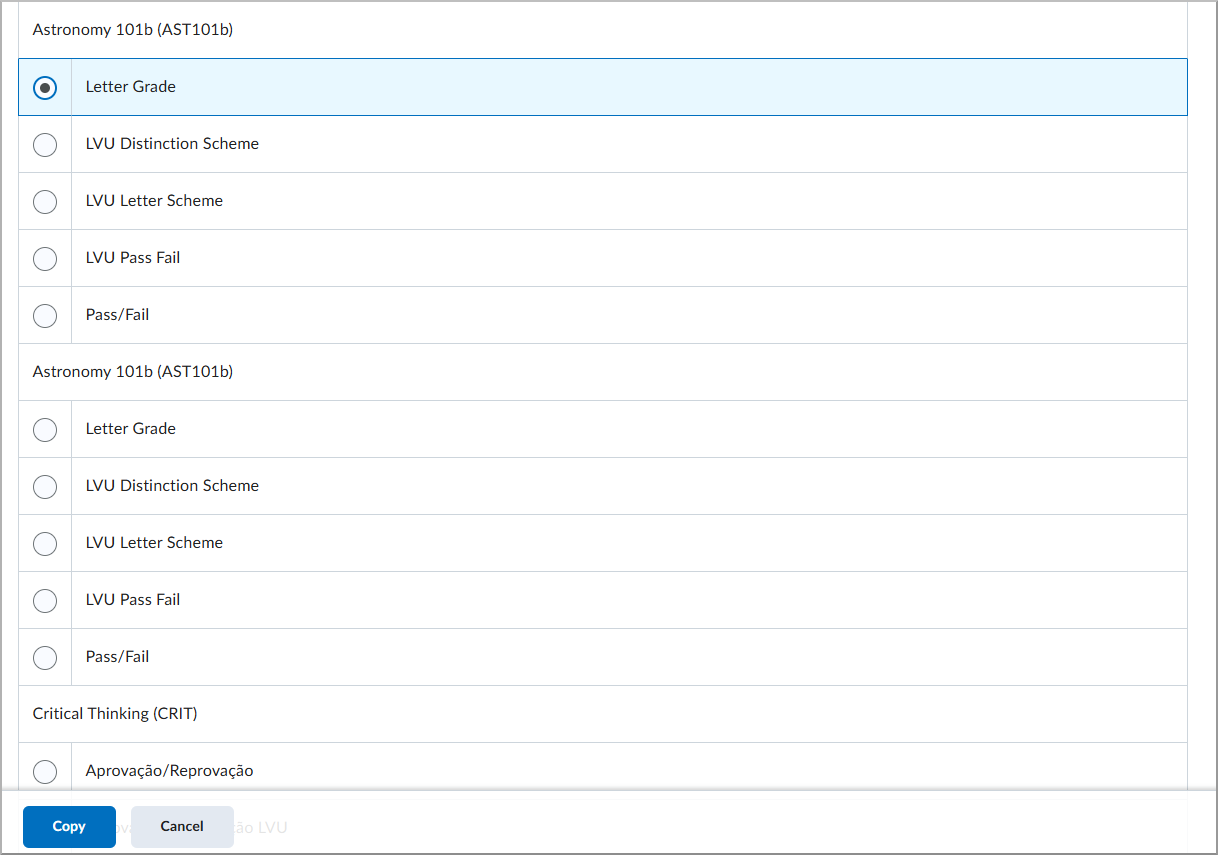
- Click Copy.
When the scheme is copied, you return to the Schemes tab, where you can edit the new scheme.
Delete a grading scheme
You can delete custom grading schemes created within your course.
Before deleting a grading scheme, ensure it is not set as the course default or assigned to a grade item. Set a different course default and assign affected grade items to another scheme before deleting the scheme.
|
Note: Organization-level schemes can only be deleted by administrators with the appropriate permissions. |
- From your course navbar, select Grades.
- Click the Schemes tab.
- On the Schemes tab, click More Actions > Delete.

- Select the grading scheme you want to delete.
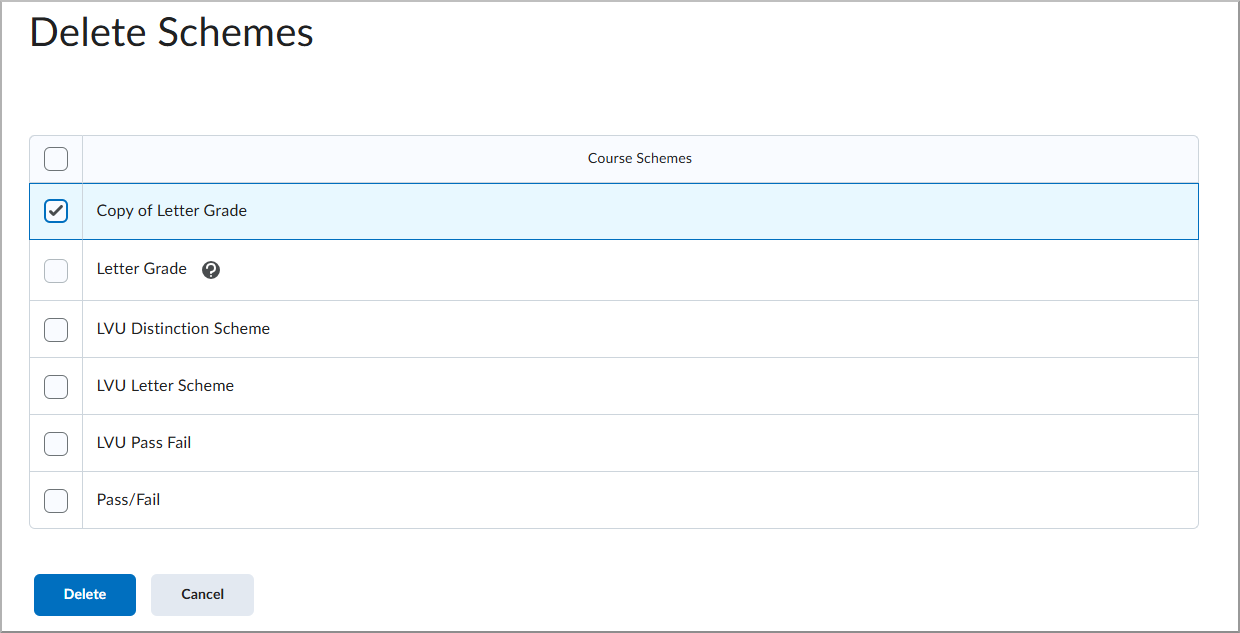
- Click Delete.
- Select Delete on the confirmation screen.
After you delete the scheme, you return to the Schemes tab.
Video: Create grading schemes using the Grades tool
Watch the following video to learn how to create and configure grading schemes.