The D2L Lumi Feedback tool enhances grading and feedback in Brightspace by integrating AI-powered feedback directly into the assignment grading tool.
Before you begin, confirm the following:
Install the Lumi Feedback Brightspace extension
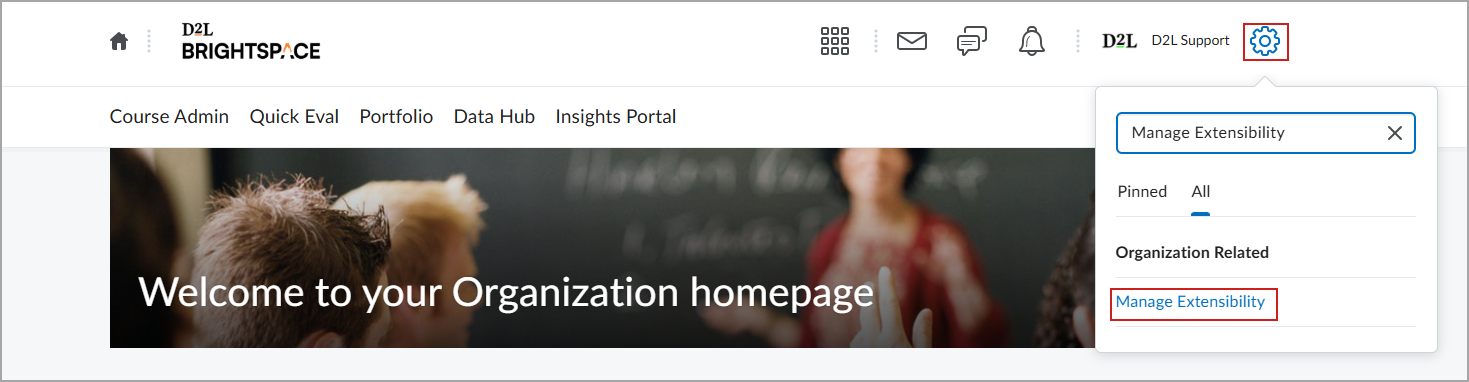
- In Brightspace, log in as an Admin. Click Admin Tools (cog) in the top right corner.
- Enter Manage Extensibility in the search field.
- Click Manage Extensibility.
- Click the Extensions tab.
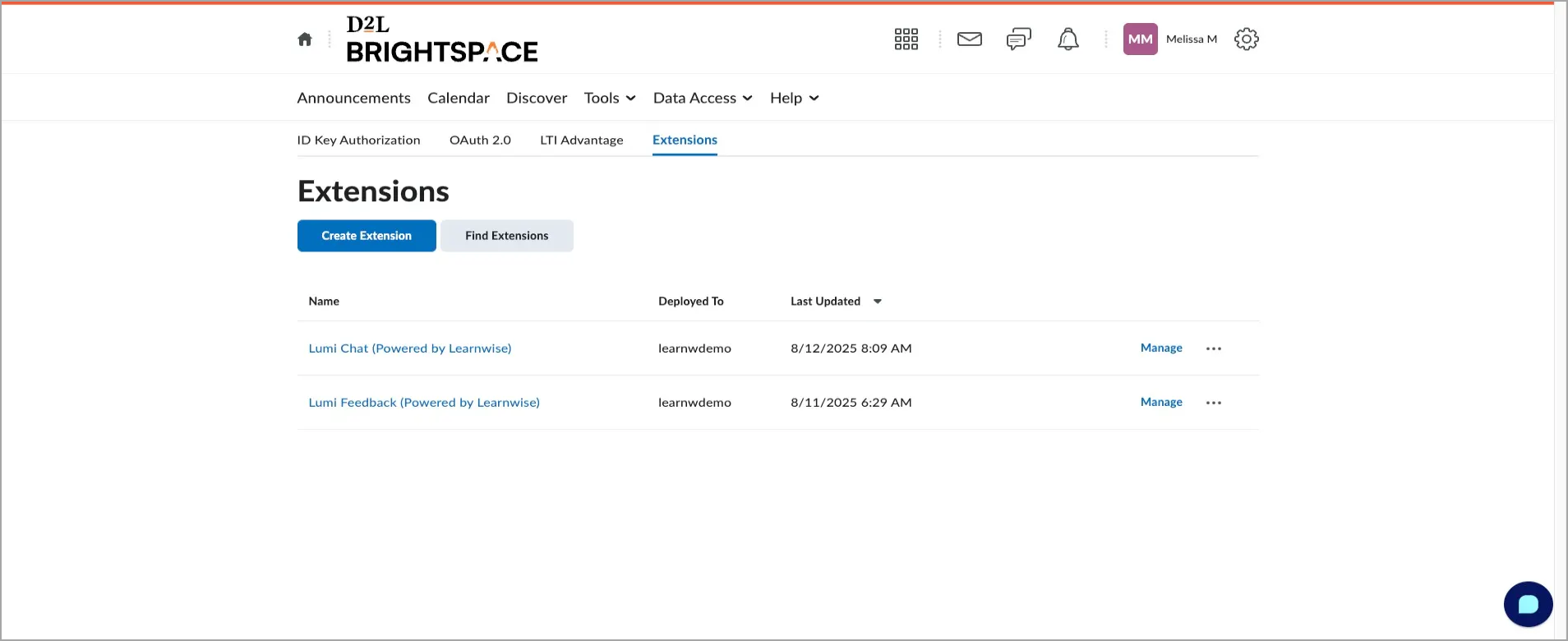
- Click Find Extensions.
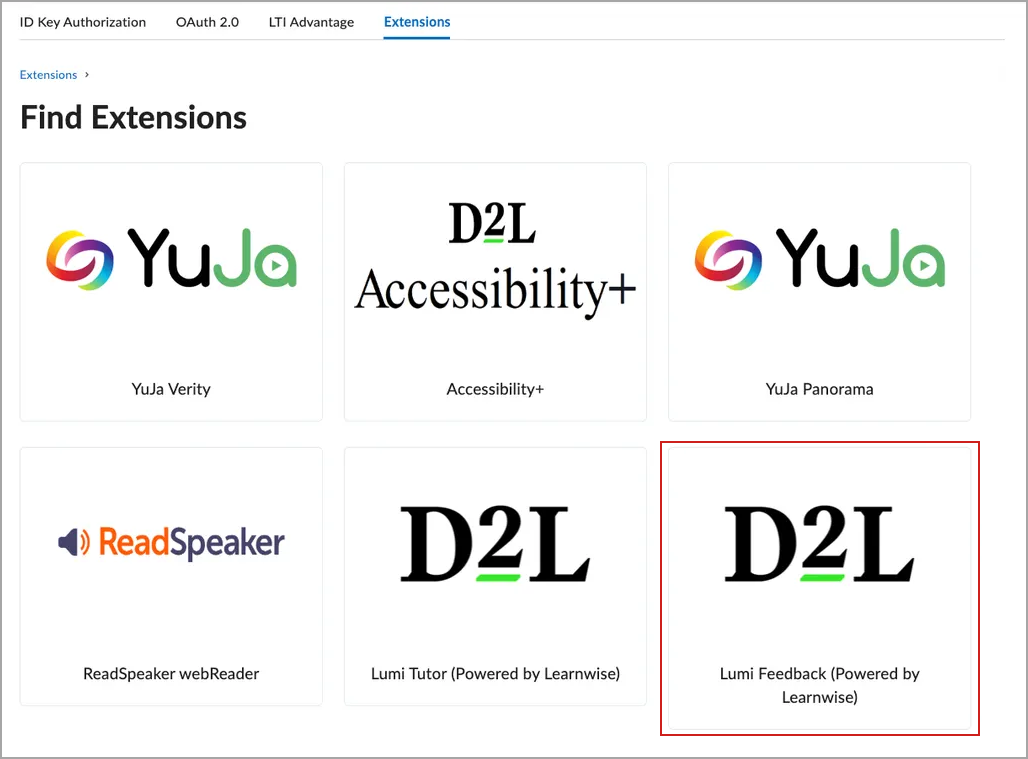
- Click on Lumi Feedback. This extension is used for both Lumi Chat and Lumi Feedback in the Extensions library.
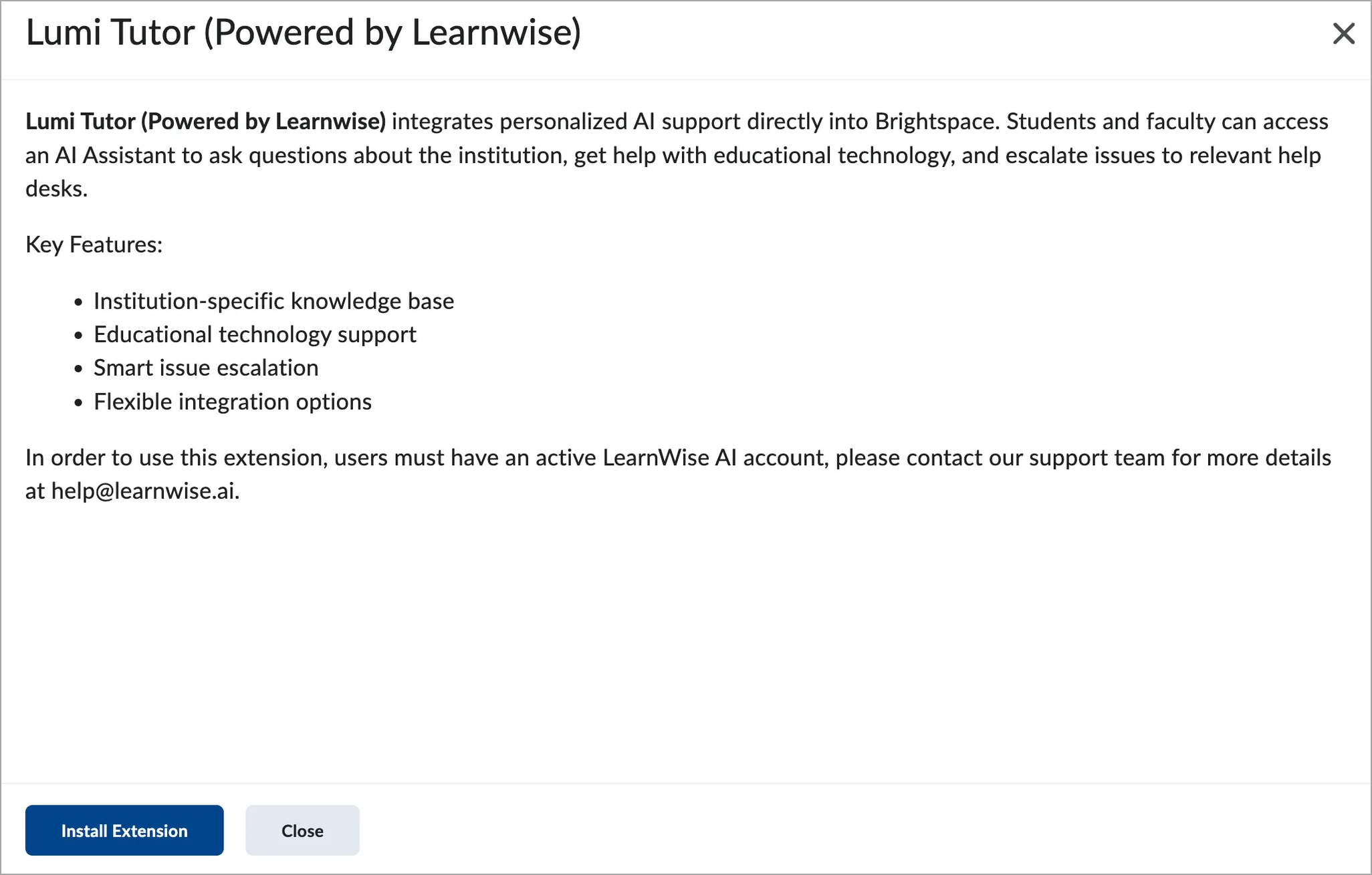
- Click Install Extension.
- Click Lumi Feedback in the Extensions list.
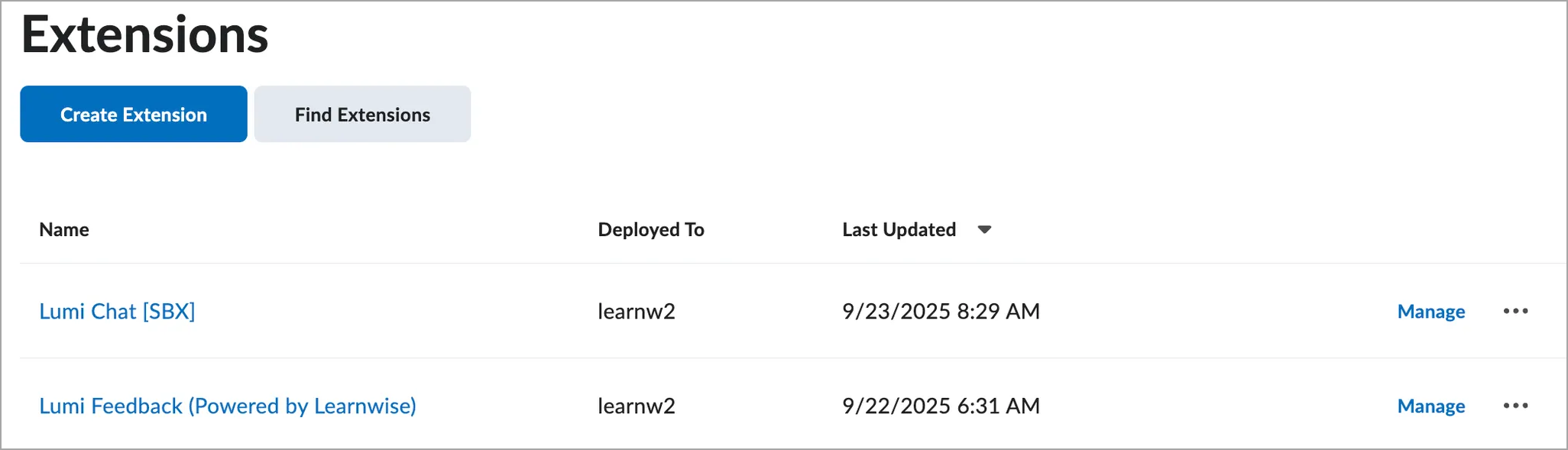
- Click Enabled.
- Click Add.
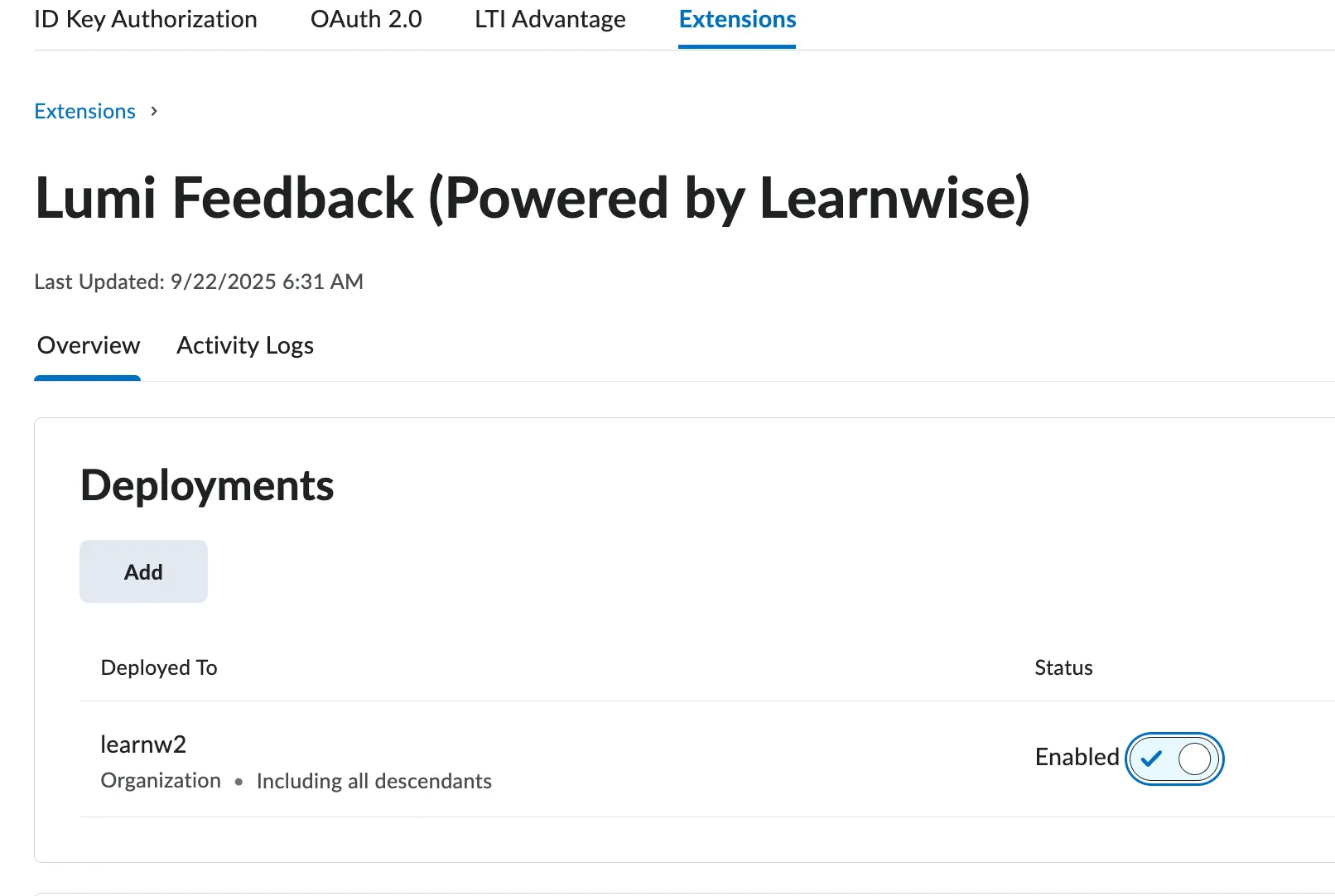
- Select where you would like this tool deployed:
- Entire Org
- Specific Org Units
- Complete the following:
- Assistant ID: The assistant ID that is displayed in the General tab.
- Region: Enter the region for the deployment.
- Availability: Select either Entire organization or Org Unit.
- Toggle: Set to Enabled.
- Click Save.
Register Lumi Feedback in Brightspace
Once you have Lumi Feedback installed and deployed, you must register the app to allow content scraping.
- In Brightspace, log in as an Admin. Click Admin Tools (cog) in the top right corner.
- Enter Manage Extensibility in the search field.
- Click Manage Extensibility.
- Click the OAuth 2.0 tab.
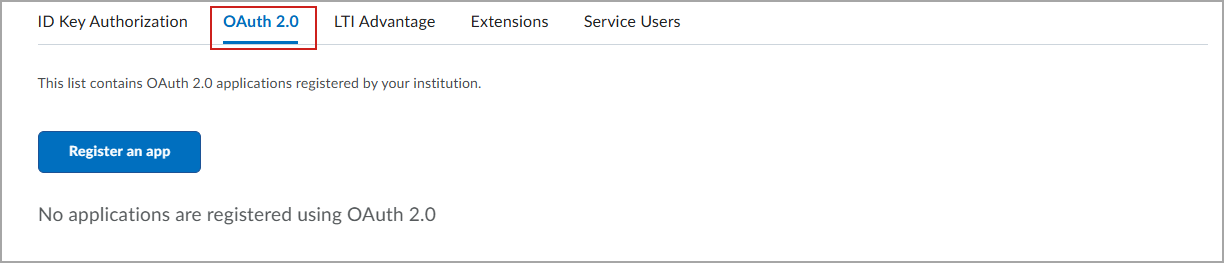
- Click Register an App.
- Complete the following fields with information from D2L Lumi Chat admin portal:
- Application Name
- Redirect URL
- Scopes
- Unselect Prompt for User Consent
- Select I accept the API Developer Agreement
- Log in to your D2L Lumi Chat admin portal.
- Locate your Lumi Tutor assistant and click Edit.
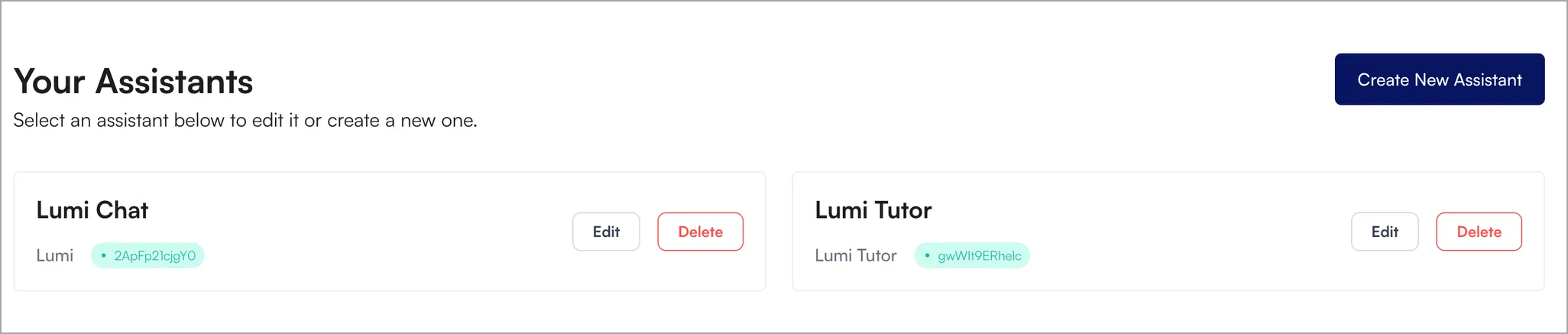
- On the Knowledge tab and click Courses.
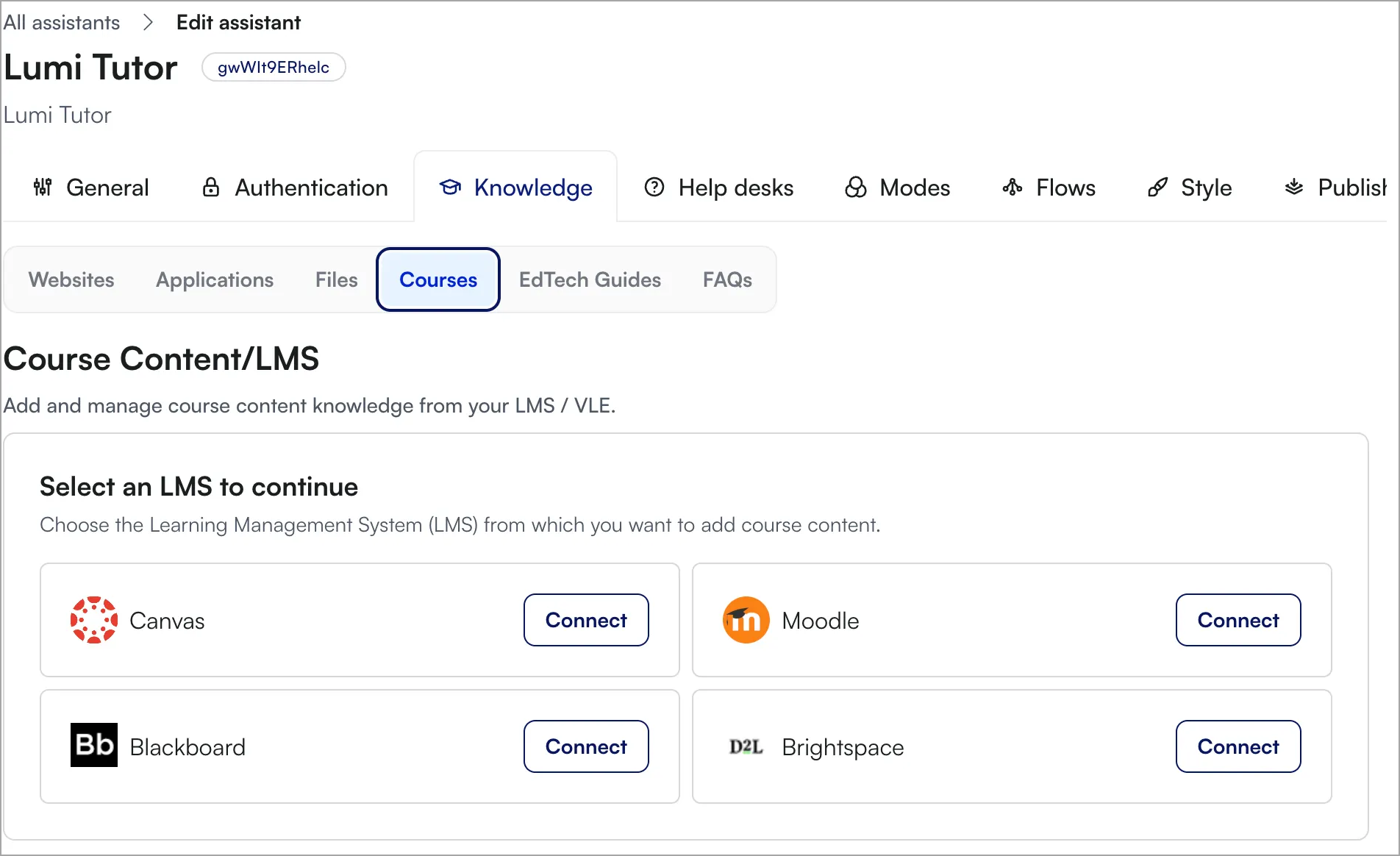
- Click Connect on the Brightspace widget.
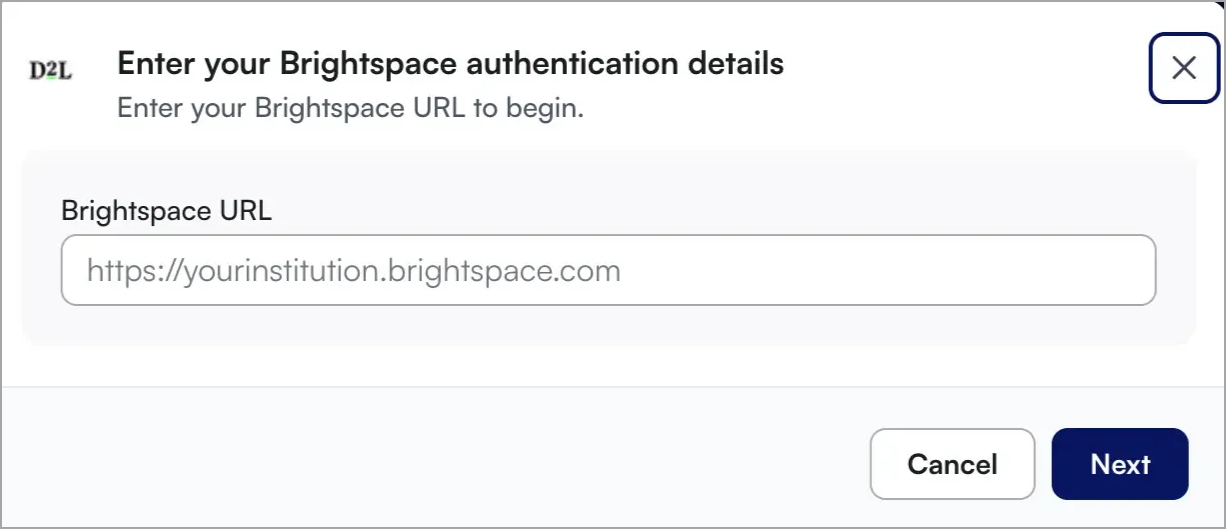
- Enter your Brightspace URL and click Next.
- Select Enable Live API Access.
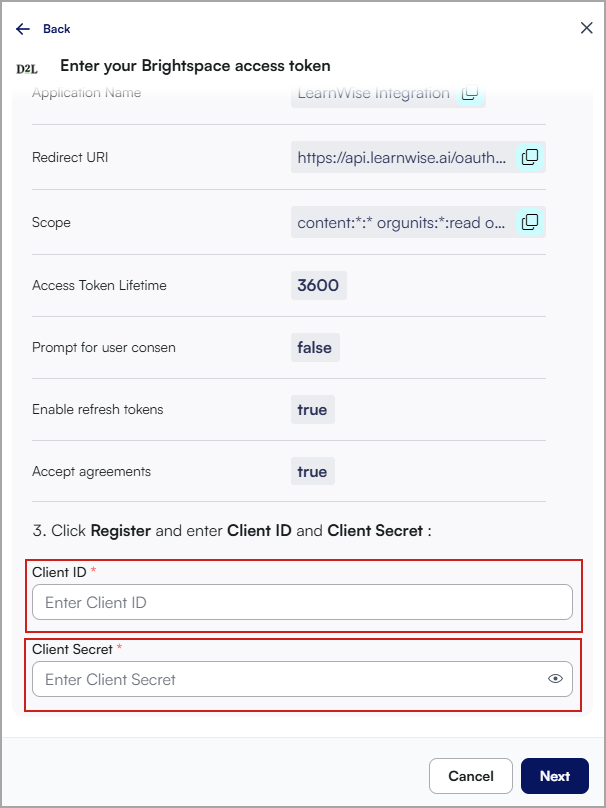
- Copy the following:
- Application Name
- Redirect URL
- Scope
- Navigate back to Brightspace and complete the following:
- Paste the Application Name, Redirect URL and Scope.
- Unselect Prompt for user consent.
- Select Enable Refresh Tokens.
- Select Accept Agreements.
- Click Register.
- Copy the Client ID and Client Secret.
- Navigate back to D2L Lumi Chat admin portal.
- Enter the Client ID and Client Secret from Brightspace.
- Click Next.
The API access is enabled.
Turning on Lumi Feedback (Modes)
Once the API connection is made, you must turn on Lumi Feedback in Modes.
- Log into the D2L Lumi Chat admin portal.
- Locate your Lumi Tutor assistant and click Edit.
- On the Modes tab, select Feedback AI.
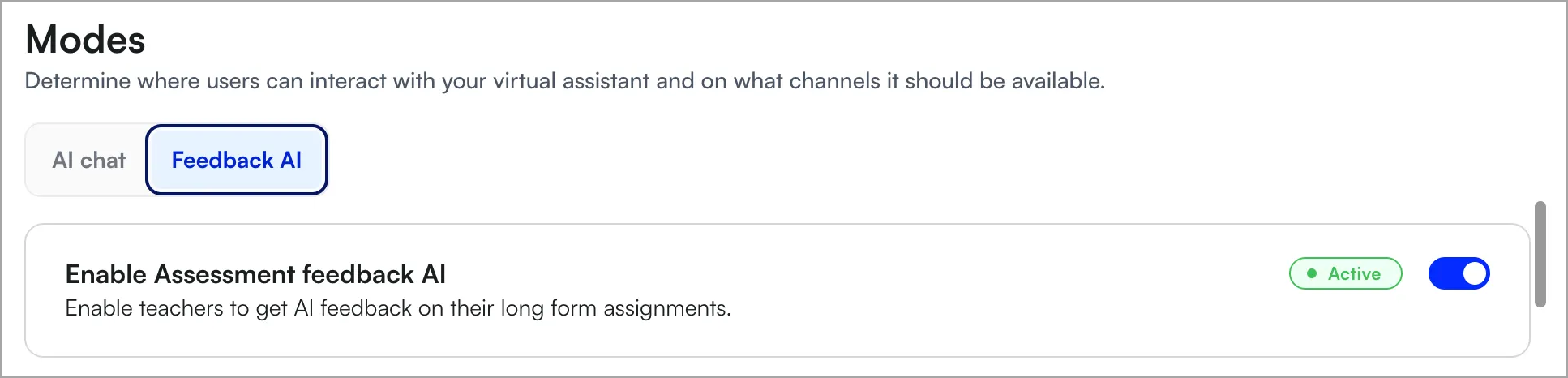
- Select Enable Assessment feedback AI.
- (Optional) To limit Lumi Feedback to certain courses, upload a CSV with the target courses in the Filter where the Assessment feedback AI is shown by uoloading a CSV file section.
- (Optional) Customize the capabilities of the AI Feedback and Grading workflows with the following options:
- Use Knowledge & Course Content: This includes relevant course content in the AI feedback generation workflow to add context and ground truth to our AI feedback.
- Suggest Points & Grades: This enables the AI workflow to suggest points and grades for each row of the rubrics.
- General feedback: This enables AI to generate your general feedback.
- Rubric-level feedback generation: This enables AI to generate feedback for each row of the rubric.
- (Optional) You can customize the guidelines on how the assistant should structure feedback by selecting Enable Custom Instructions.
- (Optional) To exclude specific words from the generated feedback, enter them into the Blacklist field.
Use the Feedback Tool to Grade
After enabling the Lumi Feedback tool, instructors can access it from within Brightspace. To launch the tool, navigate to a submitted Brightspace assignment and click the Open chat icon in the bottom-left corner of the page.
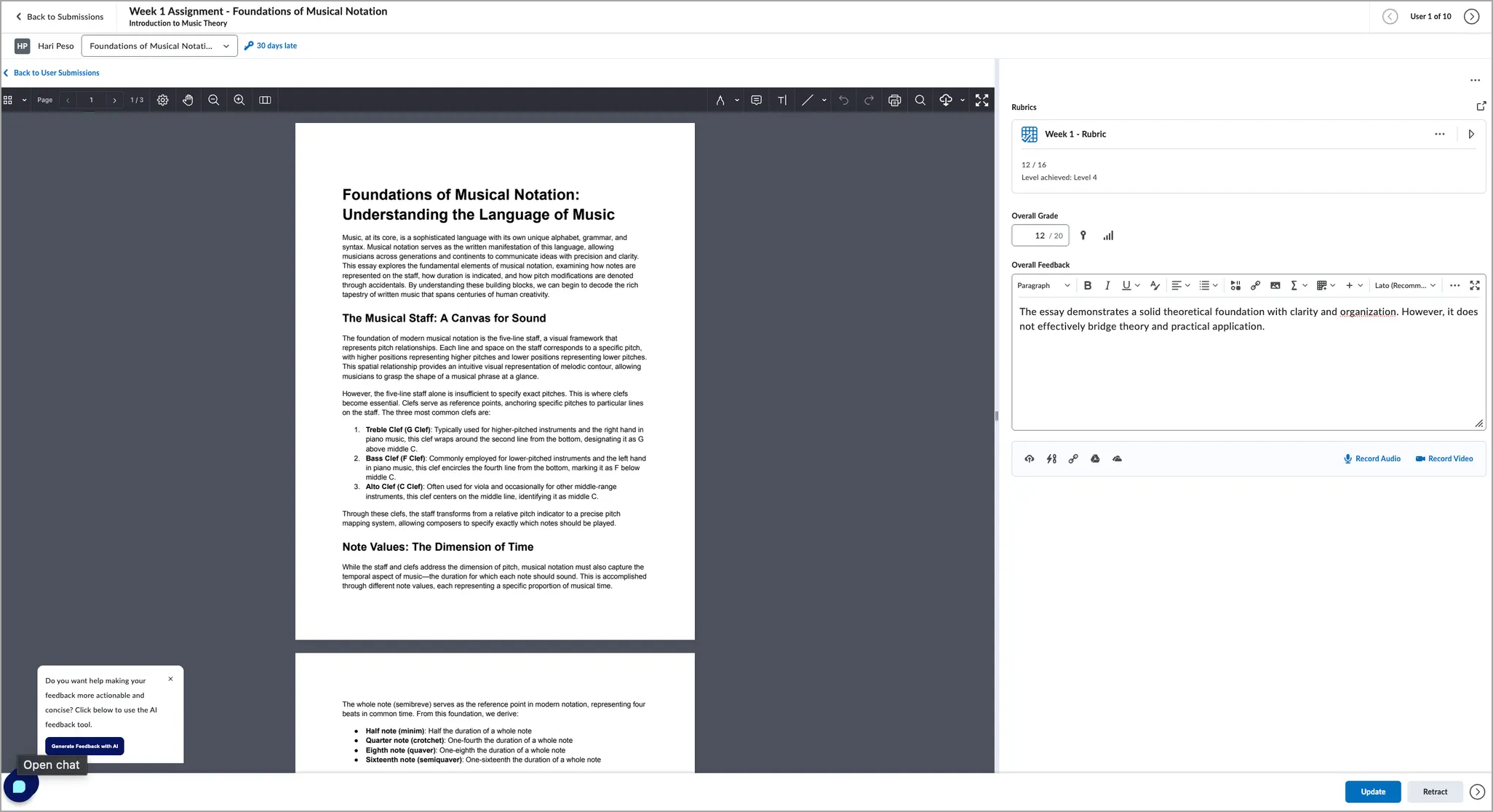

|
Important: You must have the Instructor role and at least one assignment submission ready for grading, preferably with an attached rubric.
|