Use Modify with AI in the Content Experience to adjust reading level, apply custom instructions, automatically apply Creator+ Elements, and preview changes in real time. You can replace the original page or save a remixed version.
What you can do:
- Simplify or elevate reading level to match your audience.
- Apply custom instructions so the AI revises content to your goals and style.
- Automatically apply Creator+ Elements (Accordions, Callouts, Stylized Quotes, and Tabs) to existing content.
- Preview changes and refine them as needed before applying them.
- Save as a new page or replace the existing page.

|
Note: Modify with AI has the following limitations:
- Input size: Must be under 16,000 characters, including any HTML tags or markup.
- Minimum input length: At least 150 characters are required for accurate language detection in the output.
- Interactive content: The output will not include newly generated Creator+ or H5P elements.
- Media support: Output is optimized for text. We focus on delivering high-quality text responses and do not include images, videos, or other media.
|
Remix a page with Modify with AI
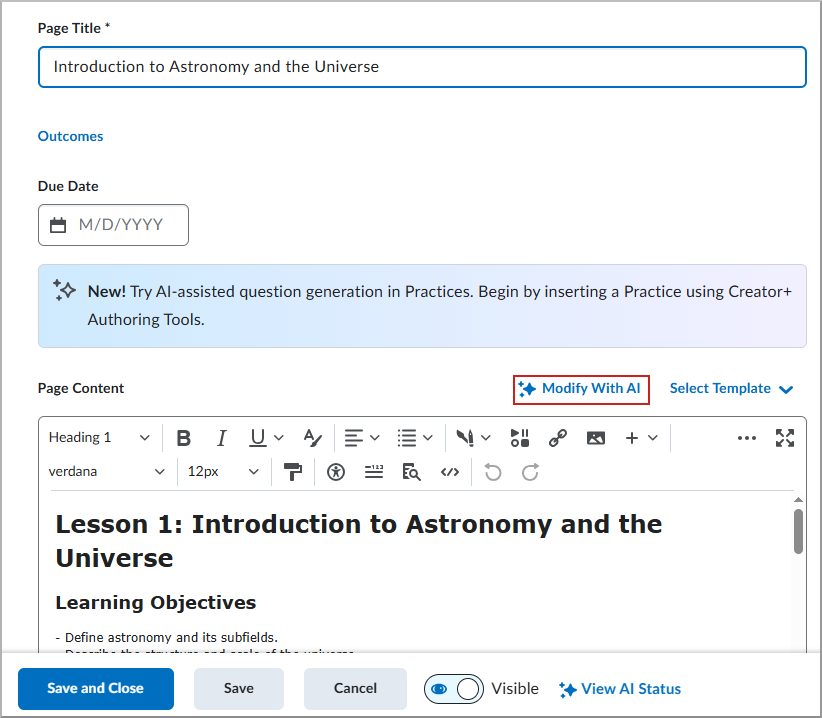
- In the Content Experience, edit a page or create a new page.
Click Modify with AI.
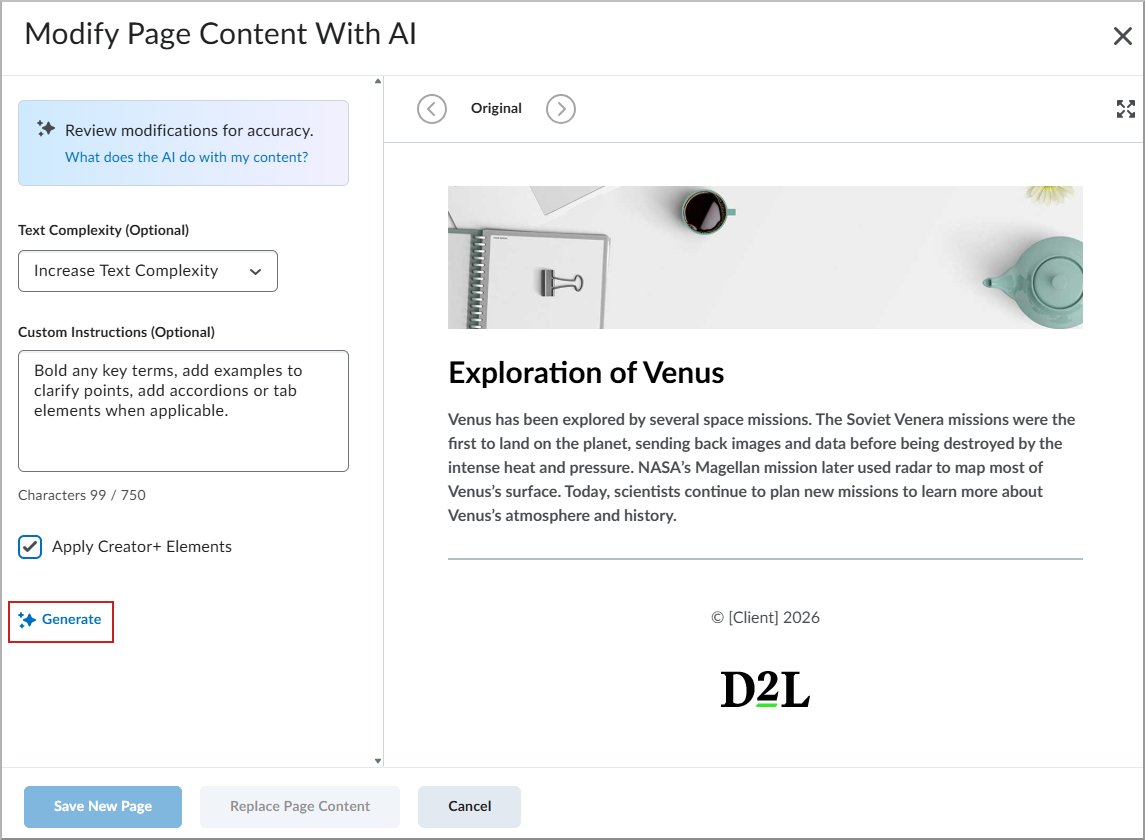
On the Modify with AI page, do one or both of the following:
(Optional) Text complexity- Decrease text complexity (easier to read)
- Replaces difficult vocabulary with familiar words.
- Shortens long or complex sentences.
- Breaks dense text into smaller chunks.
- Rephrases content using more direct language.
- Increase text complexity (more advanced)
- Uses more precise or technical terms.
- Combines simple sentences into more complex structures.
- Strengthens logical flow and cohesion.
Enhances academic tone and vocabulary.
| Note: Adjusting text complexity changes language, not your learning goals. |
- Custom instructions: Enter guidance for the AI to follow, such as audience, tone, length, reading level, rules, or learning outcomes.
- Apply Creator+ Elements: Select this option to have the AI automatically analyze your content and apply accordions, callouts, stylized quotes, or tabs.
Click Generate to preview the revised content.
- Review the output. If needed, edit your instructions or text complexity settings and click Generate again.
Choose how to apply the changes:
- Save as New Page: Saves a new page in the same module. Visibility is Hidden and AI Status is Not Reviewed. Availability dates, completion settings, release conditions, and outcomes are copied.
- Replace Page Content: Overwrites the current page. AI Status is set to Reviewed.
- On the confirmation screen, click Save as New Page or Replace Page Content, depending on the option selected.
- On the Edit Page screen, click Save and Close.
Review in Full Screen mode
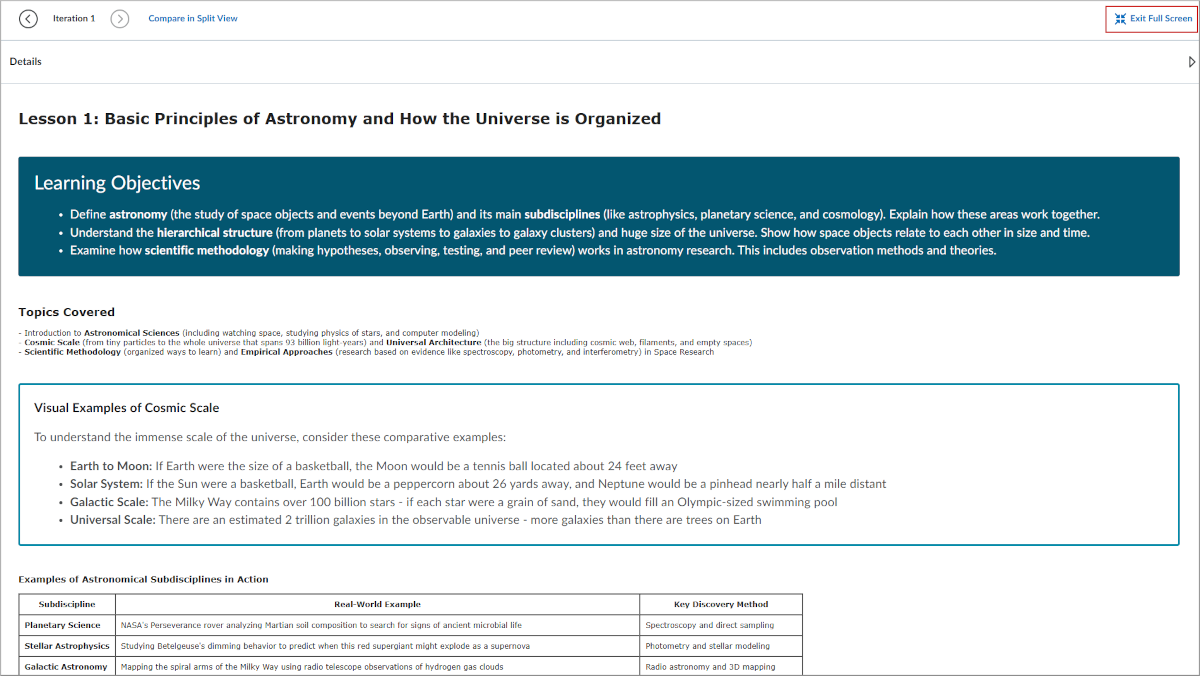
Use Full Screen mode to review your Lumi Remix changes.
To enter Full Screen mode
- After Lumi Remix presents your new content, on the Modify Page Content with AI screen, click Full Screen.
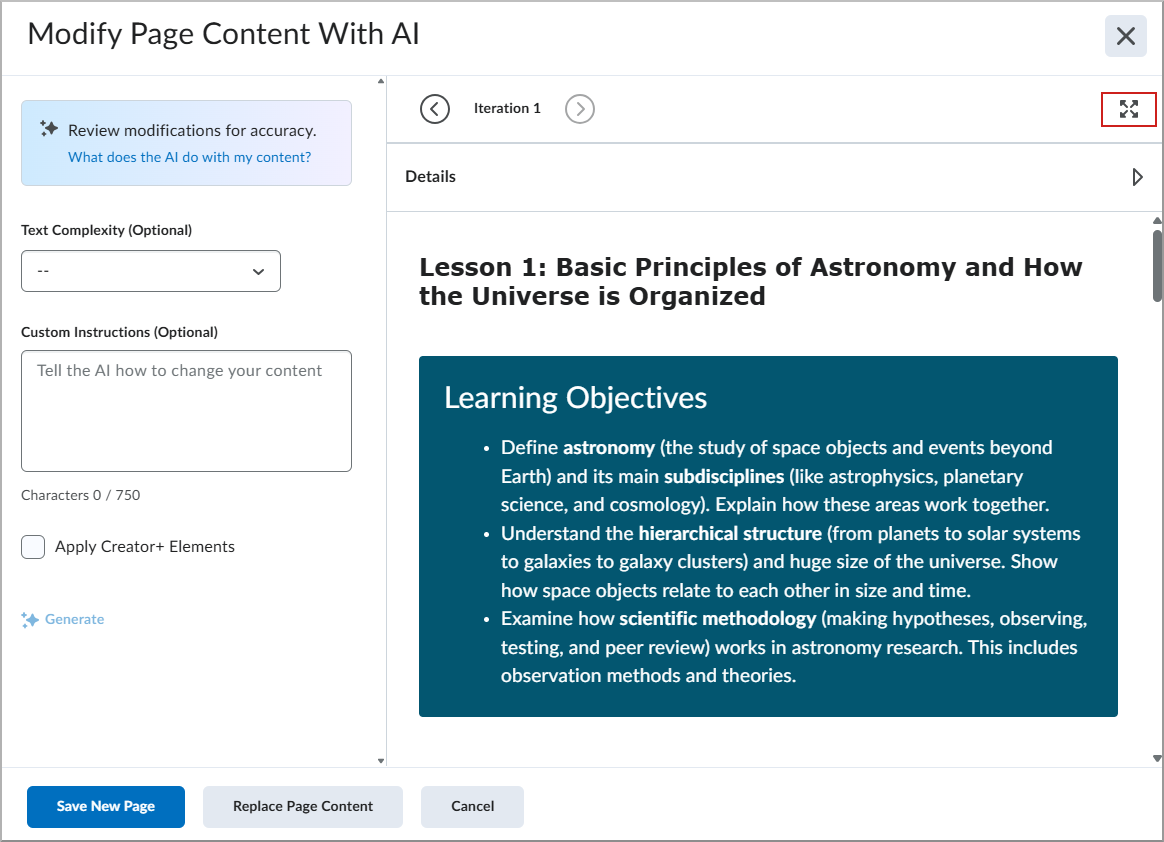
To return to the standard Lumi Remix view, click Exit Full Screen.
Compare versions in Split View
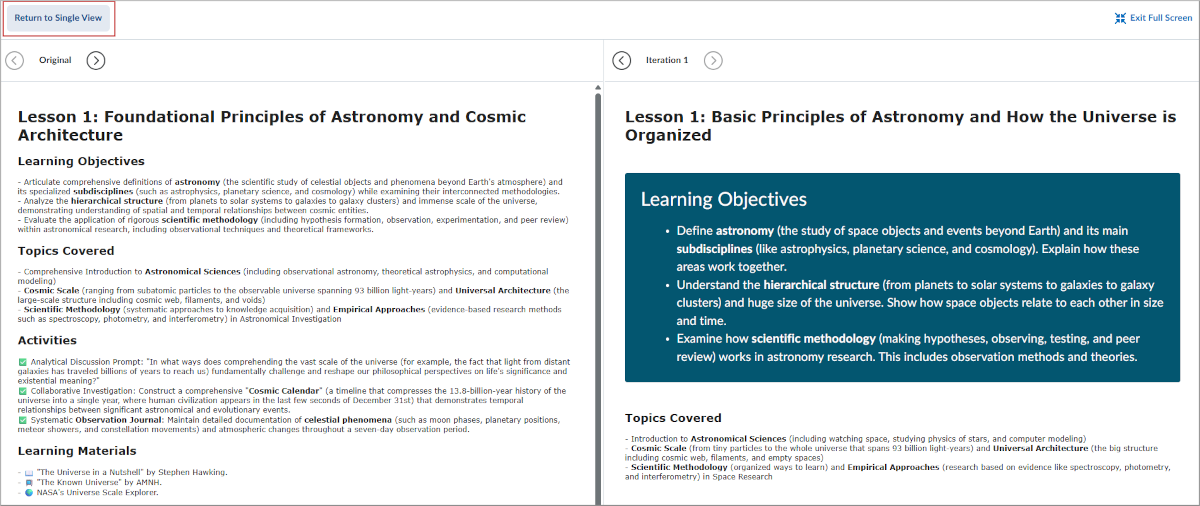
Use Split View to compare Lumi Remix versions side-by-side. The source iteration appears on the left and the current iteration appears on the right so you can compare versions simultaneously.
To review in Split View:
From Full Screen mode, click Compare in Split View to compare iterations side-by-side.
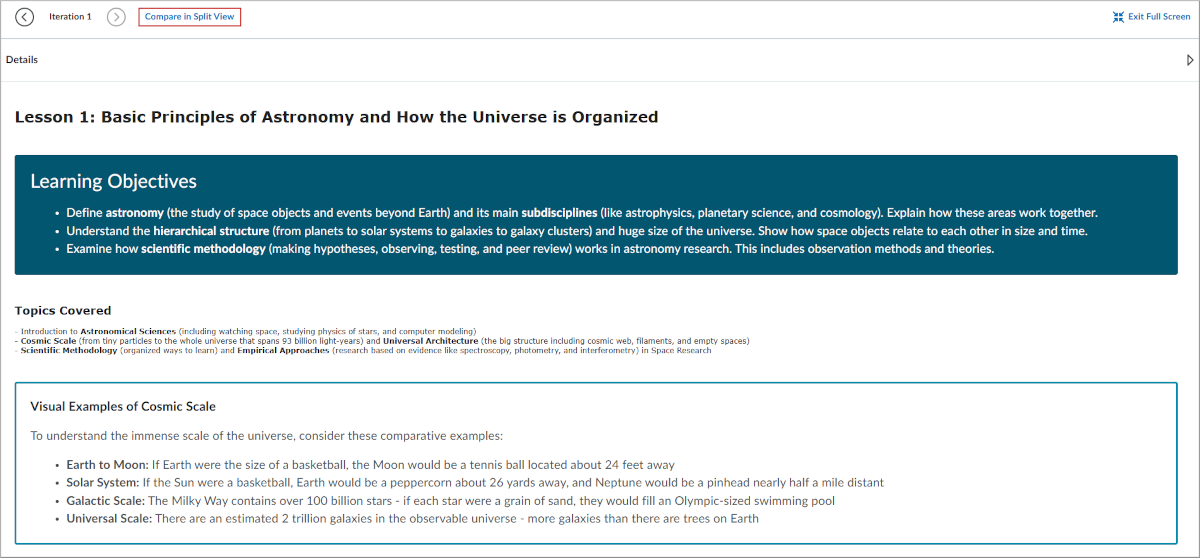
To return to the standard Lumi Remix view, click Return to Single View.