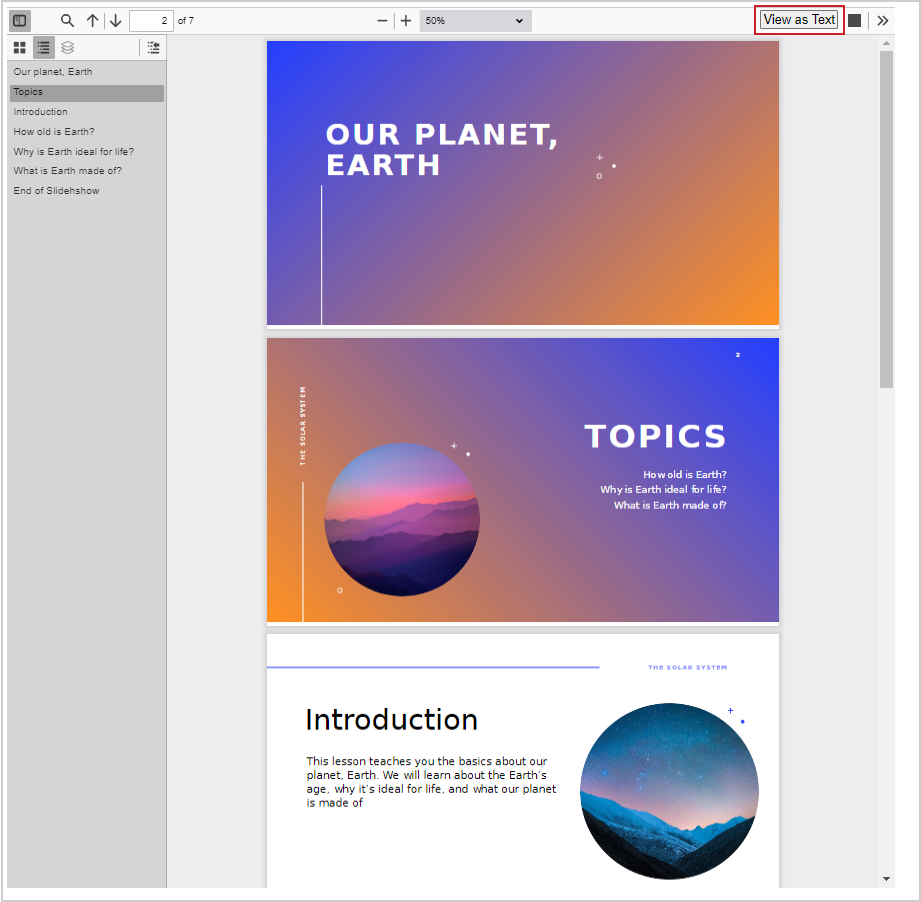
Classic Content uses a PDF viewer to display PDF and PowerPoint files directly in your browser. The viewer lets you view supported files as a formatted page or, when available, as text. You can switch between these views to support different reading and accessibility needs. In some cases, PowerPoint files may display differently from the original presentation.
Viewing files as text or as a page
Some documents, such as PDFs and PowerPoint presentations, have different viewing options:
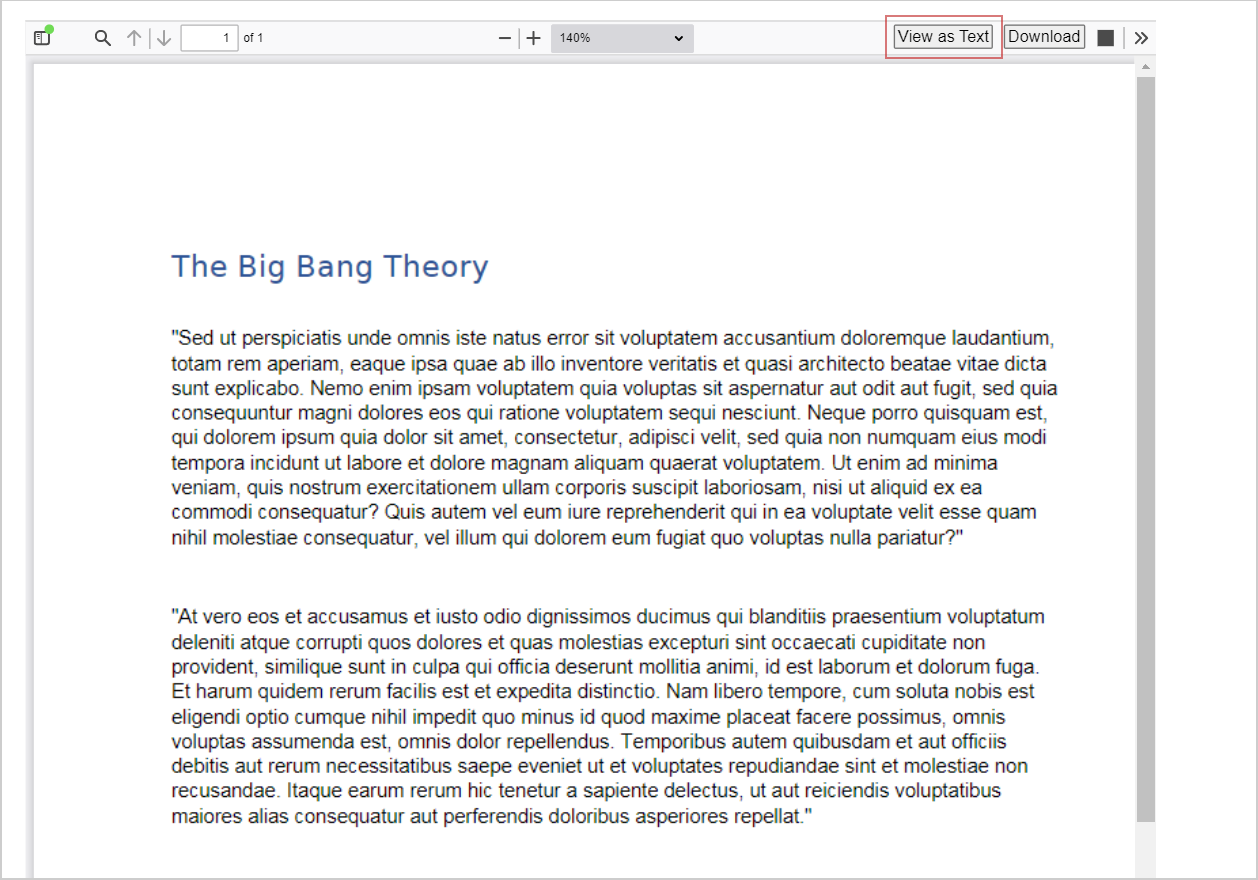
- Default view (page view): This displays the document in its original formatting, such as a slideshow or document preview.
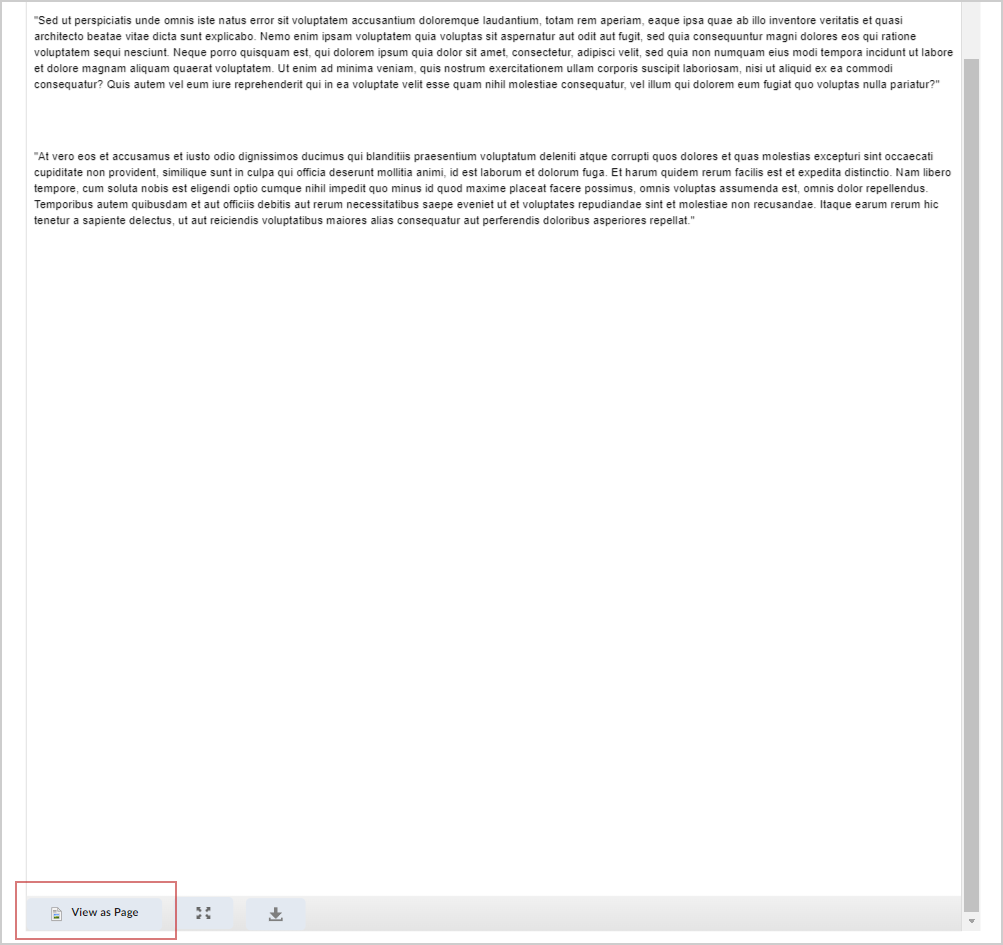
- Switching to text view: If available, click View as Text to display the document's text content only. This can be helpful for screen readers or simple reading.
- Switching back: Scroll to the bottom and click View as Page to return to the original formatted view.
- Log out: When you complete your course session, ensure that you end the session properly by using the Log Out option.

|
Note: By default, content outside of its availability dates is hidden. To allow topics to display in the Table of Contents while remaining inaccessible to learners, instructors should check with their administrator to enable the following configuration variable: d2l.Tools.Content.DisplayContentOutsideofAvailabilityDates. |
Troubleshoot PowerPoint files
You may unintentionally change or open a PowerPoint file in text view. The text view may also make PowerPoint files unreadable if they are not formatted in a way that conforms to Brightspace. To change from the text view to view the PowerPoint as a page or slideshow, click View as Page.
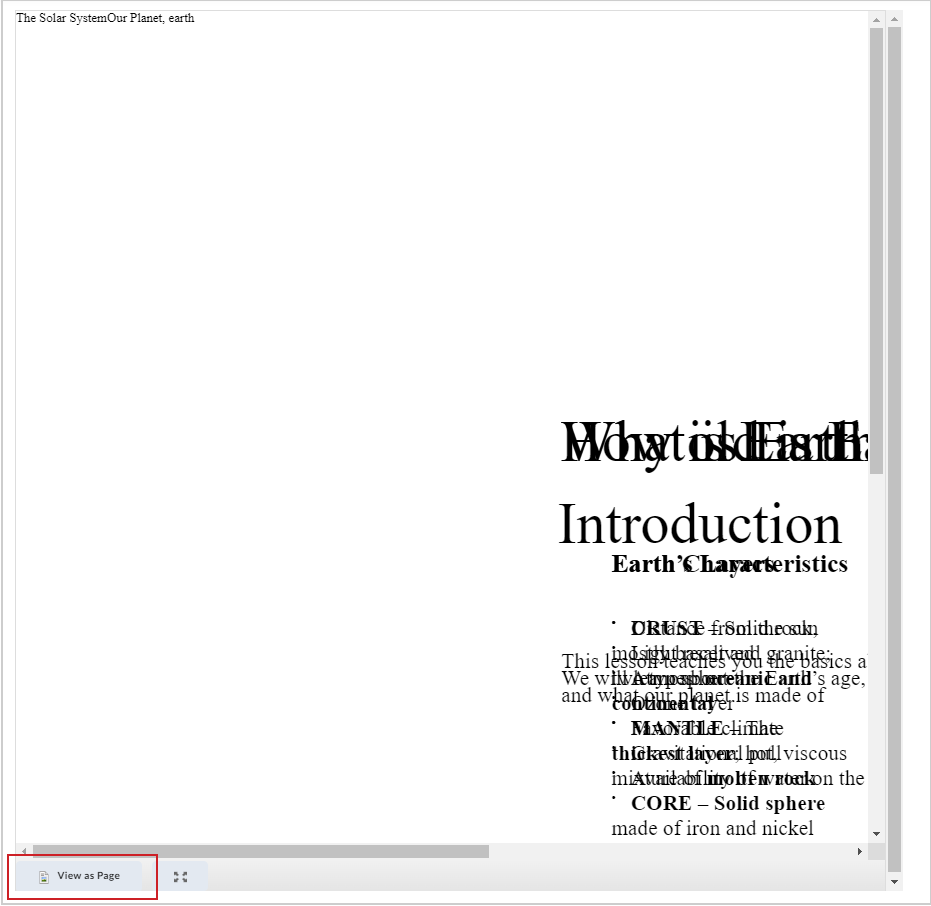
After clicking View as Page, your PowerPoint file appears correctly and in the original format. You can click View as Text to switch back to text view if desired.