The Work To Do widget provides learners with a summary of assigned learning activities that are overdue or have an upcoming due date or end date. Understanding how the widget works helps instructors ensure important course activities appear as expected.

|
Note: The Work To Do widget is optional. If you do not see it, your homepage may use a different layout or your administrator may not have enabled the widget. |
Where you can add the widget
You can add the widget to:
- An organization homepage to show work from all enrolled courses.
- A course homepage to show work from only that course.
How the widget behaves
The Work To Do widget behaves differently depending on where you access it:
- On the organization homepage, the widget displays upcoming and overdue activities from all enrolled courses.
- On a course homepage, the widget displays upcoming and overdue activities from that course only.
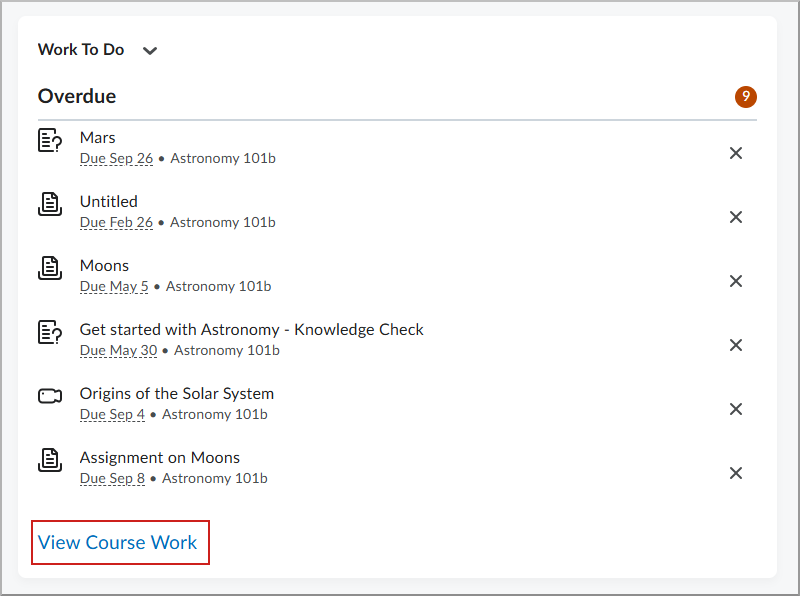
- On a course homepage, learners can click View Course Work to open a filtered full-screen view showing all upcoming and overdue activities for that specific course.
- When you click the widget title or the View All Work link on the organization homepage, the full-screen Work To Do tool opens to show work from all courses.
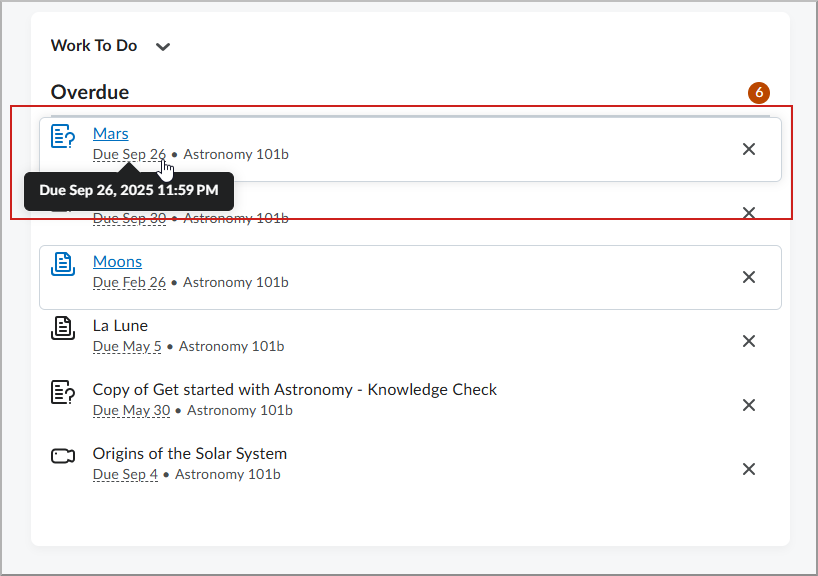
- To see the specific time an activity is due or ending, hover over the date in the widget. This displays the exact time and any applicable availability dates.
|
Note: Previously, the full-screen Work To Do tool always displayed activities from all courses. With the addition of the View Course Work link, learners can now maintain their course-specific focus when viewing their full list of activities from a course homepage. |
Learning activities shown in the widget
The widget supports the following activity types:
- Assignments
- Checklists
- Content
- Courses
- Discussions
- Surveys
- Quizzes
- Files
- Links

|
Important:
- Surveys appear based on their end dates. Surveys do not support due dates.
- Courses appear only if a due date is assigned to the learner's enrollment through Learning Groups, or if an end date is set in Course Offering Information and Completion Tracking is enabled for the course.
- Completed activities are automatically removed from the widget.
- Learners can manually dismiss overdue activities if they have the required permission. Dismissing an activity removes it from the list but does not mark it as complete.
- The widget displays a maximum of six activities. Click View All Work (on the organization homepage) or View Course Work (on a course homepage) to see the complete list of activities.
|
When activities appear in the Work To Do widget
- Learning activities appear only when they have a supported due date or end date.
- By default, the widget shows activities due or ending in the upcoming two weeks and overdue activities from the previous 12 weeks.
- The full-screen Work To Do tool can display upcoming work for up to one year.
|
Note: Administrators can configure how far ahead upcoming activities and how far back overdue activities are displayed. Contact your administrator if you need these date ranges adjusted. |
Permissions required to view the widget
To view the widget, a user's role must have the Work To Do > View Work To Do widget permission:
- At the Organization level to view the widget on an organization homepage.
- At the Course Offering level to view the widget on a course homepage.
To manually remove overdue items, a user's role must have the Work To Do > Dismiss overdue activities permission. This allows learners to click a dismiss icon next to an overdue activity to remove it from their list.
Evaluation activities for users with multiple roles
Evaluation activities are hidden by default for users who have both learner and instructional roles, such as teaching assistants or instructors who are also enrolled as learners. This helps users focus on their own upcoming and overdue learner activities.
|
Note: Administrators can configure whether evaluation activities are displayed for users with multiple roles. Contact your administrator if you need to change this behavior. |
Automatic module completion
When a learner completes all activities in a module, the module is automatically marked as complete and removed from the Work To Do widget.
|
Note: This behavior applies only to modules completed after the August 2026 release. Modules that were already overdue before the release can continue to appear as overdue. |
To ensure activities appear in Work To Do
- Add a supported due date or end date.
- Ensure the activity is visible and available to learners.
- Confirm that the activity type is supported by the Work To Do widget.

|
Tip: Remember:
- Completed activities are removed from the widget.
- For users with multiple roles, evaluation activities are hidden by default beginning with the August 2026 release.
|
Remove an activity from the Work To Do widget
To remove an activity from the widget without completing it, remove its due date and its end date, if applicable. An activity is also removed after its end date passes because it is no longer considered work to do.
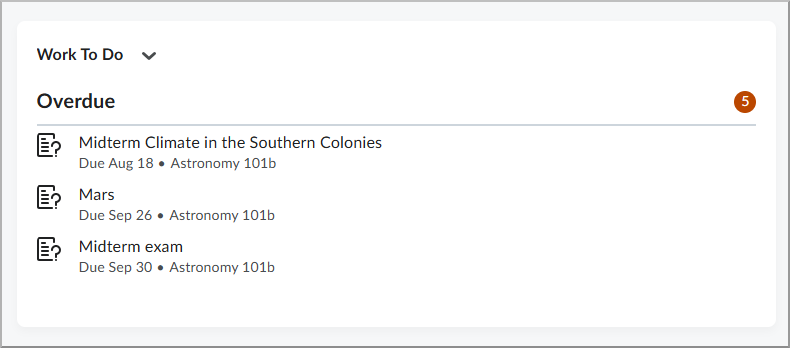
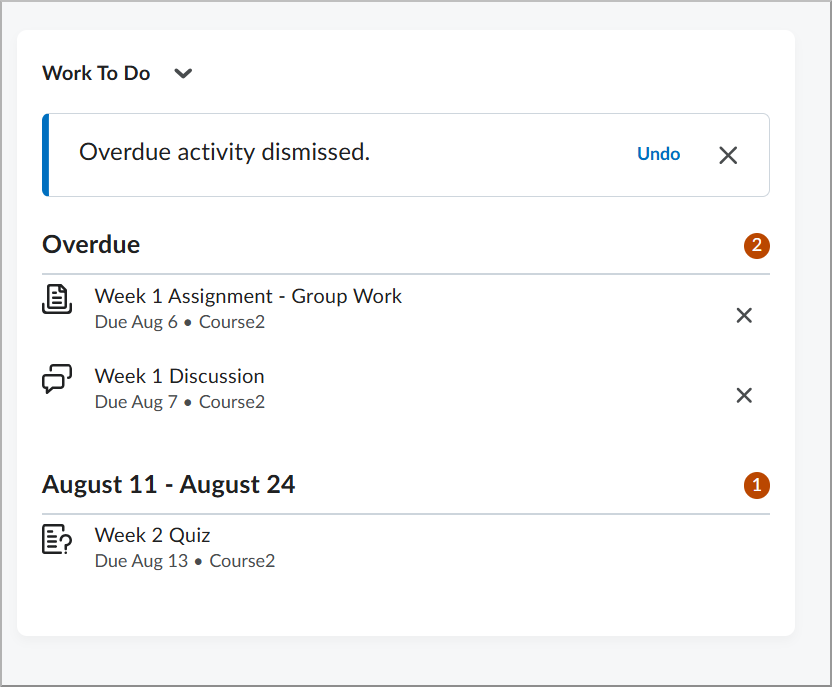
Learners with the Dismiss overdue activities permission can remove individual overdue items from their view by clicking the Dismiss icon (X). After dismissing an item from their overdue list, an alert appears briefly with an Undo option, allowing learners to restore the activity if it was dismissed by mistake.
|
Note: Overdue activities display based on the configuration variable d2l.Tools.WorkToDo.OverdueWeekLimit. Dismissing an activity is permanent for that user's view. The activity will no longer appear in the widget or the full-screen Work To Do tool, but it remains available to complete in the original tool (such as Assignments or Quizzes). |
Special Access
If a learner has Special Access with a personalized due date or end date, the widget displays the learner's specific date instead of the date assigned to the rest of the class.
Best practices
- Use due dates consistently across course activities.
- Ensure activities are visible and available to learners.
- Use tool-level dates to ensure activities to appear reliably in Work To Do.
- Regularly review your course homepage to confirm learners see the expected activities.
- Encourage learners to use the Work To Do widget to monitor upcoming deadlines.
- When supporting users with multiple roles, explain that evaluation activities are hidden by default starting with the August 2026 release.
Troubleshooting
If learners are not seeing activities in the Work To Do widget, verify that:
- The activity has a supported due date or end date.
- The activity is visible and available to learners.
- The activity falls within the configured display date range.
- The activity's end date has not passed.
- The activity has not been completed by the learner.
- The activity has not been manually dismissed by the learner.
- The activity type is supported by the Work To Do widget.
- For discussions, the appropriate date is configured in the Discussions tool.
- For surveys, an end date is configured.
- For courses, a due date is assigned through Learning Groups or an end date is configured with Completion Tracking enabled.
- If the user has multiple roles, the missing item is not an evaluation activity hidden by default.
- If a module remains overdue after all activities are complete, it was not already overdue before automatic module completion became available.
- If a learner cannot see the specific time an activity is due, ensure they are hovering over the date area in the widget.