D2L Lumi Tutor helps students engage with course content in a personalized and accessible way.
Key uses include:
- Summarizing key concepts for reinforcement
- Clarifying course expectations and assignments
- Helping learners stay organized through structured insights
With integrated Study Mode, students can also interact with their content using:
- Quizzing
- Flashcards
- Study notes
- Other interactive tools
This makes D2L Lumi Tutor a powerful companion for active learning and content retention.
What is difference between D2L Lumi Chat and D2L Lumi Tutor
Both D2L Lumi Chat and D2L Lumi Tutor can be active to provide comprehensive support.
- Lumi Chat addresses institution-wide questions, policies, and support needs. Support assistants are highly flexible and can be embedded across various touchpoints within your institution’s digital ecosystem. They can appear as a floating button on websites, student portals, or dashboards, embedded into Brightspace or placed within navigation menus and other areas for easy access.
- Lumi Tutor offers content-specific guidance within the course itself. Lumi Tutor is embedded inside individuals courses within Brightspace. They are course-specific and cannot be accessed outside of the course they are assigned to.
By combining both tools, institutions deliver a seamless support experience that enhances both administrative efficiency and learner success.
Integrate D2L Lumi Tutor
Integrating a Lumi Tutor course assistant into your Brightspace environment provides a seamless, AI-powered assistant experience directly within Brightspace.
Before you begin, confirm the following:
- You have Admin access to both D2L Lumi Chat admin portal and Brightspace.
- You're logged in to D2L Lumi Chat admin portal and your Brightspace admin console.
To integrate Lumi Tutor
-
Configure the LTI connection
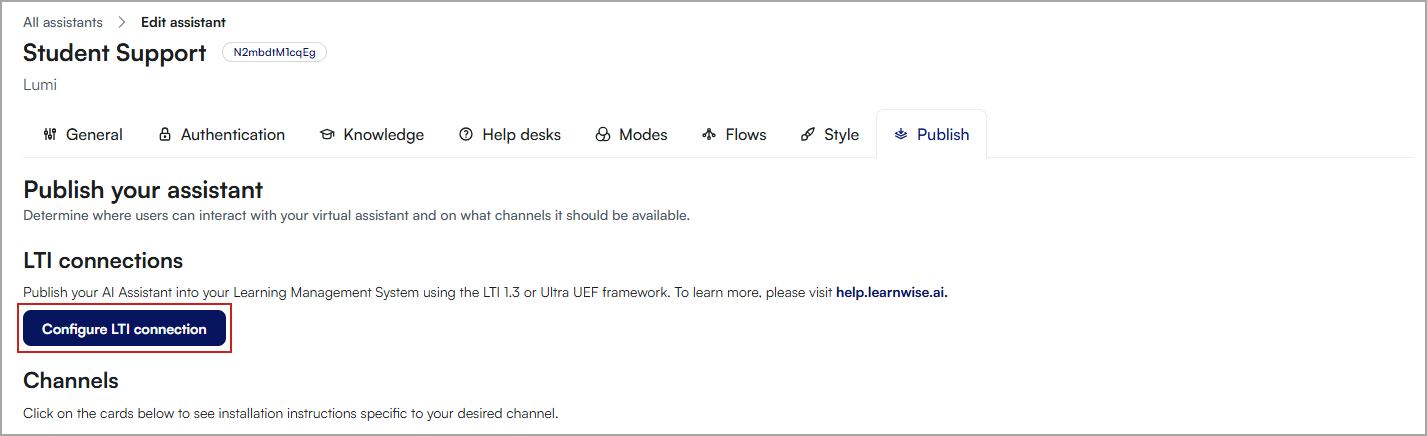
- Log in to your D2L Lumi Chat admin portal.
- Click the Assistants tab.
- Find the assistant you want to modify and click Edit.
- Click the Publish tab.
- Click Configure LTI connection.
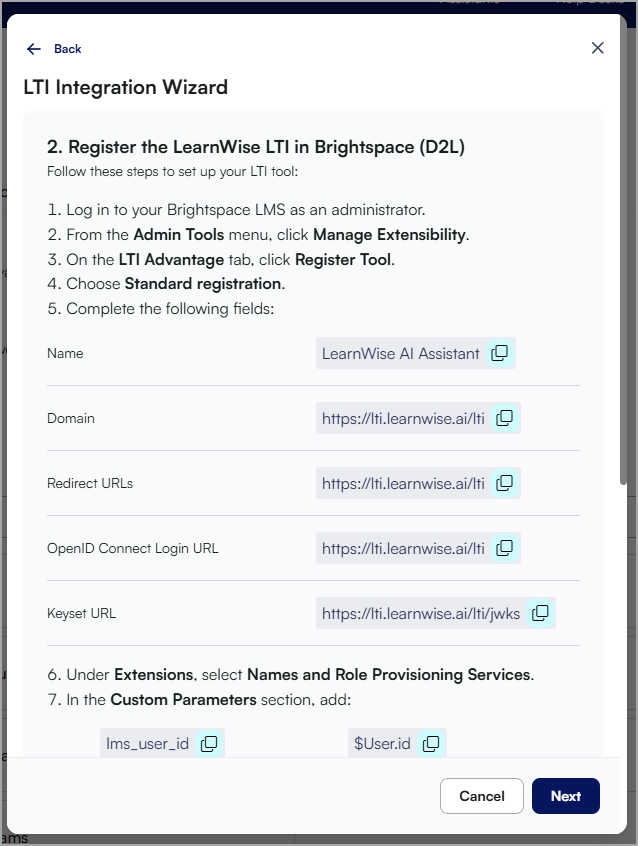
- Find Brightspace and click Connect. This launches the Integration Wizard. You will copy and paste this information into Brightspace.
-
Register LearnWise in Brightspace
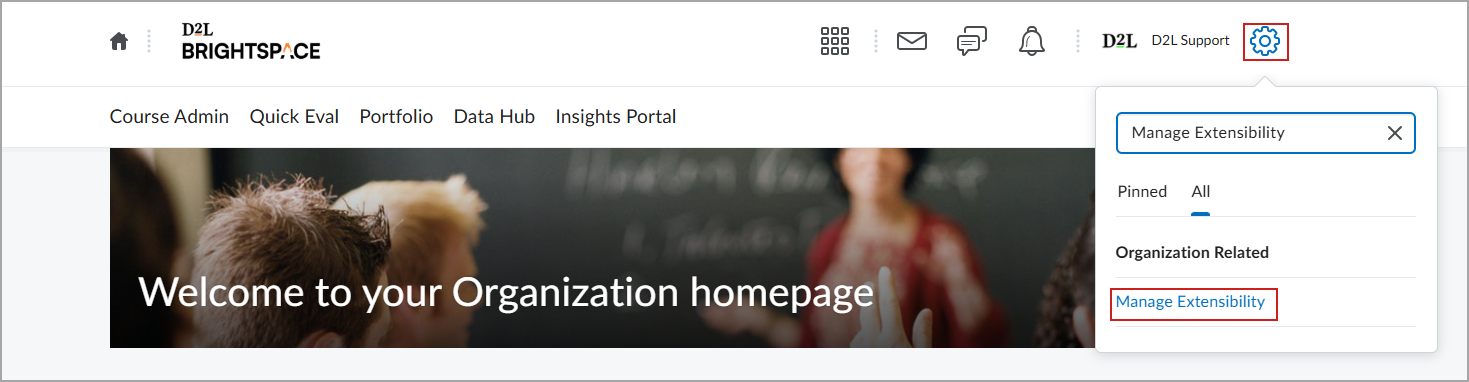
- In Brightspace, log in as an Admin. Click Admin Tools (cog) in the top right corner.
- Enter Manage Extensibility in the search field.
- Click Manage Extensibility.
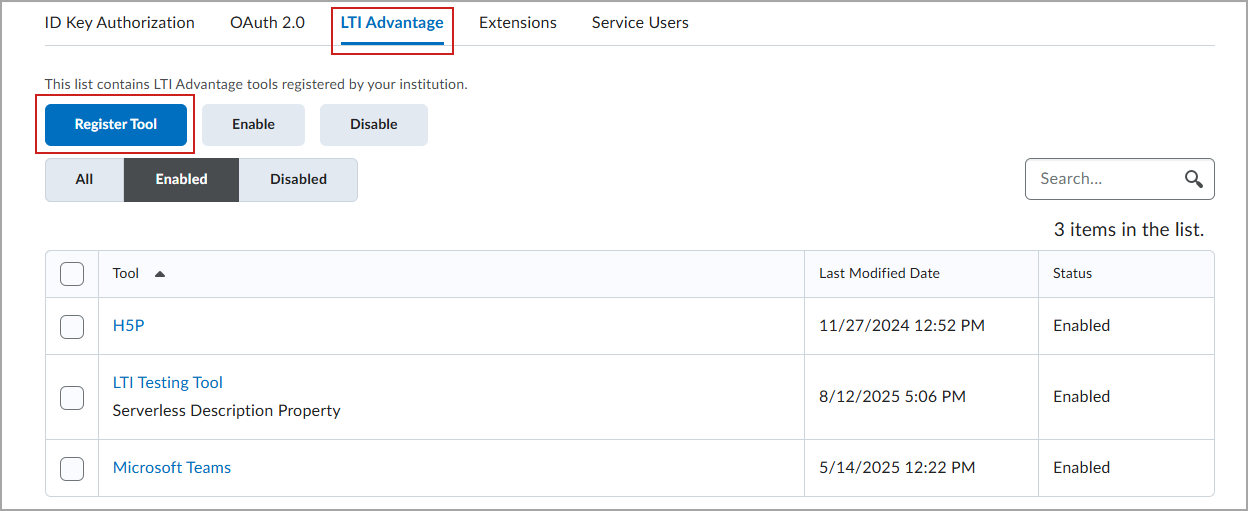
- Click the LTI Advantage tab.
- Click Register Tool.
- Select Standard Registration.
- Complete the following (copy the information from the D2L Lumi Chat Integration wizard):
- Name
- Domain
- Redirect URLs
- OpenID Connect Login URL
- Keyset URL
- Under Extensions, select Names and Role Provisioning Services.
- In the Custom Parameters section, copy the information from the D2L Lumi Chat Integration wizard:
- lms_user_id
- $User.id
- assistant_id
- N2mbdtM1cqEg
- Click Register.
- After registration, you'll receive a Client ID. Make note of this.
-
Deploy the LTI tool
- From the Admin Tools menu, click External Learning Tools.
- In the LTI Advantage tab, click New Deployment.
- Select the LearnWise registration from the Tool drop-down list.
- Enter a Name and Description for the deployment.
- To make the assistant available click on Add Org Units, filter by Organization. Select the Org Units you want to deploy it to
- Click Create Deployment.
- After deployment, you'll receive a Deployment ID. Make note of this.
- Create LTI links as needed:
- From the deployment page, click View Links.
- Click New Link.
- Enter the following:
- Name: Choose a recognizable name
- URL: https://lti.learnwise.ai/lti
- Choose the appropriate Type:
- Basic Launch: Launches from the navigation bar
- Widget: Launches from a widget inside the course
- Click Save and Close.
- Make this link available in your Course Toolbar
- To make the link available you can open a course and using the drop-down menu and select Edit This Navbar.
- Click Add Links
- Click Create a Custom Link.
- Complete the following:
- Name: The name you apply here is what will be displayed in your course navigation bar.
- URL: Click Insert Quicklink and select LearnWise from the list,
- Behavior: Choose Same window
- Click Create.
- Place the link in the preferred place in the navbar.
- Click Save & Close.
- Finalize in D2L Lumi admin portal
- Go back to the LTI Integration wizard.
- Enter the following:
- Brightspace URL
- Client ID (from Step 2)
- Deployment ID (from Step 3)
- Click Complete Setup.
Your Lumi Tutor assistant is now embedded into Brightspace and ready to launch from the designated link or widget.
Enable Content Scraping via OAuth 2.0
To allow Lumi Tutor to auto-train on course materials placed in Brightspace, you must register the assistant as an OAuth 2.0 app.
To register the OAuth App in Brightspace
- In Brightspace, log in as an Admin.
- Click Admin Tools (cog) in the top right corner.
- Enter Manage Extensibility in the search field.
Click Manage Extensibility.
- From the OAuth 2.0 tab, click Register an App.
- Log in to your D2L Lumi Chat admin portal.
- Click the Assistants tab.
- Find the assistant you want to modify and click Edit.
- From the Knowledge tab, click Courses.
- Click Connect on the Brightspace widget.
- Enter your organization’s Brightspace URL and Enable Live API Access.
-
Navigate back to Brightspace to Register an App
- Enter the following information from the Wizard:
- Application Name
- Redirect URL
- Scope
- Unselect Prompt for user consent
- Keep Enable Refresh Tokens selected.
- Check Accept Agreements.
- Click Register and enter the Client ID and Client Secret in from the D2L Lumi Chat admin portal.
- Click Connect.
Enable Study mode
Once Learning Tools Interoperability (LTI®) and OAuth 2.0 are configured, D2L Lumi Tutor automatically begins ingesting course-specific content when an instructor or learner opens a course page that includes the assistant.
In the D2L Lumi Chat admin portal, navigate to Modes and Enable Study Mode to allow learners to engage with content through self-assessment tools. This enables the assistant to generate quiz questions and provide targeted practice based on the course content.