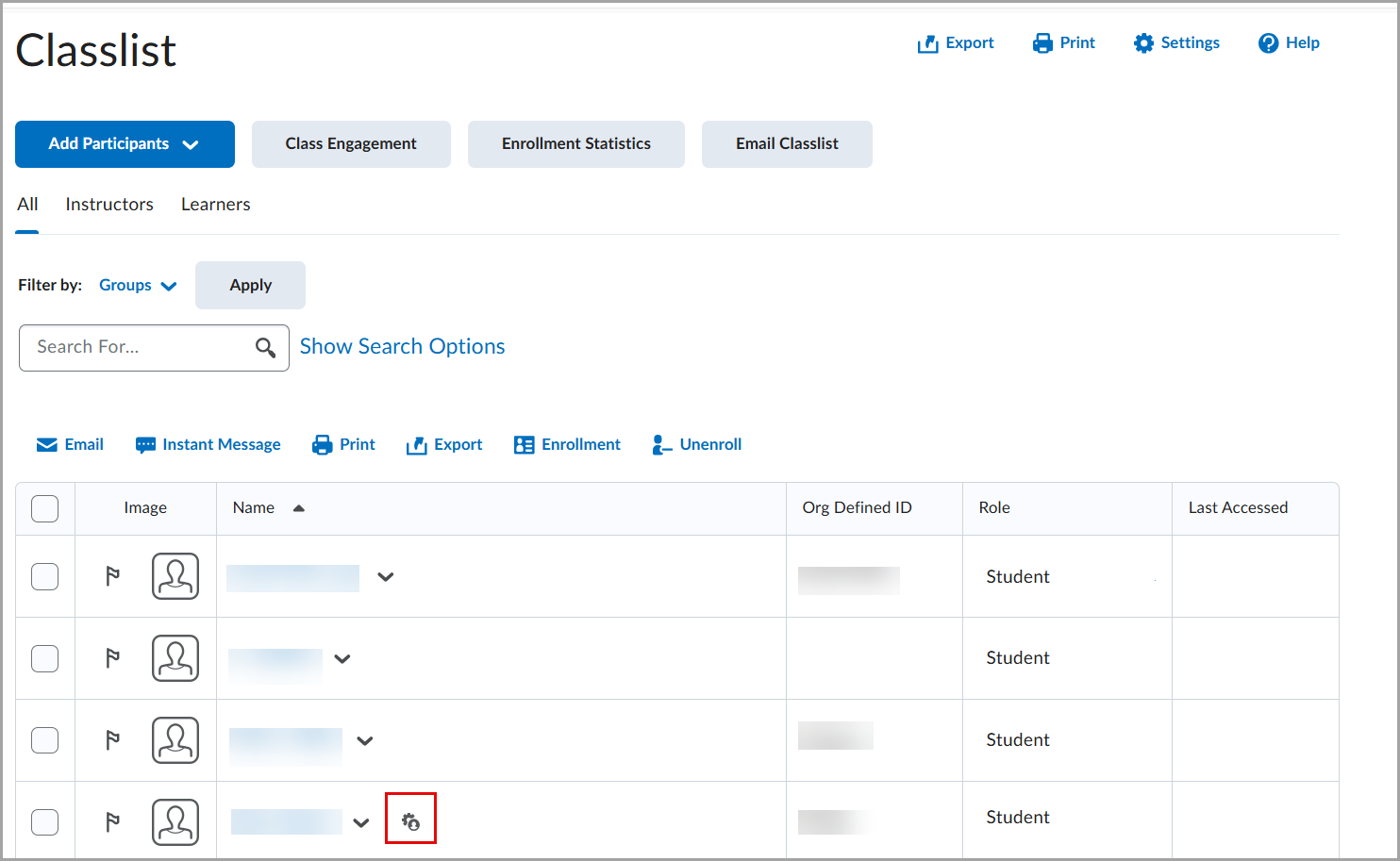
Use Accommodations to give individual students course-wide adjustments, including the following:
- Extended time (e.g., 1.5× time or additional minutes)
- Allowing right-click functionality (useful for assistive tech)

|
Tip: Use Classlist accommodations when you need a recurring, course-wide adjustment for a learner. If you need an exception for a specific activity only, for example, if a learner missed a quiz due to illness, use the Special Access feature to extend the time for this one particular quiz only.
If both are set:
- Classlist accommodations apply automatically
- Special Access can override settings for that specific quiz
|
To set Classlist accommodations
Before managing accommodations, ensure your role has the required Accommodations permissions.
- From your course navbar or Course Admin, open the Classlist tool.
- Find the learner who needs an accommodation.
- Click the dropdown next to the learner’s name.
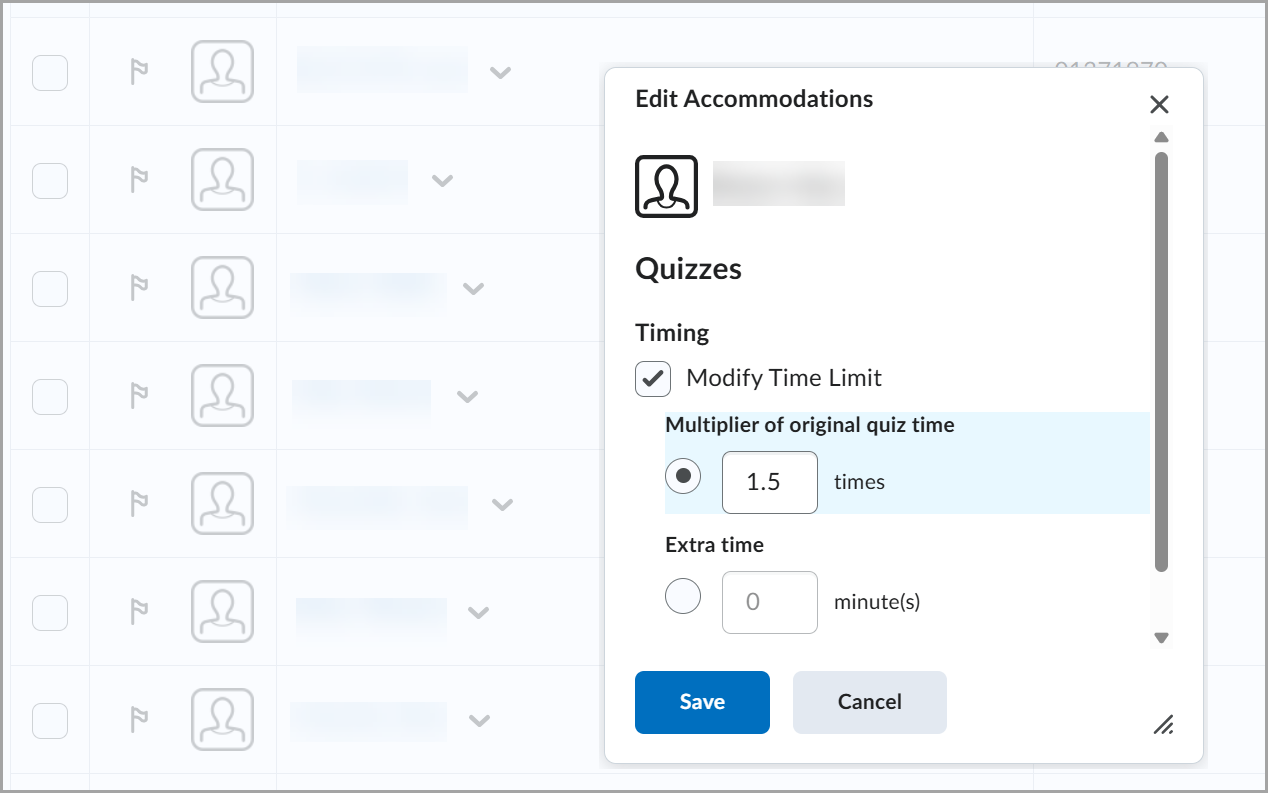
- Select Edit Accommodations from the menu.
- In the Edit Accommodations dialog, select Modify Time and specify extra time either as a Multiplier of original quiz time (e.g., 1.5×) or Extra time.
- Click Save.
As a result, a small icon appears next to the learner’s name indicating that this learner has accommodations set.