Createspace uses the Asset Library for file-based assets and the Content Library for native Brightspace learning objects. Use the Asset Library for standalone files, such as videos and Portable Document Format (PDF) files, that you upload from your device.
The Asset Library lets you create, upload, and manage audio files, videos, Shareable Content Object Reference Model (SCORM) packages, and other files in one place. With synchronization, you can push updates made to assets in the library to all course offerings where they are deployed.
Supported file types and limits
The following table lists the supported file types and upload limits.
Supported Asset Library file types and upload limits
| File type |
Extensions and limits |
|---|
| Video |
.mp4, .mov, .wmv; maximum file size: 2 GB; maximum resolution: 720p |
| Audio |
.mp3, .m4a, .ogg, .wav, .wma; maximum file size: 1 GB |
| Images |
.jpg, .jpeg, .png |
| Documents |
.doc, .docx, .pdf, .pptx, .xlsx |
| SCORM packages |
.zip; SCORM 1.2 and 2004 |
Organize and collaborate
Create a folder and collaborate
- From the Asset Library, click New Folder.
- Enter a Folder Name, and then click Create.
- To share the folder, click the Actions menu for the folder and select Manage Collaborators.
- Search for users or roles, and then add them as collaborators. Collaborators can view, edit, and add assets to the shared folder.
Upload and manage versions
- From Createspace, click Libraries.
- Click the Select a Library arrow and select Asset Library.
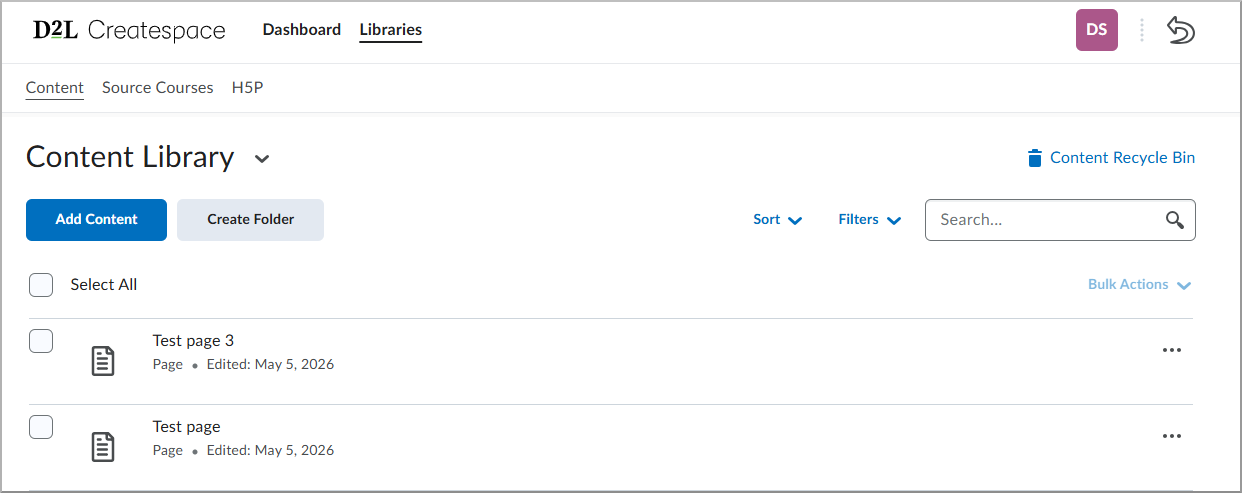
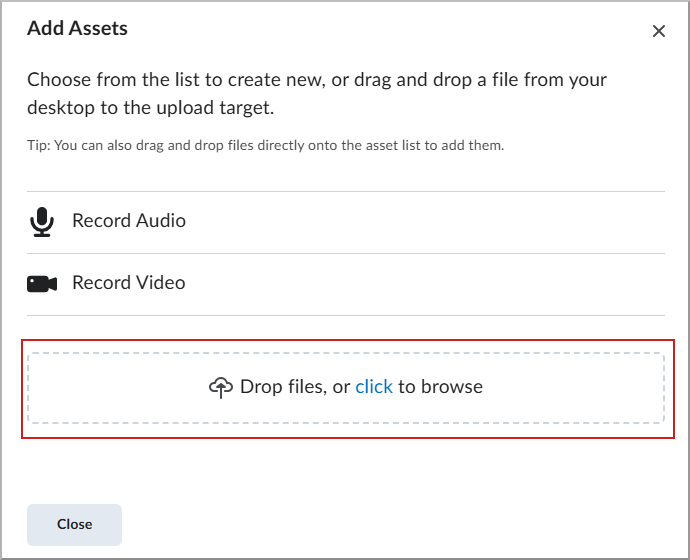
- Click Add Assets, and then drag your file to the Drop files area.
- To update an existing file, click the Actions menu and select Manage Versions.
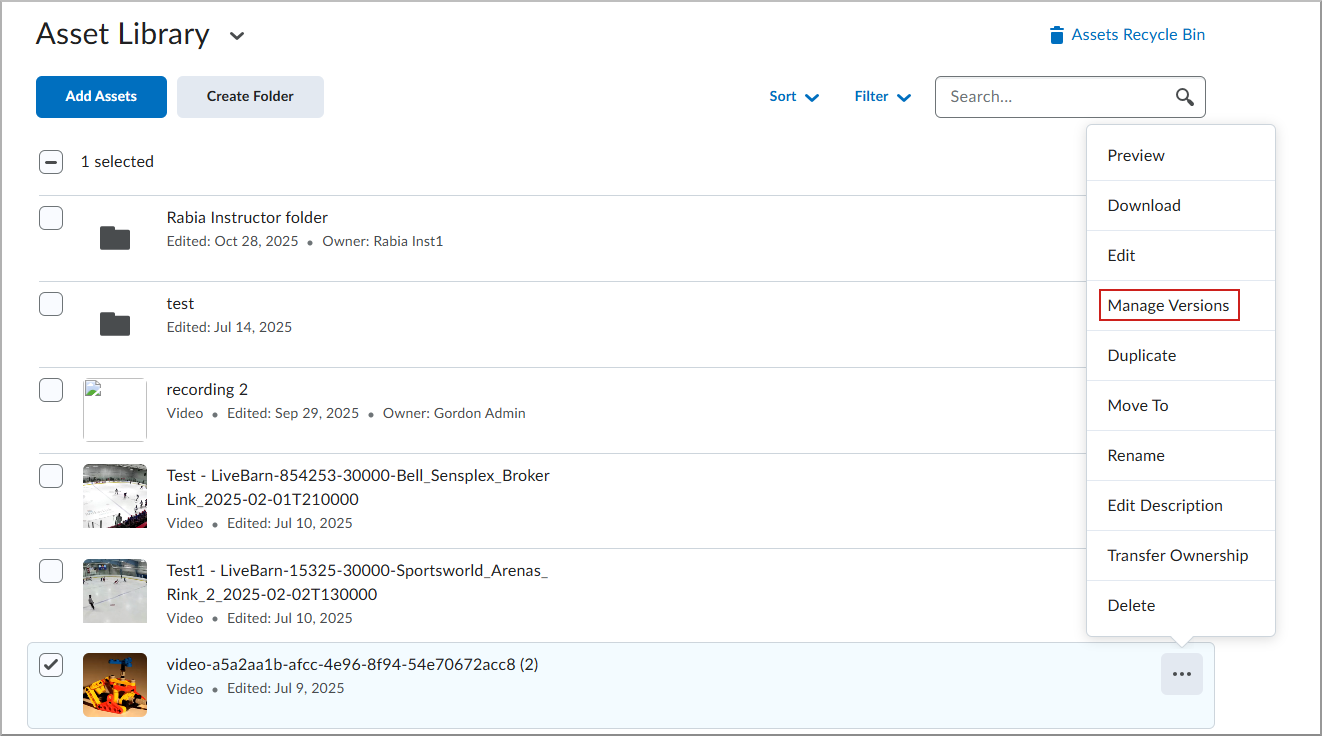
- Upload the new version, and then click Publish.
Track and synchronize assets
Track where assets are used
Before updating or deleting an asset, you can identify the courses and library objects that currently use it.
- From the Asset Library, locate the asset.
- Click the Actions menu and select Manage Linked Copies.
- Review the course offerings and Content Library objects where the asset is embedded.
Synchronize asset updates
- From the Asset Library, locate the updated asset.
- Click the Actions menu and select Sync.
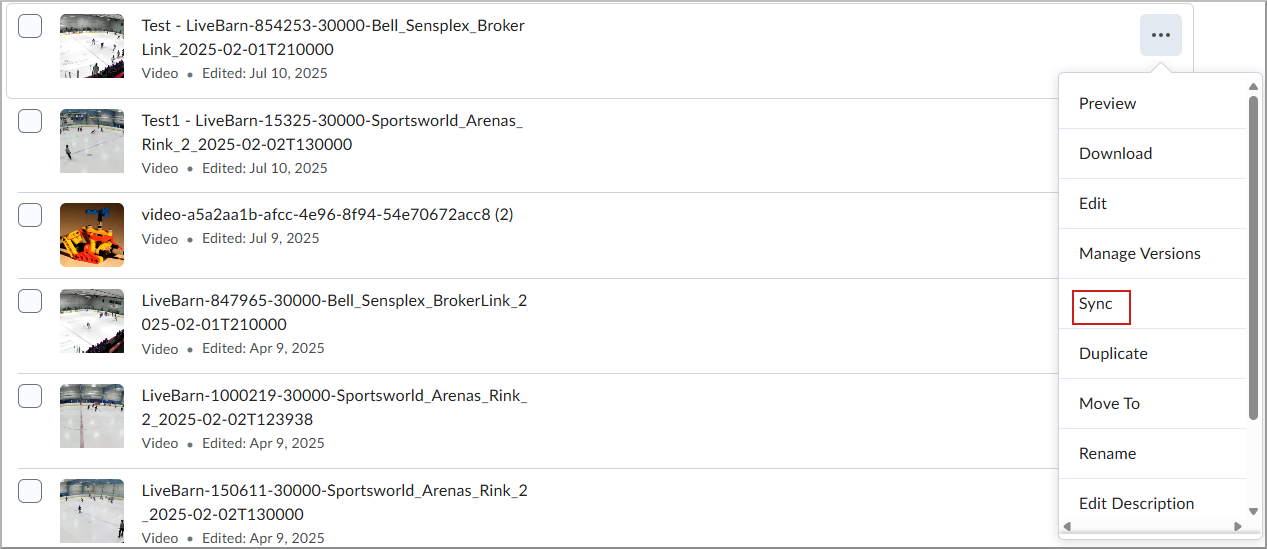
- Select the course offerings you want to update, and then click Sync.
Delete and restore assets
Delete items
- Select the check boxes for the items, and then click Bulk Actions > Delete.
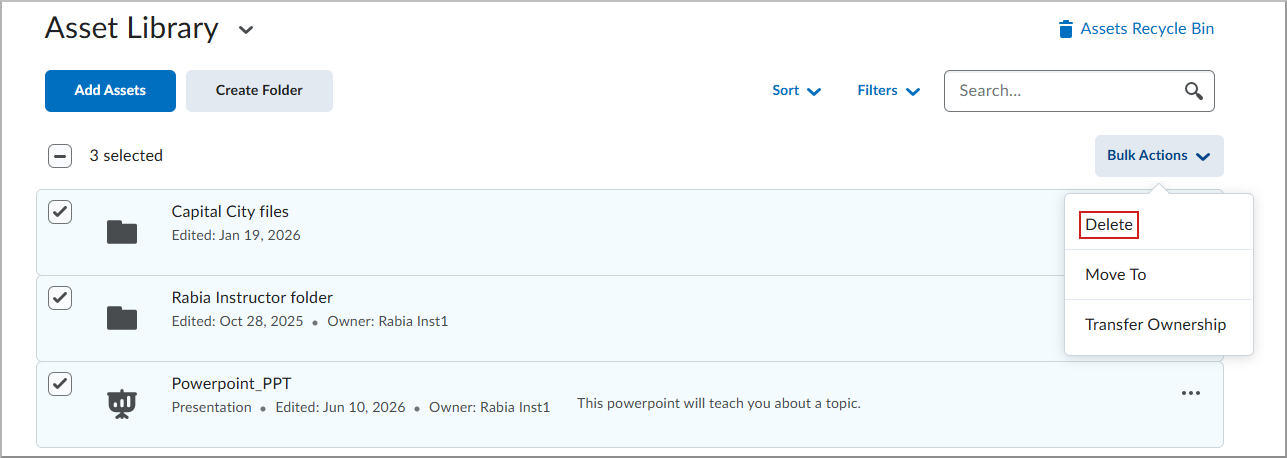
Deleted items remain in the Recycle Bin for 90 days.
Restore deleted assets
- From the Asset Library, click the Recycle Bin icon.
- Locate the asset and click the Actions menu > Restore.

|
Important: Updating an asset version does not change files already submitted to an assignment. Submitted files retain the version that existed when they were submitted. |