Use event logs to review changes made in the Grades tool. Event logs can help you audit grade changes, review updates made by other evaluators, investigate unexpected results, and discuss grade history with learners.
Choose the event log you need
| If you want to review |
Use this event log |
|---|
| Changes made to one learner's grades. |
User Grade event log
|
| Changes to grades for one grade item. |
Grade Item event log
|
| Changes to learners' final grades. |
Final Grade event log
|
| Changes to the properties or restrictions of a category or grade item. |
Manage Grades event log
|
| When grade items were created or removed, and who performed the action. |
Grade item restoration event log
|
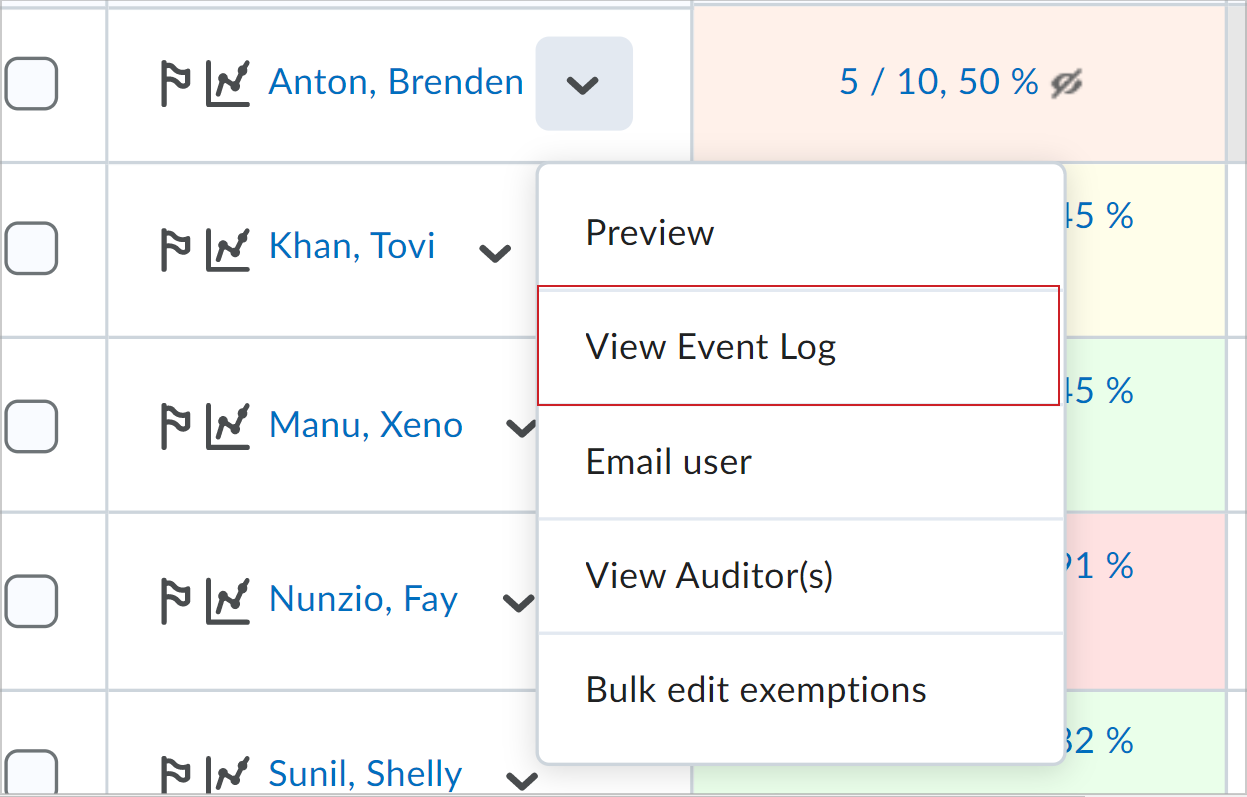
View the event log for a learner
Use the learner event log to review changes made across that learner's grades.
- Navigate to Grades.
- On the Enter Grades page, click the learner's name to open their grade summary.
- From the Actions menu beside the learner's name, select View Event Log.
View the event log for a grade item
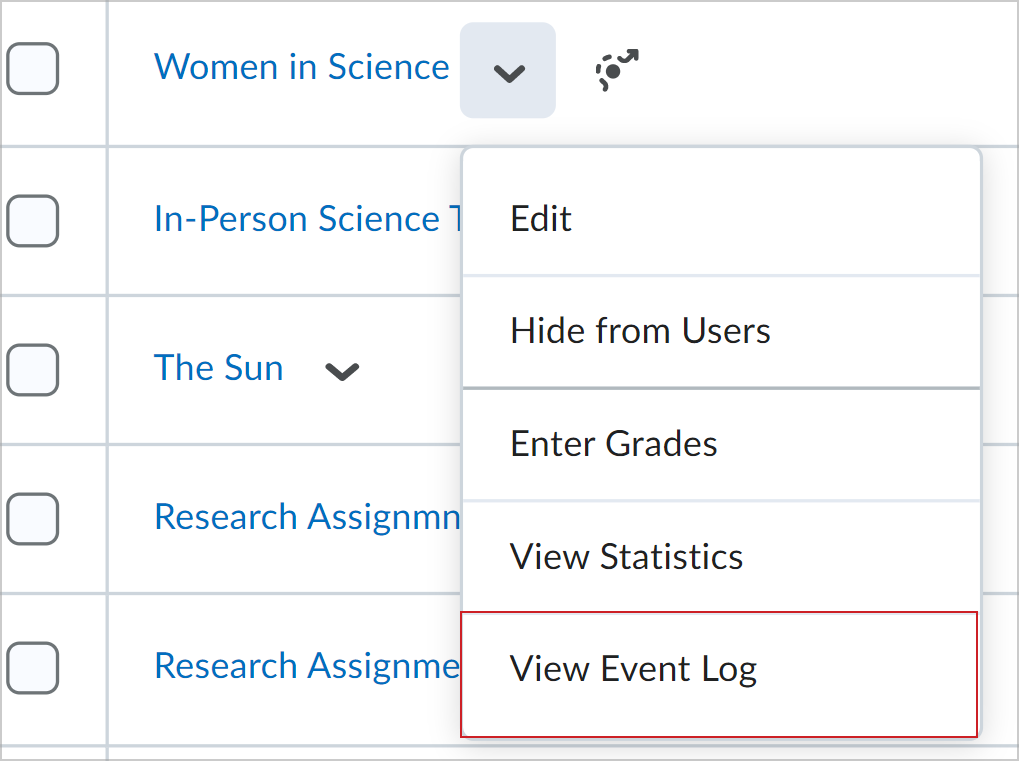
Use the grade item event log to review changes to grades associated with one grade item.
- Navigate to Grades.
- On the Manage Grades page, open the Actions menu for the grade item.
- Select View Event Log.
View the event log for final grades
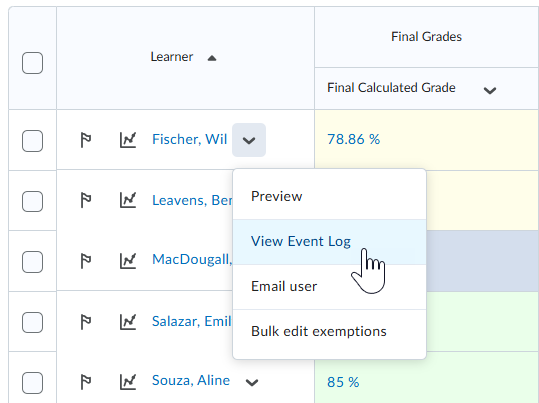
Use the final grade event log to review changes made to the Final Calculated Grade and Final Adjusted Grade. The event log records calculated values as well as any manual adjustments made to final grades.
- Navigate to Grades.
- On the Enter Grades page, open the Actions menu for the Final Calculated Grade or Final Adjusted Grade column.
- Select View Event Log.
View changes to grade item properties or restrictions
Use the Manage Grades event log to review changes made to a category or grade item's properties or restrictions.
- Navigate to Grades.
- On the Manage Grades page, open the Actions menu for the category or grade item.
- Select View Event Log.
View the grade item restoration event log
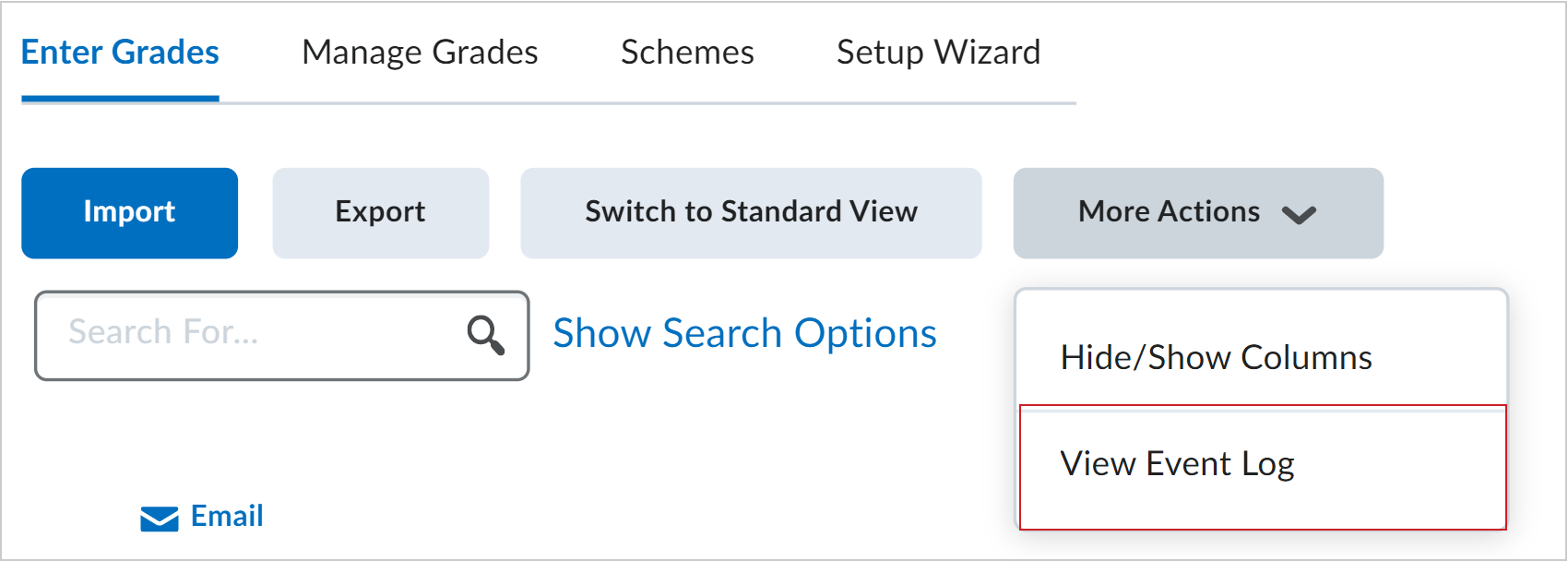
Use the grade item restoration event log to review when grade items were created or removed and who performed the action.
- Navigate to Grades.
- On the Manage Grades page, click More Actions > View Event Log.
Restore a deleted grade item from the event log
You can restore deleted Numeric, Select box, Pass/Fail, and Text grade items from the grade item restoration event log.
- Navigate to Grades.
- On the Manage Grades page, click More Actions > View Event Log.
- Beside the grade item you want to recover, click Restore.

|
Note:
- Formula and Calculated grade items cannot be restored.
- Restoring a grade item also restores the learner grades associated with that item when the grade data is still available.
|