You can use D2L Lumi Content to generate engaging learning materials from external files in the Content Experience.

|
Note:
Content generation is only available in the Content Experience and has the following limitations:
Import pre-written unit option:
- Supports Word files (.docx) less than 25 MB in size
- Processing of Word files is limited to ~100,000 characters (~16,667 words)
- Generated units are limited to no more than 15 pages
Generate unit from presentation option:
- Supports PowerPoint files (.pptx) less than 25 MB in size
- Processing of PowerPoint files is limited to the first 50 slides, with a maximum of 1,800 characters per slide (~300 words) and 3,600 characters per speaker note (~600 words)
- Generated units are limited to no more than 15 pages
- Each page supports no more than 10 images
|
Watch this video to learn how to generate learning materials from external files with D2L Lumi Content. Review the written steps below.
Generate module content from external files
- Navigate to Content.
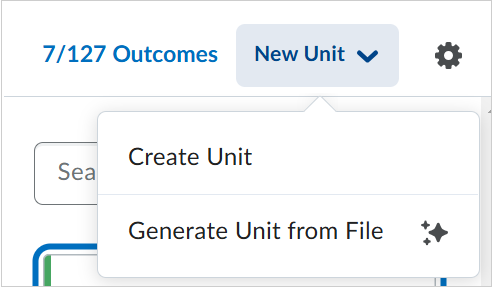
- Click New Unit and select Generate Unit from File.
- Under Choose AI Assistance Level, select one of the following:
- Import pre-written unit: D2L Lumi does not edit or change the source content.
- Generate unit from a presentation or lecture: The source content is changed and adapted for use as a unit.
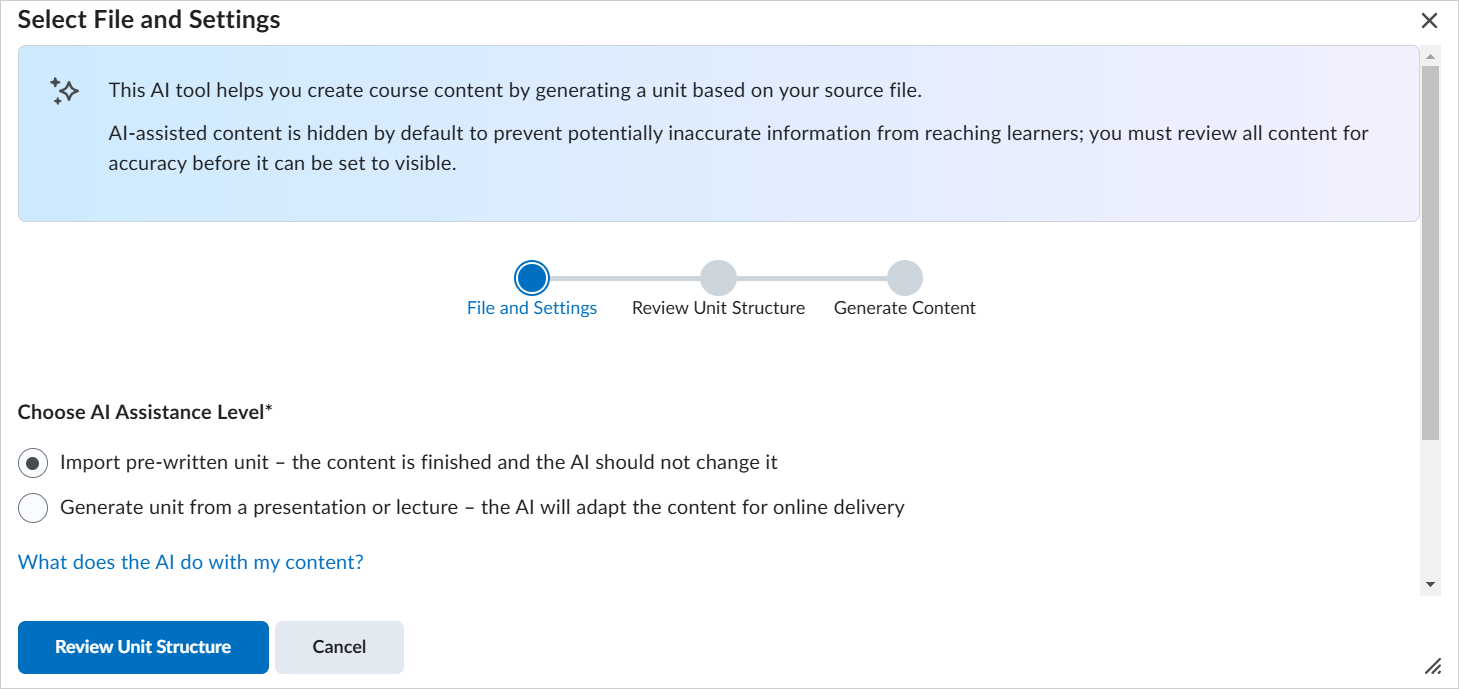
- From the Select File and Settings dialog, under Choose File, either drag and drop a file into the dialog or click to browse for your file.
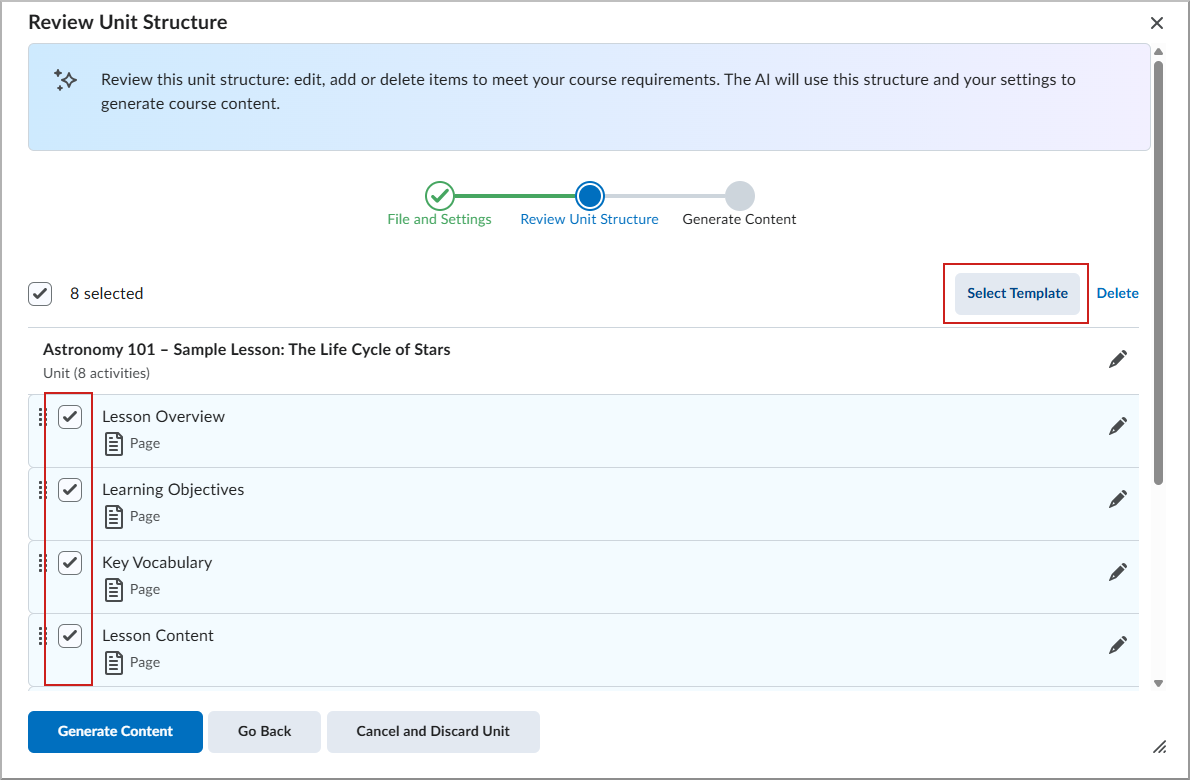
- Click Review Unit Structure.
- If you want to apply an HTML Template to activities in the unit, do the following:
- Select one or more activities from the list.
- Click Select Template.
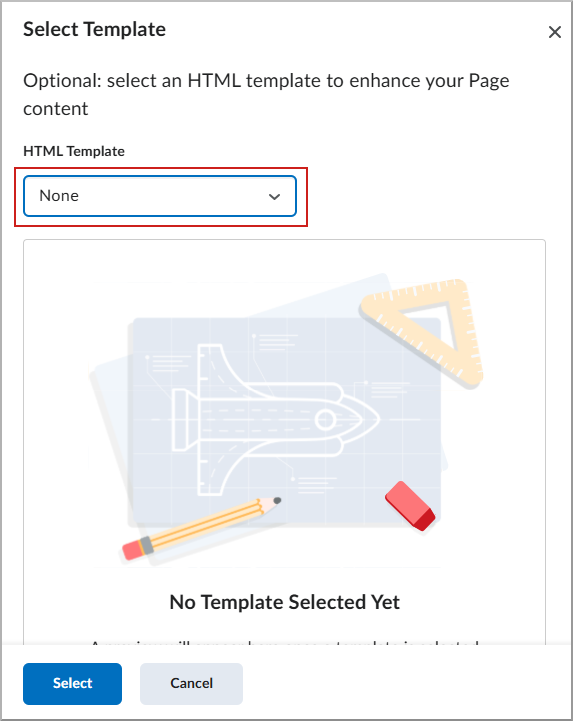
- In the Select Template dialog, choose a template from the HTML Template dropdown and click Select.
- On the Review Unit Structure page, click Generate Content.
- To continue, click Proceed to Content.
The generated module activities are added to your content in a hidden and locked state. Review the content before you unlock it and make it visible to learners.
Review AI content
- Click the AI-generated content.
- Click Review AI content.
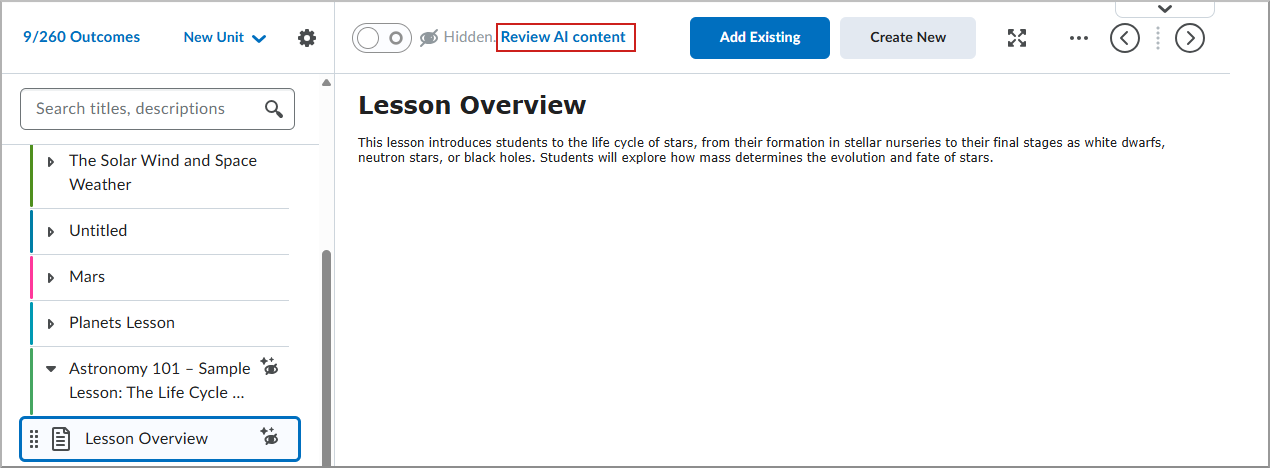
- Do one of the following:
- To unlock and make the content visible, click Set to Reviewed.
- To edit the content again before unlocking, click Edit Content.
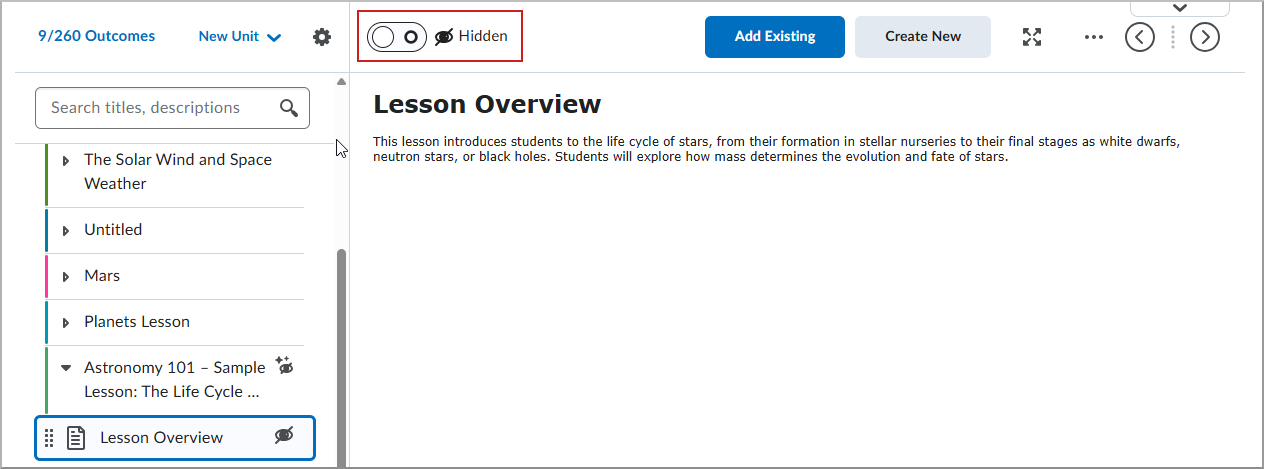
- Once the content is reviewed, toggle visibility to ON to remove the hidden status.
|
Note: You can also Review AI Content from the Edit page of any hidden unit. |