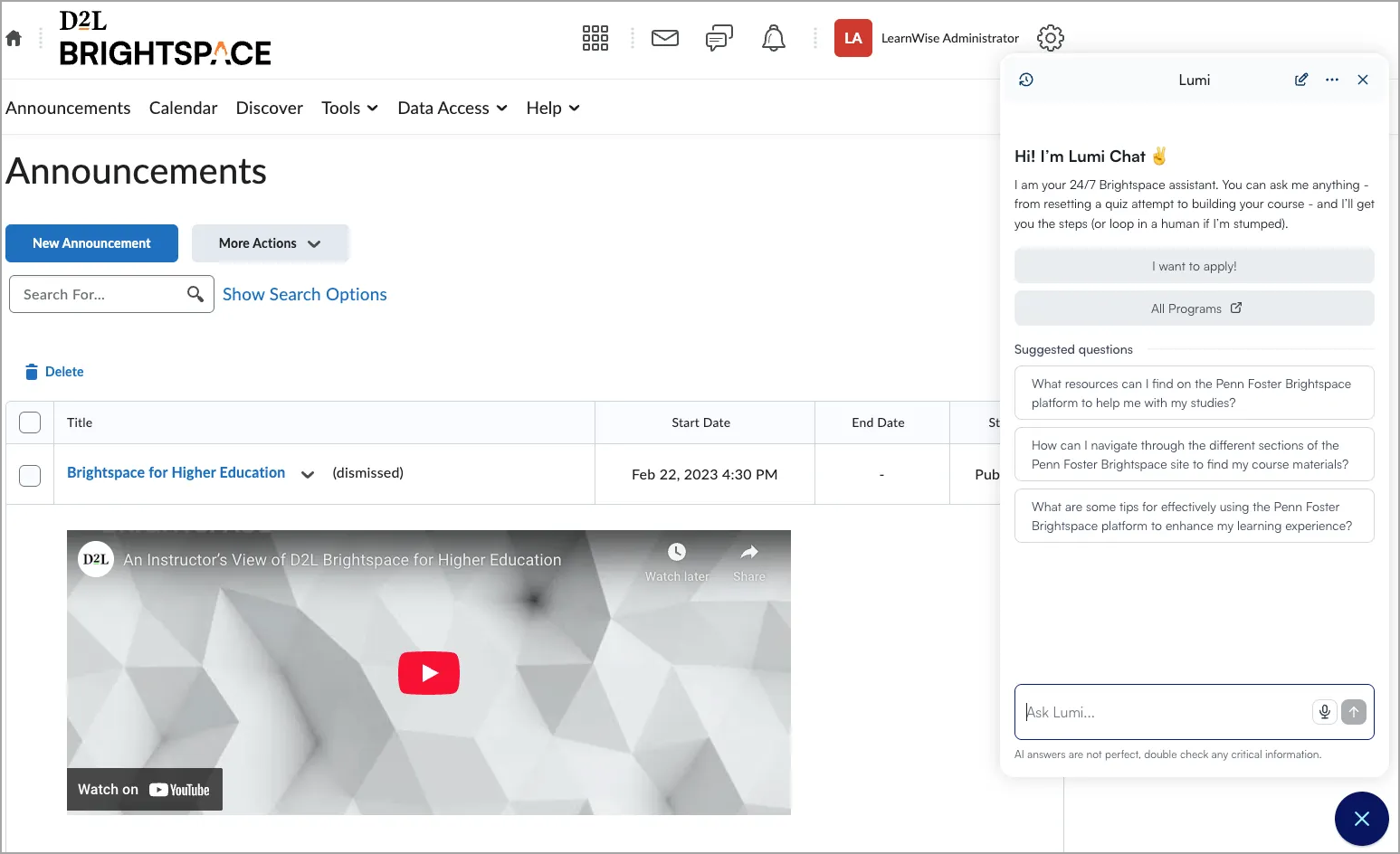
Integrating a D2L Lumi Chat assistant into your educational platform enhances the user experience by offering instant, automated support for common inquiries. Tailor the assistant to your institution's needs for relevant, personalized information.
To create a new Lumi Chat assistant
- Log in to your D2L Lumi Chat admin portal.
- Select the Assistants tab to view a list of all AI assistants currently available.
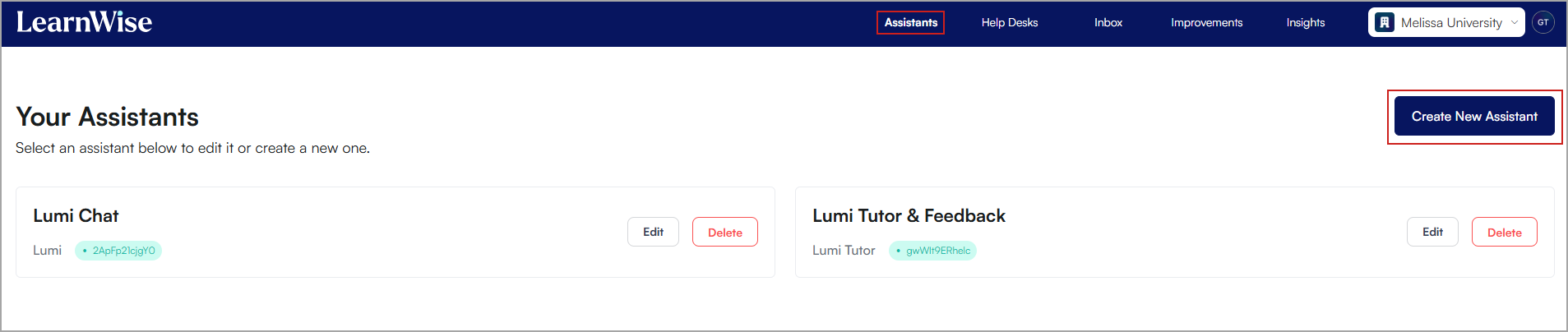
- Click Create New Assistant.
- Enter a name for the Assistant and click Create Assistant.
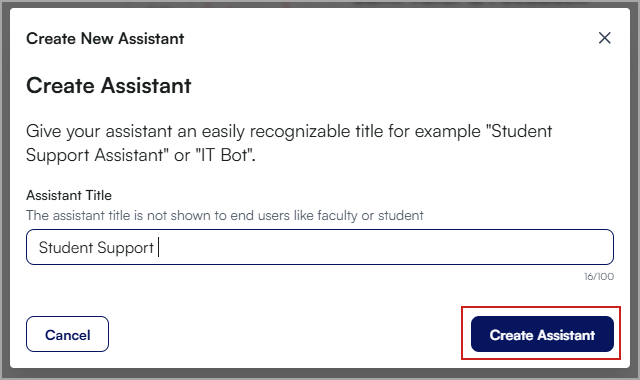
- Customize the following settings:
- Nickname: Assign a nickname to your assistant that will be visible to your users.
- Welcome message: Compose a welcome message that users will see upon initiating a conversation with your assistant.
- Shortcuts: Create shortcut buttons that show up when your assistant is launched.
- AI disclaimer text: Add a disclaimer.
- Voice mode: Choose whether to activate voice mode. Voice Mode allows users to interact with AI assistants by speaking their questions aloud.
- AI suggestions: Choose whether to activate AI-suggested questions. These assist users by generating contextually relevant queries based on the context of the chat.
- Custom instructions: Control how your assistant processes information and formats responses, including its behavior, language, and tone. You can enable the following:
- Answer guidelines: Instructions that guide how the assistant should write its final answer.
- Search guidelines: Instructions that guide how the assistant should search and process information from the knowledge base.
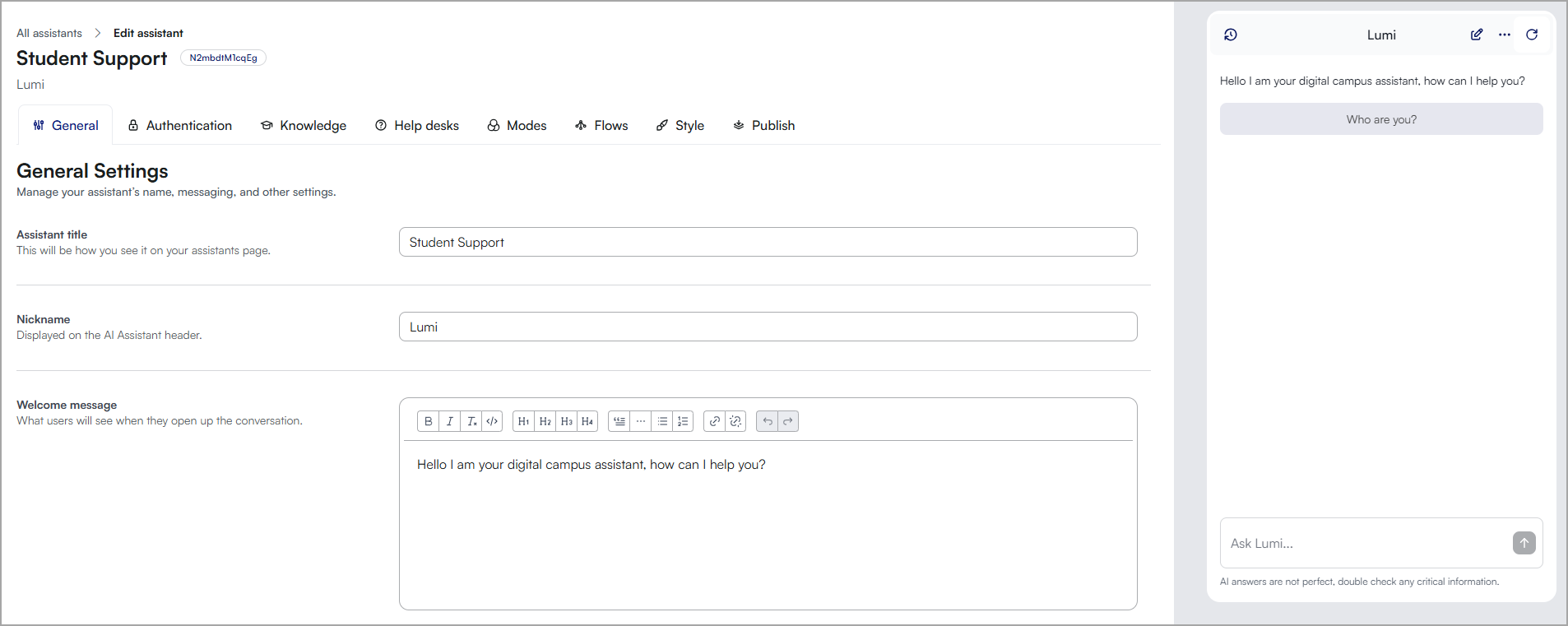
- Click the Knowledge tab.
- Add all the sources you would like the AI assistant to use for knowledge. The following can be added:
- Websites
- Applications
- Files
- Courses
- EdTech Guides
- FAQs
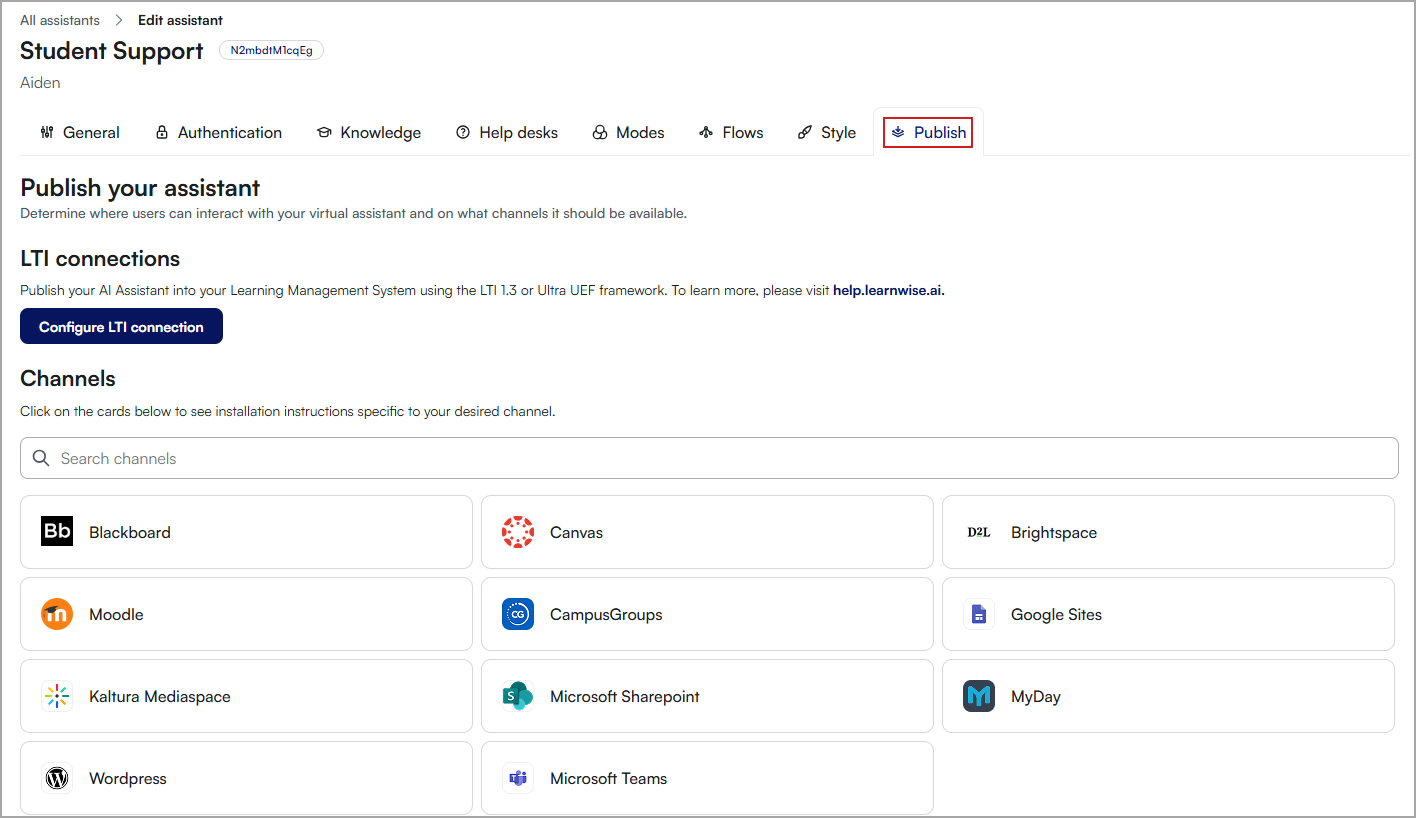
- (Optional) Click Helpdesks. Help desks allow you to escalate users to the correct place should they need to speak to a human. You can connect add and edit help desks globally and enable them for each assistant
- Click the Publish tab to display all the channels you can publish your assistant to.
-
To publish your assistant to Brightspace:
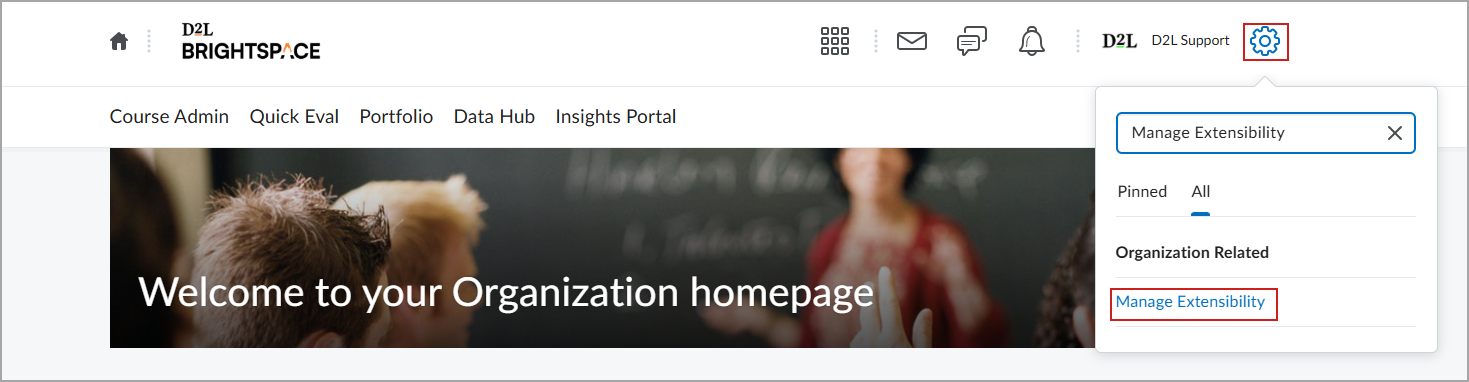
- In Brightspace, log in as an Admin. Click Admin Tools (cog) in the top right corner.
- Enter Manage Extensibility in the search field.
- Click Manage Extensibility.
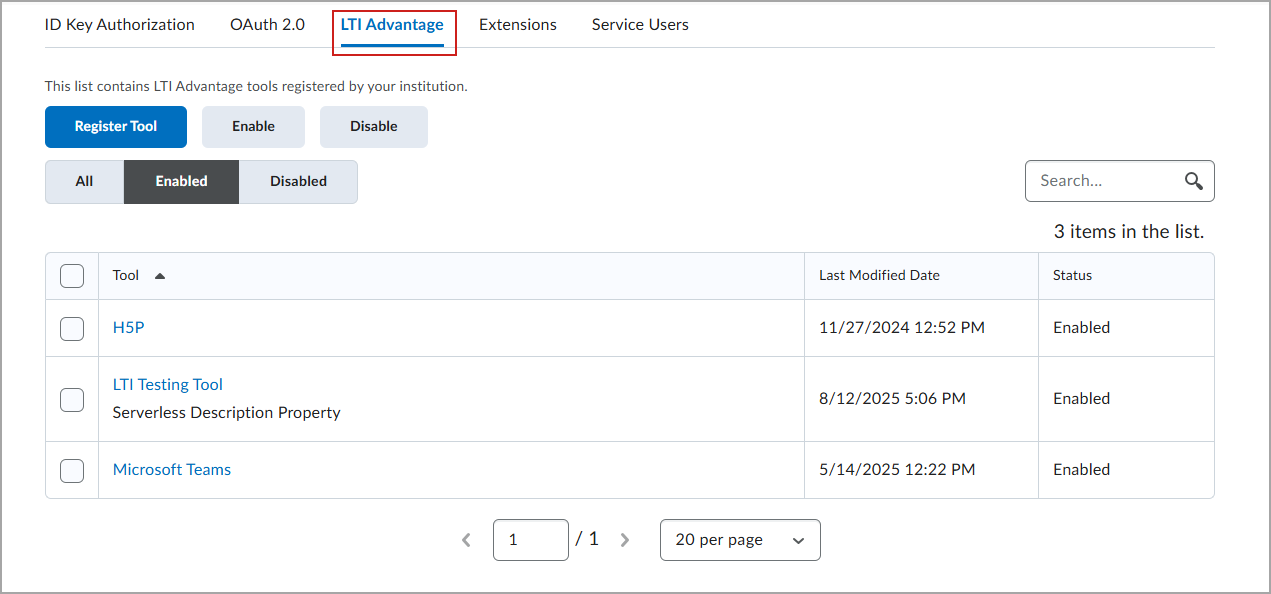
- Click the LTI Advantage tab.
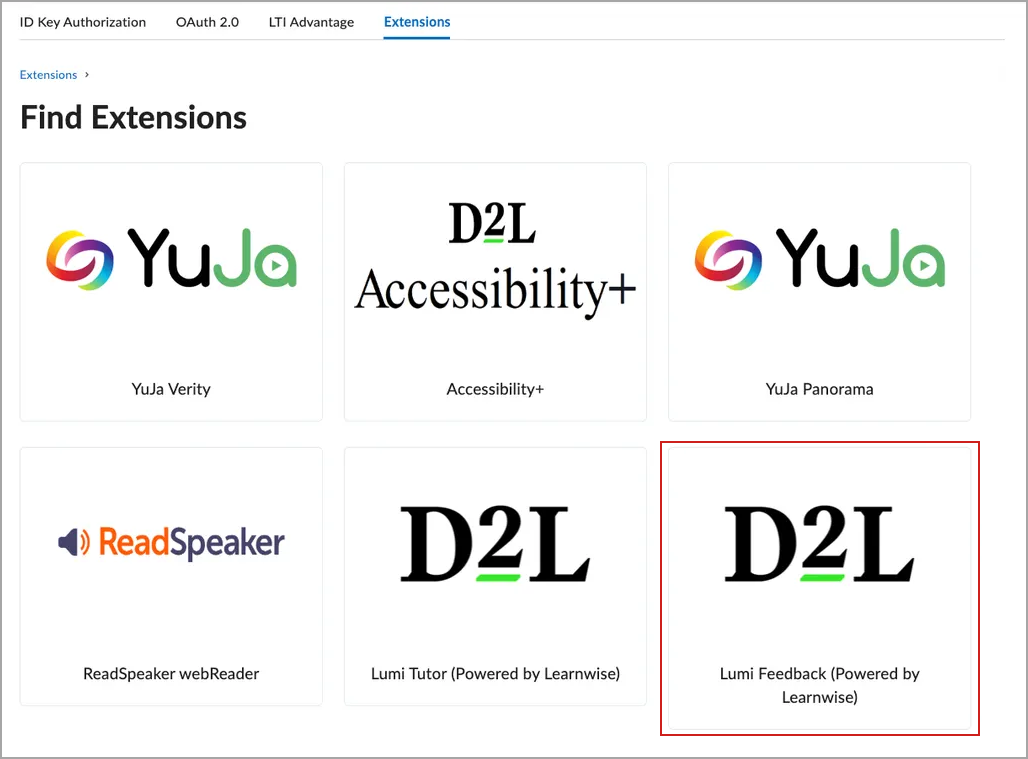
- Click Find Extensions.
- Click Lumi Feedback. This extension is used for both Lumi Chat and Lumi Feedback in the Extensions library.
- Click Install Extension.
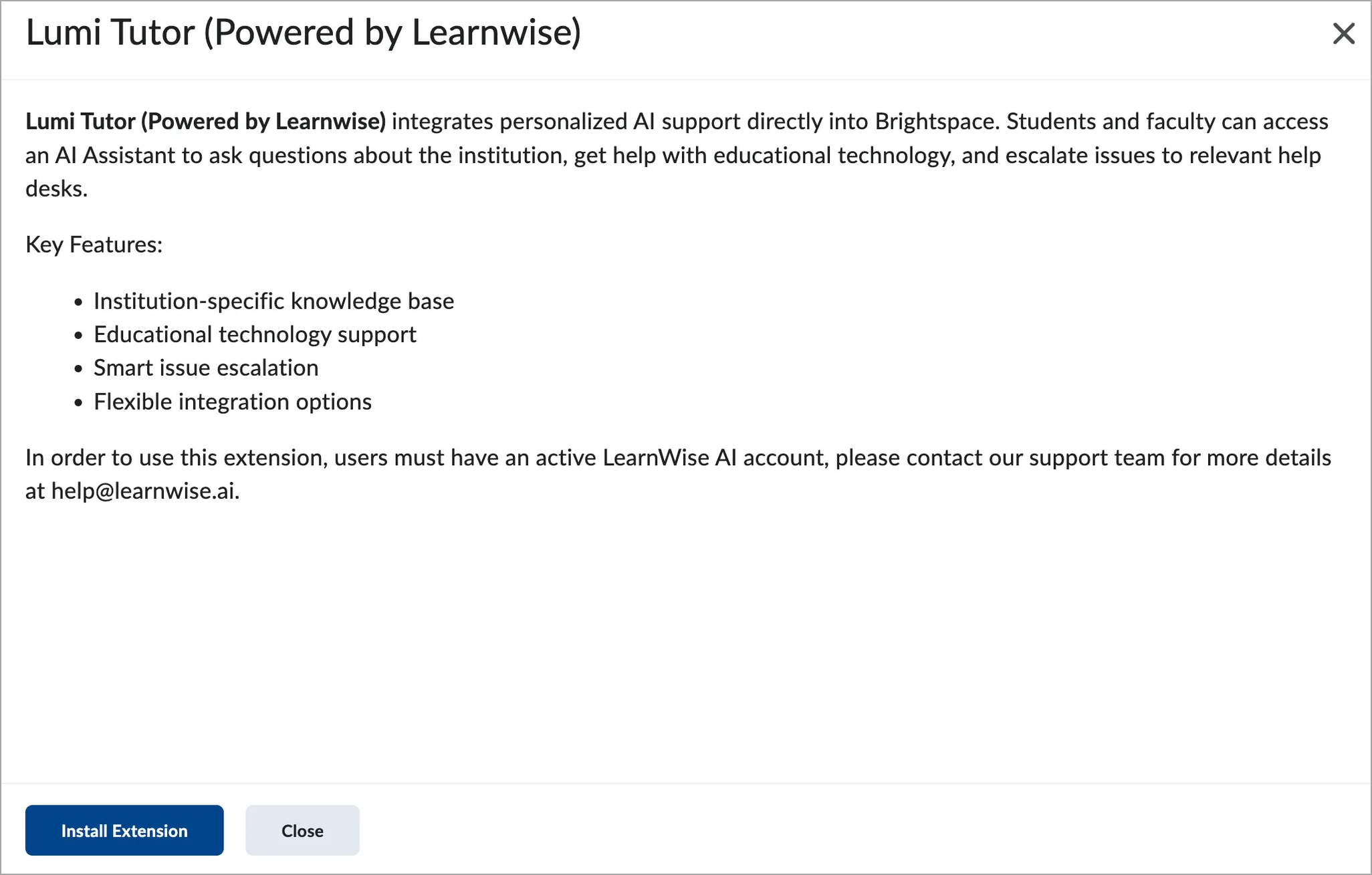
- Click Lumi Feedback in the Extensions list.
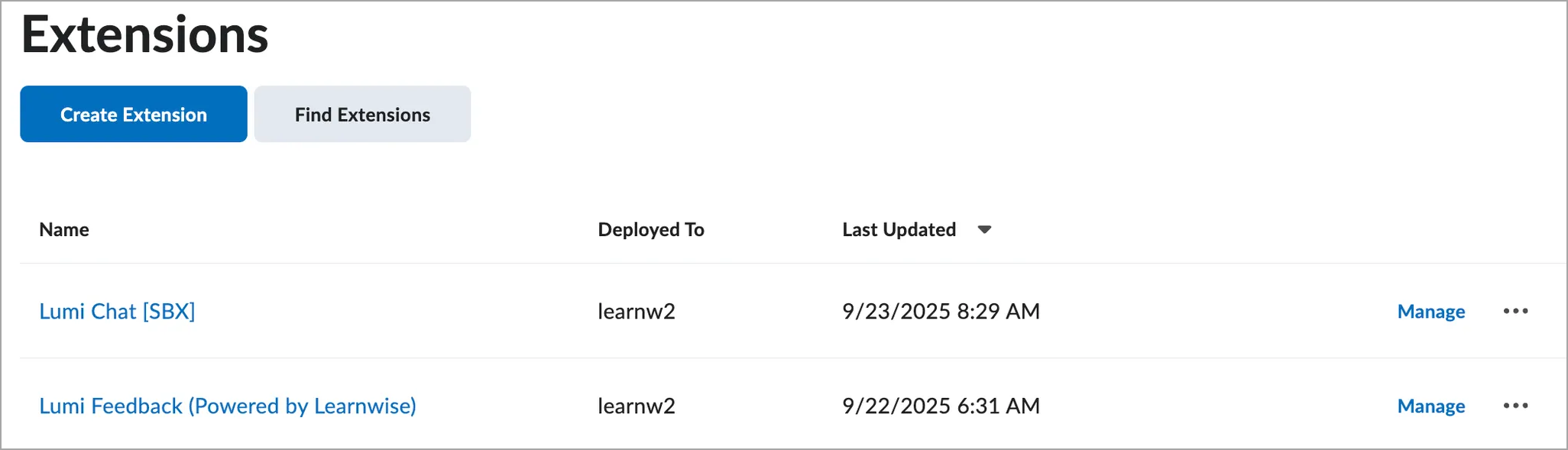
- Click Enabled.
- Click Add.
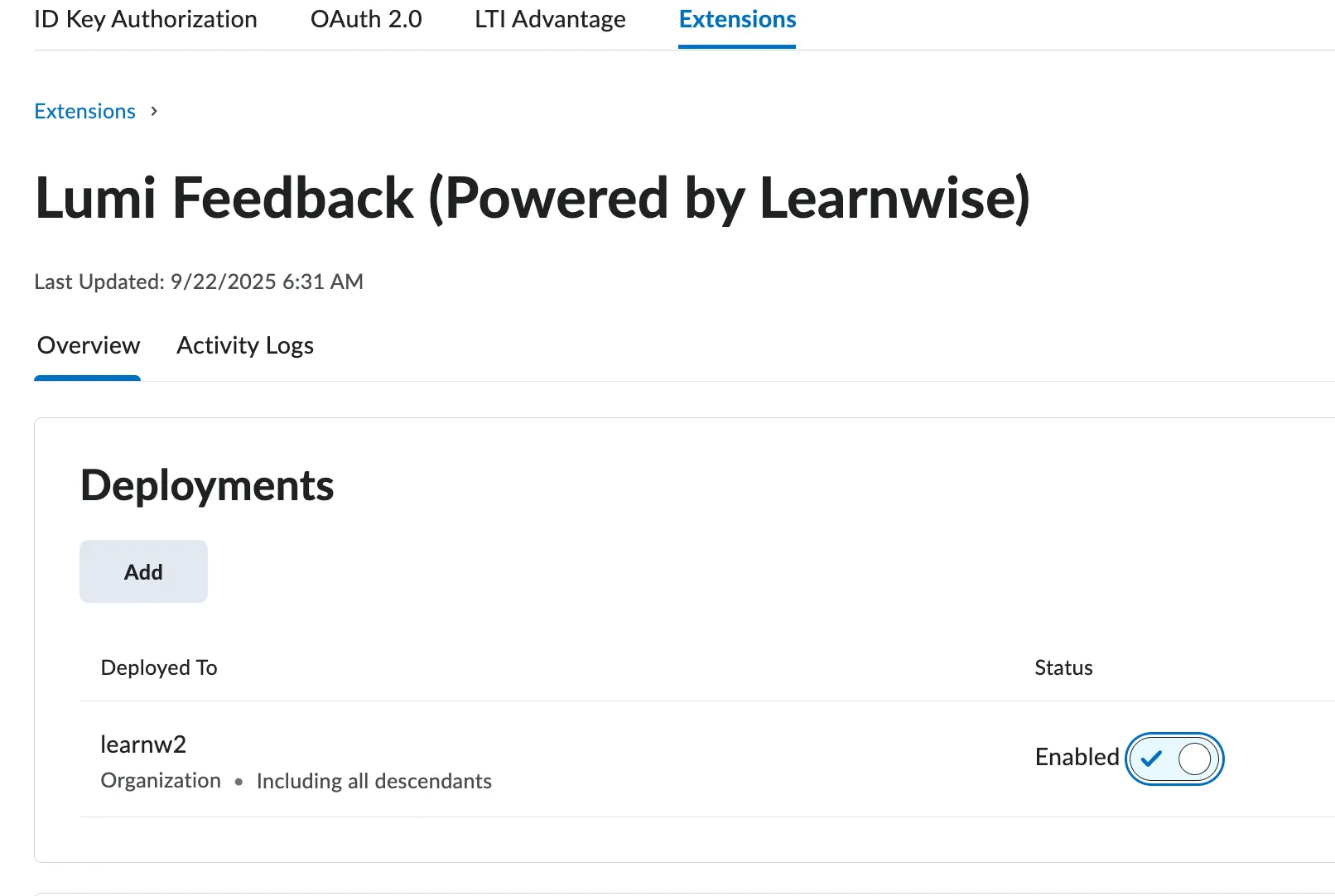
-
Select where you would like this tool deployed:
- Entire Org
- Specific Org Units
- Complete the following:
- Assistant ID: The assistant ID that is displayed in the General tab.
- Region: Enter the region for the deployment.
- Availability: Select either Entire organization or Org Unit.
- Toggle: Set to Enabled.
- Click Save.
Your Lumi Chat assistant is now available inside your Brightspace environment and accessed by default via a floating button on the right side of the screen.