Grade categories organize related assessments, while grade items represent the individual activities you evaluate. Together, they form the structure of your grade book. Use this page to create, edit, rename, and delete grade categories and grade items, and to restore supported grade items.
Before you begin
Before creating grade categories and grade items:
- Choose the grading system that matches your course design.
- Plan how you want to organize assessments in your course.
- Decide whether assessments will contribute to final grades by percentage or by points.
- Review your grading scheme and grade calculation settings.

|
Note: If an option described on this page is unavailable, contact your administrator. |
For more information, refer to Grading system types and Create a grading system.
Create a grade category
Grade categories organize related grade items into sections in your grade book. For example, you might create categories for Assignments, Discussions, Quizzes, or Exams.
- From your course navbar, select Grades.
- Click the Manage Grades tab.

- Click New > Category.

- In the Properties tab, enter the category details. For more information, refer to Category properties.
- Configure the weight and distribution settings that apply to your grading system. For more information, refer to Category weight and distribution.
- Configure the display options. For more information, refer to Category display options.
- In the Restrictions tab, configure any availability dates or release conditions. For more information, refer to Category restrictions.
- Click Save and Close, or click Save and New to create another category.
Category properties
In the General section, configure the category name and description:
- Name: Enter the full category name that instructors and learners will recognize, such as Assignments, Discussions, Quizzes, or Exams.
- Short Name: Enter an optional abbreviated name to save space when the category appears in the grade book.
- Description: Enter information that explains what the category contains or how it is used.
- Show Description: Make the category description visible to learners.
|
Note: The fields available in the Properties tab vary depending on your grading system and category configuration. |
Category points and distribution
If you use the Points grading system, configure how the category contributes to the final grade and how points are distributed among the grade items it contains.
- Can Exceed: Allow the category to contribute more than the total points contained within when learners earn bonus points or scores greater than 100% of the total points (based on the maximum points set on each item contributing to the Final Grade within the Category).
- Exclude from Final Grade Calculation: Alternative to setting on individual items, enabling ignores the entire Category and all items within it from contributing to the Final Grade.
|
Note: Categories act as a subtotal of all the items under it before sending to the Final Grade. If you are using the Can Exceed setting on an individual item or a Grade item is marked as Bonus when within a Category, the overall maximum points possible in the subtotal cannot be exceeded unless Can Exceed is also enabled within the Category. |
Under Distribution, choose how the points in the category are distributed among its grade items:
- Points per item: Set the points of all grade item(s) within the category. To utilize the following dropping options, all Grade items need to be worth the same number of maximum points.
- Number of highest non-bonus items to drop for each user: Exclude the specified number of each learner's highest grades from the category calculation.
- Number of lowest non-bonus items to drop for each user: Exclude the specified number of each learner's lowest grades from the category calculation.
Category weight and distribution
If you use the Weighted grading system, configure how the category contributes to the final grade and how its weight is distributed among the grade items it contains.
- Weight: Enter the percentage that the category contributes to the final grade. Grade items within the category contribute toward this category weight.
- Allow category grade to exceed category weight: Allow the category to contribute more than its assigned weight when learners earn bonus points or scores greater than 100%.
Under Distribution, choose how the category weight is distributed among its grade items:
- Manually assign weight to items in the category: Set the weight of each grade item yourself. Use this option when grade items should contribute different amounts to the category.
- Distribute weights by points across all items in the category: Allow Brightspace to calculate each grade item's weight according to its maximum points. Grade items worth more points contribute more to the category.
- Distribute weight evenly across all items: Give every non-bonus grade item an equal share of the category weight.
- Number of highest non-bonus items to drop for each user: Exclude the specified number of each learner's highest grades from the category calculation.
- Number of lowest non-bonus items to drop for each user: Exclude the specified number of each learner's lowest grades from the category calculation.
|
Note: The options for dropping the highest or lowest grades are available when you select Distribute weight evenly across all items. Bonus grade items are not included when Brightspace determines which grades to drop. |

|
Tip: When using the Weighted grading system, verify that your category weights total 100%. If you manually assign weights to grade items within a category, verify that those item weights also total 100% of the category. |
Category display options
In the Display Options section, configure the category information learners can see:
- Display class average to users: Show learners the class average for the category.
- Display grade distribution to users: Show learners how grades are distributed across the class.
- Override display options for this item: Use category-specific display settings instead of the default Student View settings configured for the course.
If you override the course display options, select the grade information learners can see:
- Points grade: Show the points the learner earned and the maximum points available in the category.
- Weighted grade: Show how much of the category weight the learner earned. This option applies to the Weighted grading system.
- Grade scheme symbol: Show the value assigned by the associated grade scheme, such as a letter grade or achievement level.
- Grade scheme colour: Show the colour associated with the learner's grade scheme level.
|
Note: Before displaying class averages or grade distributions, consider your organization's privacy requirements, particularly for courses with a small number of learners. |
For course-wide display settings, refer to Define settings in the Grades tool.
Category restrictions
In the Restrictions tab, configure when and to whom the category is visible:
- Hide from users: Prevent learners from seeing the category.
- Has Start Date: Set the date and time when the category becomes visible to learners.
- Has End Date: Set the date and time when the category is no longer visible to learners.
- Display in Calendar: Add the configured start or end date to the course Calendar.
- Release Conditions: Make the category available only to learners who meet specified requirements. You can attach an existing release condition or create and attach a new one.
Create a grade item
Grade items represent the assessments you evaluate in your course. A grade item can exist independently in the grade book, or you can associate a supported grade item with an Assignment, Discussion, or Quiz.
- Navigate to Grades > Manage Grades.
- Click New > Item.
- Select a grade item type. For more information, refer to Choose a grade item type.
- Configure the grade item properties. For more information, refer to Grade item properties.
- Configure the grading properties. For more information, refer to Grading properties.
- Select a grade scheme or associate a rubric, if required. For more information, refer to Select a grade scheme and Associate a rubric.
- Configure any restrictions, learning objectives, or display options. For more information, refer to Grade item restrictions, Associate learning objectives, and Grade item display options.
- Click Save and Close, or click Save and New to create another grade item.
Choose a grade item type
| If you want to... |
Use... |
|---|
| Assign learners a numeric score out of a specified total number of points. |
Numeric
|
| Evaluate learners by selecting an achievement level from a grading scheme. |
Selectbox
|
| Record a pass or fail result. |
Pass/Fail
|
| Calculate a result using custom logic based on other grade items. Formula grade items can contribute to the final grade when you use the Formula grading system. |
Formula
|
| Display cumulative achievement across selected grade items. Calculated grade items do not contribute to the final grade. |
Calculated
|
| Record comments or text that do not contribute to the final grade. |
Text
|
Grade item import and activity support
| Grade item type |
Supports grade import |
Can be associated with a course activity |
|---|
Numeric
|
Yes |
Yes. This is the primary type used with Assignments, Discussions, and Quizzes. |
Selectbox
|
Yes |
Yes, although availability may vary by activity and configuration. |
Pass/Fail
|
Yes |
No |
Formula
|
No |
No |
Calculated
|
No |
No |
Text
|
Yes |
No |
Grade item properties
Basic grade item properties can include:
- Name: Enter the full grade item name displayed in Grades.
- Short Name: Enter an optional abbreviated name to save space when the grade item appears in the grade book.
- Category: Select the category that will contain the grade item.
- Description: Enter information that explains the assessment or how the grade item is used.
- Show Description: Make the grade item description visible to learners.
Grading properties
Depending on the grade item type and grading system, grading properties can include:
- Maximum Points: Enter the maximum score learners can earn for the grade item. This value is required for Numeric, Selectbox, and Pass/Fail grade items.
- Weight: Enter the percentage the grade item contributes to its category or the final grade when using the Weighted grading system.
- Can Exceed: Allow learners to earn more than the configured maximum points. This setting also applies when grades are imported into Brightspace. If Can Exceed is not enabled, imported grades that exceed the maximum points are capped at the maximum value.
- Bonus: Add the grade item as extra credit without increasing the total points available for the category or final grade.
|
Note:
- Select Can Exceed when learners can earn more than the maximum points, such as through bonus questions or extra credit.
- Bonus items add points without increasing the total points available. To allow bonus points to raise a category or final grade above 100%, enable the applicable option that allows the category or final grade to exceed its maximum value.
|
Select a grade scheme
Use the course default grade scheme unless the grade item requires a different scheme. Grade schemes can display numeric results as percentages, letter grades, achievement levels, pass/fail values, or other custom labels.
For more information, refer to Create grading schemes using the Grades tool.
Associate a rubric
Associate a rubric if you want to evaluate learner performance using predefined criteria and achievement levels.
Grade item restrictions
In the Restrictions tab, configure when and to whom the grade item is visible:
- Hide from users: Prevent learners from seeing the grade item.
- Has Start Date: Set the date and time when the grade item becomes visible to learners.
- Has End Date: Set the date and time when the grade item is no longer visible to learners.
- Display in Calendar: Add the configured start or end date to the course Calendar.
- Release Conditions: Make the grade item available only to learners who meet specified requirements. You can attach an existing release condition or create and attach a new one.
Associate learning objectives
In the Objectives tab, click Associate Learning Objectives to associate learning objectives with the grade item.
Grade item display options
Grade item display options control the grade information learners can see. Select Override display options for this item to use item-specific display settings instead of the default Student View settings configured for the course.
Depending on the grade item type and grading system, display options can include:
- Points grade: Show the points the learner earned and the maximum points available.
- Weighted grade: Show how much of the item's assigned weight the learner earned. This option applies to the Weighted grading system.
- Grade scheme symbol: Show the value assigned by the associated grade scheme, such as a letter grade or achievement level.
- Grade scheme colour: Show the colour associated with the learner's grade scheme level.
For course-wide display settings, refer to Define settings in the Grades tool.
Edit a grade category or grade item
You can edit grade categories and grade items to update names, grading properties, restrictions, or display options.
- Navigate to Grades > Manage Grades.
- From the Actions menu beside the category or grade item, click Edit.
- Update the properties you want to change.
- Click Save and Close.
|
Tip: Changes to grading properties, such as weights or maximum points, can affect existing grade calculations. Review your grade book after making significant changes. |
Rename a grade category
Renaming a category changes only its display name. It does not affect grade calculations or learner grades.
- Navigate to Grades > Manage Grades.
- From the Actions menu beside the category, click Edit.
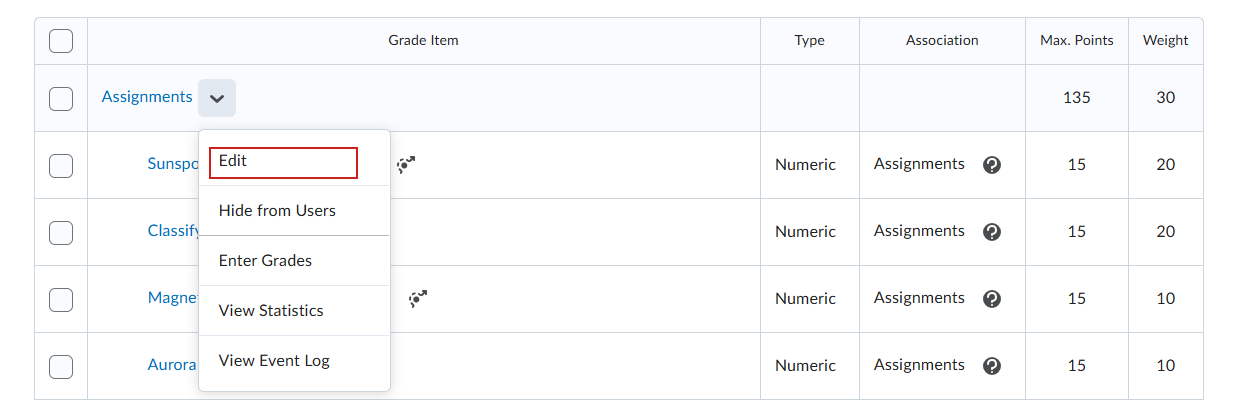
- Enter the new name in the Name field.
- Click Save and Close.
Before deleting a grade category or grade item
Before deleting a grade category or grade item, consider the following:
- Deleting a category: Deleting a grade category does not delete the grade items it contains. Those items remain in the grade book as standalone grade items at the top level. Deleted categories cannot be restored through the grade item restoration workflow and may need to be recreated manually.
- Associated activities: You cannot delete a grade item that is associated with an Assignment, Discussion, or Quiz until the association is removed.
- Finding associations: Use the Information icon beside a grade item to identify where it is associated.
- Preserving data: Export your grades before deleting grade items if you need to preserve a backup of grade data.
Remove an activity association
You cannot delete a grade item while it is associated with an Assignment, Discussion, or Quiz. The grade item's selection check box may be unavailable on the Delete page until you remove the association.
- Navigate to the tool that contains the associated activity, such as Assignments, Discussions, or Quizzes.
- Edit the activity.
- Remove the grade item association by selecting the In Grade Book dropdown and select the Not in Grade Book option. Alternatively, selecting the Reset to Ungraded can also be selected, but that option may be greyed out if there are already evaluations for learners in that activity.
- Save the activity.
- Return to Grades and select Manage Grades.
- Select More Actions > Delete. The grade item's selection check box is now available.
- Select the grade item, and then select Delete.
Delete a grade category or grade item
|
Note: If you cannot delete a grade category or grade item, contact your administrator. |
- Navigate to Grades > Manage Grades.
- Click More Actions > Delete.
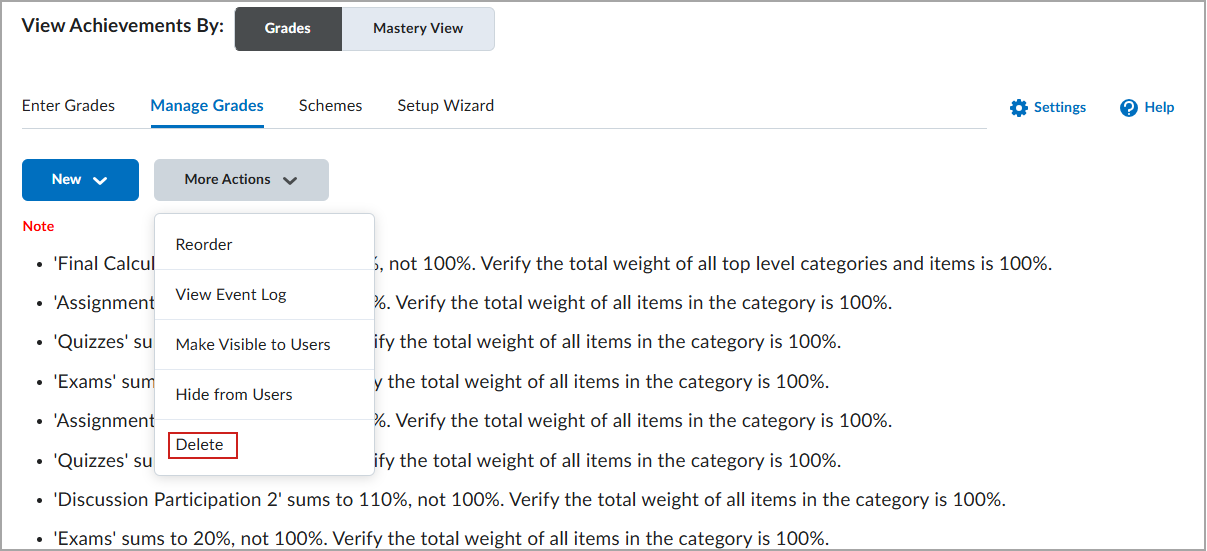
- Select the check box beside each grade category or grade item you want to delete.
- Click Delete.

|
Important: If you merge your course or delete your grade book, the grade book cannot be restored. |
Video: Delete grade items with associations
Learn how to remove grade items that are associated with course activities.
Read the video transcript
Restore a deleted grade item
You can restore deleted Numeric, Selectbox, Pass/Fail, and Text grade items.
|
Note: If you cannot access the Event Log or restore a grade item, contact your administrator. |
- Navigate to Grades > Manage Grades.
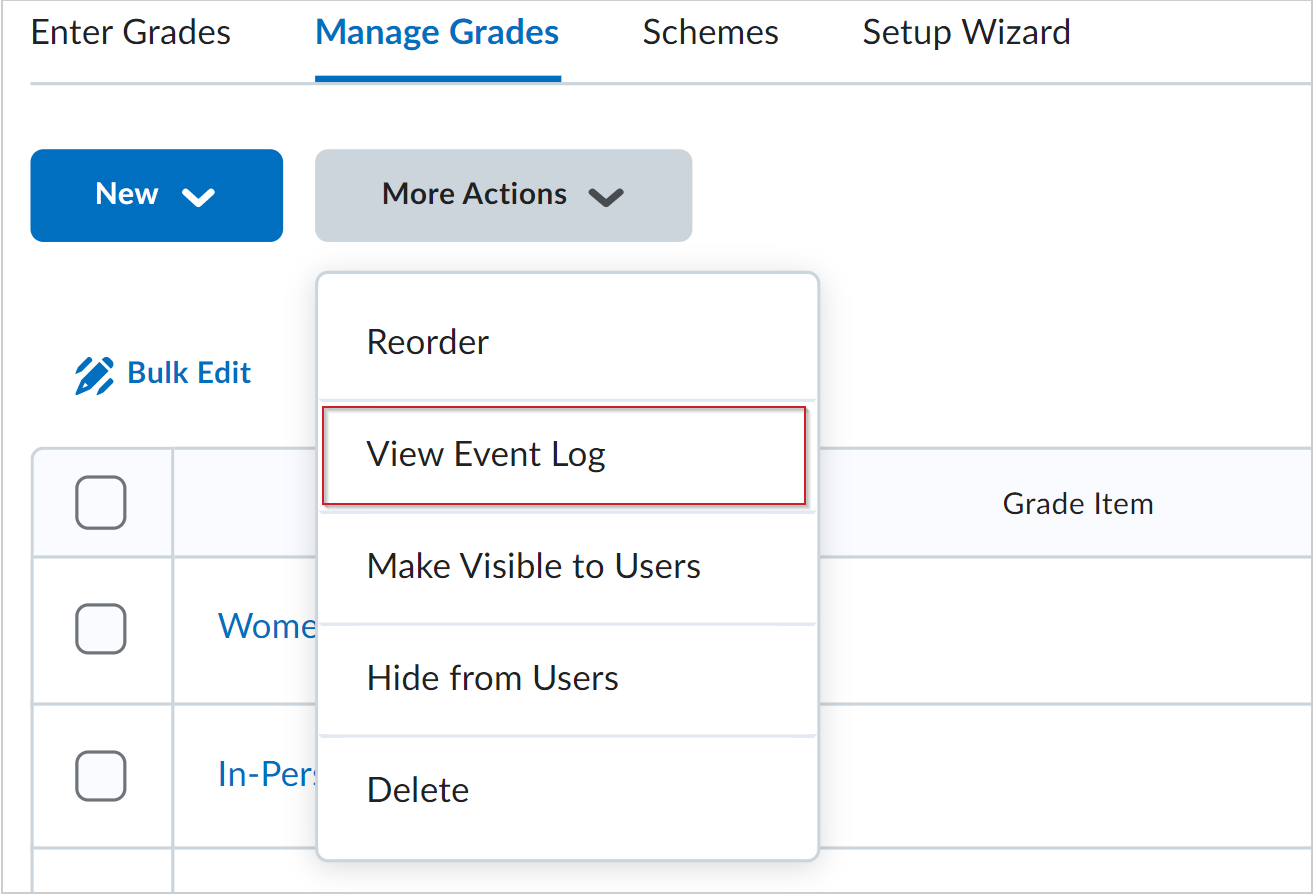
- Click More Actions > View Event Log.
- Beside the grade item you want to recover, click Restore.
- Navigate to Enter Grades and confirm that the learner scores were recovered.
|
Note:
- Formula and Calculated grade items cannot be restored. You must recreate these items manually.
- Restoring a grade item also restores associated grades when learner data still exists.
- Restoring a grade item does not restore its association with an Assignment, Discussion, or Quiz. You must re-establish the association in the applicable activity.
- Deleted grade categories cannot be restored through the Event Log. Deleting a category does not delete the grade items it contains. Those items remain in the grade book as standalone items at the top level.
|