Customize the D2L Lumi Chat assistant to match your branding and help learners get started faster. You can update the Welcome message, add Shortcut buttons, set a Nickname, choose a Brand color, and configure the Launch button and Close icon for use in Brightspace.
Before you begin: Ensure you can access the Lumi Chat admin portal and have edit permissions.
.

|
Accessibility Tips:
- Use clear, front-loaded language in the Welcome message and Shortcut buttons.
- Choose a Brand color that meets WCAG contrast guidance with text and icons.
- Write button text as actions (for example, Start a practice quiz) and avoid ambiguous labels like Click here.
- Ensure all interactive elements can be reached and activated with a keyboard.
|
Change the welcome message
A welcome message introduces your AI assistant, sets the tone, and helps users such as students, faculty, or staff find the assistance they need.
To change the welcome message
- Log into the D2L Lumi Chat admin portal.
- Click on the Assistants tab.
- Find the assistant you want to modify and click Edit.
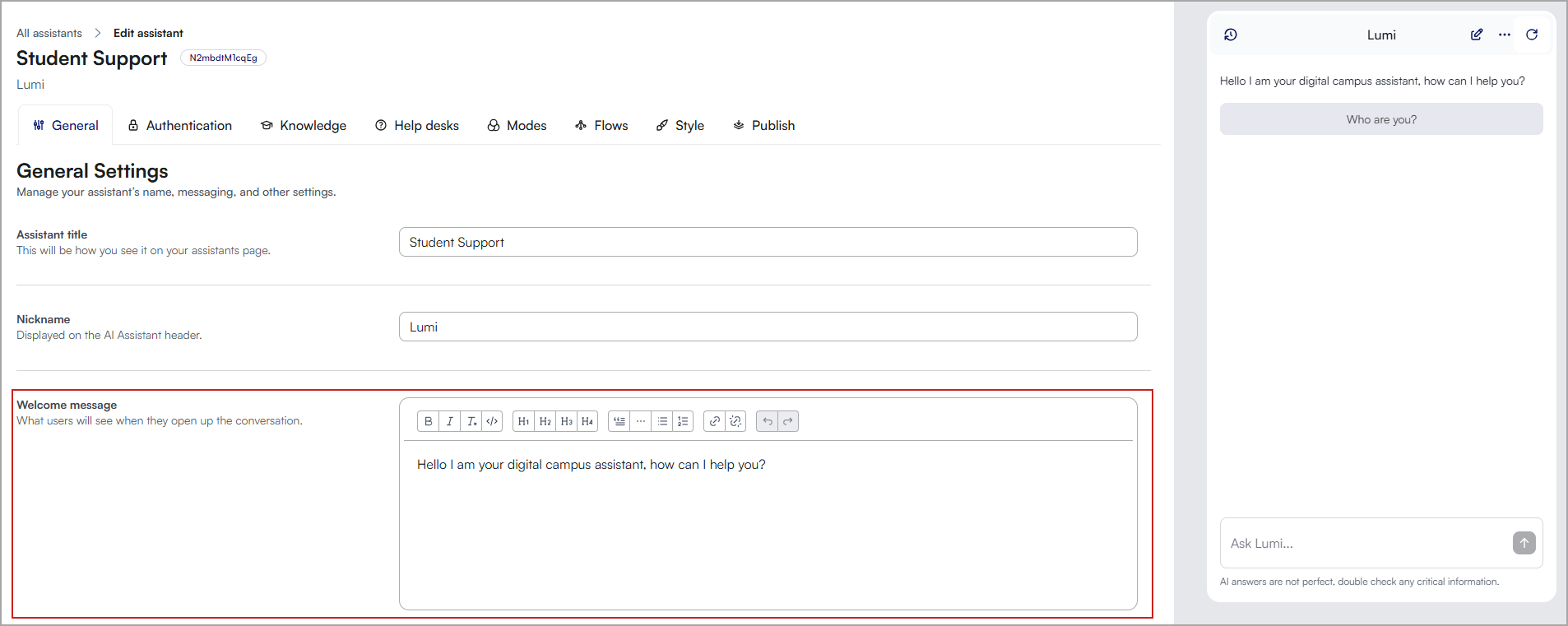
- In the Welcome Message section, enter your new message.
-
Test the message by starting a chat with the assistant to ensure it appears as expected.
Tips for creating appropriate welcome messages
-
Decide if your AI assistant will serve students, faculty, or both, and understand its range of functions.
-
Create a message that best matches your AI assistant's purpose and the channel on which it will be placed.
-
Customize the message to capture the tone, personality and of your institution and the assistant. The rich content editor allows you the flexibility to add links and format the welcome message in a way that suits your needs
Example welcome messages
- For Students:
Hello! I'm Aiden, your digital campus guide. You can ask me anything related to life here at the College. How can I assist today?
- For Faculty:
Greetings, faculty members! I'm Aiden, dedicated to supporting your role here at the University. How can I contribute to your success today?
- For Student Services:
Welcome! Aiden here, ready to assist with registration, financial aid, or student activities. What information can I provide for you?
- For IT Support:
Hi, I'm Aiden, your IT support specialist. Having trouble with logins or software? Let's troubleshoot together. What's the issue?
- For Both Students and Faculty:
Hello and welcome! As Aiden, I'm equipped to assist both students and faculty across a range of queries. What support do you need today?
Create shortcut buttons
Shortcut buttons allow users to quickly access answers to frequently asked questions, navigate to common tasks, or trigger specific actions without needing to type detailed queries. By integrating these buttons into your AI assistant, you can reduce the time users spend searching for help, enhancing their overall experience.
Button types:
- Send Text Into Chat: Sends a predefined text into the chat automatically.
- Open External Link: Redirects users to an external webpage.
- Escalation Buttons: Displays a "Contact Support" button, offering help desk and escalation options.
- FAQ: Pulls predefined question and answer text. Note: These must be setup before they can be used as shortcuts.
To create shortcut buttons:
- Log into the D2L Lumi Chat admin portal.
- Click on the Assistants tab.
- Find the assistant you want to modify and click Edit.
- In General settings screen, scroll to Shortcut Buttons.
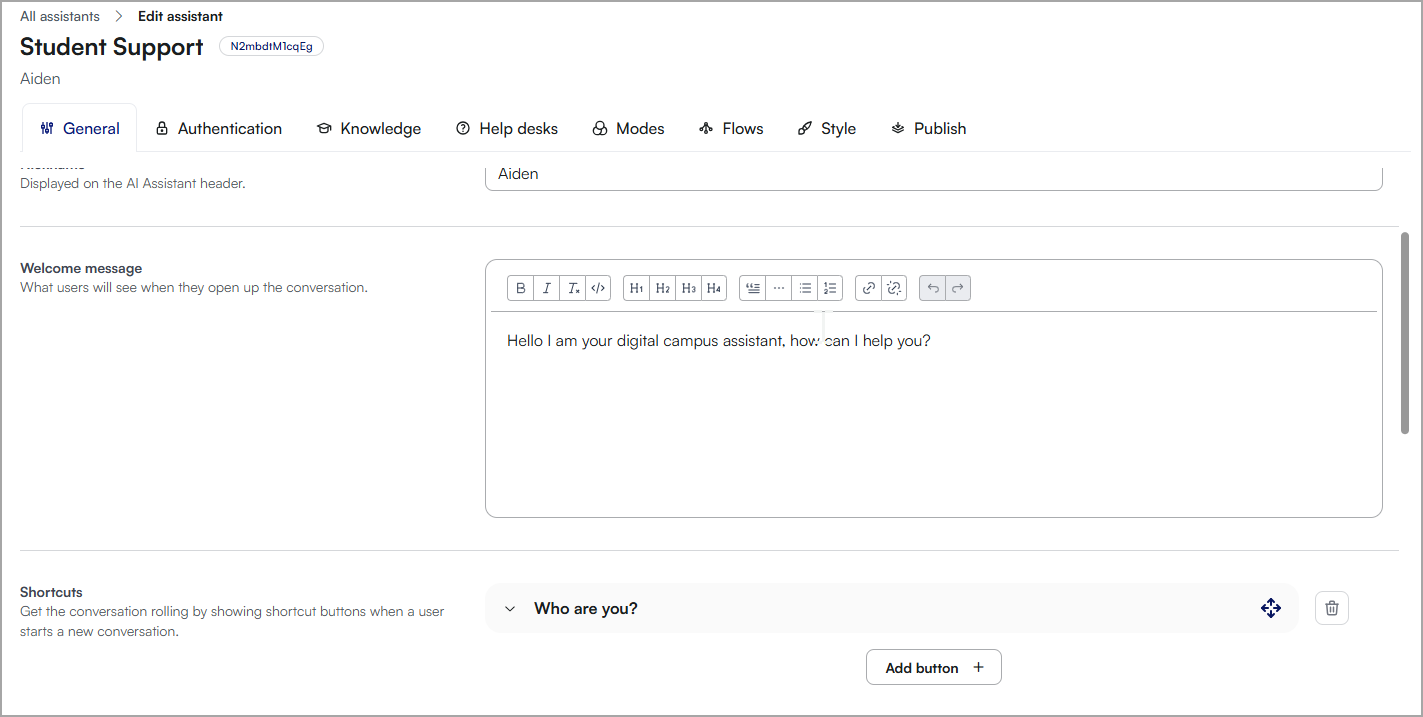
- Click Add button.
- Complete the following:
- Button name: Enter a name for the button that users will see in the chat interface.
- Type: Select the button type and complete the necessary information.
- Send Text Into Chat: Enter the message that will appear in the chat.
- Open External Link: Provide the URL to which users will be directed.
- Escalation Buttons: Choose the action that will connect users to additional support options.
- Click Create.
- Preview the AI assistant to ensure each button performs its intended action correctly.

|
Note: You can reorder the shortcut buttons by dragging and dropping; these changes will be reflected in the chat interface |
Example Shortcut Buttons
| Button Name |
Button Type |
Action Example |
Description |
|---|
| Course Registration Info |
Send Text Into Chat |
"Here's how you can register for courses." |
Directs users to information about registration procedures. |
| IT Helpdesk |
Escalation Buttons |
Directs to IT support contact options. |
Offers options for contacting IT support for technical issues. |
| Library Resources |
Open External Link |
URL to the library's resource page. |
Links to the university library's digital resources. |
| Academic Calendar |
Send Text Into Chat |
"Check out the academic calendar here." |
Provides information on important academic dates and deadlines. |
| Financial Aid Assistance |
Open External Link |
URL to financial aid information. |
Guides to detailed information on scholarships, loans, and grants. |
| Campus Events |
Send Text Into Chat |
"Here are the upcoming campus events." |
Informs about current and upcoming campus activities. |
| IT system status down |
Q & A |
"Where should you troubleshoot IT issues before escalating?" |
Directs users to the IT System status page to identify if there are network or system issues. |
Change Nickname
Selecting a nickname for your AI assistant is a great way to infuse school spirit and make the assistant more relatable to users. While the default name is Aiden, customizing it to reflect your institution’s identity can add a unique touch. A memorable and meaningful nickname can boost user engagement and strengthen the sense of community.
To change the Nickname of Lumi Chat
- Log into the D2L Lumi Chat admin portal.
- Click on the Assistants tab.
- Find the assistant you want to modify and click Edit.
- In General settings screen, scroll to Nickname.
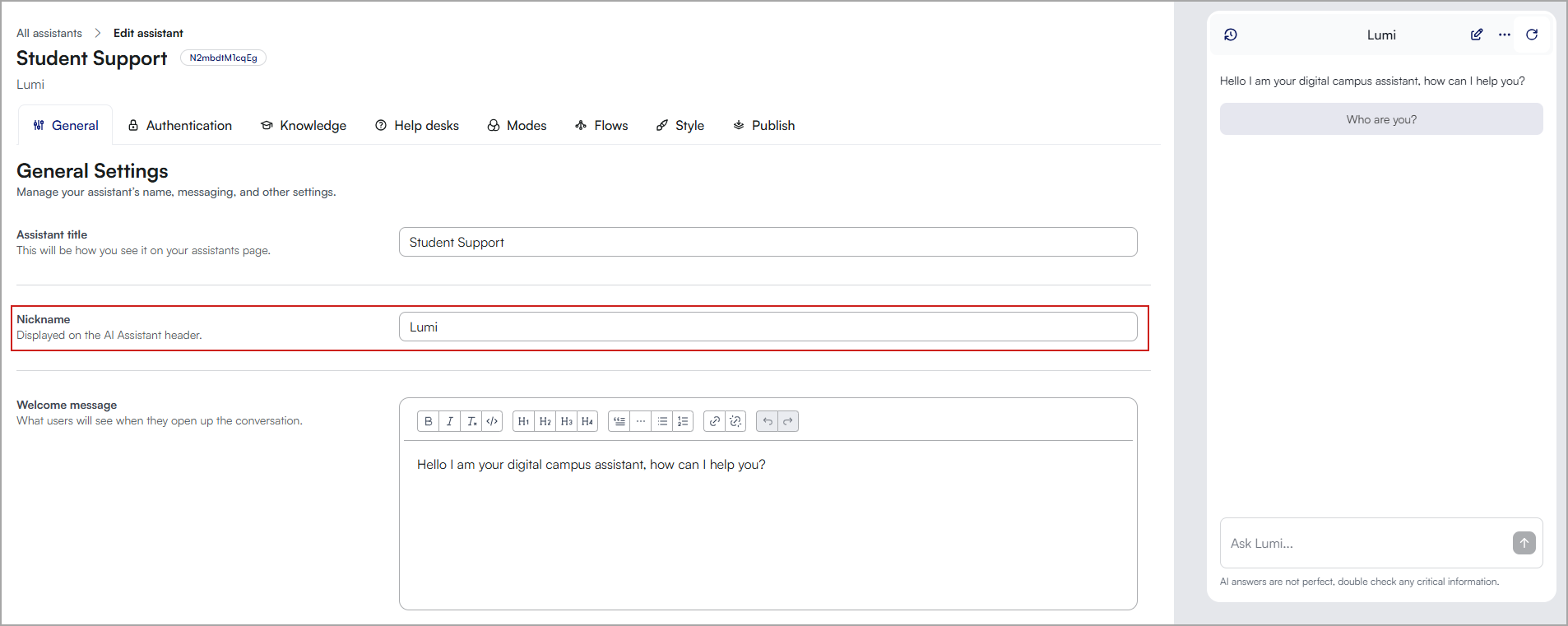
- Enter a new nickname in the Nickname field.
- Preview the AI assistant to ensure the new nickname is being used in conversations.
Change the brand color, launch buttons and close icon
Updating the assistant’s color to match your institution’s visual identity helps reinforce brand recognition. Choose a color that maintains strong contrast and readability to ensure accessibility for all users, including those with visual impairments.
To change the colour of Lumi Chat
- Log into the D2L Lumi Chat admin portal.
- Click on the Assistants tab.
- Find the assistant you want to modify and click Edit.
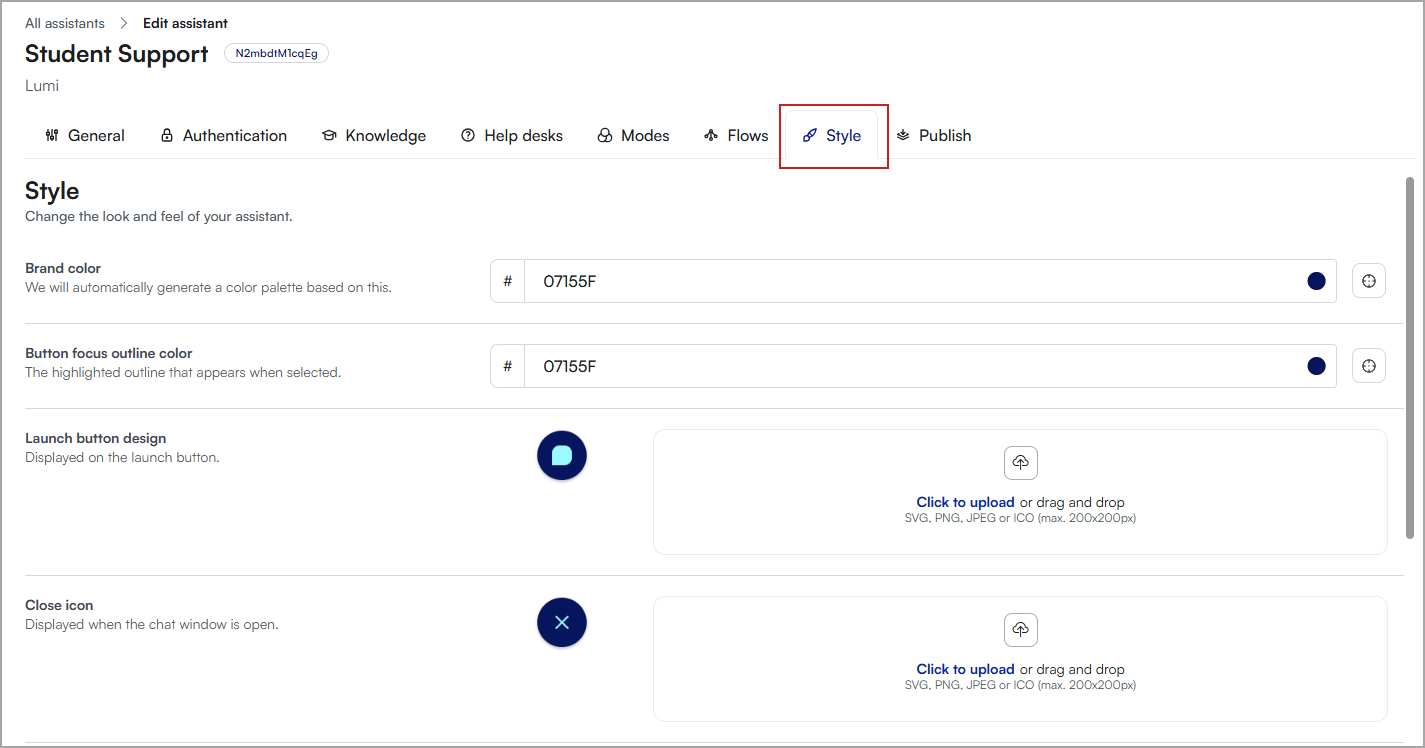
- Click the Style tab.
- The following can be customized:
- Brand color: The colour palette will be automatically generated based on this value (hex code).
- Button focus outline color: The highlighted outline that appears when selected.
- Launch button design: Displayed on the launch button.
- Close icon: Displayed when the chat window is open.
- Mobile: Toggle to show launch button on small screens.
- Button size: Customize button sizes.
- Button position: Customize button position.
- Preview the AI assistant to ensure the changes are being used in conversations.
|
Note: The launch button and close icon must meet the following requirements:
- Maximum Size: 200x200 pixels.
- File Format: Supported formats include PNG, JPG, or SVG.
- File Size Limit: 50MB.
|
Enable Voice mode
Voice mode lets users interact with AI assistants using spoken questions. This hands-free feature improves accessibility and ease of use, especially for users who prefer or require voice input. Follow the steps below to enable and use Voice mode.
|
Note: Voice mode is currently in beta and supports English only. |
To enable Voice mode
- Log into the D2L Lumi Chat admin portal.
- Click on the Assistants tab.
- Find the assistant you want to modify and click Edit.
- Scroll to the Voice mode section and Enable voice mode.
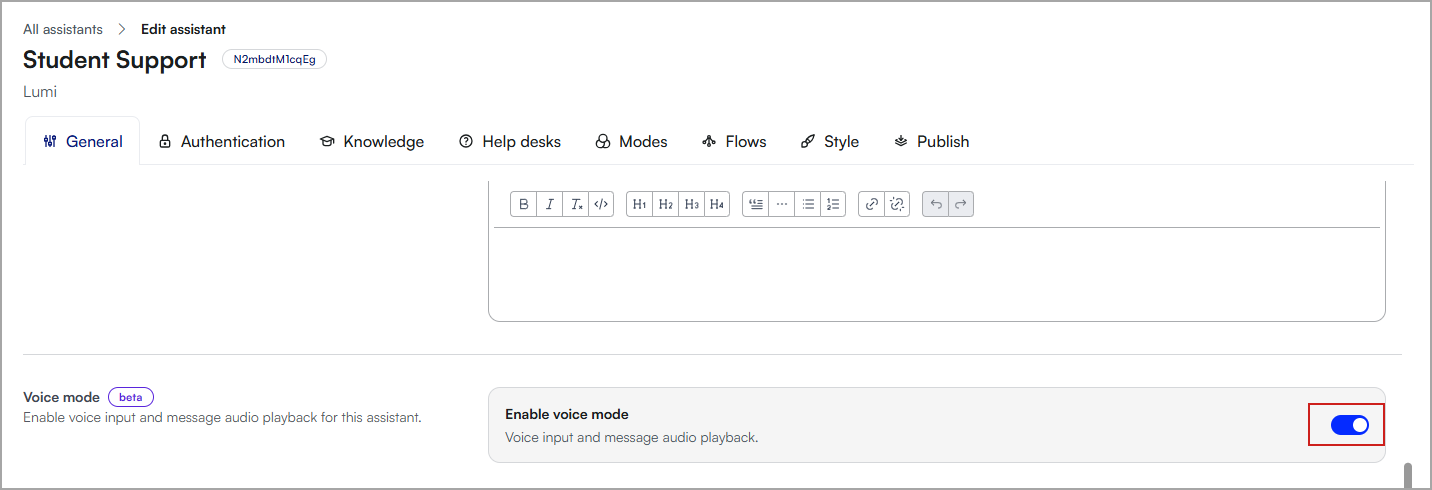
Voice mode is now enabled in Lumi Chat.
To start a conversation with Voice mode
- Open the Lumi Chat interface. You will now see a microphone icon in the input bar where you usually type questions.
- Click the microphone icon to activate Voice mode.
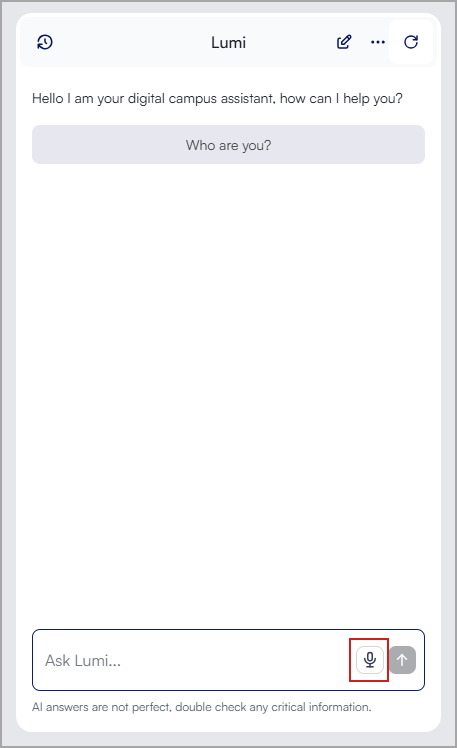
- Clearly state your question aloud. Voice mode will capture and process your spoken input.
- There are two ways to stop recording:
- Manual Stop: Click the microphone icon again to end recording.
- Automatic Stop: Click on the Send button. This will automatically end recording but might continue if not explicitly sent by the user.
- After the assistant processes your question, the response will appear as text in the chat interface. If you prefer to listen to the response, click Play below the text answer and the assistant will read the response aloud.
|
Voice Mode Tips:
- Device Permissions: Ensure your browser or device has given microphone access to Lumi Chat.
- Environment: For best results, use Voice mode in a quiet environment where the assistant can accurately capture your question.
- Browser Issues: If voice input doesn't work, check microphone permissions and try refreshing the page
- LMS Integration: Voice mode may need extra permissions in some environments - try the floating button version if LTI doesn't work
- Screen Reader Users: Voice controls include proper accessibility labels and keyboard navigation support.
|
Activate AI-Suggested Questions
AI-Suggested Questions in Lumi Chat help users engage more effectively by offering contextually relevant prompts during their interaction with AI assistants. Use the following guide to activate and manage this feature.
- Log into the D2L Lumi Chat admin portal.
- Click on the Assistants tab.
- Find the assistant you want to modify and click Edit.
- Scroll to the AI suggestions section and select the Enable AI suggested questions and Enable AI follow up questions (optional) toggle.
- Preview the AI assistant to ensure the AI suggested questions are available in conversations.
How AI-Suggested Questions works
The assistant suggests questions based on where the user initiates the chat. The assistant displays three suggested questions by default.
These are tailored to the user's context to improve relevance and engagement.
Examples:
- On an assignments page, Lumi chat might suggest:
- How can I submit my assignments for this course?
- What resources are available to help me better understand the assignment requirements?
- In a financial aid section, Lumi chat might suggest:
- What scholarships are available this semester?
- How do I apply for student loans?
|
Note: AI-suggested questions are currently in Beta. The assistant relies on the content in its knowledge base. If key information is missing, the assistant may not return useful answers. Lumi Chat continues to refine AI algorithms to improve the accuracy and context-awareness of suggestions. |
Customize the search behavior and answer formats
Custom instructions let you shape how your Lumi Chat assistant responds to questions, ensuring answers match your institution’s style, terminology, and content priorities. By defining custom rules, you improve clarity, increase relevance, and support more engaging interactions for both students and faculty.
- Log into the D2L Lumi Chat admin portal.
- Click on the Assistants tab.
- Find the assistant you want to modify and click Edit.
- Scroll to the Custom instructions section.
- Enter your instructions into Answer guidelines.
| Tip: Example instructions: Answer Length Keep responses short and to the point while still being as detailed as possible. Provide elaborate, in depth answers
Complexity & Clarity
|
- To adjust search behavior, enter instructions into Search guidelines.
| Tip: Example instructions: Search Expansion: When searching for X, also search for Y to ensure comprehensive results. Example: If searching for student ID policies, also check for account management guidelines.
Campus-Specific Clarifications: We have 3 campuses, always search information across all 3 campuses Never search information on other campuses if the user has specified where they study
Query Generalization: Role-Based Filtering: |
- Your changes are auto-saved and automatically adjust search behaviour and responses based on the new instructions.
- Preview the AI assistant and test Lumi Chat's responses before rolling out the changes to all users.
Recommended testing process
Custom instructions can significantly alter the assistant’s responses, so thorough testing is recommended before rolling out changes to all users.
- Review Test Scenarios
- Identify common queries from different user roles (For example, students, faculty, staff).
- Enable Custom Instructions in a Copy of your assistant
- If available, apply changes to a test assistant before updating the live version.
- Run Sample Queries
- Test a variety of user inputs to confirm expected behavior.
- Look for inconsistencies or unintended changes.
- Refine and Apply Changes
- Adjust instructions based on testing feedback.
- Once satisfied, deploy the changes to the live assistant.