If you are having trouble logging in, use the sections below to find the right next step.

|
Important: Your organization manages your Brightspace account and login credentials. D2L cannot reset your password, provide your username, or create accounts.
If you still cannot log in after following the steps on this page, contact your organization’s IT Support or Brightspace administrator.
They can help:
- Provide the correct Brightspace login link
- Reset your password
- Recover your username
- Confirm whether your account has access
|
Find your Brightspace login page
Your Brightspace login page is set by your school or organization. It may be:
- A link from your school or company portal
- A Microsoft or Google sign-in page
- A custom Brightspace login page
If you do not know your organization’s Brightspace login page, use the Login Finder.
If you are still unsure which page to use, contact your organization’s IT Support team.
Understand your login method
Your login experience depends on how your organization has set up access:
- Single Sign-On (SSO): Uses your organization’s sign-in page to access Brightspace and other systems.
- Local Login: Uses the Brightspace login page with a username and password provided by your administrator.
- Two-factor authentication: Adds an extra step after local login to help prevent unauthorized access. Users enter a verification code generated by an authenticator app or received by email, if configured.
If you are unsure which method your organization uses, contact your IT Support team.
Reset your password
Before you begin: Password reset steps on this page apply to Local Login only.
If your organization uses Single Sign-On (SSO), you must reset your password through your organization’s sign-in system, not through Brightspace.
To reset your password for Local Login:
- On the Brightspace login page, click Reset your password.
- In the Email address field, enter your email address.
- Click Send verification code.
- Check your email and enter the verification code in the Verification code field.
- Click Verify code.
- Click Continue and follow the on-screen instructions to create a new password.
Why can’t I log in?
The following are common login issues:
- I’m using the wrong login page: Use the Login Finder or contact your IT Support team.
- My username or password does not work: Reset your password if you use Local Login. If you use SSO, contact your IT Support team.
- I see an error message: Refresh your browser, clear your cache, or try a different browser. If the issue continues, contact your IT Support team.
- My account still does not work: Your account may not be activated, may be locked, or may not have access yet. Contact your IT Support team or Brightspace administrator.
Set up two-factor authentication for your account
If two-factor authentication is set up for your organization, the Enable two factor authentication screen appears when you enter your local login details for the first time. Two-factor authentication may be enforced or optional for your account.
You can select your preferred two-factor authentication method from one of the following options:
- Receive an emailed login code to an external email address, if you have added one to your account
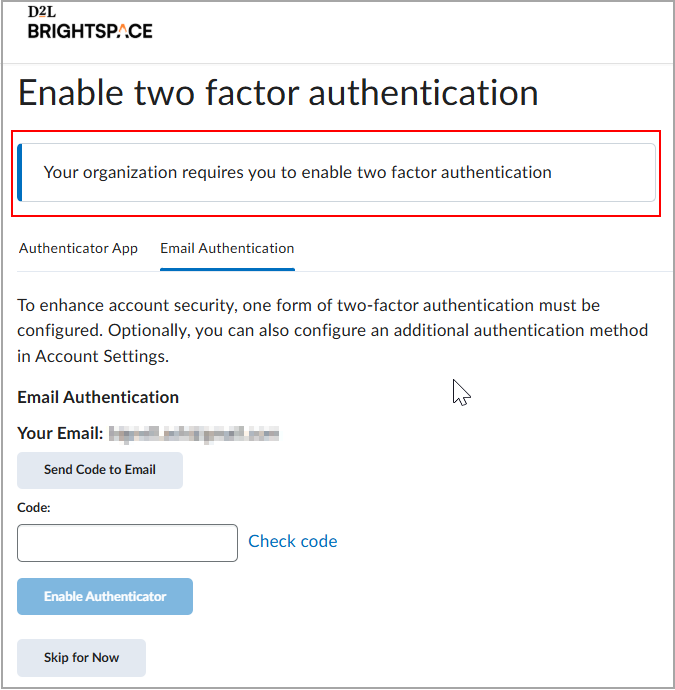
- Use an authenticator application
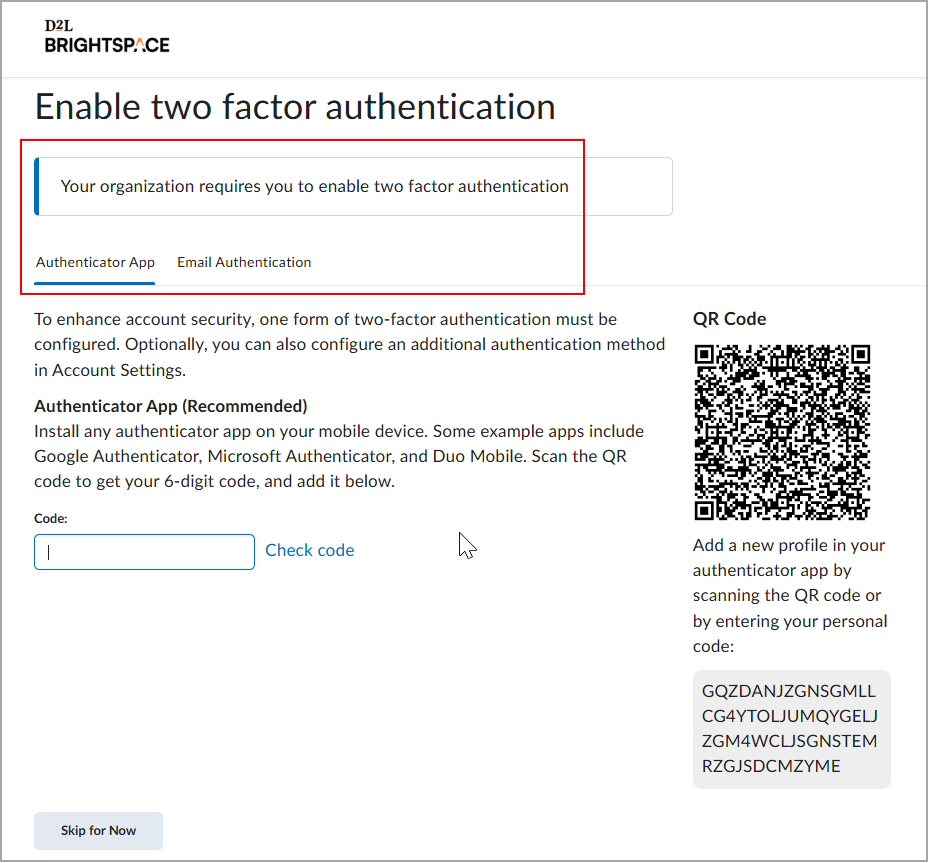
You might be able to skip setting up your preferred authentication method up to 5 times, depending on your administrator's settings. You can also change your two-factor authentication method after you have enabled it in Account Settings.
If two-factor authentication is optional for your account, you can enable or disable two-factor authentication options for your local account at any time.
|
Important: If you do not have an external email configured for your Brightspace account, the option to configure email-based two-factor authentication does not appear.
|
To set up two-factor authentication in Account Settings:
- Click your username and select Account Settings.
- Under General Settings, click Enable Two Factor Authentication for the Two Factor Authenticator App or enable the Two Factor Authentication Email option.
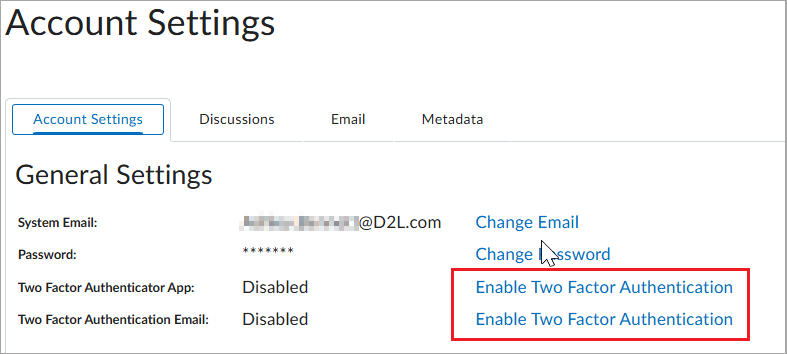
- Following the instructions in the Enable Two Factor Authentication dialog, do one of the following:
- Install an authenticator app on your mobile device and enter your personal code.
- Follow the instructions in your authenticator app to save your Brightspace code for future reference. Click Send Code to Email, then enter the code.
Note: Emailed login codes expire after 5 minutes.
- Click Enable Authenticator.
- When you have completed the setup process, log out of Brightspace and attempt to log back in. A prompt appears for your code.
- Enter your code and click Submit.
You are logged in to Brightspace.
Still can’t log in?
Contact your organization’s IT Support or Brightspace administrator. They can confirm your login method, provide the correct login link, and help you regain access to your account.