Use D2L Lumi Quiz to generate questions or create variations of existing questions for your Question Library. For Multiple Choice, True or False, and Multi-Select items, you can optionally select Include feedback to add AI-generated feedback to the question and answers.
You can generate quiz questions from custom text, supported Content topics, or existing questions in your Question Library.

|
Note: The following content types are supported:
- Pages
- Assignment topics (source drawn from the instructions field)
- Quiz topics (source drawn from the description field)
- Discussion topics (source drawn from the description field)
- Media Library topics (both audio and video are supported but must have existing transcripts in either English, Spanish, French, Portuguese, or Dutch)
- Most file types (.doc, .docx, .odt, .pdf, .ppt, .pps, .pptx, .ppsx, .odp, .xls, .xlsx, .rtf, .txt)
|
Watch this video to learn how to generate quiz questions using D2L Lumi Quiz. Review the written steps below.
Generate quiz questions
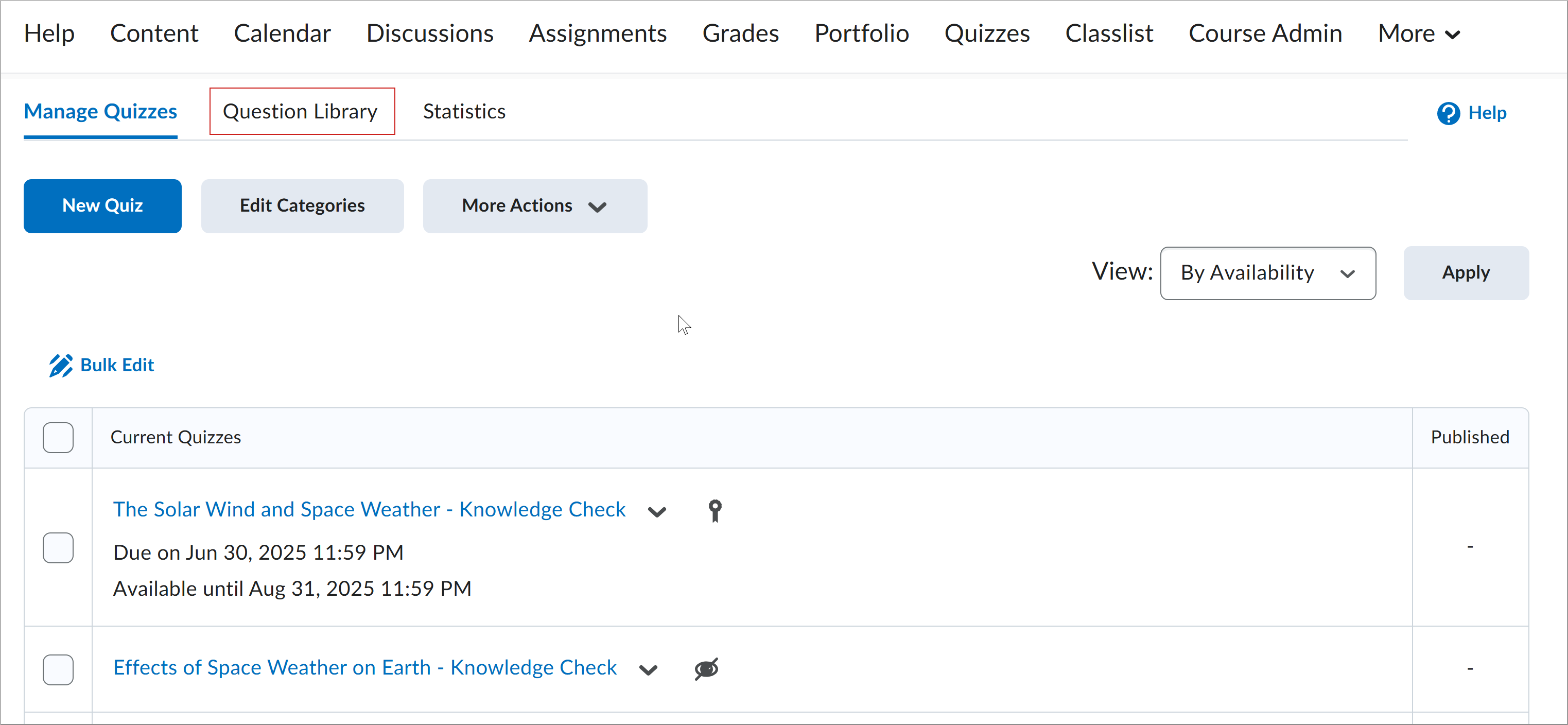
- From your course navbar, click Quizzes. If Quizzes is not available in your navbar, click Course Admin, and then click Quizzes.
- Click the Question Library tab.
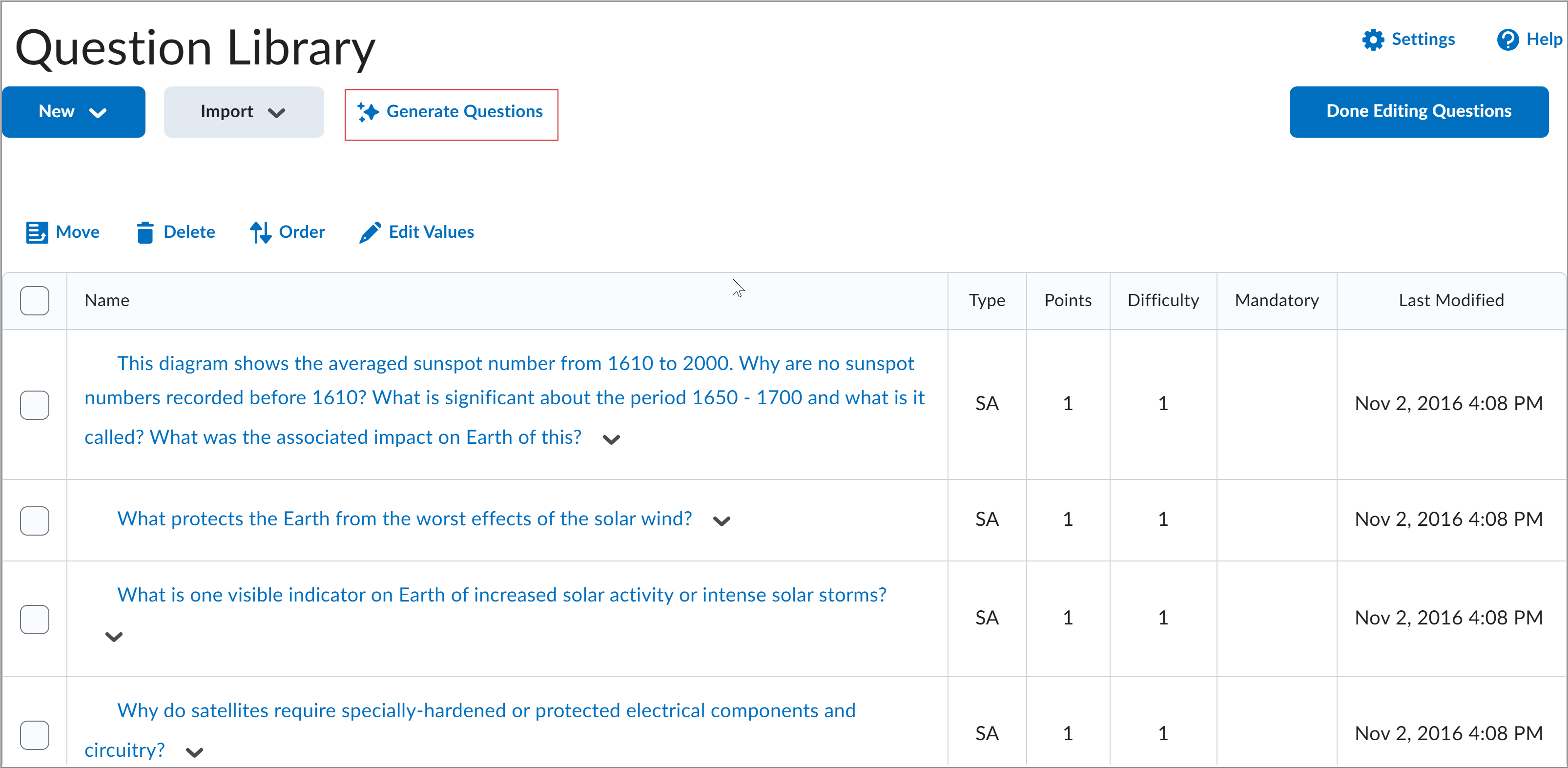
- On the Question Library page, click Generate Questions.
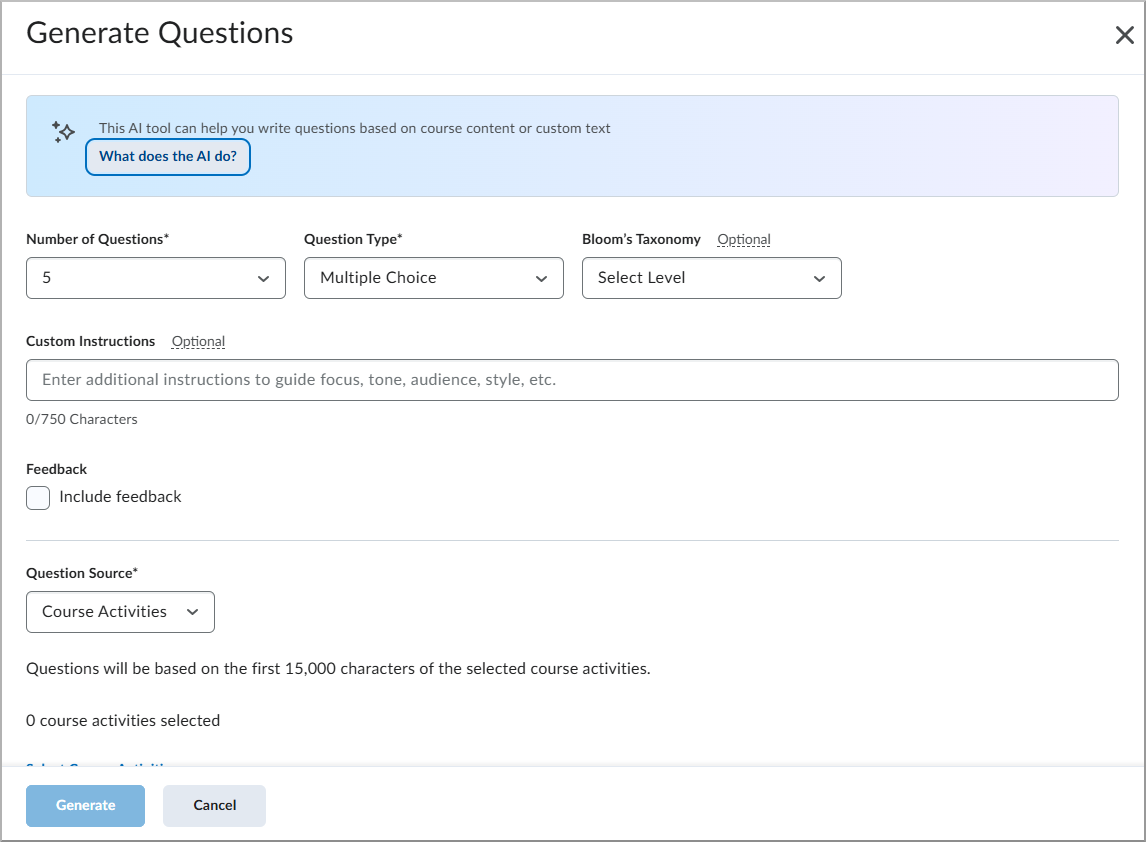
- In the Generate Questions dialog, complete the following:
- Number of Questions: Select how many questions to generate.
- Question Type: Select the type of question to generate.
- (Optional) Bloom's Taxonomy level: Select the level that aligns with your assessment goals. If you prefer not to use Bloom’s Taxonomy, leave the field set to Select Level.
| Note: The availability of Bloom’s Taxonomy levels varies by question type: - Create: Written Response and Short Answer question types.
- Evaluate: Multiple Choice, Written Response, Short Answer, and Multi-Select question types.
- Analyze: Multiple Choice, Written Response, Short Answer, and Multi-Select question types.
- Apply: Multiple Choice, True or False, Written Response, Short Answer, and Multi-Select question types.
- Understand: Multiple Choice, True or False, Written Response, Short Answer, and Multi-Select question types.
- Remember: Multiple Choice, True or False, Written Response, Short Answer, and Multi-Select question types.
|
- (Optional) Custom Instructions: Specify focus, tone, audience, or style when generating quiz questions.
- (Optional) Include feedback: Include AI-generated feedback with the question text and answer options.
| Note: Include feedback is available for the following question types: - Multiple Choice
- True or False
- Multi-Select items
|
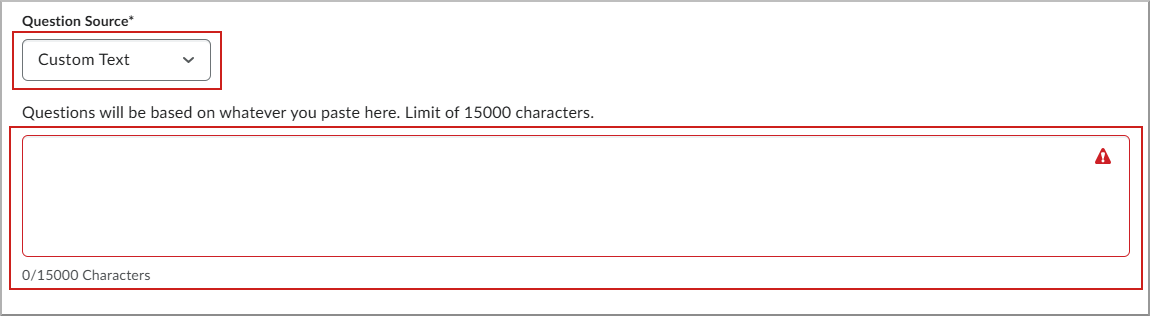
- Question Source: Choose to generate questions from course activities or enter custom text (up to 15,000 characters).
- Based on your selection, follow the corresponding steps:
- Course Activities:
- Click Select Course Activities.
- Select up to 5 course activities from the list. Icons show whether an activity is hidden or has release conditions. To view items that aren’t included, focus or hover on Unsupported activity types.
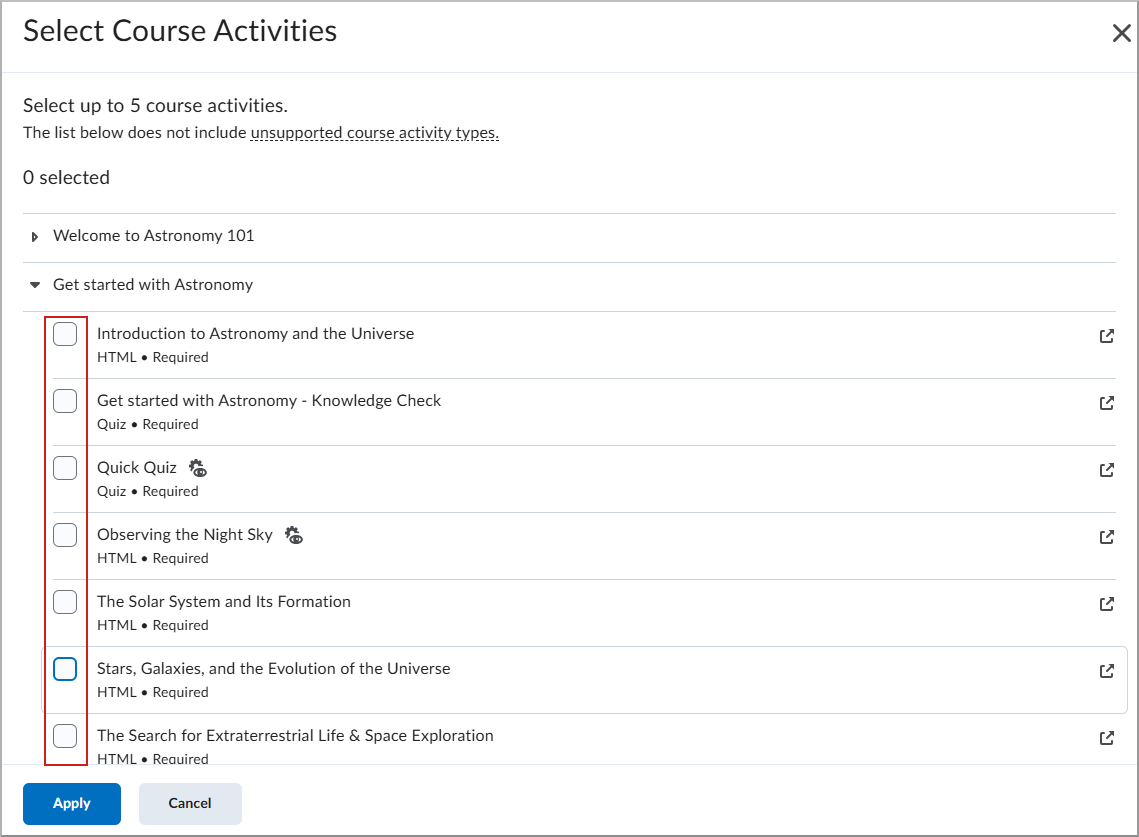
- Click Apply.
- To preview and edit the source text before question generation, click Edit the source text.
- If the selected activities have associated outcomes, they appear in the Outcomes section. Including these outcomes helps focus question generation on assessing the intended outcomes. To remove an outcome from question generation, click X beside its name.
- Custom Text:
- Enter text in the Source Text field.
- Click Generate.
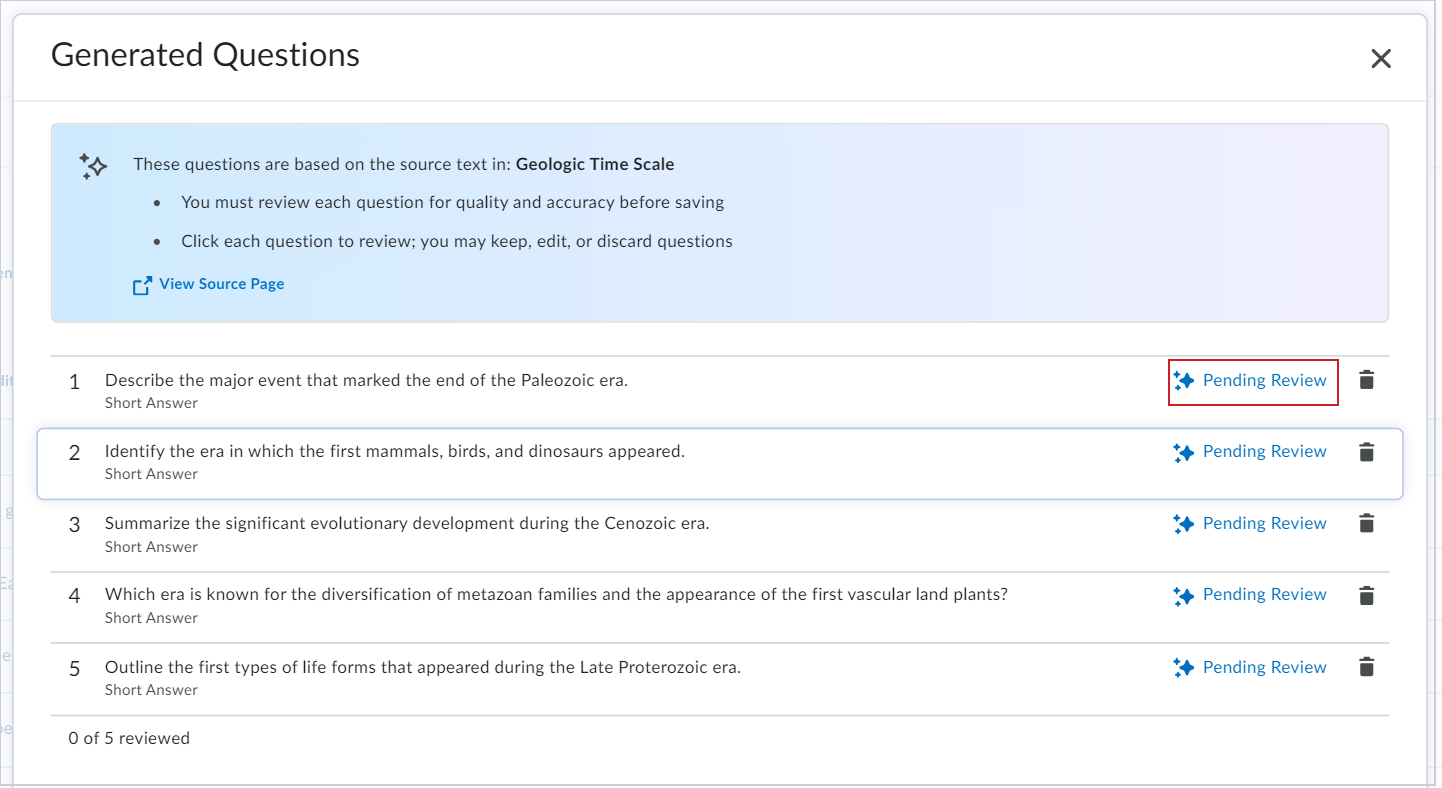
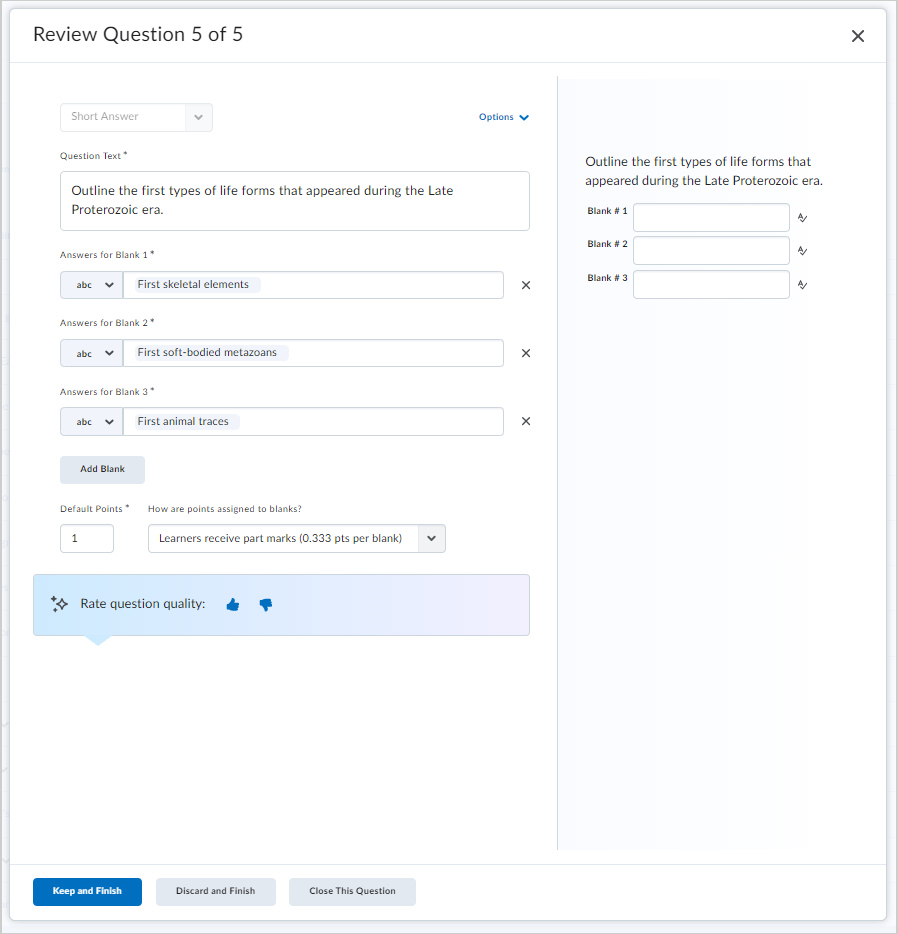
- Click Pending Review for the first quiz question to open the Review Question dialog.
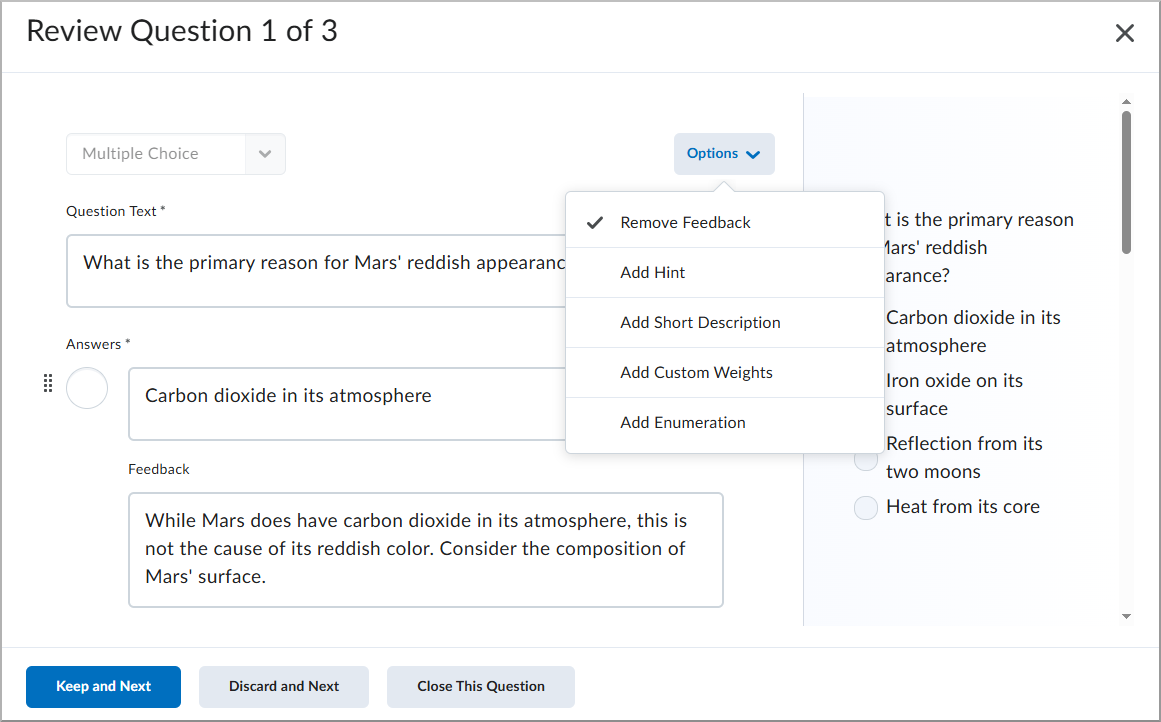
- (Optional) In the Review Question dialog, click Options and, based on the question type, you can:
- Add or Remove feedback
- Add Hint
- Add Short Description
- Add Custom Weights
- Add Enumeration
- Add Answer Key
- Add Custom Response Box Size
- Add Initial Text
- After reviewing and editing a quiz question, select one of the following:
- Click Keep and Next to keep the current quiz question and review the next question.
- Click Discard and Next to delete the current quiz question and review the next question.
- Click Close This Question to return to the generated list of questions.
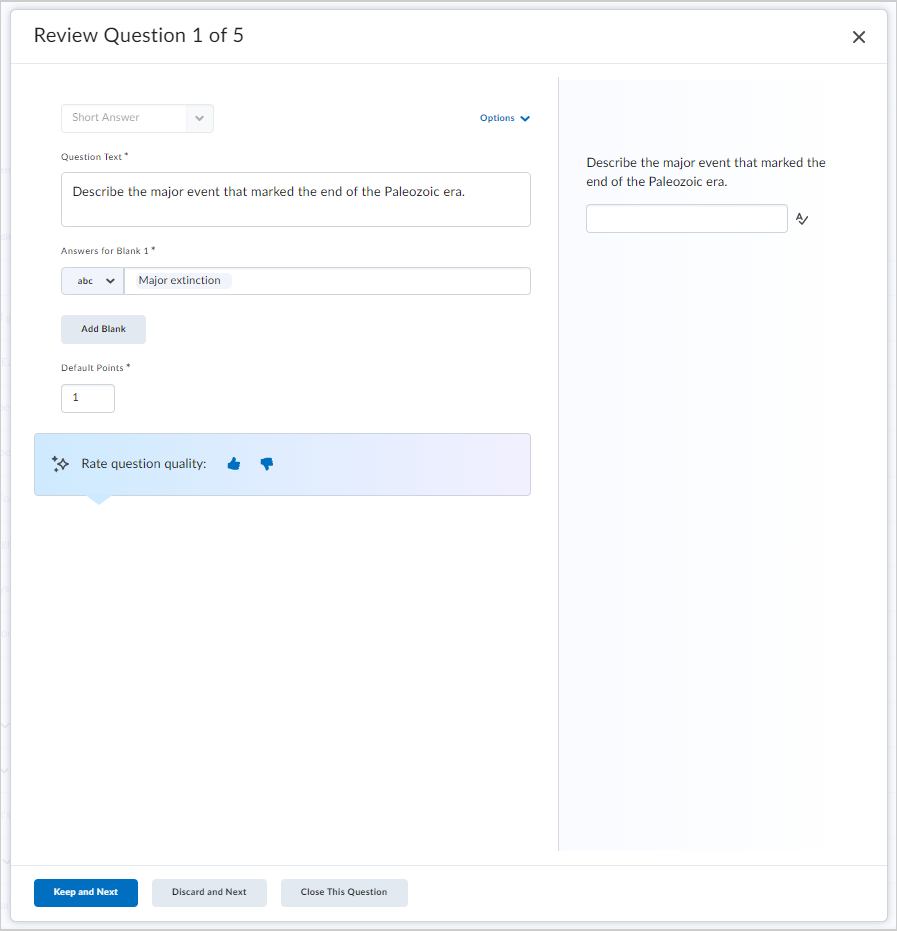
- After reviewing the last quiz question, select one of the following:
- Click Keep and Finish to keep the current quiz question and return to the generated list of questions.
- Click Discard and Finish to delete the current quiz question and return to the generated list of questions.
- Click Close This Question to return to the generated list of questions.
- In the Generated Questions dialog, click Save to Section. If you do not wish to use any of the questions, click Cancel and Discard.
- Select Save to Current Section or Create New Section for your quiz questions.
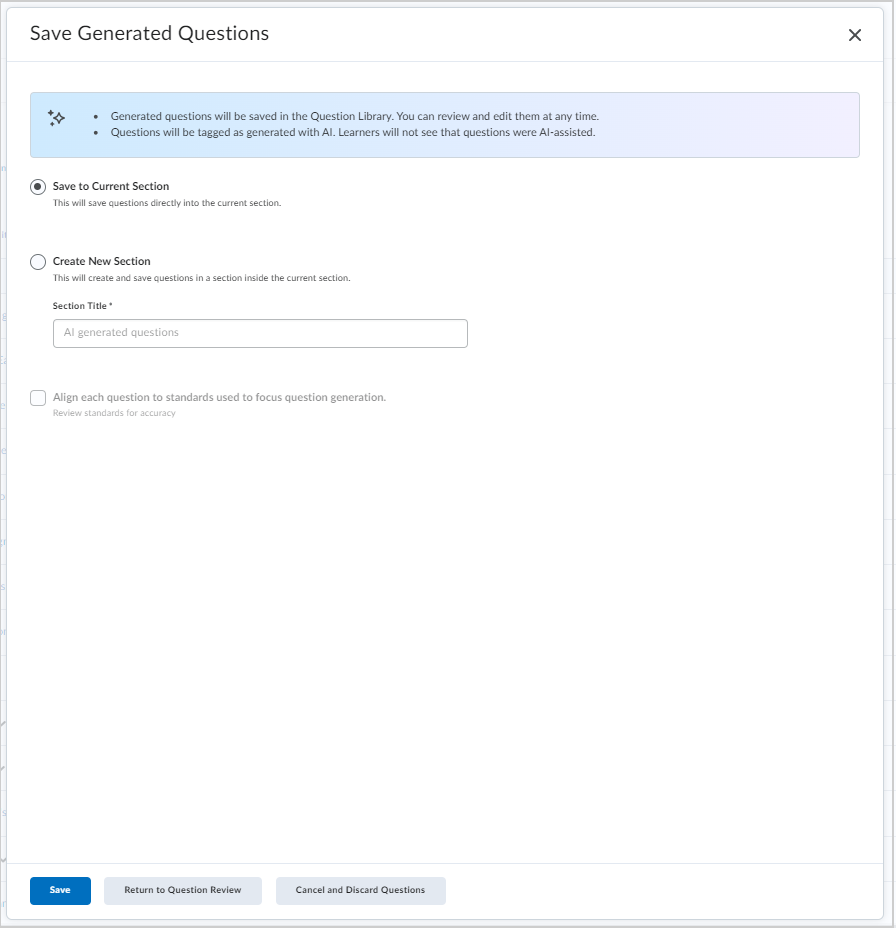
- The Create New Section option allows you to select Align each question to outcomes used to focus question generation.
- Click Save.
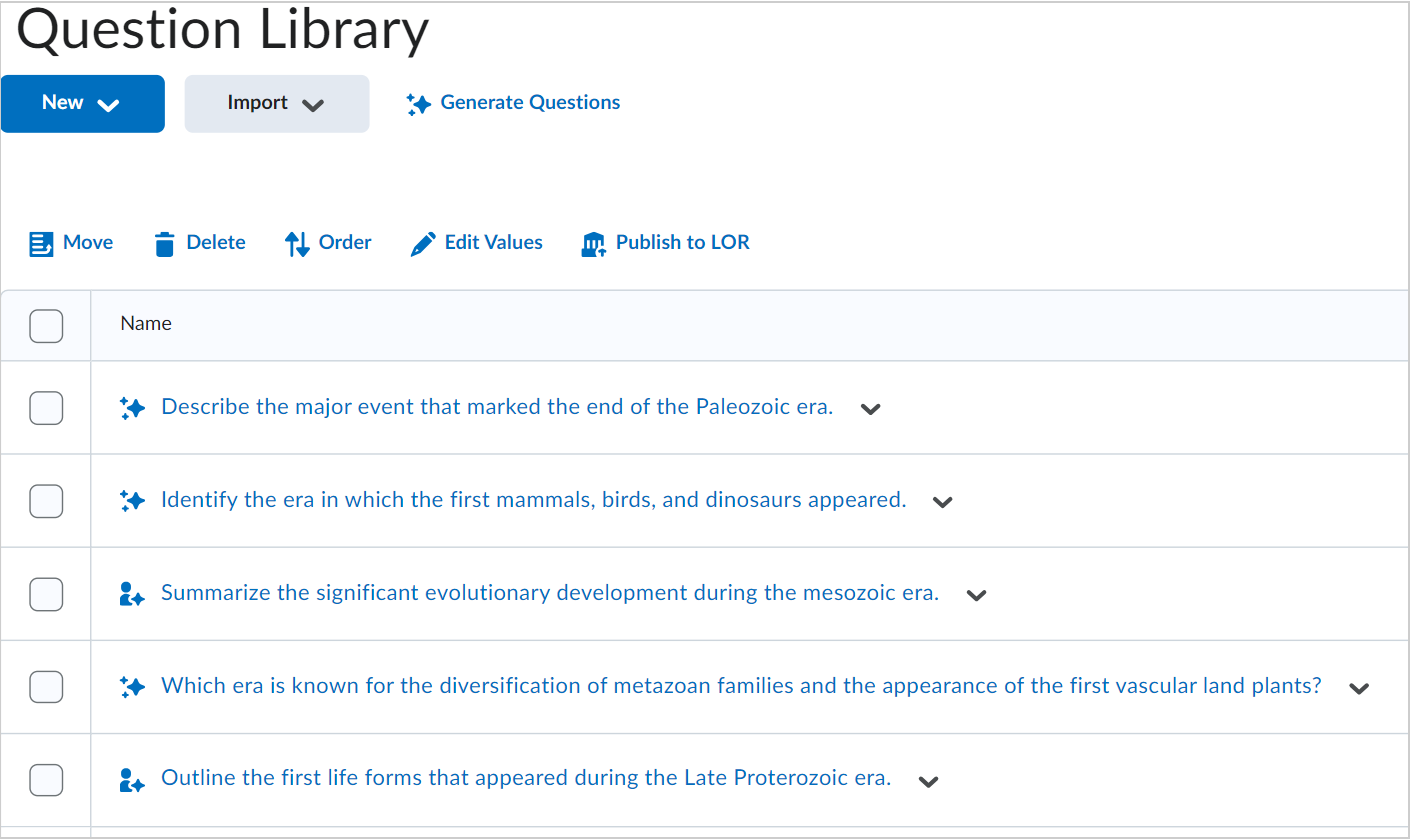
The questions appear in your Question Library with icon indicators showing AI involvement. The spark icon indicates that the question was generated solely by AI, while the person with the spark icon signifies that the question was AI-generated and edited by a human. Students do not see the AI-origin information.
Generate question variants
Use this workflow to create diverse versions of existing questions to build richer assessment banks.
|
Note: Generated question variants consume 1 generation per question generated. |
- From your course navbar, click Quizzes, and then click Question Library.
- Do one of the following:
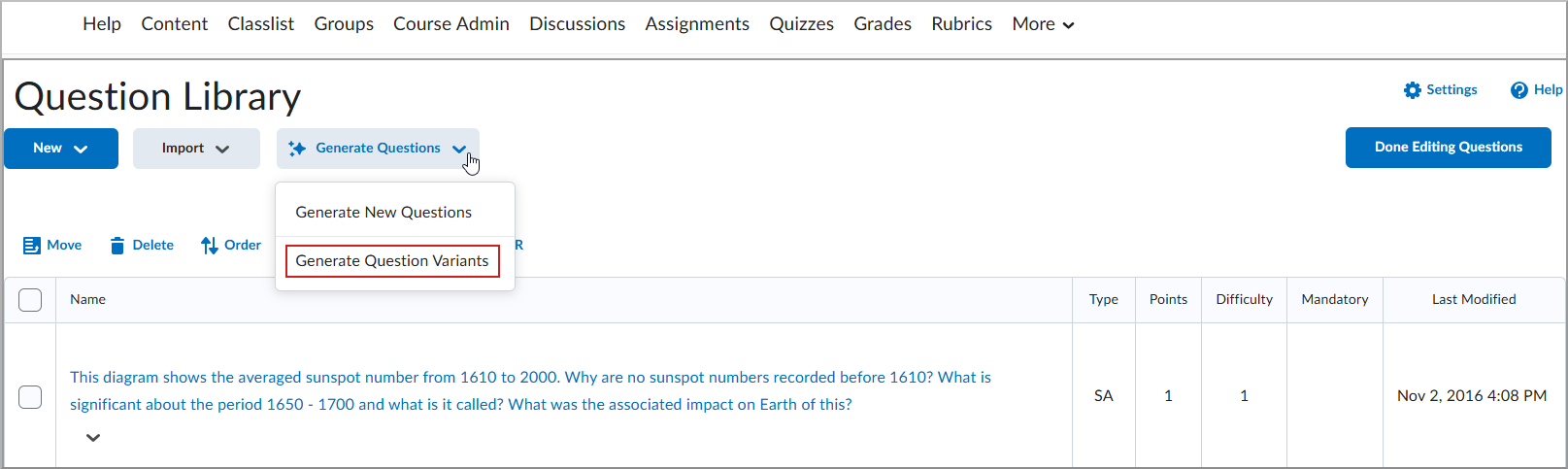
- From the library: Click Generate Questions and select Generate Question Variants.
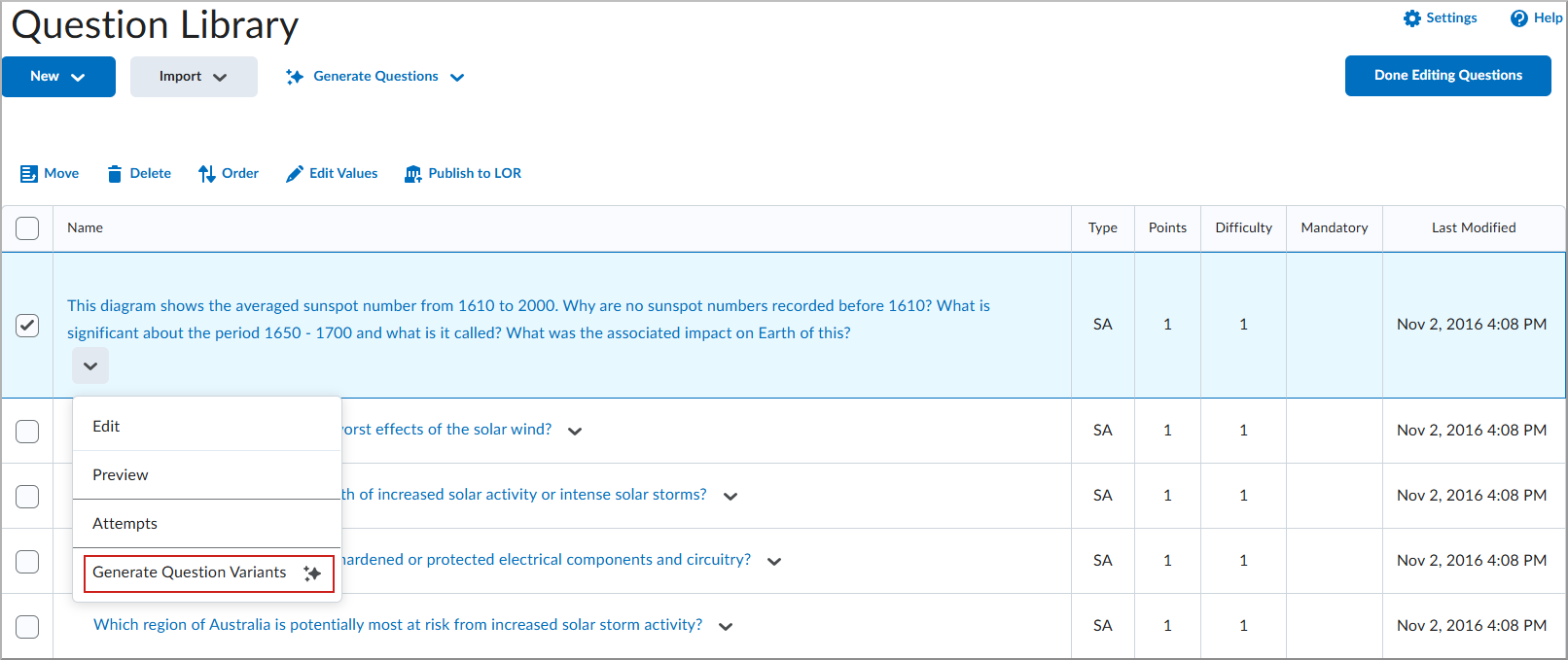
- From a specific question: Find an existing Multiple Choice, True or False, Written Response, Multi-Select, or Short Answer question. Click the context menu (arrow) next to the question and select Generate Question Variants.
- In the Generate Question Variants dialog, complete the following:
- Number of Questions: Select how many variants to generate (1-10).
- Question Type: Select the types of variants to generate or let the AI decide the mixture.
| Note: Variants cannot be the same type as the source question (for example, a Multiple Choice question cannot generate a Multiple Choice variant). |
- (Optional) Custom Instructions: Provide additional guidance for the creation process.
- (Optional) Outcomes: If the source question is aligned to outcomes, choose to focus generation on all, none, or some of those outcomes.
- Click Generate.
- Review the generated variants. Click Keep and Next to accept a variant or Discard and Next to remove it.
- Click Save to Section to add the variants to your library.