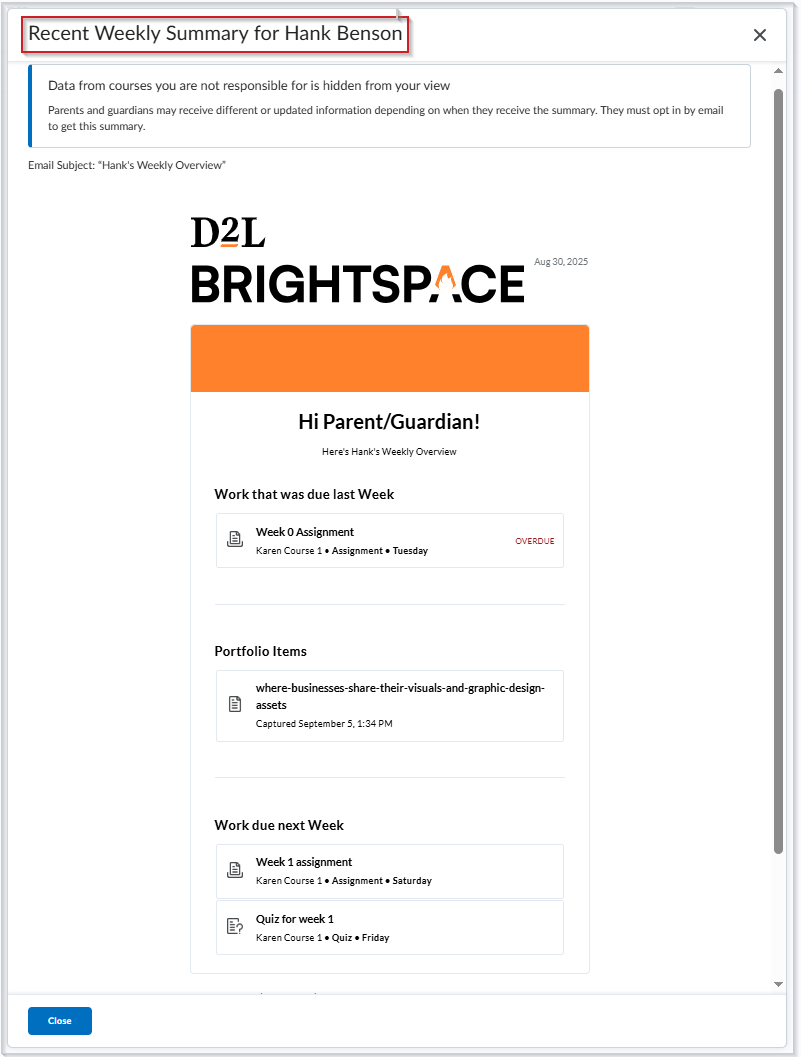
You can use the Parent/Guardian Information options to see how course activity (View as Parent & Guardian) and weekly summaries (View Weekly Summary) appear to parents and guardians. This perspective can help you prepare for meetings and strengthen communication with families.
View student course work as a parent/guardian
Watch this video to learn how to learn how to view student course as Parent and Guardian. Review written steps below.
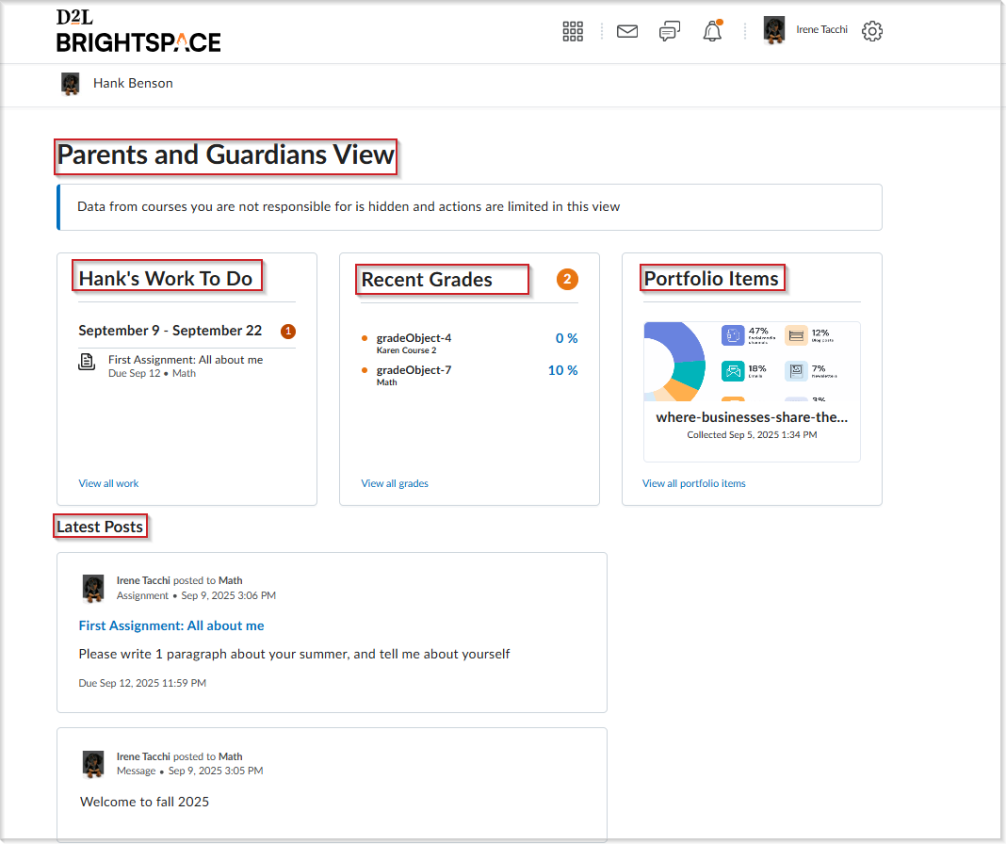
You can use the View as Parent & Guardian option to understand how a student's course activity, progress, and assessments appear to their parents or guardians. This perspective can help you prepare for parent-teacher meetings and improve communication with caregivers.
The Parents and Guardians View helps you:
- Understand how families see student performance and course activities, including activity feeds.
- Prepare for conversations with parents and guardians.
- See only the course activities and progress for the selected student.

|
Note: You can only view information for one student at a time, and only in courses you have access to. |
Prerequisites
To access the View as Parent/Guardian option, you must have the following permissions assigned to your role:
- Brightspace Parent & Guardian > See Parent/Guardian Activity & Information
- Brightspace Parent & Guardian > View as Parent/Guardian
Contact your school administrator if you cannot access the View as Parent/Guardian option.
To open the Parent and Guardian View for a student
To open the parent or guardian view for a student:
- From your course navbar, select Classlist.
- Find the student whose Parents and Guardians View you want to access.
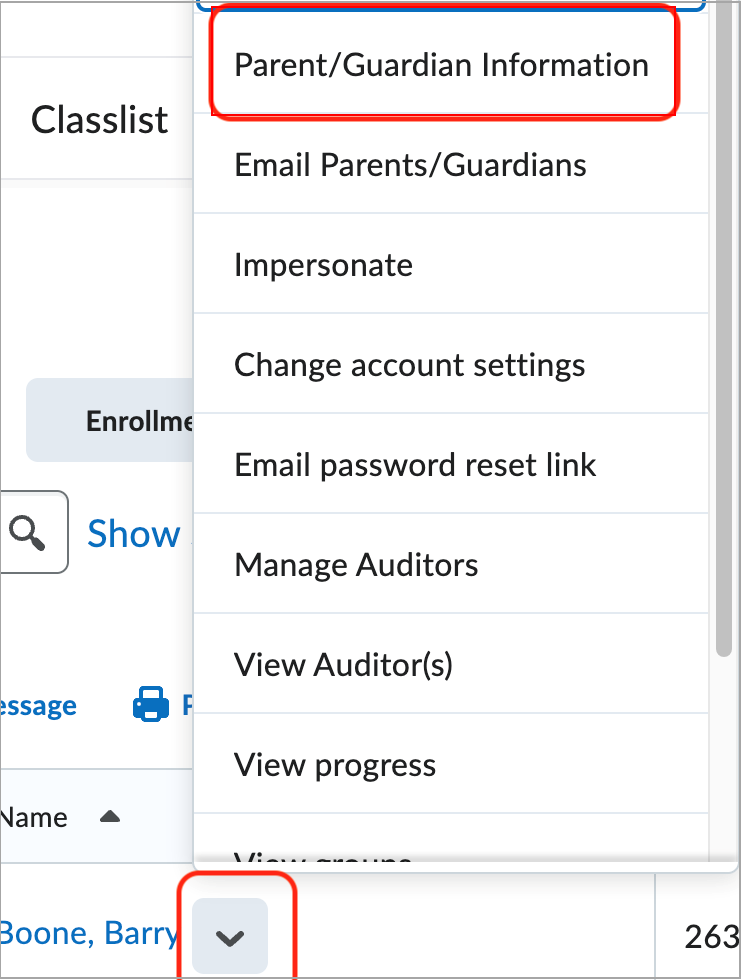
- Select the drop-down arrow beside the student’s name. Click Parent/Guardian Information.
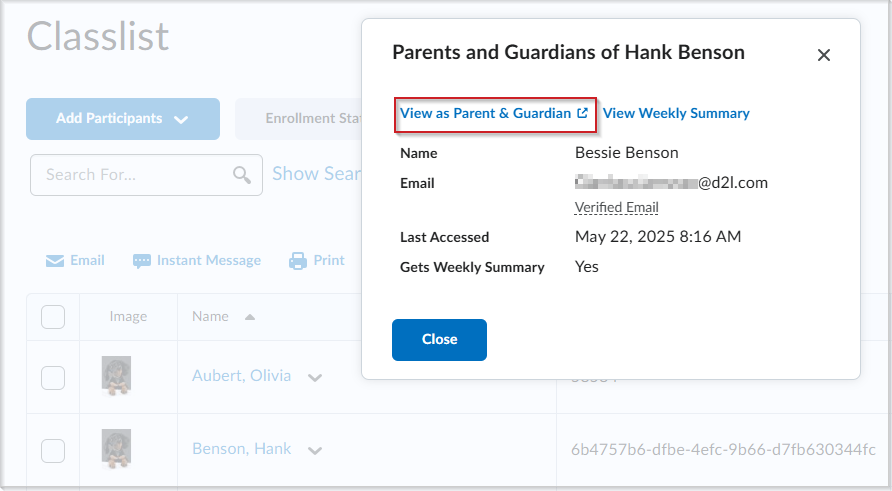
- Click View as Parent & Guardian from the Parents and Guardians of [student name] window.
- The Parents and Guardians View opens in a new window and displays the course homepage as seen by the parent or guardian.
View weekly email summary as a parent/guardian
Watch this video to learn how to learn how to view weekly email summary as a parent/guardian. Review written steps below.
You can use the View Weekly Summary option to see how parents and guardians receive weekly email overviews of a student's assignments, quizzes, and portfolio. This perspective can help you prepare for parent-teacher meetings and improve communication with caregivers.
The Recent Weekly Summary for [student name] helps you:
- Understand how families see assignments, quizzes and portfolio items that are due in the past and in the upcoming week.
- Prepare for conversations with parents and guardians.
- View the weekly summary for the selected student only.
|
Note: You can only view the most recent weekly summary for one student at a time, and only in courses you have access to. |
Prerequisites
To access the View Weekly Summary option, you must have the following permissions assigned to your role:
- Brightspace Parent & Guardian > See Parent/Guardian Activity & Information
- Brightspace Parent & Guardian > View as Parent/Guardian
- Brightspace Parent & Guardian > See Parent/Guardian Child Relationships for 'Student'
Contact your school administrator if you cannot access the View as Parent/Guardian option.
To open the View Weekly Summary for a student
To open the parent or guardian view for a student:
- From your course navbar, select Classlist.
- Find the student whose View Weekly Summary you want to access.
- Select the drop-down arrow beside the student’s name and click Parent/Guardian Information.
- Click View Weekly Summary from the Parents and Guardians of [student name] window.
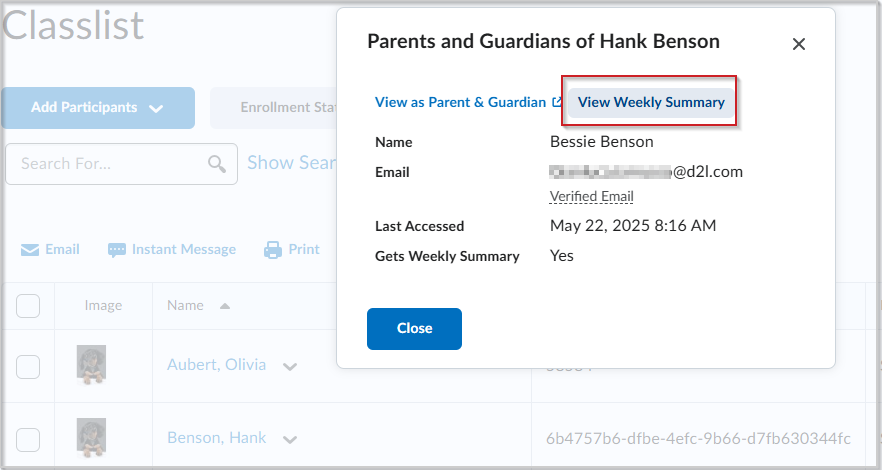
- The Recent Weekly Summary for [student name] opens, displaying the weekly overview email as it appears to the student’s parent or guardian.