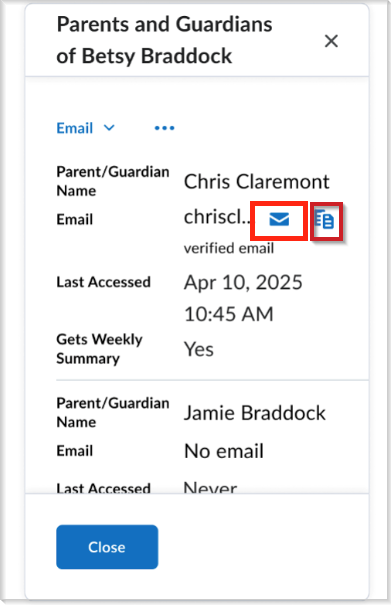
The Brightspace Parent & Guardian tool helps teachers keep parents and guardians informed about student progress and classroom updates. From the Classlist, teachers can:
- Email all parents and guardians in a class.
- Email a selected group of parents and guardians.
- Email all parents or guardians of a single student.
- Email an individual parent or guardian of a single student.
Watch this video to learn how to email parents and guardians from the Classlist. Review the written steps below.

|
Note: Emails sent from the Classlist are a one-way communications from teachers to parents, guardians, and students. Parents and guardians receive messages at their external email addresses when linked to a student. If email options for parents or guardians do not appear in the Classlist, contact your organization administrator. |
Email all parents and guardians from the Classlist
You can send a message to all parents and guardians of students in your class.
To send a message to all parents and guardians
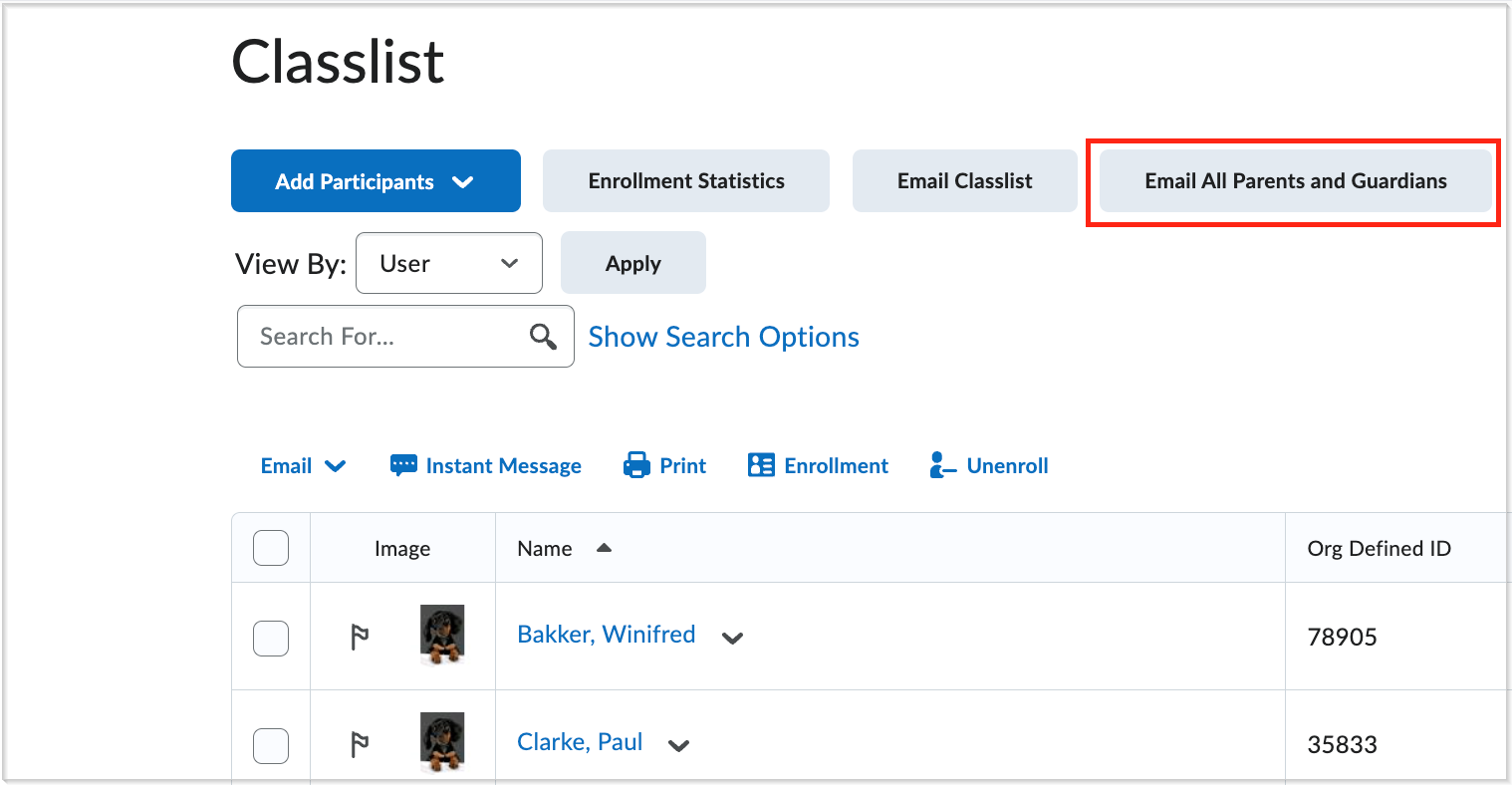
- On the Classlist page, click Email All Parents and Guardians.
- A list appears showing students whose parents or guardians do not have email addresses, as well as those who do not have any parent or guardian associated. These contacts are grouped under Won’t receive email.
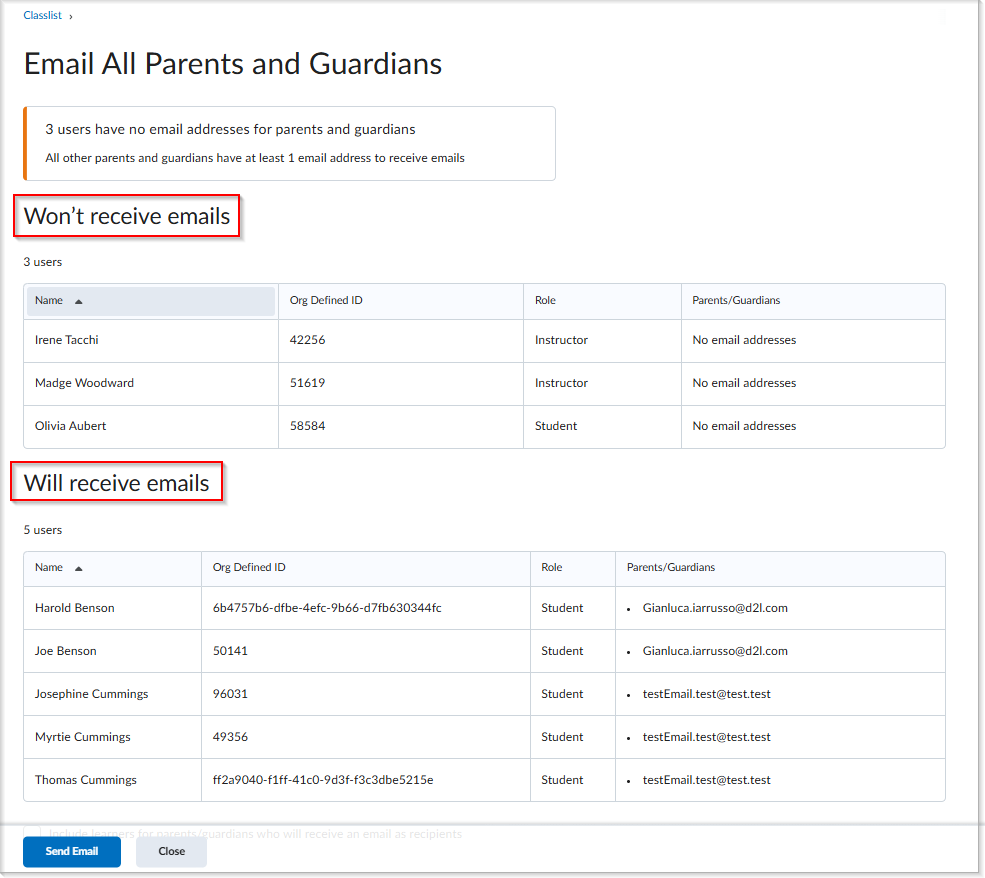
- To include students in the message, select Include learners for parents/guardians who will receive an email as recipients.
- Click Send Email.
- On the Compose New Message screen:
- Verify that all parent and guardian email addresses (and student email addresses, if included) appear in the Bcc field.
- Compose your message and click Send.
Email a selected group of parents and guardians from the Classlist
You can email parents and guardians of a selected students in your class.
To email selected group parents and guardians:
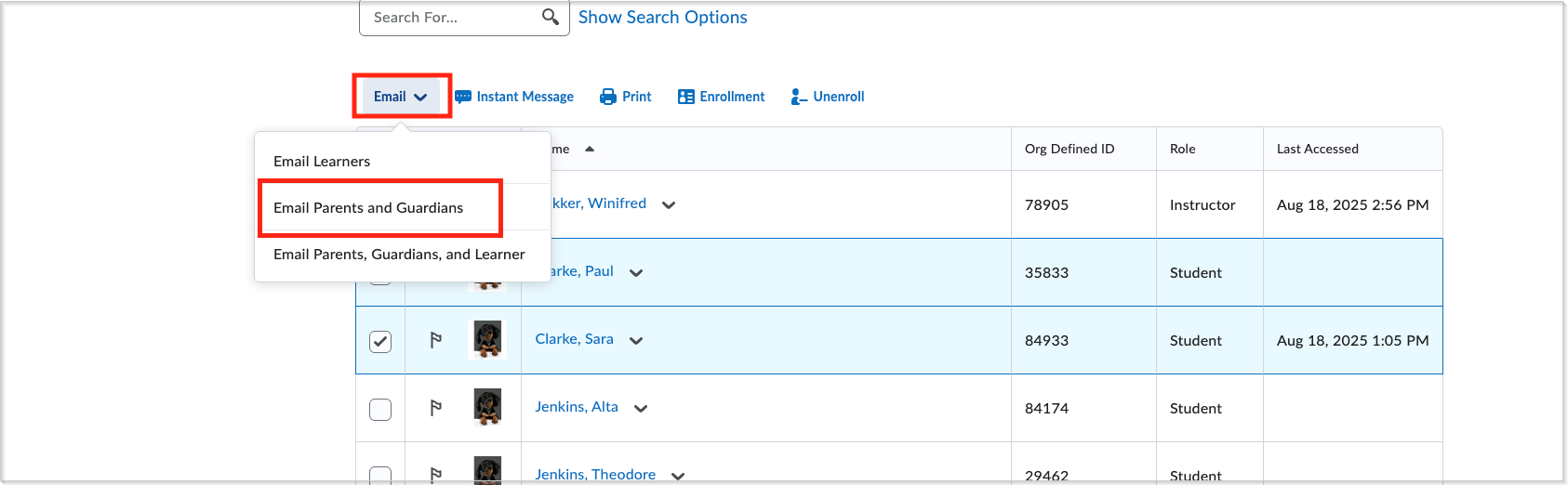
- On the Classlist page, select the checkboxes beside the names of the students whose parents or guardians you want to email.
- Click the Email dropdown, then select either Email Parents and Guardians or Email Parents, Guardians, and Learner from the menu.
- On the Compose New Message screen, check the Bcc field to confirm parent or guardian email addresses were added.
- Compose your message and click Send.

|
Tip:Use this workflow to send targeted reminders or updates, such as messages about missing assignments, without emailing the entire class. |
Email all parents and guardians of an individual student
You can email all parents or guardians of a specific student directly from the Classlist.
To email parents and guardians of an individual student
- On the Classlist page, click the dropdown menu beside the student's name.
- Select Parent/Guardian Information.
-
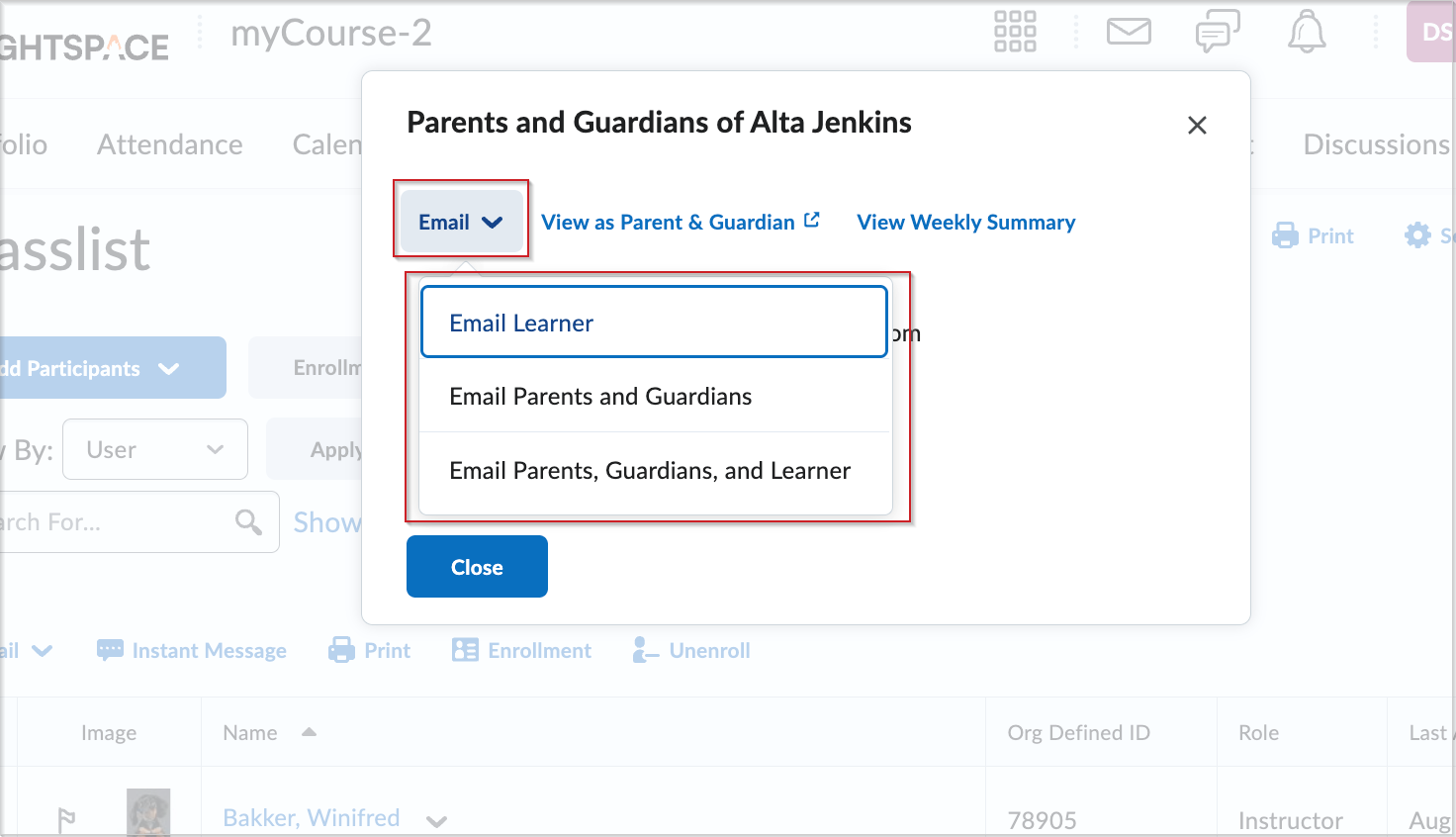
On the Parents and Guardians of [student name] screen, click the Email dropdown, then choose:
- Email Parents and Guardians, or
- Email Parents, Guardians, and Learner
- On the Compose New Message screen:
- Confirm that the correct recipients appear in the To field.
- Compose your message and click Send.
Email an individual parent or guardian of a specific student
You can email a selected parent or guardian of a specific student.
To email an individual parent or guardian
- On the Classlist page, click the dropdown menu beside the student's name.
- Select Parent/Guardian Information.
- On the Parents and Guardians of [student name] screen, locate the parent or guardian.
- Choose one of the following options:
- Click the Email icon to send a message directly from the Classlist.
- Click the Copy icon to copy the email address for use in an external tool.