Brightspace includes several different ways to preview your course from a student perspective. Depending on what you want to test, you can use:
Each option is designed for a different type of task. Some methods are best for quick visibility checks, while others let you fully test the student experience. The student experience may appear differently depending on the preview method you use. For example, some tools, release conditions, and inline activities do not behave the same way in every preview mode. Use the following guidance to choose the best option for your task.
Choose the best way to preview your course
| If you want to... |
Best option |
|---|
| Quickly review course visibility and navigation |
Role Switch |
| Test quiz questions, timing, or grades |
Preview |
| Fully test the learner experience |
Impersonate |
Role Switch
Role Switch temporarily changes your view to another role, such as Student, without creating student activity, submissions, or grades.

|
Important: You must have the Role Switch > See Role Switch and the Role Switch > Role Switch '[role name]' permissions granted to your role to view Brightspace as a different role. Your administrator must give you permissions for each individual role. Contact your administrator for details.
|
Recommended uses
Use Role Switch when you want to:
- Check whether students can view content.
- Review course navigation and module order.
- Preview announcements, assignments, discussions, and content.
- Confirm student visibility.
Known limitations
Role Switch is designed for quick visual reviews, but it does not fully simulate a student session. The following limitations apply:
- Inline activities appear as links instead of embedded content in the Content Experience.
- Content restricted by dates may appear unavailable in Role Switch even when students can still access it through other workflows such as bulk file download or system notifications.
- Release conditions that depend on student activity, such as visiting a content topic, grades, or quiz completion cannot be fully tested because no student activity is generated.
- Group enrollment and self-enrollment workflows cannot be tested.
- External or LTI tools launch using instructor credentials instead of student credentials.
- Tools that require a student email address may not behave as expected.
- Grades and quizzes may not reflect the same student experience shown to actual learners.
Use Impersonate to verify the exact student experience.
Navigate to Role Switch
- Click your name in the minibar.
- Click View as [Role] to switch to the displayed role.

Your profile icon now displays the Role Switch icon and the role you are using appears below your name.

- To switch back to your teacher view, click your username and then click X next to Viewing as [role].

- If you have the required role permissions, you can also click Change to select from a list of roles to view.

Impersonate
Use Impersonate for end-to-end testing. Impersonate lets you access the course as a real student account, typically a demo student enrolled in the course.
Unlike Role Switch, actions performed while impersonating are saved. Quiz attempts, assignment submissions, discussion posts, grades, and course content behave exactly as they would for the student you are impersonating.
|
Important: You must have the Users > Impersonate [Role] permissions granted to your role to impersonate another user. Your administrator must give you permissions for each individual role. Contact your administrator for details. |
Recommended uses
Use Impersonate when you want to:
- Submit assignments and quizzes
- Test release conditions, special access, or accommodations
- Verify feedback visibility
- Test groups and discussions
- Validate external or LTI tools
Known limitations
Impersonate has the following limitations:
- Actions completed while impersonating are saved as student activity.
- Test submissions, grades, and discussion posts may require cleanup afterward.
- Viewing content topics does not trigger completion of that topic when impersonating. Topics will display as incomplete in reports even after being visited.
- Demo students follow the same access restrictions as regular students and cannot access inactive courses or restricted content.
- Email-based workflows, including Intelligent Agent notifications, may not behave as expected.
- Emails may still be sent to the demo student's email address, but you cannot verify delivery from within the impersonation session.
- Some reporting tools may not consistently track impersonated activity. Do not use impersonation to validate reporting or completion data.
- External and LTI tools will see the demo student's identity, but tools that require legitimate user credentials, such as publisher platforms or proctoring tools, may not function correctly.
Navigate to Impersonate
To impersonate a user
- Navigate to Classlist.
- From the context menu of the demo student account, click Impersonate.
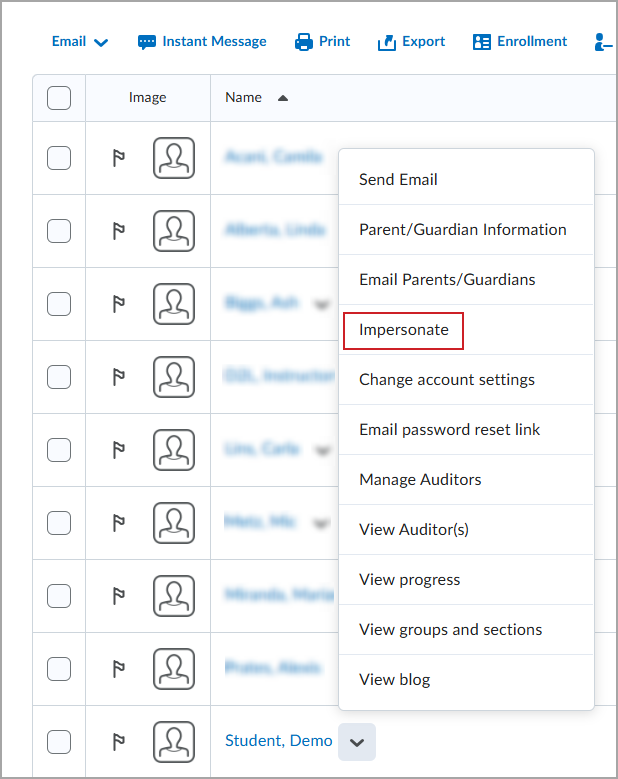
- Click OK to begin impersonating the user.
Your profile icon now displays the Impersonating icon and the user you are impersonating replaces your name.

- To switch back to your teacher view, click the name in the minibar and then click X next to Impersonating [user].
Preview
Use Preview within supported tools, including Quizzes and Grades, to validate how assessments and grades appear to students without fully impersonating a student account.
Quiz Preview
Quiz Preview allows you to review:
- quiz questions
- answer options
- timing
- scoring
By default, Quiz Preview bypasses restrictions such as availability dates and attempt limits. Preview attempts are not included in class statistics.
Grade Preview
Grade Preview displays the learner view of grades for a selected student, including:
- visible grade items
- display formatting
Grade Preview displays visibility and formatting only. It does not simulate:
- grade calculations
- release conditions
- downstream behaviors
Recommended uses
Preview is best suited for the following tasks:
- Review quiz questions and answers
- Test quiz timing and scoring
- Preview learner grade visibility
- Validate grading setup before releasing grades
Known limitations
Preview has the following limitations:
- Preview only works in supported tools, such as Quizzes and Grades.
- Quiz Preview does not apply learner accommodations or special access settings.
- Preview attempts may not trigger release conditions or downstream workflows.
- Preview does not test assignment submissions, discussions, groups, or course navigation.
- Grade Preview shows display settings only and does not simulate the complete student experience.
Use Impersonate when you need to test end-to-end student workflows.
Navigate to Preview
To preview a quiz
- Navigate to Quizzes.
- Do one of the following:
- From the context menu of the quiz you want to preview, click Preview
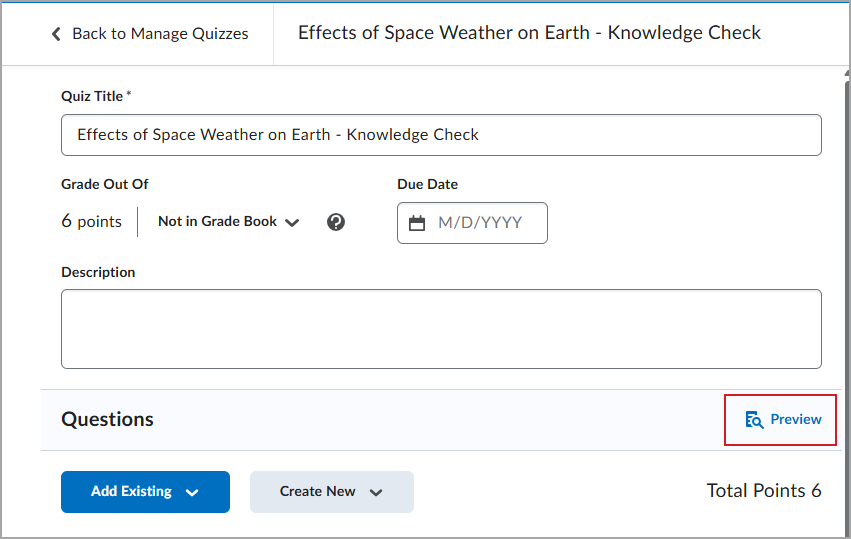
- From the context menu of the quiz you want to preview, click Edit. In the Questions heading, click Preview.
- Optional: Clear the Bypass Restrictions check box to preview the quiz with learner restrictions applied.
 | Note: Bypass Restrictions does not override all quiz settings. Quizzes configured with Retake Incorrect Only selected may prevent additional preview attempts after a graded preview attempt. To preview again, delete or grade the existing preview attempt. |
- Click Start Quiz!.
- When you complete the quiz, click Submit Quiz.
- Select Allow this preview attempt to be graded in the Grade Quiz area and click Submit Quiz again.
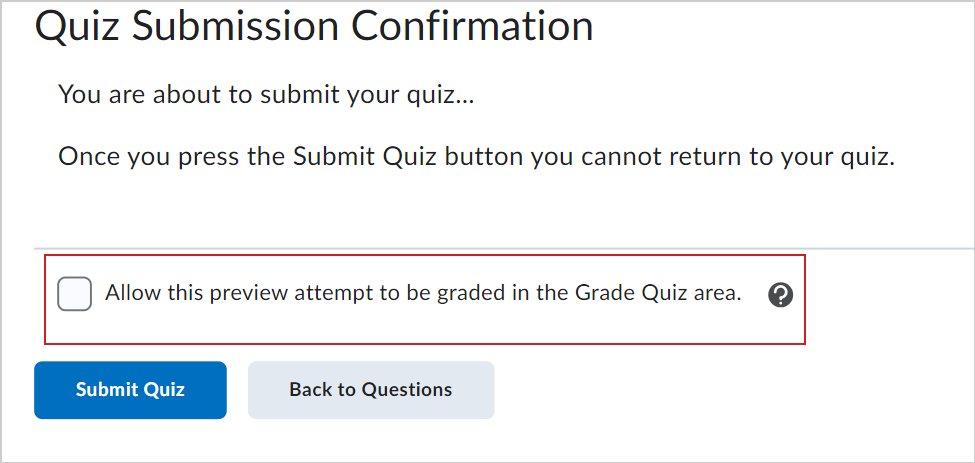
| Note:If selected, the Allow this preview attempt to be graded in the Grade Quiz area option saves the preview attempt so you can review it when grading a quiz. If you do not select this option, the preview attempt is deleted when you exit the preview. |
- Click Exit Preview.
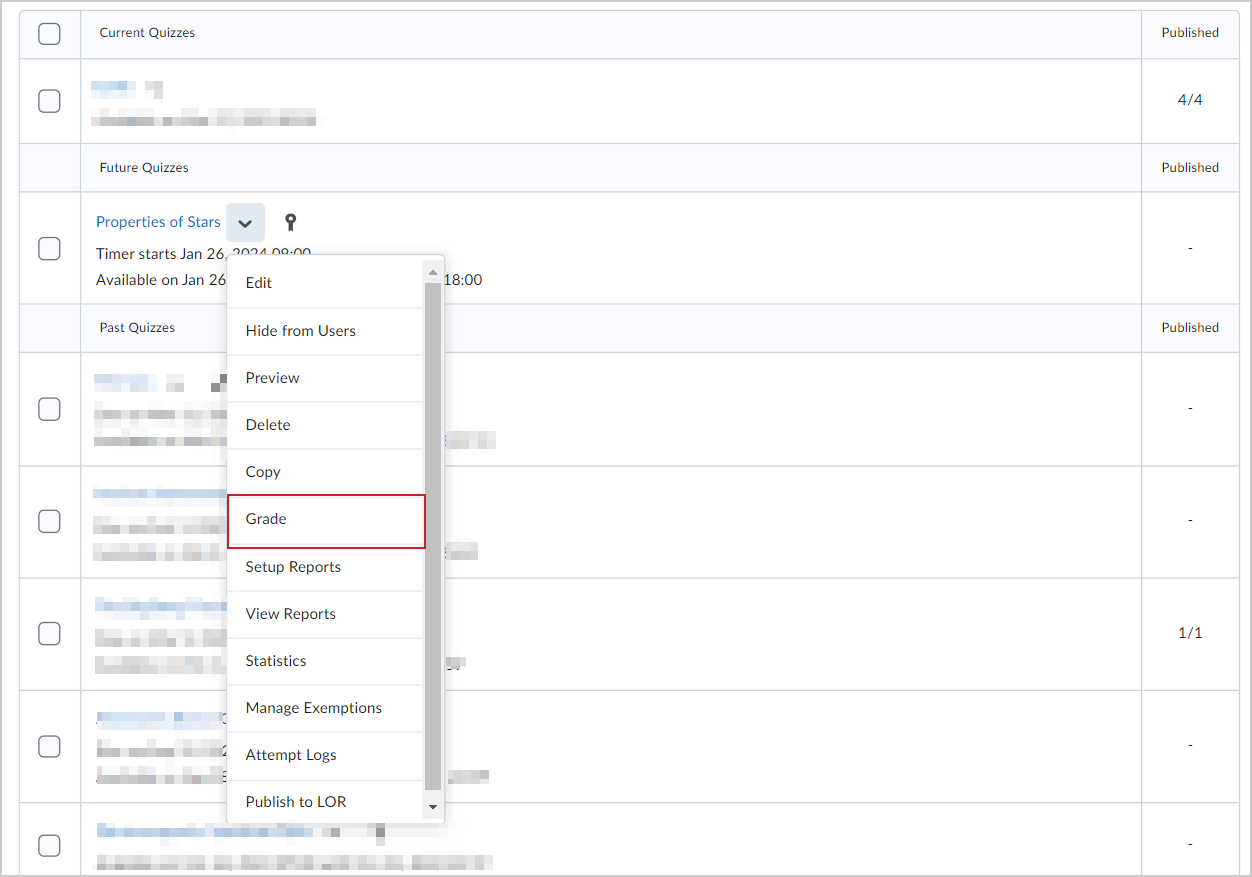
- Click the context menu for the same quiz and select Grade.
- In the Users tab, click Show Search Options.
- In the Restrict to section, select Users who have previewed attempts.
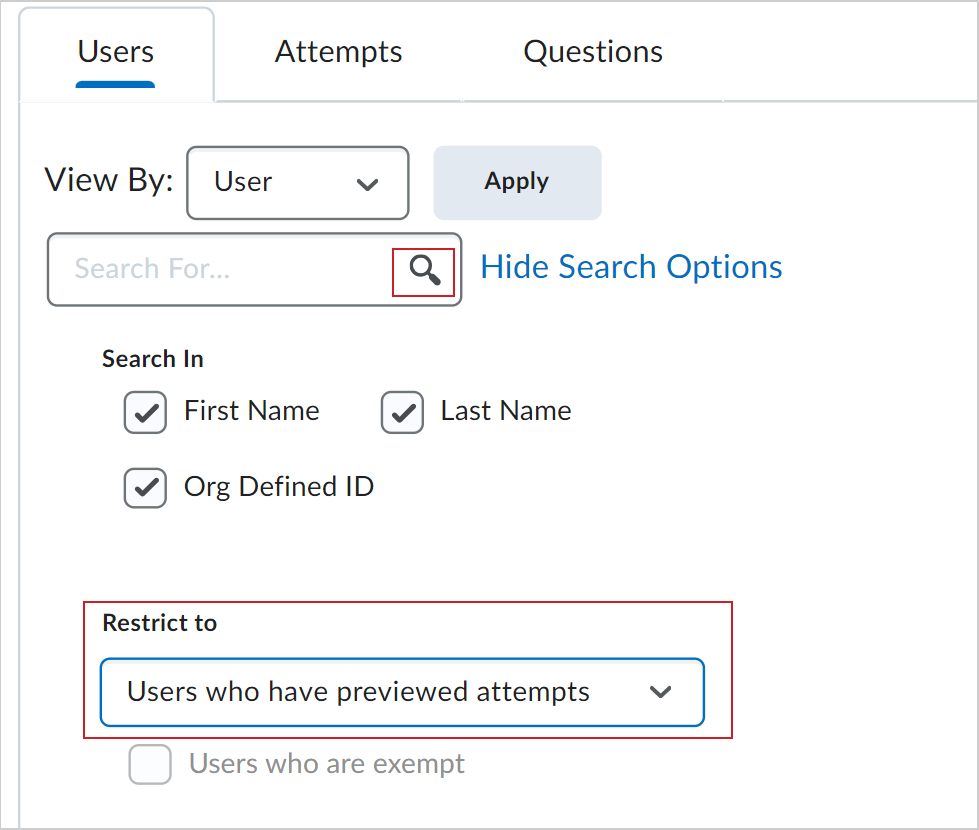
- Click the Search icon.
You can now access the quiz attempt and see the evaluation workflow.
To preview grades
- Navigate to Grades.
- In the Enter Grades tab, from the context menu of the student whose grades you want to preview, click Preview.
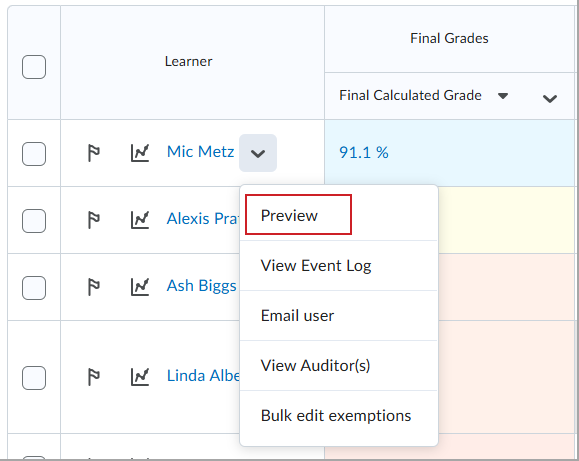
The student's grade preview is displayed in a new window.
- Click Close to exit the grade preview.