The Grade book Mastery View provides a summary of the evaluation data collected by the Learning Outcomes tool. The following learning outcomes features have an impact on the content that is displayed in the Mastery View.
Achievement scale
The Mastery View uses the achievement level labels and colors that you define in your achievement scale. To use the Learning Outcomes tool, administrators must define an achievement scale and set it as the default for the organization.
Create a new scale
When you are creating a new scale, you can determine the number of levels desired (minimum of 2), set the names for the levels, associate a color with the levels, and identify the threshold percentages between the levels.
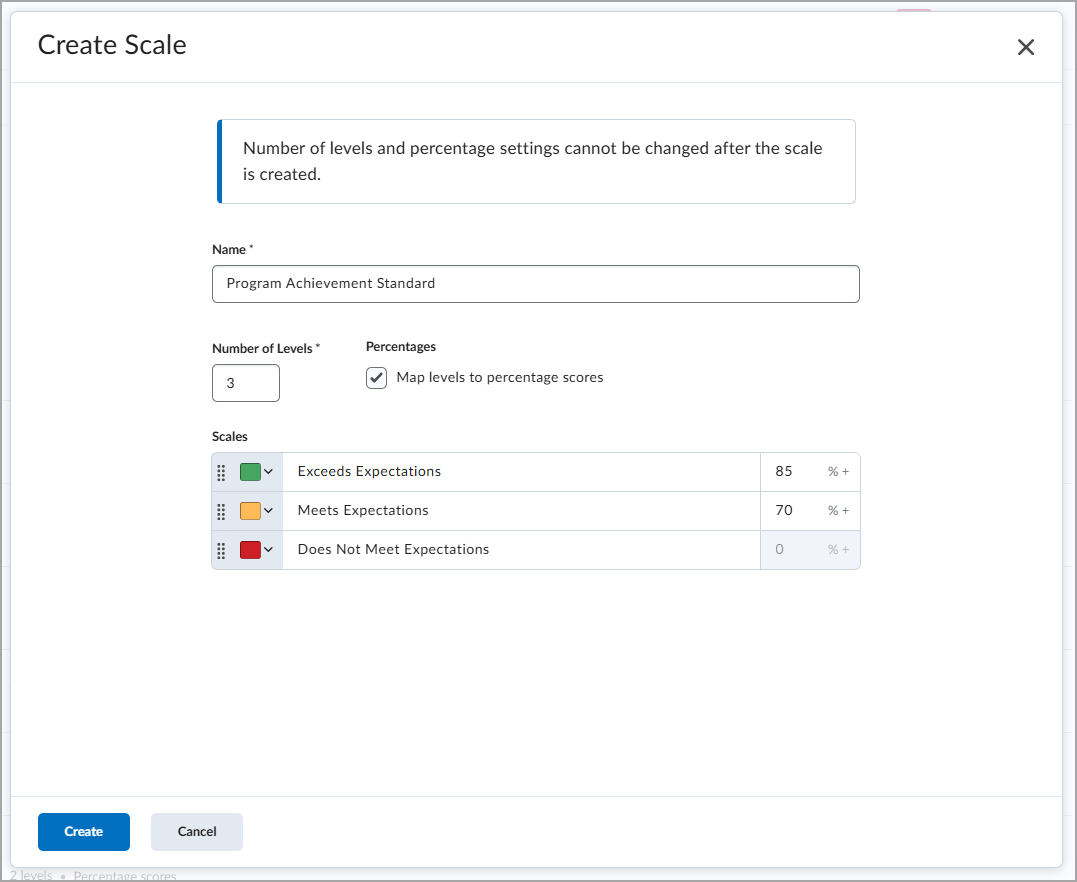
After you create an achievement scale, some settings cannot be changed. You cannot change the following:
- Number of levels in the scale
- Option to use percentage thresholds
- Percentage values for each threshold
If you need to adjust these values, create a new scale, and set it as the new default.

|
Tip: When you define percentage thresholds on scale levels, it provides suggested levels of achievement for rubric evaluations and quiz submissions. If you use a scale as the default that does not have defined percentage thresholds, then you must manually map rubrics to the achievement scale levels for outcome achievement suggestions. You must manually evaluate quiz submissions to determine level of achievement for aligned outcomes. For additional information related to achievement scales, refer to Best practices for using Grade book Mastery View. |

|
Note: If you attempt to change the default scale, an alert message in the achievement scale default selection appears to warns you that all evaluations under the previous scale will not be included in overall suggested levels of achievement. The evaluations are also not included on the evidence trend line of learner evaluations in the Outcome Progress page or the Manual Evaluation page of the Mastery View. In general, it is not recommended to select a different default achievement scale for these reasons. |
Additional Information:
Select an achievement scale for a course
To evaluate learners' achievements related to the learning outcomes, you can select the appropriate achievement scales within a course offering.
When new courses are created, they automatically pick up the org default scale as their selected scale. If the org default scale is changed, all existing courses will continue to reference their selected achievement scale or the scale that was the org default scale when they were created. Only courses created after the new org default scale is selected will automatically reference the new org default.
To select an achievement scale
- From the Course Admin menu, click Learning Outcomes.
- Check the currently selected achievement scale information on the Course Outcomes page.
- Click the more actions icon (...) and click Replace Achievement Scale.
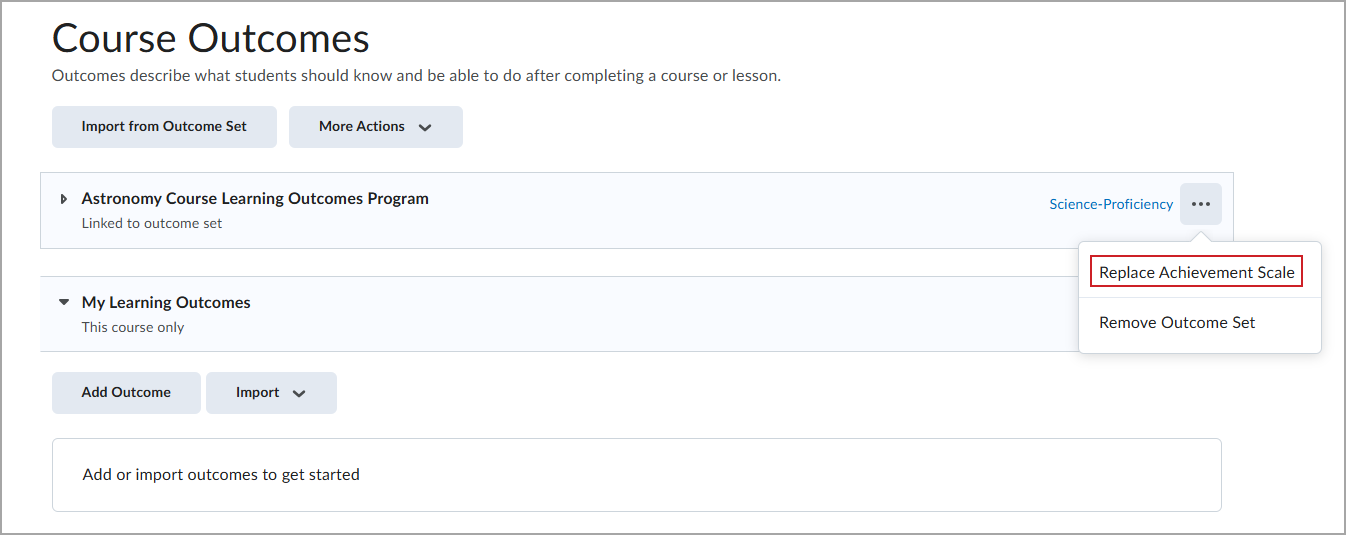
- Select a new achievement scale for your course and then click Save.
| Note: You can select an alternative achievement scale of a course until the first learner assessment activity has been evaluated. After an evaluation has begun in the course, the selection of the achievement scale is locked for that course offering. |
The selected achievement scale applies to all outcome evaluations completed in the course using that outcome set. It is used to determine the suggested level of achievement for both individual activity evaluations and the overall suggested level of achievement in the Mastery View tab of Grades.
Course level outcomes
To enable the Mastery View, create or import course-level outcomes using the Learning Outcomes tool (Course Admin > Learning Outcomes). Then, align the outcomes to rubric criteria, assignments, discussion forums, quiz questions, or Brightspace Portfolio evidence objects.
For additional information, refer to: Create, import and manage learning outcomes.
When learner submissions are evaluated against those assessment activities, the evaluations automatically appear in the Mastery View using Automatic Calculation by default.
- You can change the calculation type in the Mastery View settings. For more information about calculation methods, refer to Overall Achievement Calculation Settings. If you do not have automatic calculation turned on, instructors can manually evaluate the level of overall achievement in the Master View's Evaluation page.
- If an evaluation has not yet been published to the learner, then that assessment evaluation is not included in the calculation for the suggested overall level of achievement and it does not appear in the evidence trend line of evidence history of assessments related to an outcome.
When evidence is deleted in Portfolio, the Mastery View determines whether to use the evidence in the learner’s overall achievement calculations according to the following criteria:
- If the evidence is soft-deleted (meaning it was deleted by a learner or instructor but can be restored by an instructor from the Instructor View), then the evidence is included in the overall achievement calculations.
- If the evidence is hard-deleted (meaning it was permanently deleted and cannot be restored), then the evidence is not included in the overall achievement calculations.