Submitting an assignment on behalf of a user involves impersonating the learner from Classlist and then submitting the assignment for them.

|
Note: You must have the required role permissions granted to your role to impersonate another user. Contact your administrator for more details. While impersonating another user, you are restricted from using the Google Workspace integration or viewing the Google Workspace Widget. |
To submit an assignment on behalf of a learner
- To impersonate a student, from the navigation bar, select to Classlist.
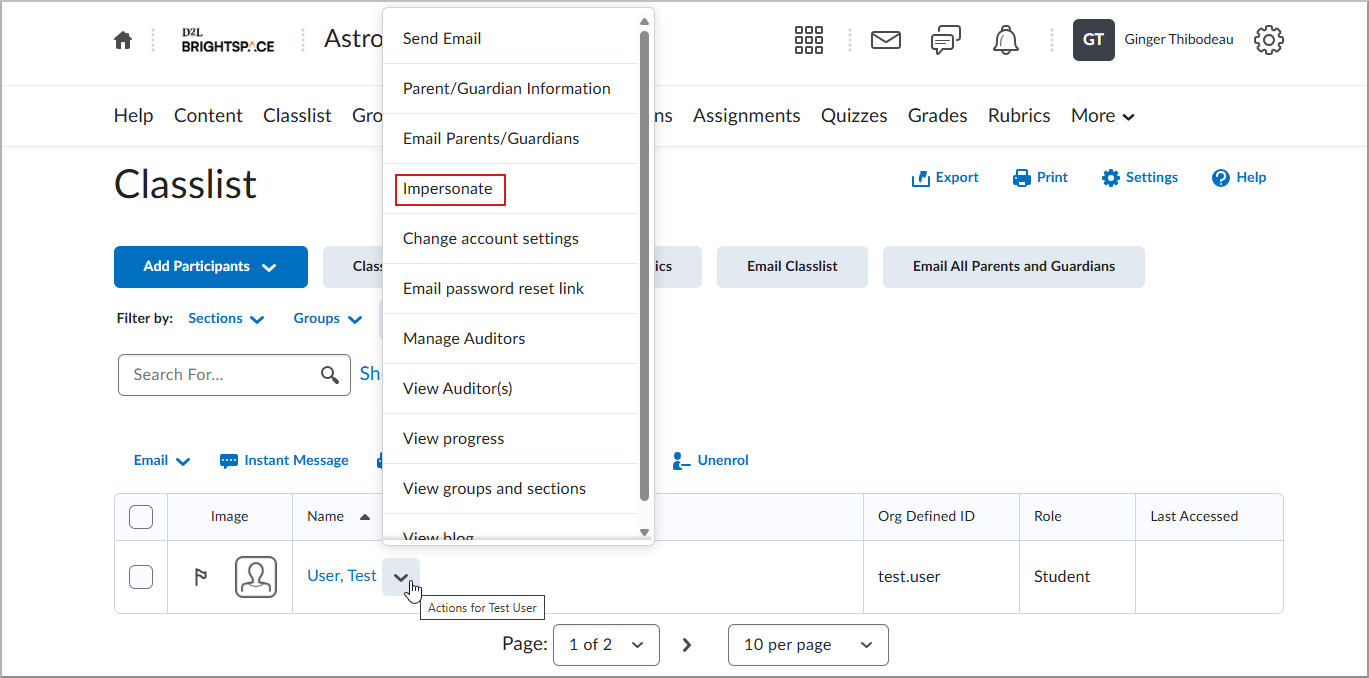
- On the Classlist page, click the Actions menu beside the learner you want to submit the assignment and select Impersonate.
- Click Yes to confirm you wish to impersonate this learner.
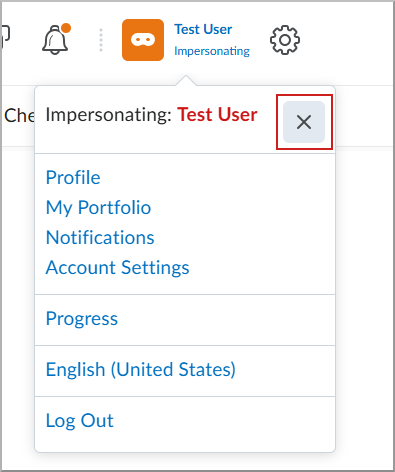
- In the upper right, the system updates to show the user profile and permissions of the learner you are impersonating.

- From the navigation bar, click Assignments.
- Select the activity you wish to submit by clicking on its name.
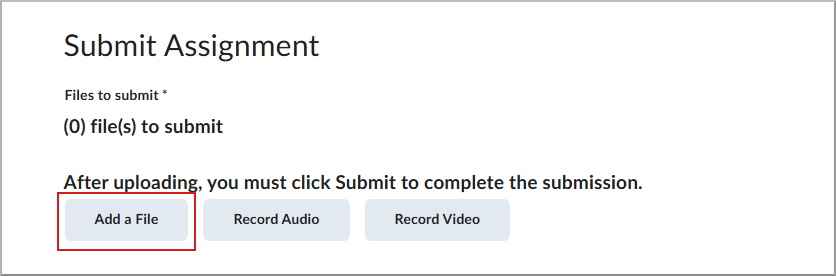
- Click Add a File and upload your file.
- Add any notes you would like in the Comments section.
- Click Submit .
- To stop impersonating the learner, select the user profile then click X next to the user name.