Use Brightspace Apps to find, install, and deploy integrated solutions for your organization.

|
Note: You can browse and install all apps available in Find Apps. However, some apps require a separate license, subscription, account, or other commercial agreement with the partner before they can be used. |
To find and install a Brightspace App
- To open Brightspace Apps, from Admin Tools, select Manage Extensibility > Apps.
- To browse available apps, select Find Apps.
- To choose an app, scroll through the list or search for the app you want to install, and then select it.
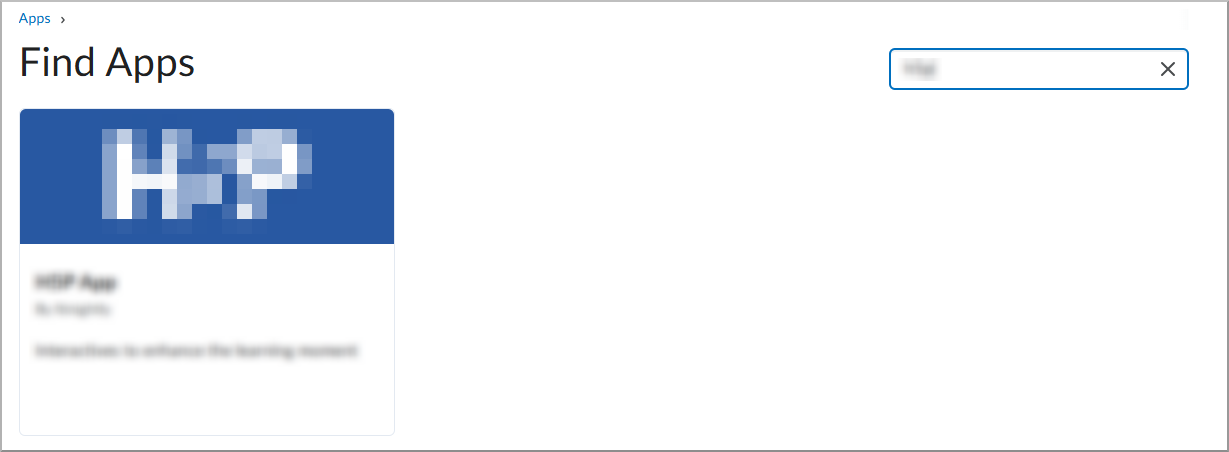
- To start installation, select Install.
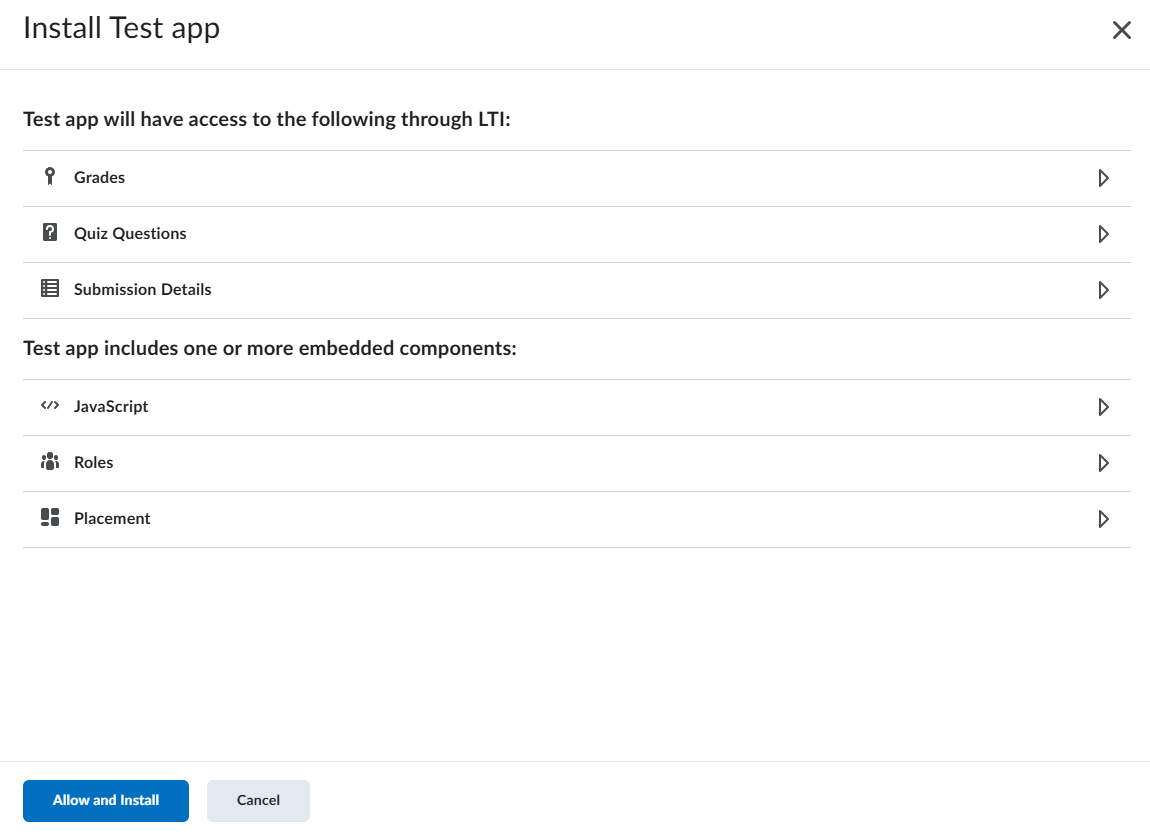
- To review the information the app can access, expand each section in Data Access, and then select Allow and Install.
- To select where the deployment is available, select Add Org Units, and then select specific courses, departments, or the entire institution.
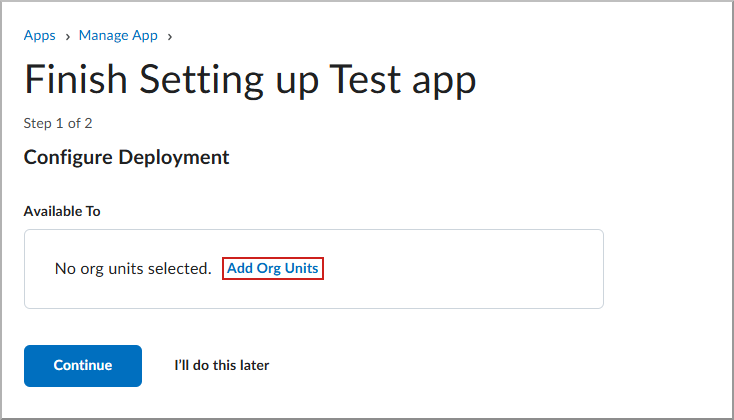
- To proceed, select Continue.
- If the app uses a standard registration LTI component, the Brightspace registration details display. To configure the external application, copy each of the following values from Brightspace Registration Details and paste them into the corresponding fields in your external application:
- Client Id: The ID used in OAuth2 authentication to make requests to the services, such as Names and Roles and Assignment and Grade.
- Brightspace Keyset URL: The location where Brightspace keys are stored. Tools require this value during registration and launch.
- Brightspace OAuth2 Access Token URL: The location where tools retrieve new access tokens for OAuth2 service requests.
- OpenId Connect Authentication Endpoint: The endpoint where Brightspace sends the login response.
- Brightspace OAuth 2 Audience: The intended recipient of the token.
- Issuer: The URL of the Brightspace instance.
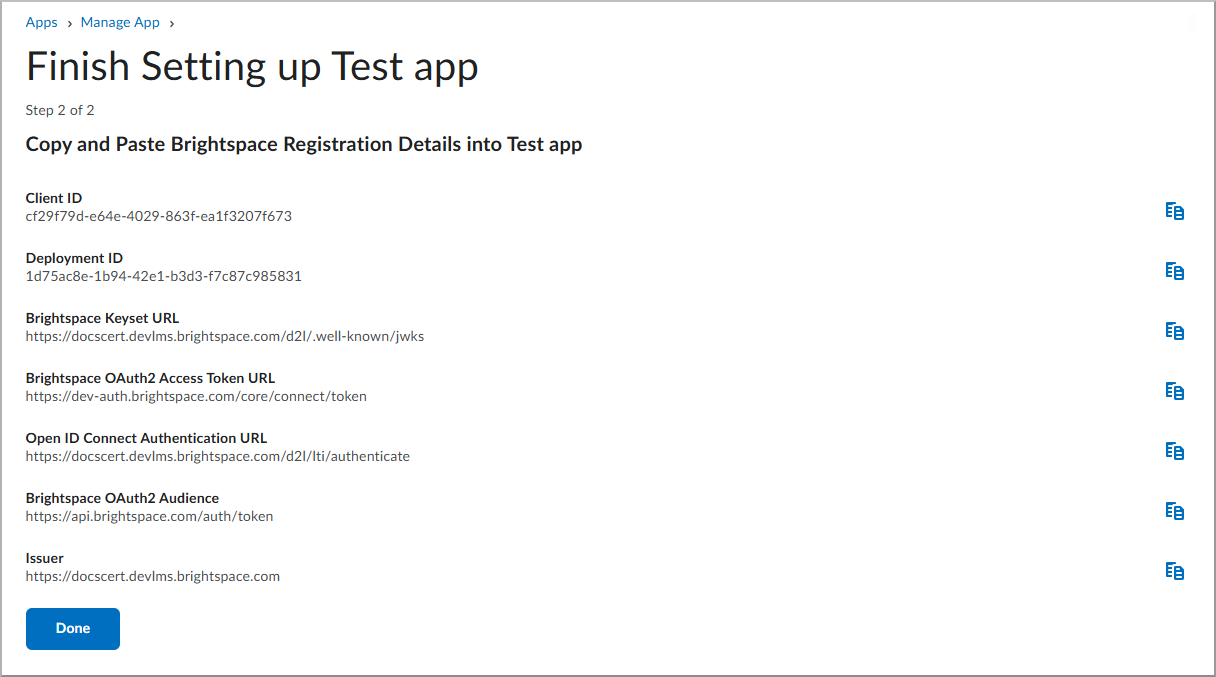
- To avoid transcription errors, use the Copy icon beside each value.
- To complete the external setup, paste the values into the corresponding configuration fields in your tool provider's LTI 1.3 setup page.
- To finish the installation, return to Brightspace after you enter and save all values in the external application, and then select Done.
You return to the Manage page for the app.