The Asset Processor for Assignments service integrates Learning Tools Interoperability (LTI) 1.3-enabled external processing tools, such as originality checkers and grammar reviewers, directly into the Assignments tool to enhance evaluation and reporting for learner submissions. Organizations can select from a variety of LTI 1.3-compatible processing tools and enable the Asset Processor service during tool registration and deployment at the organization level.
After configuration, instructors can use external processors directly in Assignments by attaching a processor tool to an individual or group assignment. Instructors and learners can access detailed reports on learner submissions directly from Assignments. Learners can also accept End User License Agreements (EULAs) for tools by selecting the EULA link that appears on the Assignment Submission page or for assignments rendered inline in course content.

|
Note: If group assignments must be processed by the third-party tool, the Group.Course.GroupID substitution parameter may need to be included in the LTI registration or deployment configuration. Refer to the third-party tool's documentation for guidance on the required substitution parameter naming and configuration. |
Service extension limitations
Note the following limitations for the service extension:
- Only text and file assignment submissions are eligible for processing.
- Grade passback and grade synchronization do not occur.
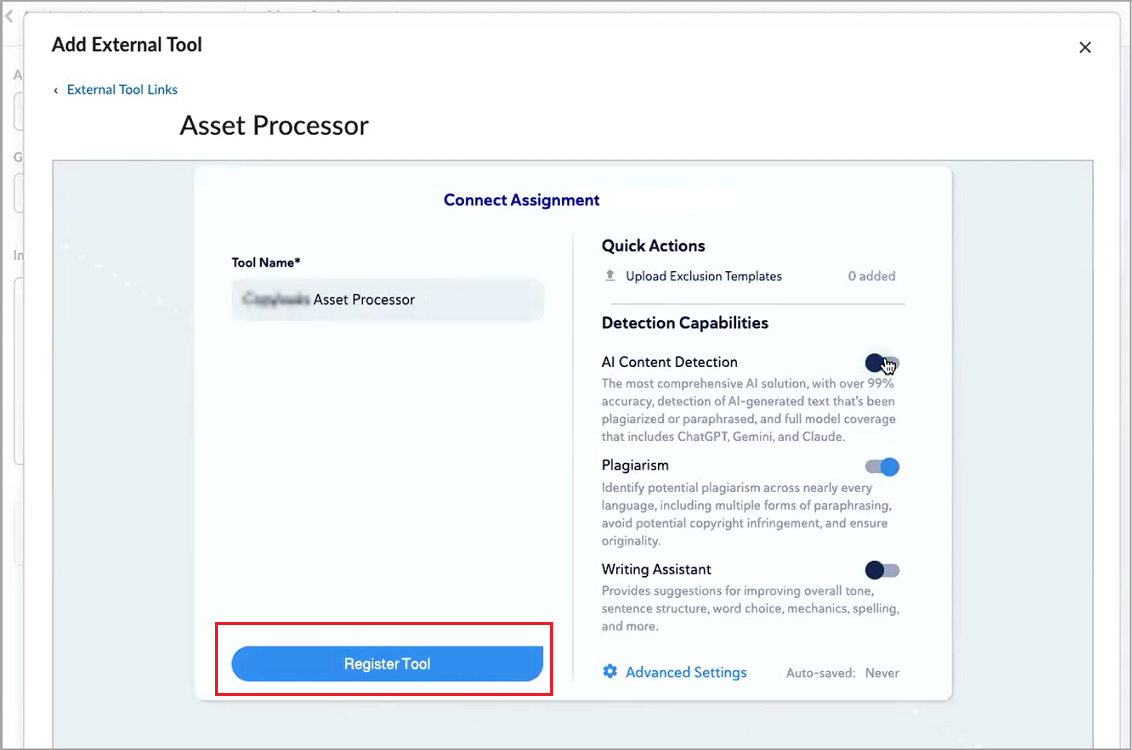
About End User License Agreement links in Asset Processor integrations
Some processor tools require learners to accept an End User License Agreement (EULA) before reports can be generated. Administrators can create a single organization-level EULA link for each tool deployment, either manually or through dynamic registration.
Learners only need to accept the EULA once per third-party processing tool (per tool deployment), not for every submission. For group assignments, the learner who makes the submission on behalf of the group must accept the EULA if they have not already done so. All group members can access the resulting report.
If a learner has not accepted the EULA, the processor may return a “EULA not accepted” error in its report. An inline alert appears on the Assignment Submission page until learners accept the EULA. They can also review or update their acceptance status if the tool allows.
The processor tracks learner acceptance and may update its EULA at any time, requiring re-acceptance.
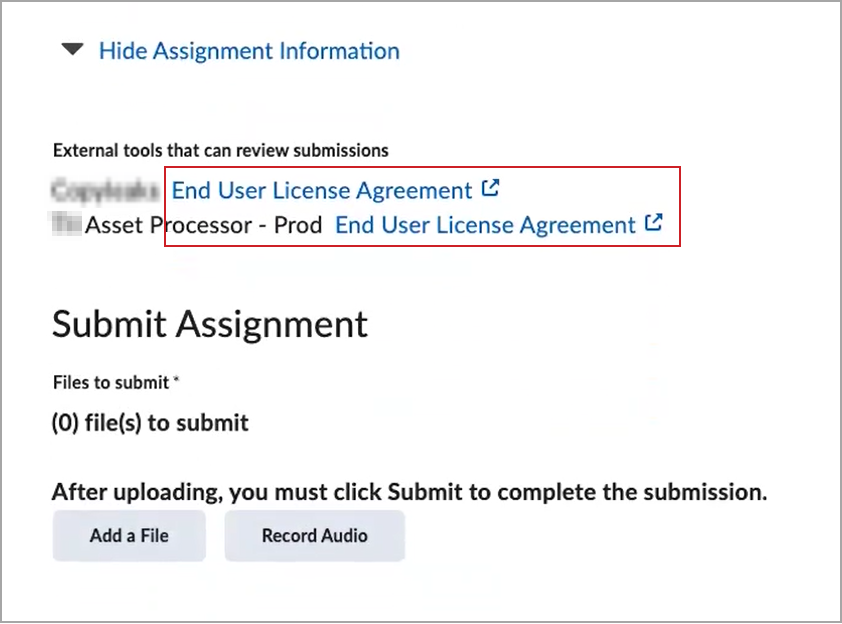
When assignments are accessed through the Content tool in the Content Experience and rendered inline, the processor’s EULA appears in additional locations:
- In the assignment’s instructions section in course content.
- As an inline alert when submitting the assignment.
- In a reminder modal if they attempt to submit without having accepted or declined the EULA.

|
Important:
- Learners are not required to accept the EULA to submit their assignment to Brightspace.
- Impersonated users cannot accept the EULA.
- Processor EULA links in course content are available inline only when using the Content Experience.
- Learners submitting assignments through the Classic Content experience or the Learner Experience do not have access to processor EULA links when accessing assignments from content topics.
|
Enable the Asset Processor service
To make third-party processing tools available for assignments, you must first register and deploy the preferred LTI processor tool using dynamic registration (if available) or manually in the Manage Extensibility tool at the organization level.
To enable the Asset Processor during manual registration and deployment:
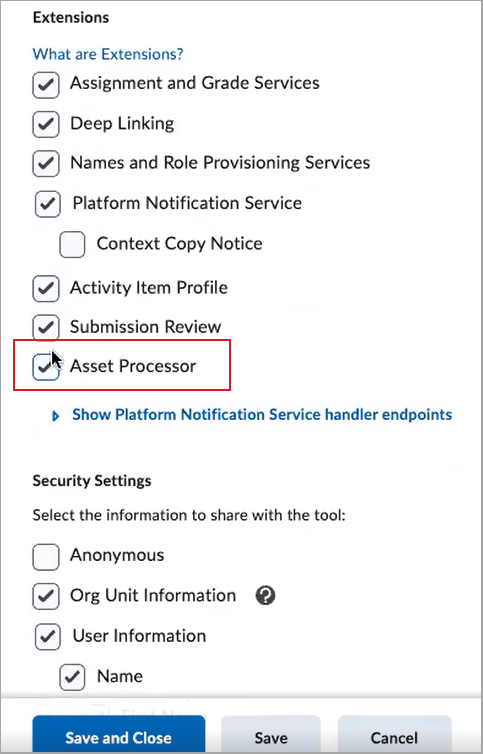
- Select the Asset Processor check box.
|
Important: The Asset Processor option depends on selecting both Deep Linking and Platform Notification Service. These extensions must be enabled at registration before they can be enabled at deployment.
|
Create the Asset Processor Deep Links for Assignments
Once the external tool is registered and deployed, create the following two link types for users in Assignments:
- An Asset Processor Assignments deep link. Instructors use this link to attach a processor tool to new or existing assignments.
- An End User License Agreement (EULA) link that appears for learners on the Assignment Submission page (if required by the processor tool). This is an organization-level link, and only one EULA link is allowed per tool deployment.
You can use dynamic registration to create these links if supported by the LTI tool, or create them manually in External Learning Tools at the organization level.
To create the deep links:
- From the Admin Tools menu, click External Learning Tools.
- From the LTI Advantage tab, click the corresponding deployment name in the table.
- At the bottom of the deployment page, select View Links.
- Select New Link.
- Enter a name for the processor tool that instructors will use to identify this link in the Assignments tool.
- Enter the tool-provided URL to complete the deep link launch.
- From the Type drop-down, select Asset Processor Assignments or End User License Agreement, depending on the link type you are creating.
- Add any Substitution Parameters or Custom Parameters required by the tool.
- Select Save or Save and Close.
You have created the deep links that appear in Assignments. The Asset Processor Assignments type link is available in the External Learning Tools section of the Evaluation & Feedback panel when instructors create or edit an individual assignment. The EULA type deep link appears for learners on the Assignment Submission page.
|
Note: Disabling a tool registration or deployment at the organization level disables links to tools attached to assignments in child org units.
- For group assignment support, ensure the Group.Course.GroupID parameter is enabled.
|
Manage processors in Assignments
Instructors can attach the processor to individual or group assignments using the Add External Tool workflow in the Evaluation & Feedback panel. For group assignments, the processor assesses the submission made by a group member and makes the report available to the entire group.
|
Note: To use this feature, instructors must have the Assignments > See & Manage Assignment submission folders and Give Feedback permissions. Learners must have the See & submit files to assignment submission folders and View feedback permissions.
|
After the Asset Processor Assignments and End User License Agreement deep links are created, instructors can attach the processor to individual assignments using the Add External Tool workflow. Once attached, the Asset Processor service automatically creates a report link and a settings link for that processor. These links appear on the course-level External Learning Tools page and can be filtered by link type. These links are read-only and cannot be edited from this page.
Assignments with an integrated processor tool display a card in the External Learning Tools area of the Evaluation & Feedback panel.
|
Note: If an instructor enables Hide student names during assessment for an assignment, Brightspace shares the assignment’s anonymity status with supported Asset Processor tools. This allows tools that support anonymous workflows to hide personally identifiable learner information during evaluation. |
From the processor card, instructors can:
- Delete the processor tool if the assignment does not have submissions.
- Enable or disable a processor tool for assignments that already have submissions.
- Disabling hides existing reports and prevents new submissions from being processed.
- Re-enabling restores visibility of all reports and resumes processing subsequent submissions. Submission notices for existing submissions are sent to the tool to allow processing of any submissions missed while the processor was disabled.
- Update settings specific to the processor.
About Processor tool reports
Processors return reports on assignment submissions that appear in multiple Brightspace locations for instructors and learners.
Instructors can view reports from the following locations:
- The Submission Details page in Consistent Evaluation.
- Assignments > Users and Submissions (for both individual and group views).
Learners can view reports on their individual or group assignment submissions from the following locations:
- Assignments > Submission History.
- Assignments > Assignment Feedback.
All members of the group assignments can access the processing reports for submissions made by any other group member once the instructor has released feedback.
Instructors and learners can launch directly into the processor tool’s full report experience by selecting Details, which opens the tool’s report interface in a new browser tab.
If multiple processor tools are in use or multiple reports exist, instructors and learners can select the View link to access report details in a modal.
Instructors can hide reports by disabling or editing the processor tool’s settings from the card in Assignments > Evaluation & Feedback.
Report content depends on the processor tool but may include:
- Title, comments, and short or long descriptions.
- Indication colors and processing progress.
- Error codes.
- Priority (not visible in learner views or to instructors in Consistent Evaluation).
Learner access to processing reports generated by external tools depends on the processor configuration and whether instructors release feedback. In general, learners can access processor report details only when the external tool provides learner-facing views and instructors release feedback.