Brightspace integrates directly with Infinite Campus using OneRoster 1.1 REST APIs. This integration enables administrators to sync roster data from Infinite Campus into Brightspace nightly or on demand, and to send grade item changes and student scores from Brightspace to Infinite Campus nightly or on demand.
Learn more about OneRoster integrations
For more information about OneRoster integrations, refer to the following topics:
- Getting ready for a OneRoster integration
- Configure a OneRoster integration
- Important details about OneRoster REST integrations applicable to syncing with Infinite Campus
Types of data supported by the integration
As part of the integration, Brightspace pulls data about users, courses, and schools from Infinite Campus and pushes grade data to Infinite Campus.
Data Brightspace pulls from Infinite Campus
Rostering data pulled from Infinite Campus includes the following:
- District
- Schools
- Terms
- Grading periods
- Courses
- Sections
- Staff, students, guardians, aides, and administrators
- Enrollments
Grade data Brightspace pushes to Infinite Campus
Brightspace pushes the following grade data to Infinite Campus:
- Grade items
- Student scores
Org units managed by the integration
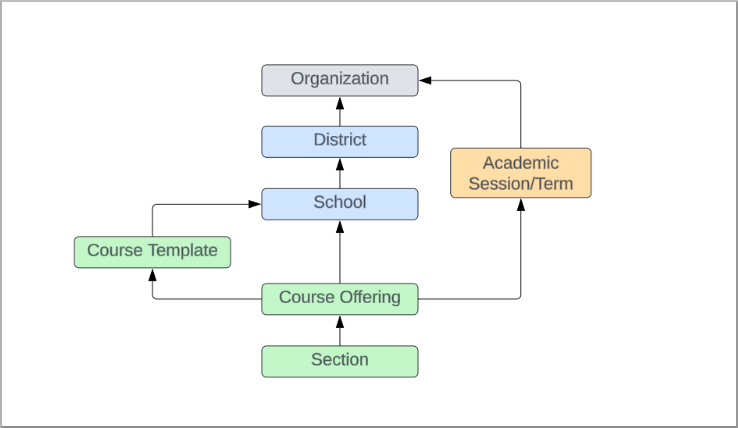
The integration with Infinite Campus manages several Brightspace org units, including academic sessions, districts and schools, course templates, and course offerings, to ensure data is shared effectively between both systems.
Academic sessions
Infinite Campus exports the school year, terms, and grading periods to Brightspace as academic sessions. The school year and grading periods are not used within Brightspace. Terms are associated with course offerings; they help teachers and administrators search for courses by term and are important for proper grade passback to Infinite Campus.
Districts and schools
Within Integrated Platform for Information Systems (IPSIS), the District and School org units are considered upper org units. An upper org unit can be any org unit in the Brightspace org hierarchy above the course template.
Typically, users are enrolled in both course offerings and the school org unit that offers the course. In this scenario, a school is considered an upper org unit.
Districts
The district becomes a single org unit in Brightspace:
- The name of the district org unit in Brightspace is set by Infinite Campus.
- The number or code of the district org unit in Brightspace is set by Infinite Campus.
School names
Each school synced with Brightspace from Infinite Campus becomes an org unit in Brightspace:
- The name of each school matches the name defined in Infinite Campus.
- The org unit code of the school matches the number defined in Infinite Campus.
- Each school org unit is a direct child of the district org unit.
Course templates
Infinite Campus courses with active sections in the current school year that Brightspace imports become course templates in Brightspace.
- Course template names: The name of the course template in Brightspace matches the Course Title of the course in Infinite Campus.
- The org unit code of the template is set to the Course Code field in Infinite Campus.
Course offerings
Sections in Infinite Campus that are active for the current school year become sections and course offerings in Brightspace.
The name of the course offering and section in Brightspace uses the following format:
{course number of parent course} {section number} {course name}
- {course code of parent course} is the code or number of the course associated with the section in Infinite Campus.
- {section number} is the number or code assigned to the section in Infinite Campus.
- {course name} is the name assigned to the section in Infinite Campus.
Example: 1200 2 Grade 9 English
The organizational unit (org unit) code for both the course offering and its section is automatically set based on one of the following rules:
- If no instructor is assigned, the org unit code matches the name of the course offering in Brightspace.
- If an instructor is enrolled and designated as the lead teacher, the associated Brightspace course offering and section uses the instructor's last name and first name as the org unit code.
Examples:
- Course offering name-based org unit code: 1200 2 Grade 9 English
- Instructor-based org unit code: Hernandez_Olivia
Relationship hierarchy
The Infinite Campus integration creates district and school relationships together with associated templates, offerings, and academic sessions such as terms and grading periods to establish the organization hierarchy in Brightspace.
Users imported into Brightspace within the integration
Brightspace imports different information for students, teachers, parents, guardians, and other administrative or learning staff from Infinite Campus.

|
Important: A Student Information System (SIS) user missing a last name, such as a user with only a single name, cannot be created in Brightspace. All users must have both a first name and a last name to meet system requirements.
|
Teachers and students
For students imported from Infinite Campus, Brightspace saves the following properties:
- First name
- Last name
- Email
- Username
- Org defined ID (this is the userID for the student in Infinite Campus)
- Role (student)
- Parent or guardian relationships
- School enrollment or enrollments
- District enrollment
For teachers, Brightspace uses the following properties to create a user:
- First name
- Last name
- Email
- Username
- Role (teacher)
- School enrollment or enrollments
- District enrollment
|
Important: Infinite Campus's implementation of OneRoster does not transmit a recognizable identifier, such as a teacher number, that aligns with visible data in the Infinite Campus user interface. As a result, IPSIS assigns the SIS record identifier (sourcedID) as the Org Defined ID for teachers in Brightspace.
|
Parents and guardians
Family members in Infinite Campus are synchronized with Brightspace automatically.
Including parent, guardian, and relative contacts in the integration enables clients to use Brightspace for Parents & Guardians.
The following data elements are supported when retrieving parent and guardian contacts:
- First name
- Last name
- Email
- Username
- Role (parent, guardian, or relative)
- District enrollment (this role is not enrolled at the school org unit)
|
Important:
- Brightspace supports parent-student relationships only for users identified as Parents or Guardians. Users identified as Relatives are not included in these relationships. As a result, Parents & Guardians features in Brightspace do not work for users who are set up only as Relatives in Infinite Campus.
-
Infinite Campus's implementation of OneRoster does not transmit a recognizable identifier for parents or guardians, such as a name or internal ID, that aligns with visible data in the Infinite Campus user interface. As a result, IPSIS assigns the SIS record identifier (sourcedID) as the Org Defined ID for guardians in Brightspace.
|
Administrators
For administrators imported from Infinite Campus, Brightspace uses the following properties to create a user:
- First name
- Last name
- Email
- Username
- Role (administrator)
- Enrollments, generally cascading from the org down, such as district and school
|
Important: Infinite Campus's implementation of OneRoster does not transmit a recognizable identifier for administrators, such as a name or internal ID, that aligns with visible data in the Infinite Campus user interface. As a result, IPSIS assigns the SIS record identifier (sourcedID) as the Org Defined ID for administrators in Brightspace.
|
Understand how Brightspace exports grades to Infinite Campus
Infinite Campus does not support sending grade categories from Brightspace through the integration. Only grade items and student scores are passed from Brightspace to Infinite Campus.
Because grade categories are managed entirely within Infinite Campus:
- Integration partners cannot create, modify, or sync grade categories from Brightspace.
- All grade category setup and maintenance must be completed directly in Infinite Campus.
When grade items are received from Brightspace, they are placed into either of the following:
- The Unassigned Assignment category
- The default grade category configured by the user in Infinite Campus
No grade category information is transmitted from Infinite Campus to Brightspace as part of this integration.
Properties of graded activities exported to Infinite Campus
The following table describes how grade item properties in Brightspace relate to the settings of Infinite Campus assignments.
Grade item property mapping between Brightspace and Infinite Campus
| Brightspace grade item |
Infinite Campus assignment |
|---|
| Category |
N/A (grade categories are not sent) |
| Name |
Description |
| Description |
Detailed Description |
| Maximum points |
Max Score |
| Due Date or End Date (from activity) |
Proposed Due Date, Actual Due Date, and Assign Date |
The following Brightspace grade item properties are not sent to Infinite Campus:
- Can Exceed
- Bonus
- Exclude from Final Grade Calculation
- Grade Scheme
Determining the due date
The due date and assign date for an Infinite Campus assignment is determined as follows:
When the grade item is associated with an activity:
- Use the activity's Due Date if set.
- If no Due Date is set, use the activity's End Date if set.
- If neither is set, use the End Date of the associated academic session or term.
When the Brightspace grade item is not associated with an activity:
- Use the academic session or semester End Date.
Supported grade item types
The following Brightspace grade item types can sync with Infinite Campus:
- Numeric
- Selectbox
- Formula
- Pass/Fail
|
Important: Calculated and Text grade items do not sync with Infinite Campus.
|
Properties of student grades exported to Infinite Campus
When exporting student grades to Infinite Campus, Brightspace sends the following information with each student grade:
- Numeric score (Score in Infinite Campus, not Grade)
- Comment
- Date of the last update to the score
- Whether the student is exempt (No Score in Infinite Campus)

|
Note:
- Brightspace grade schemes do not affect the transfer of grades. Whether grades are displayed as letters or percentages, Brightspace exports only the underlying numeric scores during synchronization.
- Infinite Campus accepts student scores from Brightspace exceeding the maximum points.
|
Information that Brightspace does not send to Infinite Campus
Brightspace does not export the following information about grades to Infinite Campus:
- Final grades
- Late indicators on activities associated with grade items
- Except for exemptions (No Count), Infinite Campus assignment student score statuses such as Special Code, Missing, and Absent
- Student outcomes data such as standards and mastery results
Determining which items and student scores are exported to Infinite Campus
Brightspace exports only new items and changes to Infinite Campus during on-demand and nightly synchronization.
Grade items
A grade item is exported if any of the following conditions are met:
- The grade item is new and has not previously been sent.
- The grade item has been updated since it was last sent. This includes changes to name, academic session, points, deletion status, and restoration status.
- The grade item failed to be sent during the last export.
Student scores
A student's score is exported if any of the following conditions are met:
- The score is new and has not previously been sent.
- The score has been updated since it was last sent.
- The score failed to be sent during the last export.
Avoid problems when grades synchronize
Brightspace uses automated nightly synchronizations to simplify the transfer of grade items and scores while allowing flexibility in grading processes.
Grade items in Brightspace and assignments in Infinite Campus
When a grade item is created in Brightspace and exported, the integration creates a corresponding assignment in Infinite Campus. For assignments created this way, Brightspace is considered the system of record. As a result, changes made to the assignment name, description, maximum points, or due date directly in Infinite Campus might be overwritten by subsequent exports from Brightspace.
If changes to these properties are needed, teachers should update them in Brightspace or stop the grade item from being exported.
Assignments that did not originate from Brightspace are not linked to any Brightspace grade item. These assignments, along with their student scores, can be modified directly in Infinite Campus, and the integration does not update or overwrite them.
Student scores
Students can be scored in either Brightspace or Infinite Campus. However, if changes to scores are made in Brightspace, they overwrite corresponding scores in Infinite Campus when grades are exported. If a teacher wants to prevent score changes made in Infinite Campus from being overwritten by the integration, the teacher can stop the grade item from being exported.
Example: You create a quiz named Math Week 10 Quiz in Brightspace and Brightspace exports it to Infinite Campus. If you change a student's score in Infinite Campus, the integration overwrites that change with the score currently in Brightspace if it changes there.
Customers typically transition gradually from entering all grades in Infinite Campus, to having a subset of teachers and courses export grades from Brightspace, and then to having all teachers use Brightspace to record and export grades to Infinite Campus. The integration ensures that:
- Teachers can continue to record grades in Infinite Campus for a subset of sections.
- Teachers can use Brightspace as the source of truth for grades in some courses while using Infinite Campus to enter grades in other sections.
Make sure grades display consistently to students in Brightspace and Infinite Campus
If students or parents observe grades in both Brightspace and Infinite Campus, align category properties, the grade items that contribute to the final grade, and the grade display options across both systems.
- Configure grade schemes in each system with the same settings so grades display consistently in both systems, such as letters, points, or percentages.
- Adjust final grade settings in both systems. All grade items sent to Infinite Campus are automatically flagged in Infinite Campus to be included in the final grade unless exempt.
- Exclude diagnostic or formative grades from the final grade in Brightspace when appropriate. If a teacher is capturing additional grades in Brightspace to provide formative feedback, consider excluding the grade item from the final grade in Brightspace and from transfer to Infinite Campus by removing the Academic Session from the grade item.
- Apply the same weight to categories and items in both systems. In a weighted grade book, set weights to the same values in both systems so students receive consistent category scores and final grade calculations.
Delete grade items and scores that are part of grades export
Brightspace sends only new or updated grade data to Infinite Campus. Deletions made in the Brightspace grade book are not exported. Because Infinite Campus does not receive delete signals, related assignments and scores must be manually removed or updated in Infinite Campus to match what exists in Brightspace and to maintain consistency between systems.
If a grade item is restored in Brightspace, its connection to the corresponding Infinite Campus assignment is re-established. Teachers can resume scoring students, and those scores are successfully exported to Infinite Campus and linked to the appropriate assignment.
|
Important: Recreating a deleted grade item in Brightspace is not sufficient to re-establish the link with the original Infinite Campus assignment. To restore the connection, the teacher must restore the original grade item. Once restored, the link is reactivated, allowing scores to be exported to Infinite Campus and correctly associated with the corresponding assignment.
|
Administrator guide
This section explains how administrators can set up and maintain the integration.
Trigger synchronization between Infinite Campus and Brightspace before the nightly sync
By default, Brightspace synchronizes with Infinite Campus once per day at a predetermined time. If you need to sync recent roster changes from your SIS, you can manually initiate a sync in Brightspace from the Dashboard in IPSIS Administration.
|
Note: You must have the Access IPSIS Administration Console and Manage IPSIS Bulk Operations permissions in Brightspace to trigger syncs between IPSIS and Infinite Campus. |
To trigger a synchronization between Brightspace and Infinite Campus:
- Navigate to Admin Tools > IPSIS Administration.
- Click the source system for the Infinite Campus integration.
- From the Dashboard tab, click Run Update Now.
- IPSIS synchronizes changes from Infinite Campus.
Troubleshooting manual synchronization problems
If the IPSIS Administration tool is not available or the option to run a sync is not available, contact your Learning Management System (LMS) administrator. Your role requires the Access IPSIS Administration Console and Manage IPSIS Bulk Operations permissions.
Enable teachers to export grades to Infinite Campus
LMS administrators can update permissions for teacher accounts so teachers can export grades on demand from within the grade books of their courses.
Update permissions for teacher user roles so they can export grades
To allow teachers to export grades to Infinite Campus:
- Navigate to Admin Tools > IPSIS Administration.
- Click the source system for the Infinite Campus integration.
- Click the Configuration tab.
- Under the Grades Export section, enable Users with the “Export Grades” permission can export grades to the SIS.
- Click Save Configuration.
- Navigate to Admin Tools > Roles and Permissions.
- Find and click the role for teacher users.
- From the Filter by Tool drop-down list, select Grades.
- Click Apply Filter.
- In the Course Offering column, select the Export Grades permission.
- Click Save and Close.
After the configuration option is enabled and teachers have the Export Grades permission, teachers can initiate a grades export to Infinite Campus from within the Grades tool in their courses.
Troubleshooting teacher permissions
Teachers might not be able to access the Export to SIS button for any of the following reasons:
- The user's role does not have the Export Grades permission.
- The integration is not configured to allow users to export.
- The course was created manually in Brightspace and is not part of the integration with Infinite Campus. To confirm this, search for the course name under the Audit Log tab of IPSIS Administration.
Stop grade changes in Brightspace from synchronizing with Infinite Campus after grades are finalized
After the school year concludes, schools typically allow teachers a short window to finalize grades in both Brightspace and the SIS. Once grades are finalized, districts expect no further changes. Reports are generated and data is pulled into other systems for processing. Any changes to student grades after this point can lead to data inconsistencies.
To prevent new grade changes in Brightspace from being pushed to Infinite Campus, use one or more of the following options:
- Role-based permissions: Remove the Export to SIS permission from teacher roles. This prevents teachers from manually pushing grade changes to the SIS after the finalization period.
- Course activation control: If your school uses administrators to manually activate or deactivate courses rather than relying on start and end dates, configure grade export settings to export grades only from active courses. Also ensure teachers do not have permission to manually export grades from course grade books.
- Course date-based control: If your integration uses start and end dates to manage course status, configure grade export settings to export grades only from courses that have started and not yet ended. Also ensure teachers do not have permission to manually export grades from course grade books.
- Remove Academic Session from grade items: Teachers can remove the Academic Session association from each Brightspace grade item. Without this session link, IPSIS does not export the grade item or associated student scores to Infinite Campus.
|
Note: If you disable the Users with the “Export Grades” permission can export grades to the SIS setting and teachers need to export grades in the next term or semester, re-enable it at the beginning of the next school year. |
Make Brightspace stop exporting grade changes at the end of the school year
To update Brightspace grade export options so they no longer push changes to Infinite Campus:
- Navigate to Admin Tools > IPSIS Administration.
- Click the source system for the Infinite Campus integration.
- Click the Configuration tab.
- In the Grades Export section, do one or more of the following:
- Disable Users with the “Export Grades” permission can export grades to the SIS.
- Select Only export grades from active courses.
- If your integration is configured with start and end dates for courses, select Only export grades from courses that have started and not ended.
- Click Save Configuration.
Teacher guide
This section includes instructions teachers can use to complete common tasks in Brightspace and Infinite Campus.
Set up Brightspace grade categories to match Infinite Campus
Infinite Campus does not support sending grade categories from Brightspace through the integration. Only grade items and student scores are passed from Brightspace to Infinite Campus.
However, for a grade item to be included in the sync, it must still meet both of the following requirements:
- Be associated with a grade category in Brightspace
- Belong to a category that is enabled for export to the SIS
The category itself is not sent to Infinite Campus. The category association and SIS export flag are used only to determine whether the grade item is eligible to be passed through the integration.
Set up a Brightspace grade item to be sent to Infinite Campus
Brightspace sends data only for grade items that are assigned to academic sessions and belong to course offerings managed by the Brightspace-Infinite Campus integration.
Set up a Brightspace grade item to sync with Infinite Campus
To assign an Academic Session and Category to a grade item in Brightspace so it syncs with Infinite Campus:
- In the Grades tool, click the Manage Grades tab and locate the grade item you want to update.
- In the row for the grade item, click the options menu and then click Edit.
- Choose the Category. The grade item must belong to a category that has been enabled for export to the SIS.
- Select an item from the Academic Session list. The item in the list corresponds to the name of the term associated with your section in Infinite Campus.
- Click Save and Close.
The grade item and student grades are now included in the export of grades to Infinite Campus.
Troubleshooting missing grade association options
If the Academic Session field is not available, your course offering is not managed by the integration. Only courses managed by the Brightspace-Infinite Campus integration can have course grades exported. Contact your LMS administrator to confirm whether your course is part of the integration.
If the correct Infinite Campus term does not appear in the list, this indicates a failure of the integration. Contact your LMS administrator for further support.
Verify which categories and grade items are enabled for export to Infinite Campus
|
Important: Only grade items for courses created through the Brightspace-Infinite Campus integration can be exported. If you do not know whether your course is managed by the integration, contact your Brightspace administrator.
|
You can verify which categories and grade items are enabled for export to Infinite Campus from the Brightspace Grades tool. The system uses a SIS tag to identify categories enabled for syncing with Infinite Campus, and term names to identify associated grade items that are also enabled.
Confirm which categories and grade items are enabled for export to Infinite Campus
To verify which categories and grade items are enabled for export to Infinite Campus:
- In the Grades tool, click the Manage Grades tab.
- Under the SIS Exports column, do the following:
- Verify that categories synced from Infinite Campus have a SIS tag.
- Verify that grade items are associated with the correct term names.
Sync grades from your Brightspace course with Infinite Campus
Depending on settings configured by your administrator, Brightspace can export grades to Infinite Campus nightly and when triggered manually by a teacher within a course offering. Contact your Brightspace administrator to determine which options your school uses.
If your system administrator has granted your role permission, you can manually export grades on demand from the Brightspace Grades tool.
Manually export grades from Brightspace to Infinite Campus
To manually export grades from Brightspace to Infinite Campus:
- In the Grades tool, click the Enter Grades tab.
- Click Export to SIS. The Export Grades page opens.
- Optionally, do one or more of the following:
- If you manage courses in multiple sections, use the Section drop-down list to select the correct section for the course whose grades you want to export.
- If you manage courses across multiple academic sessions, use the Academic Session drop-down list to select the session for the course whose grades you want to export.
- Review the Overview section, which lists the categories and grade items for the selected section and academic session. If grades are configured for nightly syncs with Infinite Campus, Scheduled Export appears.
- Click Export. The page refreshes and opens the View All Exports page, where you can monitor exports triggered by users within the course.
- After the export completes, click your export in the list to confirm the course name, export start and end dates, your username, a list of exported students, grade items, scores, and any errors.
Troubleshooting missing grade updates in Infinite Campus
If exported grade items do not appear in Infinite Campus, do the following:
- Confirm that grade items and categories are enabled for export to Infinite Campus.
- Check the Grade Export History page.
View the history of grade exports for your course
To review when changes were sent to Infinite Campus, you can review previous on-demand grade exports on the View All Exports page at any time.
|
Note: Grade changes exported as part of the nightly sync between Brightspace and Infinite Campus do not appear on the Export History page. |
Review grade export history
To view the history of grade exports triggered by users in your course offering:
- In the Grades tool, click the Enter Grades tab.
- Click Export to SIS.
- In the upper-right of the page, click View Export History. The View All Exports page shows an overview of who sent grades and when.
- Click the export name you want to inspect to review the course name, export start and end dates, the user who initiated it, and a list of students, grade items, and scores.