This topic describes the activities an integrator must perform to configure a OneRoster integration with Brightspace. OneRoster enables automated provisioning of users, courses, sections, enrollments, and (optionally) grades by synchronizing data from your Student Information System (SIS).
To establish a reliable connection, you must first obtain or create the necessary credentials, configure data from your source system, and then map Brightspace entities so imports are processed correctly. Once the setup is complete, scheduled synchronization keeps Brightspace up to date with changes from your SIS.
Update the integration
To update the integration, go to Admin Tools > IPSIS Administration > Configuration tab.
Most settings apply to both OneRoster CSV and REST connections, with differences noted for each connection type.
For CSV-based OneRoster workflows, you must generate SFTP credentials so Brightspace can securely retrieve roster files from your SIS or middleware provider.
To create SFTP credentials (OneRoster CSV integrations only)
- Go to Admin Tools > IPSIS Administration, and select the OneRoster source system you want to configure.
- Click the Configuration tab and then scroll down to the SFTP Credentials section.
- Click Create SFTP Site.
- Click Generate Password.
- Save the Address, Username, and Password for future uploads

|
Note: The password is hidden and cannot be recovered after saving, but you can generate a new one anytime.
|
For REST-based OneRoster workflows, you must obtain the provider’s API credentials so Brightspace can authenticate and exchange data through the OneRoster REST endpoints.
REST endpoints and access credentials are unique to each SIS integration. Before you set up your source system, make sure to:
- Obtain OAuth credentials from your SIS.
- Coordinate with your SIS before making any changes to these credentials.
- Confirm the supported protocol with your SIS vendor.
The OneRoster REST integration supports OAuth 1.0a and OAuth 2.0.
Add source system credentials in Brightspace
To set up authentication between Brightspace and your OneRoster source system via REST:
- From the Admin Tools menu, go to IPSIS Administration and select the source system you want to configure.
- Click the Configuration tab and find the Credentials section.
- Enter the Endpoint URL for your source system.
- Enter the Authentication Endpoint for your source system.
- Enter the Client Id for your source system.
- Enter the Client Secret for your source system.
- To save your changes, scroll down to the bottom of the page and then click Save Configuration.
To set up the integration between Brightspace and your source system, you must specify how Brightspace handles updates it receives from your OneRoster data.
Settings in the Source System section of the Configuration page determine how the integration is labeled in IPSIS, when scheduled synchronizations occur, and which types of existing Brightspace data the SIS is allowed to overwrite.
To make sure the integration is identifiable in Brightspace, specify when scheduled synchronizations occur, and which types of existing Brightspace data the SIS is allowed to overwrite:
- Go to Admin Tools > IPSIS Administration, select the OneRoster source system you want to configure.
- Click the Configuration tab and then scroll down to the Source Systems section.
- In the Source Name field, enter a meaningful name to identify this integration in the IPSIS Administration page. This helps administrators distinguish this connection from other SIS or data sources in your environment.
- (REST only) Under Scheduled Updates, choose when Brightspace should automatically check for new or updated OneRoster data. This setting defines the daily synchronization time for the Source system.
| Note: D2L recommends scheduling synchronization between Brightspace and your SIS outside typical working hours, preferably overnight. |
- To make sure the correct changes in the SIS are also reflected in Brightspace, under Overwrite Settings, specify the existing values you want the OneRoster source system to be able to replace in Brightspace:
- Under People Fields, select the user attribute values you want the SIS to overwrite.
| Field | Overwrite behavior |
|---|
| Username | Replaces the existing Brightspace username with the value from the SIS. |
| Org-defined ID | Updates the user’s Org-defined ID (for example, a student ID or employee ID). |
| First name | Updates the user's first name to match the SIS. |
| Last name | Updates the user's last name to match the SIS. |
| Email | Replaces the user’s email address with the SIS-provided value. |
| System Role | Updates the user’s org-level role (for example, Student or Instructor) based on SIS assignments. |
| Status | Updates whether the user is Active/Inactive based on SIS data. |
- Under Enrollment Fields, select the enrollment information, such as role changes or section moves, you want the SIS to overwrite.
| Field | Overwrite behavior |
|---|
| User's role in course, section, or group | Replaces enrollment roles (for example, Student to Instructor or TA to Student). |
| User's role in upper org units | Updates the user’s role in parent org units (for example, School or Department). |
- Under Courses and Sections, select the course offering and section attributes you want the SIS to overwrite in Brightspace.
| Field | Overwrite behavior |
|---|
| Course code | Updates the org unit code of the course offering. |
| Course name | Updates the name of the course offering. |
| Section name | Updates the name of the section within a course offering to match the section name in the SIS. |
| Course status | Updates whether the course offering is Active or Inactive based on SIS data. |
| Start and end dates | Updates the start and end dates of the course offering to match the SIS. |
- Under Departments, Semesters, and Other Org Units, select the departmental and academic session attributes you want to see in Brightspace based on updates from the SIS.
| Field | Overwrite behavior |
|---|
| Semester name | Updates the name of an academic session or term. |
| Department name | Updates the department org unit name. |
| Org unit name | Updates names for upper org units supplied by the SIS. |
- To save your changes, click Save Configuration at the bottom of the page.
Because OneRoster sends identifying information for students, teachers, and staff, Brightspace needs clear rules for how to interpret those details, link them to existing accounts, and update them when changes occur.
Settings in the People section of the Configuration page for a source system define how user accounts are created, updated, and managed in Brightspace using OneRoster data, ensuring students, teachers, and staff appear correctly in the system.
Supported SIS roles
Brightspace includes Teacher and Student role mappings by default. You can remove these mappings or add additional ones to match the roles used in your environment.

|
Important: If the SIS sends a role that is not mapped to a Brightspace role, IPSIS reports an error, and the user is not created. If your SIS provider sends roles that you do not want to use in Brightspace, you can exclude those roles by removing their mappings. However, when roles are excluded: - IPSIS generates errors for any user whose SIS record includes an unmapped role.
- Users with unmapped roles cannot be created or enrolled.
|
OneRoster roles you can map
- Administrator
- Aide
- Guardian
- Parent
- Proctor
- Relative
- Student
- Teacher
Default User Status
It can be useful to create new users in an inactive state during initial setup of an implementation on a test site to avoid unnecessarily granting access to users.
The Default User Status setting makes it possible to create new Brightspace users with a status of Active or Inactive.
|
Note: By default, IPSIS creates users as Active.
|
User accounts created outside the SIS
Because existing user accounts in Brightspace may have been created outside the SIS - manually, using bulk updates, or from the API - it is possible that duplicate accounts will be created during the integration with OneRoster.
To link existing user accounts to SIS entries wherever possible, you can enable the Attempt to link SIS entries to users already in Brightspace setting. Mapping SIS entries to existing Brightspace users avoids creating new or mismatched records. To create the mapping between SIS and Brightspace users, the Uniquely identify users by field lets you map SIS entries to a Username or an Org Defined ID.
|
Note: If the Attempt to link SIS entries to users already in Brightspace setting is disabled, you risk creating duplicate accounts for users who exist in both the SIS and Brightspace when you integrate.
|
To make sure that Brightspace can correctly identify, create, and update user accounts based on the information provided by your SIS:
- Go to Admin Tools > IPSIS Administration and select the OneRoster source system you want to configure.
- Click the Configuration tab and scroll down to the People section.
- To map SIS roles to Brightspace roles:
In the SIS Role column, choose the SIS role you want to map (for example, Teacher or Student).
In the Brightspace Role column, select the corresponding Brightspace role (for example, Instructor or Learner).
To add another mapping, click + Add Role, then create additional role mappings as needed.
To remove a mapping, select the X beside the row.
-
To set the default user status, do one of the following:
-
If you want new users created in your SIS to be inactive by default when the integration imports them to Brightspace, under Default User Status, click to select the When a user is created, set its status to inactive option .
-
If you want new users created in your SIS to be active as soon the integration imports them to Brightspace, leave this option cleared.
-
To Map SIS entries to existing Users:
-
Under Map SIS Entries to Existing Users, select Attempt to link SIS entries to users already in Brightspace if you want the integration to match SIS records to existing Brightspace users rather than always creating new accounts.
-
Under Uniquely identify users by, choose how Brightspace should match SIS records to existing users:
-
Username – match SIS users to Brightspace users by username.
-
Org-defined ID – match SIS users to Brightspace users by Org Defined ID (for example, a student or employee ID).
|
Important: Choose a unique identifier that is guaranteed to be reliable and stable across systems.
Org-Defined IDs are recommended when your organization assigns official institutional IDs (such as student numbers or employee IDs).
Choose Username only if usernames are strictly governed by your SIS and never reused or changed. Using an unstable or inconsistent identifier can lead to mismatched users or duplicate account creation.
|
- To save your changes, scroll down to the bottom of the page and click Save Configuration.
For Brightspace to display the correct courses, classes, and org units from your OneRoster source system, you need to map SIS data to the right Brightspace Org Unit Types and set how new and updated courses should be handled. This prevents duplicate courses, orphaned sections, incorrect dates, and enrollment errors.
Settings under Courses and Sections on the Configuration page control how OneRoster course and class information is created, updated, and placed within your Brightspace org structure. By setting these options, you ensure that SIS data flows into the correct locations and that course offerings, sections, and enrollments align with the structure defined in your SIS.
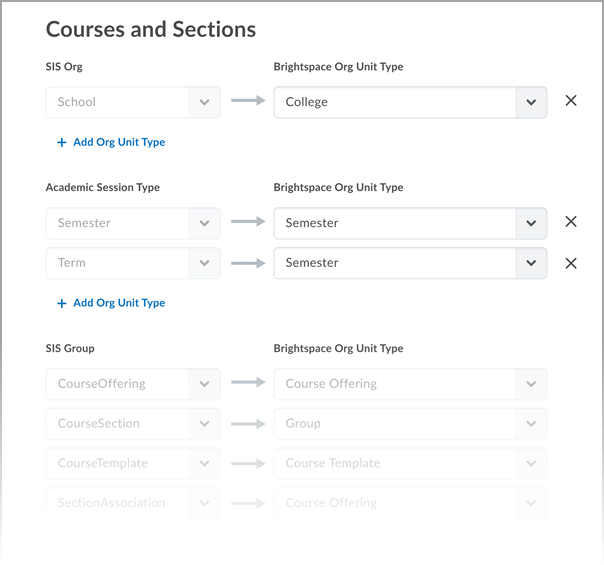
Figure: The Courses and Sections section of the Configuration page for a OneRoster source system.
SIS org, academic term, and group mapping
Completing course and section mapping involves specifying the relationship between Brightspace org units and your SIS orgs, academic sessions, and groups.
SIS Org → Brightspace Org Unit Type
The SIS Org → Brightspace Org Unit Type section shows the OneRoster-specific org types that are supported by your SIS that you can map to Brightspace org unit types.
| SIS Org Type |
What it represents in OneRoster |
What to map it to in Brightspace |
Purpose |
|---|
| District |
The top-level governing organization such as a district, board, or institution, |
District, Division, or another custom top-level org unit. |
Establishes the parent structure for schools and departments. |
| School |
A school or campus within the district. |
School, College, Department, or similar org unit. |
Used to group courses and enrollments under the appropriate institution or campus. |
| Local, National, State, Department |
Optional orgs used by the SIS for grouping, reporting, or compliance. |
Typically maps to Department, Subdivision, or Other upper org unit type. |
Only needed if your organization uses these groupings, are included in the OneRoster data, and you want them represented in Brightspace. |
SIS Academic Session Type → Brightspace Org Unit Type
The SIS Academic Session Type → Brightspace Org Unit Type section shows the OneRoster-specific academic session types that are supported by your SIS that you can map to Brightspace org unit types.
| SIS Academic session type |
What it represents in OneRoster |
What to map it to in Brightspace |
Purpose |
|---|
| School Year |
A full academic year of instruction. For example, 2025 to 2026. |
School Year custom org unit type |
Helps group courses and reporting by academic year. |
| Semester |
A major division of the school year, such as Fall 2026 or Spring 2027 |
Semester, Term, or Session custom org unit type |
Enables Brightspace to organize course offerings by term. |
| Term |
A shorter or nested division of the school year, such as Q1, Q2, or Term 1. |
Semester, Term, or Session custom org unit type |
Useful when your academic year is subdivided into smaller instructional periods. Enables Brightspace to inherit dates. |
| Grading Period |
Sub-term periods used for grade reporting, such as Midterm or Reporting Period 1. |
Grading Period custom org unit type.
|
Use if your SIS sends grades tied to specific grading windows. |
SIS Group → Brightspace Org Unit Type
The SIS Group → Brightspace Org Unit Type section shows the OneRoster-specific group types that are supported by your SIS that you can map to Brightspace org unit types.
| SIS Group type |
What it represents in OneRoster |
What to map it to in Brightspace |
Purpose |
|---|
| Course offering |
A deliverable course for a specific term. For example, ENG1D - Fall 2024. |
Course Offering
|
Pre-configured and cannot be removed. Creates course shells where instructors teach and learners access content. |
| Course section |
A specific class under a course offering. For example, ENG1D – Section 03. |
Section
|
Pre-configured and cannot be removed. Creates the section within an offering. Ensures students are placed in the correct section. |
| Course template |
A catalogue-level course definition. For example, English 1D. |
Course Template |
Pre-configured and cannot be removed. Maps SIS courses to Brightspace templates. |
| Section association |
Links a section to its parent course in the SIS hierarchy. |
The mapping is preconfigured but not used with OneRoster integrations.
|
Used for other types of integrations. |
Default course status
Administrators often need to create course offerings in an inactive state so they can control when the courses become visible to instructors and learners.
The Default Course Status setting makes it possible to specify whether new course offerings are active or inactive by default when they’re created.
Once the course offering is created, administrators can use the Courses or Course Updater tool to bulk activate it at the same time as other courses when they want it to become visible to teachers and students.
|
Note: By default, IPSIS creates courses as active.
|
Deleted courses and sections
In OneRoster, the SIS tells Brightspace when an object should be retired, closed, or removed. The Deletion setting tells Brightspace what to do when it receives a signal in the OneRoster feed.
Use the Deletion setting to make Brightspace do one of the following when a course or section associated with an org unit is deleted:
- Do Nothing: The org unit mapping is deleted from IPSIS mappings, and the org unit and enrollments remain unchanged in Brightspace.
- Inactivate course offering: The org unit mapping is deleted from IPSIS mappings, the course offering is marked inactive in Brightspace, the section is unchanged, and enrollments remain unchanged.
Courses and sections created outside the integration
Because existing courses and sections in Brightspace may have been created outside the integration - manually, using bulk updates, or from Brightspace APIs - it is possible that duplicate courses and sections will be created during the integration with OneRoster.
To link existing courses and sections to SIS entries whenever possible, you can enable the Map SIS entries to courses and sections setting.
When enabled, Brightspace tries to match incoming OneRoster course and section data to existing Brightspace org units using their Org Unit Codes. If a match is found, Brightspace updates the existing course or section rather than creating a new one. This helps prevent duplicate course shells, maintains continuity for ongoing courses, and ensures enrollments flow into the correct course offering and section.
|
Important: Avoid mapping org unit codes for SIS-created org units unless you’ve confirmed the codes are unique across schools and school years. Non-unique codes may cause the SIS to overwrite data from other org units.
|
Course Content Copy
Settings for Course Content under the Courses and Sections section let you to specify whether Brightspace should automatically copy content into new course offerings created by your OneRoster integration. This enables automated creation of course shells based on a model course, course template, or another offering that shares the same Org Unit Code.
If you want the integration to automatically copy content into new course offerings created by the SIS, you can choose to copy the content from one of the following sources:
- A course with the same Org Unit Code somewhere in the org hierarchy.
- The parent course template.
- A sibling course with an org unit code matching the parent template.
Course Offering Dates
Brightspace can automatically set a course’s start and end dates based on the dates of its parent academic session (such as a Semester or Term) when the course is created or updated by the SIS.
The Course Offering Dates option controls whether Brightspace should inherit the start and end dates for a course offering from the academic session it belongs to.
When enabled, Brightspace applies the start and end dates defined in the linked parent Semester or Term. This keeps course availability aligned with institutional term dates defined in the SIS.
If the setting is not enabled, new course offerings will be created without dates.
You can use academic session data, such as semester, term (default), school year, or grading period for course start and end dates for courses.
|
Note: The Academic Session Type you choose must correspond to the type of session associated with the OneRoster class/section records. Most SISs associate academic sessions of type Term with classes or sections.
|
|
Note: By default, Course Offering Dates option is disabled. The first Academic Session associated with the course determines the dates. Dates can also be offset by a specific number of days.
|
Unenrollment
To help manage enrollment cleanup and make sure course rosters remain accurate, you can specify what actions Brightspace takes when the SIS removes users or updates enrollment dates. The Unenrollment setting under Courses and Sections control when Brightspace should automatically remove users from courses, sections, or SIS-related org units based on information sent from the SIS (such as enrollment end dates or changes in school associations). You can choose to unenroll users from sections and courses based on an end date, or unenroll users from SIS orgs when they're not longer associated with them in the SIS.
Unenroll users from sections and courses based on the enrollment End Date provided by the SIS
When enabled, this option allows Brightspace to automatically unenroll users from courses/section when their enrollment End Date passes. This is useful if the SIS does not send explicit unenrollment requests, as Brightspace will use the End Date to manage unenrollment. If the option is disabled and the SIS does not send unenrollment requests, users remain enrolled and teachers or administrators must manually remove them. If the SIS does send explicit unenrollment requests, this option can stay disabled because the SIS will handle unenrollment.
Unenroll users from SIS Orgs if they’re no longer associated with them in the SIS
If the SIS removes a user from an SIS org (for example, a school, program, department), Brightspace automatically removes the user from the corresponding org unit in the Brightspace hierarchy.
Use this when you need Brightspace to reflect organizational moves (such as students changing schools, departments, or programs) as soon as they are updated in the SIS.
To map SIS courses and sections to ensure Brightspace displays the correct courses, classes, and org units from your OneRoster source system:
- Go to Admin Tools > IPSIS Administration and select the OneRoster source system you want to configure. and scroll down to the Courses and Sections section.
- Click the Configuration tab and then scroll down to the Courses and Sections section.
-
To map SIS orgs to Brightspace org unit types:
-
Under SIS Org, choose each SIS organization type (for example, District, School, Department).
-
Select the corresponding Brightspace Org Unit Type (for example, District, School, Department).
-
Use + Add Org Unit Type to add additional mappings.
-
Repeat the process for:
- Academic Session Types (Semester, Term, School Year, Grading Period)
- SIS Groups (Course Offering, Course Section, Course Template, Section Association)
These mappings ensure SIS data is created in the correct place in the Brightspace hierarchy.
- (optional) To set the default course status (active or inactive), under Default Course Status, do one of the following:
- If you want new course offerings to be inactive by default, select When a course is created, set its status to inactive.
- If you want new course offerings to be active immediately, leave the option unselected.
- To configure course deletion behavior, under Deletion, choose what Brightspace does when a course or section is deleted in the SIS:
- To leave deleted SIS items unchanged in Brightspace, click Do nothing.
- To keep deleted SIS courses in Brightspace as inactive for users, click Inactivate course offerings, do nothing to sections.
| Note: If deletion logic is required for rollover, make sure your SIS Group mappings include a Term or Session type. |
- To map incoming SIS entries to existing courses and sections in Brightspace, under Map SIS entries to courses and sections, select the types of org units Brightspace will use Org Unit Codes to find matches for (Sections, Course Offerings, Course Templates).
| Note: When enabled, Brightspace updates existing org units that share the same Org Unit Code instead of creating new ones. This prevents duplicate shells and ensures enrollments flow into the correct offering or section. |
- (optional) To configure how Brightspace assigns course offering dates, under Course Offering Dates, do one of the following:
- If you want new and updated courses to inherit dates from the Semester or Term they are associated with, click to select When a course is created or updated, use the start and end date from a parent academic session.
- If you want Brightspace to use course-level dates from the SIS to assign course offering dates, leave the option unselected.
- (optional) To configure how Brightspace manages course content when it copies a course, under Course Content do one of the following:
- If you want Brightspace to only create empty shells when it copies a course, and not course content, click No.
- If you want Brightspace to automatically copy course content when it copies a course, click Yes and then select the source you want it to copy content from:
- To copy course content from another course that shares the same org unit code, do not select Find an Org Unit to automatically copy from based on specific criteria.
- To copy course content from the parent template or sibling course, select Find an Org Unit to automatically copy from based on specific criteria and then choose a source:
- To copy course content from the parent template of the course, click Parent course template of the new course.
- To copy course content from another course offering with the same code and same template, click Sibling Course where the Org Unit Code matches the parent template.
- To configure how Brightspace manages unenrollments that occur in the SIS, under Unenrollment, do one of the following:
- If you want Brightspace to automatically unenroll users on the enrollment End Date, click Unenroll users based on enrollment End Date.
- If you want Brightspace to automatically unenroll users from SIS Orgs when it detects that they are not longer associated with them in the SIS, select Unenroll users from SIS Orgs if they’re no longer associated with them in the SIS.
- To save your changes, at the bottom of the page click Save Configuration.
Brightspace does not automatically send grades to your SIS unless you explicitly configure how and when grade data should be exported. Without these settings, the SIS may not receive updated grades from Brightspace.
Configuring Grades Export settings on the Configuration page ensures that new and edited grades flow reliably from Brightspace to your SIS, either manually or during your scheduled daily update.
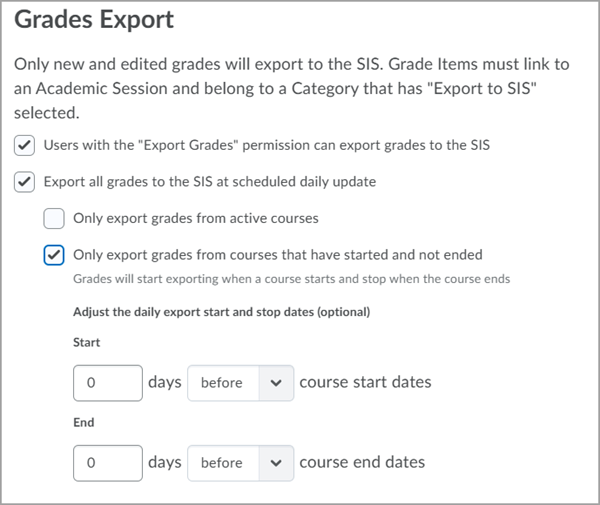
Figure: The Grades Export section of the Configuration page for a OneRoster source system.
You can use Grade export settings to specify the following:
- The types of courses from which Brightspace is allowed to send grades to the SIS
- Whether exports occur only when a user triggers them, automatically each day, or both
|
Note: Only new grades and grades that have been edited since the last export are sent.
|
To configure how and when Brightspace exports grade data to your OneRoster source system:
- Go to Admin Tools > IPSIS Administration and select the OneRoster source system you want to configure.
- Select the Configuration tab and then scroll down to the Grades Export section.
- (optional) To give instructor or staff who need direct control over when grades are submitted to the SIS, click to select Users with the Export Grades permission can export grades to the SIS.
| Important: For users to be able to export grades manually, you must make sure any required roles are granted the Export Grades permission in Roles and Permissions. For more information, refer to Grades Export permissions and configurations. |
- (optional) To make Brightspace automatically export grades during its daily synchronization with the source system, click to select Export all grades to the SIS at scheduled daily update and then do any of the following:
- To ensure grades in previous courses are excluded (this can help reduce the time to sync and prevent overwriting grades), click Only export grades from active courses.
- To only export grades from courses currently in-progress, select Only export grades from courses that have started and not ended.
- If you want to give instructors or staff some extra days before or after courses start and end to enter grades, you can use the In the Start and End selectors that appear to specify the number of days you want the system to continue exporting grades before stopping.
- To save your changes, at the bottom of the page, click Save Configuration.
SIS Departments, Semesters, and Other Org Unit mapping
Settings in the Departments, Semesters, and Other Org Units section of the Configuration page for a source system control what Brightspace does with incoming SIS org units (such as departments, semesters, or other non-course organizational structures) which are created outside the integration - for example, manually, through a bulk update, or via REST API.
To prevent the creation of duplicate departments and semesters, or the creation of unexpected org units in your hierarchy, you can configure Brightspace to identify matches for incoming entries using their org unit codes.
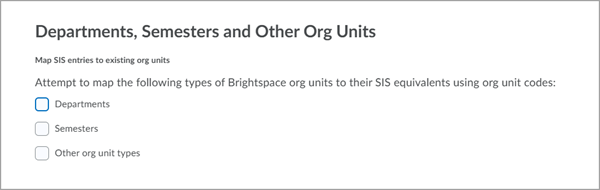
Figure: The Departments, Semesters, and Other Org Units section of the Configuration page for a OneRoster source system.
To make it so that Brightspace tries to find matches for incoming Department, Semester, or other Org Unit entries:
- Go to Admin Tools > IPSIS Administration and select the OneRoster source system you want to configure.
- Select the Configuration tab and then scroll down to the Departments, Semesters and Other Org Units section.
- Under Map SIS entries to existing org units, choose the types of org units you want to match using Org Unit Codes:
- If you want Brightspace to try to match incoming SIS department identifiers to existing Department org units, click to select Departments.
This is helpful when the SIS manages department al school-level structures.
- If you want Brightspace to try to match incoming SIS semester identifiers to existing Semester org units, click to select Semesters.
This is helpful when the SIS drives your academic calendar.
- If you want Brightspace to try to match other incoming SIS organizational identifiers (such as District, School, or National groupings) to their Brightspace equivalents, click to select Other org unit types.
This is helpful when your SIS sends org units that need to align with your hierarchy in Brightspace.
- To save your changes, click Save Configuration at the bottom of the page.
When a match is found, Brightspace updates the existing org unit. When no match is found, Brightspace creates a new one.
|
Important: Only enable mapping for org unit types whose Org Unit Codes consistently match SIS identifiers. If your Brightspace Org Unit Codes do not align with your SIS codes, enabling this option may create new org units instead of updating existing ones.
|