Brightspace Apps provides a consolidated experience where administrators can browse approved partner apps, install apps into Brightspace, and manage deployment and availability to courses within their organization.

|
Note: Depending on the partner app, you may need to set up Learning Tools Interoperability (LTI) and Application Programming Interface (API) applications in addition to installing and deploying a partner app in Brightspace App. |
The list of available apps is initially limited to selected partners and expands as support for Application Programming Interface (API) and Learning Tools Interoperability (LTI) components becomes available to Brightspace App in future releases.
Certified integration partners can create apps that may include:
- An embedded component
- IMS context role mapping
- Deployment configurations
- Default values and help text for each deployment configuration
- LTI components
After a partner submits an app for approval, D2L reviews and tests it before publishing it in Find Apps.
Brightspace Apps is available from Admin Tools > Manage Extensibility > Apps.
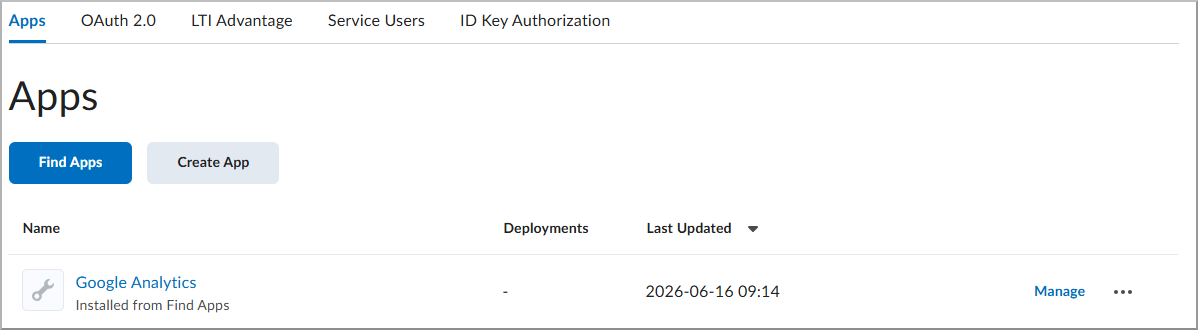
Administrators search for Brightspace Apps in Find Apps to find integrated solutions that benefit their organization, install the apps, and deploy them to specific org units or the whole organization.
|
Note: As with all extensibility tools, consult partner vendors directly for security and privacy details related to their products and integrations.
|
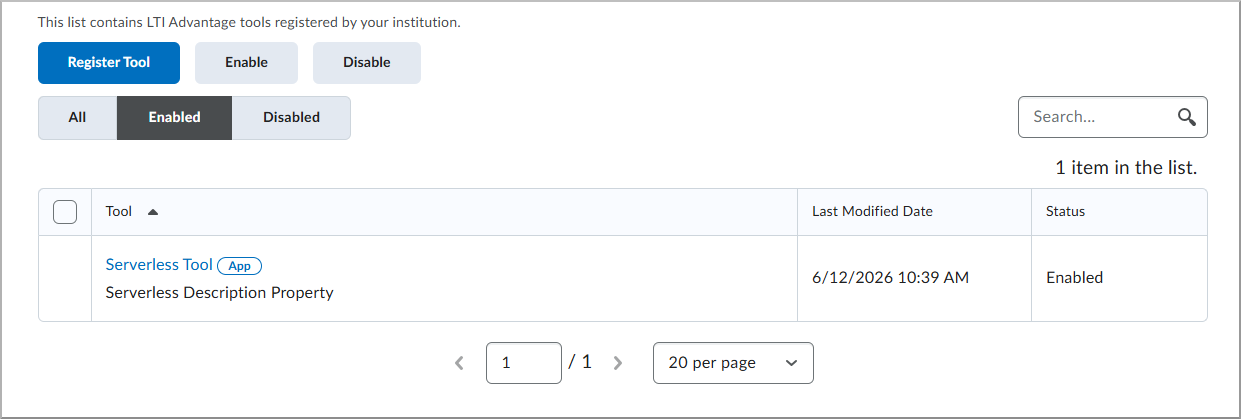
Apps with LTI registrations also display the registration in Manage Extensibility > LTI Advantage. Registrations that belong to an app display an App tag. To open the registration form for the app, select the app link.
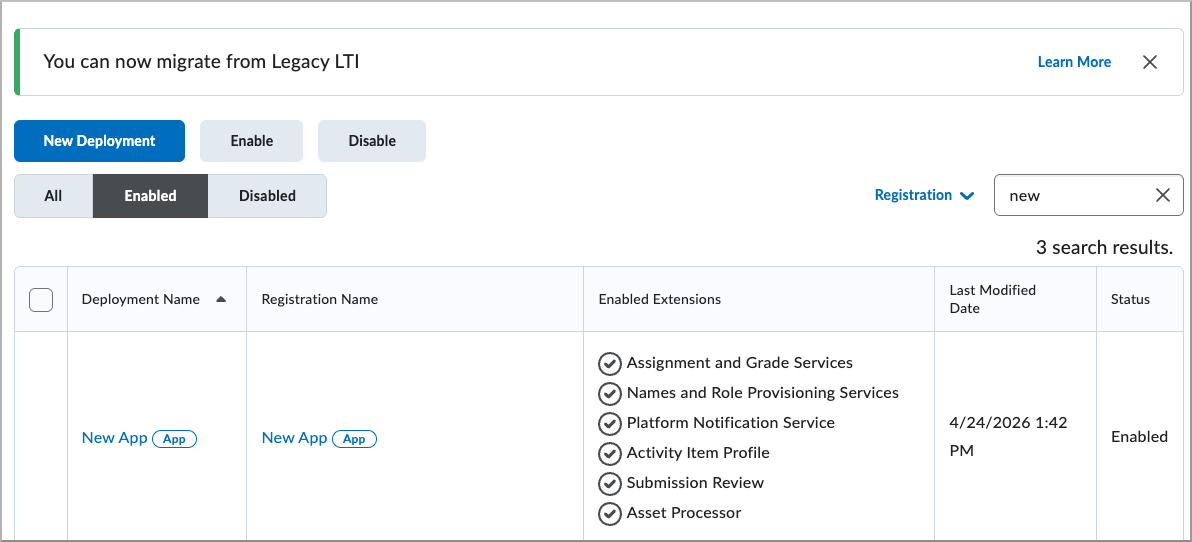
Apps with LTI deployments also display the deployment in External Learning Tools > LTI Advantage. Deployments that belong to an app display an App tag. To open the LTI registration and deployment form for the app, select the app link.
Before you begin
To use Brightspace Apps, ensure that the tool and required permissions are enabled. Missing permissions can prevent you from accessing Find Apps or completing LTI registration.
- To enable the tool, navigate to Organizational Tools, and turn on Brightspace App.
- To enable the required permissions, assign the following permissions:
- Brightspace App > View Brightspace App
- Brightspace App > Create and Manage Brightspace App
- External Learning Tools > Manage LTI Tools
Find an install a Brightspace App
Use Brightspace Apps to find, install, and deploy integrated solutions for your organization.
To install a Brightspace App
- To open Brightspace Apps, from Admin Tools, select Manage Extensibility > Apps.
- To browse available apps, select Find Apps.
- To choose an app, scroll through the list or search for the app you want to install, and then select it.
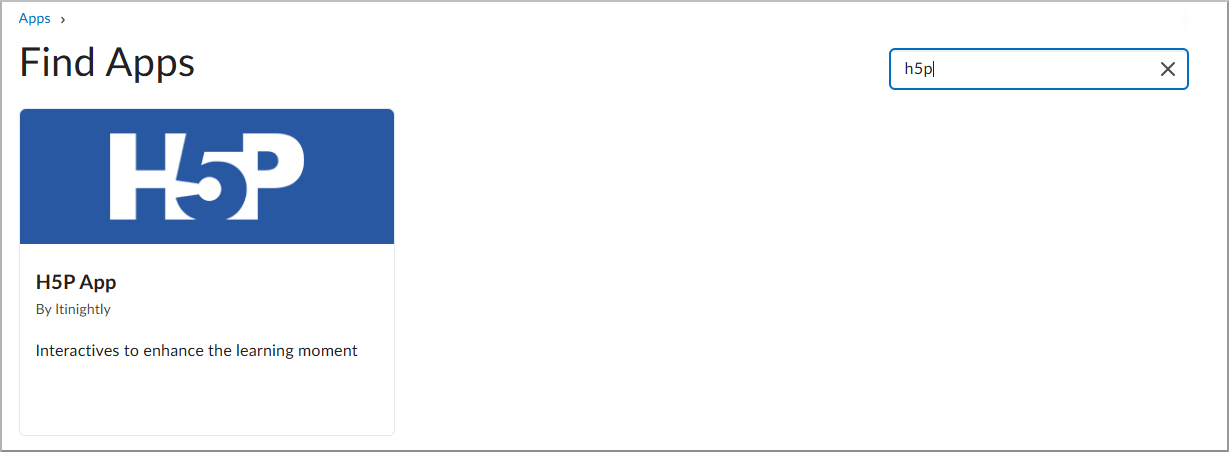
- To start installation, select Install.
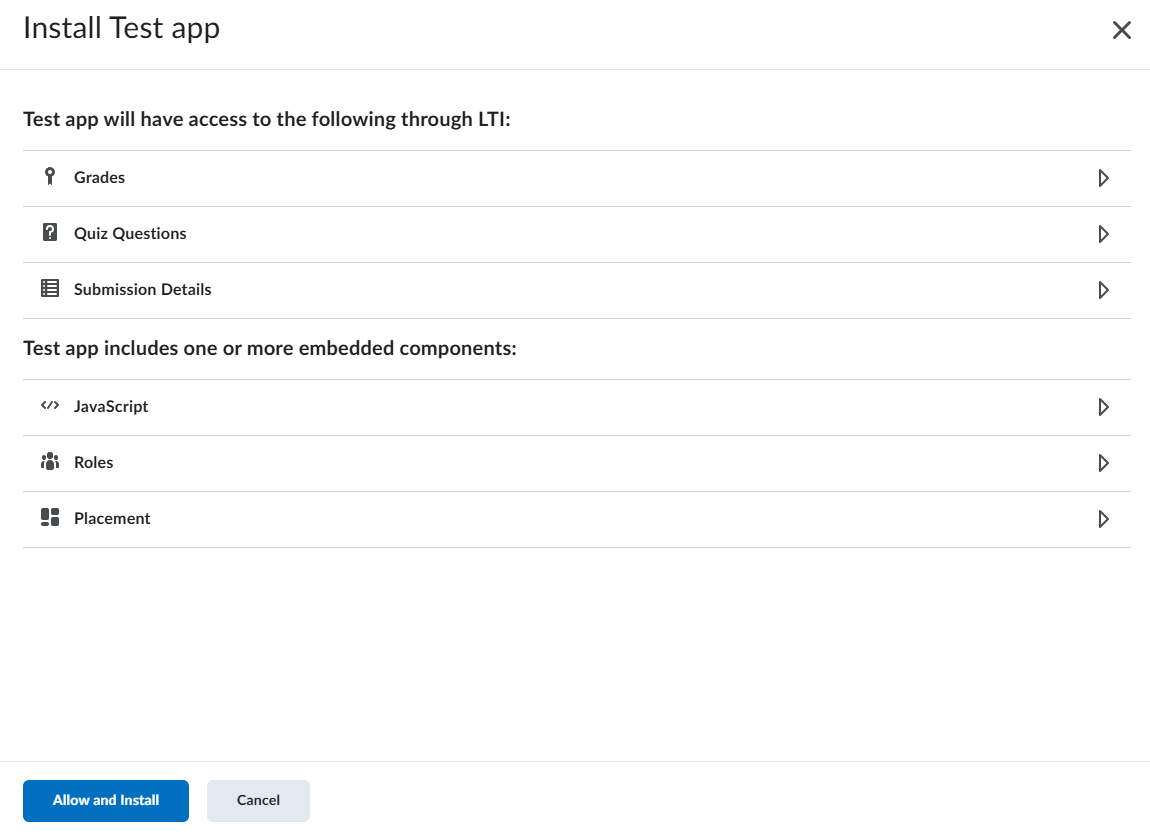
- To review the information the app can access, expand each section in Data Access, and then select Allow and Install.
- To select where the deployment is available, select Add Org Units, and then select specific courses, departments, or the entire institution.
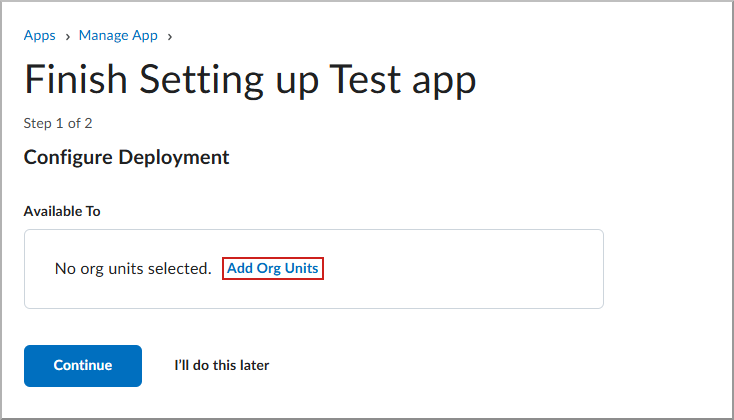
- To proceed, select Continue.
- If the app uses a standard registration LTI component, the Brightspace registration details display. To configure the external application, copy each of the following values from Brightspace Registration Details and paste them into the corresponding fields in your external application:
- Client Id: The ID used in OAuth2 authentication to make requests to the services, such as Names and Roles and Assignment and Grade.
- Brightspace Keyset URL: The location where Brightspace keys are stored. Tools require this value during registration and launch.
- Brightspace OAuth2 Access Token URL: The location where tools retrieve new access tokens for OAuth2 service requests.
- OpenId Connect Authentication Endpoint: The endpoint where Brightspace sends the login response.
- Brightspace OAuth 2 Audience: The intended recipient of the token.
- Issuer: The URL of the Brightspace instance.
| Note: Some third-party processor tools require organizations, instructors, or learners to have an account with the tool provider before they can use the integration. Account creation, authentication, and onboarding experiences vary by third-party tool. |
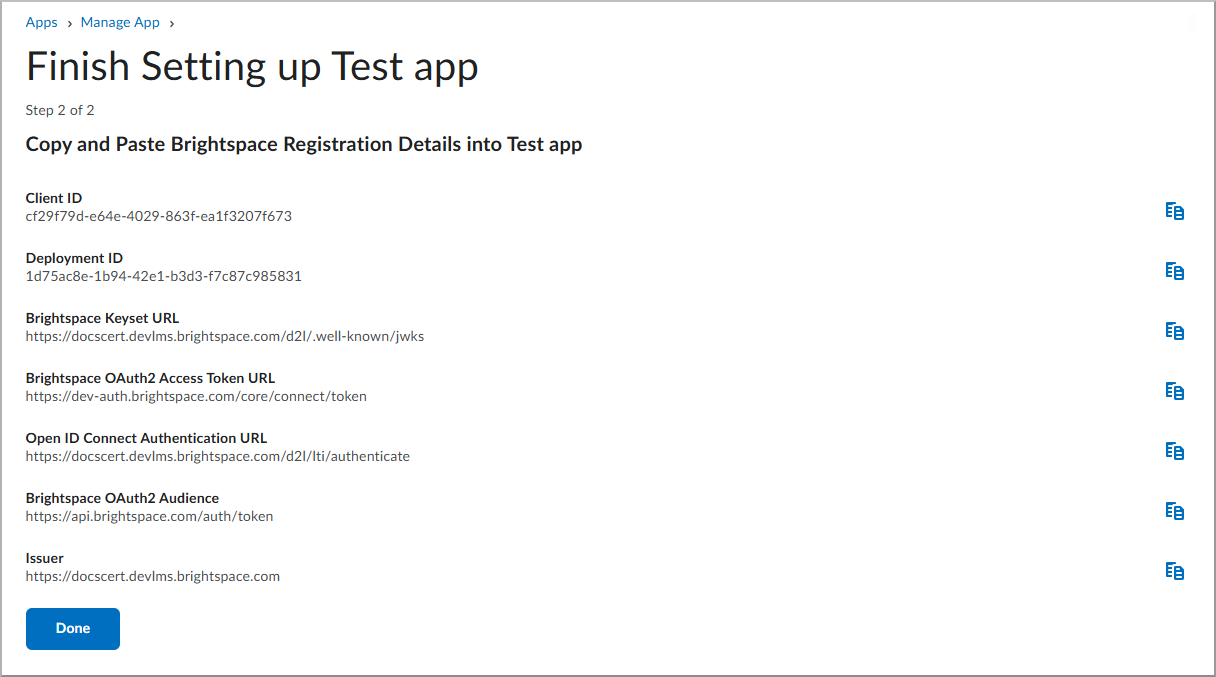
- To avoid transcription errors, use the Copy icon beside each value.
- To complete the external setup, paste the values into the corresponding configuration fields in your tool provider's LTI 1.3 setup page.
- To finish the installation, return to Brightspace after you enter and save all values in the external application, and then select Done.
You return to the Manage page for the app.
Add an LTI component
Add an LTI component to connect an app with an external tool registration.
- To open Brightspace App, from Admin Tools, select Manage Extensibility > Apps.
- To open the app, select Manage for the app you want to deploy.
- To add a registration, in the Components section, select Add LTI Registration.
- To choose your registration method, do one of the following:
- Dynamic: Enter the registration URL provided by the tool provider to automate the setup.
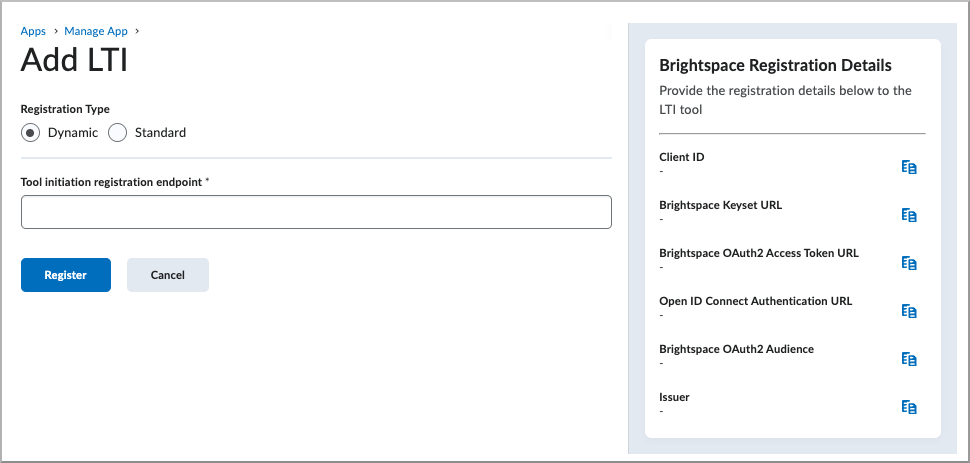
- Standard: Manually enter the tool details, including domain, redirect URLs, and keyset URL if extensions are needed.
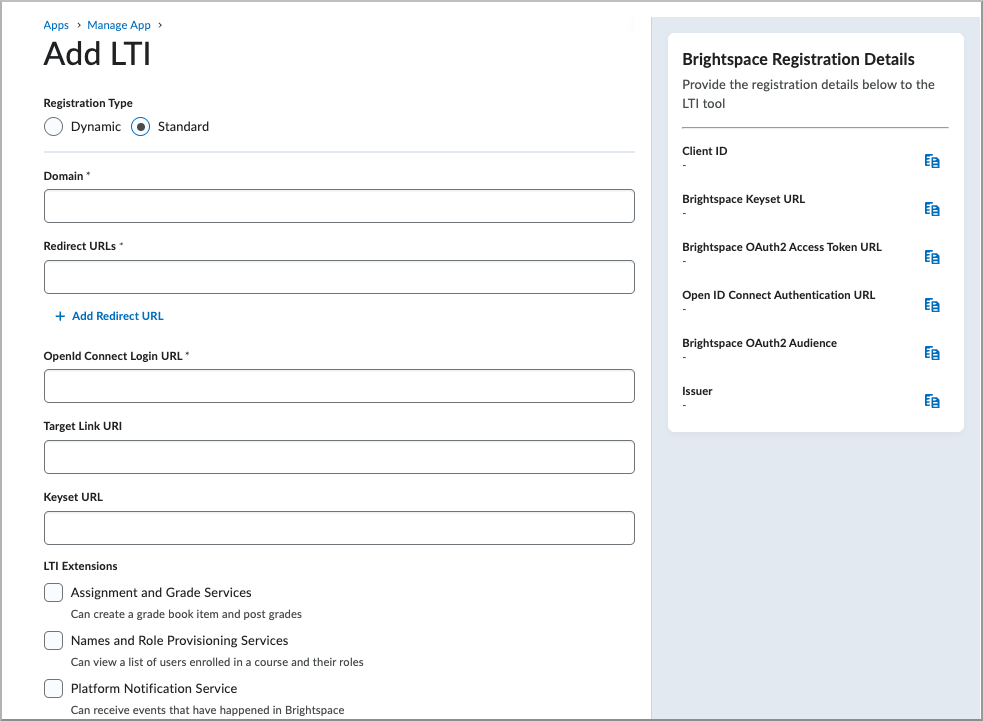
- To select the required LTI services, choose the services your tool requires:
- Assignment and Grade Services: Can create a grade book item and post grades.
- Names and Role Provisioning Services: Can view a list of users enrolled in a course and their roles.
- Platform Notification Service: Can receive events that have happened in Brightspace.
- Asset Processor: Can view submitted assignments, process them, and report on them.
- To send the institution role mapping from IMS Configuration in the launch, select Institution Role.
- To configure parameters, do one or more of the following:
- To select dynamically substituted parameters from Brightspace at launch, select Substitution. Brightspace supports the following parameters:
$Activity.id.history$Activity.title$Activity.available.startDateTime$Activity.available.endDateTime$Activity.submission.endDateTime$Context.id.history$CourseOffering.sourcedId$CourseOffering.title$CourseSection.label$CourseSection.sourcedId$CourseSection.title$CourseSection.timeFrame.begin$CourseSection.timeFrame.end$CourseTemplate.sourcedId$CourseTemplate.title$Person.address.timezone$Person.email.primary$Person.name.family$Person.name.full$Person.name.given$Person.sourcedId$ResourceLink.available.startDateTime$ResourceLink.available.endDateTime$ResourceLink.description$ResourceLink.id.history$ResourceLink.submission.endDateTime$ResourceLink.title$User.id$User.username
- To define static name/value pairs required by the tool, select Custom, and then enter the custom parameters.
- To register the LTI component, select Register.
|
Note: For more information on LTI 1.3 launch and authentication, refer to About LTI 1.3 launch and authentication.
When you create the LTI registration, it appears as an LTI component. Deployment configurations are not applicable to LTI in Brightspace Apps.
The LTI registration domain must be unique for all LTI registrations in your Brightspace instance. An app cannot use an LTI registration domain that is used by an enabled LTI registration outside Brightspace Apps. To create the app LTI registration, disable the existing LTI registration in Manage Extensibility > LTI Advantage.
|
Deploy a Brightspace App
For apps created outside the simplified installation workflow, create a deployment to make the app available to your users. You can also create additional deployments for installed apps.
To deploy a Brightspace App
- To open Brightspace App, from Admin Tools, select Manage Extensibility > Apps.
- To open the app, select Manage for the app you want to deploy.

- To access deployment options, select the Overview tab.
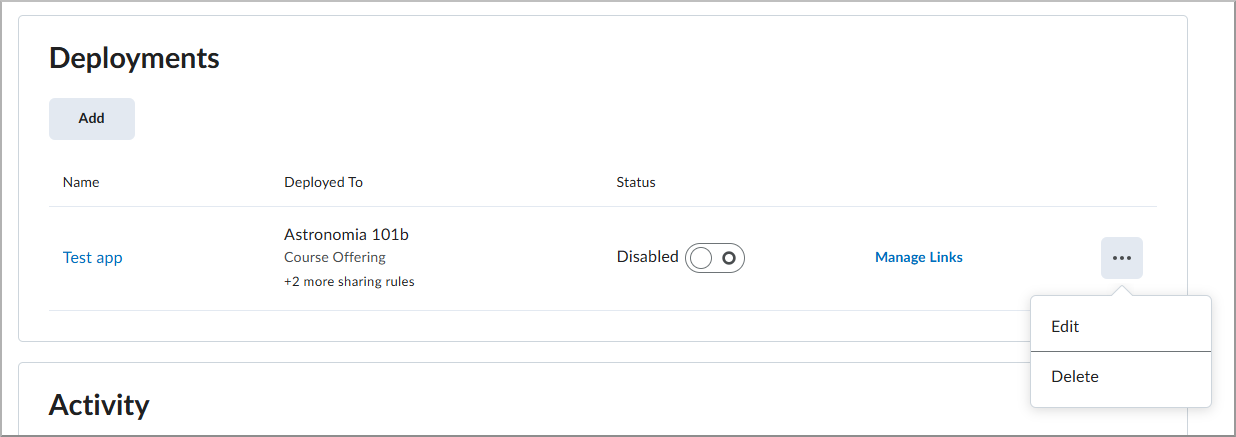
- To create a deployment, under Deployments, select Add Deployment.

- To configure the deployment, complete the following fields in the Create Deployment dialog:
- Deployment Name: Enter a descriptive name for the deployment.
- Extensions: Select the LTI services required for this integration, such as Assignments and Grades.
- Security Settings: Choose the user and context information you want to share with the tool provider.
- Configuration Settings: Toggle options for opening in a new window or grade item creation, as needed.
- Custom and Substitution Parameters: Add any name/value pairs required by the tool provider to identify your account or set preferences.
- To define where the deployment is available, select Add Org Units, and then select specific courses, departments, or the entire institution.
- To make the deployment available to users, toggle the switch from Disabled to Enabled.
- To save the deployment, select Save or Save and Close.
|
Note:The deployment name appears in the External Learning Tools list and on the Asset Processor card if the tool supports Asset Processor. The deployment name also appears in the External Tool Activity menu when instructors add LTI quicklinks.
Custom and substitution parameters cascade from the registration to the deployment and links as inherited parameters.
|
You can manage, rename, update, and delete app deployments. Deleting the app deployment disables the LTI deployment in External Learning Tools > LTI Advantage.
View Brightspace App activity logs
Use activity logs to track the status and history of management tasks for your apps, such as when an app is enabled, disabled, or when a new deployment is created.
To view app activity logs
- To open Brightspace App, from Admin Tools, select Manage Extensibility > Apps.
- To open the app, select Manage for the app you want to review.
- To open logs, select the Activity Logs tab.
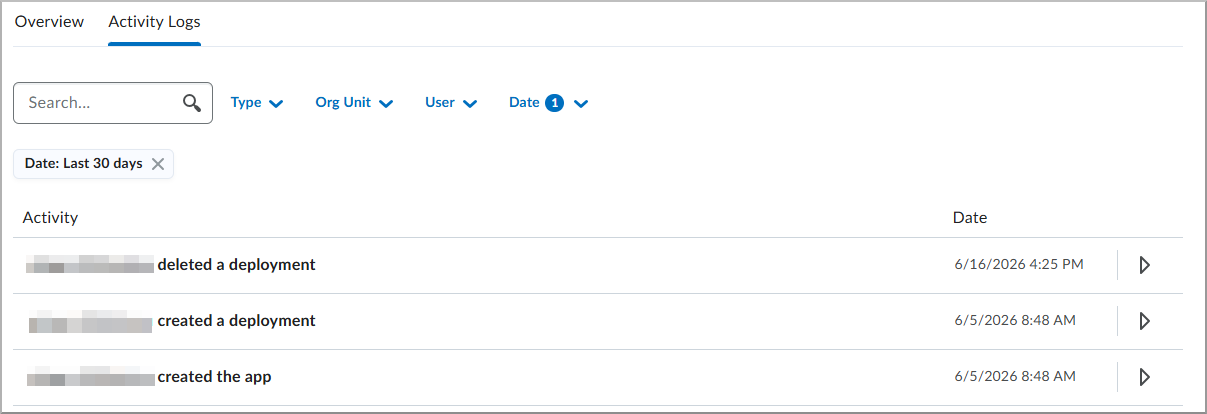
- To filter logs, do one or more of the following:
- Select a Type.
- Select an Org Unit.
- Select a User.
- Select a Date range. By default, the log includes the last 30 days.
- To review details for an activity, in the Activity list, select the right-facing arrow to expand the log.
Create and manage external learning links
While most LTI links are created automatically through the simplified installation flow, you can manually create organization-level links for specific tool deployments. This provides direct access to external learning tools across multiple courses or specific org units from a single management view based on the deployment sharing rules.
You can customize or create new links for use in the org units available to the deployment. Users with the required permissions can create individual links at the org level where the tool is deployed. In cases where a tool requires multiple LTI links per course or across many courses, the tool can provide a deep linking workflow to help users create links quickly.
All previously supported link types are available in Brightspace App with LTI.
To manage external learning links
- To open Brightspace App, from Admin Tools, select Manage Extensibility > Apps.
- To view available links, select Manage for the app.
- To open deployment links, in the Deployments section, select Manage Links.
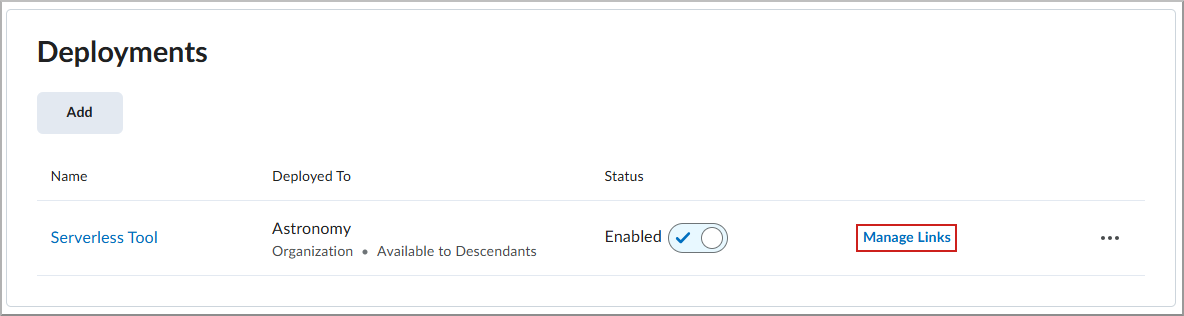
- From the Links page, do one or more of the following:
- To create a link, select New Link.
- To edit a link, select the link name.
- To delete a link, select the action menu next to a link, and then select Delete Link.
- To search links, use the search field at the top of the page.
- To control link availability without deleting the link, toggle the Enabled status.
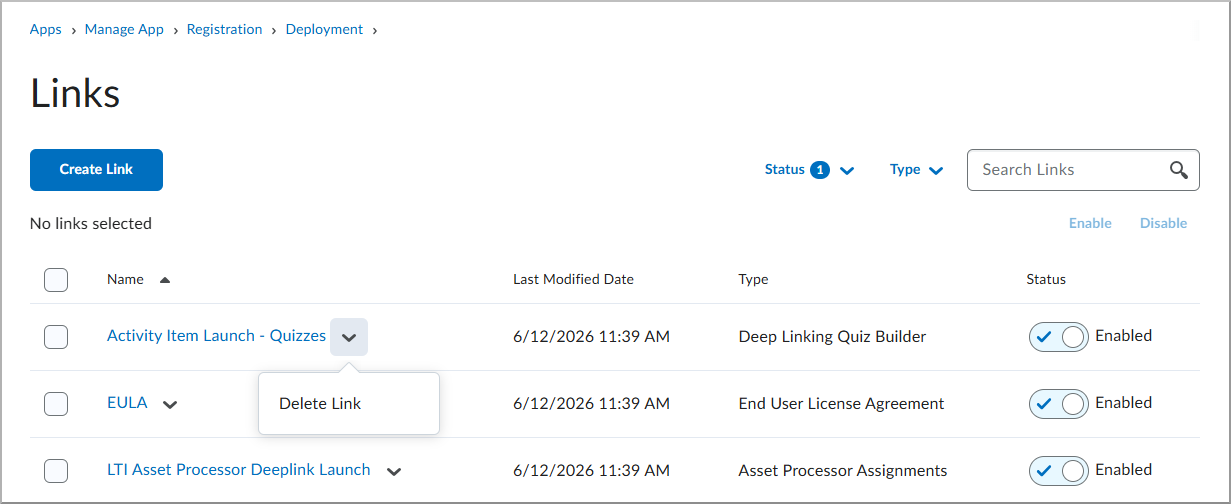
To create new external learning links
- To create a link, select Create Link.
- To configure the link, specify the following fields on the Create Link page:
- Name: Enter the name that appears in other areas of the Brightspace interface.
- URL: Enter the launch point URL where users navigate when they select the link.
- Description: Enter an optional description to help users understand the tool.
- Type: Select how the link can be used. The following types are available:
- Asset Processor Assignments: Supports deep linking to a processor tool through Assignments.
- Basic Launch: Supports a basic launch to a tool. For deep linking, change this to one of the supported deep linking selector types.
- Deep Linking Insert Stuff: Supports deep linking to a tool as a content selector in the Insert Stuff Brightspace Editor area.
- Deep Linking Quicklink: Supports deep linking to a tool through a quicklink in Content > Existing Activities.
- Deep Linking Quiz Builder: Supports deep linking to a tool in Quizzes, allowing users to select items with a link in a quiz.
- Deep Linking H5P Interactives: Supports deep linking to the H5P tool as a content selector, allowing instructors to browse and insert interactive H5P content directly into course materials.
- End User License Agreement: Supports a basic launch to an external processor tool in Assignments. There should only be one link of this type per deployment.
- Widget: Supports a basic launch from a widget to a tool. The tool provider dictates the plugin used.
- Width and Height: Specify the size of the iframe that Brightspace opens when users select content and browse the tool interface.
- Parameters: Do one or more of the following:
- To select dynamically substituted parameters from Brightspace at launch, select Substitution. Brightspace supports the following parameters:
$Activity.id.history$Activity.title$Activity.available.startDateTime$Activity.available.endDateTime$Activity.submission.endDateTime$Context.id.history$CourseOffering.sourcedId$CourseOffering.title$CourseSection.label$CourseSection.sourcedId$CourseSection.title$CourseSection.timeFrame.begin$CourseSection.timeFrame.end$CourseTemplate.sourcedId$CourseTemplate.title$Person.address.timezone$Person.email.primary$Person.name.family$Person.name.full$Person.name.given$Person.sourcedId$ResourceLink.available.startDateTime$ResourceLink.available.endDateTime$ResourceLink.description$ResourceLink.id.history$ResourceLink.submission.endDateTime$ResourceLink.title$User.id$User.username
- To define static name/value pairs required by the tool, select Custom, and then enter the custom parameters.
- To make the link active, set the toggle to Enabled.
- To save the link, select Save and Close.
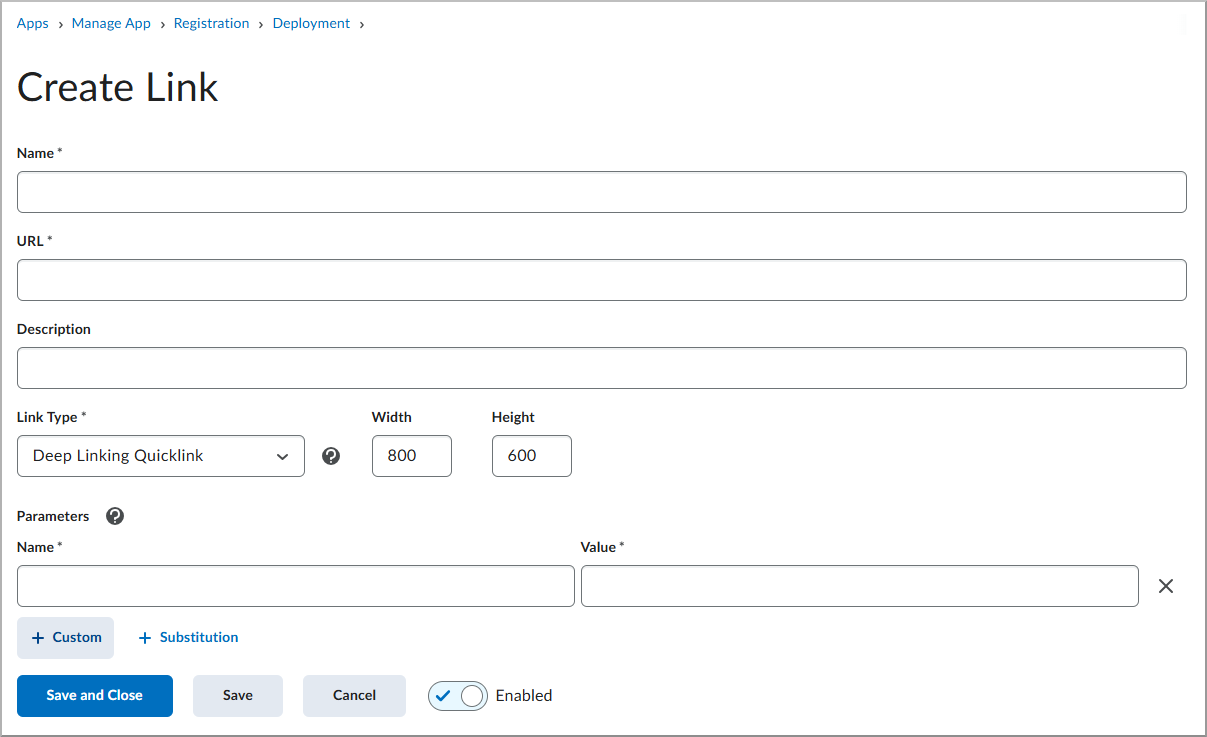
Create a Brightspace App
Brightspace partners can create apps that are available for others to use in Find Apps. Partners and administrators can create apps, but only partners can publish to Find Apps.
To learn more about becoming a partner, visit D2L Partner Program.
To create a Brightspace App
- From Apps, select Create App.
- To create the app shell, enter a Name, and then click Create App. You can complete the remaining fields later.
- To add an LTI component, in the Features and Functionality section, click Add LTI Registration.
- Configure the LTI settings using Dynamic registration or Standard registration, and click Register.
- The Brightspace Registration Details appear in the right side panel. Click Save and Close.
- To configure the default installation deployment, complete the following steps:
- To name the deployment, enter a Deployment Name.
- To make the deployment available to specific org units, optionally select the org units.
- To define included services, select the LTI Extensions to include with the deployment.
- Select the Information to Share.
- Select any Additional Settings or Parameters.
| Note: Only partners are required to create a default deployment. Admins can only create a deployment. The first deployment you create becomes the default deployment. After the default deployment is initialized, you can create additional deployments and select a different default deployment. A default deployment is required to publish your app. |
- To save the deployment configuration, click Save and Close.
- To submit your app for review, review your selections, and click Publish.

- To complete the submission, review and complete the required fields, and click Submit.
- The status of your app appears beside Publish.

The D2L Partner Support Team reviews your submission before publishing it to Find Apps.
| Note: The D2L Partner Support Team may contact you with questions about your app. Add partnersupport@d2l.com to your safe senders list to ensure you receive these messages. |
- When your app is approved, you will receive a notification from the D2L Partner Support Team, and the app status will change from Unpublished to Published.
Make changes and version your app
- To make changes to your app after making a submission, navigate to Apps, locate your app in the list and click Manage.
- Make changes in each section as needed to update your app.
- Click Publish. Your app will be versioned automatically.
- Confirm the details and click Submit.
- If your app has been approved and published to the App Finder, you will have the option to describe your change in the Version Description field and click Submit for Review. This field appears in your listing.
- The D2L Partner Support Team reviews the updated submission before publishing the changes to Find Apps.
| Note: The D2L Partner Support Team may contact you with questions about your app. Add partnersupport@d2l.com to your safe senders list to ensure you receive these messages. |