To view the change log for this release note landing page, go to Change History at the bottom of this page.
Video: Release Highlights
You Asked, We Delivered
The following updates were inspired by your submissions to D2L's Product Idea Exchange:
|
API Updates
- A new API-only permission is now available for viewing grade schemes, allowing administrators to retrieve grade scheme information without requiring broader grade management permissions. A new route for retrieving the default grade scheme configured for an org unit has also been added, simplifying integrations that need to reference grading schemes programmatically. This update implements PIE item D9167 (View grade schemes API-only access).
- Updates to the Grades APIs introduce a new route for updating existing grade categories, enabling administrators and developers to modify grade category properties programmatically. Previously, grade categories could only be retrieved, created, or deleted through the API. This enhancement expands support for grade category management and helps streamline integrations that synchronize grading structures between external systems and Brightspace.
- Updates to the Grades APIs introduce a new route for clearing grade values programmatically. Administrators and developers can now clear a learner's grade for a grade item through the API, resetting the item to an ungraded state without requiring manual intervention in the Brightspace user interface. This enhancement expands support for grade management workflows and helps streamline integrations with external grading systems.
- The Quizzes API now allows developers to enable or disable the Hide Annotation Tools option. This update supports the Question Annotation functionality released in August 2026/20.26.08.
- API support is now available in the existing Dropbox.DropboxFolder and Dropbox.DropboxFolderUpdateData services. Customers can retrieve and update the following assignment submission retention options: All submissions, Only one submission, and Only the most recent submission. This update supports bulk assignment changes and automated course-management workflows. Previously, instructors could update these options only by editing individual assignments in Brightspace.
Refer to the Current Release Changes page of Brightspace Developer Platform for details about these updates.
General Announcements
- If you're an H5P or a Creator+ with H5P customer, you can stay up to date with the latest improvements and features by visiting H5P News.
- With this release, the adoption period for rubric icons ends. The functionality is now enabled for all clients, and the temporary configuration variable is removed.
- To improve confidence when saving learner-to-evaluator allocations in Advanced Assignment workflows, instructors may now see a processing dialog with a progress bar while changes are saved. Instructors return to the settings page only after all allocations are committed. Previously, changes were saved in the background without visible feedback, which could cause unnecessary warnings about missing allocations when instructors quickly returned to update allocation settings.
- D2L is continuing to unlist outdated Brightspace Tutorial videos that no longer reflect the current interface and workflows. Updated tutorial videos are embedded in the documentation to align with the latest features. To review the list of added, unlisted, and removed videos, refer to the article: Brightspace Tutorial Video Updates: Added, Unlisted, Removed.
- Brightspace App publishers can now preview listing images before submission to identify display issues and reduce rework. Image requirements have also been updated and apply when publishers update an app listing.
- As part of our ongoing effort to maintain a secure, modern, and reliable learning platform, we are announcing the Intent to End of Life (EOL) of the Self Assessment tool. Refer to the Intent to EOL Self Assessments blog post for more details.
- We are releasing backend infrastructure improvements to enhance the quizzing platform's reliability and performance, specifically targeting the Start Quiz Attempt workflow when a learner selects Start Quiz.
This update is currently available only in non-production environments, is not expected to change the user experience, and no action is required.
We are closely tracking and proactively monitoring the Start Quiz Attempt workflow to ensure that it continues to perform as expected. If users would like to validate the update, they can test the Start Quiz Attempt workflow in their non-production environment. As mentioned, we do not expect any functional differences, but we welcome feedback if users notice any unexpected behavior.
- Course Merchant is now introducing the first phase of Recommendations, making it easier for learners to discover courses that you want to highlight. With Recommendations, you can add trending, new, and featured courses to your Course Merchant homepage to improve course discovery and strategically promote offerings. For more information, visit Introducing Recommendations in Course Merchant.
Brightspace Apps – New additions to Brightspace Apps | New
Brightspace Apps now includes additional third-party partner apps and integrations, giving administrators more options to discover and manage approved integrations within Brightspace.
The following partner apps and integrations are now available:
- Atomic Jolt:
- Atomic Assessments: Helps instructors create, manage, and analyze customized assessments to support measurable learning outcomes.
- Atomic Discussions: Gives instructors more control over learner interactions in threaded course discussions.
- Atomic Polls: Provides interactive polling that supports learner participation and delivers real-time feedback within Brightspace.
- Bongo - Video Assessments and AI Role Play: Integrates video-based assessment and skills development into Brightspace, helping learners demonstrate understanding and develop practical, job-ready skills.
- Cengage: Provides access to Cengage courses, eBooks, assignments, and learning tools directly within Brightspace.
- Copyleaks: Provides instructors with tools to evaluate originality, detect AI-generated content, and support academic integrity.
- FeedbackFruits: Helps instructors scale peer, self, and instructor feedback activities while reducing workload.
- D2L Lumi:
- Lumi Chat: Provides in-platform AI support within Brightspace, helping learners and instructors find answers, navigate educational technology, and connect with support services.
- Lumi Feedback: Provides rubric-aligned feedback within Brightspace Grader, helping instructors provide timely, consistent feedback while spending less time marking.
- Drieam - Portflow: Helps learners document their learning journey, gather feedback, and create assessment portfolios within Brightspace.
- ReadSpeaker - webReader: Creates audio versions of educational content using text-to-speech technology, supporting learners with diverse needs.
- WooClap: Supports learner engagement with interactive question types and learning activities that provide immediate insights into learning outcomes.
- YuJa:
- YuJa Panorama: Improves the accessibility of course content and digital media within Brightspace, supporting learner success.
- YuJa Verity: Provides secure exam proctoring and integrity monitoring within Brightspace to support confidence in online assessments.

|
Note: Brightspace Apps does not change existing partner purchasing processes. Some third-party partner apps and integrations require additional set-up via tool side account or information pass back. |
Refer to Get started with Brightspace Apps for more information.
Technical Details
Impact:
Availability:
- This feature is available to all Brightspace Core clients.
To enable:
- This functionality is automatically enabled for all users.
- This functionality is not dependent on any new or existing permissions.
- This functionality is not dependent on any new or existing configuration variables.
Brightspace Editor – Additional heading options | Updated
To make creating accessible content easier, the Brightspace Editor now includes Heading 5 and Heading 6 in the Format drop-down menu. Previously, the menu only displayed Heading 1 through Heading 4, and instructors had to use keyboard shortcuts or the Source Code editor to apply the additional heading levels. This update ensures that instructors can easily apply all standard heading levels directly from the Format menu, supporting compliance with accessibility standards.
This feature implements the following PIE item:
- D13831 (Add H5 and H6 to 'format' dropdown)
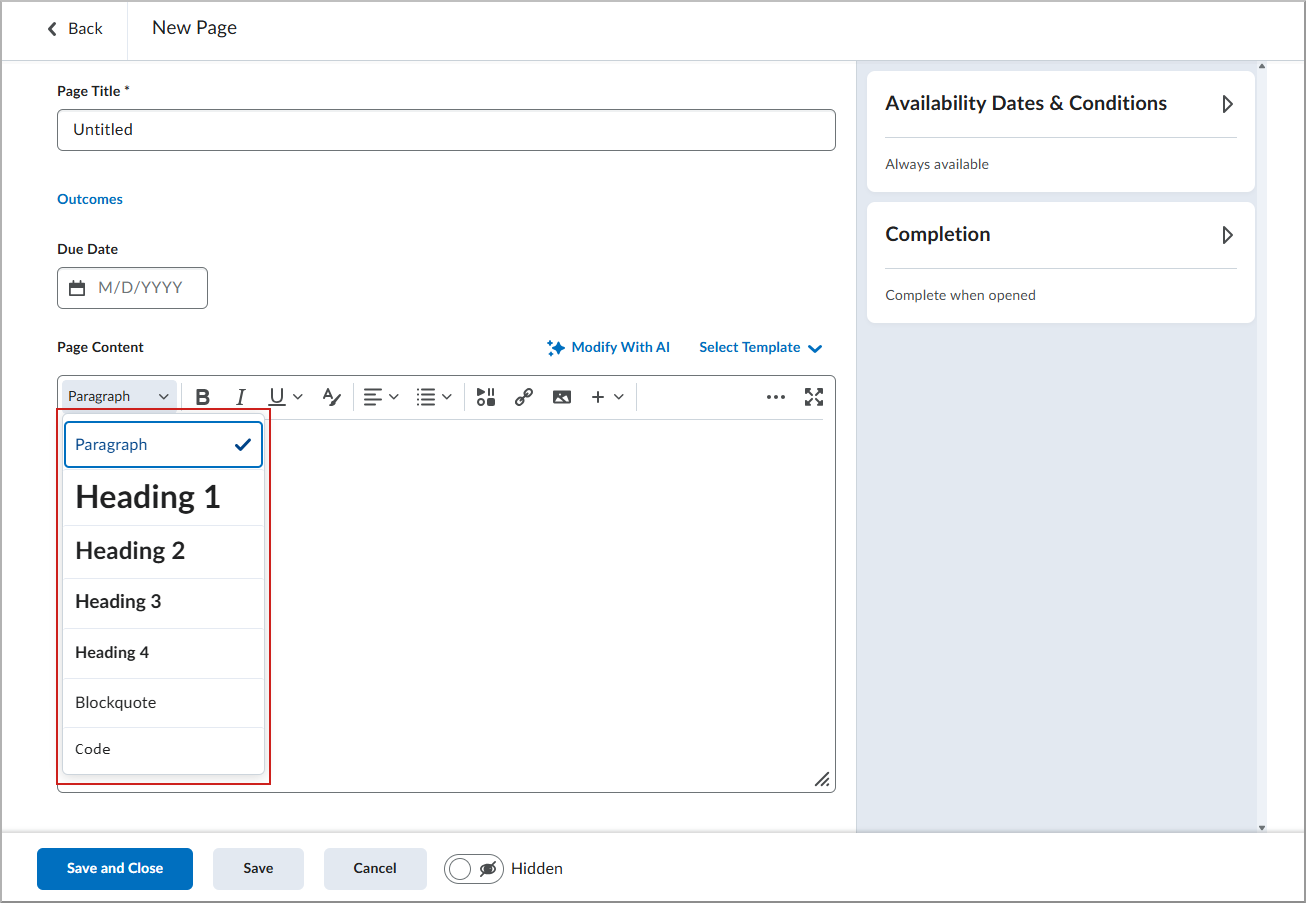
Figure: The current Format drop-down menu showing only Heading 1 to Heading 4.
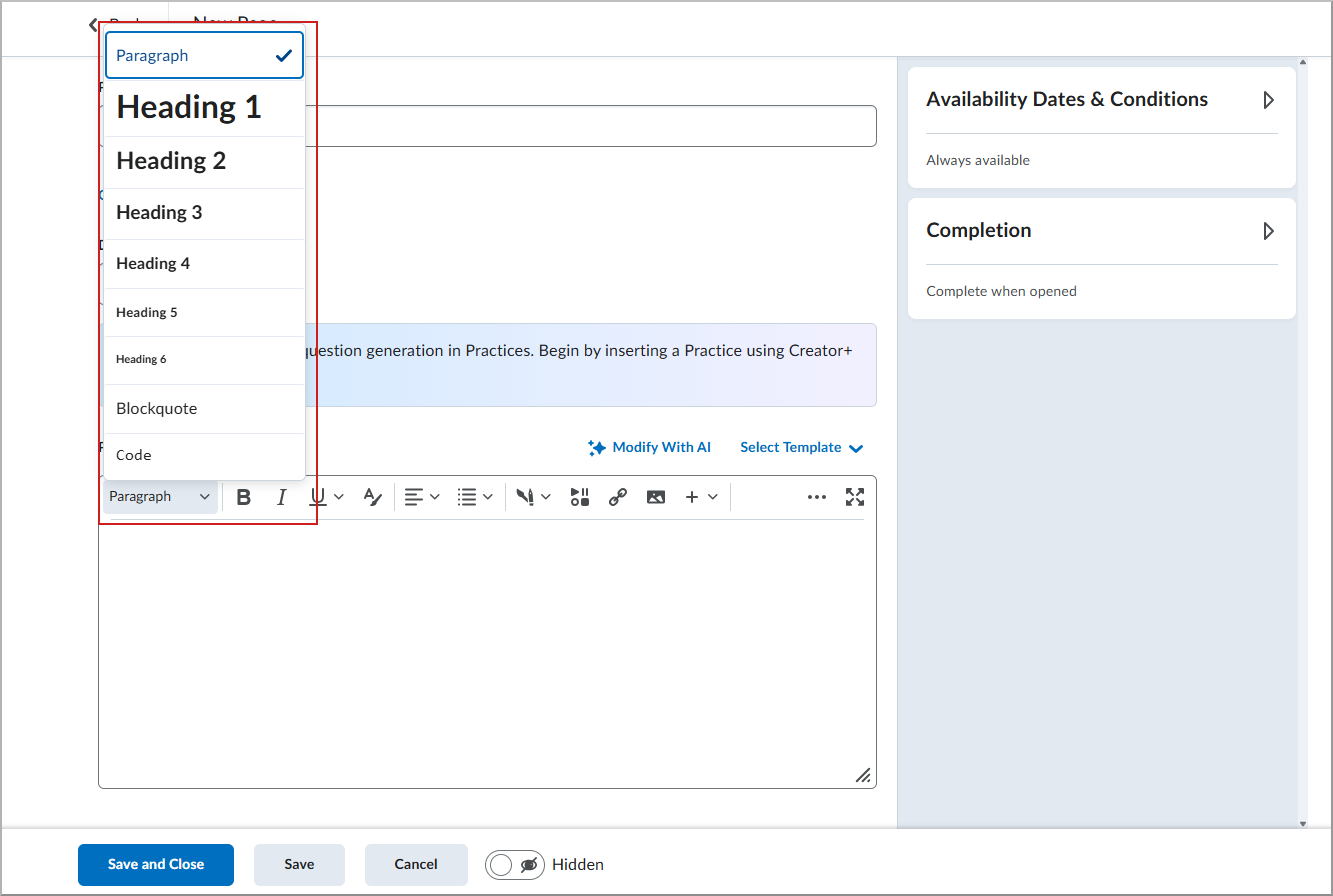
Figure: The new Format drop-down menu showing Heading 1 to Heading 6.
Technical Details
Impact:
- Slight impact to instructors due to additional options in the Brightspace Editor Format menu.
Availability:
- This feature is available to all Brightspace core clients.
To enable:
- This functionality is automatically enabled for all users.
- This functionality is not dependent on any new or existing permissions or configuration variables.
D2L Lumi Feedback – Centralized knowledge, multilingual, and configurability updates | Updated

|
This feature is part of the D2L Lumi Feedback for Brightspace add-on solution that must be purchased separately. For more information, contact your D2L Client Sales Executive or Account Manager. |
This update enhances D2L Lumi Feedback with centralized knowledge management, expanded language support, and more administrator configuration options.
Key updates include:
- Organization-level Knowledge Bank: Administrators can manage Lumi Feedback knowledge sources, including files, websites, and frequently asked questions (FAQs), at the organization level and share them across multiple assistants. Previously, administrators maintained knowledge sources separately for each assistant.
- Multilingual and right-to-left (RTL) support: Lumi Tutor support Finnish, Hebrew, and Arabic, including RTL layouts in chat and administrator interfaces.
- Organization-level assignment for Lumi Feedback: Administrators can assign Lumi Feedback to courses and assignments at the organization level without maintaining manual comma-separated value (CSV) mappings as course offerings change.
- Markdown support: The Lumi Feedback launcher description supports Markdown formatting.
- Accessibility updates: Improved screen reader labels, keyboard focus management, and contrast support Web Content Accessibility Guidelines (WCAG) 2.2 Level AA.
Technical details
Impact:
- Slight impact to administrators who can now use centralized knowledge management and organization-level tool assignment.
- Slight impact to learners who have improved navigation and localized interfaces.
Availability:
- This feature is only available to clients who have purchased the D2L Lumi Feedback for Brightspace add-on solution. For more information, contact your D2L Account Manager.
To enable:
- To use the organization-level Knowledge Bank, go to the organization-level Knowledge area in the LearnWise dashboard and add or migrate shared knowledge sources.
- To set custom chat input placeholder text, open the assistant settings and update the placeholder field.
- All other interface and accessibility updates are automatically enabled.
D2L Lumi Tutor – Centralized knowledge, multilingual, and configurability updates | Updated
|
This feature is part of the D2L Lumi Tutor for Brightspace add-on solution that must be purchased separately. For more information, contact your D2L Client Sales Executive or Account Manager. |
This update enhances D2L Lumi Tutor with centralized knowledge management, expanded language support, and more administrator configuration options.
Key updates include:
- Organization-level Knowledge Bank: Administrators can manage Lumi Tutor knowledge sources, including files, websites, and frequently asked questions (FAQs), at the organization level and share them across multiple assistants. Previously, administrators maintained knowledge sources separately for each assistant.
- Multilingual and right-to-left (RTL) support: Lumi Tutor support Finnish, Hebrew, and Arabic, including RTL layouts in chat and administrator interfaces.
- Enhanced SharePoint and video support: Lumi Tutor can index more SharePoint content beyond modern pages. Auto-generated video transcriptions also include time indexes so Lumi Tutor can link to specific moments in a video source.
- Improved configuration: Administrators can set custom placeholder text in the Lumi Tutor chat input for each assistant.
- Flexible Lumi Tutor Flows: Lumi Tutor Flows no longer restrict how actions can be combined. Search actions can run at any point, and handover or quiz actions can be used independently.
- Deleted assistant links: Users receive a clear error page when they open a link to a deleted Lumi Tutor.
- Accessibility updates: Improved screen reader labels, keyboard focus management, and contrast support Web Content Accessibility Guidelines (WCAG) 2.2 Level AA.
Technical details
Impact:
- Slight impact to administrators who can now use centralized knowledge management and organization-level tool assignment.
- Slight impact to instructors who may have improved video source citations and expanded language support.
- Slight impact to learners who have improved navigation and localized interfaces.
Availability:
- This feature is only available to clients who have purchased the D2L Lumi Tutor for Brightspace add-on solution. For more information, contact your D2L Account Manager.
To enable:
- To use the organization-level Knowledge Bank, go to the organization-level Knowledge area in the LearnWise dashboard and add or migrate shared knowledge sources.
- To set custom chat input placeholder text, open the assistant settings and update the placeholder field.
- All other interface and accessibility updates are automatically enabled.
Data Hub – Question Annotation data added to Quiz Objects Brightspace Data Set | Updated
The Quiz Objects Brightspace Data Set (BDS) now includes the following column:
- HideAnnotationTools (bit, non-nullable)
Question Annotation, released in August 2026/20.26.08, allows learners to flag quiz questions and apply strikethrough formatting to answer options.
With the new HideAnnotationTools column, data administrators can identify how many quizzes in their organization have annotation tools disabled.
Technical Details
Impact:
- Moderate impact to administrators due to the addition of a new column to an existing Brightspace Data Set.
Availability:
- This feature is available to all Brightspace Core clients.
To enable:
- Ensure the Brightspace Data Sets > Can Access Brightspace Data Sets permission is granted to administrators at the org level.
- Ensure the d2l.Tools.BrightspaceDataSets.Version configuration variable is set to version 11.7.
- New and changed data sets appear the first time the data set runs after the version update.
Distributed Administration – Bulk user management for distributed administrators | New
In Brightspace instances configured with Distributed Administration, sub-organization administrators can now use the Bulk User Management tool to manage multiple users within their sub-organization. Previously, users could be managed only one at a time in the Users tool.
When sub-organization administrators have the required permission, the Bulk User Management tab appears in the Users tool. From this tab, sub-organization admins can upload a CSV file to update multiple users simultaneously.
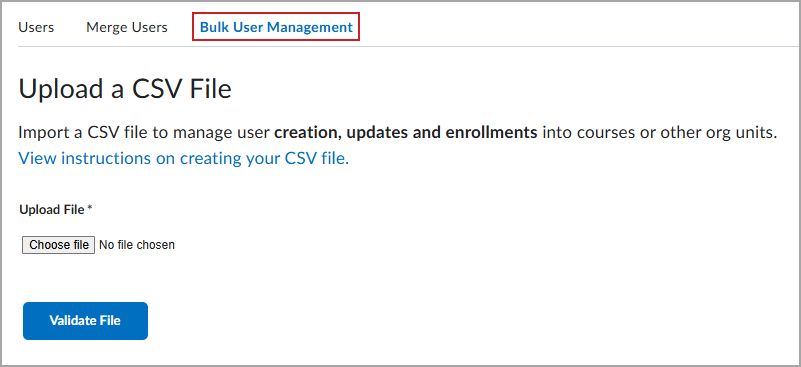
Figure: Bulk User Management tab in the Users tool for distributed administrators.
This feature implements the following PIE item:
- D10843 (Bulk enrollment at a department level (security setting))
Technical Details
Impact:
- Large impact to sub-organization administrators due to the ability to manage users in bulk.
Availability:
- This feature is available to all Brightspace Core clients.
To enable:
- This functionality is automatically enabled for all users.
- This functionality requires the Users > Import Users from this Organization permission for sub-organization administrators.
- This functionality is not dependent on any new or existing configuration variables.
Groups – Bulk edit group names and codes | Updated
To improve efficiency when managing large numbers of groups, the new Manage Groups experience now allows instructors to bulk edit group names and codes within a category. Previously, instructors had to select each group individually to edit its details. Instructors can now click Edit Group Names to update the names and codes for one, multiple, or all groups from a single interface, saving time and reducing administrative effort.
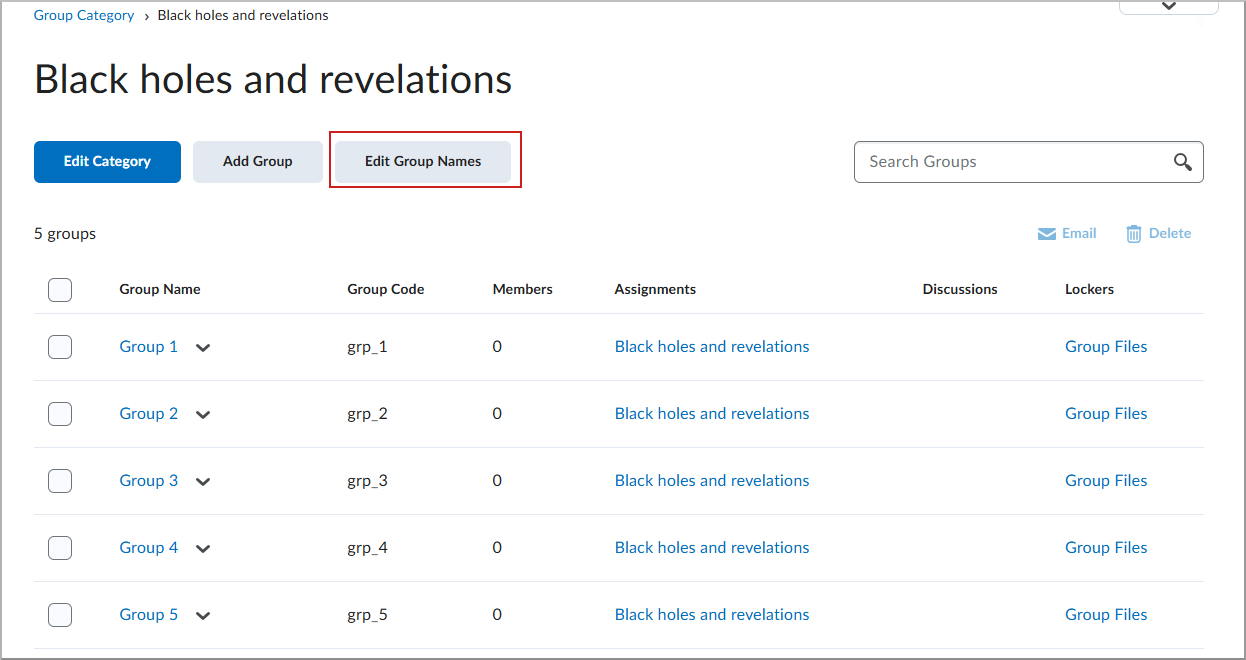
Figure: On the Group Category page, instructors click Edit Group Names to edit one, multiple, or all groups.
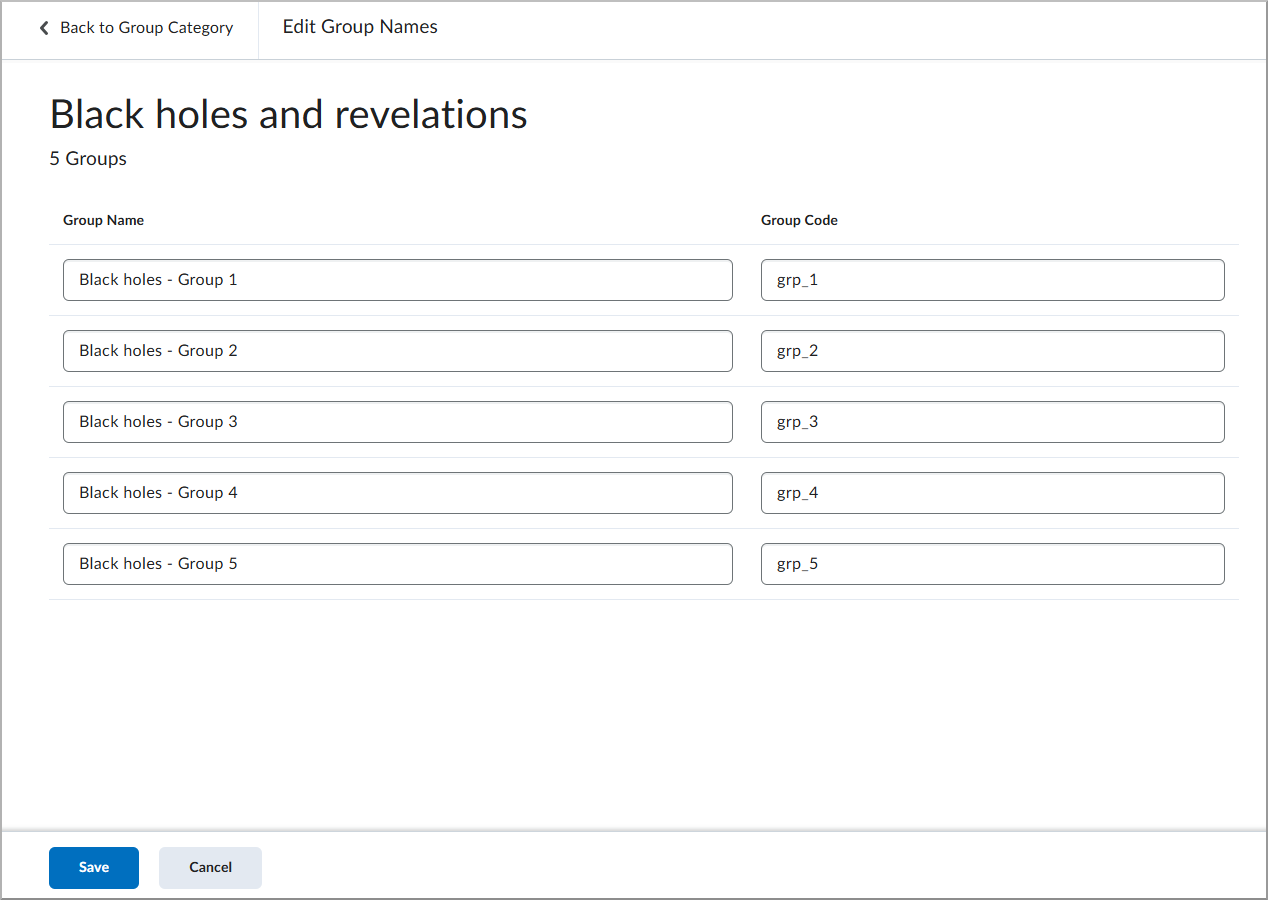
Figure: On Edit Group Names, instructors can edit the Group Name and Group Code for all groups.
Technical Details
Impact:
- Slight impact to instructors who use the new Manage Groups experience, as they now have a faster way to update group details.
Availability:
- This feature is available to all clients using the new Manage Groups experience.
To enable:
- Ensure the d2l.Tools.Groups.ManageGroupsOptIn configuration variable is set to ON or ON (OPT IN).
- This functionality is not dependent on any new or existing permissions.
IPSIS – Blackbaud Standalone Grade Item Export | Updated
Teachers can now export standalone grade items, such as participation or in-class assignments, to Blackbaud SIS without first associating them with a Brightspace activity. Previously, to export a grade item and create a corresponding assignment in Blackbaud, teachers were required to associate the grade item with a Brightspace activity that had a due date or end date.
When configuring a grade item for export, teachers now select a Blackbaud grading period instead of an academic term. The selected grading period is included in the export, and its end date is used for standalone grade items to satisfy Blackbaud's date requirements. For grade items associated with a Brightspace activity, the activity's due date or end date continues to be used. If the activity does not have either date, the end date of the selected Blackbaud grading period is used instead. In all cases, the date used for export must fall within the selected Blackbaud grading period.

|
Important: After this update, teachers must edit any grade item intended for export and reselect the grading period. If the grading period is not reselected, the grade item will not export. |
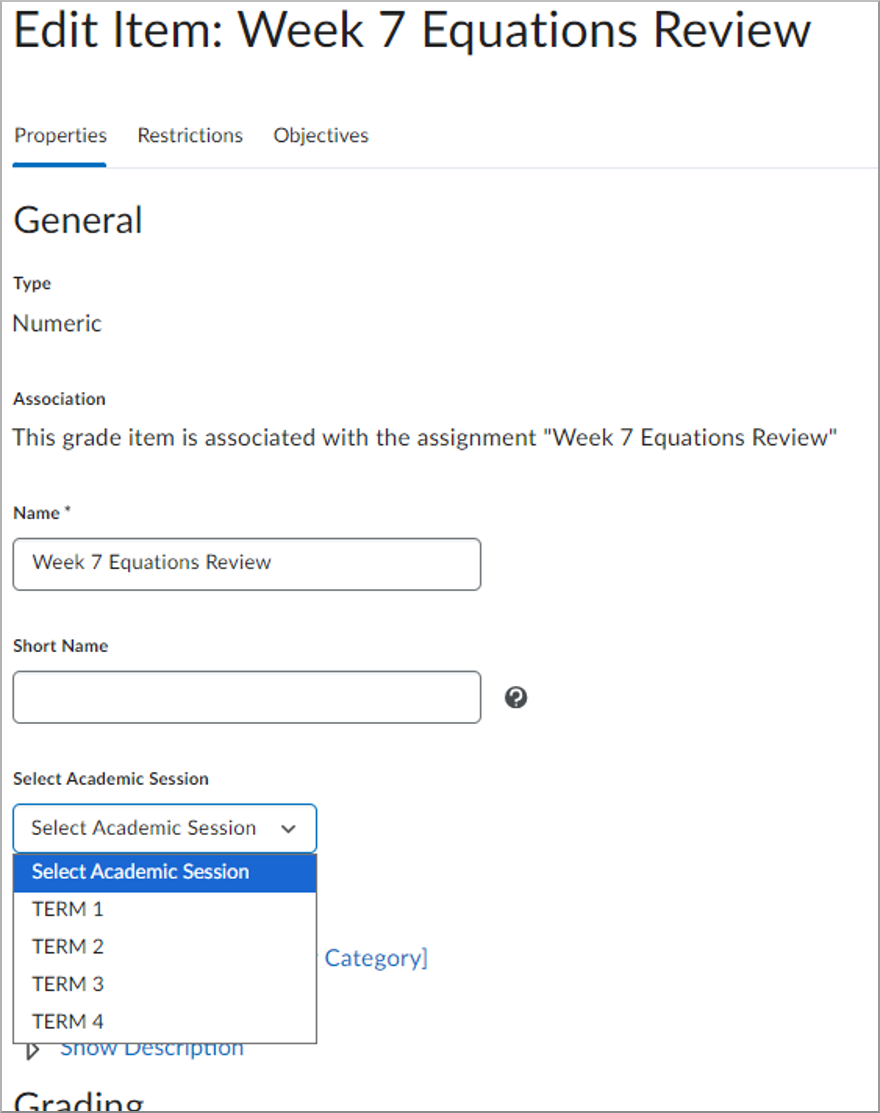
Figure: Select a Blackbaud grading period when configuring a grade item for export.
Technical Details
Impact:
- Moderate impact to teachers who use the Blackbaud SIS integration, as they can now export standalone grade items but must reselect the grading period for existing grade items intended for export.
Availability:
- This feature is available to all clients using the Blackbaud SIS integration.
To enable:
- This functionality is automatically enabled for all users.
- This functionality is not dependent on any new or existing permissions or configuration variables.
IPSIS – Update Sourced ID for Ellucian ILP | New
To help administrators resolve user synchronization issues, a new Update Sourced ID tab is available in Integration Pack for Student Information Systems (IPSIS) for Ellucian ILP source systems. Administrators can manually update a Brightspace user's Org Defined ID to match an updated identifier from Banner or Colleague without contacting D2L Support.
Clients may need to update a user's Org Defined ID when:
- A learner or instructor is assigned a new identifier in the student information system.
- Data corrections are made in Banner or Colleague after the user has already been created in Brightspace.
- IPSIS imports begin failing because Brightspace and the student information system reference different identifiers for the same person.
- Mapping conflicts resulted in duplicate user accounts or failed enrollments.
This process preserves the user's existing account, course progress, and enrollments while ensuring future IPSIS imports synchronize correctly with the updated student information system data.
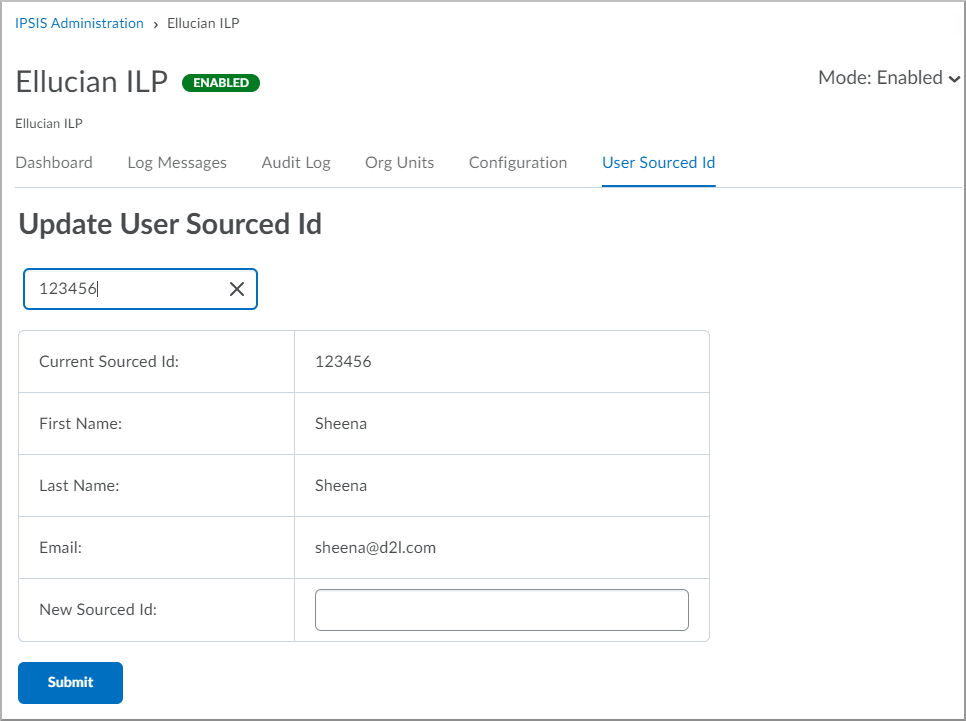
Figure: On the User Sourced Id tab, administrators can update the New Sourced Id field for an Ellucian ILP integration.
Technical Details
Impact:
- Moderate impact to administrators who can now update user identifiers for Ellucian ILP integrations without contacting D2L Support.
Availability:
- This feature is available to all clients using the Ellucian ILP integration.
To enable:
- This functionality is automatically enabled for Ellucian ILP source systems.
- This functionality is not dependent on any new or existing permissions or configuration variables.
New Content Experience – Assessable activities are only displayed inline | Updated
Assessable activities, including Assignments, Quizzes, Discussions, and instructor LTI links, now display inline by default in the New Content Experience. This change provides learners with a consistent, embedded experience when accessing assessable course activities.
Previously, administrators could use the d2l.Tools.Content.LessonsRenderActivitiesInline configuration variable to control whether these activities opened inline. With this update, assessable activities display inline by default, simplifying the learner experience and providing a consistent presentation for assessable content throughout the New Content Experience.
Before:
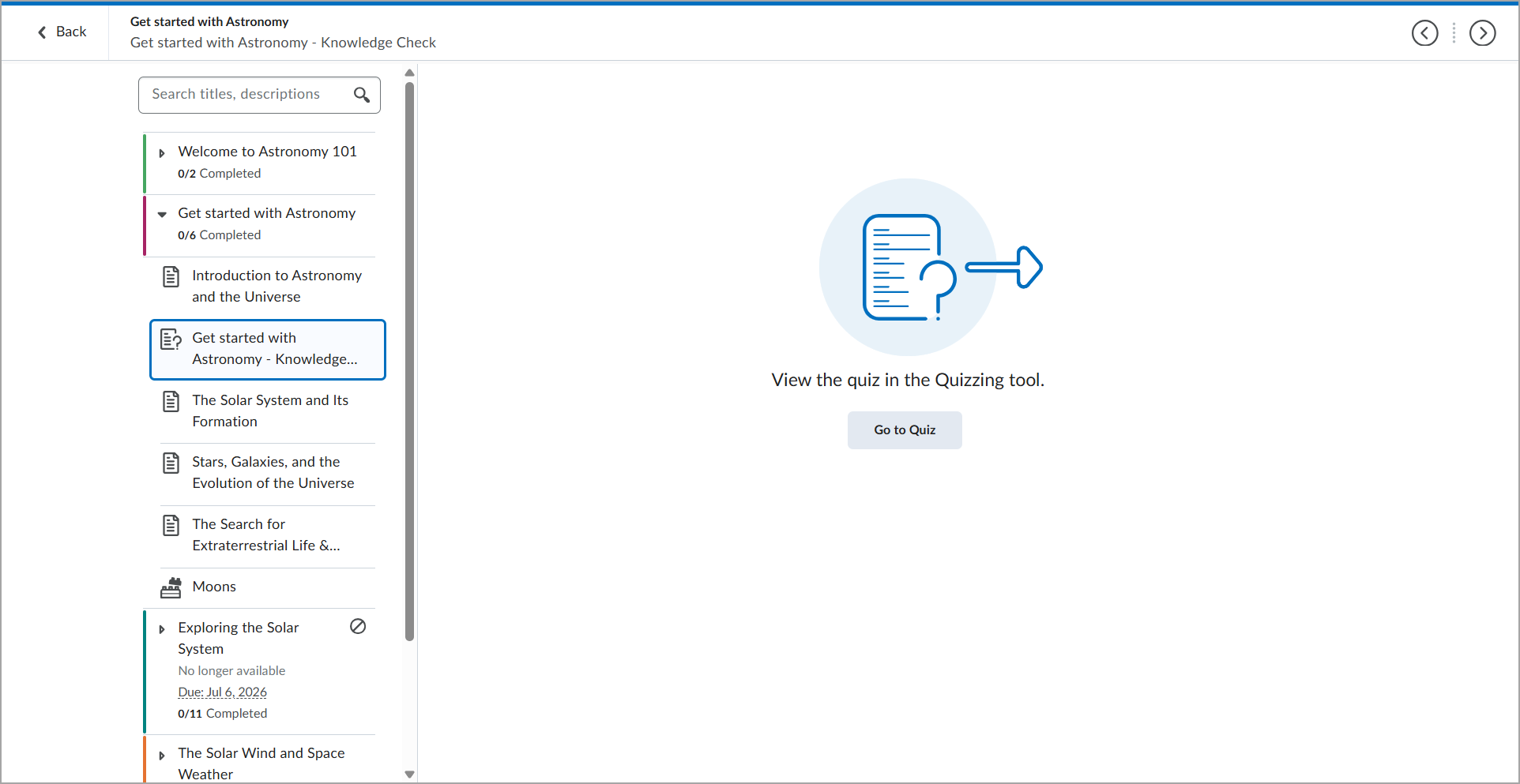
Figure: Previous quiz experience for learners in the New Content Experience without assessable activities displayed inline enabled.
After:
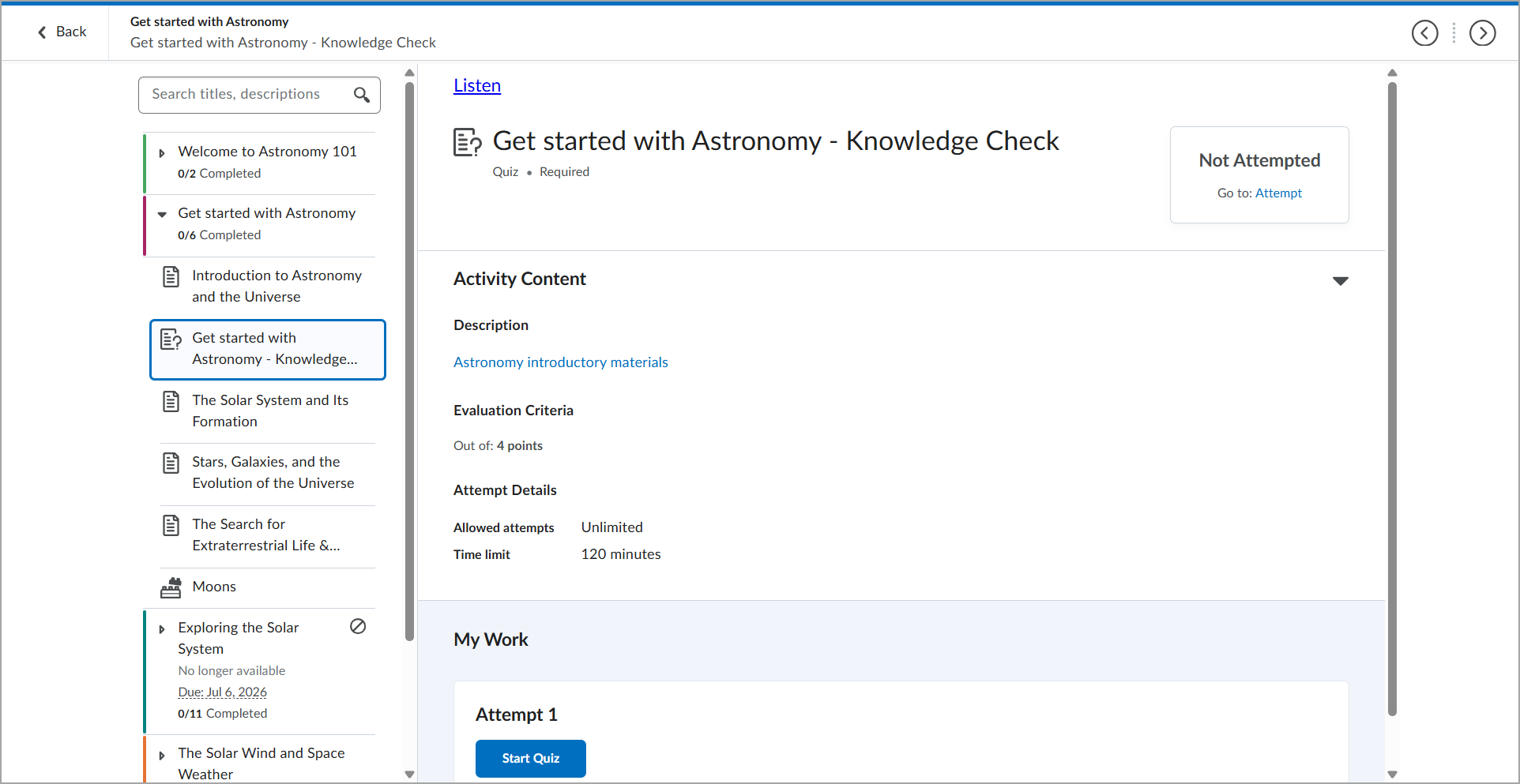
Figure: Updated quiz experience for learners with assessable activities displayed inline in the New Content Experience.
For more information on the New Content Experience, refer to New Content Experience Resources.
Technical Details
Impact:
- Moderate impact to administrators as the configuration variable for inline display has been removed.
- Moderate impact to instructors and learners as assessable activities now consistently display inline within the New Content Experience, which may change the visual layout of existing courses.
Availability:
- This feature is available to all Brightspace Core clients.
To enable:
- This functionality is automatically enabled for all users.
- This functionality is not dependent on any new or existing permissions.
- The d2l.Tools.Content.LessonsRenderActivitiesInline configuration variable is automatically removed.
New Content Experience – Enhanced Table of Contents is the only Table of Contents view | Updated
The enhanced Table of Contents (TOC) is now the only available TOC view in the New Content Experience. This change provides instructors and learners with a consistent navigation experience when accessing course content.
Previously, administrators could use the d2l.Tools.Content.EnableLessonsEnhancedTOC configuration variable to enable or disable the enhanced TOC. With this update, the configuration variable has been removed and the enhanced Table of Contents is the default experience.
The enhanced Table of Contents includes the following improvements:
- Support for unlimited module and topic hierarchy depth.
- Learner completion progress indicators for topics and modules.
- Support for the Course Overview if it was previously used in Classic Content.
- Improved accessibility and keyboard navigation to make restructuring course content easier.
- Expand and collapse modules without navigating away from the page.
- Open content items in a new browser tab from the context menu.
- Condensed display for smaller screens.
- Visual design and interactions that are consistent with the rest of the Brightspace platform.
Before:
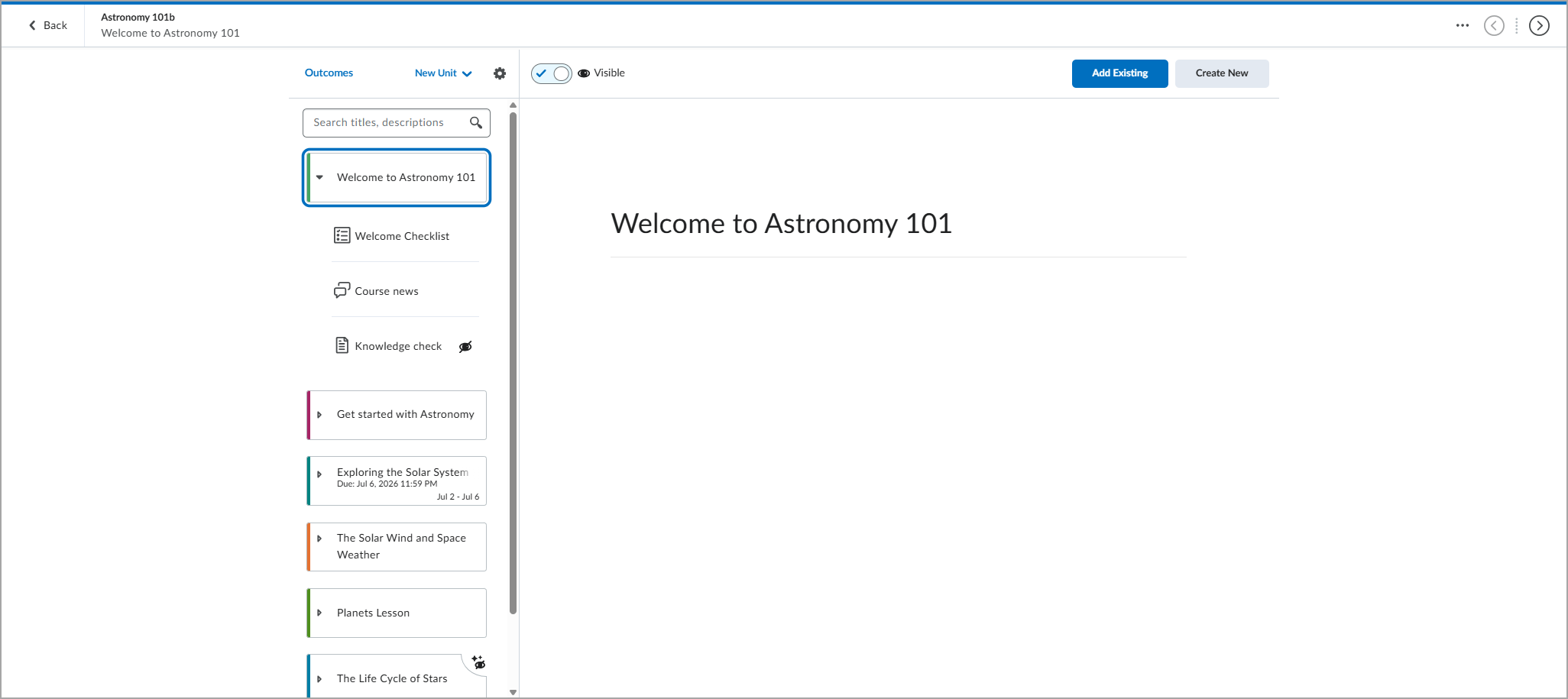
Figure: Previous instructor view of the Table of Contents in the New Content Experience with Immersive View enabled.
After:
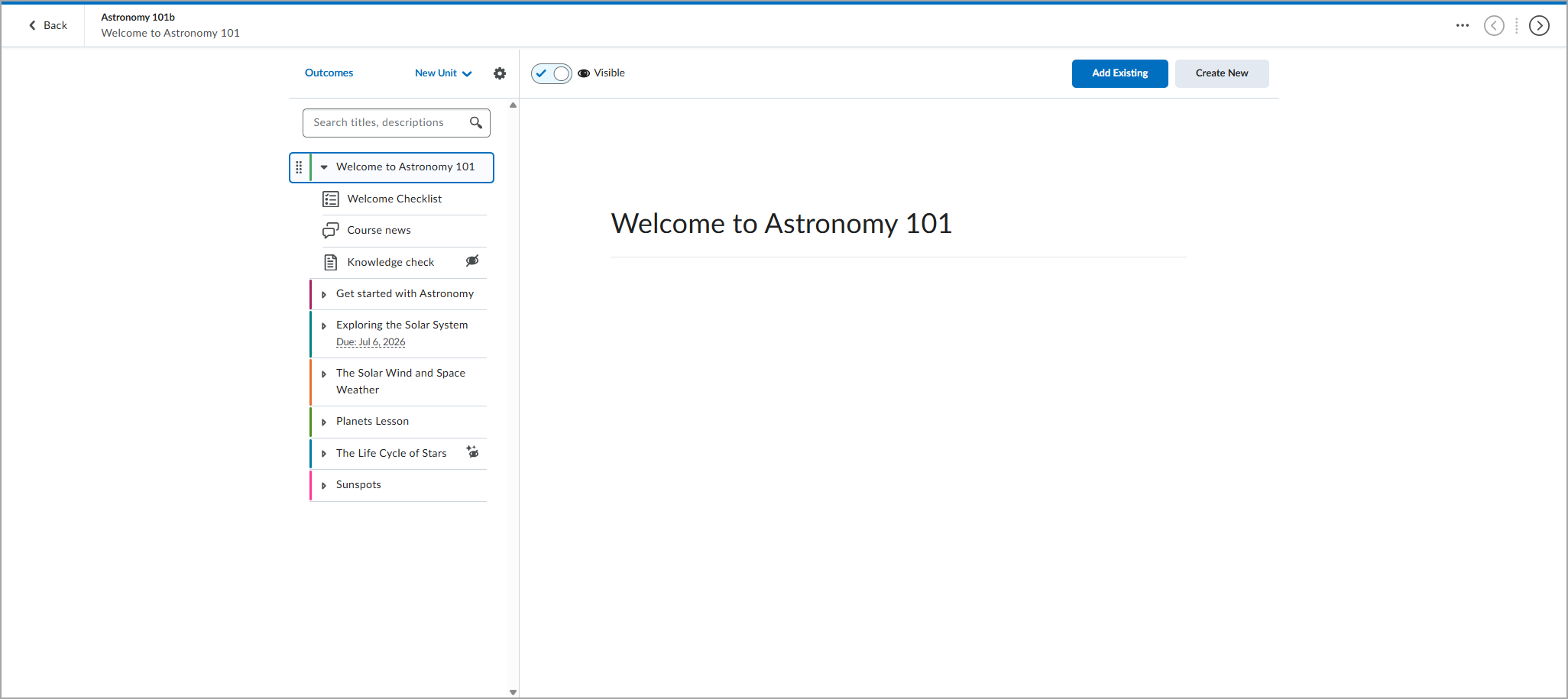
Figure: Instructor view of the enhanced Table of Contents in the New Content Experience with Immersive View enabled.
For more information on the New Content Experience, refer to New Content Experience Resources.
Technical Details
Impact:
- Moderate impact to administrators as the d2l.Tools.Content.EnableLessonsEnhancedTOC configuration variable has been removed.
- Moderate impact to instructors and learners as the enhanced Table of Contents is now the only navigation experience in the New Content Experience.
Availability:
- This feature is available to all Brightspace Core clients.
To enable:
- This functionality is automatically enabled for all users.
- This functionality is not dependent on any new or existing permissions.
- The d2l.Tools.Content.EnableLessonsEnhancedTOC configuration variable is automatically removed.
New Content Experience – Removing the Preview as a Student option | Removed
To provide a more accurate representation of the learner experience, the Preview as a Student option is removed from the New Content Experience.
Previously, the Preview as a Student option was available in Content, but it did not accurately reflect the learner experience. This preview had several limitations. For example, it did not correctly apply availability dates and release conditions, and it displayed the instructor view instead of the learner view for Assignments, Quizzes, and Discussions.
Before:
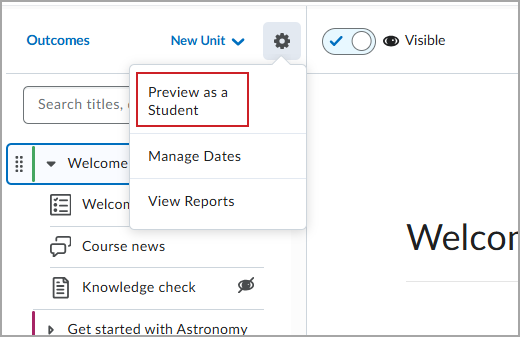
Figure: The Preview as a Student option previously appeared in the Settings menu in the New Content Experience.
After:
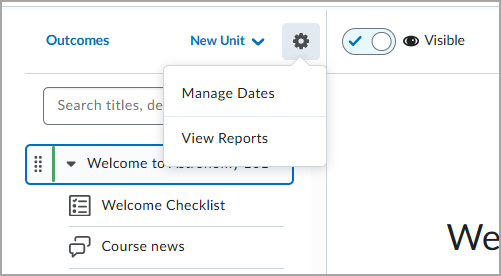
Figure: The Preview as a Student option is no longer available in the Course options menu in the New Content Experience.
To view your course from a learner's perspective, use one of the following supported options:
- Role Switch: From your user profile, use the Change Role feature to switch to a learner role.
- Impersonate: Impersonate a test or demo user to experience the course exactly as a learner does across all supported tools.
While each option has its own considerations, both provide a more accurate representation of the learner experience than the previous Preview as a Student option. For more information, refer to Preview your course.
Technical Details
Impact:
- Moderate impact to instructors who previously used the Preview as a Student option within the New Content Experience. To view content as a learner, Role Switch or Impersonation must now be used.
Availability:
- This feature is no longer available to all clients.
To enable:
- This functionality is automatically removed for all users.
- This functionality is not dependent on any new or existing permissions or configuration variables.
OAuth2 Apps – Increased privacy for OAuth2 app registration details | Updated
In the Manage Extensibility > OAuth 2.0 interface, the client secret value is now masked when users view an OAuth2 app's registration details. This change allows users to take screenshots or share their screen without revealing the client secret.
A Show button reveals the client secret so users can copy it. When the client secret is visible, the button changes to Hide; selecting it masks the value again.
Previously, client secrets appeared in plain text when users viewed OAuth2 app registration details.
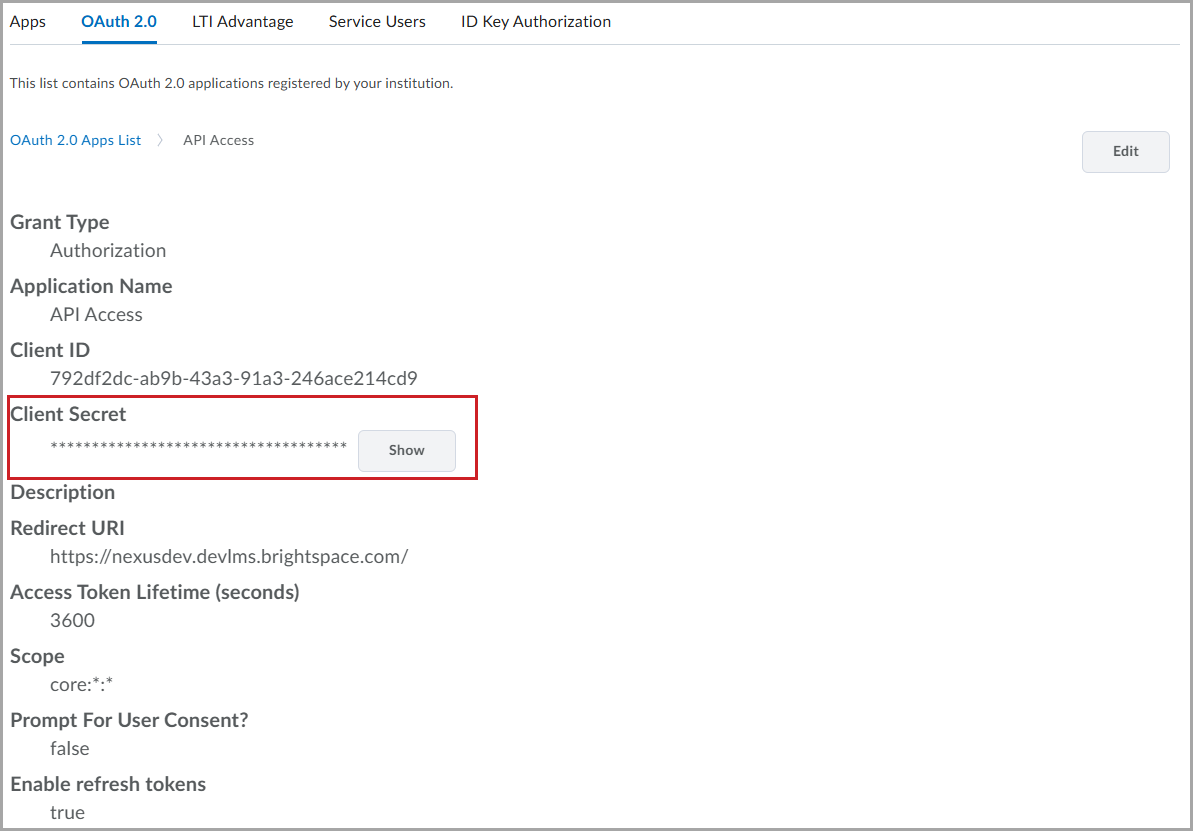
Figure: The Client Secret value is masked by a row of asterisks.
Technical Details
Impact:
- Slight impact to API developers and administrators because the Manage Extensibility interface now masks the client secret by default.
Availability:
- This feature is available to all Brightspace core clients.
To enable:
- This functionality is automatically enabled for all users.
- This functionality is not dependent on any new or existing permissions or configuration variables.
Work To Do widget – Dismiss overdue items | Updated
To help learners better manage their workload, the Work To Do widget now allows users to dismiss overdue activities. Previously, overdue items remained on the list until completed or their due dates were removed, potentially cluttering lists for courses without end dates or those that remained active after completion.
Now, learners with the appropriate permission can select the X icon next to an overdue activity to remove it from their view. After dismissing an activity, an alert appears briefly with an Undo option, allowing learners to restore the activity if it was dismissed by mistake.
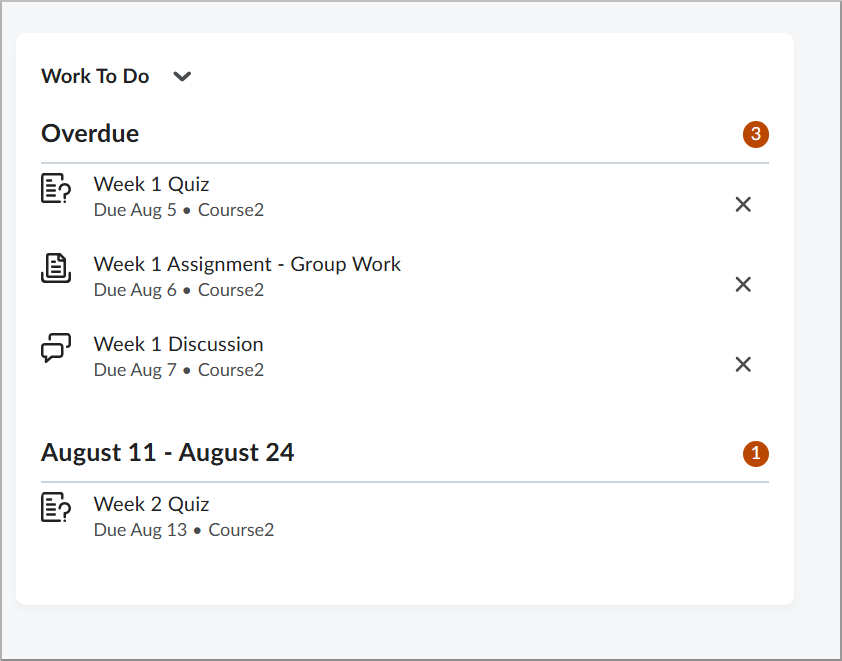
Figure: Learners can now dismiss overdue items from the Work To Do widget by selecting the X.
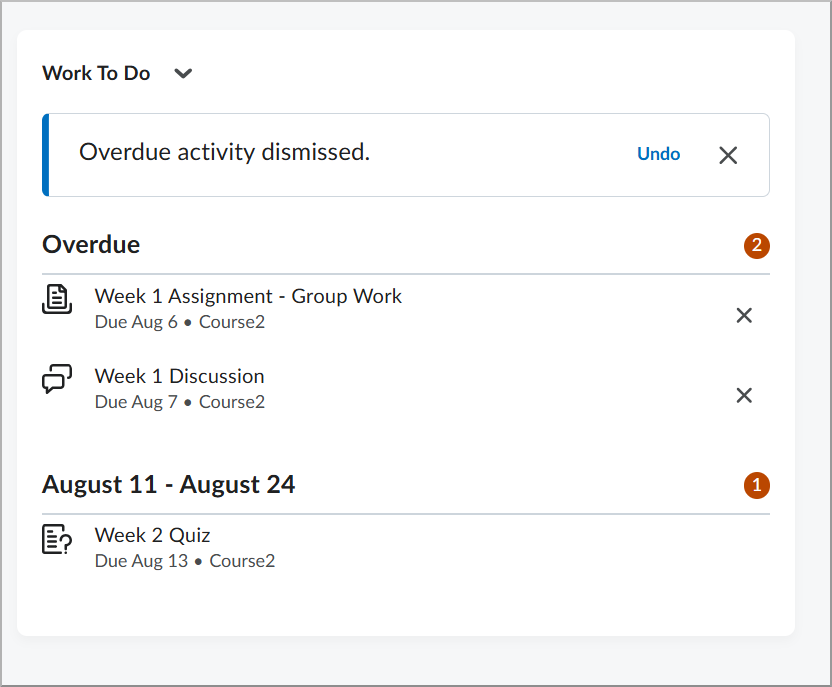
Figure: The Work To Do widget displays an Undo option after an overdue activity is dismissed.
This feature implements the following PIE item:
- D12110 (Provide students the ability to dismiss overdue notifications from previous semester courses)
Technical Details
Impact:
- Slight impact to administrators who must enable the new permission for applicable learner roles.
- Slight impact to learners who can now dismiss overdue items from their Work To Do list.
Availability:
- This feature is available to all clients.
To enable:
- Ensure learner roles have the new Work To Do > Dismiss overdue activities permission enabled at the organization or course offering level.
- This functionality is not dependent on any new or updated configuration variables.
Change History
13-August-2026 Preview Release Notes published.
3-September-2026 Added D2L Lumi Feedback – Centralized knowledge, multilingual, and configurability updates | Updated.
3-September-2026 Added D2L Lumi Tutor – Centralized knowledge, multilingual, and configurability updates | Updated.
3-September-2026 Added OAuth2 Apps – Increased privacy for OAuth2 app registration details | Updated.
3-September-2026 Added general announcements about the list of added, unlisted, and removed videos; Brightspace App Publishers; the intent to End of Life the Self Assessment tool; backend infrastructure improvements targeting the Start Quiz Attempt workflow; and Recommendations introduced by Course Merchant.