Video: Release Highlights
 https://www.youtube.com/watch?v=EJQ_i54R1W4
You Asked, We Delivered
The following updates were inspired by your submissions to D2L's Product Idea Exchange:
|
General Announcements
- We are introducing foundational APIs for Learning Outcomes. These APIs enable the creation, update, retrieval, and deletion of Outcome Sets and their associated Outcomes at the organizational level, reducing reliance on manual UI edits and CSV uploads. For full details about the updated API routes, refer to the Brightspace Developer Platform documentation.
- When creating one or more users via the API, you can now include additional password settings. The User.CreateUserData data block supports optionally setting a password or requiring users to reset their password on first login. For full details about the updated API routes, refer to the Brightspace Developer Platform documentation.
- Following customer feedback, we renamed the Arabic language pack in the Brightspace user interface from ar-SA to ar.
- Community users can now submit Content Feedback across all subcommunities in the language they are viewing, as content feedback is now localized. This update encourages broader participation in improving Community documentation and helps amplify the voice of the Community.
- The Classlist – Export Classlist details to CSV and improved Print output | New feature is removed from the January 2026 / 20.26.01 release and will be introduced at a later date. Refer to the Classlist - January feature for Classlist export has been disabled fixed issues article for more details.
- As of this release, the Lumi Chat by Forethought customer satisfaction (CSAT) survey includes a free-form text box that enables users to provide more detailed feedback about their Lumi Chat experience.
- D2L is continuing to unlist outdated Brightspace Tutorial videos that no longer reflect the current interface and workflows. Updated tutorial videos are embedded in the documentation to align with the latest features. To review the list of added, unlisted, and removed videos, refer to the article: Brightspace Tutorial Video Updates: Added, Unlisted, Removed.
Changes to these release notes are captured in the Change History below.
In the October 2025 / 20.25.10 release, an enhanced Admin Tools menu was introduced which included new search functionality and an improved user interface. This functionality was controlled by the d2l.Preferences.NewAdminToolsMenu ( Org ) configuration variable which was OFF by default.
In the November 2025 / 20.25.11 release, the d2l.Preferences.NewAdminToolsMenu ( Org ) configuration variable was set to ON by default.
As of this release, the d2l.Preferences.NewAdminToolsMenu ( Org ) configuration variable is removed and the enhanced Admin Tools menu is the only option available, replacing the legacy Admin Tools menu experience.
Previously, administrators could choose between the legacy Admin Tools menu and the enhanced Admin Tools menu experience.
This feature implements the following PIE items:
- D11487 (Admin tools cog needs search feature)
Technical Details
Impact:
- Slight impact to all users with access to the Admin Tools menu. Users with access must use the enhanced Admin Tools menu experience and can no longer use the legacy Admin Tools experience.
Availability:
- This feature is available to all clients.
To enable:
- This feature is automatically enabled.
- This feature is not dependent on any new or existing role permissions.
- This feature is no longer dependent on the d2l.Preferences.NewAdminToolsMenu ( Org ) configuration variable, which is removed.
Assignments – Group assignments now supported in Advanced Assessment | New
Group assignments are now supported in Advanced Assessment, enabling instructors to collaboratively evaluate groups of learners in Brightspace using Co-Marking, Delegation, and Multi-Evaluator capabilities. This update leverages the existing Groups tool, allowing learners to submit work as a team and receive shared feedback and grades through Advanced Assessment.
The feature introduces the following key improvements:
- Seamless group evaluation: instructors can allocate evaluators to groups rather than individuals.
- Consistent experience: interface terminology and visuals have been updated to reflect group workflows:
- References to Learners are replaced with Groups, such as Allocate Evaluators to Groups.
- Evaluation and feedback panel text reflects group-based workflows.
- Improved workflow integrity: confirmation prompts prevent accidental evaluator setting loss when switching between group and individual assignments.
To enable group assignments, instructors must first create groups in Course Admin > Groups. Then, when creating an assignment, they must select Group Assignment under Submission & Completion.
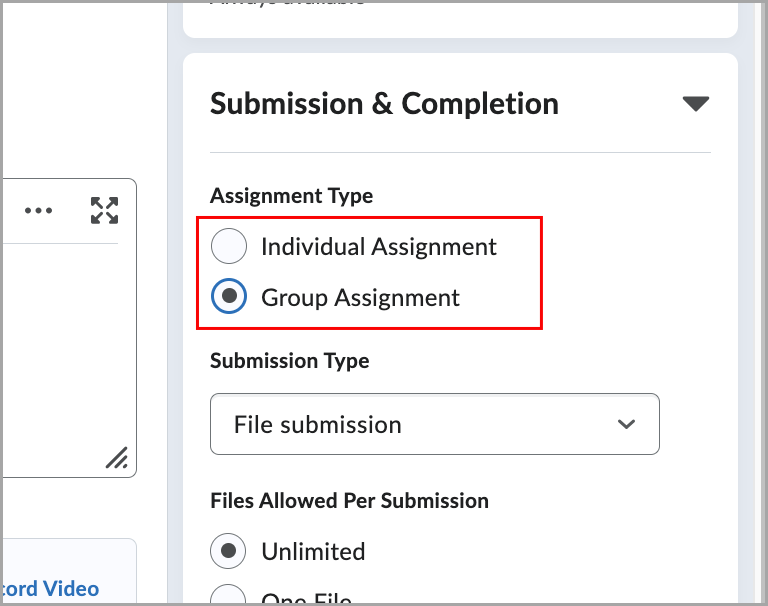
Figure: Select Group Assignment under Assignment Type in the Submission & Completion settings to create a group-based assignment.
To trigger the Advanced Assessment workflow, select evaluators in the Evaluation & Feedback dropdown.
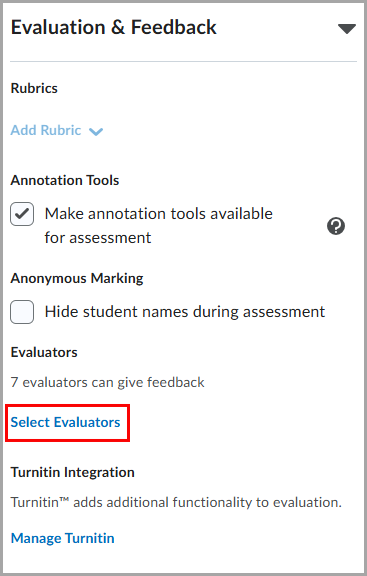
Figure: Click Select Evaluators under Evaluators in the Evaluation & Feedback settings to create an assignment.
Additionally, the following changes were made in the Manage Allocations table:
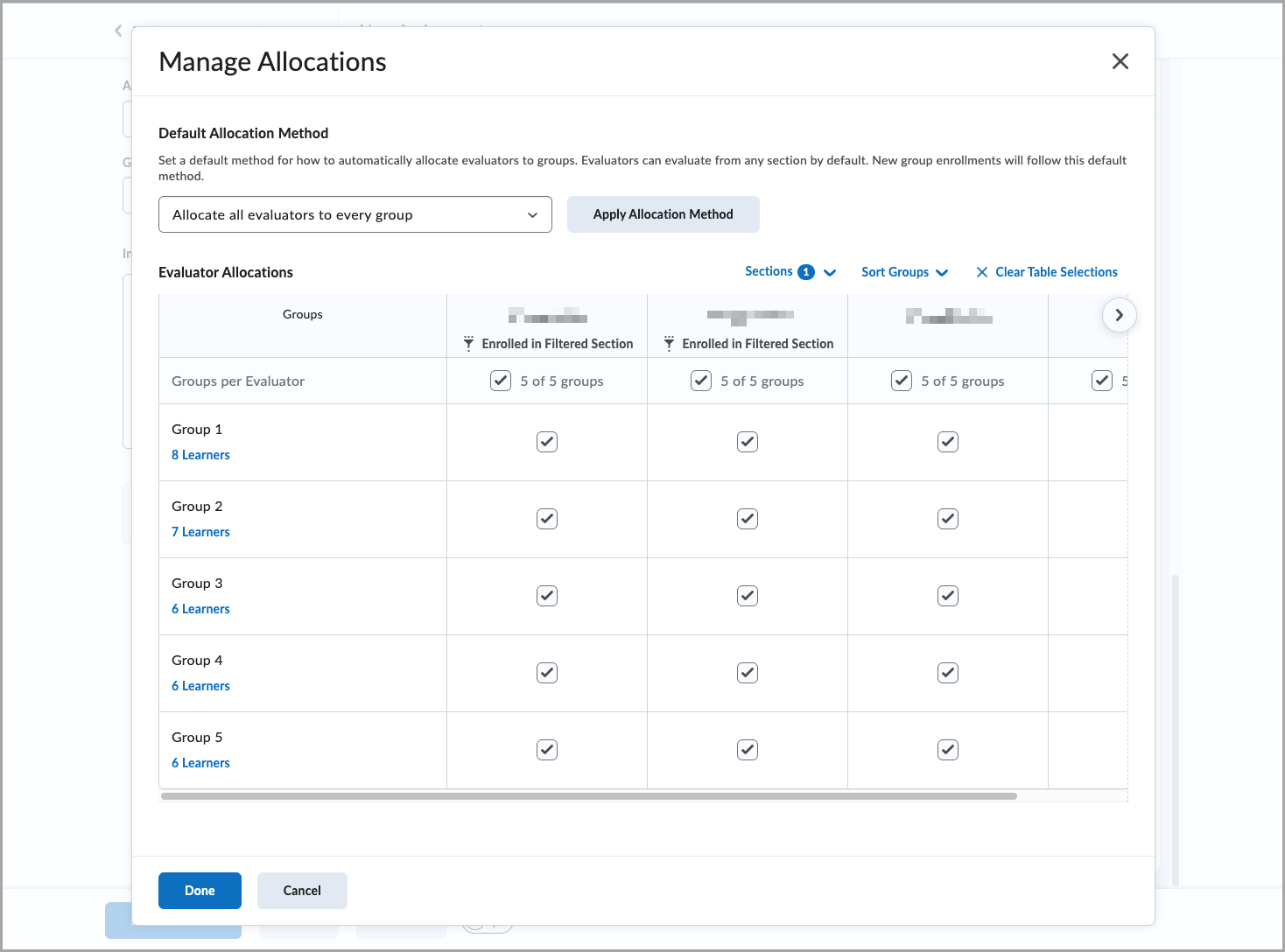
Figure: Use the Manage Allocations dialog to set a default evaluator allocation method and adjust group assignments.
When sections are enabled, a Sections filter appears in the Manage Allocations dialog. Instructors in the selected section display a small tag under their names to indicate the applied filter, and only groups containing learners from the selected sections appear in the left-hand column.
When switching between individual and group assignments after evaluator allocations are made, existing allocations are removed. A confirmation prompt appears to alert users.

|
Notes:
- Group assignments in Advanced Assessment are only supported in the new assignment creation page. Legacy assignment creation page users should follow the prompt to the new page, to create group assignments in Advanced Assessment.
- Grades sync as before; individual overrides remain possible.
- Group assignments are not currently supported in Quick Eval.
- Switching between individual and group assignment types is disabled after learner submissions are made.
|
Previously, group assignments were not supported in Advanced Assessment. This update removes that limitation, enabling the use of Co-marking, Delegation, and Multi-evaluator features for groups.
Technical Details
Impact:
- Slight impact to administrators and instructors due to the availability of a complete and flexible group evaluation workflow.
Availability:
- This feature is available to all clients.
To enable:
- This functionality is dependent on the existing d2l.Tools.Activities.AdvancedAssessmentsEnabled (OrgUnit) configuration variable (default: ON).
- This functionality is not dependent on any new or existing permissions.
Assignments – Streamlined group assignments creation workflow | Updated
With this release, the experience for creating group assignments is enhanced. This update streamlines the group assignment workflow in Brightspace by consolidating functionality in the new assignment creation page.
Group assignments are now best supported in the new assignment creation page, which offers a modern workflow and access to upcoming enhancements.
A Group Assignments workflow dropdown now appears in the legacy assignment creation page, directing users to the new experience.
Once Group Assignments have been created in the New Assignment Creation page, users are redirected to the Manage Groups page.
The d2l.Tools.Dropbox.GroupDropboxCreationRedirectOptIn (OrgUnit) configuration variable controls this functionality:
- ON. The optimized group assignment creation flow is enforced. Users are automatically redirected to the existing assignment creation page and cannot access the legacy group assignment creation experience.
- ON (Opt-In). The optimized flow is enabled by default; however, users can opt out using the tabbed dropdown selector and return to the legacy group assignment creation experience.
- OFF. The optimized flow is disabled. Users continue using the legacy group assignment creation experience and are not presented with an option to opt in.
This variable is introduced in this release with a default value of ON (Opt-in), allowing administrators to disable it if desired.
In a near-term upcoming release, this configuration variable will be enabled by default for all users, with no option to hide the dropdown.
The legacy assignment creation page is scheduled for retirement in Brightspace version July 2027 / 20.27.07. Administrators are encouraged to adopt the new assignment creation experience for optimal functionality and future support.
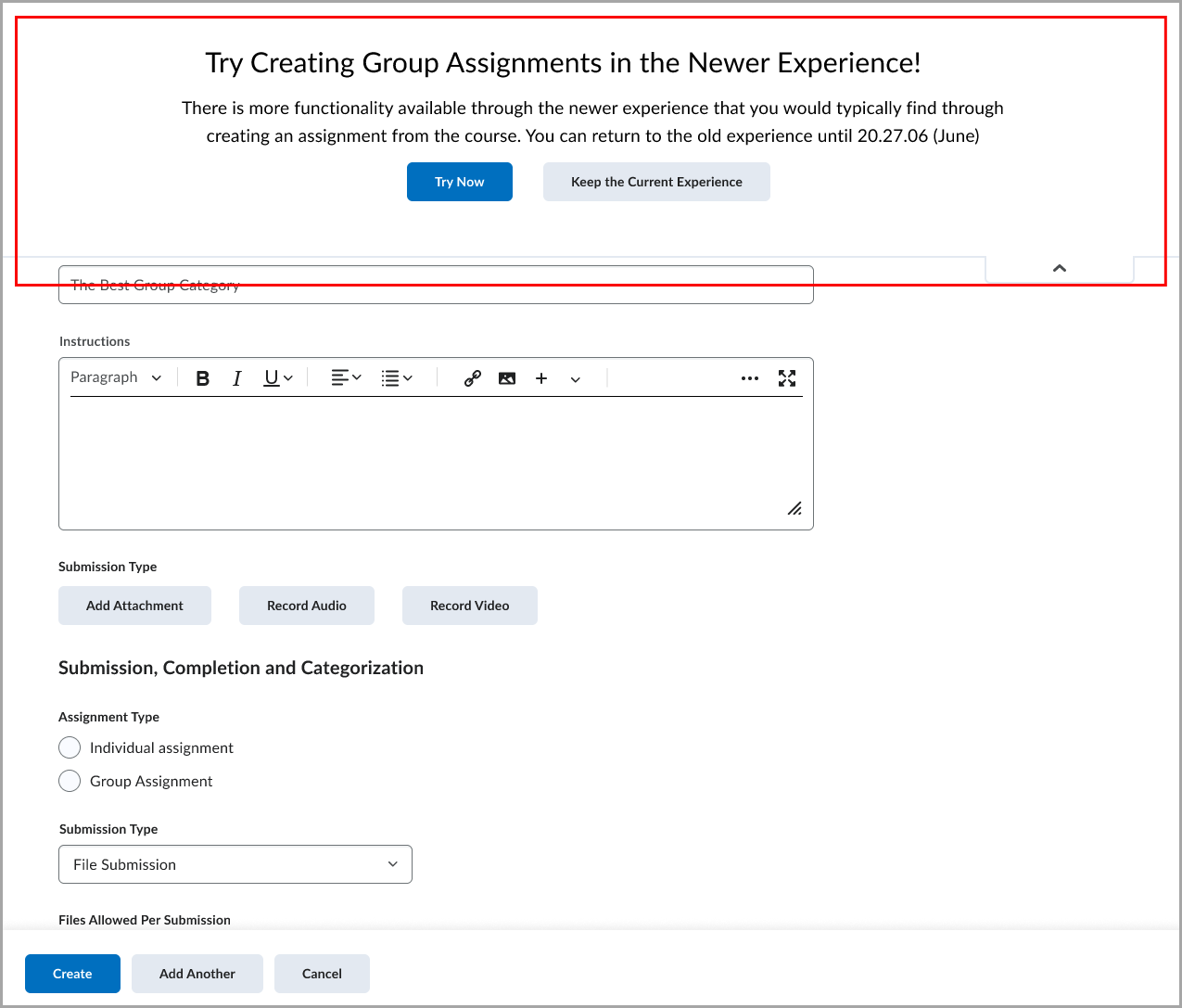
Figure: A dropdown in the legacy assignment creation page provides access to the new Group Assignment workflow in the new assignment creation page.
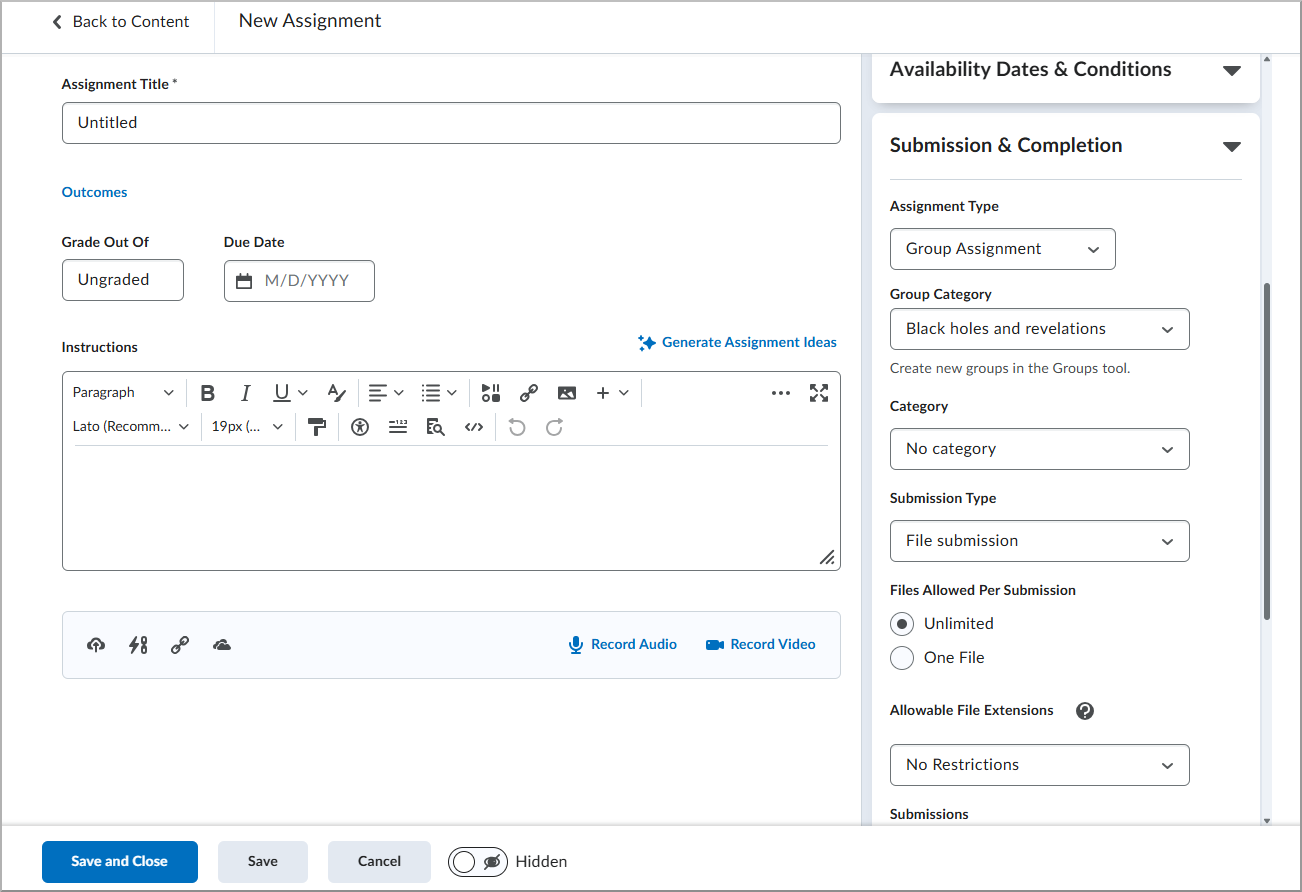
Figure: New Assignment creation page with the collapsible configuration panels for Submission & Completion expanded showing the group assignments and submission options.
Technical Details
Impact:
- Slight impact to administrators due to the ability to disable the improved Group Assignment workflow.
- Slight impact to instructors due to the ability to use enhanced experience for creating Group Assignments.
Availability:
- This feature is available to all clients.
To enable:
- This functionality is dependent on the new d2l.Tools.Dropbox.GroupDropboxCreationRedirectOptIn (OrgUnit) configuration variable (default: ON(Opt-in)).
- This functionality is not dependent on any new or existing permissions.
Assignments – Improved error messages when uploading unsupported file types | Updated
Brightspace now provides clearer and more consistent error messages when learners attempt to submit file assignments using unsupported file types. These improvements help learners understand which file types are allowed and make it easier to correct submission issues.
The updated messaging appears across assignment submission workflows and Activity Display, ensuring learners receive appropriate guidance based on the context of their submission.
Updated error messages for file submissions
When a learner attempts to upload a file from Google Drive, One Drive or Locker with a restricted or unsupported file extension, Brightspace now displays more specific messages depending on the number of restricted file types configured for the assignment.
Assignment submission page
- If fewer than seven file types are restricted, learners see a message listing the allowed file extensions, such as:
Your work could not be submitted. You can only submit files with the following file extensions: PDF, DOCX, or TXT.
- If seven or more file types are restricted, learners see a simplified message:
Your work could not be submitted. You can only submit files with allowed file extensions.
Legacy content assignment submission page
- If fewer than seven file types are restricted, learners see a message listing the allowed file extensions.
- If seven or more file types are restricted, learners see a simplified message indicating that only allowed file extensions can be submitted.
For file assignments, learners can now also see the list of Allowed File Extensions. This list previously appeared only for File and Text assignments and is now available for File assignments as well.
Improved feedback
In the Submit Assignment page, learners now receive clearer visual indicators when uploaded files are not allowed:
- If a learner uploads files with unsupported extensions, Activity Display identifies which uploaded files are not allowed.
- If a file has no extension or the file type cannot be detected, Activity Display notifies the learner that the file type is unsupported.
- If five or more files with unsupported extensions are uploaded, Activity Display displays a consolidated message indicating that multiple files are not allowed.
Improved validation when configuring Custom File Types in Assignment Creation
When instructors set Allowable File Extensions to Custom File Types during assignment creation, Brightspace now requires at least one file extension to be entered before the assignment can be saved.
If the field is left blank, Brightspace displays a clear inline error message and prevents the assignment from being saved. This improvement helps instructors avoid invalid assignment configurations and reduces submission issues for learners.
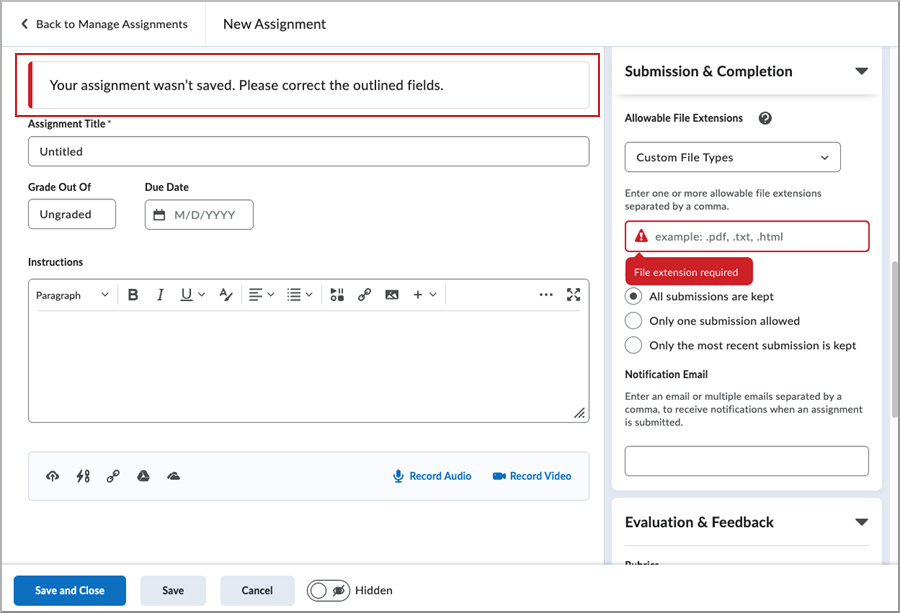
Figure: New Assignment page displaying a validation error when Custom File Types is selected without specifying at least one allowable file extension.
|
Note: These changes improve messaging only and do not alter which file types are allowed for an assignment. |
Technical Details
Impact:
- Slight impact to learners who now see clearer error messages when attempting to upload unsupported file types.
- Slight impact to instructors and administrators due to improved validation and clarity in assignment configuration and learner submission workflows.
Availability:
- This feature is available to all clients.
To enable:
- This feature is automatically enabled.
- This feature is not dependent on any new or existing permissions or configuration variables.
Class Progress – User progress for Content charts now loads asynchronously | Updated
The completion progress bars for the Content Completed and Content Visited charts now load asynchronously as instructors scroll down the Class Progress page. Progress details appear for each user as they come into view, allowing the page to continue loading smoothly regardless of the number of users or content objects being calculated.
The d2l.Tools.ClassProgress.AsyncContentChartsCount (Org) configuration variable determines the threshold for the number of content objects that triggers content charts to load asynchronously. The default value is 50 content objects and can be increased to a maximum of 1,000.
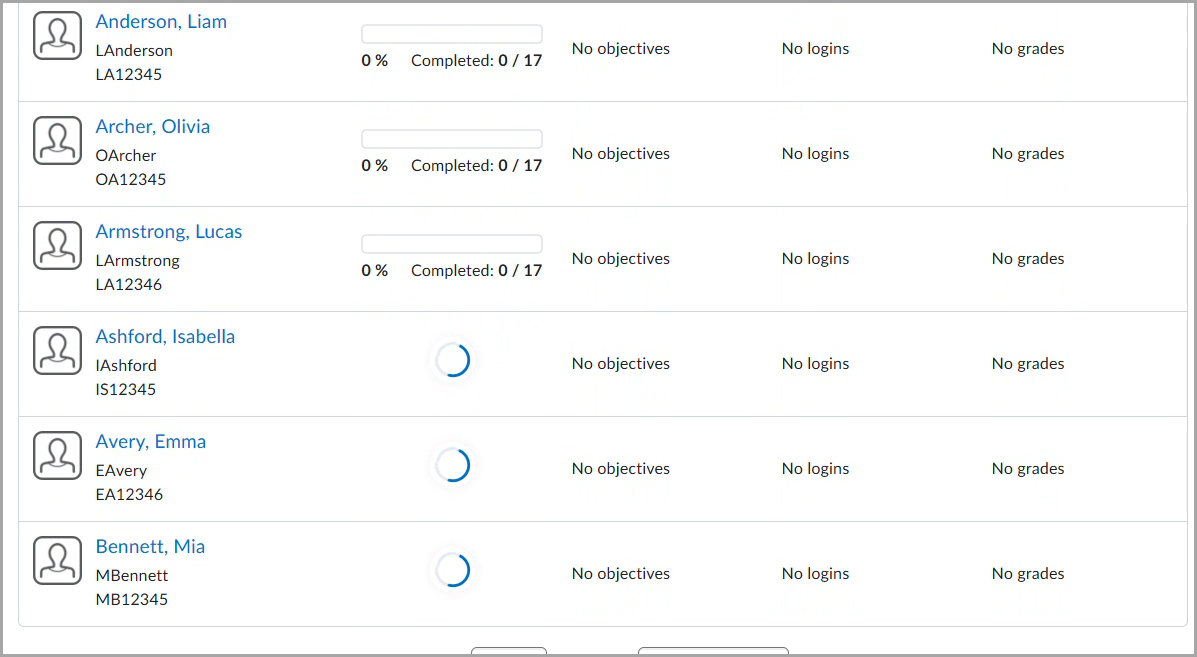
Figure: Completion progress bar charts load asynchronously.
Previously, courses with a large number of users or content objects could experience page timeouts when viewing the Content Completed or Content Visited columns in Class Progress.
Technical Details
Impact:
- Slight impact to instructors, as the completion progress bars, now loads more quickly and prevents page load failures.
Availability:
- This feature is available to all clients.
To enable:
- This functionality is dependent on the new d2l.Tools.ClassProgress.AsyncContentChartsCount (Org) configuration variable (default instance value: 50).
- This functionality is not dependent on any new or existing permissions.
Course Management – End of Life of Course Management tool
As of this release, the Courses tool replaces the Course Management tool and the Course Management tool is no longer available. Administrators must navigate to Admin Tools > Courses to complete course management tasks, such as creating and copying courses and course templates. Refer to About Courses for more details.
Previously, the Course Management tool was available to administrators from Admin Tools > Course Management and course management tasks, such as creating and copying new courses and course templates were completed using the Course Management tool.
The introduction of the Courses tool and the plan to end of life the Course Management tool was first announced as in the Course Management – Enhanced workflow and user experience in test environments | New release note as part of the February 2025 / 20.25.02 release.
Technical Details
Impact:
- Moderate impact to users with permission to access the Courses tool. Users with permission must use Courses to complete course management tasks and no longer have access to the Course Management tool.
Availability:
- The Course Management tool is removed for all clients.
To enable:
Data Hub – Brightspace Data Sets Major Version 11 | New
Brightspace Data Sets (BDS) Major Version 11 is now available. Major Version 10 will remain accessible for four months to allow users to accommodate the changes before adopting Major Version 11. All clients will be automatically migrated to BDS Major Version 11 with the June 2026/20.26.06 release.
Major Version 11 introduces significant changes to existing Brightspace Data Sets. For details on these changes, refer to Announcing Data Hub Brightspace Data Sets (BDS) Major Version 11 on Brightspace Community.
The following changes are available in BDS versions 10.10 and 11.0:
- Question Pools - new BDS
- Quiz Attempts Log - change Name column to support value of Session Restriction Reset
- Quiz Objects - add column: IsSingleSession (bit, nullable)
- System Access Summary - new BDS
The following changes are only available in BDS version 11.0:
- Outcomes Program Details - remove BDS (replaced by Outcomes Set Course and Outcomes Set Org)
- Outcomes Registry Owners - remove BDS (replaced by Outcomes Set Course and Outcomes Set Org)
- Outcomes Scale Definition - remove column: RegistryId
- Question Relationships - change CreationDate column from non-nullable to nullable
- Question Relationships - change QuestionVersionId column to remove UC
- Question Relationships - change ObjectId column to replace UC with PK
- Question Relationships - includes one record for an entire Question Pool instead of separate records for each question contained within the Question Pool
- Rubric Assessment Criteria - remove column: UserId
- Users - add column: DateDeleted (datetime2, nullable)
- Users - remove columns:
- FirstLoginDate
- Organization
- LastAccessed
- Users - rename SignupDate column to CreationDate
To ensure improved consistency in our data sets, we have changed the way data is represented in the bit and datetime2 columns as follows:
- Bit columns now only have values TRUE, FALSE, or NULL.
- DateTime2 columns now have trailing zeros removed (for example: 2023-10-14T17:21:59.015Z).
Impacted Data Sets:
- Question Relationships
- Users
For more detail, refer to the Enhancing Consistency: Upcoming Updates to Brightspace Data Sets blog post.
Technical Details
Impact:
Availability:
- This feature is available to all Brightspace Core clients.
To enable:
- Ensure administrators have the Brightspace Data Sets > Can Access Brightspace Data Sets permission at the org level.
- Ensure the d2l.Tools.BrightspaceDataSets.Version configuration variable is set to version 11.0.
- New and changed data sets appear the first time the data set runs after the version update.
Grades – Improved navigation within the Enter Grades page | Updated
The Enter Grades page now offers improved horizontal navigation, making it easier to work with large gradebooks. Instead of relying on a horizontal scroll bar at the bottom of the page, instructors can use navigation arrows on either side of the gradebook, along with a scroll bar at the bottom of the grid, to navigate across grade columns.
This update also improves how dropdown menus behave, preventing them from appearing underneath other fields such as user names.
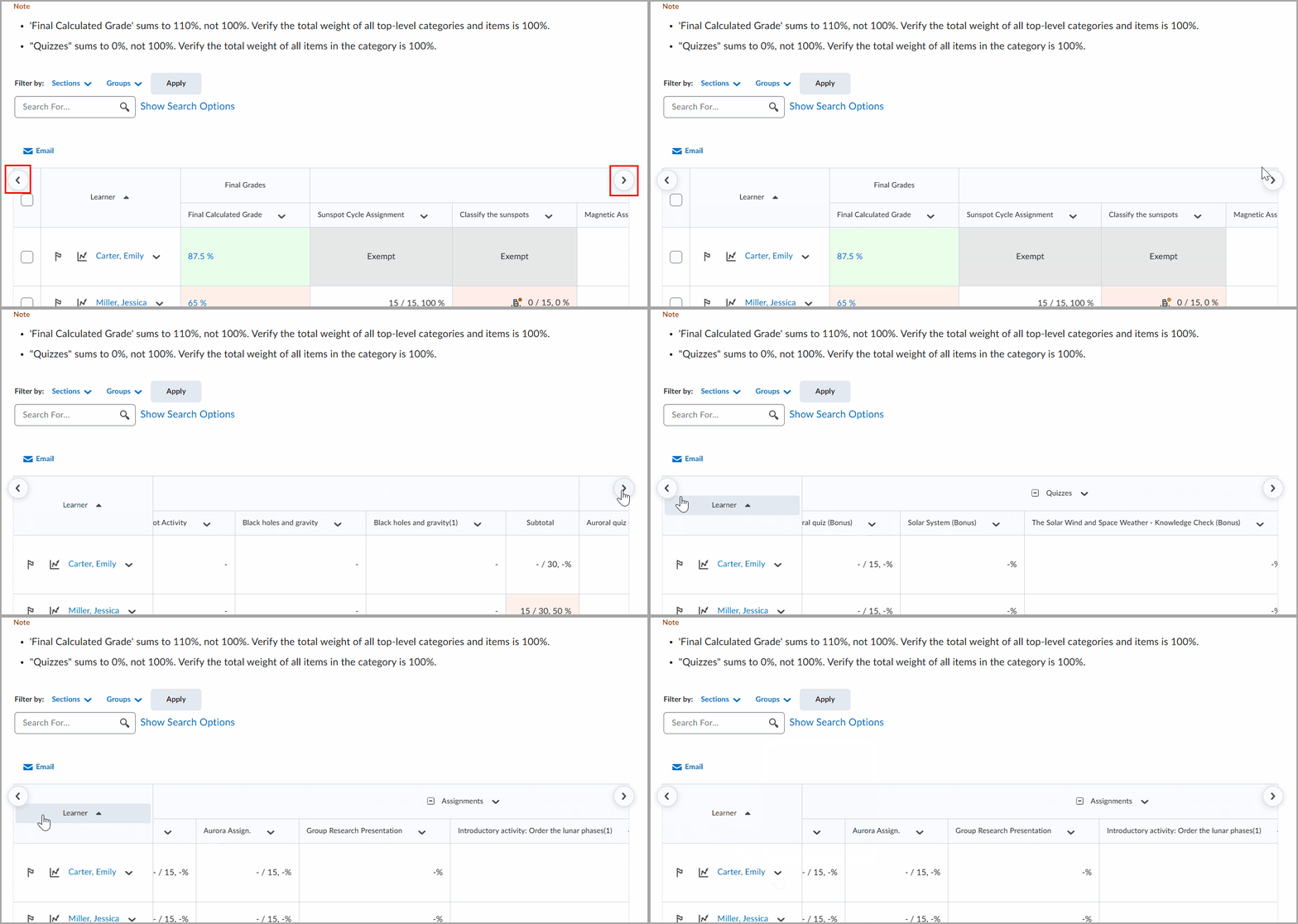
Figure: Use the left and right arrows to scroll horizontally and view additional grade columns in the Enter Grades table.
Previously, horizontal navigation relied on a scroll bar at the bottom of the page, which was not always visible unless users scrolled down.
Technical Details
Impact:
- Slight impact to instructors due to improved navigation on the Enter Grades page.
Availability:
- This feature is available to all clients.
To enable:
- This functionality is automatically enabled.
- This functionality is not dependent on any new or existing permissions or configuration variables.
Groups – Improved filters by groups and sections | Updated
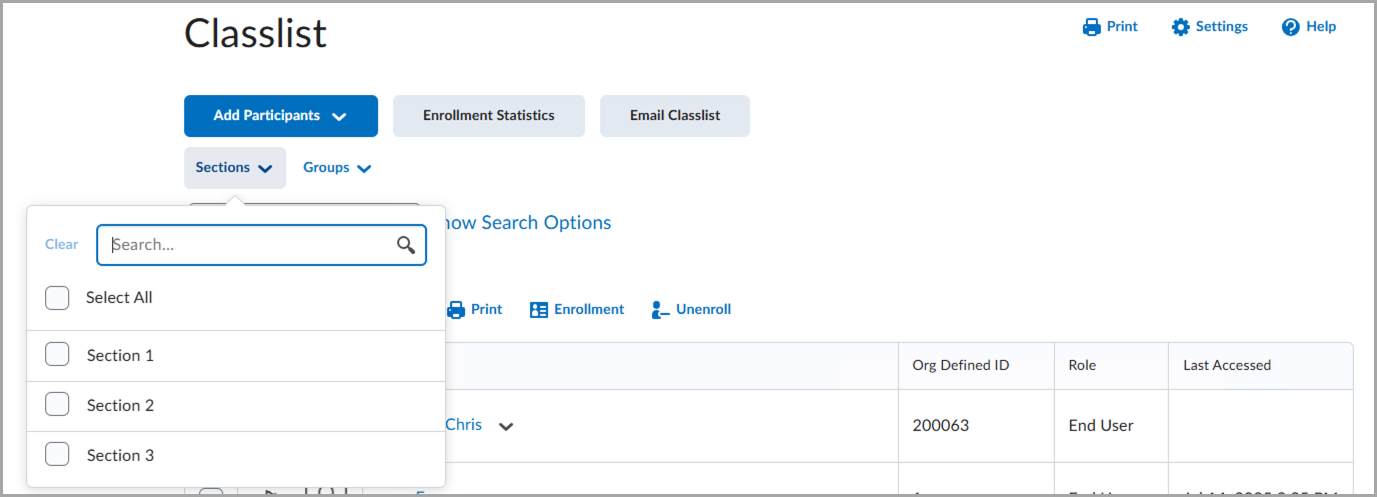
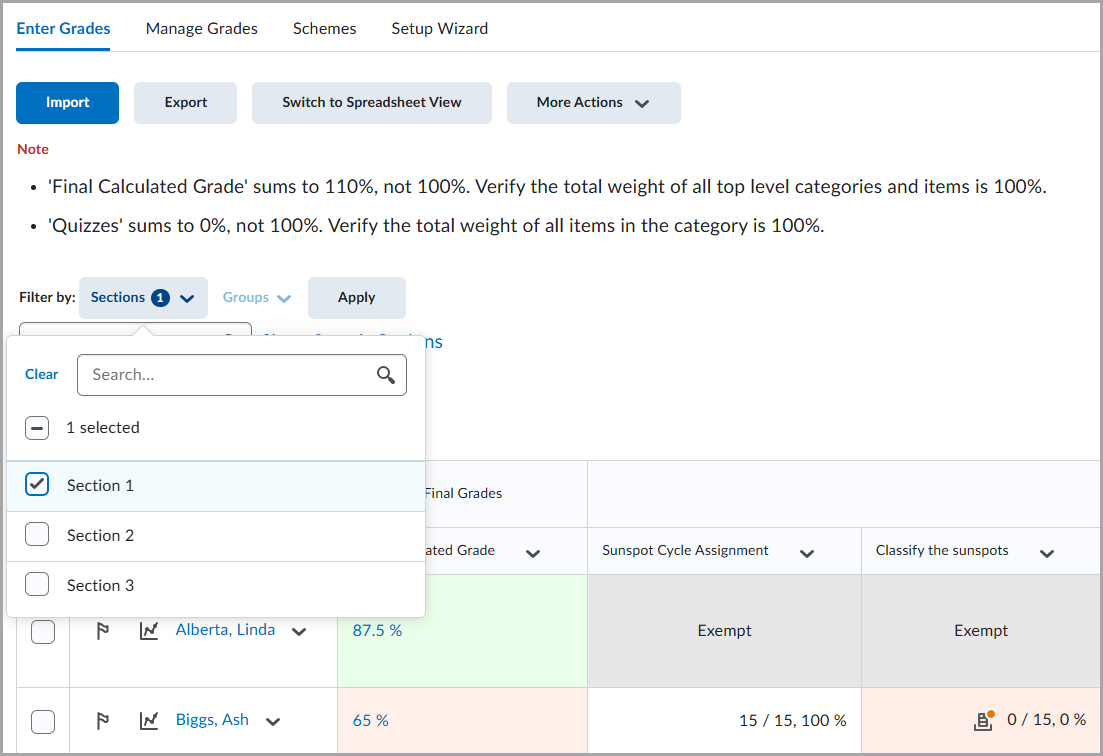
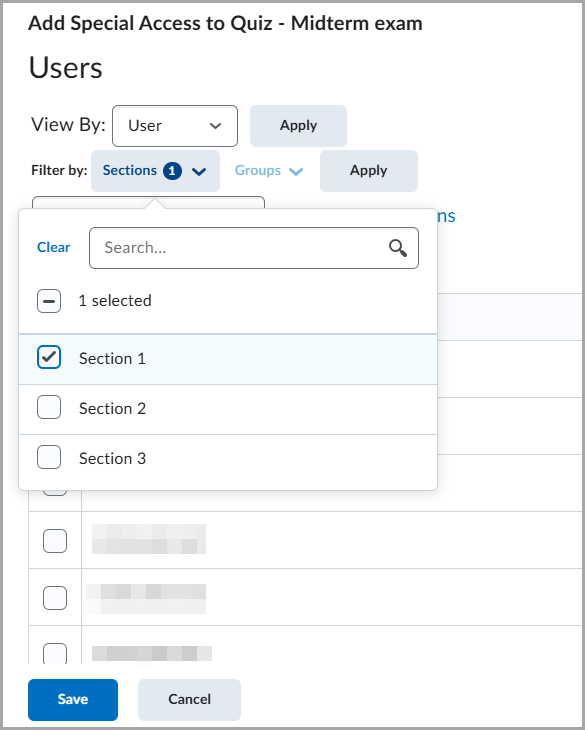
With this release, user filters across multiple tools are updated to display Groups and Sections in separate dropdowns, improving navigation and scalability for courses with up to 1,000 groups per category.
Previously, the View By filter combined groups and sections into a single dropdown. In courses with many groups or sections, this resulted in long, difficult-to-navigate lists.
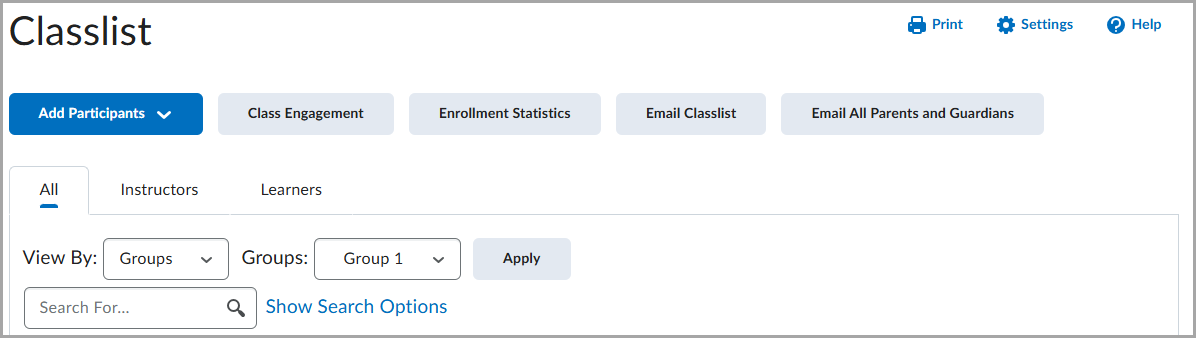
Figure: The previous View By filter shown in Classlist.
The updated filter is available in the following areas:
- Assignments:
- Filtering by users on the Manage Evaluators and Manage Special Access pages
- Filtering by users on the submissions page, and observed submissions page
- Attendance:
- Filtering by users when viewing and entering attendance data
- Class Progress:
- Classic Content:
- Filtering by users on the Completion Summary tab
- Filtering by users on the Content Reports pages
- Classlist:
- Competencies:
- Filtering by users when grading an activity
- Filtering by users when viewing competencies, or viewing rubrics statistics
- Discussions:
- Filtering by users on the Statistics page
- Filtering by users when viewing Topics
- Filtering by users when assessing Topics
- Grades:
- Quizzes:
- Surveys:
- Filtering by users on the Statistics page
The updated Groups and Sections filters allow users to select one or more groups or sections for improved visibility across enrollments. A new search field within the filter helps users quickly find groups or sections by name.
By default, all users display until filters are applied. To return to viewing all users, Clear the selected filters. To use the selected filters, click Apply. On some tool pages, filters apply automatically and do not require clicking the Apply button.
A numbered indicator beside the filter shows how many groups or sections are selected. Users can open the filter to review their current selections.
Technical Details
Impact:
- Moderate impact to instructors, who benefit from improved filtering by groups and sections across multiple Brightspace tools.
Availability:
- This feature is available to all clients.
To enable:
- This functionality is automatically enabled.
- This functionality is not dependent on any new or existing permissions or configuration variables.
LTI – Anonymous deployment setting is deprecated for LTI 1.3 tools | Updated
To simplify the creation and management of LTI 1.3 integrations, Brightspace no longer includes the Anonymous setting in the Security Settings section of an LTI deployment. Administrators can still control what information is shared with the tool using the remaining security settings.
Previously, administrators could enable an Anonymous setting at the deployment level. When enabled, Brightspace did not share user information with the tool and sent an empty value in the Subject claim of the LTI launch. This configuration also prevented newer LTI functionality from working as expected, including Submission Review and the Activity Item profile for adding third-party questions to quizzes.
With this update, the Anonymous setting is removed. LTI launches now include the Subject identifier and administrators can manage data sharing by selecting or clearing the remaining security settings options.
|
Note: This change applies only to LTI 1.3 deployments managed in Admin Tools > External Learning Tools.
|
Technical Details
Impact:
- Slight impact to administrators, integration vendors, and tool partners due to changes in LTI 1.3 deployment security settings.
Availability:
- This feature is available to all clients.
To enable:
- This functionality is automatically enabled for all users.
- This functionality is not dependent on any new permissions.
- This functionality is not dependent on any new configuration variables.
Multi-Profile widget – Collapsible profile fields | Updated

|
The Multi-Profile Widget is part of the Homepage Widget Expansion Pack add-on solution that must be purchased separately. For more information, contact your D2L Client Sales Executive or Account Manager. |
The Multi-Profile widget on course homepages now supports collapsible profile fields, enabling users to view profile information more efficiently when multiple profiles are displayed. By default, profile fields are collapsed, and users can expand or collapse each profile directly within the widget.
Previously, users had to click each name and return manually to view the next profile. This update reduces the number of clicks required to review multiple profiles, streamlining the overall user experience.
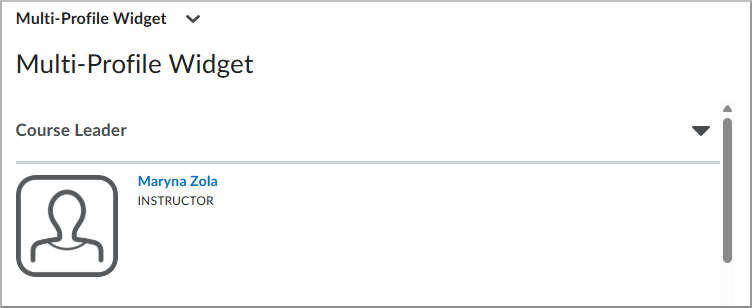
Figure: The Multi-Profile widget before the collapsible profile fields option was available.
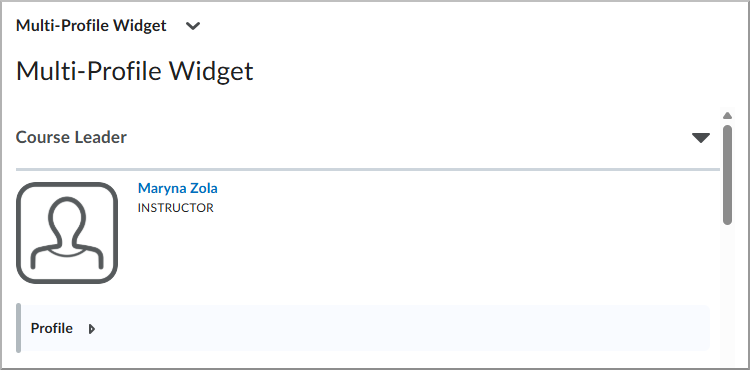
Figure: The updated Multi-Profile widget with collapsible panels for each profile.
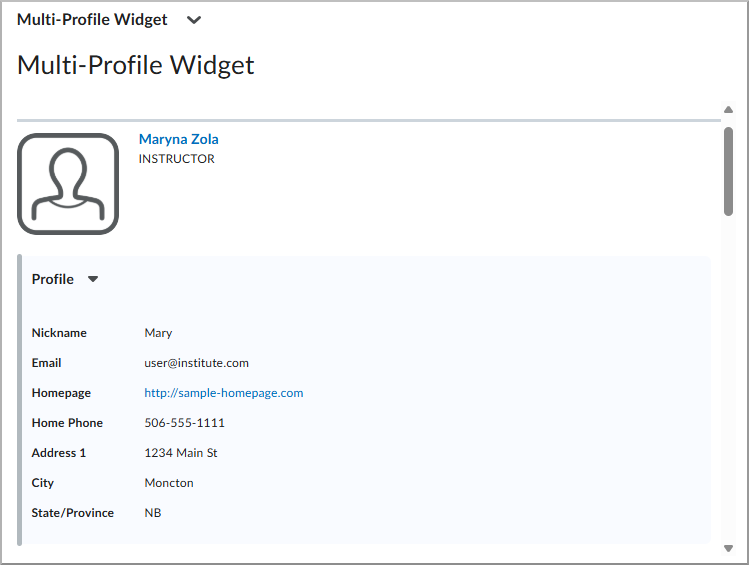
Figure: The expanded profile in the updated Multi-profile widget.
To enable collapsible profile fields:
From the Multi-Profile widget configuration menu, open the Display Profile Fields tab and select Display profile field(s) as a collapsible panel in the profile list.
|
Note: This is an organization-wide configuration and applies to all homepages where the Multi-Profile widget is used. |
Technical Details
Impact:
- Slight impact to instructors, learners, and administrators, who can now expand and collapse profile panels directly in the Multi-Profile widget.
Availability:
- This feature is available to all clients with the Multi-Profile widget enabled.
To enable:
Navigation & Themes – Org unit selector updated | Updated
Brightspace has updated the org unit selector used when configuring where items are shared in administrative tools.
This update replaces the previous Add Org Units button with a new org unit selector component that provides a more consistent and accessible experience when selecting organizational units.
The updated org unit selector is now used in the following areas:
The new selector improves clarity around org unit availability and supports more consistent configuration of where items are shared.
Technical Details
Impact:
- Slight impact to administrators due to updated UI behavior when selecting org units.
Availability:
- This update is available to all clients.
To enable:
- This functionality is automatically enabled for all users.
- This functionality is not dependent on any new or existing permissions or configuration variables.
Surveys – Improved experience for generating survey reports | Updated
Most survey reports are now generated asynchronously, and instructors receive a notification when the reports are ready for download.
Both CSV and Excel options are generated asynchronously, while the HTML option continues to be generated synchronously.
This update ensures that survey report generation aligns with the existing asynchronous experience for quiz reports.
The following report types now generate asynchronously:
- Summary Report
- Individual Attempts
This feature enhances the reliability of survey reporting, particularly for large datasets that previously risked browser freezing or timeouts during generation and export.
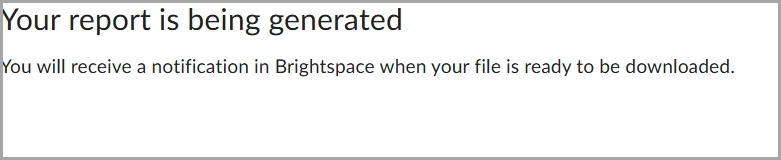
Figure: A confirmation message appears while Brightspace generates the report and notifies instructors when the report is available for download.
Instructors are notified of completed reports via the Notifications icon, indicated by an orange dot on the top navigation bar  .
.
Technical Details
Impact:
- Slight impact to instructors due to the addition of notification-based access to completed survey reports.
Availability:
- This feature is available to all clients.
To enable:
- This functionality is automatically enabled.
- This functionality is not dependent on any new or existing permissions or configuration variables.
15-January-2026 Preview Release Notes published.
20-January-2026 Updated Data Hub – Brightspace Data Sets Major Version 11 | New with different keys for the Question Relationship BDS.
20-January-2026 Updated Assignments – Streamlined group assignments creation workflow | Updated to reflect the revised configuration variable name: d2l.Tools.Dropbox.GroupDropboxCreationRedirectOptIn (OrgUnit).
5-February-2026 Added a new General Announcement about updates to the Lumi Chat CSAT survey experience.
5-February-2026 Updated the Class Progress – User progress for Content charts now loads asynchronously | Updated release note to correct the default configuration instance value setting.
5-February-2026 Added a new General Announcement about updates to the Brightspace tutorial videos.
13-February-2026 Updated Assignments – Improved error messages when uploading unsupported file types | Updated to indicate that the improved error messages are for uploads from Google Drive, One Drive or Locker.
5-March-2026 Updated Assignments – Streamlined group assignments creation workflow | Updated to add more information about the d2l.Tools.Dropbox.GroupDropboxCreationRedirectOptIn (OrgUnit) configuration variable.
9-March-2026 Updated Assignments – Streamlined group assignments creation workflow | Updated to add more clarification around the new assignment experience with an updated screenshot.
12-March-2026 Updated Groups – Improved filters by groups and sections | Updated to add more information about the new filters.