To view the change log for this release note landing page, go to Change History at the bottom of this page.
Video: Release Highlights
General Announcements
- H5P / Creator+ with H5P: If you're an H5P or a Creator+ with H5P customer, you can stay up to date with the latest improvements and features by visiting H5P News.
- Data Hub: The Grade Results Brightspace Data Set has been fixed to no longer display grade data from items which were removed using Course Reset or from an Org Unit that was removed using Data Purge. For more information, refer to the Fixed Issue article Data Hub - Grade Data from Courses which were Reset or Purged still show up in Grade Results Data Sets.
- Quizzes:With the November 2026 release, we are introducing backend infrastructure improvements to enhance the reliability and performance of the Quizzes tool when learners select Start Quiz to begin a quiz attempt in production environments. These improvements are not expected to affect the user's experience. No action is required.
- The Catalan language pack is now available in Brightspace as of this release. This update promotes inclusive, culturally-responsive education and supports D2L’s commitment to global language accessibility.
- D2L is continuing to unlist outdated Brightspace Tutorial videos that no longer reflect the current interface and workflows. Updated tutorial videos are embedded in the documentation to align with the latest features. To review the list of added, unlisted, and removed videos, refer to the article: Brightspace Tutorial Video Updates: Added, Unlisted, Removed.
Brightspace Editor – Expanded course date replacement strings | Updated
To provide greater flexibility when designing course homepages and content, the {OrgUnitStartDate} and {OrgUnitEndDate} replacement strings are now supported in all tools that use the Brightspace Editor. Previously, these strings were limited to use within Intelligent Agents and email body text.
This update allows instructors to dynamically display the start and end dates of a course offering across multiple areas, including custom homepage widgets, announcements, and discussion descriptions. This ensures that learners have immediate and consistent visibility into important course timelines.
This feature implements the following PIE items:
- D12824 (Start and End Date Replace Strings on Widgets)
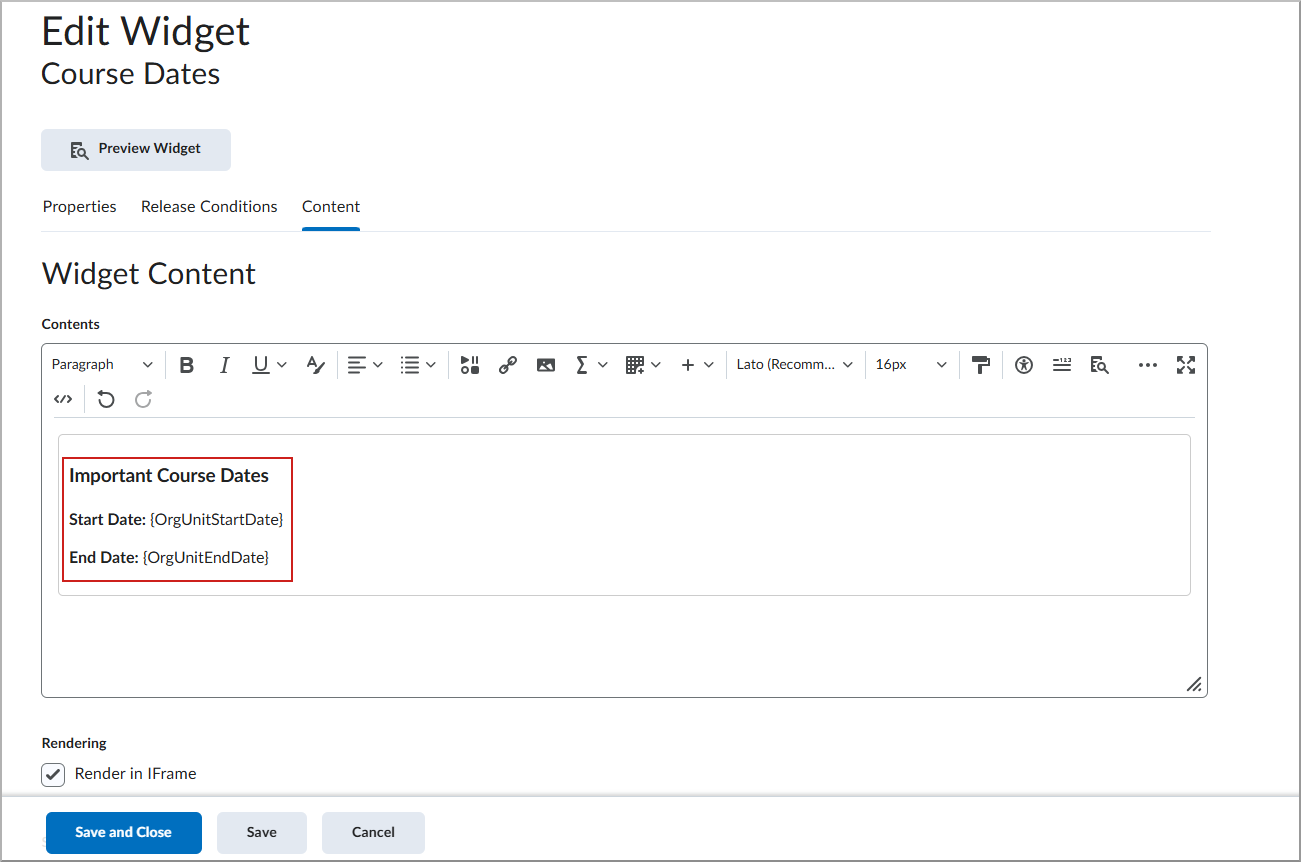
Figure: In the Edit Widget dialog, use the {OrgUnitStartDate} and {OrgUnitEndDate} replacement strings to dynamically display course dates in a custom widget.
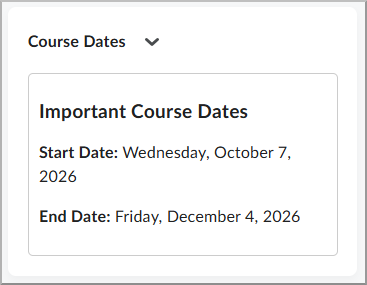
Figure: The custom widget displays the Start Date and End Date on the homepage when viewed by a learner.
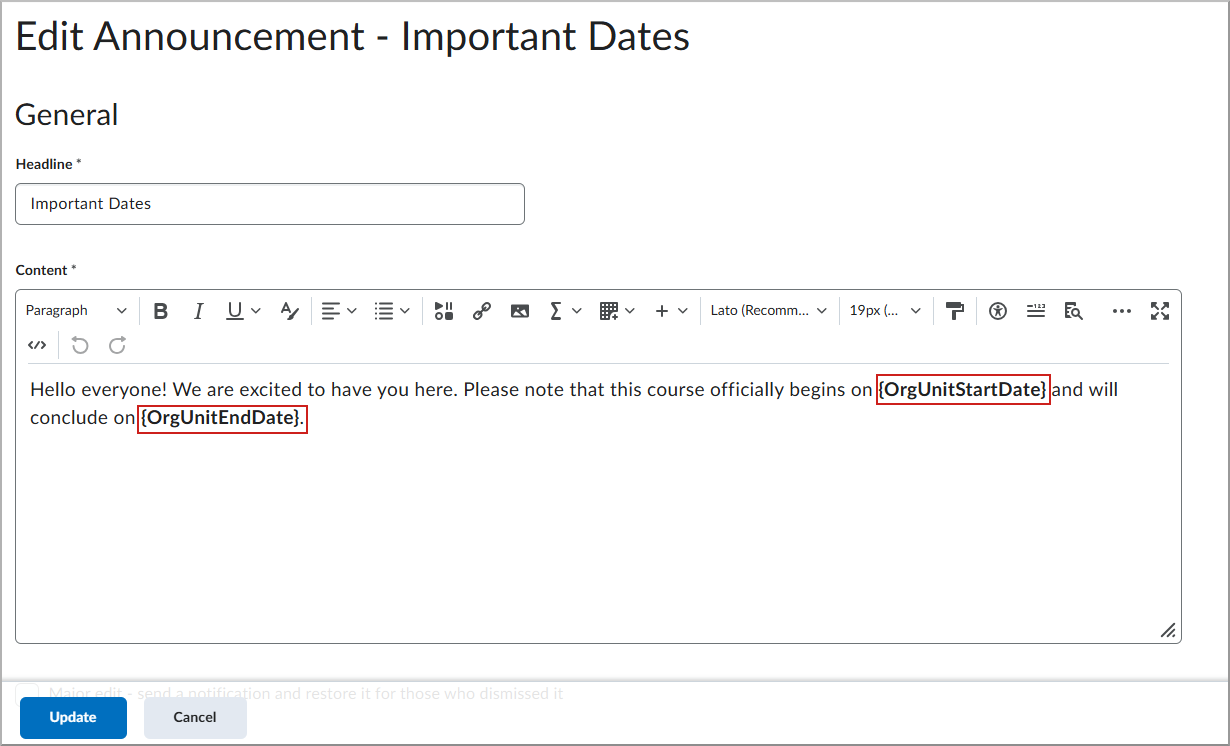
Figure: In the Edit Announcement dialog, use the {OrgUnitStartDate} and {OrgUnitEndDate} replacement strings to dynamically display course dates in an announcement.
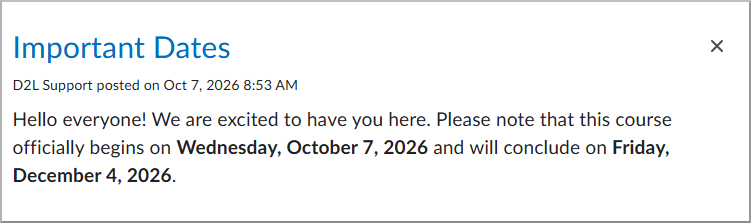
Figure: The announcement displays the Start Date and End Date in the Announcements section when viewed by a learner.
Technical Details
Impact:
- Administrators: Slight impact to administrators as support is automatically expanded for custom navigation bar links and organization-level widgets with no configuration required.
- Instructors: Slight impact to instructors as they can now use these strings to dynamically display course dates in announcements, discussion descriptions, content pages, and custom widgets, reducing the need for manual updates.
- Learners: Slight impact to learners as they now see consistent and accurate course dates across various tools within their course.
Availability:
- This feature is available to all Brightspace Core clients.
To enable:
- This functionality is automatically enabled for all users.
- This functionality is not dependent on any new or existing permissions or configuration variables.
Bulk User Management – Redesigned interface and enhanced permissions | Updated
This release updates the Bulk User Management (BUM) tool with a redesigned interface, new BUM-specific permissions, and in-tool configuration of BUM actions. The general functionality of BUM remains unchanged.
The Bulk User Management interface is updated with modern components and current Brightspace design considerations to provide a more consistent and accessible experience for administrators.
Before:
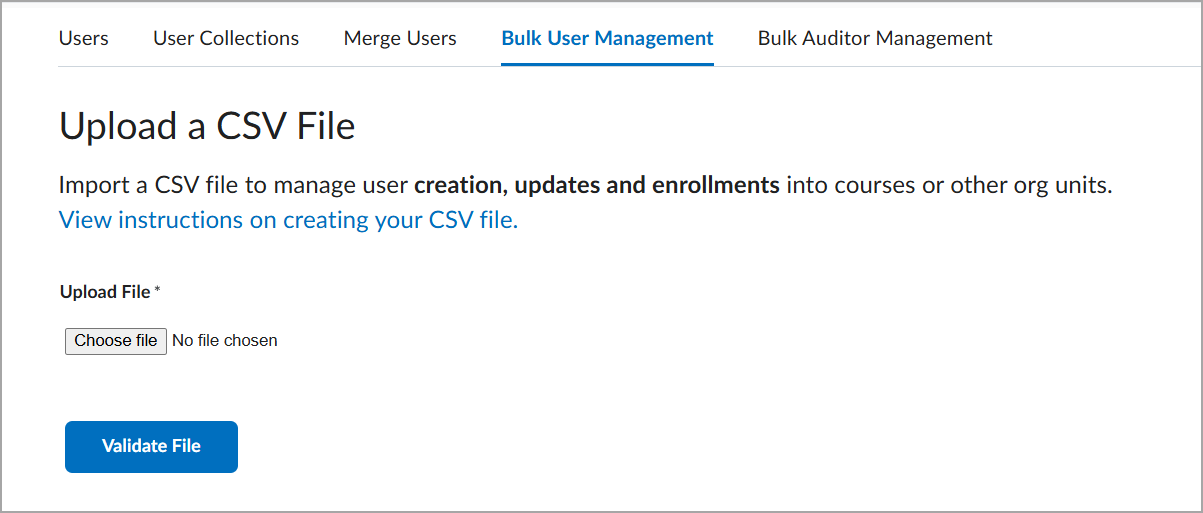
Figure: Previously, in the Bulk User Management tool, choose a CSV file and select Validate File to validate the file before importing user data.
After:
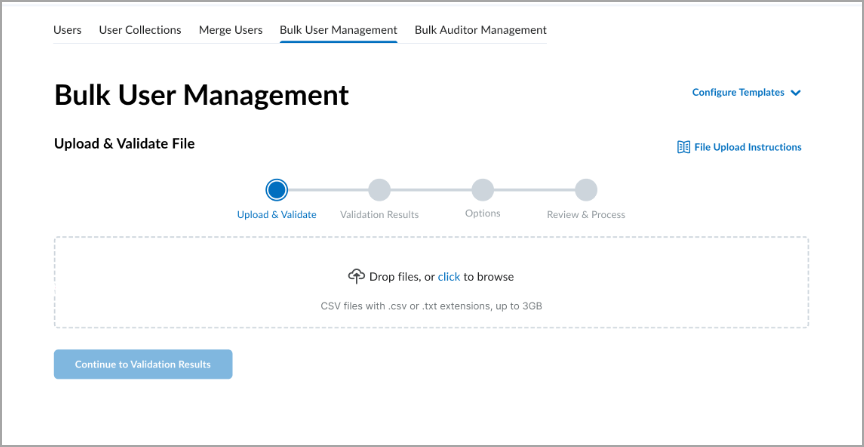
Figure: In the new Bulk User Management experience, upload a CSV file and follow the guided workflow through validation, options, and processing.
Now BUM-specific permissions provide more granular control over access to the tool and its actions. Administrators can now use the following permissions:
- Users > Has access to the Bulk User Management tool
- Users > Bulk Create Users Action
- Users > Bulk Update Users Action
- Users > Bulk Delete Users Action
- Users > Bulk Enroll Users Action
- Users > Bulk Unenroll Users Action
- Users > Bulk Import Users Action
- Users > Can customize Bulk User Management Actions
Previously, BUM relied on the Form Elements tool to customize BUM actions, and permissions in the Users tool could limit the actions available to users in BUM. With this update, administrators can configure BUM actions directly in Bulk User Management using a new menu. The BUM-specific permissions provide greater control over access and support the use of BUM with Distributed Administration in sub-org units.
Technical details
Impact:
- Administrators: Slight impact due to updated interface, new Bulk User Management-specific permissions, and changes to action configuration.
Availability:
- This feature is available to all Brightspace Core clients.
To enable:
- This functionality is automatically enabled.
- Administrators should verify that roles have the correct permissions assigned:
- The Users > Can customize Bulk User Management Actions permission must be manually assigned.
- Roles with existing Users tool permissions (Org-level) will be automatically assigned the corresponding BUM-specific permissions.
- This functionality is not dependent on any new or existing configuration variables.
Createspace – Sync improvements for attached files | Updated

|
This feature is part of Createspace, which is available upon request. For more information, contact your D2L Account Manager. |
To keep synchronized activities fully functional in destination courses, Createspace now includes linked course files when syncing activities to Brightspace. Previously, these elements did not synchronize when changes were made after the initial deployment, and may have resulted in broken links in the destination course.
This update ensures that attachments and embedded files in Assignments, Discussions, and Pages remain consistent between Createspace and destination courses.
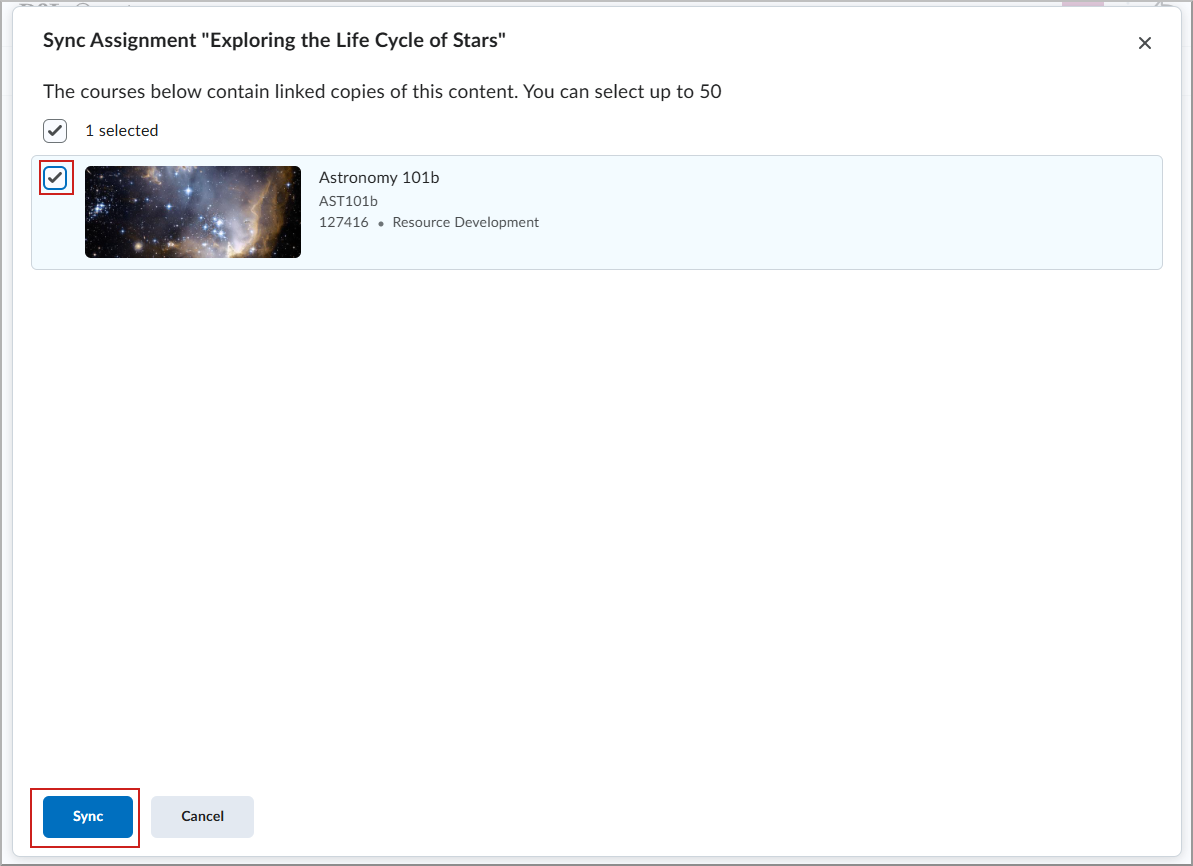
Figure: Sync an assignment from Createspace to update its linked course files in the destination course.

Figure: A pop-up notifications confirms when the assignment synchronization has started.
Technical details
Impact:
- Administrators: Slight impact to administrators as this update helps maintain consistent centrally managed content across the organization without manual intervention.
- Instructors: Slight impact to instructors as deployed activities now reflect updates to embedded files made in Createspace.
Availability:
- This feature is part of Createspace, which is available upon request. For more information, contact your D2L Account Manager.
To enable:
- This functionality is automatically enabled for all users with Createspace.
- This functionality is not dependent on any new or existing permissions or configuration variables.
Creator+ – Practice experience improvements | Updated
|
This feature is a part of the Creator+ add-on solution that must be purchased separately. For more information, contact your D2L Account Manager. |
Creator+ Practice activities now have a cleaner layout, making it easier for learners to associate the Check Answer button with its corresponding question. The separator now appears below the button instead of above it, creating a clearer distinction between questions. Consistent spacing and fonts have been applied to the Overall Feedback across Practice types.
Additional visual refinements, including consistent padding provide a more cohesive experience for instructors and learners. All existing Practices and Elements will see the benefits of these changes.These changes do not affect how Practice activities function.
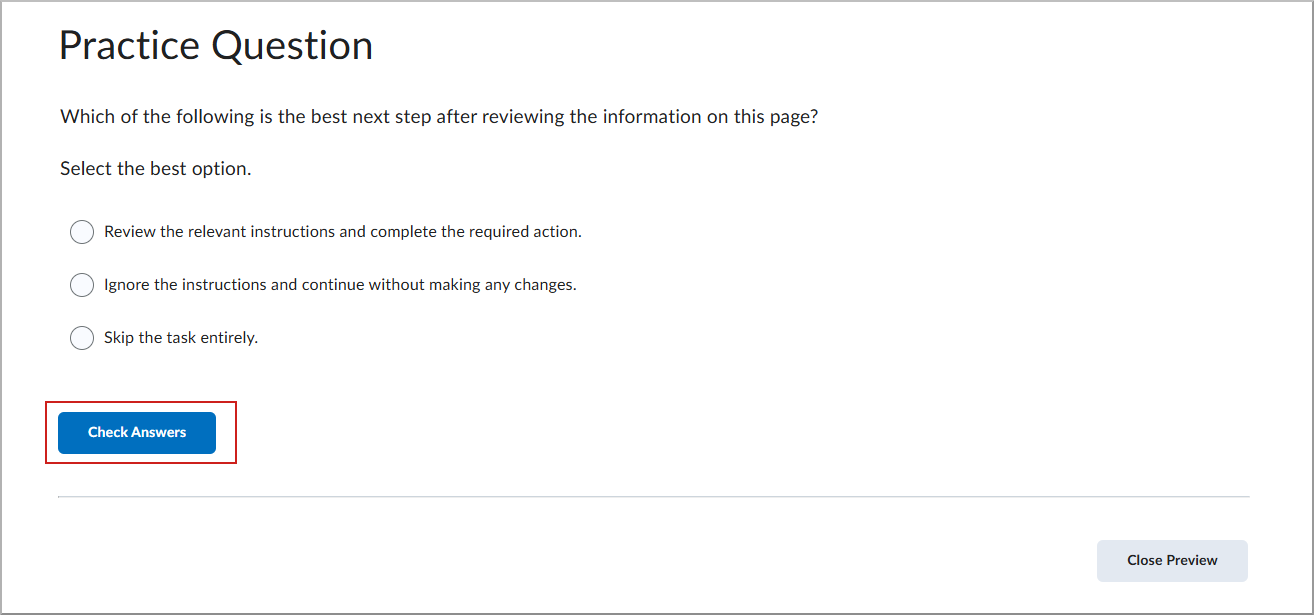
Figure: In the updated Creator+ Practice activity, the separator appears below the Check Answer button, visually separating it from the next question.
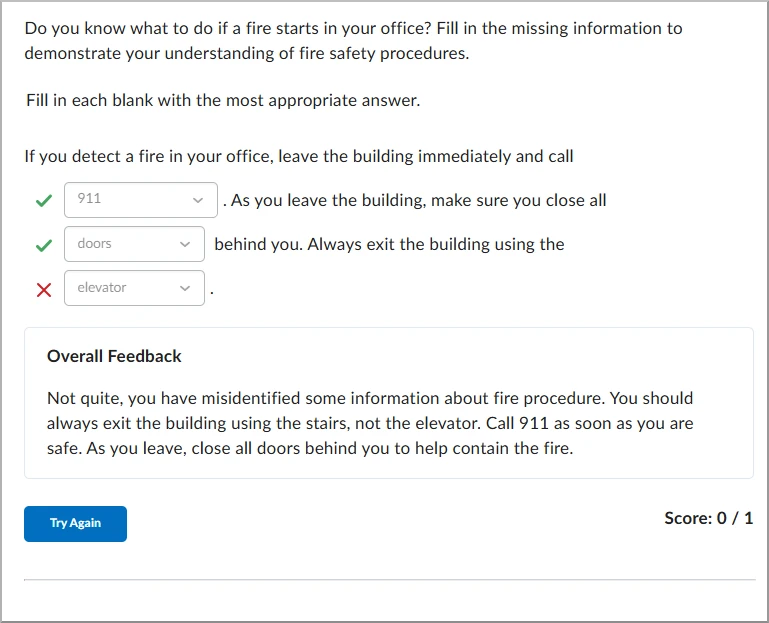
Figure: Updated quiz experience with consistent spacing and feedback formatting, and the answer separator below the Check Answer or Try Again button.
Technical details
Impact:
- Administrators: Slight impact due to visual updates to Creator+ Practice activities.
- Instructors: Slight impact due to updated spacing and visual styling in Creator+ Practice activities.
- Learners: Slight impact due to clearer separation between questions and their associated Check Answer or Try Again buttons.
Availability:
- This feature is available to all clients with Creator+.
To enable:
- This functionality is automatically enabled for all users with Creator+.
- This functionality is not dependent on any new or existing permissions or configuration variables.
D2L Lumi Feedback – Instruction priority, accessibility, and file support updates | Updated
|
This feature is part of the D2L Lumi Feedback for Brightspace add-on solution that must be purchased separately. For more information, contact your D2L Account Manager. |
D2L Lumi Feedback introduces improvements to instruction priority, feedback generation, accessibility, and file compatibility. Instructors gain more control over AI-generated feedback through prioritized teacher-level instructions, more targeted adjustments, and an increased character limit for custom instructions. Lumi Feedback also supports additional image formats in learner submissions.
Updates to D2L Lumi Feedback include:
- Lumi Feedback now supports High Efficiency Image Container (HEIC) and High Efficiency Image File Format (HEIF) image files, formats commonly used by iPhones, in learner submissions.
- The Adjust button now more closely follows the requested adjustments to better target the specific change requested.
- Teacher-level instructions now take priority over administrator-level instructions, so requests such as make it shorter are more consistently respected.
- Automated assessment now uses only the instructions defined in its own custom instructions.
- Regenerating feedback now builds on earlier results, and grades remain unchanged unless the submission or rubric changes.
- Custom instructions can now contain up to 5,000 characters.
- Lumi Feedback now supports the display of chemical structures and musical symbols, with improved rendering of mathematical expressions.
- Voice Mode now verbally confirms recognized speech before sending and reads the latest response first.
Technical Details
Impact:
- Administrators: Moderate impact to administrators due to new configuration options for custom roles, audit logs, and parent and child organization management.
- Instructors: Slight impact to instructors due to improvements in instruction priority, feedback adjustment and regeneration, support for HEIC and HEIF submissions, and an increased custom instruction character limit.
- Learners: Slight impact to learners due to expanded image format support, improved rendering of chemical structures, musical symbols, and mathematical expressions, and Voice Mode enhancements.
Availability:
- This feature is available to clients who have purchased the D2L Lumi Feedback. For more information, contact your D2L Account Manager.
To enable:
- This functionality is automatically enabled.
- This functionality is not dependent on any new or existing configuration variables or permissions.
D2L Lumi Tutor – Access control, integration, and accessibility updates | Updated
|
This feature is part of the D2L Lumi Tutor for Brightspace add-on solution that must be purchased separately. For more information, contact your D2L Account Manager. |
D2L Lumi Tutor introduces new administrative controls, integration options, and accessibility improvements. These updates also improve how learners interact with Lumi Tutor and access support.
Updates to D2L Lumi Tutor include:
- Cross-course chat now follows Brightspace settings that restrict learner access to past or closed courses.
- Tutor Insights now shows each instructor only the conversations from their own section for Brightspace institutions with multiple sections in a single course.
- Administrators and instructors can enable anonymized conversation logs in Teacher Insights, which displays Anonymous User and removes personal information such as approximate city and country.
- Lumi Tutor now supports the display of chemical structures and musical symbols, with improved display of mathematical expressions.
- Voice Mode now verbally confirms recognized speech before sending and reads the latest response first.
- Administrators can assign specific roles to individual shortcut buttons and make them available within active conversations, rather than only on the welcome screen.
- Shortcut buttons can now be hidden without deleting them and restored later with their existing settings.
- Microsoft Dynamics 365 can now be connected as an external user data source, allowing administrators to select which profile fields provide context for conversations and Flows.
- Help desk hours can now include multiple time windows per day. The Back button returns learners to their conversation, and TeamDynamix escalation tickets can include file attachments.
- Administrators can now update the credentials of an existing Microsoft Entra connection.
Technical Details
Impact:
- Administrators: Slight impact to administrators who can now configure Microsoft Dynamics 365 integrations, update Microsoft Entra credentials, and manage shortcut buttons and help desk settings.
- Instructors: Slight impact to instructors due to improvements in conversation visibility and privacy. Tutor Insights now isolates conversations by course section, and instructors can enable anonymized conversation logs in Teacher Insights.
- Learners: Slight impact to learners due to improved rendering of chemical structures, musical symbols, and mathematical expressions, along with Voice Mode enhancements. Learners also benefit from updated cross-course access restrictions, improved conversation navigation, and help desk escalation options.
Availability:
- This feature is available to clients who have purchased D2L Lumi Tutor. For more information, contact your D2L Account Manager.
To enable:
- Microsoft Dynamics 365: Connect as an external user data source in the Lumi admin portal and map profile fields.
- All other items: Automatically enabled for users with access to Lumi Tutor.
Data Hub – Support for Brightspace Apps | New
Administrators can now use two new Brightspace Data Sets (BDS) to monitor changes and usage for local and installed Brightspace Apps.
Brightspace Apps is a new experience for managing apps that are manually set up or installed from the Find Apps catalog for LTI 1.3 / Advantage integrations, first released in July 2026/20.26.07.
The Brightspace App Details BDS captures configuration details for all Brightspace Apps in your organization, including:
- Unique ID for the extension.
- Name of the app.
- Whether the app is local.
- Whether the app is enabled.
- User ID of the creator.
- Creation date.
- Last update date.
- Last publish date.
- Publisher name.
- Additional details.
The Brightspace App Deployments BDS captures deployment details for all Brightspace App deployments in your organization, including:
- Unique ID for the deployment.
- Unique ID for the app the deployment is for.
- Deployment name.
- Creation date.
- User ID of the creator.
- Last update date.
- User ID of the last updater.
- Whether the deployment is enabled.
- Additional details.
Technical Details
Impact:
- Administrators: Moderate impact to administrators due to the introduction of new Brightspace Data Sets.
Availability:
- This feature is available to all Brightspace Core clients.
To enable:
- Ensure the Brightspace Data Sets > Can Access Brightspace Data Sets permission is granted to administrators at the org level.
- Ensure the d2l.Tools.BrightspaceDataSets.Version configuration variable is set to version 11.9.
- New and changed data sets appear the first time the data set runs after the version update.
Groups – Improved Manage Members experience | Updated
To make it easier for instructors to manually manage group membership, the new Manage Groups experience now includes an improved Manage Members page with Groups and Learners tabs. Instructors can manage membership by viewing groups and their members or by viewing learners and the groups to which they belong.
For organizations that have enabled the new Manage Groups experience using the d2l.Tools.Groups.ManageGroupsOptIn configuration variable, the new Manage Members page is available. When using the new experience, the previous Enroll Users page is no longer displayed. Depending on how the new Manage Groups experience is configured, users can use the available toggle to switch between experiences. For more information, refer to Introducing New Manage Members Workflows in Manage Groups.
As part of this update, the Manage Groups page includes a new Not Enrolled column that identifies the number of learners who are not enrolled in a group within each category. Selecting the number of unenrolled learners opens the Learners tab on the Manage Members page, automatically filtered to show unenrolled learners.
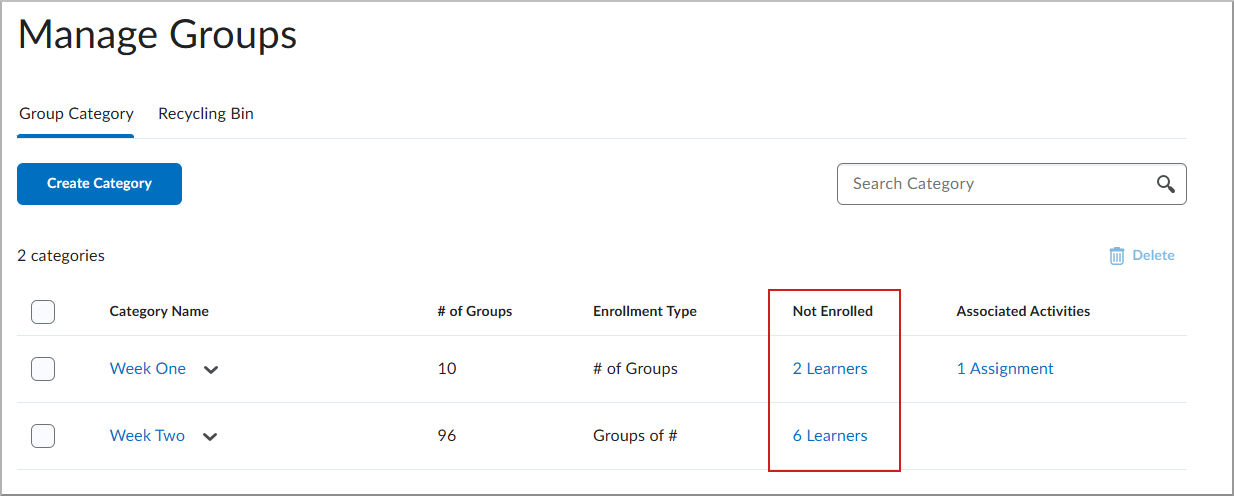
Figure: The Not Enrolled column provides direct access to learners who are not currently assigned to a group in the category.
The Groups tab is selected when instructors manage members for an entire category or a specific group. When managing a single group, the page is automatically filtered to that group. Instructors can also filter the page by one or more groups. To add members to a group, instructors select the + icon and select one or more learners. To remove a learner directly from a group, instructors can select the X beside the learner's name on the Groups tab.
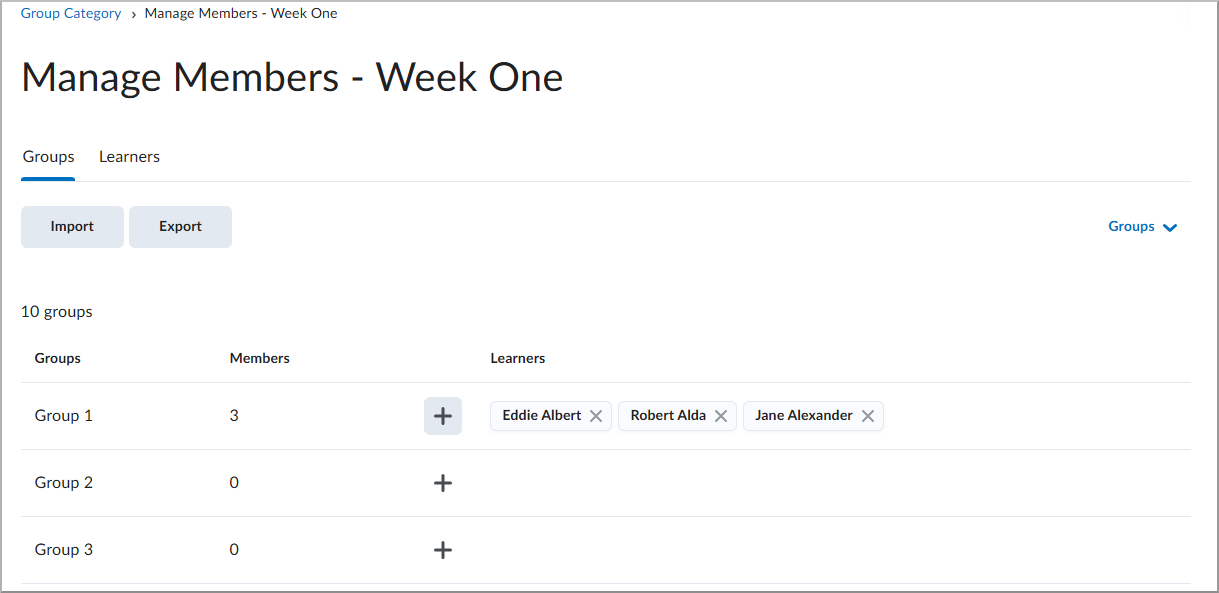
Figure: Use the Groups tab to view group membership and filter the list by one or more groups.
Unselecting a learner who is already a member removes that learner from the group. Instructors can search for learners by name or filter the list to show only learners who are not currently enrolled in a group.
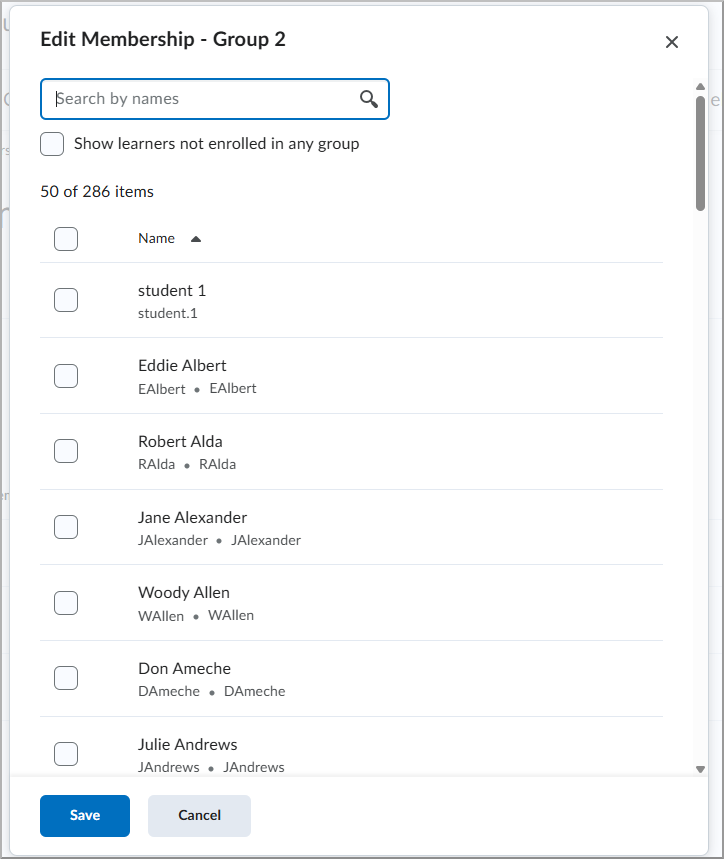
Figure: Select learners to add them to the group, or clear selected learners to remove them from the group.
On the Learners tab, instructors can adjust the filters to show enrolled or unenrolled learners, search for a learner, or filter by one or more groups.
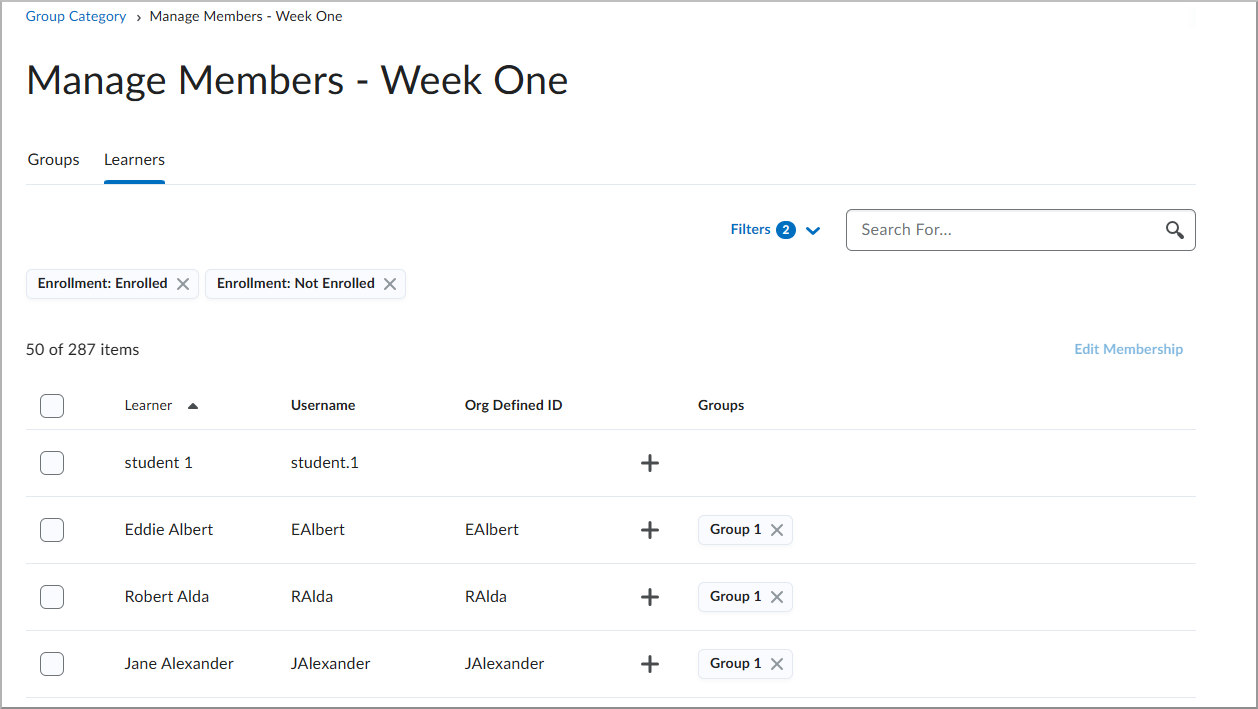
Figure: Use the Learners tab to find learners and review their group membership.
To change the group membership of an individual learner, instructors select the + icon beside the learner's name and select one or more groups. Unselecting a learner a group in which the learner is already enrolled removes the learner from that group.
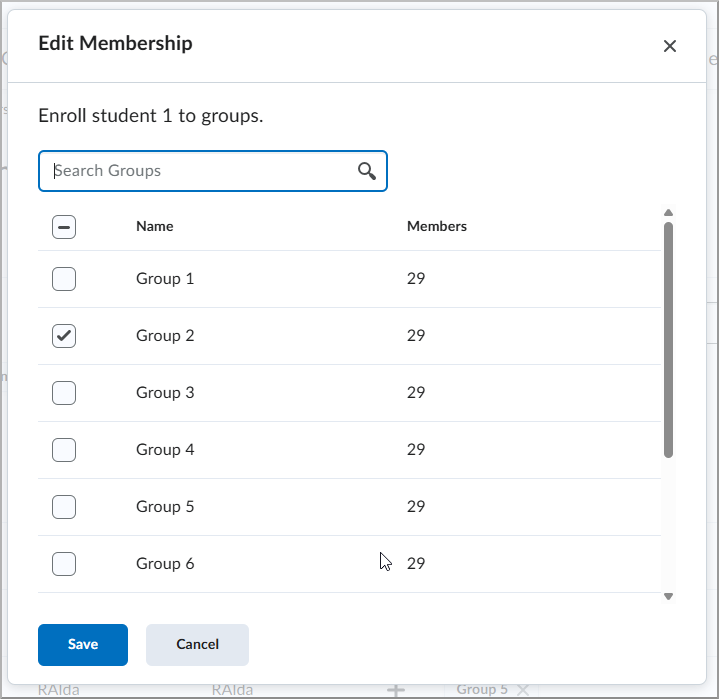
Figure: Select one or more groups to update the group membership of an individual learner.
To update multiple learners at the same time, instructors select the learners and then select Edit Membership. From the Edit Membership dialog, instructors can enroll the selected learners in one or more groups or remove them from groups by unselecting the corresponding checkboxes. A group appears selected only when all selected learners are already enrolled in that group.
This update also increases the number of groups initially displayed on the group list page from 10 to 200. Selecting Load More displays up to 200 additional groups at a time. This improvement is based on feedback from customers who opted in to the new Manage Groups experience.
This feature implements the following PIE items:
- D13146 (Fix Group Enrolment Search/Browse)
- D14251 (Increase number of groups shown in New Manage Groups user interface)
Technical Details
Impact:
- Administrators: Slight impact to administrators due to the requirement to enable the existing Manage Groups opt-in configuration variable.
- Instructors: Moderate impact to instructors due to the use of new workflows for manually managing group membership and displaying more groups.
Availability:
- This feature is available to all Brightspace Core clients.
To enable:
- This functionality is dependent on the d2l.Tools.Groups.ManageGroupsOptIn configuration variable being set to ON or ON (Opt-in).
- When the new Manage Groups experience is enabled, the new Manage Members page replaces the legacy Enroll Users page.
- When user opt-in or opt-out is permitted by the configuration, users can switch between experiences using the toggle available on the Manage Groups or Manage Members pages.
Homepages and Navbars – Display course status and dates in course banners and titles | Updated
Instructors and learners can now view course status indicators, such as Inactive or Closed, and course start and end dates directly from the course homepage. This update makes course availability information easier to find without navigating to Course Offering Information.
Course status and dates can appear in two locations:
- Course title (minibar): Administrators can enable a configuration variable to display course status and dates beside the course title, above the navigation bar.
- Course banner: Instructors can use the Customize Banner menu (previously called Customize Banner Text) to display course status and dates over the course banner image by selecting the Display Course Status option.
The course banner menu also includes a shortcut to Course Offering Information, allowing instructors to access course settings more quickly.

Figure: Course status displayed as an overlay on the course banner.

Figure: Course start and end dates displayed beside the course title in the minibar.
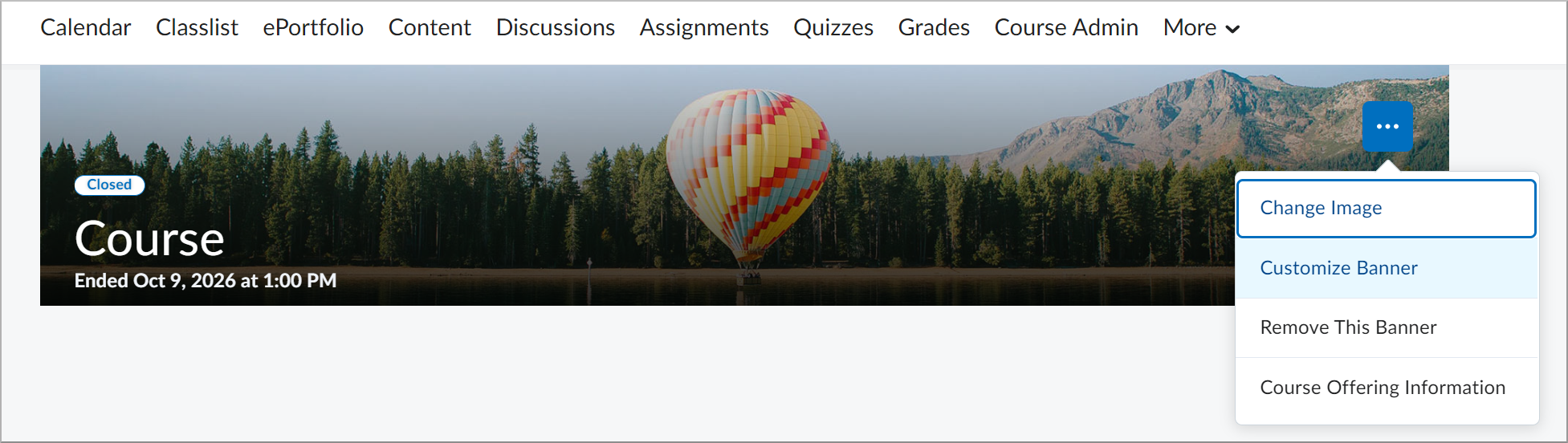
Figure: From the banner menu, select Customize Banner to open the dialog where you can set the course status and dates displayed as an overlay on the course banner.
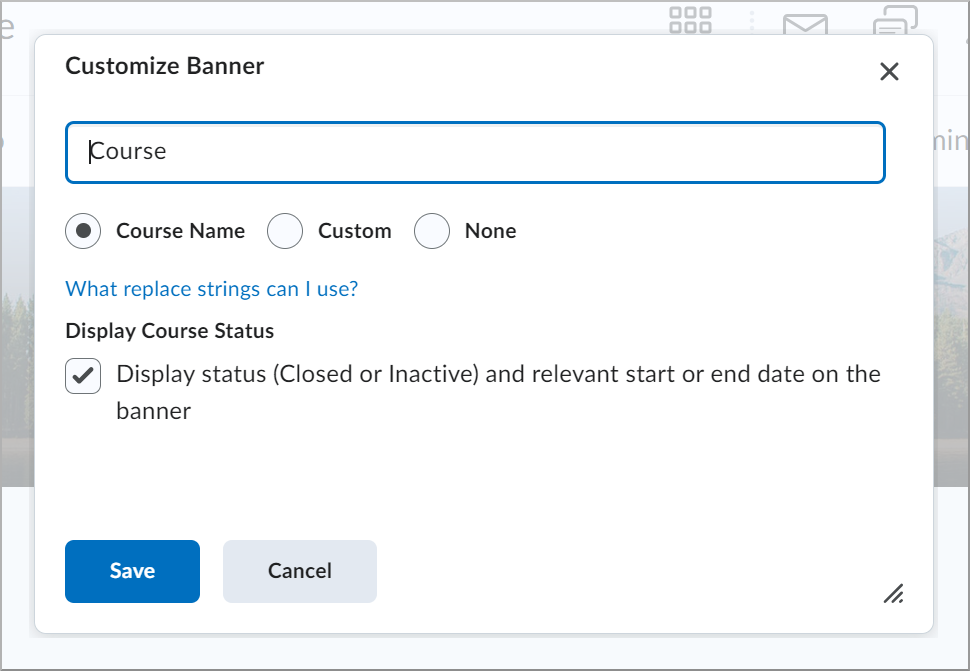
Figure: The Display Course Status option in the Customize Banner dialog.
As part of this update, the Manage Courses > Change Course Image and Banner Text permission is renamed to Manage Courses > Change Course Image and Customize Banner to align with the updated Customize Banner option.

|
Note:Course start and end dates appear on the minibar or course banner, if start or end dates have been set for the course within Course Offering Information. If the course has a future start date, the date and time the course starts will appear. If the course has a future end date, the date and time the course is due to end will appear; if the end date has passed it will show when the course ended. Status indicators will show if the course is Closed (past end date) or is Inactive. |
This feature implements the following PIE items:
- D6923 (Provide "inactive" indicator in course offering UI, and allow for easy activation)
- D8665 (Visual indication of course status ((in)active / start date) on Course Menu bar)
- D9247 (Page display options)
- D12979 (Inactive courses should be indicated as such on the homepage of the course)
- D4320 (Add "inactive" to the recent course listing dropping from waffle menu. Or make course banner show)
Technical details
Impact:
- Administrators: Slight impact to administrators due to the new configuration variable for displaying course status and dates in the minibar and the renamed Manage Courses permission.
- Instructors: Slight impact to instructors due to the ability to display course status and dates on course banners and access Course Offering Information directly from the banner menu.
- Learners: Slight impact to learners due to increased visibility of course availability and dates directly from the course homepage.
Availability:
- This feature is available to all Brightspace Core clients.
To enable:
- To display course status and dates in the minibar, set the d2l.Settings.Navbar.ShowCourseStatusDates configuration variable to ON (default: OFF).
- Ensure the Manage Courses > Change Course Image and Customize Banner permission is granted to instructors.
- Enable the new Display Course Status option in the Customize Banner menu (default: OFF).
- The shortcut to Course Offering Information in the course banner menu is automatically enabled.
LTI/External learning tools – Improved management of learner-created links | New
To simplify Learning Tools Interoperability (LTI) link management, Brightspace now prevents learner-created links from being copied or exported to other courses.
Learner-created links now have the following default behavior:
- Links are not included in course copy or export processes.
- LTI 1.1 links are invisible by default and do not appear in the Insert an External Learning Tool menu.
The behavior applies to links created from January 2025 onward and all newly created links.
A learner is any user with an IMS role mapping of Learner, Student, or Prospective Student. Learners can create links using LTI 1.3 Deep Linking or LTI 1.1 Content Item Message when supported by the tool.
Previously, administrators had to manually exclude learner-created links from course copy and export processes and manually hide LTI 1.1 links.
This feature implements the following PIE items:
- D4866 (Insert Stuff CIM should not create links under in External Learning Tools) – Partially fulfilled through the automatic exclusion of learner-created links from course copy and export processes and LTI 1.1 links are now excluded from the Insert an External Learning Tool menu.
- D4647 (External Learning Tools - Stop creating links for each inserted CIM link) – Partially fulfilled through the automatic exclusion of learner-created links from course copy and export processes and LTI 1.1 links are now excluded from the Insert an External Learning Tool menu.
Technical details
Impact:
- Administrators, instructors, and integration vendors: Slight impact due to changes to LTI link management.
Availability:
- This feature is available to all Brightspace Core clients.
To enable:
- This functionality is automatically enabled.
- This functionality is not dependent on any new or existing configuration variables or permissions.
LTI/External learning tools – Keep LTI content synchronized with the Link and Content Service | New
To help integration vendors keep Learning Tools Interoperability (LTI) content synchronized between their tools and Brightspace, Brightspace now supports the LTI Link and Content Service (LCS). LCS enables compatible LTI tools to retrieve and update information about their Resource Links and Asset Processors in an org unit.
For example, an LTI tool can identify Resource Links created during course copy or determine when associated content is no longer present in Brightspace. Tools can use this information to keep resources synchronized between Brightspace and the external tool.
LTI tools can also update supported properties of their Resource Links and Asset Processors. This capability supports workflows such as content versioning and migrations without requiring an administrator to manually update individual LTI links.
|
Note: The LTI tool must support LCS to use this functionality. Administrators should confirm LCS support with their LTI tool provider. |
Previously, LTI did not provide a service in Brightspace for tools to retrieve and update this information. Integrations requiring similar functionality had to use separate Brightspace APIs.
Tools can retrieve the following information:
- Resource Links: title, description, URL, custom parameters, and associated line item IDs.
- Asset Processors: name, description, Settings Link URL, custom data, activity ID, enabled state, and report information.
Tools can update the following information:
- Resource Links: title, description, URL, and custom parameters defined at the link level.
- Asset Processors: name, description, Settings Link URL, custom data, and report link URL and custom data.
Start dates, end dates, due dates and the Asset Processor activity ID and enabled state are read-only and cannot be updated using LCS with this release.
Technical details
Impact:
- Administrators: Slight impact because LCS is automatically available to new and existing LTI integrations.
Availability:
- This feature is available to all Brightspace Core clients.
- LCS must be supported by the LTI tool to use this functionality.
To enable:
- This functionality is automatically enabled for all new and existing LTI integrations.
- This functionality is not dependent on any new or existing configuration variables or permissions.
LTI/External learning tools – Manage and pass additional user identifiers to LTI 1.3 tools | New
Administrators can now manage additional identifiers for users and pass these identifiers to LTI 1.3 tools.
Using Valence APIs, administrators can create and manage identifier types and values for each user and provide them to LTI 1.3 tools in the launch claim, through substitution parameters, or through the Names and Role Provisioning Services (NRPS). External identifiers can only be managed through Valence APIs; identifier types and values are not displayed in Brightspace.
To provide identifiers to an LTI tool, administrators must enable the External Identifier setting for the LTI deployment using the Deployment Valence API. Identifiers are provided in LTI launches in a new Identifier claim and as substituted values in the Custom claim section of the LTI launch payload.
To provide an external identifier as a substitution parameter, administrators must first create the identifier type using the Valence API. Once created, identifier types dynamically populate the Substitution Parameter list for LTI registrations, deployments, and links. For example, an identifier type named External_Identifier appears as:
$User.identifiers.{External_Identifier}Tools might require specific identifier naming conventions; consult your third-party tool provider to determine whether a specific name is required for the substitution parameter.
Previously, customers could not manage and provide additional identifiers to LTI 1.3 tools.
This release does not include support for LTI 1.1.
Technical details
Impact:
- Administrators, data administrators, and integration vendors: Slight impact to due to the ability to manage additional user identifiers and provide them to LTI 1.3 tools.
Availability:
- This feature is available to all Brightspace Core clients.
To enable:
- This functionality is available through Valence APIs. For more information refer to: Valence API documentation.
- The following permissions are required:
- User Information Privacy > See External ID Values (Organization level)
- Users > Update a User (Organization level)
- This functionality is not dependent on any new or existing configuration variables.
My Courses widget – Improvements to the My Courses widget for client non-production instances | Updated
The My Courses widget now provides more prominent course due date and status information, helping learners more easily identify overdue courses and filter their course list.
Course cards now display due dates in red text, and the Overdue status appears in bold red text for greater visual emphasis.
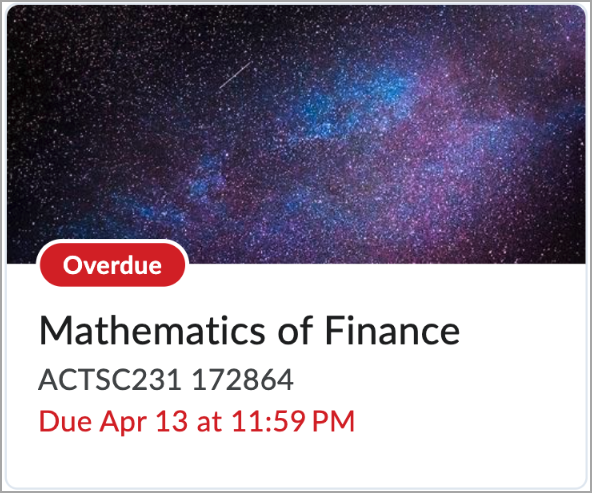
Figure: In the My Courses widget, use the Overdue status and the emphasized due date to quickly identify courses requiring attention.
In the All Courses dialog, Filters now appears beside search. Recent Searches is removed to avoid duplicating browser search history functionality, and filters do not appear when no options are available.
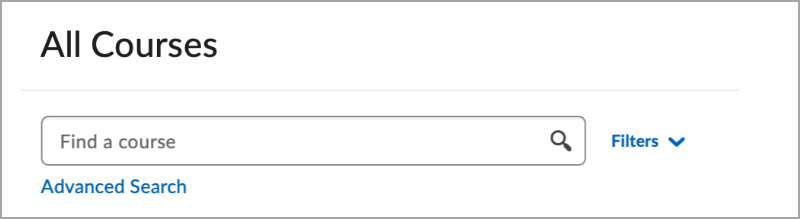
Figure: In the All Courses dialog, use the search field or the Filters option to filter through courses.
Previously, course cards did not display due dates or the Overdue status in red. Filters appeared on the right side of the All Courses dialog, and Recent Searches displayed the learner's recent searches.
This update is initially available in client non-production instances only. Support for production instances is planned for a future release.
|
Note: The Overdue status appears after a course due date passes. Due dates are currently controlled only in the Manager Dashboard and Learning Groups tools. Completion Tracking must be enabled for each course before a due date can be set. |
Technical details
Impact:
- Learners: Slight impact due to changes to course card status styling and the All Courses dialog.
Availability:
- This feature is available to all Brightspace Core clients in non-production instances only.
- Some updates in this feature are only available in non-production instances to Brightspace Core clients using the Manager Dashboard and Learning Groups tools.
To enable:
- This functionality is automatically enabled.
- This functionality is not dependent on any new or existing configuration variables or permissions.
Quizzes – Improved group and section filters | Updated
To improve navigation and consistency across Brightspace, the Quizzes tool now uses the enhanced group and section filters originally introduced in the February 2026/20.26.02 release. This update replaces the combined View By filter with separate, searchable Groups and Sections filters, significantly improving scalability for courses with a large number of groups.
This update impacts the Quizzes View Statistics pages and the Grade Quiz workflow. On the View Statistics page, the filters are available on each tab: User Stats, Question Stats, and Question Details. Filter selections are specific to the active tab, preventing settings from being reset when navigating between different statistical views. On the Grade Quiz page, the filter continues to function as before, where filter selections are specific to the active tab.
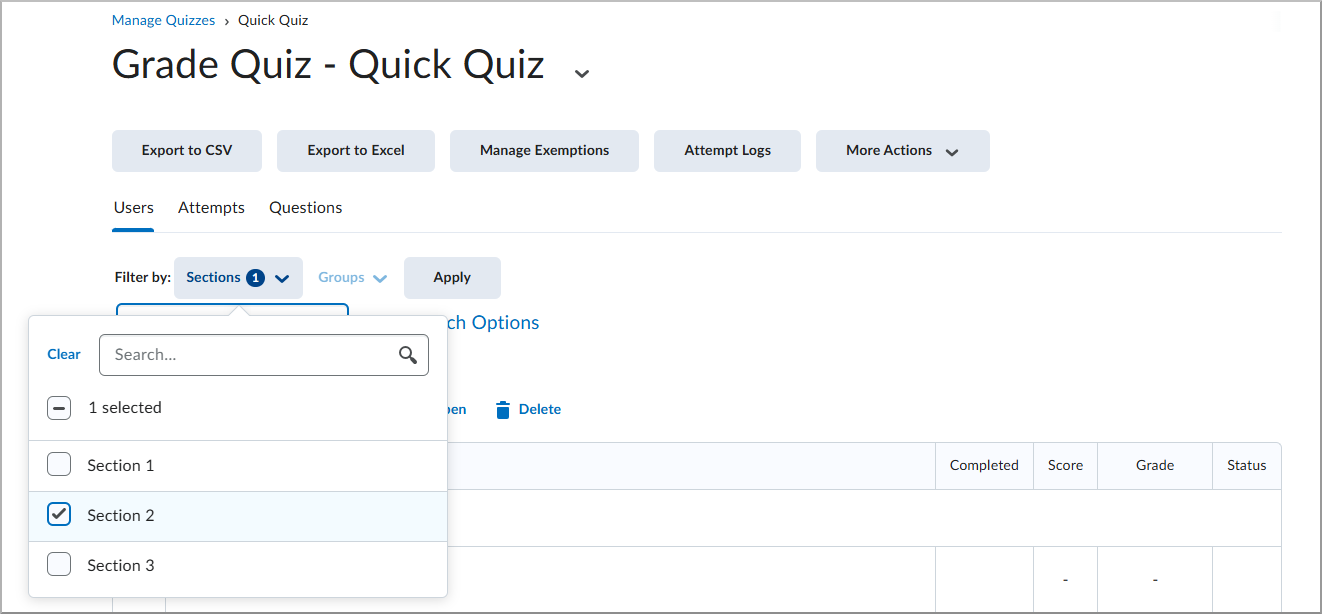
Figure: On the Grade Quiz page, use the Sections filter to filter by course sections.
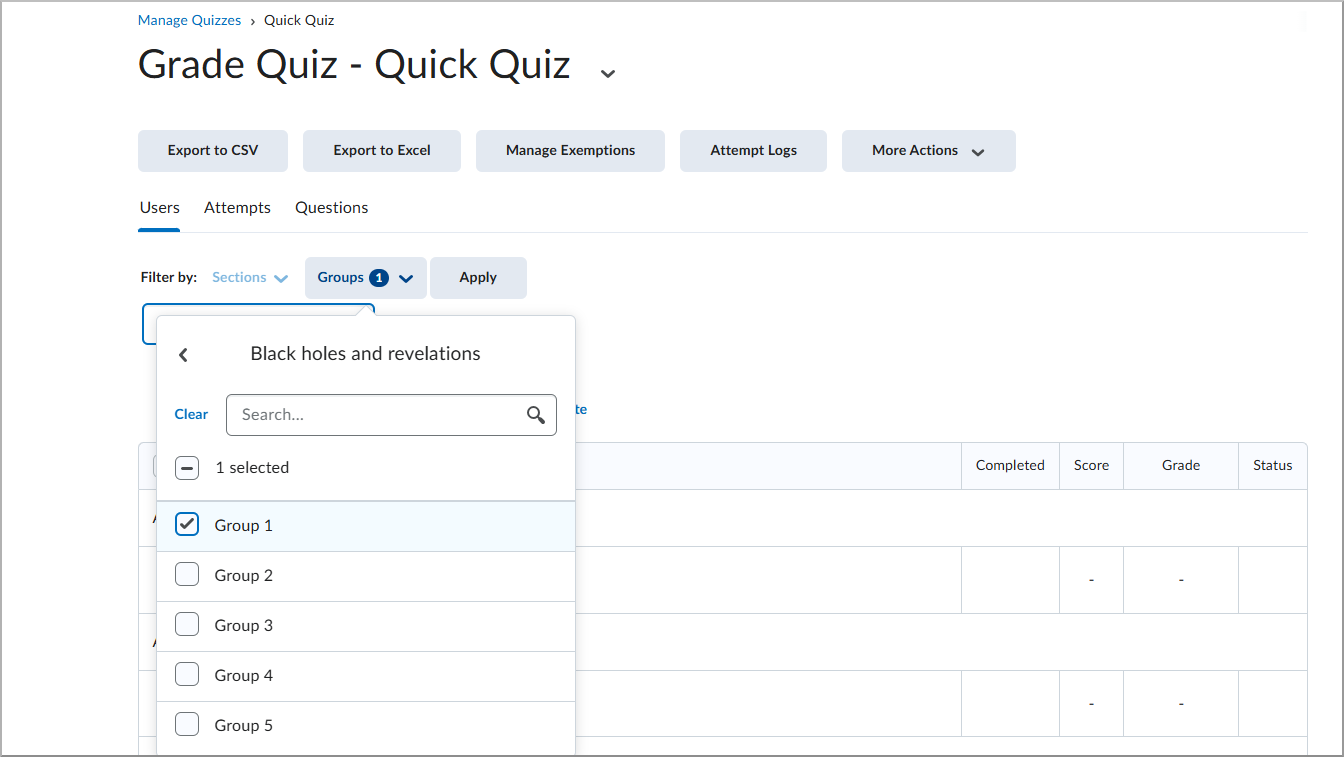
Figure: On the Grade Quiz page, use the Groups filter to filter by groups.
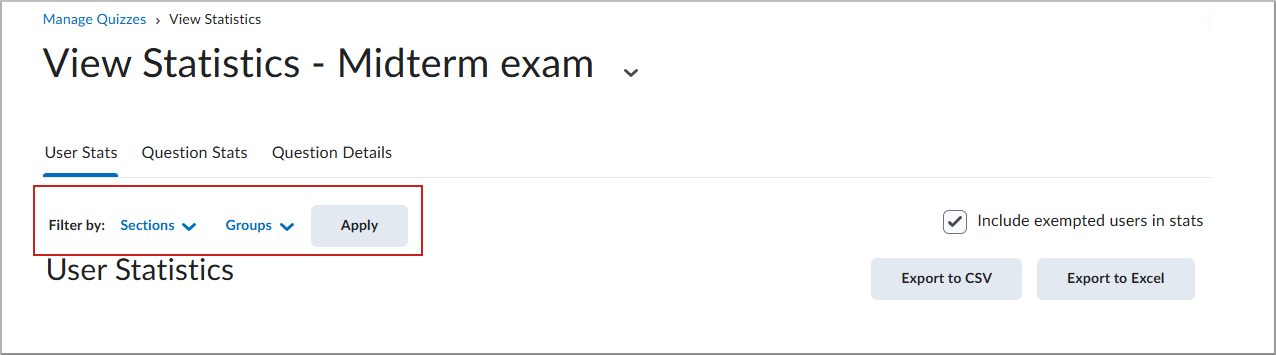
Figure: On the View Statistics page, the filters are available on each tab and work independently.
Technical Details
Impact:
- Instructors: Slight impact to instructors as they benefit from improved navigation in large courses and clearer tab-specific filtering when analyzing quiz statistics or grading by user.
Availability:
- This feature is available to all Brightspace Core clients.
To enable:
- This functionality is automatically enabled for all users.
- This functionality is not dependent on any new or existing permissions or configuration variables.
Change History
15-October-2026 Preview Release Notes published.
05-November-2026 Added LTI/External learning tools – Keep LTI content synchronized with the Link and Content Service | New.
05-November-2026 Added LTI/External learning tools – Manage and pass additional user identifiers to LTI 1.3 tools | New.
05-November-2026 Added note on when dates appear to Homepages and Navbars – Display course status and dates in course banners and titles | Updated
05-November-2026 Removed images from Bulk User Management – Redesigned interface and enhanced permissions | Updated.
05-November-2026 Added note on when dates appear to Homepages and Navbars – Display course status and dates in course banners and titles | Updated.
05-November-2026 Added D2L Lumi Feedback – Instruction priority, accessibility, and file support updates | Updated.
05-November-2026 Added D2L Lumi Tutor – Access control, integration, and accessibility updates | Updated.
05-November-2026 Added general announcements covering the list of added, unlisted, and removed videos, as well as backend infrastructure improvements targeting the Start Quiz Attempt workflow.
12-November-2026 Updated images for Bulk User Management – Redesigned interface and enhanced permissions | Updated and clarified existing role permission levels for initial roll-out.
12-November-2026 Updated Quizzes – Improved group and section filters to clarify behaviour of the filters on the Grade Quiz page.