To view the change log for this release note landing page, go to Change History at the bottom of this page.
Video: Release Highlights
You Asked, We Delivered
The following updates were inspired by your submissions to D2L's Product Idea Exchange:
|
API Updates
- Groups: Updates to the Groups APIs add new routes for learner self-enrollment workflows. Developers can use these routes to build custom experiences, such as allowing learners to join or leave groups directly from a custom widget. Previously, the Groups APIs mainly supported instructor-level group management, while learners could only self-enroll through the standard Brightspace UI. With this update, administrators and developers can retrieve available groups and support learner-initiated enrollment programmatically, making it easier to build custom course integrations and automate group management.
- Achievement Scale: New Achievement Scale APIs enable administrators to manage achievement scale configurations programmatically, including creating, retrieving, updating, and deleting achievement scales and their levels. Updates to the Outcome Set APIs also support adding, updating, or removing the achievement scale associated with an outcome set, helping organizations audit and maintain consistent scale settings across courses.
- Rubrics: New Rubrics APIs enable developers and data administrators to retrieve and create rubric alignments across course activities, including Assignments, Discussions, Grades, and Quiz Questions. These APIs support retrieving rubric associations across a course and programmatically linking multiple rubrics to supported activities, helping organizations audit rubric usage, automate setup workflows, and maintain consistent evaluation criteria across assessments.
- Source Courses & Re-offer: Updates to the Brightspace Developer Platform enhance the existing POST /d2l/api/lp/(version)/enrollments/ API route to support forwarding enrollments, enabling administrators and developers to automatically direct users to the latest re-offering of a source course. Previously, enrollments could not be forwarded to the latest source course re-offering through the API, requiring manual updates to external catalogs when new course offerings were created. This enhancement allows developers to list source courses perpetually in external catalogs and ensure self-enrolled users are placed in the most current course version, reducing administrative effort and streamlining course lifecycle management.
- Release Conditions: Updates to the Release Conditions APIs introduce a new read-only scope and a corresponding View Release Conditions (API Only) permission. Administrators can now give integrations access to release condition data without also granting broader management permissions. Previously, applications needed manage permissions to retrieve this information, providing more access than required for read-only workflows. This update improves security for integrations such as D2L Lumi by allowing them to check which content items a user can access based on release conditions without requiring management rights.
- Quizzes: Updates to the Questions APIs add support for creating, reading, updating, and deleting all question types and retrieving questions by ID. This update allows developers to create, read, update and delete all questions within a quiz where previously only a limited number of question types were supported. Additionally, a new endpoint is provided that allows developers to read (get) questions by its ID where previously we only supported getting all questions within a quiz.
- Content: Content APIs now include CompletionCriteria (Automatic/Manual) and CompletionRequirement (Required/Optional) fields, allowing users to change completion settings through the API.
Refer to the Current Release Changes page of Brightspace Developer Platform for details about these updates.
General Announcements
- H5P / Creator+ with H5PIf you're an H5P or a Creator+ with H5P customer, you can stay up to date with the latest improvements and features by visiting H5P News.
- AWS: To maintain high support standards and in compliance with D2L's commitments to its customers, D2L is implementing an automated quality assurance process for support customers in Canada and the United States. This is an internal process designed to give D2L operational insights into the quality of support interactions. An AI pipeline will assess those interactions, with Amazon Web Services (AWS) Lambda employed beforehand to minimize the personal data included prior to processing. Following this initial rollout, D2L plans to expand this program to additional geographic areas in the near future. For more details, review D2L’s Third Party Subprocessors. You can opt-out of this processing by contacting your designated account representative.
- The Polish and Russian language packs are now available in Brightspace as of this release. This update promotes inclusive, culturally responsive education and supports D2L’s commitment to global language accessibility.
- Grades:To address a technical issue when importing grades, all imported grade items must now have unique names in the same course to prevent unintended updates from occurring. For more details, refer to the fixed issue article, Grades - Import doesn't properly update Grades with Same Name.
- D2L is continuing to unlist outdated Brightspace Tutorial videos that no longer reflect the current interface and workflows. Updated tutorial videos are embedded in the documentation to align with the latest features. To review the list of added, unlisted, and removed videos, refer to the article: Brightspace Tutorial Video Updates: Added, Unlisted, Removed.
- LTI/External learning tools: D2L is announcing the planned End of Life (EOL) of LTI 1.1 support in Brightspace in 2027. Beginning in early 2027, users will no longer be able to create new LTI 1.1 tool integrations, with full retirement planned for late 2027. Existing integrations do not require immediate action, but organizations should begin reviewing their LTI 1.1 integrations and use LTI 1.3 (LTI Advantage) for new integrations. For more information, refer to LTI 1.1 deprecation plan.
- Content: New Content Experience now provides sufficient functionality to support D2L’s intent to end support for Learner Experience and Classic Content. This change is an important step toward providing a single content experience. Support for Learner Experience and Classic Content will end in June 2029. For transition plans and best-practice guidance, refer to the Intent to EOL Learner Experience and Intent to EOL Classic Content blog posts.
- Content: The New Content Experience (NCE) is officially being renamed to Content across all Brightspace product documentation and user help resources. Terms for Classic Content, Learner Experience, and configuration variables remain unchanged.
Analytics Builder – Introducing the SPICE Capacity Usage dashboard | New

|
Analytics Builder is part of the Performance+ package. For more information, contact your D2L Account Manager. |
Authors in Analytics Builder can now use the SPICE Capacity Usage dashboard to monitor their organization's SPICE (Super-fast Parallel In-memory Calculation Engine) allocation. SPICE is an in-memory query and storage engine that was released with the visual Data Preparation experience in January 2026/20.26.01.
The SPICE Capacity Usage dashboard provides the following information:
- Your organization's total, consumed, and remaining SPICE allocation.
- The number of datasets using SPICE.
- Details for each dataset using SPICE.
- When this dashboard was last refreshed.
Previously, authors had to review datasets individually to identify which ones were using SPICE and had no centralized way to monitor consumption.
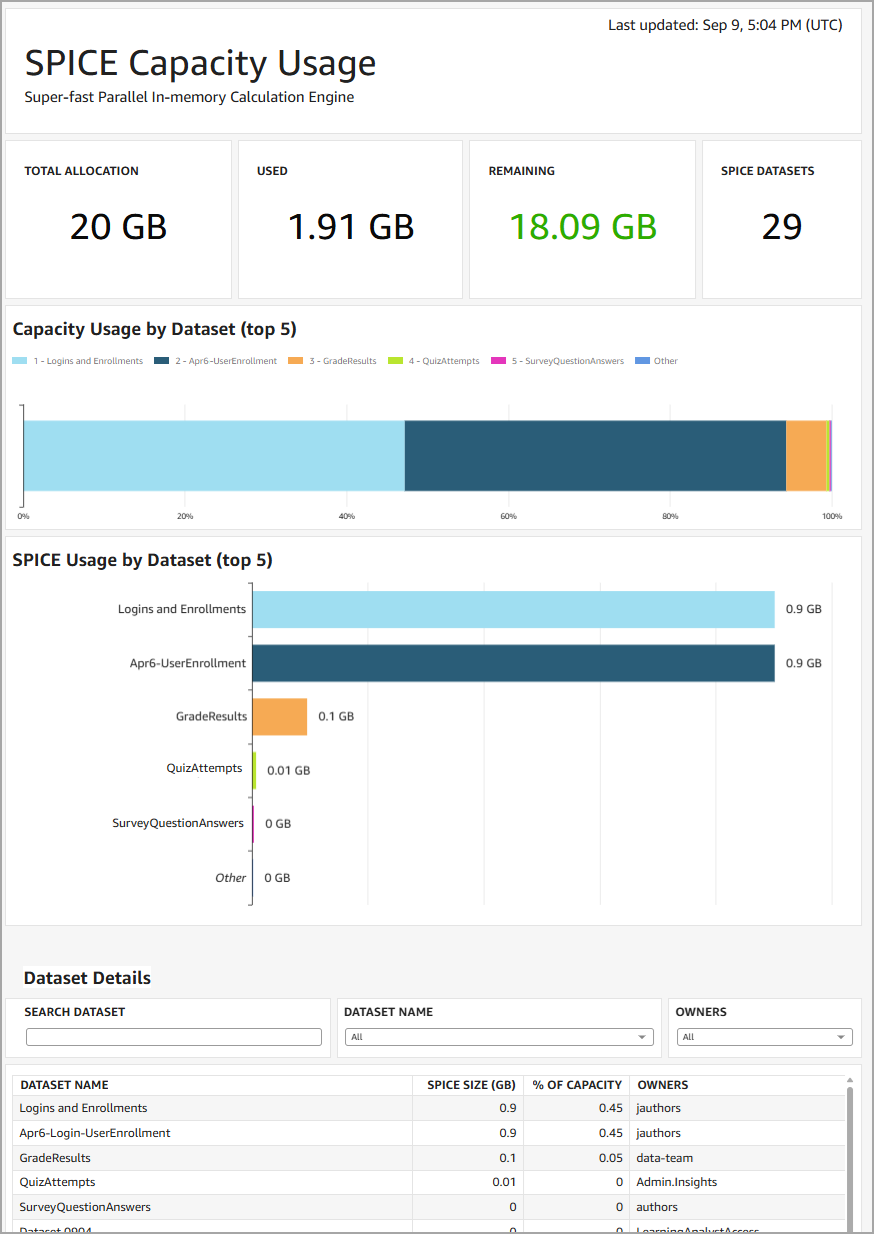
Figure: The SPICE Capacity Usage dashboard shows key capacity metrics, visualizations of relative SPICE usage, and the ability to search and filter a list of all datasets using SPICE.
For more details about this dashboard and tips for managing your organization's SPICE usage, refer to Managing SPICE Allocation in Brightspace Community.
Technical Details
Impact:
- Slight impact to Analytics Builder authors due to the ability to monitor SPICE allocation more effectively.
Availability:
- This feature is available to clients with the Performance+ package who have provisioned their instance of Analytics Builder.
To enable:
- This functionality is automatically enabled for clients with Analytics Builder.
- Authors must have the Analytics Builder > Can Manage Analytics Builder permission at the org level and must be granted an author license.
Brightspace Apps – New additions to Brightspace Apps | New
Brightspace Apps now includes additional third-party partner apps and integrations, giving administrators more options to discover and manage approved integrations within Brightspace.
The following partner apps and integrations are now available:
- Atomic Journals: Gives learners a private space to reflect on their learning while enabling instructors to provide direct feedback within Brightspace.
- Atomic Search: Helps learners quickly find information in course content and documents while helping instructors manage content updates and understand how course materials are being used.
- You-Attend: Helps instructors track attendance and engagement through location-based check-ins and interactive activities while supporting automated reporting and grade book synchronization.

|
Note: Brightspace Apps does not change existing partner purchasing processes. Some third-party partner apps and integrations require additional set-up via tool side account or information pass back. |
Refer to Get started with Brightspace Apps for more information.
Technical Details
Impact:
- Moderate impact to administrators due to the additional partner apps and integrations available through Brightspace Apps.
Availability:
- This feature is available to all Brightspace Core clients.
To enable:
- This functionality is automatically enabled for all users.
- This functionality is not dependent on any new or existing permissions.
- This functionality is not dependent on any new or existing configuration variables.
Brightspace Community – Enhanced Release Notes experience and documentation improvements | New
To make release information easier to find, navigate, and use, we've enhanced the Brightspace Community documentation and Release Notes experience. These updates introduce new ways to filter and explore Release Notes, highlight important release information, improve accessibility, and navigate longer documentation articles.
The Brightspace Community improvements include:
- Release Notes filters: Filter Release Notes by audience, product, package, add-on, and tool to find relevant updates. Active filters appear above the results and can be individually removed or cleared.
- Shareable filtered Release Notes: Use Copy filter link to create a link that preserves the selected Release Notes filters to share a targeted view of a release.
- Export Release Notes to Word: Export Release Notes to a Microsoft Word document for offline review, sharing, or use in internal release planning.
- Product sections: Release information is organized into expandable Core, Packages, and Paid Add-ons sections to make it easier to understand where features and updates are available.
- Release Note sharing: Copy a direct link to an individual Release Note or use the available sharing option directly from the Release Note heading.
- Accessibility improvements: Higher-contrast colors, clearer informational callouts and focus states, and more consistent interactive controls enhance the accessibility, readability, and usability of Brightspace Community documentation.
- Improved article layout: A wider two-column documentation layout increases readability while reducing scrolling in longer articles.
- On This Page navigation: An On This Page table of contents at the top of supported articles provides quick access to sections within the article.
- Section navigation: Section breaks visually separate longer topics and include a Back to top link to make navigating lengthy documentation easier.
- Table search: Search supported reference tables and filter rows in real time to quickly locate configuration variables, permissions, and other information in large tables.
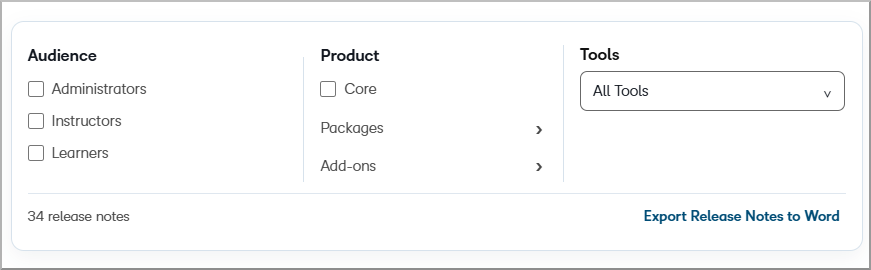
Figure: Filter Release Notes by audience, product, package, add-on, and tool to focus on relevant updates.
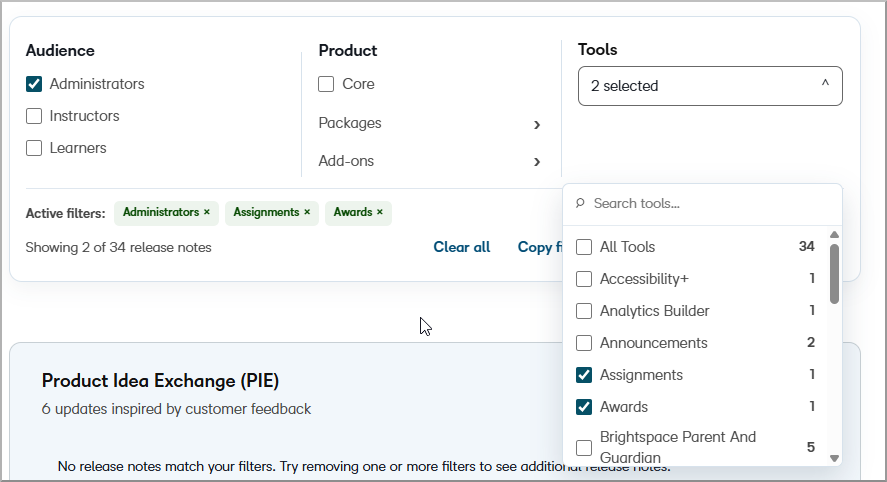
Figure: Review the active filters above the Release Notes results, and remove individual filters or clear them as needed.
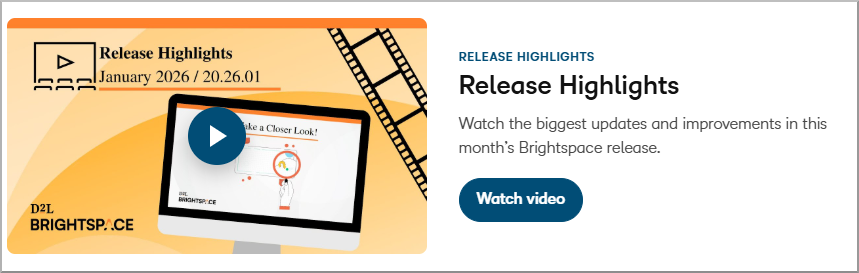
Figure: Watch Release Highlights for a video overview of important updates in the monthly Brightspace release.
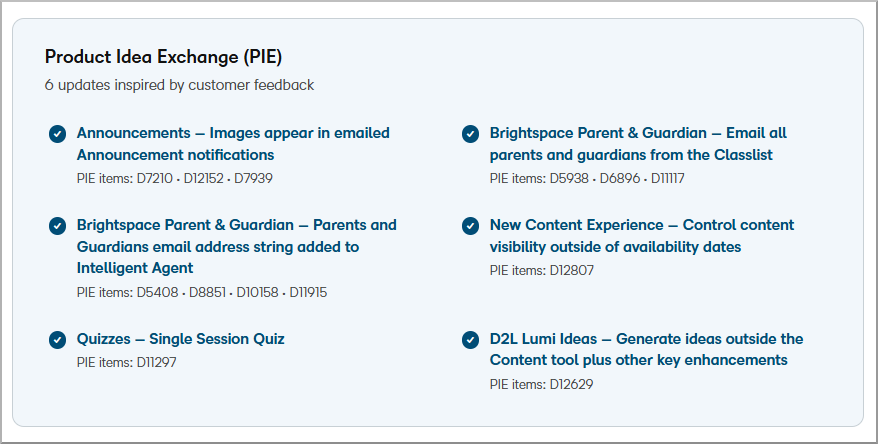
Figure: Use the Product Idea Exchange (PIE) section to identify updates inspired by customer feedback and find the associated PIE item numbers.
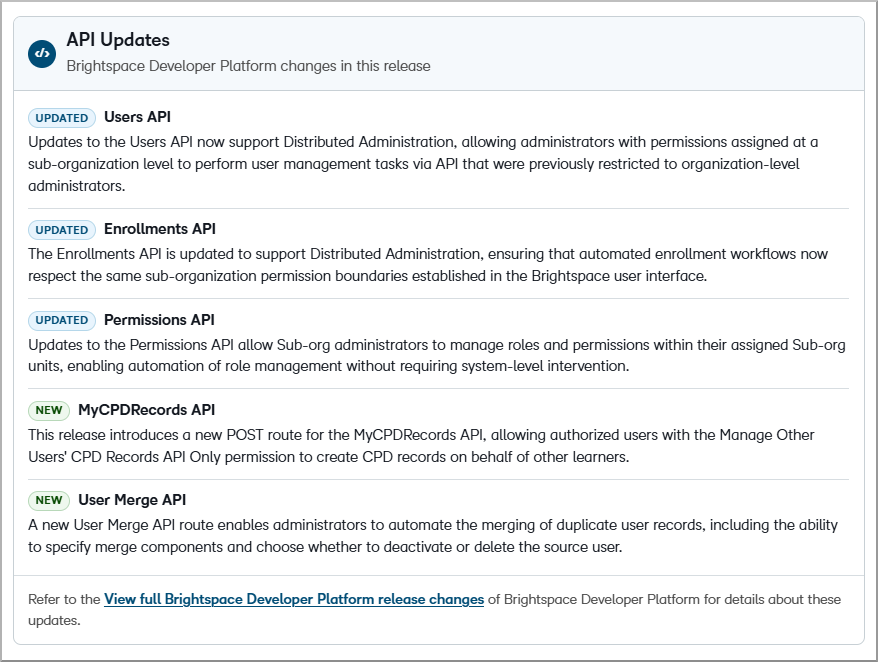
Figure: The API Updates section to review Brightspace Developer Platform changes included in the release.
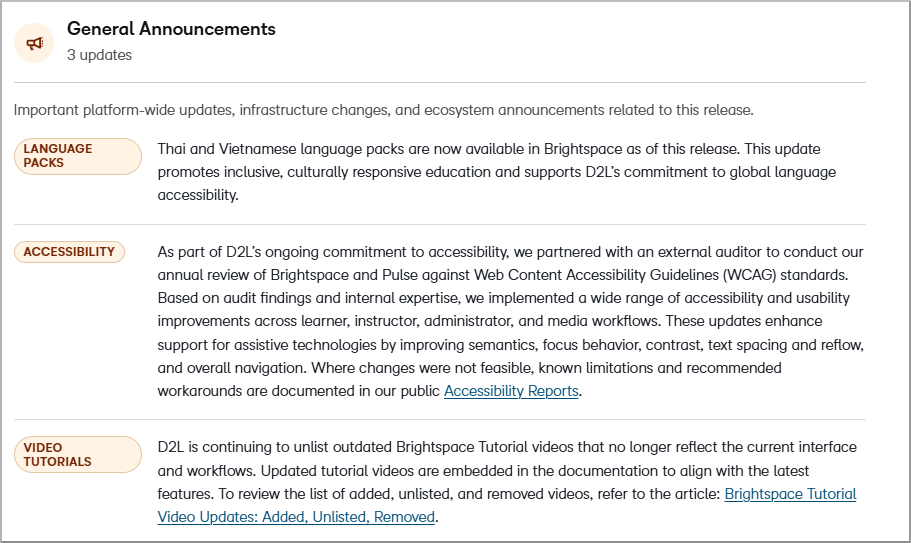
Figure: Use General Announcements to review important platform-wide information associated with the release.
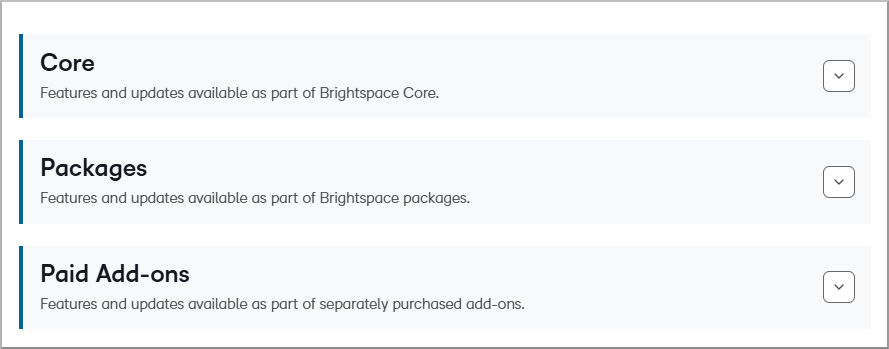
Figure: Expand or collapse Core, Packages, or Paid Add-ons to review Release Notes for each product area.
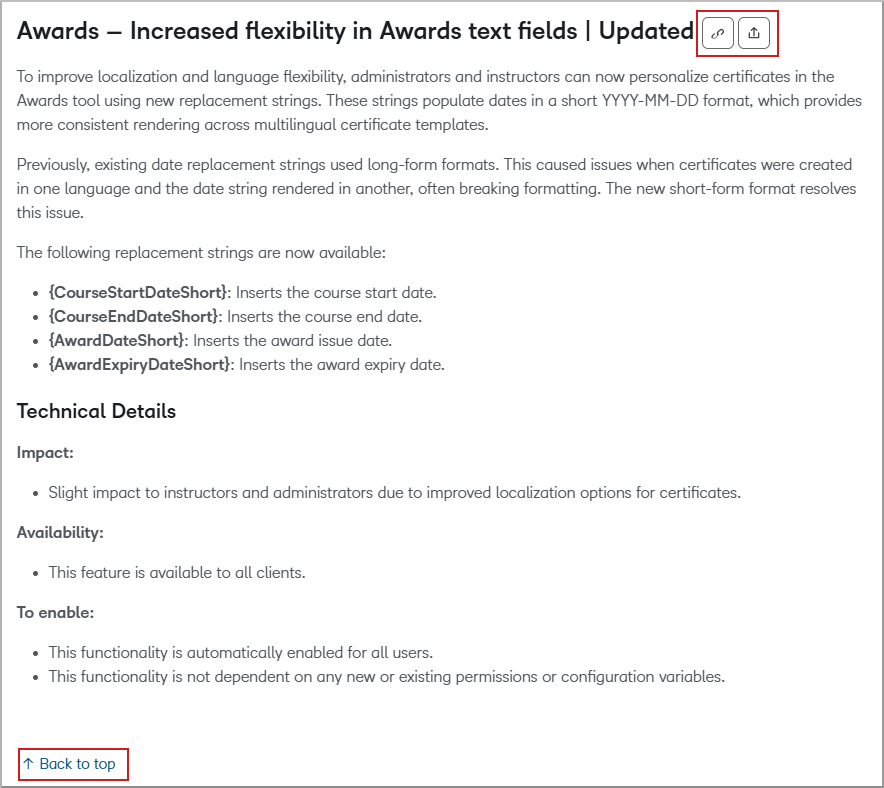
Figure: Use the sharing options on an individual Release Note to copy or share a direct link, and select Back to top to return to the beginning of longer release content.
Accessibility improvements
We've updated Brightspace Community documentation to improve accessibility, readability, and navigation. Enhancements include:
- Higher-contrast colors and clearer informational call outs that improve visibility without relying on color alone.
- More visible keyboard focus states and consistent styling for check boxes, filters, links, buttons, and other interactive controls.
- Clearer content hierarchy and section separation to make longer articles easier to scan and navigate.
- On This Page and Back to top navigation to help users move through longer articles.
- Accessible text alternatives for images and other visual content.

Figure: Review informational call outs with enhanced contrast and visual hierarchy that present important information without relying on color alone.
Improved article navigation and reference tables
Longer documentation articles include navigation and search enhancements that make specific information easier to locate.
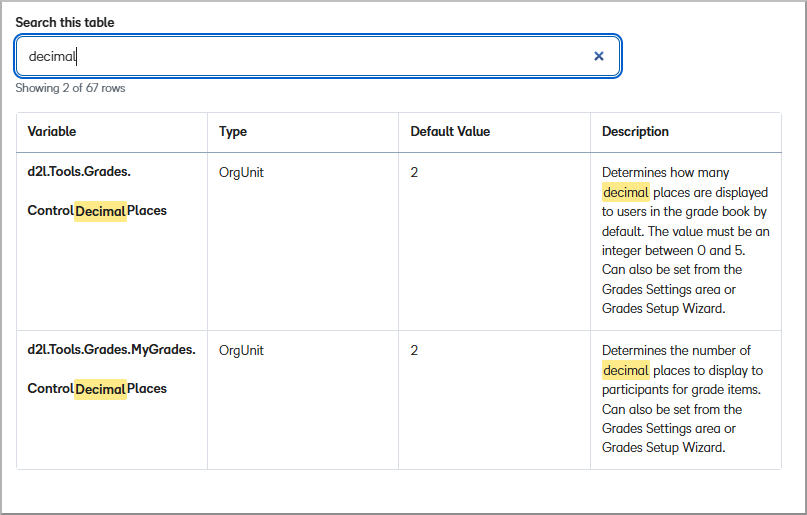
Figure: Enter a search term in a supported reference table to filter configuration variables and permissions in real time.
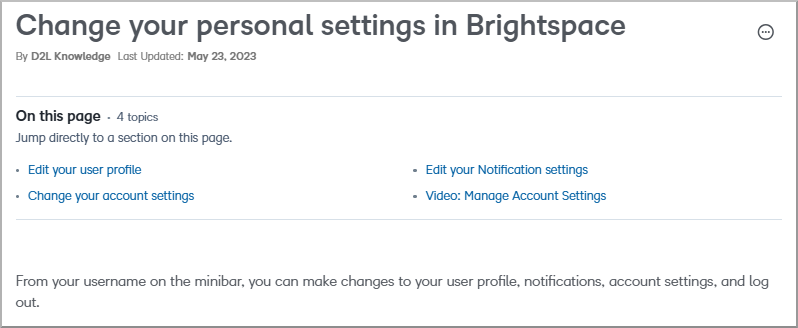
Figure: Select a section from the On This Page table of contents to quickly navigate within a Brightspace Community article.

Figure: Select Back to top at a section break to return to the beginning of a longer article.
These enhancements reflect customer feedback and our ongoing work to improve the Brightspace Community documentation experience. Use the Was this article helpful? option at the bottom of Brightspace Community articles to provide feedback and help us continue improving the documentation experience.
Figure: Use Was this article helpful? at the bottom of a Brightspace Community article to provide feedback about the documentation.
Technical details
Impact:
- Moderate impact to administrators who can filter, share, and export Release Notes, search supported reference tables, and benefit from improved navigation and accessibility.
- Moderate impact to instructors who can more easily find, filter, share, and navigate relevant Release Notes and Brightspace Community documentation.
- Slight impact to learners who benefit from improved navigation, accessibility, readability, and organization across Brightspace Community documentation.
Availability:
- These features are available to all Brightspace Core clients.
To enable:
- These features are enabled automatically for all users.
- These features are not dependent on any new or existing permissions or configuration variables.
Content – Adjustable side navigation for Immersive View | New
To provide a more flexible viewing experience, users can now collapse and resize the navigation panel in Content when the Immersive View is enabled. Collapsing the panel maximizes the content viewing area, while dragging the divider with a mouse or keyboard resizes it. When the divider is selected, two small arrows appear, allowing users to make precise adjustments with their mouse or keyboard. Previously, the panel remained fixed while viewing content topics.
|
Note: This feature is currently available only for courses using Immersive View. The Immersive View was introduced to Content in the 20.26.07 release. Support for the default view is planned for a future release. |
Before:
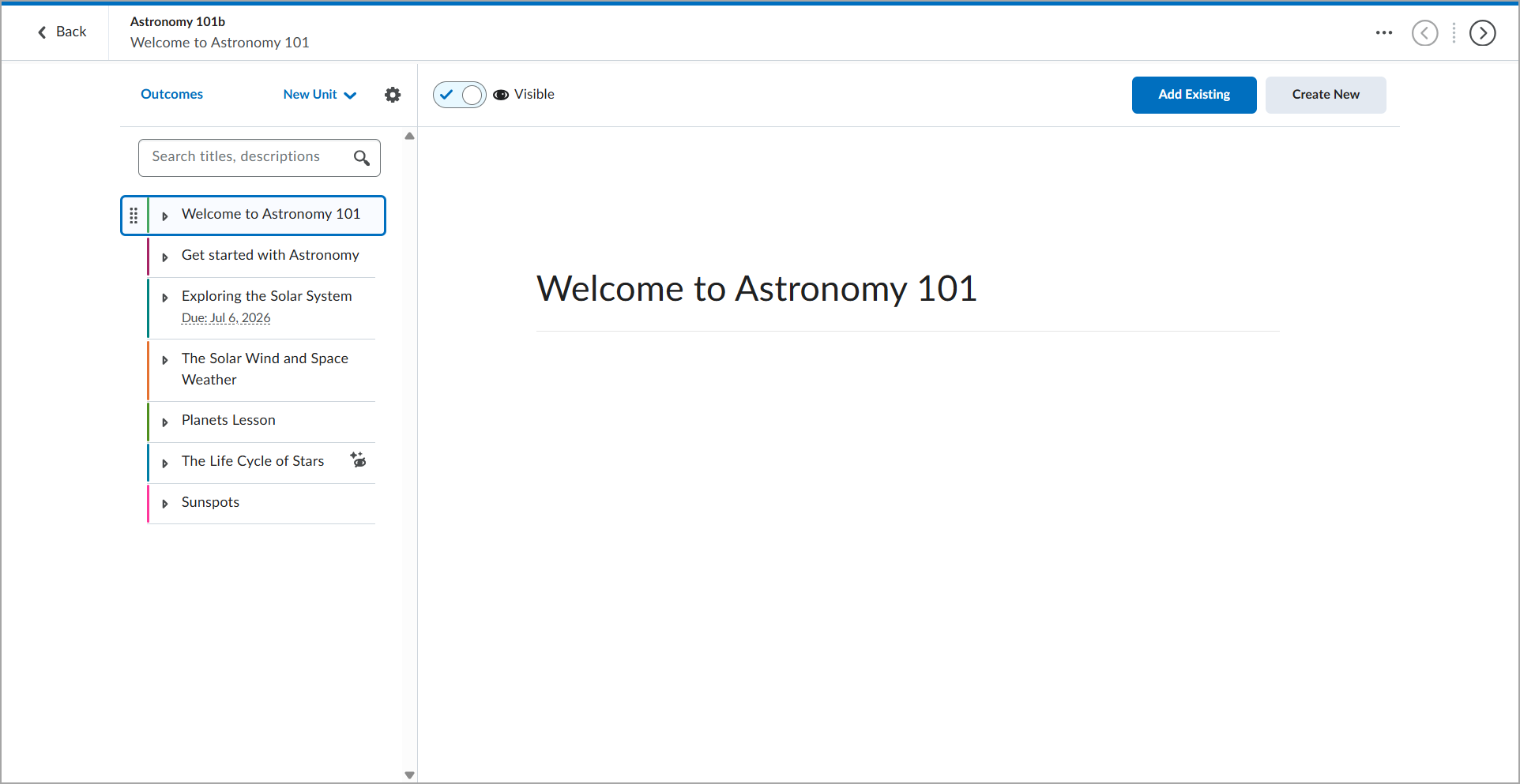
Figure: The previous instructor experience of the Immersive View.
After:
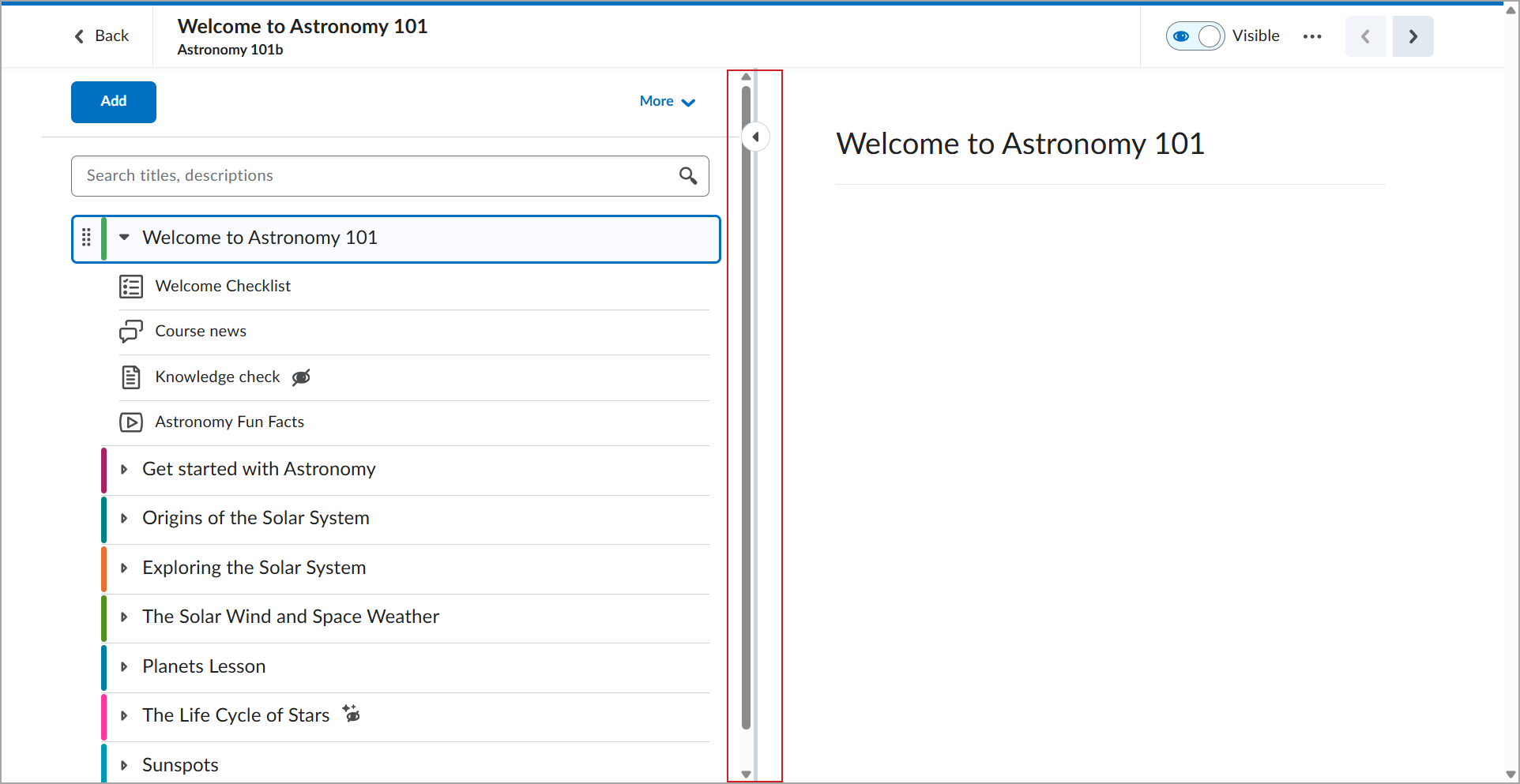
This feature implements the following PIE item:
- D13644 (Ability to extend/enlarge table of contents NCE)
Technical details
Impact:
- Moderate impact to instructors and learners due to the ability to customize their content viewing experience by resizing the navigation panel.
Availability:
- This feature is available to all Brightspace Core clients.
To enable:
- This functionality is automatically enabled for all users.
- This functionality is not dependent on any new or existing permissions.
- This functionality is dependent on enabling the d2l.Tools.Content.EnableImmersiveView configuration variable.
Content – General workflow improvements - Immersive View | Update
To improve workflows and usability for instructors and learners in Content, this update introduces several interface and workflow improvements for Immersive View:
- Breadcrumbs in the top navigation bar now display the main topic title first and the topic location second.
- The Course Options gear is now a More menu.
- The Outcomes Alignment link is now available only from the More menu and no longer appears in the (...) context menu.
- Search now filters the table of contents (TOC) instead of displaying results in a drop-down list from the search bar.
- The search bar now scrolls with the TOC to use space more efficiently, particularly on smaller screens.
- Descriptions no longer overlap topic material.
- PDFs now use an updated renderer that better aligns with other content experiences.
- Editing activities that previously allowed users to edit only a content object's title now link to the edit page for the associated item. For example, Survey activities link to the Survey edit page.
- For topics that do not support inline rendering, the Open in a new tab page now uses a link instead of a button to improve accessibility. The page also provides additional context about the content that opens when users select the link.
|
Note: These updates are currently available only for courses using Immersive View. The Immersive View was introduced to Content in the 20.26.07 release. Support for the default view is planned for a future release. |
This feature implements the following PIE items:
- D11979 (Improvements for Search in New Content Experience)
- D12036 (New Content Experience (Lessons) PDF Viewer Functionality)
- D13897 (New Content Experience (NCE) PDFs and Descriptions)
- D7069 (New content experience: Improve responsive design by removing margins on mobile devices)
Technical details
Impact:
- Moderate impact to instructors and learners due to workflow, navigation, search, and display changes in Content.
Availability:
- This feature is available to all Brightspace Core clients.
To enable:
- This functionality is automatically enabled for all users.
- This functionality is not dependent on any new or existing permissions.
- This functionality is dependent on enabling the d2l.Tools.Content.EnableImmersiveView configuration variable.
Content – Improved add content workflow in Immersive View | Updated
To simplify adding course content in Content when the Immersive View is enabled, instructors now use a single Add menu instead of separate Create New and Add Existing options. After selecting an activity type, instructors can choose to create a new activity or reuse an existing one. The expanded menu displays more activity types at once, making it easier for instructors to access third-party tools.
|
Note: This feature is currently available only for courses using Immersive View. The Immersive View was introduced to Content in the 20.26.07 release. Support for the default view is planned for a future release. |
Before:
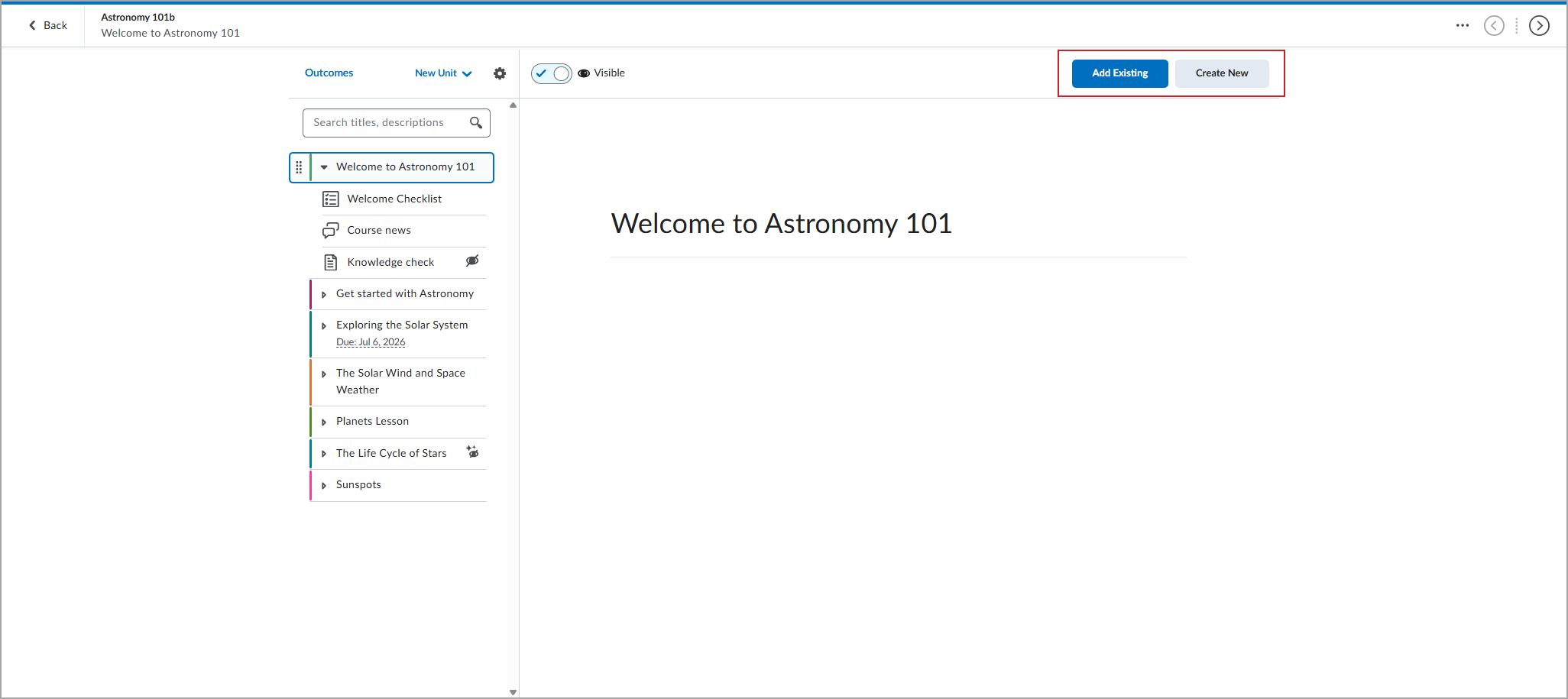
Figure: The previous Create New and Add Existing buttons.
After:
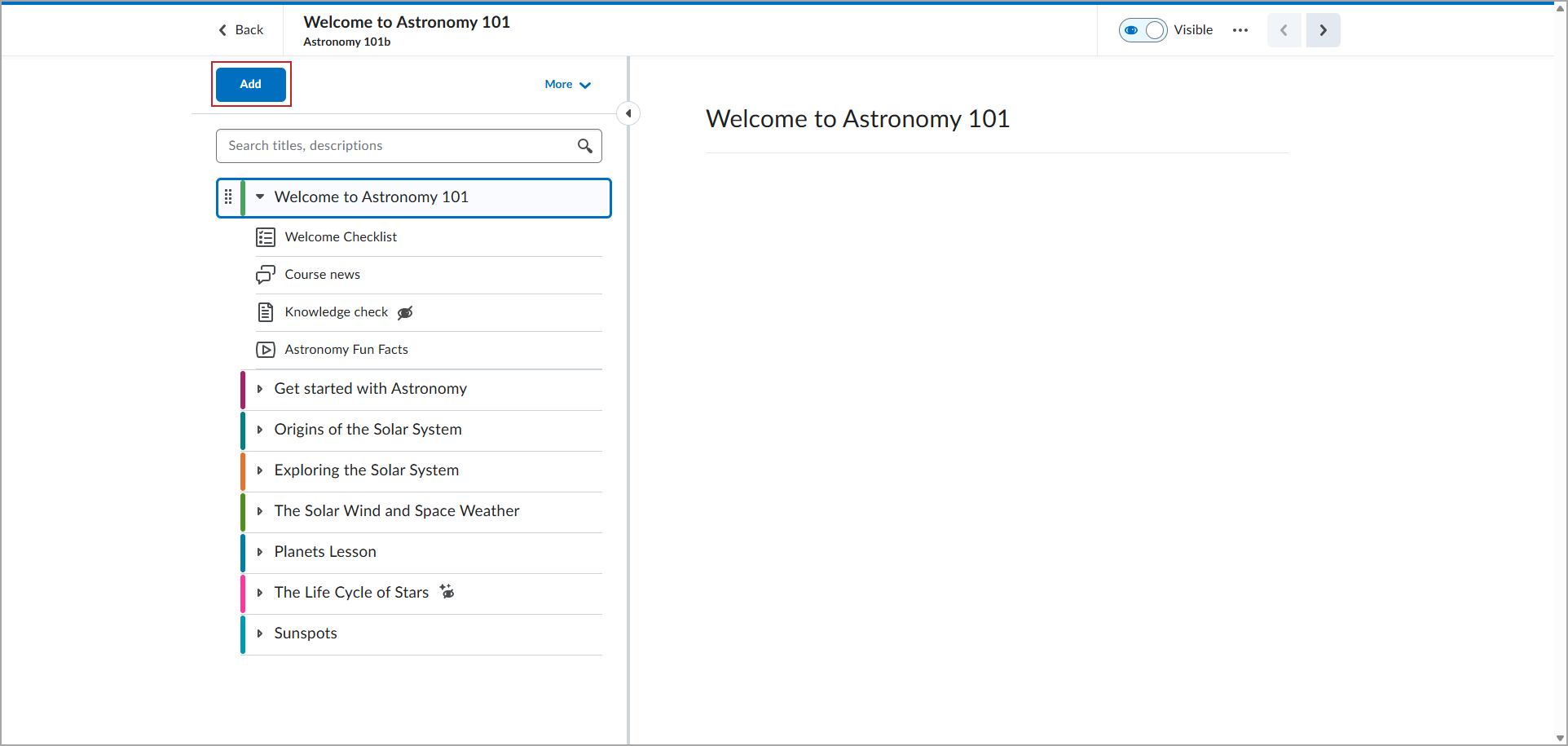
Figure: The new Add menu streamlines the workflow for creating or reusing course activities.
This feature implements the following PIE items:
- D12862 (Ability to re-order the display of external learning tools in "Add Existing")
- D13549 (New Content Experience - Upload File)
Technical details
Impact:
- Slight impact to instructors due to the simplified workflow for creating new content or reusing existing content from a single Add menu.
Availability:
- This feature is available to all Brightspace Core clients.
To enable:
- This functionality is automatically enabled for all users.
- This functionality is dependent existing permissions required to manage course content. Refer to Content permissions for more information.
- This functionality is dependent on enabling the d2l.Tools.Content.EnableImmersiveView configuration variable.
Createspace – Copy course content to the Content Library | Updated
Users with access to Createspace can now copy existing course content to Createspace using the Copy to Createspace option in the Content topic's action menu. This feature allows users to reuse course materials in the Createspace Content Library to easily re-use. Copied content appears in the root of the user's Content Library.
Previously, users could not copy existing course content directly to Createspace.
|
Note: You can copy only learning objects that are compatible with the Createspace Content Library:
- Assignments
- Discussion topics
- Pages (HTML content topics)
- Quizzes
|
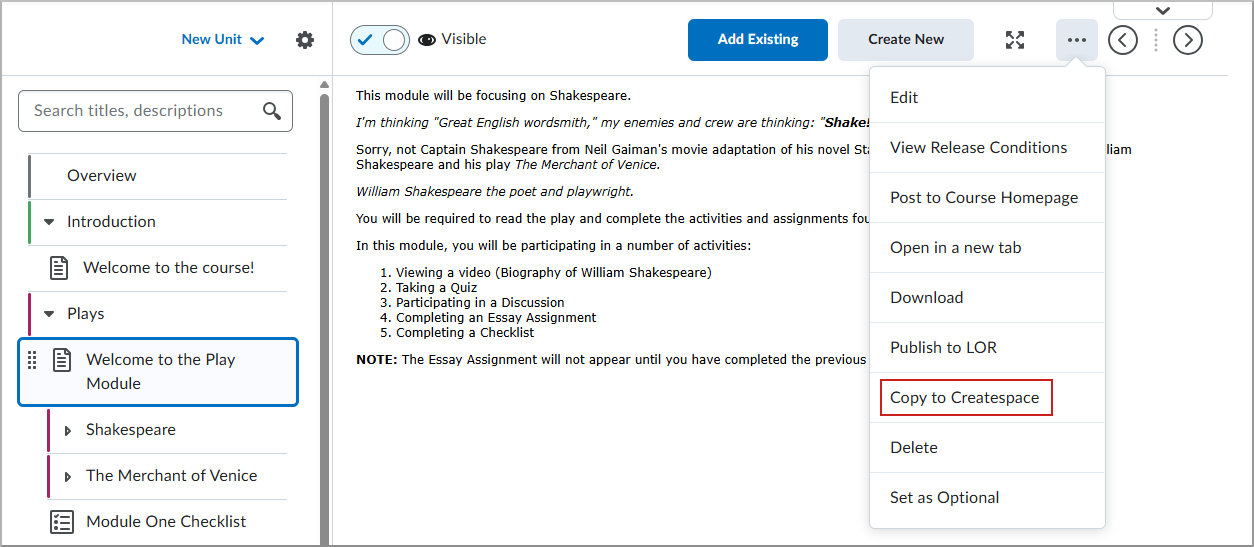
Figure: Select Copy to Createspace from the action menu to save content to your library.
Technical Details
Impact:
- Slight impact to administrators due to the need to enable Createspace and configure permissions.
- Slight impact to instructors due to the ability to copy course content to the Createspace Content Library.
Availability:
- This feature is available to all Createspace users.
To enable:
- Ensure Createspace is enabled for your organization.
- Ensure users have the Createspace > Can Copy to Createspace permission at the org level.
D2L Lumi Feedback – Improved grading transparency and reporting | Updated
|
This feature is part of the D2L Lumi Feedback for Brightspace add-on solution that must be purchased separately. For more information, contact your D2L Account Manager. |
This update improves grading transparency for administrators and grading workflows for instructors. Administrators can hide Lumi Feedback's step-by-step reasoning from end users so they see only the final feedback. Administrators retain full visibility in the Inbox for auditing purposes.
Reporting and workflow updates include:
- Automated grading overview: Administrators can view assignments connected to Lumi Feedback's automated grading (PNS) in a searchable and filterable table organized by course or instructor.
- Grading time tracking: Administrators can view the active time instructors spend grading with Lumi Feedback, with data available by assignment, session, and individual submission.
- Instructor guidance: When AI-suggested grades are disabled, instructors see a notice that grades must be entered manually before they can send feedback to a learner.
- Reporting and exports: Administrators can use an export format that removes internal reasoning steps. The Improvements export includes Assistant ID, Conversation ID, Student Name, Student Email, and Student ID columns.
Technical Details
Impact:
- Slight impact to administrators due to new reporting tables and reasoning visibility controls.
- Slight impact to instructors due to manual grading notices when AI-suggested grades are disabled.
Availability:
- This feature is available to clients who have purchased the D2L Lumi Feedback. For more information, contact your D2L Account Manager.
To enable:
- This functionality is automatically enabled for users with access to D2L Lumi Feedback.
- This functionality is not dependent on any new or existing permissions or configuration variables.
D2L Lumi Tutor – Customizable learner experience and expanded administration options | Updated
|
This feature is part of the D2L LumiTutor for Brightspace add-on solution that must be purchased separately. For more information, contact your D2L Account Manager. |
This update expands customization, reporting, and security options in D2L Lumi Tutor. Instructors can now customize Lumi Tutor in their courses with a custom name, welcome message, answering style, and up to five shortcut buttons. Instructors can also add contact information, such as office hours, to provide learners with additional context.
Additional administrative and integration updates include:
- Reasoning visibility: Administrators can hide Lumi Tutor's step-by-step reasoning from end users so they see only the final answer. Administrators retain full visibility in the Inbox.
- File handling: Files uploaded during a Lumi Tutor conversation can be used in Study Mode and H5P activities. The administrator Inbox now includes a dedicated attachments section, and downloaded files are saved as .txt for added security.
- Escalation improvements: Escalations capture the page the learner was viewing when the conversation was escalated. Freshdesk integration supports custom ticket fields and dropdown values. Escalations sent to Slack, Teams, Google Chat, or ticketing systems include conversation end times and per-message timestamps.
- Kaltura authentication: Institutions connecting Kaltura video can authenticate using a scoped Application Token configured in their Kaltura console.
- Reporting and exports: Administrators can use an export format that removes internal reasoning steps. The Improvements export includes Assistant ID, Conversation ID, Student Name, Student Email, and Student ID columns.
Technical Details
Impact:
- Slight impact to administrators due to new reasoning visibility settings and export options.
- Slight impact to instructors due to new course-level Lumi Tutor customization options.
Availability:
- This feature is available to clients who have purchased D2L Lumi Tutor. For more information, contact your D2L Client Sales Executive or Account Manager.
To enable:
- This functionality is automatically enabled for users with access to D2L Lumi Tutor.
- This functionality is not dependent on any new or existing permissions or configuration variables.
Data Hub – Brightspace Email Log includes duplicate sender and recipient records | Updated
To ensure that duplicate records appear in the Brightspace Email Log Brightspace Data Set (BDS), the existing RecipientType (nvarchar, non-nullable) column is now part of the Primary Key.
Previously, when a user sent a Brightspace email where they were also included in the Cc or Bcc field, only one row for this email appeared in the data set. With this update, the data set logs the email twice to represent the user as both sender and recipient.
Technical Details
Impact:
- Moderate impact to administrators due to the updated Primary Key in an existing Brightspace Data Set.
Availability:
- This feature is available to all Brightspace Core clients.
To enable:
- Ensure the Brightspace Data Sets > Can Access Brightspace Data Sets permission is granted to administrators at the org level.
- Ensure the d2l.Tools.BrightspaceDataSets.Version configuration variable is set to version 11.8.
- New and changed data sets appear the first time the data set runs after the version update.
Data Hub – Improve version control for Discussion Topic User Scores | Updated
The Discussion Topic User Scores Brightspace Data Set (BDS) is updated to support version control and improve consistency with other data sets.
- A new IsDeleted column (bit, non-nullable) is available.
- The Version column is now a Computed Modification Version column. The data type is still bigint, but the numbers are larger and the first differential after this release will be larger than usual.
- Formatting is updated for all bit and datetime2 columns. Refer to the Enhancing Consistency: Upcoming Updates to Brightspace Data Sets blog post for more information.
Technical Details
Impact:
- Moderate impact to administrators due to the addition of a new column and changes to existing column properties in existing Brightspace Data Sets.
Availability:
- This feature is available to all Brightspace Core clients.
To enable:
- Ensure the Brightspace Data Sets > Can Access Brightspace Data Sets permission is granted to administrators at the org level.
- Ensure the d2l.Tools.BrightspaceDataSets.Version configuration variable is set to version 11.8.
- New and changed data sets appear the first time the data set runs after the version update.
Data Hub – Track changes to organizational unit relationships | Updated
This update adds data to capture when parent and child relationships between organizational units were modified or deleted.
The following columns are added to existing Brightspace Data Sets (BDS):
Organizational Unit Ancestors BDS
- LastModified (datetime2, nullable) captures when the ancestor relationship was last modified. It contains the creation date if the object has never been modified, or the deletion date if the object is deleted.
- DateDeleted (datetime2, nullable) captures when the ancestor relationship was deleted.
Organizational Unit Descendants BDS
- LastModified (datetime2, nullable) captures when the descendant relationship was last modified. It contains the creation date if the object has never been modified, or the deletion date if the object is deleted.
- DateDeleted (datetime2, nullable) captures when the descendant relationship was deleted.
Technical Details
Impact:
- Moderate impact to administrators due to the addition of new columns to existing Brightspace Data Sets.
Availability:
- This feature is available to all Brightspace Core clients.
To enable:
- Ensure the Brightspace Data Sets > Can Access Brightspace Data Sets permission is granted to administrators at the org level.
- Ensure the d2l.Tools.BrightspaceDataSets.Version configuration variable is set to version 11.8.
- New and changed data sets appear the first time the data set runs after the version update.
IPSIS – Automatic update of dates for Ellucian ILP section association offerings | Updated
To ensure section association offering availability remains accurate, Integration Pack for Student Information Systems (IPSIS) now automatically updates Ellucian Intelligent Learning Platform (ILP) section association offering dates when:
- A child section's start or end date changes.
- A section is added to the section association.
- A section is removed from the section association.
When any of these changes occur, IPSIS recalculates the parent section association offering dates using the current child sections. The earliest child section start date becomes the parent offering start date, and the latest child section end date becomes the parent offering end date.
Administrators can enable automatic section association date updates in the Ellucian ILP integration.
Previously, the Ellucian ILP integration set the parent offering's start and end dates when it created the section association offering. Subsequent changes to child section dates, including adding or removing sections, did not recalculate the parent offering dates in Brightspace. As a result, the parent offering's availability dates could become inaccurate.
|
Note: This update applies only to section association requests received through the Ellucian ILP integration. It does not apply to the IPSIS Section Association or SIS Course Merge tools. |
Technical details
Impact:
- Slight impact to administrators due to the ability to enable the automatic updates to section association offering dates.
Availability:
- This feature is available to all Brightspace Core clients using the Ellucian ILP integration.
To enable:
LTI/External learning tools – Control grade item visibility with LTI tools | New
Learning Tools Interoperability (LTI) tools can now programmatically control whether grade items are visible to learners in Brightspace. This update helps ensure that grades remain hidden from learners until they are ready for release, while reducing the need for instructors to manually manage grade visibility.
Previously, instructors had to manually update Hide from Users in Brightspace when grade visibility changed in an external tool.
External tools can now indicate whether a grade should be visible to learners using the optional gradesReleased property in the LTI Assignment and Grade Services (AGS) standard. This property is mapped to the existing Hide from Users setting, allowing tools to programmatically control visibility or detect manual changes made by instructors in the grade book. This update does not add settings to the Grades tool or LTI configuration screens.

|
Important: Administrators should check with their LTI tool providers to confirm that their tools support the gradesReleased property. Not all LTI tools support this functionality. |
Technical details
Impact:
- Slight impact to learners due to reduced exposure to draft or incomplete grades.
- Slight impact to instructors due to reduced manual management of grade visibility between external LTI tools and the Brightspace grade book.
Availability:
- This feature is available to all Brightspace Core clients.
To enable:
- This functionality is automatically enabled for all users.
- This functionality is not dependent on any new or existing configuration variables or permissions.
LTI/External learning tools – View Link Request functionality is removed for LTI 1.3 | Removed
To provide administrators with a more consistent experience when managing LTI 1.3 links, the View Link Request option is removed from Widget and Basic links. Previously, this option could display incomplete or inconsistent information.
Administrators can no longer access the View Link Request option in the LTI Advantage tab in the following locations:
- Admin Tools > External Learning Tools
- Course Admin > External Learning Tools
The Delete option for links remains available in the LTI Advantage tab in Course Admin > External Learning Tools.
Technical details
Impact:
- Slight impact to administrators due to simplified ability to manage LTI links.
Availability:
- This feature is available to all Brightspace Core clients.
To enable:
- This functionality is automatically enabled for all users.
- This functionality is not dependent on any new or existing configuration variables or permissions.
Portfolio – Faster evidence review with expanded search | Updated
Introducing a new way to find learner evidence with expanded search in the Portfolio page. Instructors and administrators can now search for users by name to quickly locate and review specific evidence within Portfolio. To support a more seamless navigation experience in large course enrollments, optimizations have been made to improve the overall responsiveness of Portfolio workflows. Now, instructors and administrators spend less time navigating a large amount of evidence and more time reviewing what matters most.
Previously, instructors managing large course enrollments experienced slower page loads when reviewing the learner list and evidence pages. Locating a specific user required manual scrolling or relying on browser search tools, as no built-in search capability was available within Portfolio.
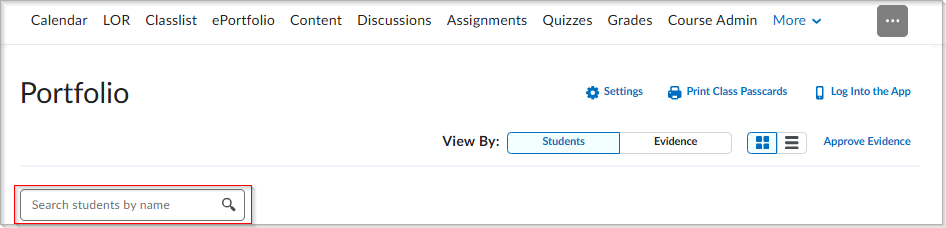
Figure: The new search bar in the Portfolio Students view allows instructors to filter the student list by name.
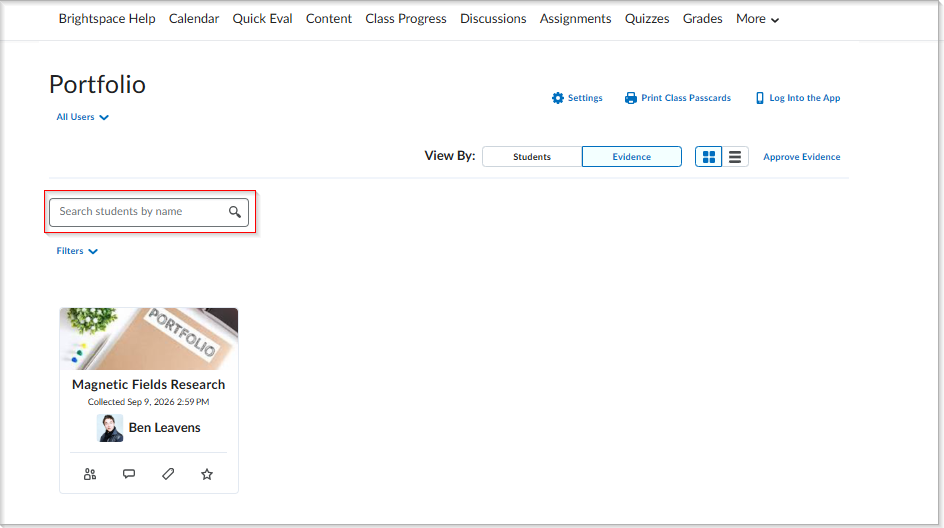
Figure: The new search bar on the Portfolio Evidence view allows instructors to quickly locate evidence by student name.
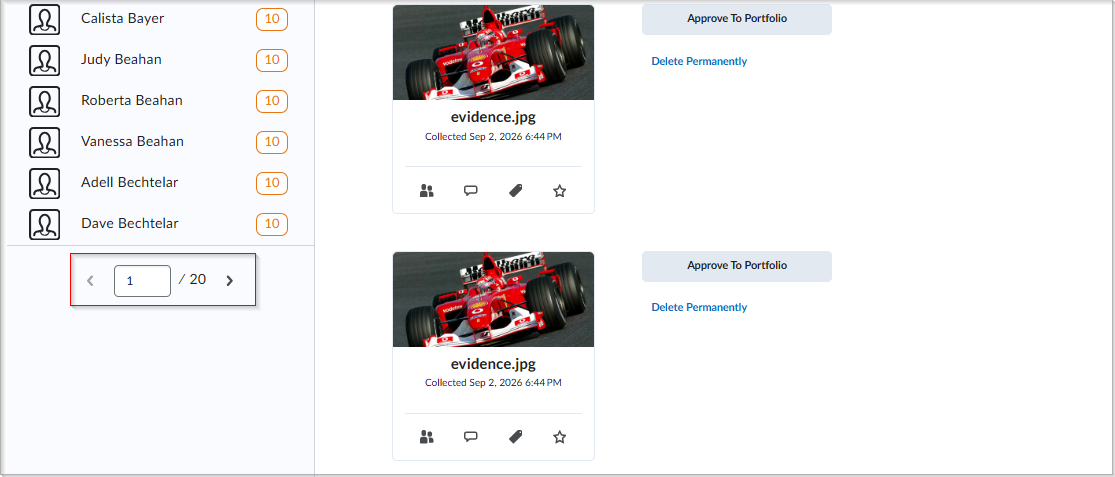
Figure: Pagination controls on the All Unapproved Evidence page improve navigation for large course enrollments.
|
Note: This release does not include net-new portfolio performance features beyond the completed work being released, or new search functionality beyond the existing search bar expansion and enhancement work. |
This feature implements the following PIE items:
- D13283 (Portfolio Search)
- D8175 (Portfolio Performance)
Technical Details
Impact:
- Slight impact to administrators and instructors due to improved page responsiveness and new search capabilities when managing large course enrollments.
Availability:
- This feature is available to all clients.
To enable:
- This functionality is automatically enabled for all users.
- This functionality is not dependent on any new or updated permissions and configuration variables.
Portfolio – Portfolio filter component modernization | Updated
This release introduces an updated Portfolio filter component that improves the clarity and navigation of category management. To provide a cleaner interface, the Go to Category Manager button is moved outside the filter component and renamed Manage Categories. On the All Unapproved Evidence page, Manage Categories is moved to More Actions, and Categorize All is renamed Add Categories. On individual evidence pages, Add Category is renamed Add Categories to more accurately reflect its purpose of tagging evidence with existing categories.
To distinguish between different management levels, the Category Management section on the Portfolio Class Settings page is renamed Class Category Management. On the portfolio category management admin tool page, Category Management is renamed School Category Management. These improvements ensure a consistent and intuitive workflow across both the evidence approval and individual evidence views.
|
Note: This update does not redesign the Portfolio category management system or change how categories function at a technical level. |
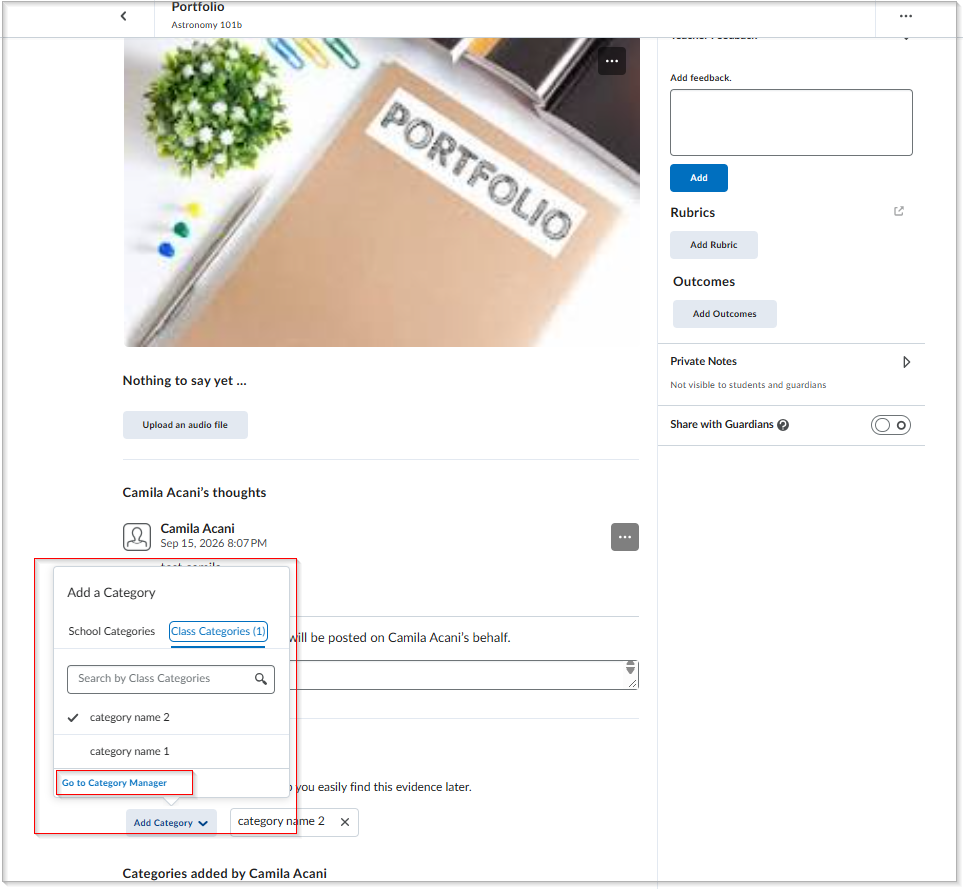
Figure: The previous individual evidence page showing Add Category and the Go to Category Manager button inside the filter component.
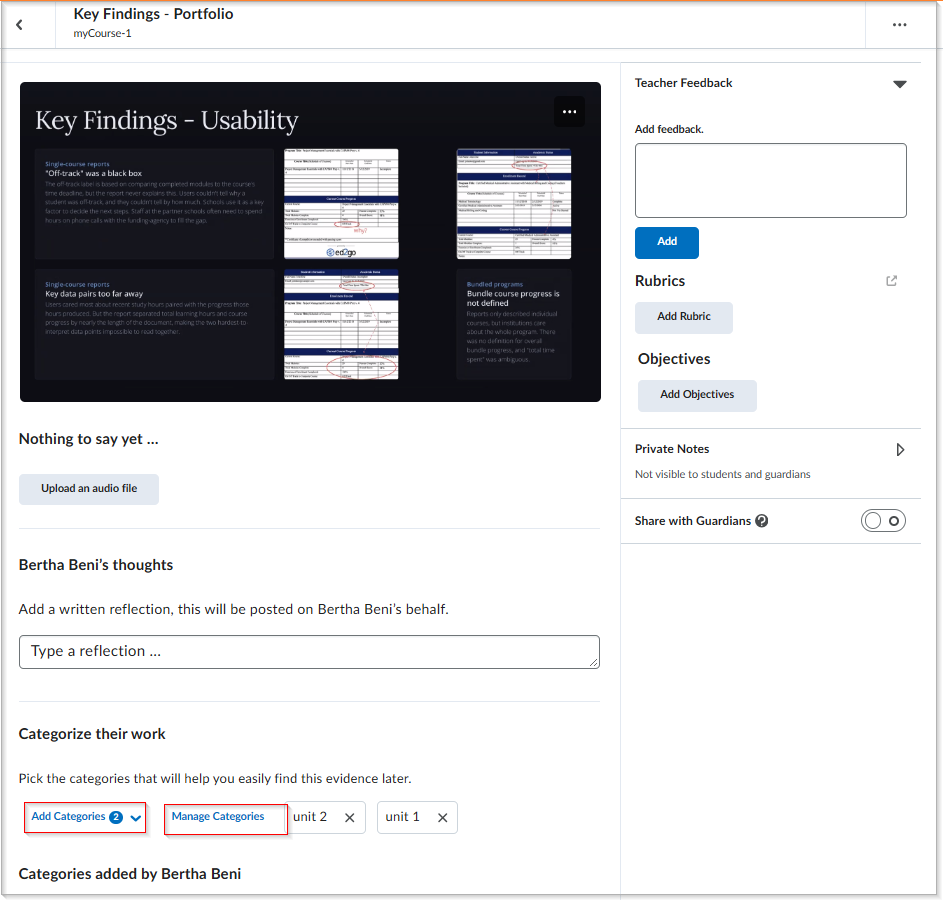
Figure: The updated individual evidence page showing the renamed Add Categories action and the relocated and renamed Manage Categories button, positioned outside the filter dropdown for improved navigation.
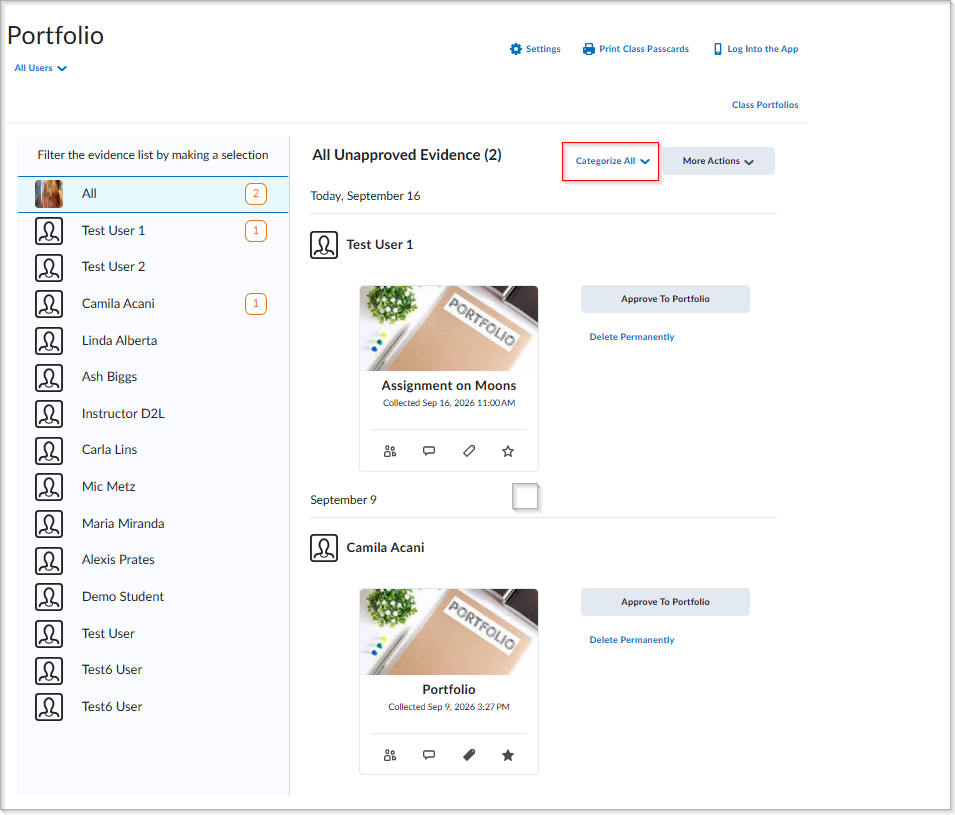
Figure: The previous All Unapproved Evidence page with the Categorize All action.
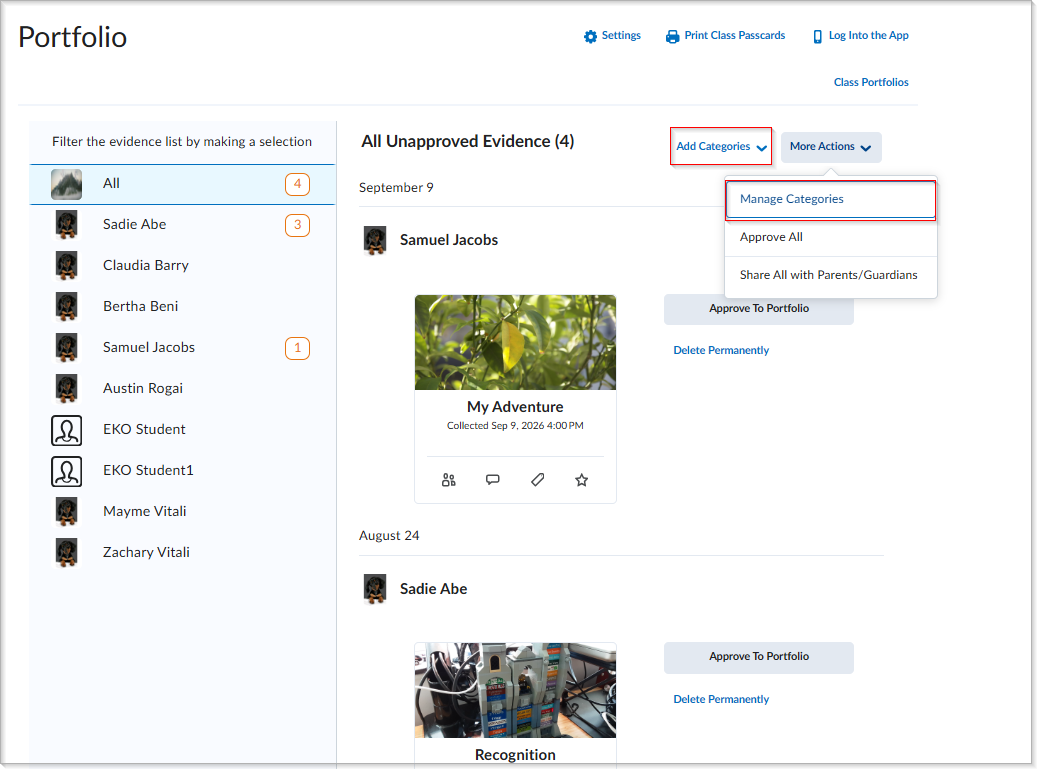
Figure: The updated All Unapproved Evidence page showing the renamed Add Categories action and More Actions, where Manage Categories is now located.
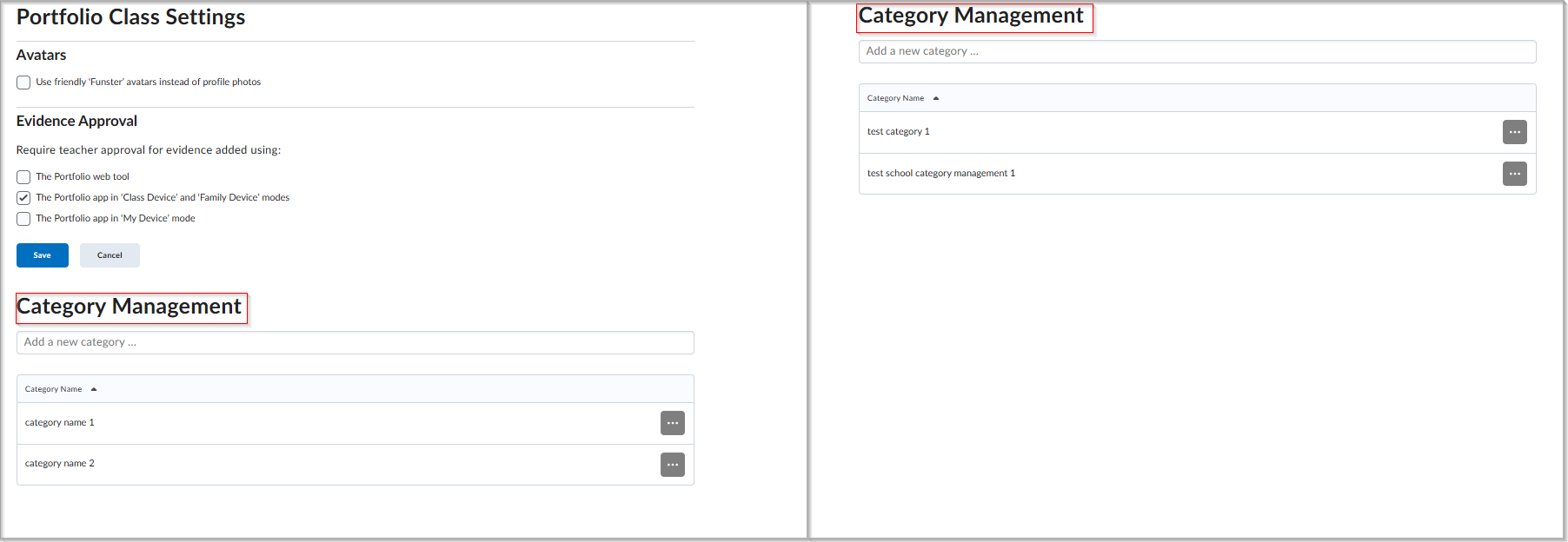
Figure: The previous Portfolio settings pages where both class-level and school-level management sections were identically labeled as Category Management.
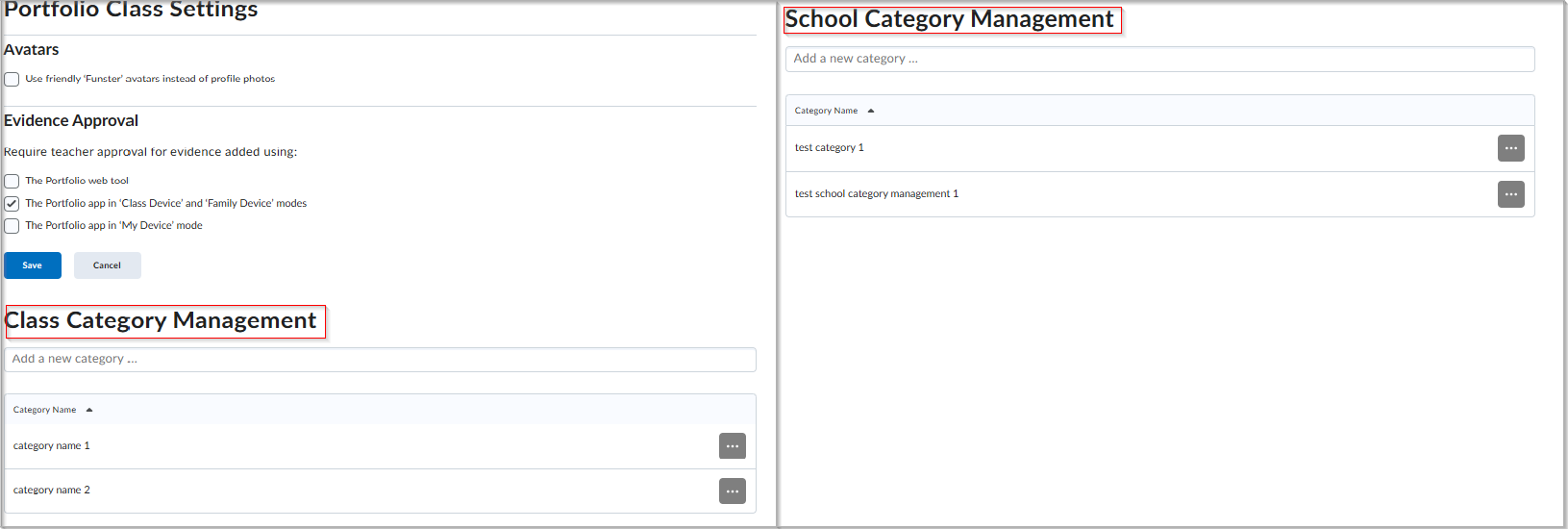
Figure: The updated Portfolio settings pages showing the renamed Class Category Management section (left) and the renamed School Category Management section (right) for improved clarity between management levels.
Technical Details
Impact:
- Slight impact to instructors and administrators due to clarified labeling and relocated navigation buttons within the Portfolio evidence views.
Availability:
- This feature is available to all clients.
To enable:
- This functionality is automatically enabled for all users.
- This functionality is not dependent on any new or updated permissions and configuration variables.
Work To Do Widget – View Course Work link | Updated
The Work To Do widget now includes a View Course Work link when accessed from a course homepage, giving learners access to all overdue and upcoming activities for that course. When a course has more than six activities, the new View Course Work link opens the Work To Do tool filtered to that course. This gives learners a complete view of their course-specific workload without requiring organization-level permissions.
Previously, learners with permission to view the widget only at the course offering level could see a maximum of six activities. The View All Work link, which opens activities across all courses, remains available only to users with organization-level permissions. For more information on Work To Do widget permissions, refer to Work To Do widget permissions.
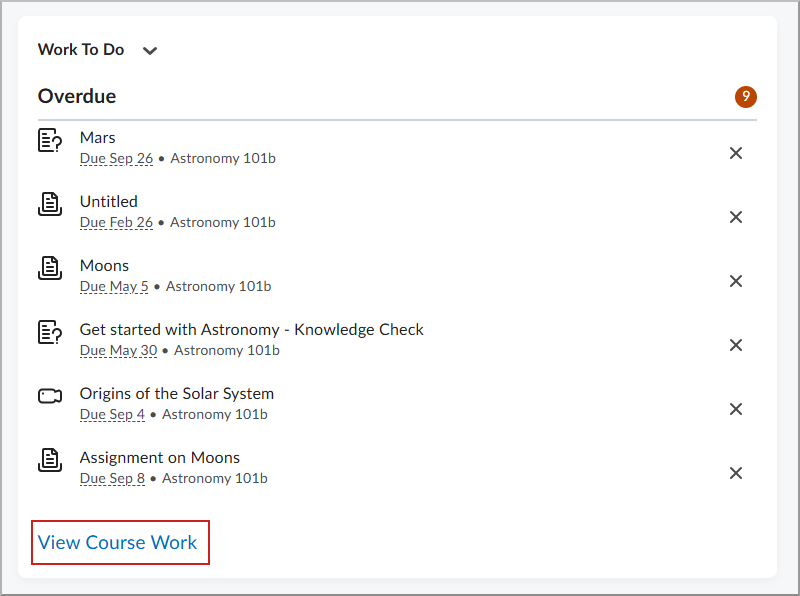
Figure: The Work To Do widget now displays a View Course Work link when more than six activities are available in a course.
Technical Details
Impact:
- Slight impact to learners who can now access a full list of course-specific activities directly from the widget on a course homepage.
Availability:
- This feature is available to all Brightspace Core clients.
To enable:
- This functionality is automatically enabled for all users.
- This functionality is not dependent on any new or existing permissions or configuration variables.
Work To Do Widget – View times for upcoming and overdue activities | Updated
The Work To Do widget now displays the specific time an activity is due or ends, along with associated availability dates, when learners hover over an activity date. Previously, the widget displayed only the date an activity was due or ended.
This update gives learners more precise deadline information, including when they work across different time zones.
This feature implements the following PIE item:
- D7980 (Show Date & Time in the Work To Do Widget)
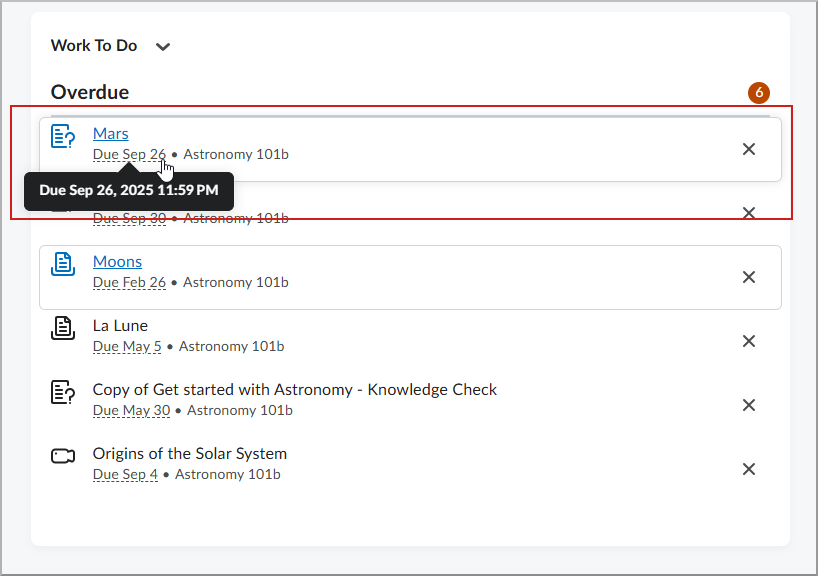
Figure: The Work To Do widget displays the specific time an activity is due when a learner hovers over the date.
Technical Details
Impact:
- Slight impact to learners who will now see specific times for activity deadlines when hovering over dates in the Work To Do widget.
Availability:
- This feature is available to all Brightspace core clients.
To enable:
- This functionality is automatically enabled for all users.
- This functionality is not dependent on any new or existing permissions or configuration variables.
Change History
10-September-2026 Preview Release Notes published.
01-October-2026 Updated Portfolio – Faster evidence review with expanded search to include screenshots.
01-October-2026 Updated Portfolio – Portfolio filter component modernization | Updated to include screenshots.
01-October-2026 Removed Eduframe by DRiEAM – New Partner Offering | New.
01-October-2026 Updated Content – Adjustable side navigation for Immersive View | New to include precise adjustment information.
01-October-2026 Added Createspace – Copy course content to the Content Library | Updated.
01-October-2026 Added D2L Lumi Feedback – Improve grading transparency and reporting | Updated.
01-October-2026 Added D2L Lumi Tutor – Customize the learner experience and expand administration options | Updated.
01-October-2026 Added the Content API update.
01-October-2026 Added the Intent to EOL Learner Experience and Classic Content release announcement.
01-October-2026 Added the New Content Experience is now Content release announcement.
01-October-2026 Updated terms "New Content Experience" to "Content" to reflect the announced change in name.
01-October-2026 Added the Intent to EOL LTI 1.1 support in Brightspace release announcement.
01-October-2026 Added LTI/External learning tools – Control grade item visibility with LTI tools | New.
01-October-2026 Added LTI/External learning tools – View Link Request functionality is removed for LTI 1.3 | Removed.
01-October-2026 Added Brightspace Apps – New additions to Brightspace Apps | New.
08-October-2026 Updated Work To Do Widget – View Course Work link | Updated to add a link to the Work To Do Widget permissions.