Video: Release Highlights
You Asked, We Delivered
The following updates were inspired by your submissions to D2L's Product Idea Exchange:
|
API Updates
- Updates to the Users API now support Distributed Administration, allowing administrators with permissions assigned at a sub-organization level to perform user management tasks via API that were previously restricted to organization-level administrators.
- The Enrollments API is updated to support Distributed Administration, ensuring that automated enrollment workflows now respect the same sub-organization permission boundaries established in the Brightspace user interface.
- Updates to the Permissions API allow Sub-org administrators to manage roles and permissions within their assigned Sub-org units, enabling the automation of role management without requiring system-level intervention.
- This release introduces a new POST route for the MyCPDRecords API, allowing authorized users with the Manage Other Users' CPD Records (API Only) permission to create CPD records on behalf of other learners.
- A new User Merge API route enables administrators to automate the merging of duplicate user records, including the ability to specify merge components and choose whether to deactivate or delete the source user.
Refer to the Current Release Changes page of Brightspace Developer Platform for details about these updates.
General Announcements
- If you're an H5P or a Creator+ with H5P customer, you can stay up to date with the latest improvements and features by visiting H5P News.
- The streamlined group assignment creation workflow was introduced in February 2026/20.26.02. The legacy group assignment creation page, previously scheduled for retirement in June 2027/20.27.06, is now scheduled for retirement in December 2026/20.26.12. A dropdown on the legacy page prompts users to try the new experience and displays the updated retirement timeline.
- D2L is continuing to unlist outdated Brightspace Tutorial videos that no longer reflect the current interface and workflows. Updated tutorial videos are embedded in the documentation to align with the latest features. To review the list of added, unlisted, and removed videos, refer to the article: Brightspace Tutorial Video Updates: Added, Unlisted, Removed.
- This release adds autosave every minute to Written Response quiz questions that use the HTML Editor. Previously, autosave every minute was available only for Written Response questions that did not use the HTML Editor.
- To improve the accessibility experience for screen reader users, the Confirm Dialog now uses the native HTML dialog element. When a Confirm Dialog opens, the focus is now placed on the dialog title to ensure information is read in the correct order.
- Brightspace is improving LTI validation to ensure all launches are performed through supported methods and authorized links. This update may affect custom LTI placements in custom widgets involving JavaScript that were created by copying an LTI launch URL directly from browser network traffic, as these manually copied URLs will fail to launch after the update. To resolve any broken links, administrators and instructors must replace manually copied network URLs with organization-level LTI links created at the LTI deployment to ensure continued functionality and security.
- To maintain performance, accessibility, and security, Brightspace's minimum supported browser versions increases every January and July. This update increases the minimum supported browser versions to:
- Chrome 147
- Edge 147
- Safari 26
- Firefox 149
The minimum legacy browsers are now: - Chrome 111
- Edge 111
- Safari 17
- Firefox 111
The following browsers are no longer supported: - Chrome 92 and earlier
- Edge 92 and earlier
- Safari 14 and earlier
- Firefox 90 and earlier
For optimal performance, D2L recommends using the latest version of a supported browser. Refer to the updated Browser support topic (available on August 6, 2026) for details.
Achievement+ – Set Achievement Thresholds at the Outcome Set level for consistent reporting | New

|
Achievement+ is an add-on solution that must be purchased separately. For more information, contact your D2L Client Sales Executive or Account Manager. |
To support consistent achievement reporting, administrators can now define thresholds as part of the Achievement Scale at the outcome set level. When an Outcome Set is imported into a course, the threshold is included automatically.
This update helps ensure achievement data is collected consistently and displayed correctly in Achievement+ reporting. Previously, instructors configured thresholds at the course level, which could result in inconsistent data, confusion, and setup errors across courses. By centralizing threshold configuration at the outcome set level, administrators can ensure a more consistent reporting experience while reducing manual setup for instructors.
For more information, refer to: Enhancing Outcome Set management and Achievement Scales.
This feature implements the following PIE item:
- D12100 (Set Achievement Threshold at Program Level)
Technical details
Impact:
- Moderate impact to data administrators due to the ability to apply consistent Achievement Thresholds across courses at the outcome set level.
- Moderate impact to administrators due to improved consistency and accuracy in achievement reporting configuration.
- Moderate impact to instructors due to reduced manual threshold configuration when importing Outcome Sets into courses.
Availability:
- This feature is available to all clients with the Achievement+ solution.
To enable:
- This functionality is automatically enabled for all users with the Achievement+ add-on.
- This functionality is not dependent on any new or existing permissions.
- This functionality is not dependent on any new or existing configuration variables.
Assignments – Asset Processor support for group assignments | Updated
Instructors can now use third-party processing tools that support the LTI 1.3 Asset Processor service with group assignments. Previously, these processing tools, such as Turnitin and Copyleaks, could only be used with individual assignments because the required group information could not be passed to the processing tool.
With this update, instructors can attach LTI 1.3 processors to group assignments to assess submissions for originality, AI generation, grammar, and more. Processing reports now appear in the same locations as they do for individual assignments, including the Users and Submissions tabs and the Consistent Evaluation page. For learners, reports are visible in their Submission History and Feedback views, allowing all group members to view reports associated with the group submission.
This feature uses the LTI 1.3 Asset Processor standard and the Course Group ID substitution parameter to ensure the processing tool receives the required group context. The submission notice is sent on behalf of the learner who uploads the file, while the resulting report remains associated with the group submission.

|
Important: This feature requires the third-party tool to support the LTI 1.3 Asset Processor standard and have the Course Group ID substitution parameter enabled. |
Technical Details
Impact:
- Moderate impact to instructors who can now use supported processing tools on group-based assessments.
- Slight impact to administrators who must ensure the appropriate LTI parameters are enabled for the tool.
Availability:
- This feature is available to all clients using LTI 1.3-enabled processing tools that support Asset Processor standards.
To enable:
- Ensure the third-party tool is registered and deployed using LTI 1.3.
- Ensure the Asset Processor service is enabled for the tool registration.
- Ensure the Group.Course.GroupID substitution parameter is enabled at the LTI registration or deployment level.
- Attach the processor to the desired group assignment in the assignment settings.
Assignments – Publisher selection dropdown locks after learners begin an activity | Updated
After learner submissions begin, instructors can no longer change the Publishers setting on the assignment creation page. Locking the Publishers setting after submissions begin ensures that publishing rules remain clear and predictable during evaluation and publishing workflows. Changing publisher rules after activity is underway can affect who can publish evaluations and may result in conflicts that require additional intervention. This update provides a smoother, more reliable evaluation and publishing experience.
|
Important: To change the publisher selection after the dropdown locks, instructors must recreate the assignment and ask learners to resubmit. To avoid this scenario, review publisher selections during course setup and before the assignment is available to learners. For assignments that use Advanced Assessment, confirm which publishers can publish evaluator evaluations before submissions or evaluations begin.
|
Instructors can use start dates or hide assignments until the required configuration is complete. After submissions or evaluations begin, instructors can still add, update, enroll, or unenroll publishers. Only the publisher selection dropdown is locked.
Previously, instructors could change the Publishers configuration after receiving submissions.
Technical Details
Impact:
- Slight impact to administrators and instructors due to a more reliable experience.
Availability:
- This feature is available to all clients.
To enable:
- This functionality is automatically enabled for all users.
- This functionality is not dependent on new or existing permissions or configuration variables.
Brightspace – Improved usability of Help text dialogs | Update
This update improves Help text dialogs in Brightspace.
Help text dialogs appear when users click question mark icons in forms.
Previously, these dialogs did not automatically resize to fit the screen, which could hide content or action buttons and prevent users from accessing information, closing dialogs, or manually resizing the dialog.
Help text dialogs now automatically resize to fit the screen, ensuring all content and actions remain visible and accessible. Dialogs now display a scrollbar when content exceeds the available space, allowing users to scroll through the full text and access all controls.
Before improvement:
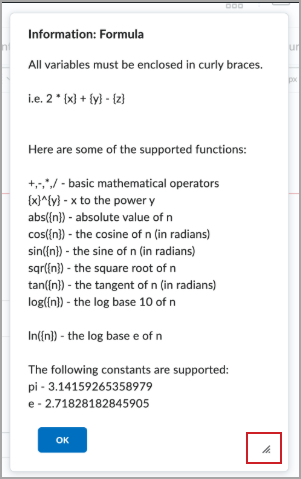
Figure: The previous help dialog can only be resized using the highlighted control.
After improvement:
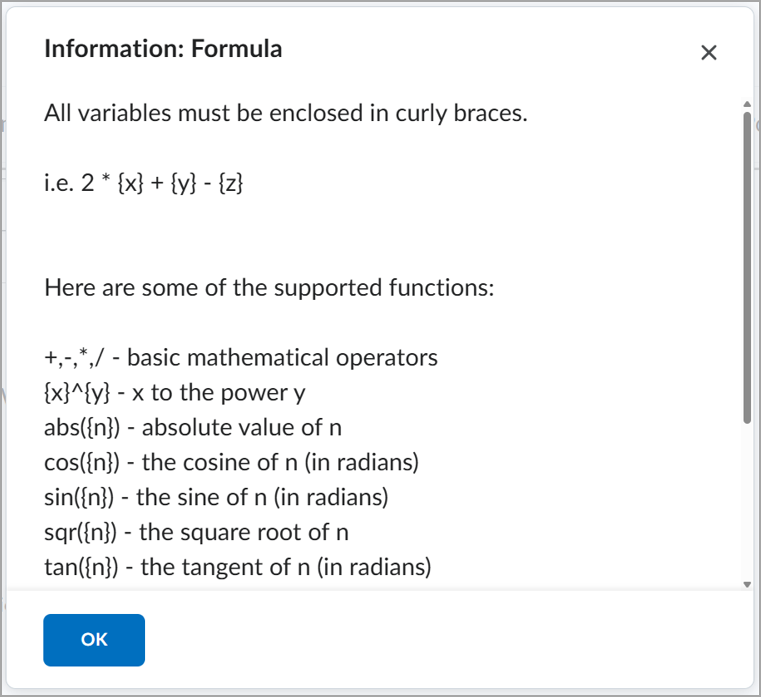
Figure: The improved help dialog adapts to the available screen size while preserving access to all content through scrolling.
Technical details
Impact:
- Slight impact to all users due to improved visibility and usability of help dialog boxes.
Availability:
- Available to all clients.
To enable:
- This feature is automatically enabled.
- This functionality is not dependent on any new or existing permissions or configuration variables.
Brightspace – Rubric Icon in Assignments, Discussions, and Quizzes is enabled by default | Updated
As of the June 2026/20.26.06 release, instructors can identify which assignments, discussions, and quizzes have attached rubrics from their list pages. The d2l.Tools.Activities.ShowRubricsIcon configuration variable controls this feature and is now set to ON. Administrators can continue to override this value until the adoption period ends in the September 2026/20.26.09 release.
This configuration variable is currently scheduled for removal in the September 2026/20.26.09 release, when this feature will be enabled automatically for all clients. This adoption period allows organizations to plan and roll out the feature on a timeline that works best for them.
Technical Details
Impact:
- Slight impact to administrators due to the need to manually opt out, if required.
Availability:
- This feature is available to all clients.
To enable:
- This functionality is automatically enabled.
The d2l.Tools.Activities.ShowRubricsIcon configuration variable is set to ON by default.
Starting with the September 2026/20.26.09 release, this configuration variable is planned for removal, and administrators will no longer be able to opt out.
- This functionality is not dependent on any new or existing permissions.
Brightspace Apps – Install apps with Learning Tools Interoperability functionality from Find Apps | New
Administrators and app publishers can now create and install apps with Learning Tools Interoperability (LTI) components directly in Brightspace Apps. This update introduces Brightspace Apps, which allow users to manage LTI registrations, deployments, and links in a single view instead of navigating between multiple administration tools. Previously, administrators managed LTI integrations across multiple tools using a largely manual process.
Key features of this new workflow include:
- Consolidated workflow: Manage substitution and custom parameters in a single workflow. Parameters cascade from registrations to deployments and links as inherited parameters.
- Updated Org Unit Picker: Specify app availability at the deployment level with an improved selection interface.
- Activity Logs: Track app activity, including app enablement, disablement, and deployment creation.
- App Tagging: LTI registrations and deployments created within an app are also visible in Manage Extensibility and External Learning Tools, where they are identified with an App tag. App tags are also shown in the course level links page and the migration log.
- Terminology updates: Several LTI settings have been renamed for clarity.
Improved installation experience
Administrators can now install apps with LTI components directly from Find Apps. This workflow reduces manual configuration by streamlining sharing-rule setup and registration, deployment, and link management. During installation, administrators can review Data Access details to understand what information an app can access. Apps support both Standard and Dynamic Registration, simplifying LTI integration management in Brightspace.

|
Note:
- LTI registration domains must be unique within an instance. An app cannot use a domain already assigned to an enabled LTI registration in the LTI Advantage tab. App details provided by publishers in Find Apps are not localized.
- LTI components can only be added to apps that do not have an existing deployment. Each app is limited to one LTI registration.
|
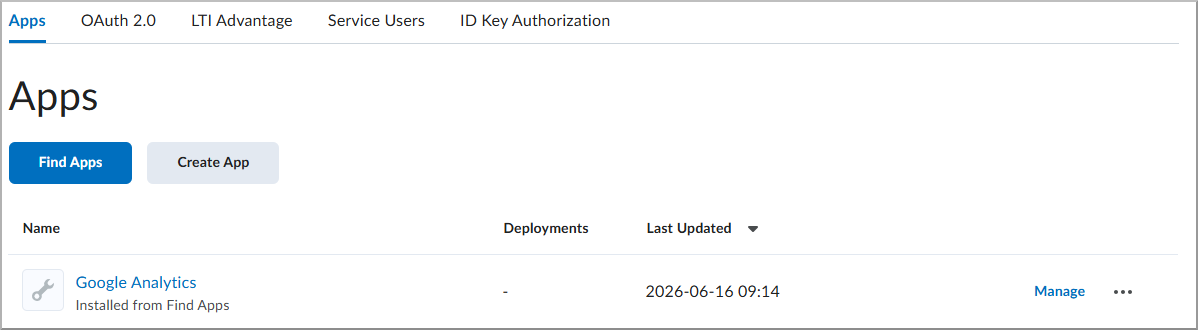
Figure: The Brightspace Apps page displaying the Find Apps and Create App options for managing LTI-enabled applications.
Technical Details
Impact:
- Moderate impact to administrators due to a consolidated workflow for creating and managing LTI-based applications.
Availability:
- This feature is available to all clients.
To enable:
- Ensure administrators have the following permissions:
- Brightspace Apps > View Brightspace Apps and Create and Manage Brightspace Apps
- External Learning Tools > Manage LTI Tools
- Navigate to Admin Tools > Manage Extensibility > Apps to create or manage apps.
Brightspace Pulse – Parent & Guardian mobile app access integrated into Brightspace Pulse | Updated
To simplify the mobile experience for families, parent and guardian functionality is now integrated directly into the Brightspace Pulse app. Parents and guardians can now use Brightspace Pulse as their single mobile application to log in and view their child’s information, such as upcoming work, recent grades, and activity feed updates.
|
Important:
With this release, the standalone Brightspace Parents & Guardians app is no longer available for new downloads from the App Store or Google Play Store and is no longer supported. Parents and guardians should download and use Brightspace Pulse to continue receiving updates and support for the parent and guardian experience. |
This update consolidates multiple parent-facing mobile experiences into one unified platform, providing a more consistent experience across roles. Parent access in Brightspace Pulse continues to respect all existing district controls, permissions, and privacy policies.
Technical Details
Impact:
- Slight impact to administrators who may need to update communication materials or support documentation to reflect the move from the standalone app to Brightspace Pulse.
- Slight impact to parents and guardians who must download the Brightspace Pulse app and log in with their existing credentials to continue accessing student information on mobile devices.
Availability:
- This feature is available to all clients using Brightspace Parent & Guardian.
To enable:
- This functionality is automatically enabled for all users who already have a Parent & Guardian account.
- This functionality is not dependent on any new or existing permissions or configuration variables.
- Parents and guardians must download the Brightspace Pulse app from the App Store or Google Play and log in using their Brightspace Parent & Guardian credentials.
Content – Default border removed from embedded LTI activities | Updated
To create a cleaner and more seamless visual experience for embedded learning activities, Brightspace no longer displays the default gray border around Learning Tools Interoperability (LTI) activities on Content pages. This update applies to both newly added and existing LTI activities, including H5P content. Removing the border improves visual consistency across platforms and better aligns interactive content with the modern Brightspace experience, reducing the need for custom styling or workarounds by course authors.
|
Note: This update only affects the visual appearance of the activity border. The way instructors add, launch, and interact with LTI activities remains unchanged, and there is no impact on activity functionality or accessibility. |
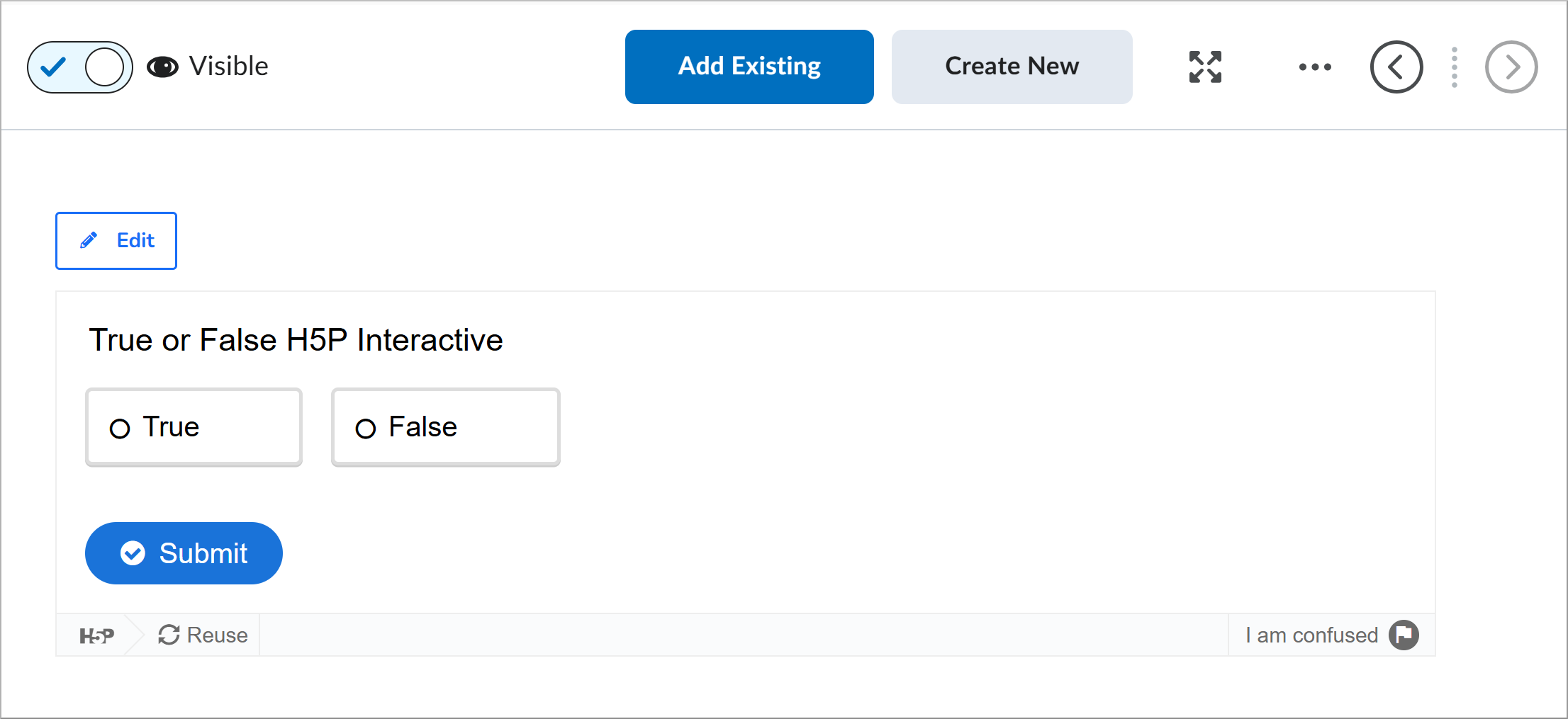
Figure: An embedded LTI activity displayed in Content without the default gray border.
Technical Details
Impact:
- Slight impact to instructors and course authors who benefit from a cleaner visual integration for embedded LTI and H5P activities.
Availability:
- This feature is available to all clients.
To enable:
- This functionality is automatically enabled for all users.
- This functionality is not dependent on any new or existing permissions or configuration variables.
Content – Manage outcome coverage and alignments from one place | New
To help instructors and instructional designers manage learning outcome alignments more efficiently, this feature updates the Outcomes Coverage experience in Content with a single workflow for reviewing course coverage and managing alignments. This new workflow is available in the New Content Experience (NCE).
Instructors and instructional designers can now review learning outcome coverage across a course, review alignments by module, and manage activity-level alignments from the same page. This update reduces navigation between separate pages and provides a more streamlined workflow for reviewing and updating outcome alignments.
Previously, outcome coverage review and outcome alignment management were accessed separately. Now, instructors can review coverage across an entire course, examine alignments within modules, and manage activity-level alignments from a single page. Bulk editing is also available for outcome alignments, allowing instructors to make changes more efficiently.
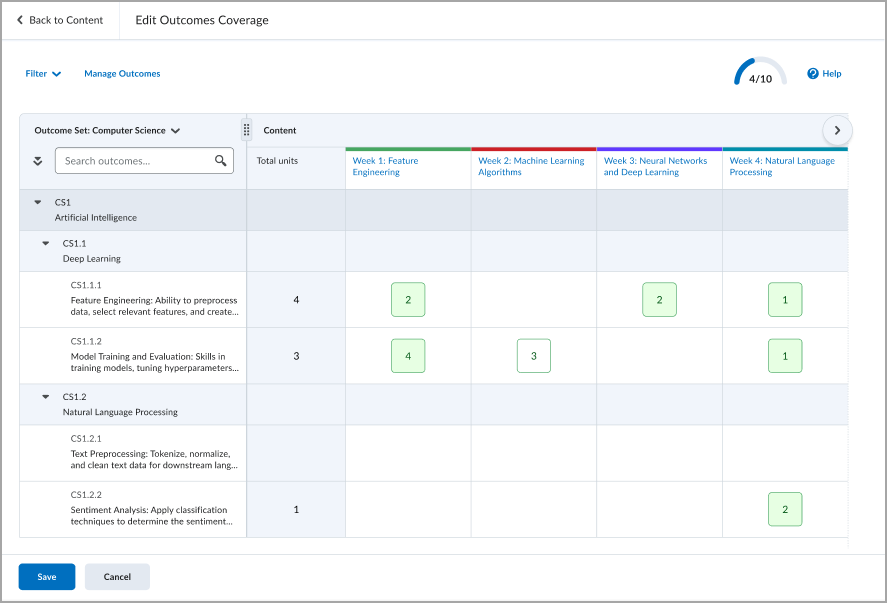
Figure: Use the Edit Outcomes Coverage view to review outcome alignments across course modules, identify coverage gaps, and evaluate overall alignment progress.
Technical details
Impact:
- Slight impact to instructors due to the ability to review and manage learning outcome alignments from a single workflow in Content.
- Slight impact to administrators due to improved consistency and visibility of course-level outcome mapping.
Availability:
- This feature is available to all clients using the New Content Experience.
To enable:
- This functionality is automatically enabled for all users with the New Content Experience enabled.
- This functionality is not dependent on any new or existing permissions.
- This functionality is not dependent on any new or existing configuration variables.
D2L Lumi Feedback – New integrations and language improvements | Updated
|
These features are part of the D2L Lumi Feedback for Brightspace add-on solution that must be purchased separately. For more information, contact your D2L Client Sales Executive or Account Manager. |
The following updates are available for D2L Lumi Feedback.
Platform and administrative improvements
- Integration health alerts: Administrators now receive alerts when a connected integration stops working.
- Multilingual interface: The Lumi Feedback user interface now follows the preferred language defined in an administrator's personal settings.
Availability:
- This feature is only available to clients who have purchased D2L Lumi Feedback. For more information, contact your D2L Client Sales Executive or Account Manager.
To enable:
- This feature is automatically enabled.
- This functionality is not dependent on any new or existing permissions or configuration variables.
D2L Lumi Remix – Apply Creator+ Elements to content pages | Updated
|
This feature is part of the D2L Lumi Pro for Brightspace and Creator+ add-on solutions that must be purchased separately. For more information, contact your D2L Client Sales Executive or Account Manager. |
To help educators transform learning content into more engaging and interactive experiences, D2L Lumi Remix can now automatically analyze page content and apply Creator+ Elements. This update allows instructors to instantly uplift existing pages with interactive components rather than building them manually.
With this release, Lumi Remix supports the following Creator+ Elements:
- Accordions
- Callouts
- Stylized Quotes
- Tabs
In the Lumi Remix workflow, instructors can select the Apply Creator+ Elements option and click Generate. Once applied, these elements can be further customized and refined using the standard Creator+ authoring tools in the Brightspace HTML Editor.
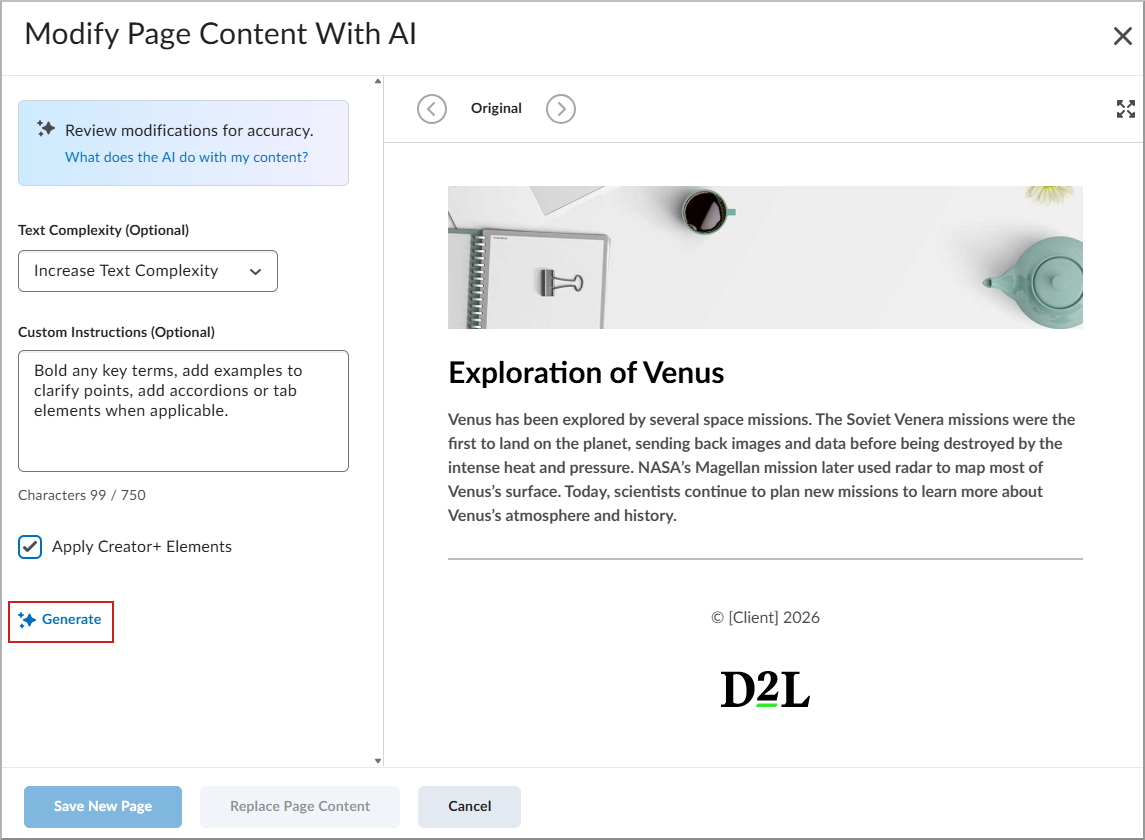
|
Note: This release does not include the ability to generate Creator+ Practices or H5P interactives. |
Technical Details
Impact:
- Slight impact to instructors who can now use AI to automatically add interactive elements to their content pages.
- Slight impact to administrators who may see an increase in generation consumption.
- Applying Creator+ Elements consumes 5 generations per request.
Availability:
- This feature is only available to clients who have purchased both the D2L Lumi Pro for Brightspace and Creator+ add-on solutions. For more information, contact your D2L Client Sales Executive or Account Manager.
- This feature is available to clients using the New Content Experience.
To enable:
- Ensure the instance is entitled to both Lumi Pro and Creator+.
- Ensure the course has the Insert Elements tool enabled.
- Ensure instructors have the Generative AI > Modify and Refine Pages permission.
D2L Lumi Quiz – Create variants of existing quiz questions | Updated
|
This feature is part of the D2L Lumi Pro for Brightspace add-on solution that must be purchased separately. For more information, contact your D2L Client Sales Executive or Account Manager. |
To help educators create diverse question sets that assess the same concepts in different ways, D2L Lumi Quiz can now generate variants of existing questions. Previously, Lumi Quiz could generate questions only from existing content or free-text input. This update helps instructors reinforce learning and promote assessment fairness by presenting concepts through different question types and formats.
Instructors can generate variants from the Question Library using the following methods:
- Generate Questions split button: From the split button at the top of the Question Library, click Generate Questions and select Generate Question Variants.
- Context menu: Choose a question, open its dropdown menu, and select Generate Question Variants.
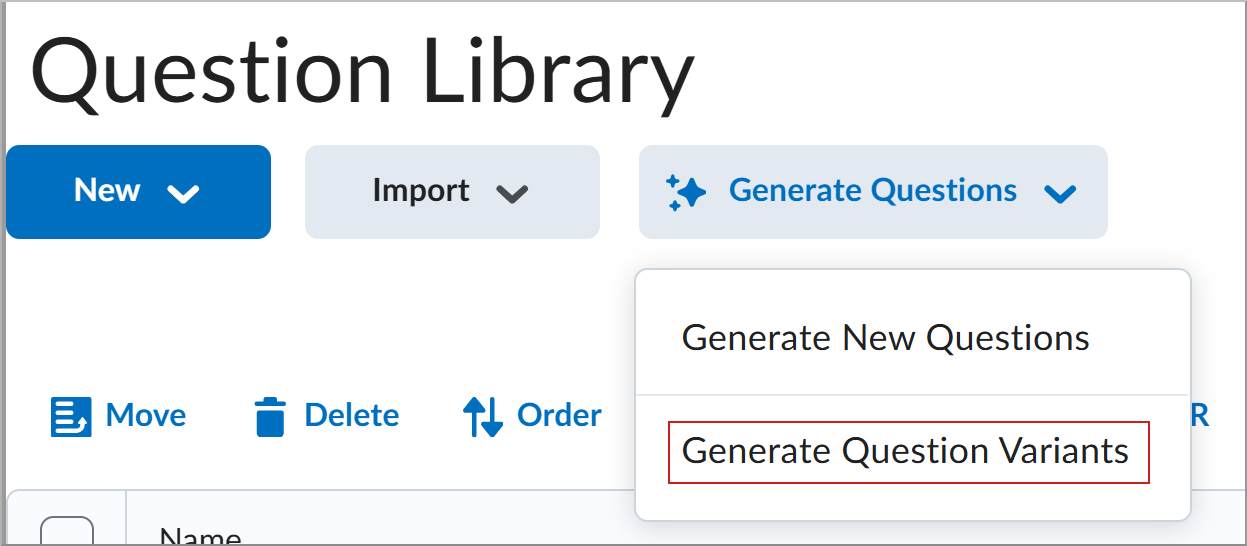
Figure: In the Question Library, click Generate Questions and select Generate Question Variants to generate new question variants using D2L Lumi.
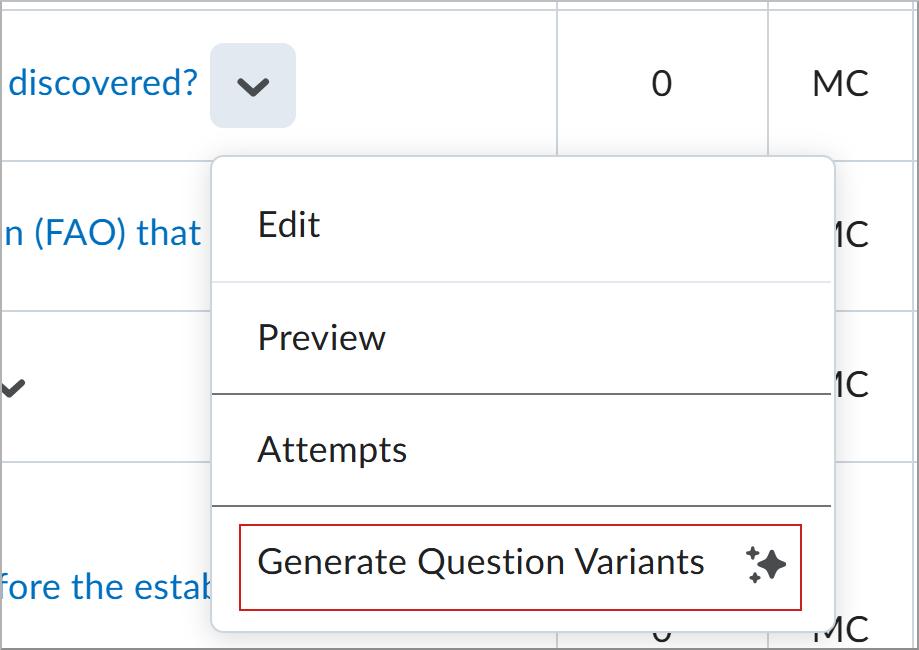
Figure: In the Question Library, click the context menu arrow and select Generate Question Variants.
When generating variants, instructors can:
- Choose the number of questions to generate (1–10).
- Specify question types, including Multiple Choice, True or False, Written Response, Multi-Select, and Short Answer.
- Provide custom instructions.
- For questions aligned to learning outcomes, focus generation on specific outcomes.
|
Note: This release does not include the ability to generate an actual question pool, as question pools are not supported within the Question Library. |
Technical Details
Impact:
- Slight impact to instructors who can generate question variants to build more diverse assessment banks.
- Slight impact to administrators who may see an increase in generation consumption.
- Generated question variants consume one generation for each question generated.
Availability:
- This feature is only available to clients who have purchased the D2L Lumi Pro for Brightspace add-on solution. For more information, contact your D2L Client Sales Executive or Account Manager.
To enable:
- Ensure the course has D2L Lumi Pro enabled.
- Ensure instructors have the Generative AI > Generate Questions permission.
- This functionality is not dependent on any new or existing configuration variables.
D2L Lumi Tutor – New integrations, expanded file support, and reliability improvements | Updated
|
These features are part of the D2L Lumi Tutor for Brightspace add-on solution that must be purchased separately. For more information, contact your D2L Client Sales Executive or Account Manager. |
The following updates are available for D2L Lumi Tutor.
New integrations and knowledge sources
- BambooHR: Administrators can now connect BambooHR as a knowledge source using an API key, allowing Lumi Tutor to reference employee directory and department information.
- YuJa and Panopto: YuJa is now supported as an external video tool. Lumi Tutor can also retrieve transcripts from Panopto LTI-hosted videos, including videos that are not directly embedded in a course.
- Ivanti Ticketing: Students and staff can now create Ivanti IT help desk tickets directly from Lumi Tutor.
- Zendesk improvements: When configuring Zendesk escalations, non-editable fields no longer appear as mapping options, simplifying configuration.
Expanded file support and resilience
- New file types: Knowledge file uploads now support Word documents, PowerPoint presentations, audio files, and video files. Video processing includes spoken content and on-screen visuals.
- Parsing resilience: Word files with formatting issues that previously failed processing now use an alternative parser to improve content ingestion reliability.
Platform and administrative improvements
- Course-scoped flows: Administrators can now scope flows to specific courses in Lumi Tutor, enabling course-specific assistant behavior.
- Integration health alerts: Administrators now receive alerts when a connected integration stops working.
- Multilingual interface: The Lumi Tutor user interface now follows the preferred language defined in an administrator's personal settings.
Reliability and performance
- Disconnect recovery: Lumi Tutor now automatically recover from connection interruptions during responses.
- Background processing: Tasks continue if users navigate away from the page.
- Suggested questions: Suggested question generation in Lumi Tutor has been optimized for improved performance.
Availability:
- This feature is only available to clients who have purchased D2L Lumi Tutor. For more information, contact your D2L Client Sales Executive or Account Manager.
To enable:
- Administrators must configure BambooHR, Microsoft Dynamics 365 Ticketing, and YuJa on the LearnWise admin dashboard in knowledge source settings.
- To use Panopto transcripts, ensure Panopto is configured as an LTI tool in the course.
- To use the Customer Data API, contact your D2L Client Sales Executive or Account Manager to request access.
- All other improvements are automatically enabled.
D2L Training Services – Analytics Builder Essentials | New
|
This is a paid service that must be purchased separately. Contact your D2L Client Sales Executive or Account Manager for more information.
|
Analytics Builder Essentials is a package of dashboards that helps Performance+ customers gain insights from Brightspace data. The package provides immediate, practical insights without requiring advanced data expertise.
Analytics Builder Essentials includes the following dashboards:
- Adoption Dashboard: Displays platform usage and adoption patterns.
- Engagement Dashboard: Displays learner engagement at the course level.
- Achievement Dashboard: Displays learner performance and risk factors.
The dashboards were designed by the D2L Learning Analytics team and are deployed over a 5-week engagement, which also includes demonstrations and support.
Technical Details
Impact:
- Slight impact to administrators due to the ability to use Brightspace data more effectively with expert guidance.
Availability:
- This feature is available as a paid add-on service for clients with active Analytics Builder access.
To enable:
- This functionality is not automatically enabled. Contact your D2L Client Sales Executive or Account Manager to purchase this service.
- This functionality is not dependent on any new or existing permissions or configuration variables.
Data Hub – Brightspace Data Sets for Outcomes support Outcome Sets | Updated
This update adds data support for recent improvements to Achievement Scales and Thresholds for Outcome Sets. These changes help ensure reporting data remains accurate and aligned with Outcome Set configurations.
The following columns are added to existing Brightspace Data Sets (BDS):
- Outcomes Set Course BDS
- New column: ScaleId (uniqueidentifier, nullable) supports consistent scale configuration and reporting.
- New column: AchievementThreshold (uniqueidentifier, nullable) enables threshold-based reporting in the Outcome Achievement Dashboard.
- Outcomes Set Org BDS
- New column: ScaleId (uniqueidentifier, nullable) supports consistent scale configuration and reporting.
- Outcomes Scale Definition BDS
- New column: AchievementThreshold (uniqueidentifier, nullable) enables threshold-based reporting in the Outcome Achievement Dashboard.
Technical Details
Impact:
- Moderate impact to administrators due to the addition of new columns to existing Brightspace Data Sets.
Availability:
- This feature is available to all Brightspace Core clients.
To enable:
- Ensure the Brightspace Data Sets > Can Access Brightspace Data Sets permission is granted to administrators at the org level.
- Ensure the d2l.Tools.BrightspaceDataSets.Version configuration variable is set to version 11.5.
- New and changed data sets appear the first time the data set runs after the version update.
Discussions – Anonymous Discussion posts are visible when assessing learners and viewing statistics | New
With this update, instructors with the See Anonymous Post Author permission can view anonymous posts when assessing individual learners in Discussions. Anonymous posts display an Anonymous post label to indicate that the learner posted anonymously.
Previously, instructors with the See Anonymous Post Author permission could reveal a learner's name on an anonymous discussion post, but they could not see anonymous posts when assessing learners or view discussion statistics that included anonymous posts.
|
Note: When the Allow evaluation of individual posts setting is enabled for a discussion topic, instructors with the See Anonymous Post Author permission can view anonymous posts. However, instructors cannot score these posts individually, and the posts are excluded from individual post calculations.
For topics linked to the grade book, instructors can manually assign an overall grade.
|
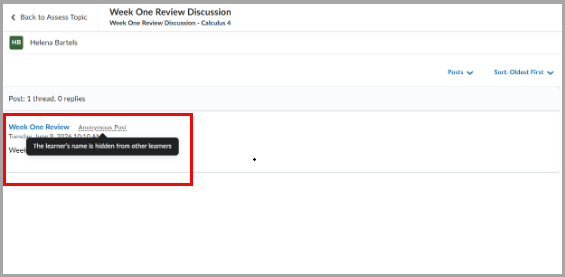
Figure: Instructor view of an anonymous discussion post, showing that the learner’s name is visible to the instructor but hidden from other learners.
Instructors without the See Anonymous Post Author permission continue to be unable to assess anonymous posts.
Discussion statistics now include anonymous post counts for roles with permission to see anonymous post author information. Statistics include counts only for anonymous posts created after this feature is introduced.
When learners view linked discussion activities in Content, the My Work area now includes their anonymous posts. These posts are labeled Anonymous post.
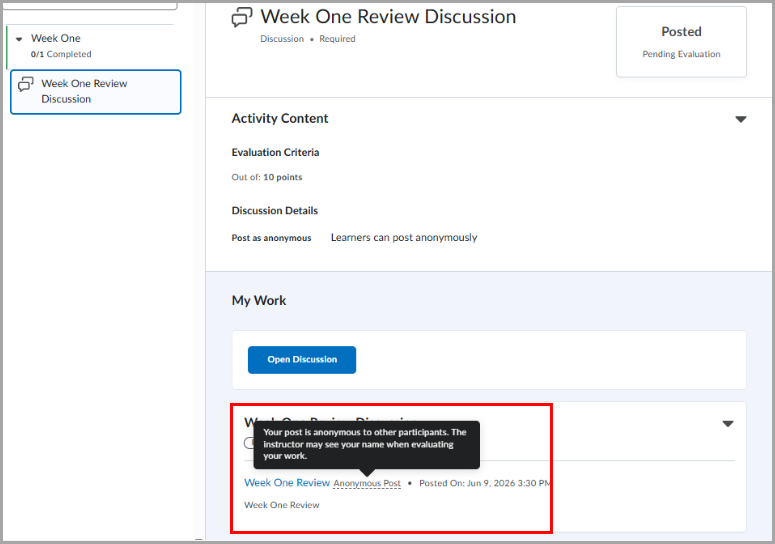
Figure: Learner view of an anonymous discussion post, showing the Anonymous Post label and tooltip explaining how anonymity applies to classmates and instructors.
Technical Details
Impact:
- Slight impact to instructors due to the ability to view anonymous discussion posts while assessing and see statistics that include anonymous posts.
- Slight impact to learners because anonymous discussion posts appear in the My Work area for linked discussion activities in Content.
Availability:
- This feature is available to all clients.
To enable:
- For instructors, the ability to view anonymous discussion posts while assessing, and to see statistics that include anonymous posts, depends on the existing Discussions > See Anonymous Post Author permission.
- For learners, the ability to view the Anonymous Post label and tooltip, which explain how anonymity applies to classmates and instructors, does not depend on any new or existing permissions.
- This functionality is not dependent on any new or existing configuration variables.
Groups – Increased limit for groups per category (200 to 1000) | Updated
Categories that allow instructors to specify the number of groups now support up to 1,000 groups. Single-user, member-specific enrollment type groups also support up to 1,000 groups per category.
This update makes it easier to create larger group sets in high-enrollment courses.
The 1000-group limit applies to all group creation methods and cannot be exceeded. This includes creating groups on the Manage Groups page, creating groups using the API, and automatically creating groups when enrollment capacity increases.
Previously, instructors could create up to 200 groups per category.
This feature implements the following PIE items:
- D888 (Ability to create more than 200 groups in one Group Category)
- D6824 (Max number of groups per category)
Technical Details
Impact:
- Large impact to administrators and instructors due to the ability to manage groups in courses with high enrollment more effectively.
Availability:
- This feature is available to all clients.
To enable:
- This functionality is automatically enabled for all users.
- This functionality is not dependent on new or existing permissions or configuration variables.
Groups – New Manage Groups user interface | New
This release introduces a new Manage Groups interface that helps instructors and administrators manage course groups more efficiently. The updated interface supports larger class sizes by making it easier to manage more groups in a single category, reducing the need to spread small-group activities across multiple categories.
Administrators can manage the new Manage Groups experience using the d2l.Tools.Groups.ManageGroupsOptIn configuration variable. The default value is OFF. This configuration variable is currently scheduled to be set to ON (Overridable) in February 2027/20.27.02 and to ON by default in May 2027/20.27.05.
When administrators set the value to ON (Opt-in), users accessing the Groups tool are prompted to turn on the new Manage Groups experience. Users can opt out at any time on the Manage Groups category page.
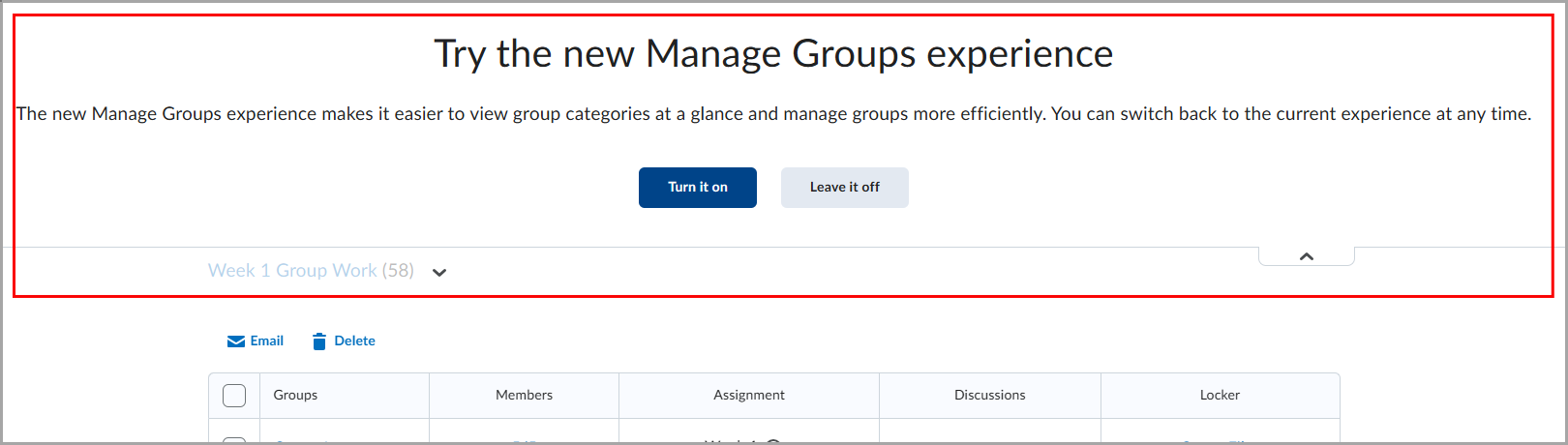
Figure: Choose whether to enable the new Manage Groups experience from the opt-in banner displayed above the current Groups interface.
Setting d2l.Tools.Groups.ManageGroupsOptIn to ON enables the new Manage Groups experience for all users and removes the opt-out option.
After instructors opt in, they can view all group categories on a new page. This page helps users quickly validate group setup by showing existing categories and their configurations. Instructors can view each category’s enrollment type, number of groups, and associated activities. Each activity links to its related locker, discussion, or assignment.
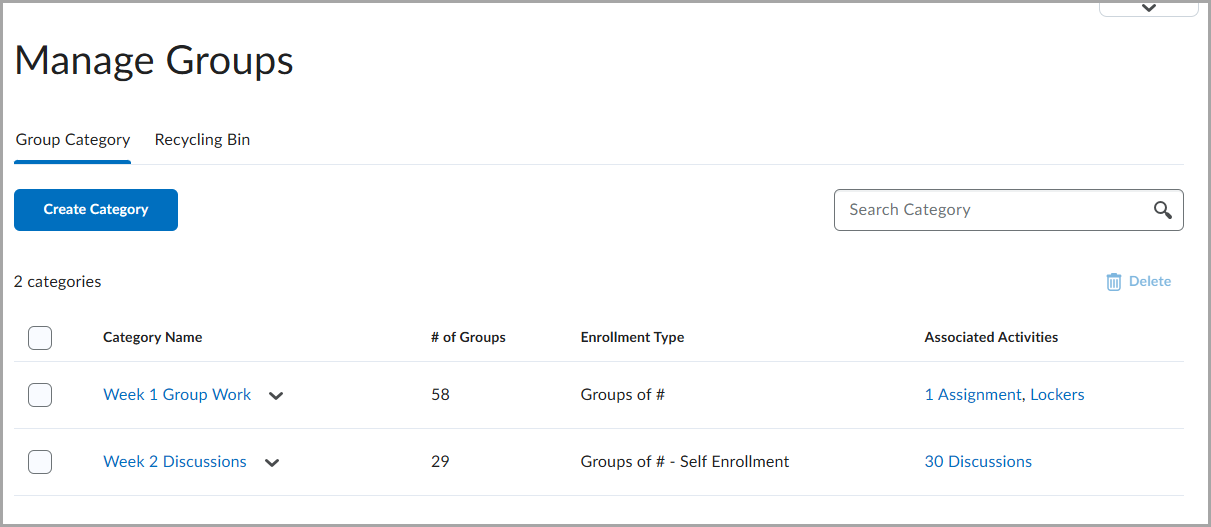
Figure: The new Manage Groups interface displays group categories in a table with the number of groups, enrollment type, and associated activities for each category.
From each category context menu, instructors can edit the category, add a group, manage members, import users, export member details, email the category, or delete the category. Access to the Recycling Bin remains available. However, the Import and Export buttons are no longer on the Manage Groups page; they are now available from each category's context menu.
To view and manage individual groups in a category, instructors can select a category to open a details page. This page shows each group’s name, code, number of members, associated assignments, discussions, and lockers. Instructors can edit each group’s name and code, manage members, export members, email the group, or delete the group.
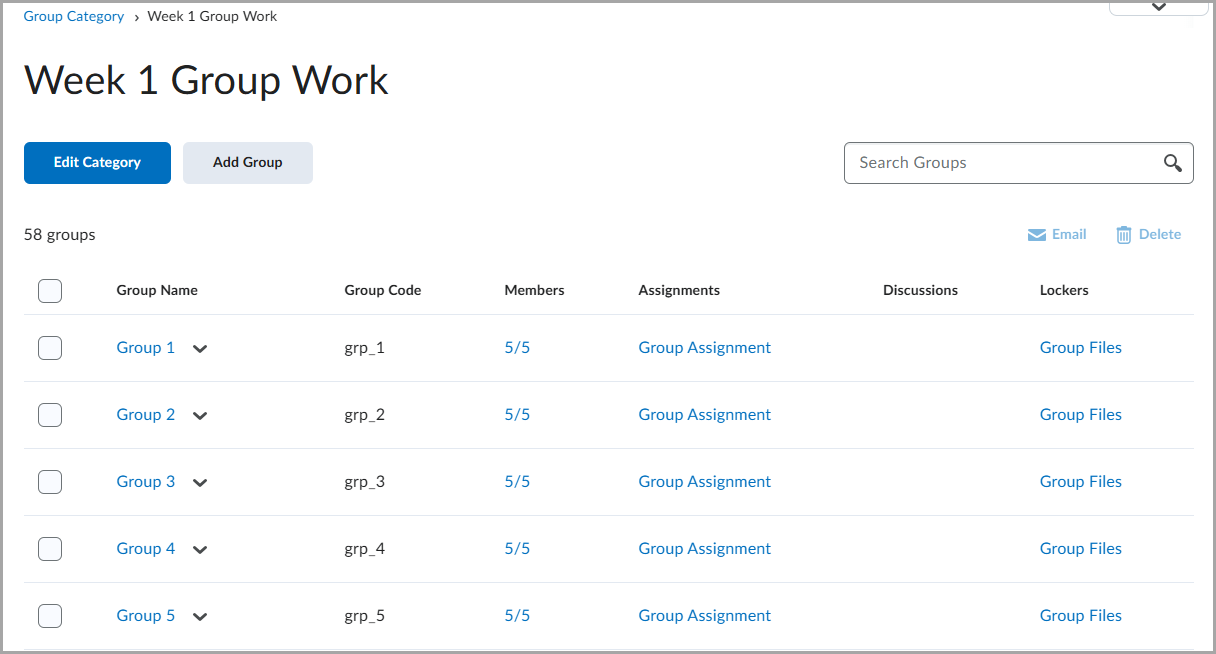
Figure: The group category details page lists individual groups and provides actions to manage the category, add groups, and access each group’s assignment and locker files.
|
Note: In the new Manage Groups experience, the Enroll Users option is renamed to Manage Members. Currently, both terms appear in the Groups tool. Future updates will align this language across the Groups tool pages. |
As part of the improved Manage Groups experience, the Recycling Bin page presents visual updates, including new filtering and search options. These updates do not change how instructors delete or restore groups and categories. 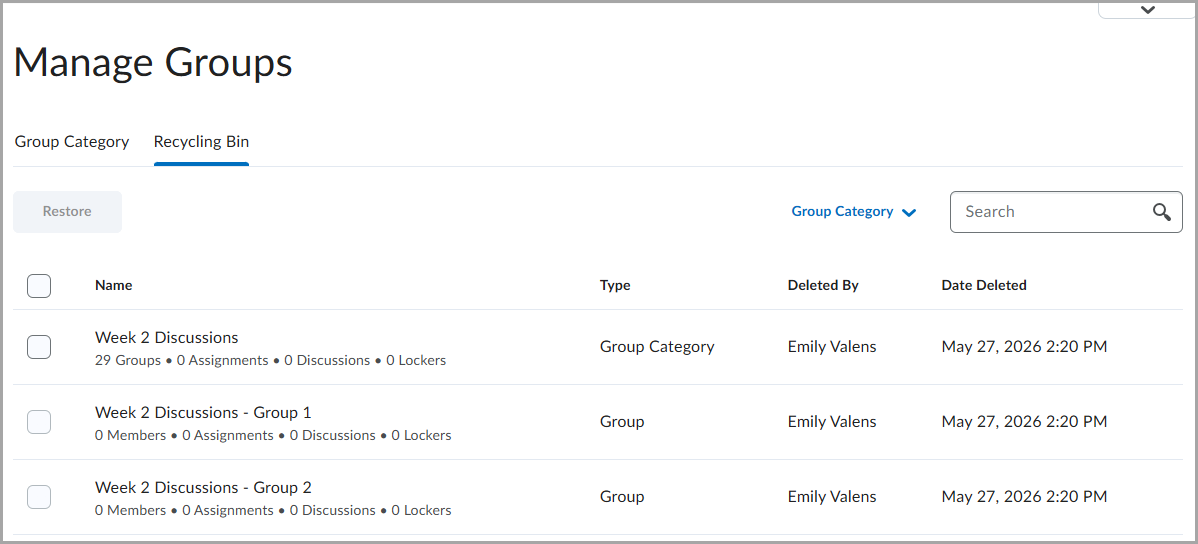
Figure: Recycling Bin lists deleted group categories and groups, with options to search, filter by item type, select items, and restore selected items.
This feature implements the following PIE items:
- D3440 (Groups: Adjust layout; View all categories at one time)
- D345 (Groups: Show all Group Categories (or more than one Group Category) on the main Groups page)
- D757 (Renaming the Enroll users tab)
Technical Details
Impact:
- Slight impact to administrators who can enable the new Manage Group experience.
- Large impact to instructors who can benefit from the enhanced group management experience.
Availability:
- This feature is available to all clients.
To enable:
- This functionality is dependent on the d2l.Tools.Groups.ManageGroupsOptIn configuration variable (default: OFF).
- This functionality is not dependent on any new or existing permissions.
Learning Outcomes – Define an Achievement Scale at the Outcome Set level | New
Program administrators can now assign achievement scales directly to outcome sets from the Learning Outcomes tool. When an outcome set is imported into a course, Brightspace automatically imports the achievement scale.
This change ensures consistent assessment configuration across courses and reduces manual setup for administrators.
Previously, achievement scales could only be configured at the course level. Administrators who required a scale different from the organization default had to manually configure scales for each course and could not define or reuse achievement scales at the outcome set level.
Courses can now support multiple achievement scales because each outcome set retains its associated scale, enabling more flexible assessment of learning outcomes.
For more information, refer to Enhancing Outcome Set management and Achievement Scales.
|
Note: The language term used to describe learning outcomes in the user interface depends on the value set for the d2l.Languages.Terminology.LearningOutcomes configuration variable. There are currently five options for this term. The term selected applies to all instances of learning outcomes as well as to the name of the tool. For example, the Learning Outcomes tool link in Course Administration might be labeled Competencies, Expectations, Objectives, or Standards. |
This feature implements the following PIE items:
- D9382 (Set a different Learning Outcomes achievement scale per program)
- D6605 (Set a different Achievement Scale per Course offering)
- D12449 (Learning Outcomes Multiple Achievement Scales per Course Offering)
Technical details
Impact:
- Moderate impact to administrators due to the ability to associate achievement scales directly with outcome sets, changes to achievement scale configuration and import behavior, and reduced manual configuration of achievement scales in courses.
Availability:
- This feature is available to all clients.
To enable:
- This functionality is automatically enabled for all users.
- This functionality is not dependent on any new or existing permissions.
- This functionality is not dependent on any new or existing configuration variables.
New Content Experience – Immersive View | New
To improve content navigation and course review for learners and instructors, the New Content Experience (NCE) now includes a full-width Table of Contents (TOC) landing page and an immersive view for content items.
Previously, course content and the TOC displayed in a fixed layout. With this release, the full-width TOC becomes the Content landing page, making it easier to review course structure, navigate modules and topics, and resume course progress.
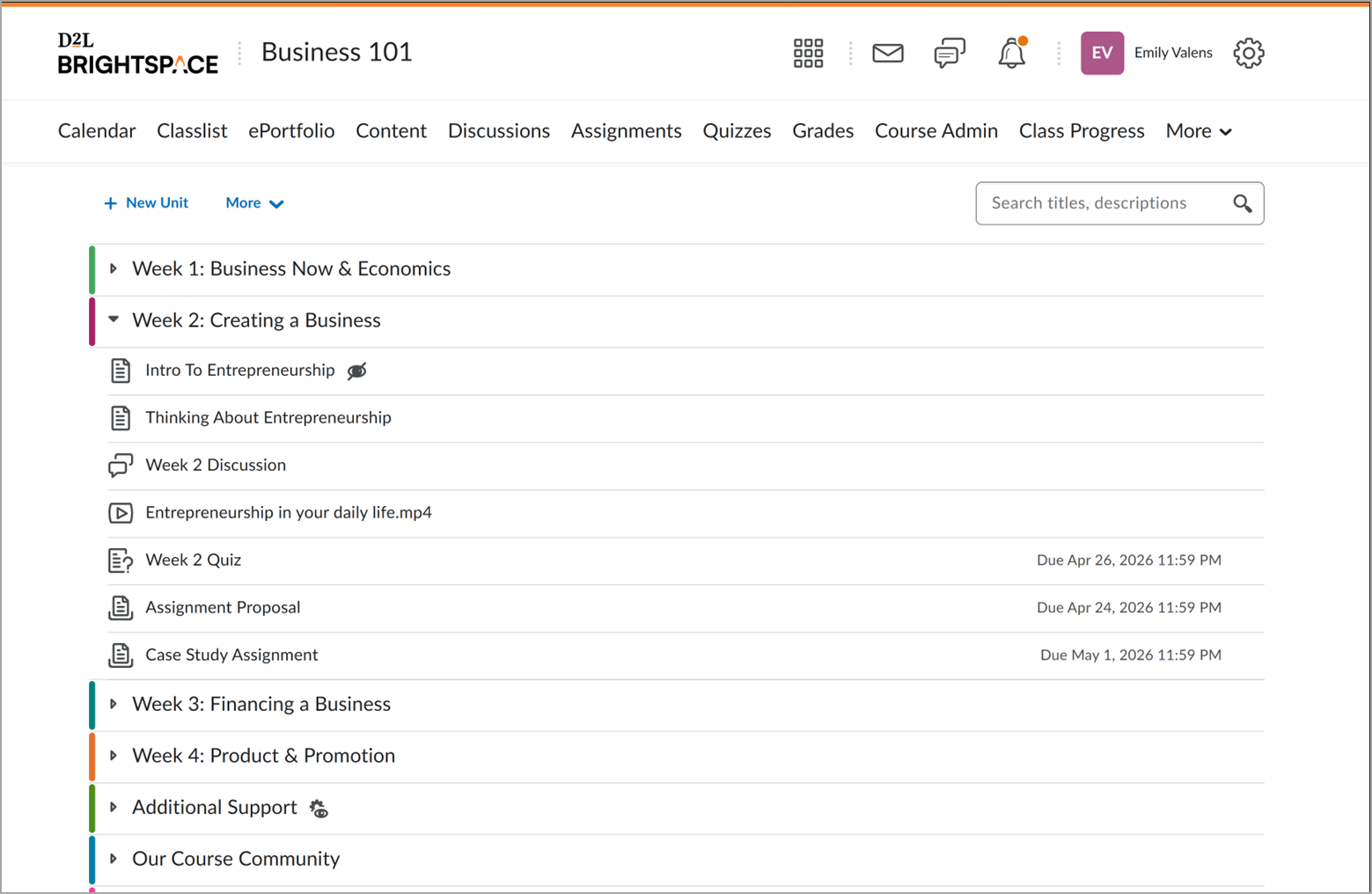
Figure: Review and navigate modules and topics in an immersive, full-screen table of contents view.
When users select a content item from the TOC, Brightspace opens it in an immersive view with a dedicated navigation bar that replaces the standard Brightspace navigation. This experience provides a wider content area with fewer on-screen distractions, helping users focus on course content.
The Immersive View navigation bar includes breadcrumbs that identify the selected content item and its location in the course structure.
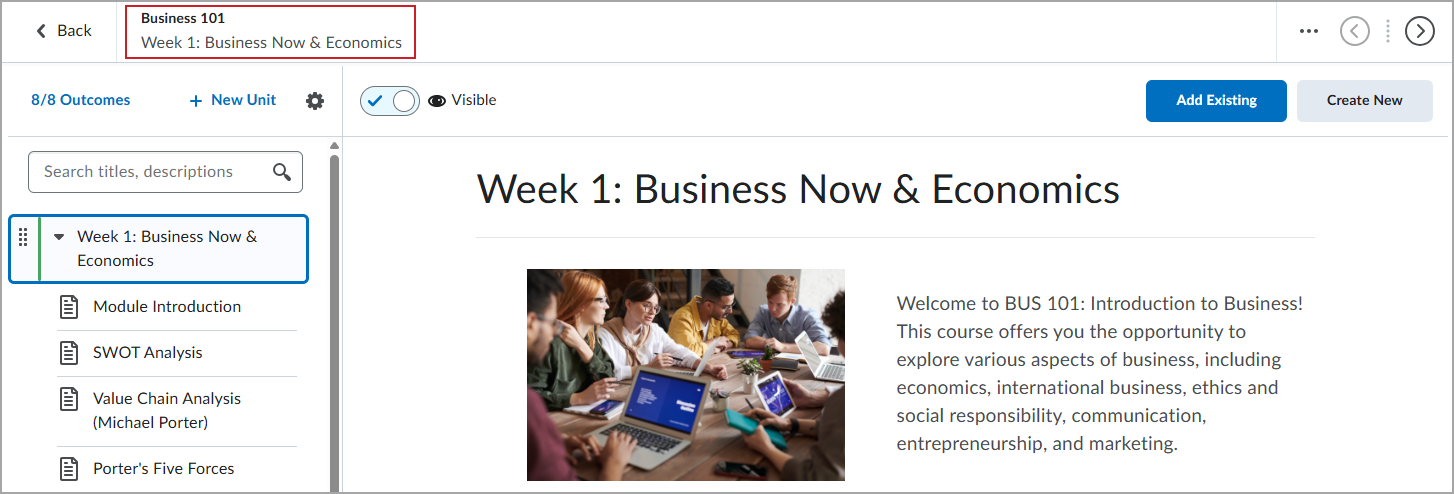
Figure: Use the breadcrumb navigation to identify your current location in the course structure.
This feature implements the following PIE item:
- D13708 (Ability to Disable Auto-Expansion of First Module on Content Page)
Technical details
Impact:
- Moderate impact to administrators due to the ability to enable Immersive View functionality for their organization.
- Moderate impact to instructors and learners due to the new full-width TOC landing page and improved content focus and navigation options.
Availability:
- This feature is available to all clients.
To enable:
- This functionality is dependent on enabling the new OrgUnit configuration variable, d2l.Tools.Content.EnableImmersiveView. This variable is OFF by default.
- To provide a consistent full-width TOC and immersive content viewing experience, also enable d2l.Tools.Content.EnableLessonsEnhancedTOC.
- This functionality is not dependent on any new or existing permissions.
Change History
11-June-2026 Preview Release Notes published.
2-July-2026 Updated Data Hub – Brightspace Data Sets for Outcomes support Outcome Sets | Updated to correct column names and add more columns.
2-July-2026 Added general announcements about Brightspace Tutorial videos, LTI validation, autosaving every minute for Written Response quiz questions that use the HTML Editor, and an improved accessibility experience for screen reader users in the Confirm Dialog.
2-July-2026 Added the Brightspace Pulse – Parent & Guardian mobile app access integrated into Brightspace Pulse | Updated release note.
2-July-2026 Added the Brightspace Apps – Install apps with Learning Tools Interoperability functionality from Find Apps | New updated note with additional details.
2-July-2026 Added the Brightspace – Improved usability of Help text dialogs | Update release note.
2-July-2026 Added the D2L Lumi Tutor and Feedback – New integrations, expanded file support, and reliability improvements | Updated new release notes.
2-July-2026 Updated the D2L Lumi Quiz – Create variants of existing quiz questions | Updated with permissions required.
2-July-2026 Updated the D2L Lumi Remix – Apply Creator+ Elements to content pages | Updated with permissions required.
16-July-2026 Updated the D2L Lumi Feedback – New integrations, expanded file support, and reliability improvements | Updated release note.
16-July-2026 Updated the Discussions – Anonymous Discussion posts are visible when assessing learners and viewing statistics | New release note with a note about assessing individual learners in Discussions.
16-July-2026 Added a General Announcement to notify users of the July 2026 update to Brightspace minimum supported browser versions.