Video: Release Highlights
 https://www.youtube.com/watch?v=3gwpbGtOBDM
You Asked, We Delivered
The following updates were inspired by your submissions to D2L's Product Idea Exchange:
|
General Announcements
- For enhanced security, we have introduced specific OAuth2 scopes for several Brightspace API actions related to Assignments (for example, the action to create a new dropbox folder). To maintain backward compatibility, applications may continue to use the existing general fallback scope for these actions; however, migrating to the newer, more specific scopes is recommended. For complete details about these API actions, refer to the Brightspace Developer Platform API reference. Note that, for historical reasons, the API reference continues to refer to the Assignments tool as Dropbox.
- To support distributed administration across sub-organizations, sub-organization administrators can now make restricted API calls using the Grade Schemes API. This enhancement aligns with role-based permission models and provides more granular control over grade scheme management. To enable, grant the Manage Grade Schemes permission for relevant roles. For full details about the updated API routes, refer to the Brightspace Developer Platform documentation.
- Sub-organization administrators can now use the CourseCopyLogs API to view course copy history within their own org unit. This enhancement provides improved visibility into course copy activity within a specific sub-organization, while maintaining secure, permission-based data access. To enable, grant the View Copy Course Components Logs permission for relevant roles. For full details about the updated API routes, refer to the Brightspace Developer Platform documentation.
- Thai and Vietnamese language packs are now available in Brightspace as of this release. This update promotes inclusive, culturally responsive education and supports D2L’s commitment to global language accessibility.
- As part of D2L’s ongoing commitment to accessibility, we partnered with an external auditor to conduct our annual review of Brightspace and Pulse against Web Content Accessibility Guidelines (WCAG) standards. Based on audit findings and internal expertise, we implemented a wide range of accessibility and usability improvements across learner, instructor, administrator, and media workflows. These updates enhance support for assistive technologies by improving semantics, focus behavior, contrast, text spacing and reflow, and overall navigation. Where changes were not feasible, known limitations and recommended workarounds are documented in our public Accessibility Reports.
- D2L is continuing to unlist outdated Brightspace Tutorial videos that no longer reflect the current interface and workflows. Updated tutorial videos are embedded in the documentation to align with the latest features. To review the list of added, unlisted, and removed videos, refer to the article: Brightspace Tutorial Video Updates: Added, Unlisted, Removed.
Changes to these release notes are captured in the Change History below.
Analytics Builder – Introducing a visual Data Preparation experience for Analytics Builder Authors | New

|
Analytics Builder is part of the Performance+ package. For more information, contact your D2L Client Sales Executive or Account Manager. |
The new Data Preparation experience in Analytics Builder makes it easier and faster to prepare data for dashboards and reports.
This update introduces an intuitive visual interface with drag-and-drop functionality, real-time data previews, and new transformations such as Aggregates (Sum, Average, Count, Count Distinct, Min, and Max), Union, Pivot, and Unpivot. For complex operations that require more computing power, the Super-Fast Parallel In-memory Calculation Engine (SPICE) optimizes performance for fast and reliable processing.
Previously, authors created datasets by navigating through separate menus for each step, which made visualizing the movement and transformation of data difficult.
New custom datasets created after this release open in the new Data Preparation experience by default, with the option to switch back to the previous experience. Existing custom datasets, analyses, and dashboards are not impacted. Both experiences will remain available until further notice.
Refer to New Data Preparation in Analytics Builder in Brightspace Community for more details.
Technical Details
Impact:
- Slight impact to administrators due to the new workflows, updated interface, and new data transformation options.
Availability:
- This feature is available to clients with the Performance+ package who have provisioned their instance of Analytics Builder.
To enable:
- This functionality is automatically enabled for clients with Analytics Builder.
- Authors must have the Analytics Builder > Can Manage Analytics Builder permission at the org level and must be granted an Author license.
When instructors create an announcement (or administrators create a global announcement) which includes in-line images, any instant notification or emailed copy of that announcement now includes those images in the body of the email. Previously, only images added as file attachments to the announcement were included with the notification email, and in-line images were not shown.

|
Note:This update applies only to images. Videos embedded in announcements are not included in emailed announcement notifications. |
This change ensures that learners who rely on email notifications can see the same visual content that appears in the original announcement, helping them notice important information that may have previously been missed when images were omitted from the email version.
This feature implements the following PIE items:
- D7210 (Images in announcements do not appear in the email-version of the notification)
- D12152 (Permit images to be sent in an email notification for an announcement)
- D7939 (Include images in Brightspace-generated email of Announcements - partial release; videos are not included)
Technical Details
Impact:
- Slight impact to instructors who can now include in-line images in announcements and have those images appear in emailed notifications and emailed copies.
- Slight impact to learners who now see in-line images from announcements directly in the body of notification emails.
Availability:
- This feature is available to all clients using announcements and email notifications.
To enable:
- This functionality is enabled by default.
- This functionality is not dependent on any new or existing configuration variables.
- This functionality is not dependent on any new or existing permissions.
Assignments, Quick Eval – Improved usability for assistive technology users | Updated
As part of D2L’s ongoing commitment to accessibility and inclusive design, with this release, we have made several updates to enhance the experience for users relying on assistive technologies.
- The Submissions page in Assignments: The dropdown menus for submissions, feedback, and results per page now include accessible labels. Previously, these menus only had titles, which some screen readers could miss. This change ensures that all users can access and understand these controls.
- The Submissions view in Quick Eval: The number of search results returned is now read aloud by assistive technology, making it easier for users to understand the scope of their results.
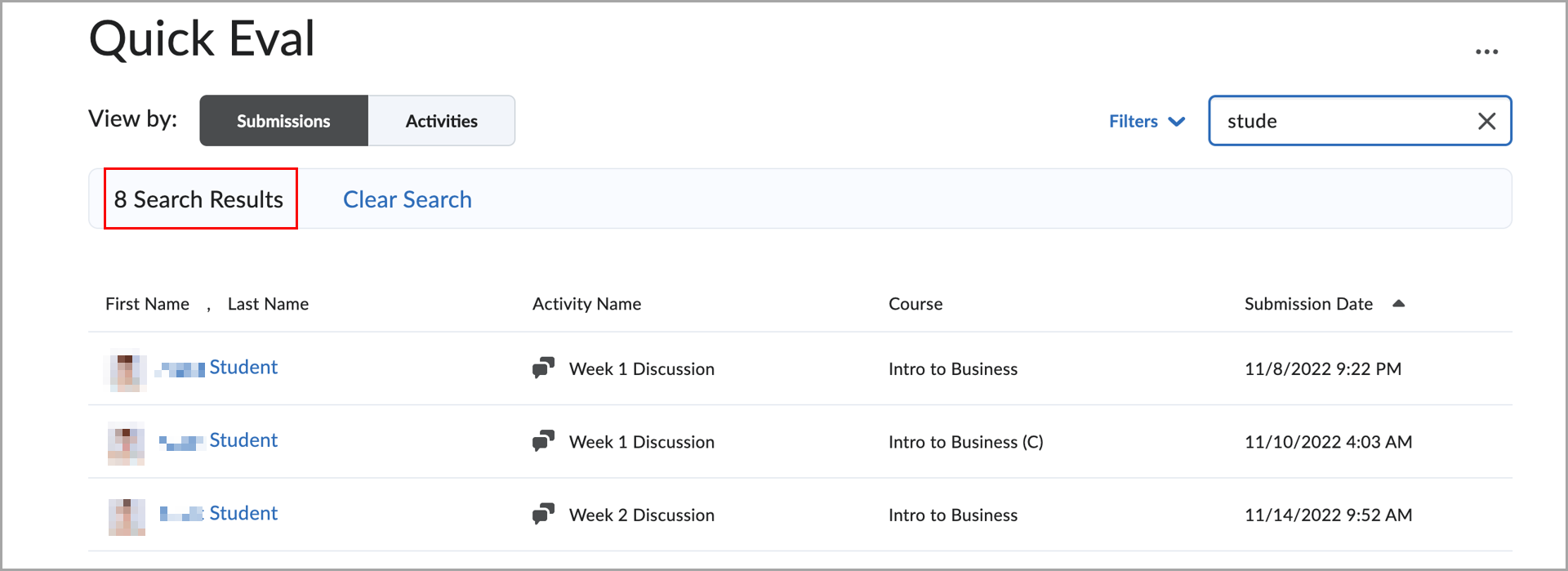
Figure: Quick Eval interface displaying filtered submission results, with the number of returned results now read aloud.
- The Activities view in Quick Eval: The status messages that show the number of search results are now accessible to screen readers, improving clarity and usability for all users.
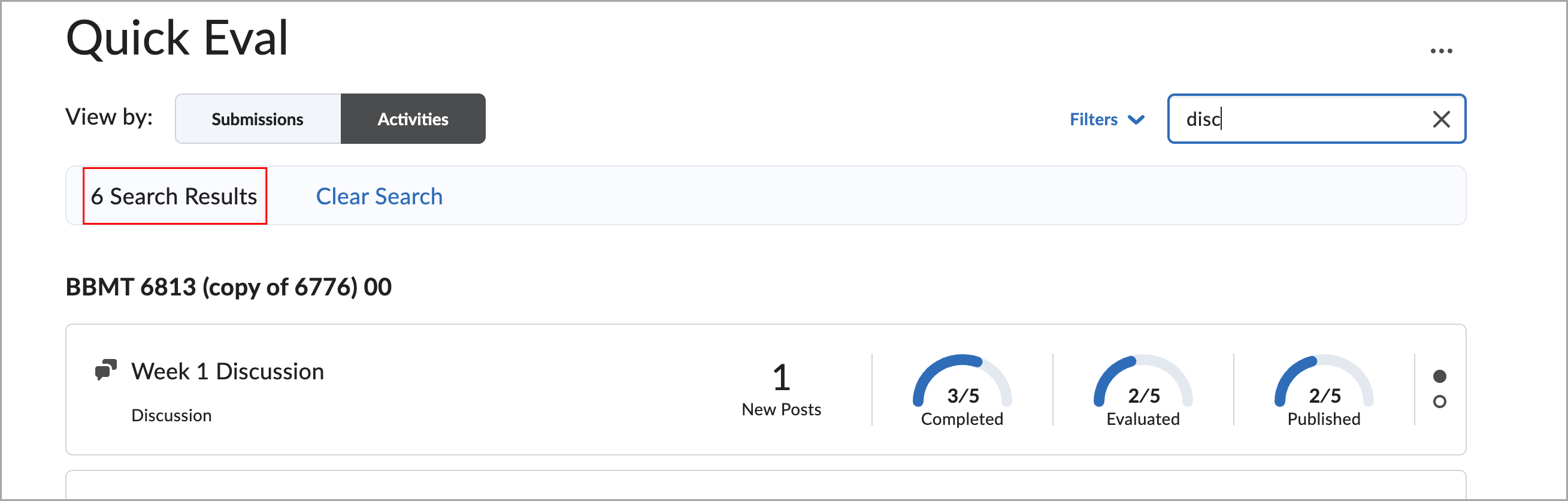
Figure: Quick Eval interface showing filtered activity results based on a search query, with the number of returned results now read aloud.
Technical Details
Impact:
- Slight impact to administrators and instructors who rely on assistive technologies, as they will benefit from an improved experience.
Availability:
- This feature is available to all clients.
To enable:
- This feature is enabled automatically.
- This functionality is not dependent on any new or existing permissions and configuration variables.
Awards – Increased flexibility in Awards text fields | Updated
To improve localization and language flexibility, administrators and instructors can now personalize certificates in the Awards tool using new replacement strings. These strings populate dates in a short YYYY-MM-DD format, which provides more consistent rendering across multilingual certificate templates.
Previously, existing date replacement strings used long-form formats. This caused issues when certificates were created in one language and the date string rendered in another, often breaking formatting. The new short-form format resolves this issue.
The following replacement strings are now available:
- {CourseStartDateShort}: Inserts the course start date.
- {CourseEndDateShort}: Inserts the course end date.
- {AwardDateShort}: Inserts the award issue date.
- {AwardExpiryDateShort}: Inserts the award expiry date.
Technical Details
Impact:
- Slight impact to instructors and administrators due to improved localization options for certificates.
Availability:
- This feature is available to all clients.
To enable:
- This functionality is automatically enabled for all users.
- This functionality is not dependent on any new or existing permissions or configuration variables.
Teachers can now bulk email all parents and guardians associated with students in their class directly from the Classlist. This centralized workflow makes it easy to share updates, classroom news, and student progress, improving communication and parent engagement with a simple one-click action.
This new functionality brings the following capabilities:
- New Email All Parents and Guardians button in the Classlist for teachers with the appropriate permissions.
- Emails are sent from the teacher’s Brightspace internal email.
- Parents and guardians will receive the communication on their external emails.
- Teachers can also choose to include students.
- All recipients (parents or guardians and students) are added in blind copy (Bcc) for privacy.
- Teachers can view:
- A list of students whose parents or guardians will receive the email.
- A list of students whose parents or guardians cannot receive the email (missing relationships or email information).
To view the Email all Parents and Guardians button, teachers must have the See Parent/Guardian Child Relationships for 'Student' permission assigned to their role.
Previously, teachers could not email parents or guardians in bulk.
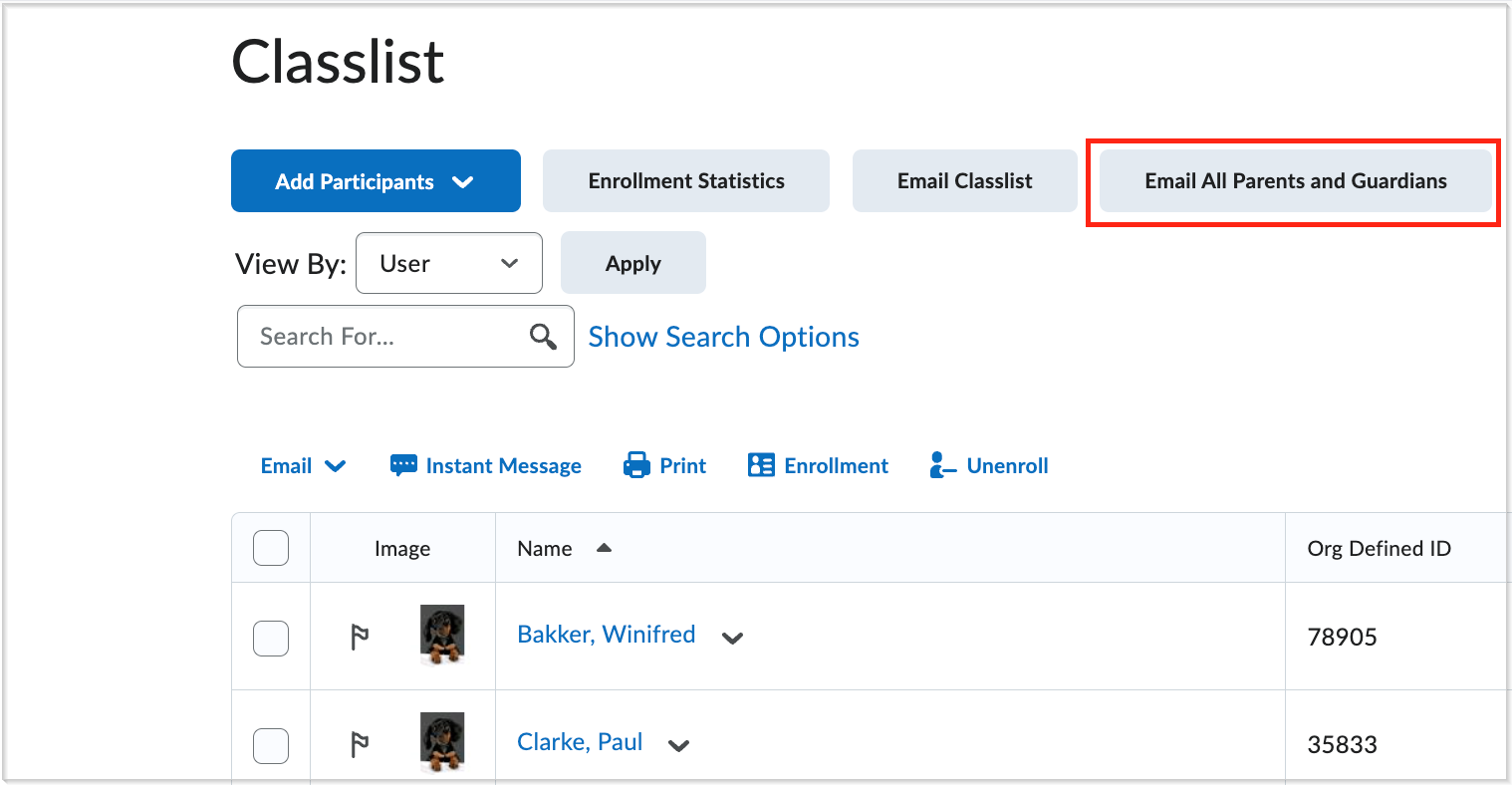
Figure: From the Classlist page, if you have permission, click Email All Parents and Guardians to send an email to all available parent or guardian contacts.
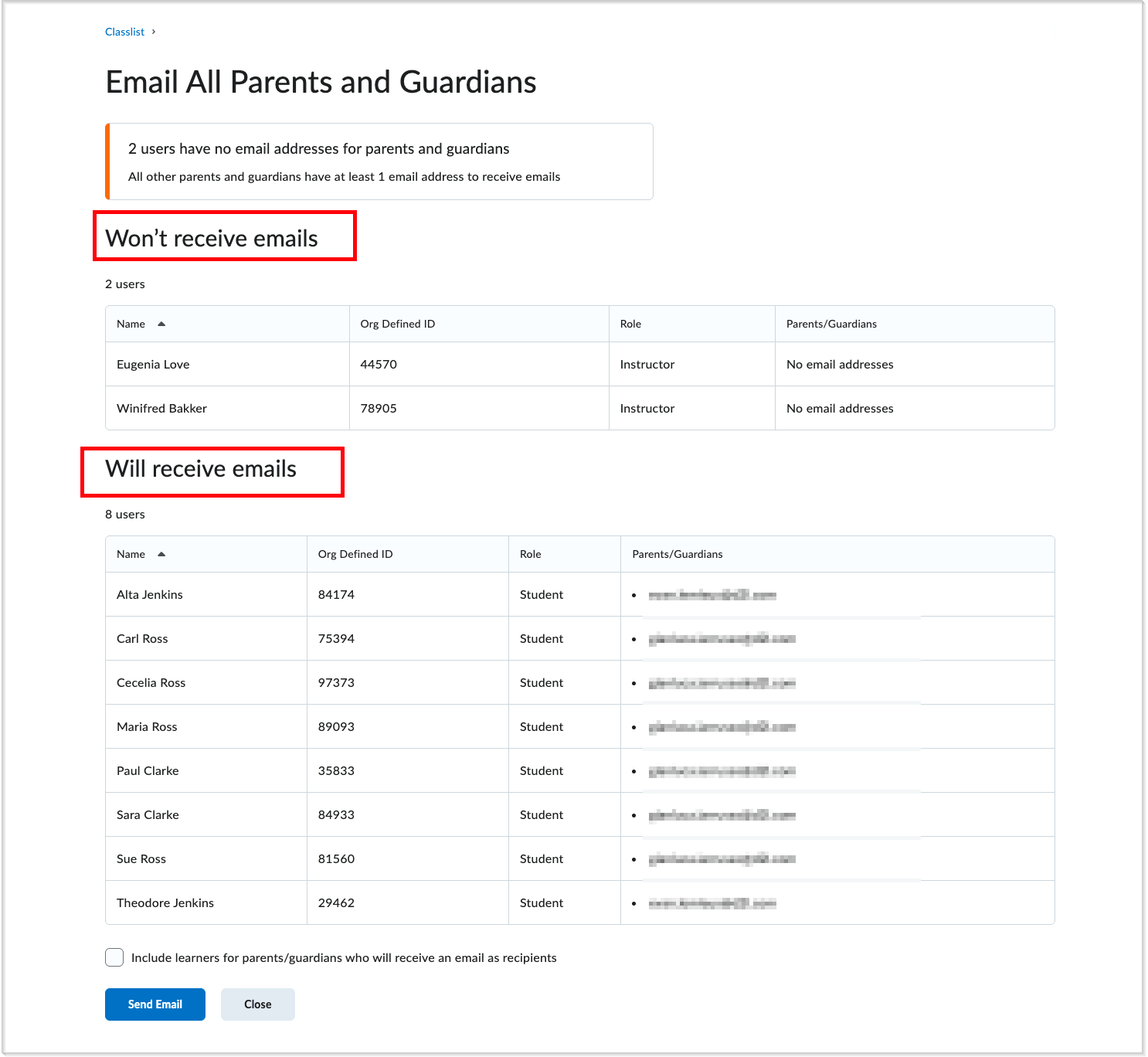
Figure: After clicking Email All Parents and Guardians, a list appears showing which users’ parents or guardians have valid email addresses. Those without email addresses are grouped under Won’t receive emails.
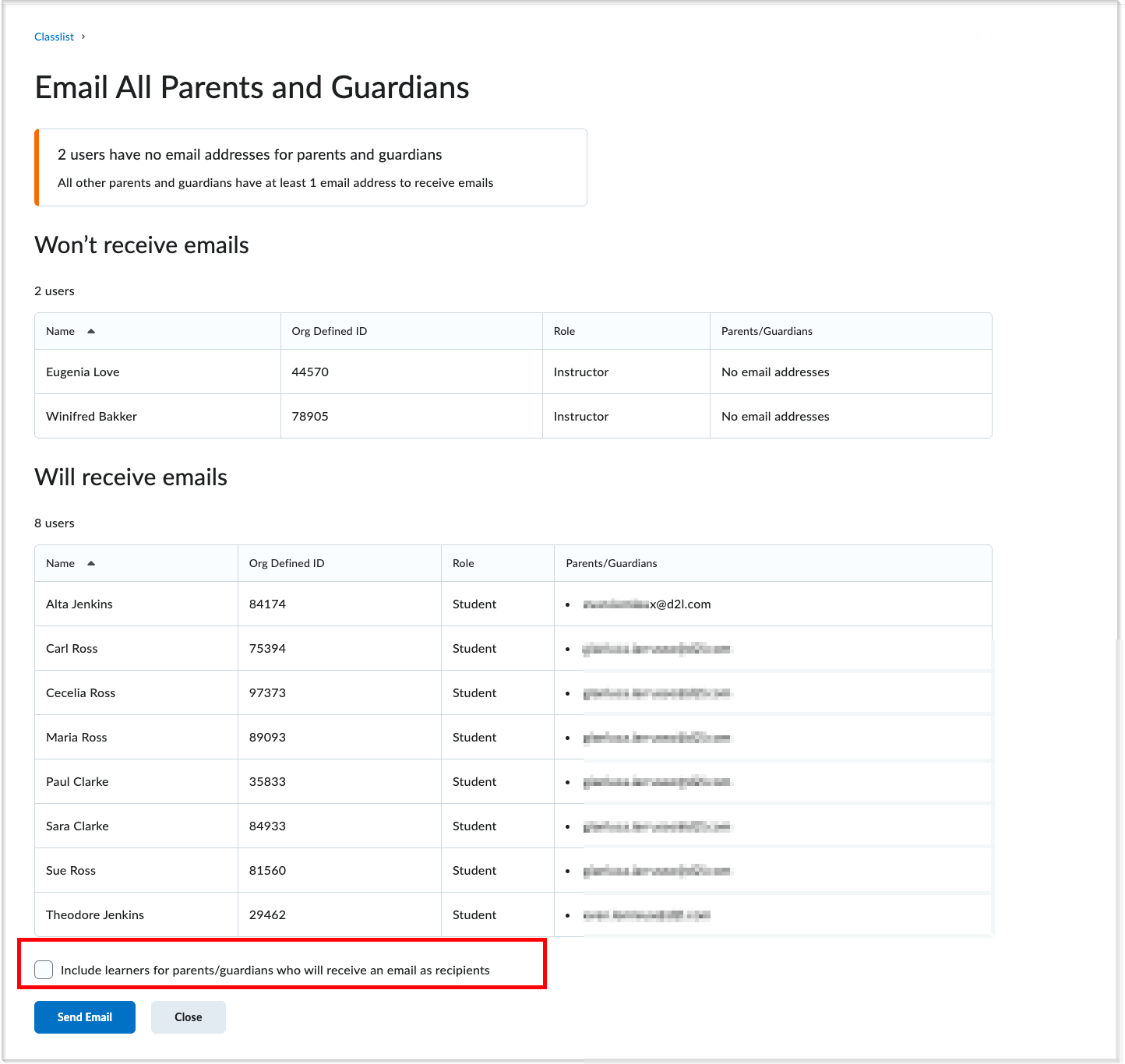
Figure: On the Email All Parents and Guardians page, select the Include learners for parents/guardians who will receive an email as recipients checkbox to include students in the message.
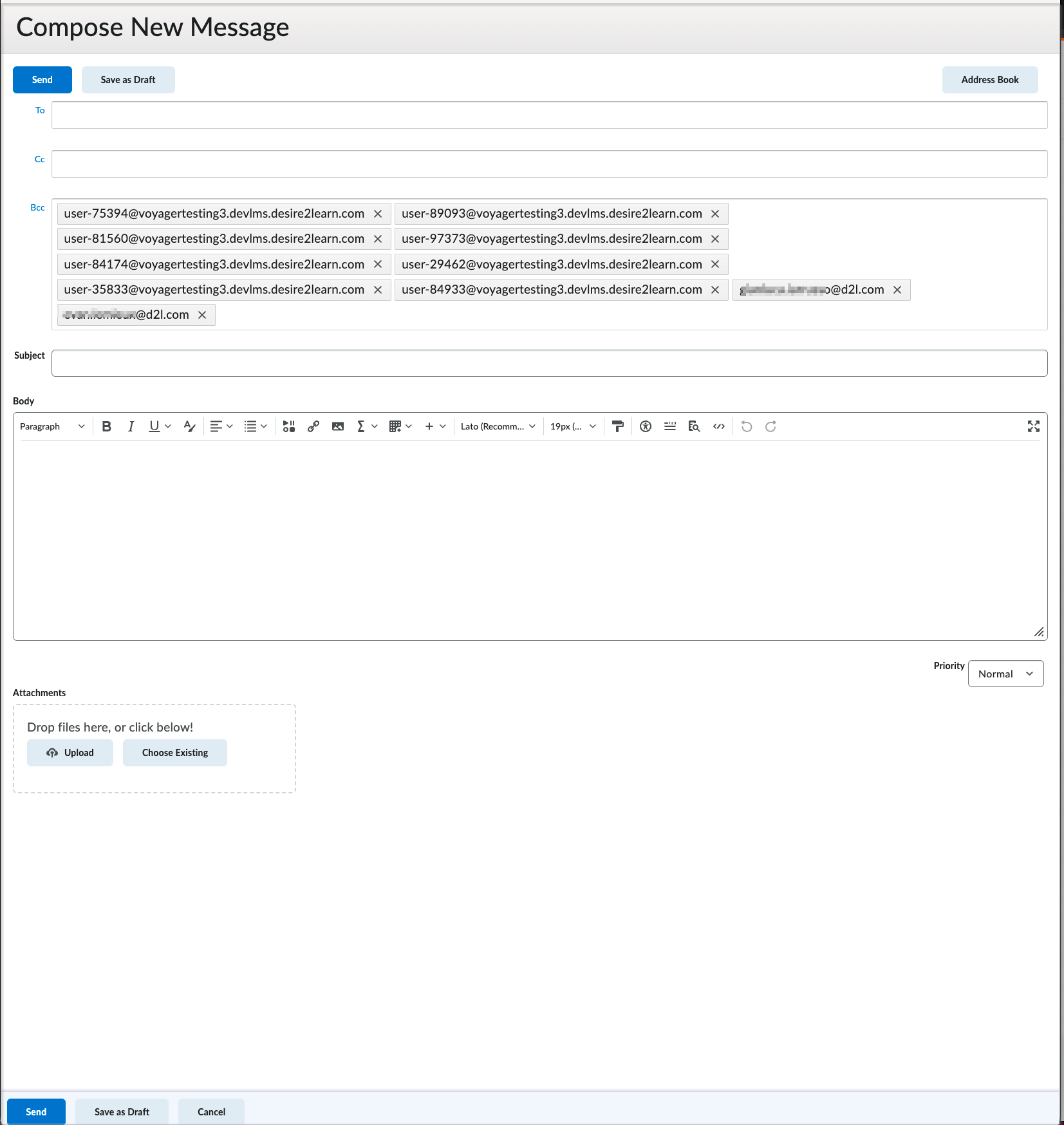
Figure: After selecting Email All Parents and Guardians and clicking Send Email, the message opens with all parent or guardian and student recipients added to the Bcc field. Parent or guardian emails are external; student emails are internal Brightspace addresses if included.
This feature implements the following PIE items:
- D5938 (Email groups of parents in B4P)
- D6896 (Bulk-Email parents from Classlist tool)
- D11117 (Parental Contact modification)
Technical Details
Impact:
- High impact to administrators who must add the permission to teacher roles.
- High impact to teachers who receive a new workflow in the Classlist that includes a new button, a pre-send recipient screen, and the ability to email parents or guardians using their external email client.
- High impact to parents or guardians who benefit from more consistent, one-way communication from teachers.
- High impact to students who may also receive these emails when teachers choose to include them.
Availability:
- This feature is available to all Brightspace Core clients in the K12 segment with the Brightspace Parent & Guardian tool enabled.
To enable:
- This functionality is not dependent on any new or existing configuration variables.
- This functionality is automatically enabled for teachers with the following permissions:
- Brightspace Parent & Guardian permissions
- Brightspace Parent & Guardian > Email Parent/Guardians
- Brightspace Parent & Guardian > See Parent/Guardian Activity & Information
- Brightspace Parent & Guardian > View as Parent/Guardian
- Brightspace Parent & Guardian > See Parent/Guardian Child Relationships for 'End User'
- Brightspace Parent & Guardian > See Parent/Guardian Child Relationships for 'Student'
- Brightspace Parent & Guardian > See Parent/Guardian Child Relationships for 'Parent'
- Email permissions
- Email > Access Email at Organization and Course level
- Email > See the Address Book at Organization level
- Email > Create Personal Contacts in Address Book at Organization and Course level
- Email > Send Emails to Internal Email Addresses at Organization and Course level
- Email > Send Emails to External Email Addresses at Organization and Course level
- Email > Send Emails to External Email Addresses Not in Address Book at Organization and Course level
- Email > See External Email Addresses for 'Student' at Organization and Course level
- Email > See External Email Addresses for 'Parent' at Organization and Course level
- Email > See Internal Email Addresses for 'Student' at Organization and Course level
- Email > See Internal Email Addresses for 'Parent' at Organization and Course level
Brightspace Parent & Guardian – Email all parents of an individual student from the Classlist | New
This feature allows teachers to email all parents and guardians of a specific student directly from the Classlist. It supports one-way communication that strengthens teacher–parent engagement, and provides timely updates on student progress and classroom activities.
This new functionality brings the following capabilities:
- A new mail action available from the Parent/Guardian Information screen within the Classlist that allows teachers to send an email to:
- All parents or guardians of a selected student
- The student only
- The student and their parents or guardians together
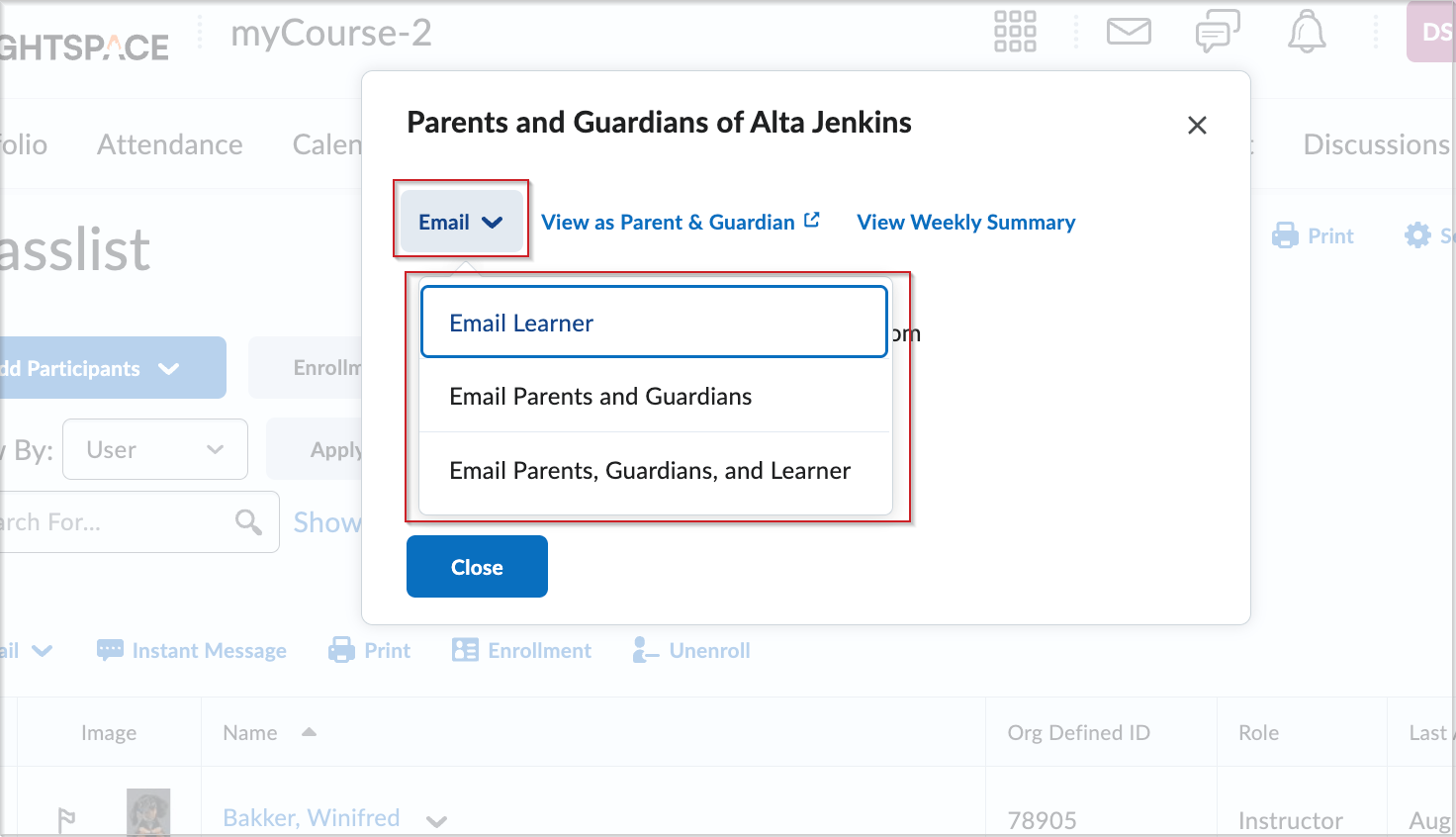
Figure: From the Classlist, select a student’s name, open the Parent/Guardian Information dropdown, and click the Email button to choose who to email.
Technical Details
Impact:
- Slight impact to administrators who must update permissions for teacher roles.
- Slight impact to teachers who gain a centralized, simple workflow to contact a student’s parents or guardians without having to leave the Classlist tool.
- Slight impact to parents or guardians who benefit from improved, more consistent, one-way communication from teachers.
- Slight impact to students who may also receive these emails when teachers choose to include students in these communications.
Availability:
- This feature is available to all Brightspace Core clients in the K12 segment with the Brightspace Parent & Guardian tool enabled.
To enable:
- This functionality is not dependent on any new or existing configuration variables.
- This functionality is enabled for teachers with the following permissions:
- Brightspace Parent & Guardian permissions
- Brightspace Parent & Guardian > Email Parent/Guardians
- Brightspace Parent & Guardian > See Parent/Guardian Activity & Information
- Brightspace Parent & Guardian > View as Parent/Guardian
- Brightspace Parent & Guardian > See Parent/Guardian Child Relationships for 'End User'
- Brightspace Parent & Guardian > See Parent/Guardian Child Relationships for 'Student'
- Brightspace Parent & Guardian > See Parent/Guardian Child Relationships for 'Parent'
- Email permissions
- Email > Access Email at Organization and Course level
- Email > See the Address Book at Organization level
- Email > Create Personal Contacts in Address Book at Organization and Course level
- Email > Send Emails to Internal Email Addresses at Organization and Course level
- Email > Send Emails to External Email Addresses at Organization and Course level
- Email > Send Emails to External Email Addresses Not in Address Book at Organization and Course level
- Email > See External Email Addresses for 'Student' at Organization and Course level
- Email > See External Email Addresses for 'Parent' at Organization and Course level
- Email > See Internal Email Addresses for 'Student' at Organization and Course level
- Email > See Internal Email Addresses for 'Parent' at Organization and Course level
Brightspace Parent & Guardian – Email an individual parent or guardian of a specific student from the Classlist | New
This feature enables teachers to email one chosen parent or guardian of a specific student directly from the Classlist. It consolidates communication options tools in the Classlist interface to simplify outreach and support stronger teacher–parent engagement.
This new functionality brings the following capabilities:
- Two new buttons for each parent or guardian in the Parents and Guardians of 'student' panel:
- An email (envelope) button that opens a new message in the Brightspace Email tool, pre-addressed to that parent or guardian.
- A copy button that copies the parent or guardian’s email address so teachers can paste it into an external tool if needed.
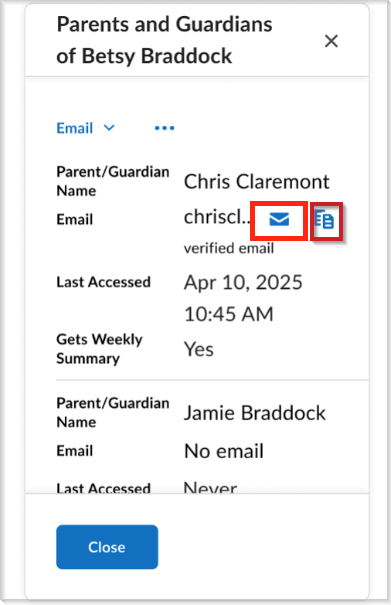
Figure: From the Parents and Guardians of 'student' panel, teachers view a parent or guardian's verified email and select the envelope icon to email them or the copy icon to copy their address.
Technical Details
Impact:
- Moderate impact to administrators who must update permissions for teacher roles.
- Moderate impact to teachers who gain a centralized to contact a single parent or guardian directly from the Classlist without needing external tools.
- Moderate impact to parents or guardians who benefit from improved, more consistent, one-way communication from teachers.
- Moderate impact to students who benefit from increased parental engagement.
Availability:
- This feature is available to all Brightspace Core clients in the K12 segment with the Brightspace Parent & Guardian tool enabled.
To enable:
- This functionality does not require any new or existing configuration variables.
- This functionality is enabled for teachers with the following permissions:
- Brightspace Parent & Guardian permissions
- Brightspace Parent & Guardian > Email Parent/Guardians
- Brightspace Parent & Guardian > See Parent/Guardian Activity & Information
- Brightspace Parent & Guardian > View as Parent/Guardian
- Brightspace Parent & Guardian > See Parent/Guardian Child Relationships for 'End User'
- Brightspace Parent & Guardian > See Parent/Guardian Child Relationships for 'Student'
- Brightspace Parent & Guardian > See Parent/Guardian Child Relationships for 'Parent'
- Email permissions
- Email > Access Email at Organization and Course level
- Email > See the Address Book at Organization level
- Email > Create Personal Contacts in Address Book at Organization and Course level
- Email > Send Emails to Internal Email Addresses at Organization and Course level
- Email > Send Emails to External Email Addresses at Organization and Course level
- Email > Send Emails to External Email Addresses Not in Address Book at Organization and Course level
- Email > See External Email Addresses for 'Student' at Organization and Course level
- Email > See External Email Addresses for 'Parent' at Organization and Course level
- Email > See Internal Email Addresses for 'Student' at Organization and Course level
- Email > See Internal Email Addresses for 'Parent' at Organization and Course level
Brightspace Parent & Guardian – Email selected group of parents and guardians from the Classlist | New
Teachers can now email a selected group of parents or guardians directly from the Classlist. This feature supports targeted outreach, improves communication, and promotes student success through increased parental awareness.
This new functionality brings the following capabilities:
- Enables teachers to select multiple students in the Classlist and choose one of the following email recipient options:
- Parents or guardians only
- Parents or guardians and students together
- Students only
- Automatically adds parent or guardian email addresses for the selected students to the in blind copy field (Bcc) for privacy.
- Displays a disclaimer listing students who do not have a parent or guardian relationship or email on file.
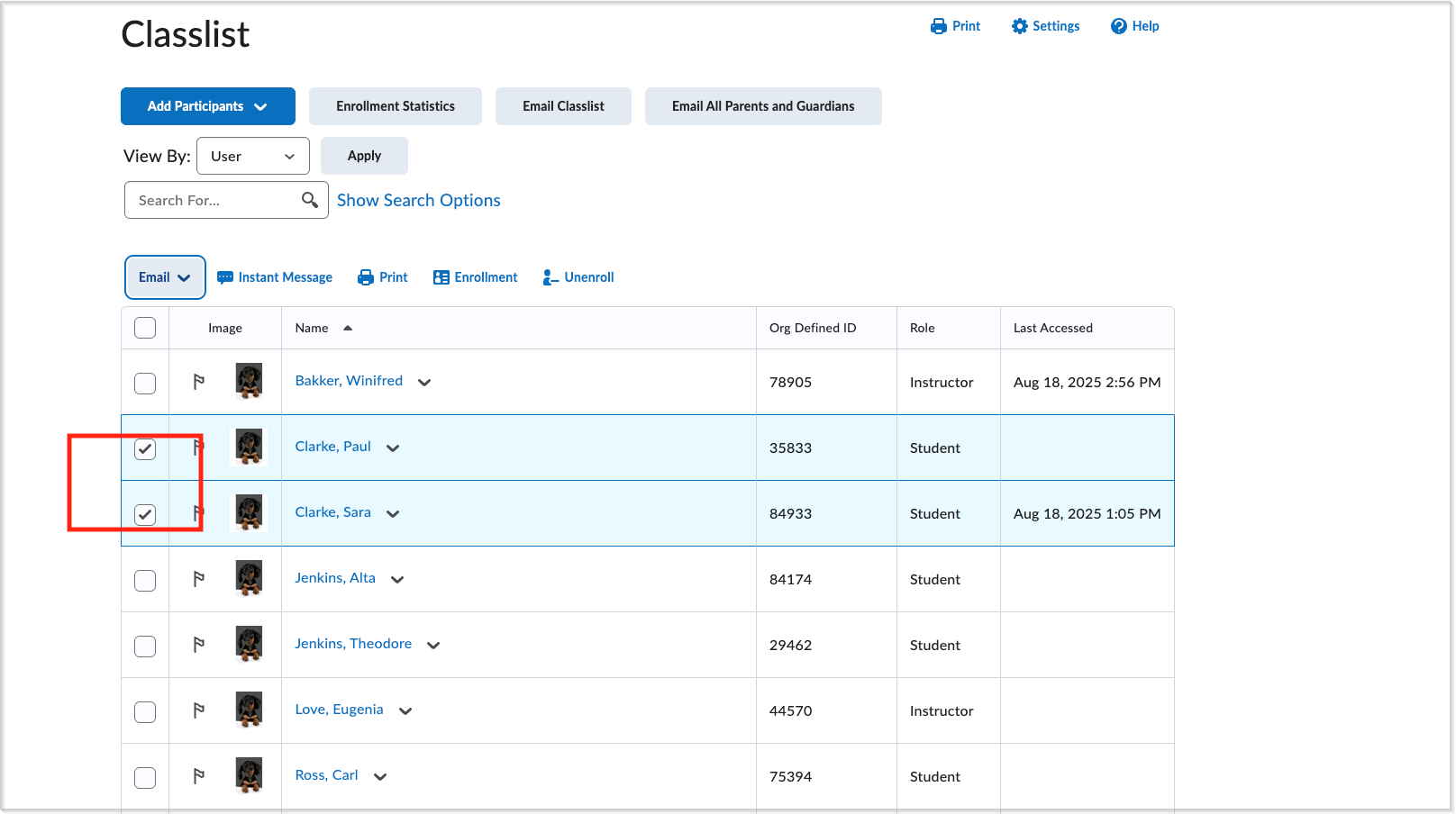
Figure: From the Classlist page, select the checkboxes for multiple students to email their parents or guardians.
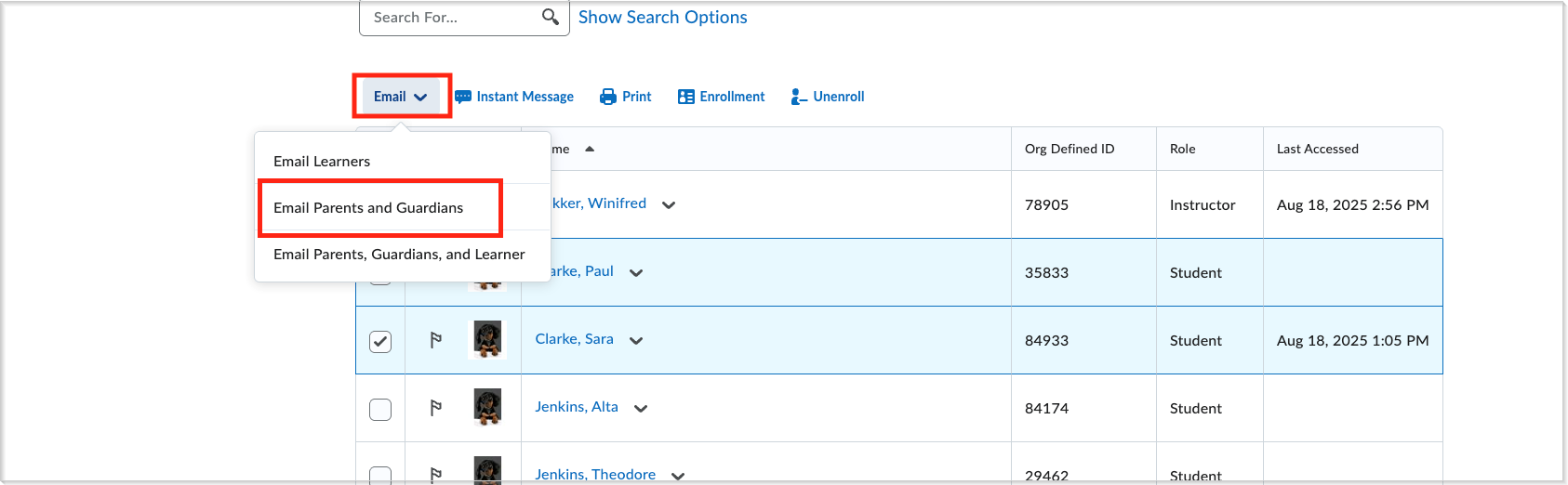
Figure: Click the Email dropdown, then select Email Parents and Guardians from the menu.
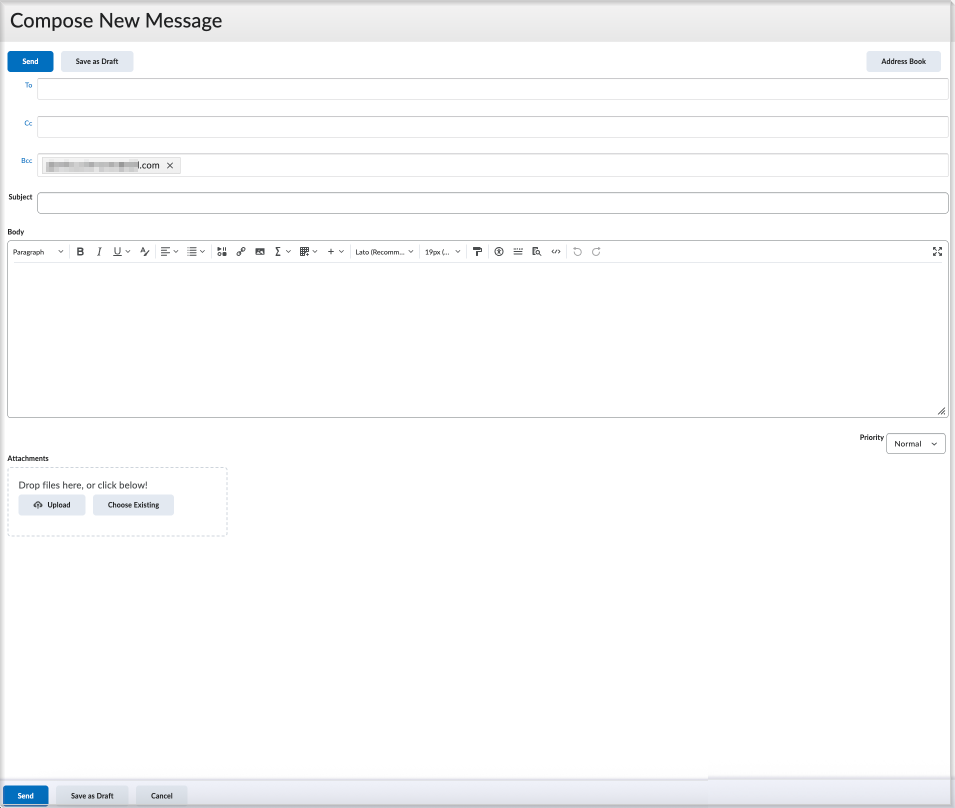
Figure: On the Compose New Message screen, review the Bcc field to confirm parent emails were added, compose the email, and click Send.
Technical Details
Impact:
- High impact to administrators who must update permissions for teacher roles.
- High impact to teachers who receive a new workflow in the Classlist, including additional interface options.
- High impact to parents who benefit from improved, more consistent, one-way communication from teachers.
- High impact to students who may also receive these emails when teachers choose to include students in these communications.
Availability:
- This feature is available to all Brightspace Core clients in the K12 segment with the Brightspace Parent & Guardian tool enabled.
To enable:
- This functionality does not require any new or existing configuration variables.
- This functionality is enabled for teachers with the following permissions:
- Brightspace Parent & Guardian permissions
- Brightspace Parent & Guardian > Email Parent/Guardians
- Brightspace Parent & Guardian > See Parent/Guardian Activity & Information
- Brightspace Parent & Guardian > View as Parent/Guardian
- Brightspace Parent & Guardian > See Parent/Guardian Child Relationships for 'End User'
- Brightspace Parent & Guardian > See Parent/Guardian Child Relationships for 'Student'
- Brightspace Parent & Guardian > See Parent/Guardian Child Relationships for 'Parent'
- Email permissions
- Email > Access Email at Organization and Course level
- Email > See the Address Book at Organization level
- Email > Create Personal Contacts in Address Book at Organization and Course level
- Email > Send Emails to Internal Email Addresses at Organization and Course level
- Email > Send Emails to External Email Addresses at Organization and Course level
- Email > Send Emails to External Email Addresses Not in Address Book at Organization and Course level
- Email > See External Email Addresses for 'Student' at Organization and Course level
- Email > See External Email Addresses for 'Parent' at Organization and Course level
- Email > See Internal Email Addresses for 'Student' at Organization and Course level
- Email > See Internal Email Addresses for 'Parent' at Organization and Course level
This enhancement to the Intelligent Agent tool allows teachers and administrators in the K–12 segment to include parent and guardian email addresses in Intelligent Agent communications. By exposing {InitiatingUserParents} as a selectable special email address, educators can now automate one-way outreach to parents and guardians using the same rule-based triggers already available for student communications.
This new functionality brings the following capabilities:
- Intelligent Agents can now securely access parent or guardian email addresses.
- Teachers and administrators can select parents as recipients when configuring automated emails.
- A new special address string, {InitiatingUserParents}, appears under Actions > Send an Email > What special email addresses can I use?
Previously, parent or guardian emails could not be included in automated messages created with Intelligent Agents.
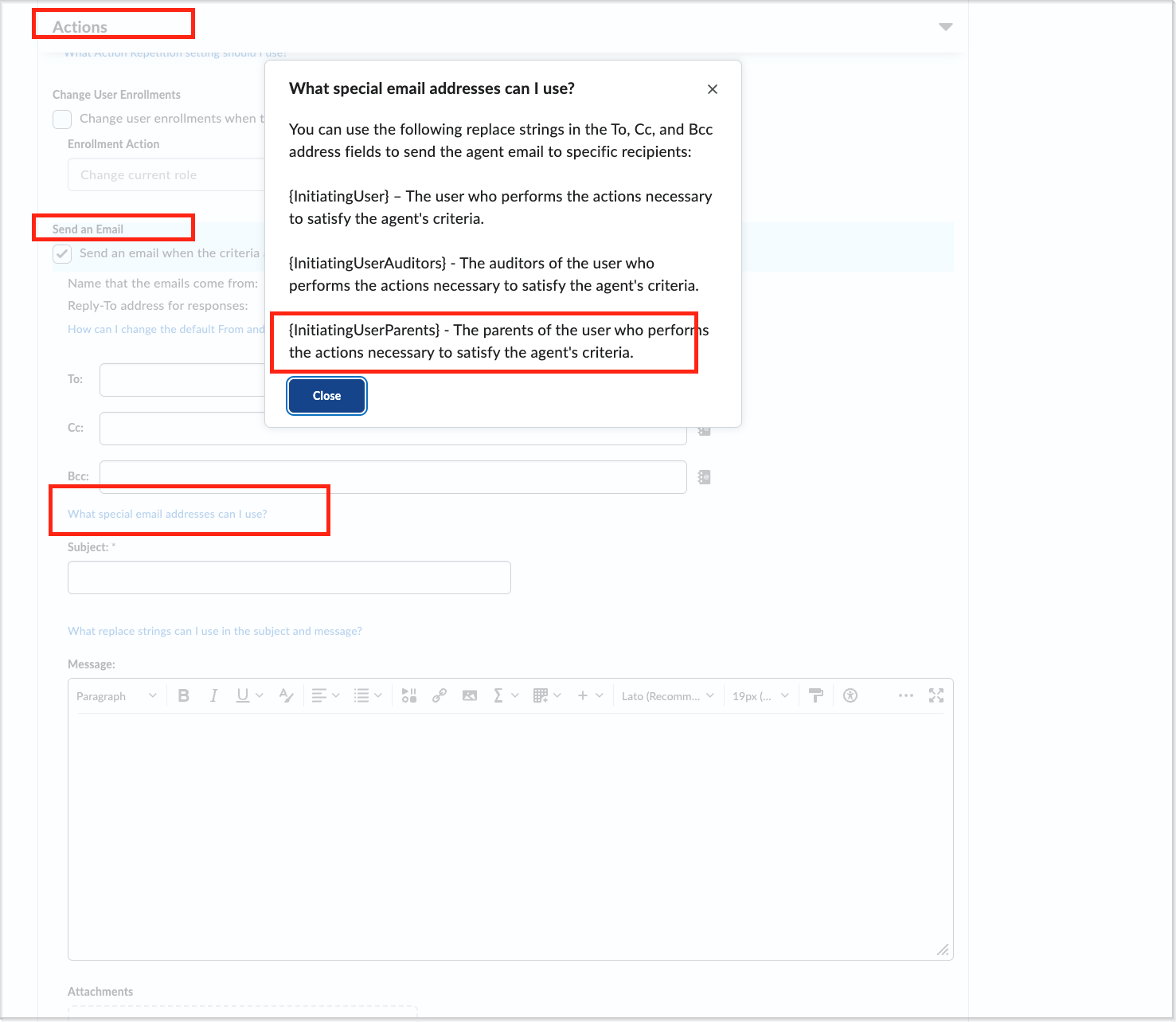
Figure: While creating an intelligent agent, go to the Actions section, select Send an Email, then click What special email addresses can I use? to see a list that includes {InitiatingUserParents}.
This feature implements the following PIE items:
- D5408 (Intelligent Agents - Replace strings for parents users)
- D8851 (Parent Email used in Intelligent Agent)
- D10158 (New replacement string)
- D11915 (Send email to the parent using Intelligent Agents Action (CC/BCC))
Technical Details
Impact:
- Slight impact to administrators who must update permissions for teacher roles.
- Slight impact to teachers who gain a streamlined, automated workflow to keep parents informed about student activity, or important reminders.
- Slight impact to parents who benefit from more timely, consistent updates from teachers.
- Slight impact to students who benefit from increased parental engagement.
Availability:
- This feature is available to all Brightspace Core clients in the K12 segment with the Brightspace Parent & Guardian tool enabled.
To enable:
- This functionality is not dependent on any new or existing configuration variables.
- This functionality is enabled for teachers with the following permissions:
- Brightspace Parent & Guardian > See Parent/Guardian Child Relationships for 'Student'.
Copy Course History – Distributed administration support for sub-organizations | Updated
Sub-organization administrators can now view Copy Course History scoped to their own sub-org unit, allowing them better track activity within their area.
They can open Copy Course History from Course Administration of their sub-org level to view a list of courses copied within their sub-organization. Previously, this page showed all copied courses across the entire organization.
Course copying remains available through the Courses tool.
Technical Details
Impact:
- Slight impact to administrators due to new access to scoped course copy data.
Availability:
- This feature is available to all clients.
To enable:
- Grant the Import/Export/Copy Components > View Copy Course Components Logs permission at the appropriate org unit level.
- This functionality is not dependent on any new or existing configuration variables.
|
This feature is part of the D2L Lumi Pro for Brightspace add-on solution that must be purchased separately. For more information, contact your D2L Client Sales Executive or Account Manager. |
Instructors can now generate Assignment and Discussion ideas directly from the create and edit pages within the Brightspace Assignments and Discussions tools using D2L Lumi Ideas. Previously, idea generation was limited to only Assignments and Discussions that existed in the Content tool. Lumi Ideas also supports a free-text input option, the ability to preview and edit source text before ideation, a larger content window, and support for Learning Outcomes.
These updates enhance the quality of ideas, improve the user experience, and ensure Lumi Ideas better aligns with other D2L Lumi Pro workflows.
Updates include:
- Generate ideas for Assignments and Discussions outside the Content tool and within the Assignments and Discussions tools.
- The context window size has increased from 8,000 to 15,000 characters, allowing users to include more source information as part of the idea generation process.
- New ability to choose between free-text input or course activities as the source for ideation.
- Ability for instructors to preview and edit source text before ideation.
- Support for Learning Outcome to guide ideation when selecting course activities that have preexisting alignments.
- Restructured the top AI banner to reduce its height on the page.
- Icons show whether an activity is hidden.
- Icons show whether an activity has release conditions.
- Unsupported activity types are listed as a tooltip for increased transparency.
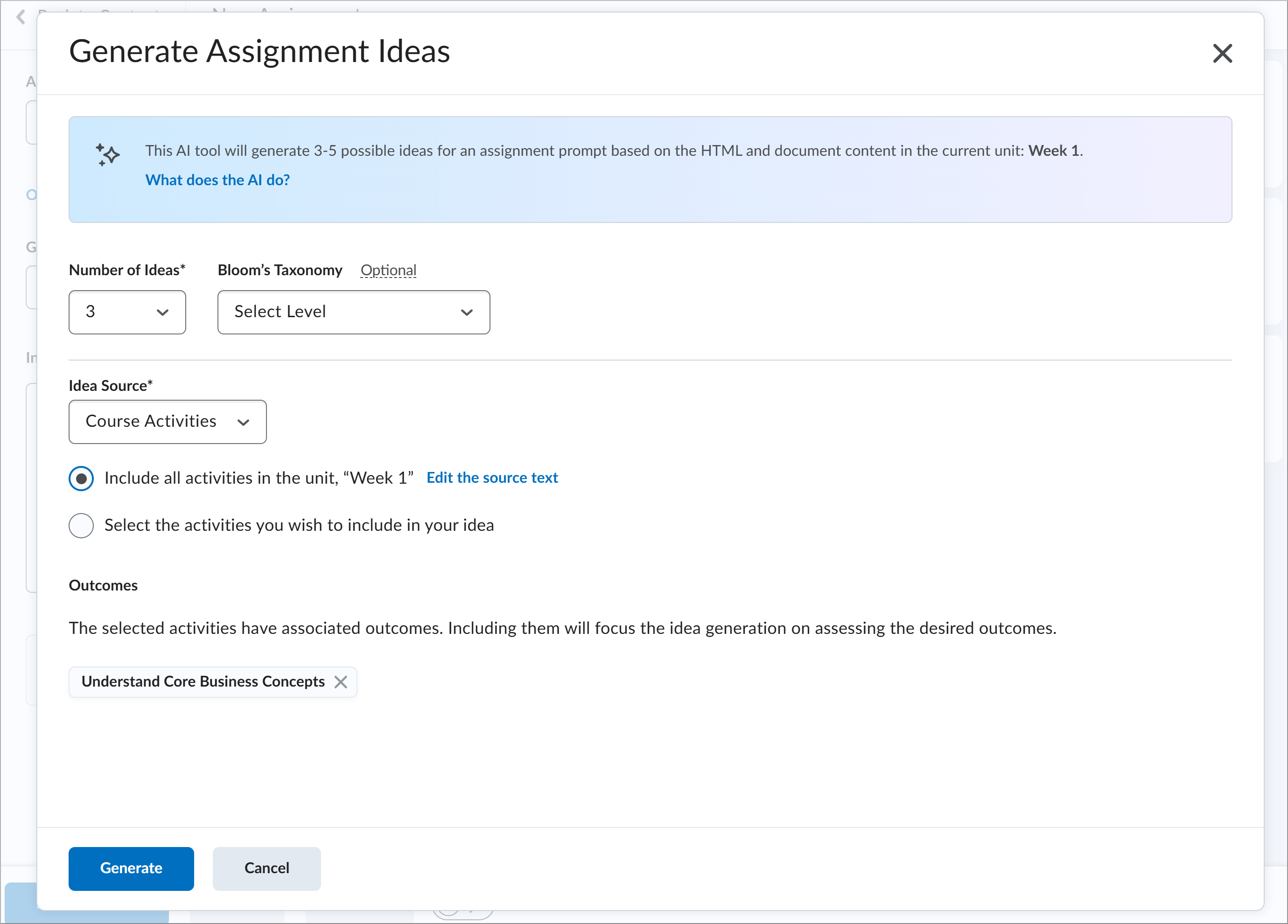
Figure: The updated Generate Assignment Ideas dialog.

|
Tip: Free-text input allows instructors to manually enter or paste content not found in existing course tools.
Use the source preview feature to ensure ideation aligns with learning outcomes or content focus.
|
This feature implements the following PIE items:
- D12629 (Lumi's Generate Assignment and Discussion Ideas Workflow Inconsistent with Quizzes Workflow)
Technical Details
Impact:
- Moderate impact to instructors due to expanded ideation functionality and visual enhancements.
- Minimal impact to administrators. There is no change to the generation consumption with this update.
Availability:
- This feature is available to all clients using D2L Lumi Pro.
To enable:
- Ensure your organization is entitled to D2L Lumi Pro and the Generative AI tool is enabled.
- Grant the following permissions to instructors:
- Generative AI > Generate Ideas for Discussions
- Generative AI > Generate Ideas for Assignments
- Enable the D2L.Tools.GenerativeAI.isEnabled configuration variable in the appropriate org unit.
D2L Lumi Insights – Intervention suggestions added to Insight cards | Updated
|
This feature is part of the D2L Lumi Pro for Brightspace add-on solution that must be purchased separately. For more information, contact your D2L Client Sales Executive or Account Manager. |
Educators can now act on insight data using a new Intervention Suggestion area in D2L Lumi Insights. This area provides suggested next steps based on learner data shown in each insight card. The insight card layout has also been updated to use a table layout versus a data grid layout to preserve screen space.
Suggested interventions may include:
- Content interventions such as updating or editing a page or quiz question.
- Learner interventions such as reaching out to individual learners or the entire class using a Brightspace communication tool.
Previously, insight cards displayed only data points with no suggested interventions.
To view intervention suggestions, open a Study Support–enabled quiz in the New Content Experience. Above the Completion Summary, select an insight card to view the suggested next steps based on learner data.
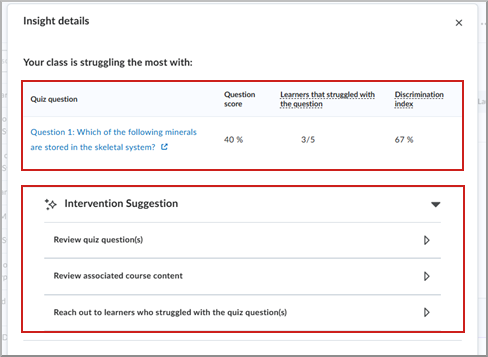
Figure: The updated Insight details dialog with new table layout on the top and Intervention Suggestion area on the bottom.
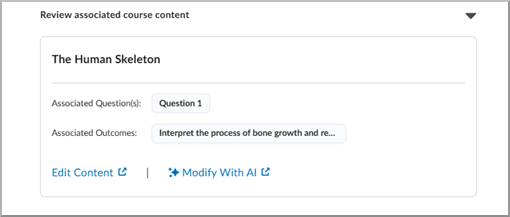
Figure: Content intervention recommending a review of an associated course activity. Click Edit Content to launch directly into the edit screen for that page. Click Modify With AI to open that page with the Lumi Content modify and remix dialog loaded.
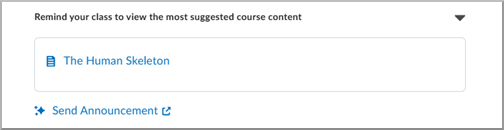
Figure: Sample learner intervention recommending a class reminder. Click Send Announcement to launch into the announcement workflow with a prepopulated announcement that can be further modified by the instructor.
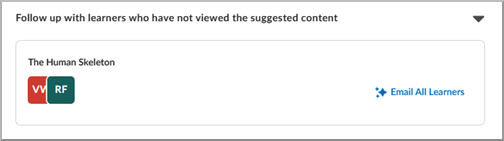
Figure: Sample learner intervention recommending an email to select learners. Click Email All Learners to launch into the email workflow with a prepopulated email that can be further modified by the instructor.
Technical Details
Impact:
- Slight impact to instructors who now see an updated layout and new suggested interventions when reviewing insight cards in D2L Lumi Insights.
- Minimal impact to administrators. There is no change to the generation consumption with this update.
Availability:
- This feature is available to clients entitled to D2L Lumi Pro for Brightspace with Generative AI enabled.
To enable:
- Ensure your organization is entitled to D2L Lumi Pro and the Generative AI tool is enabled.
- Ensure the D2L.Tools.GenerativeAI.isEnabled configuration variable is enabled in the appropriate courses.
- Grant the Generative AI > Add Study Support on Quizzes permissions to instructors.
D2L Lumi Quiz – Generate questions from multiple content topics plus other key enhancements| Updated
|
This feature is part of the D2L Lumi Pro for Brightspace add-on solution that must be purchased separately. For more information, contact your D2L Client Sales Executive or Account Manager. |
Instructors can now generate questions from multiple course content topics using a larger context window in D2L Lumi Quiz. Also, the Generate Questions dialog has been uplifted for usability. These updates enhance question quality, improve the user experience, and ensure Lumi Quiz better aligns with other D2L Lumi Pro workflows.
Updates include:
- Users can now select up to five course activities for question generation, whereas previously only one activity could be chosen.
- The context window size has increased from 8,000 to 15,000 characters, allowing users to include more source information as part of the question generation process.
- Expanded which course activities are supported by Lumi Quiz to now include: Assignments (source text drawn from instructions), Quizzes (source text drawn from description), and Discussions (source text draws from description).
- Restructured the top AI banner to reduce its height on the page.
- Reorganized the overall layout of the Generate Questions dialog with field settings now at the top of the page and content selection now on the bottom.
- Bloom’s Taxonomy field help text now displays as a tooltip.
- Default value for the Number of Questions field is now five instead of three.
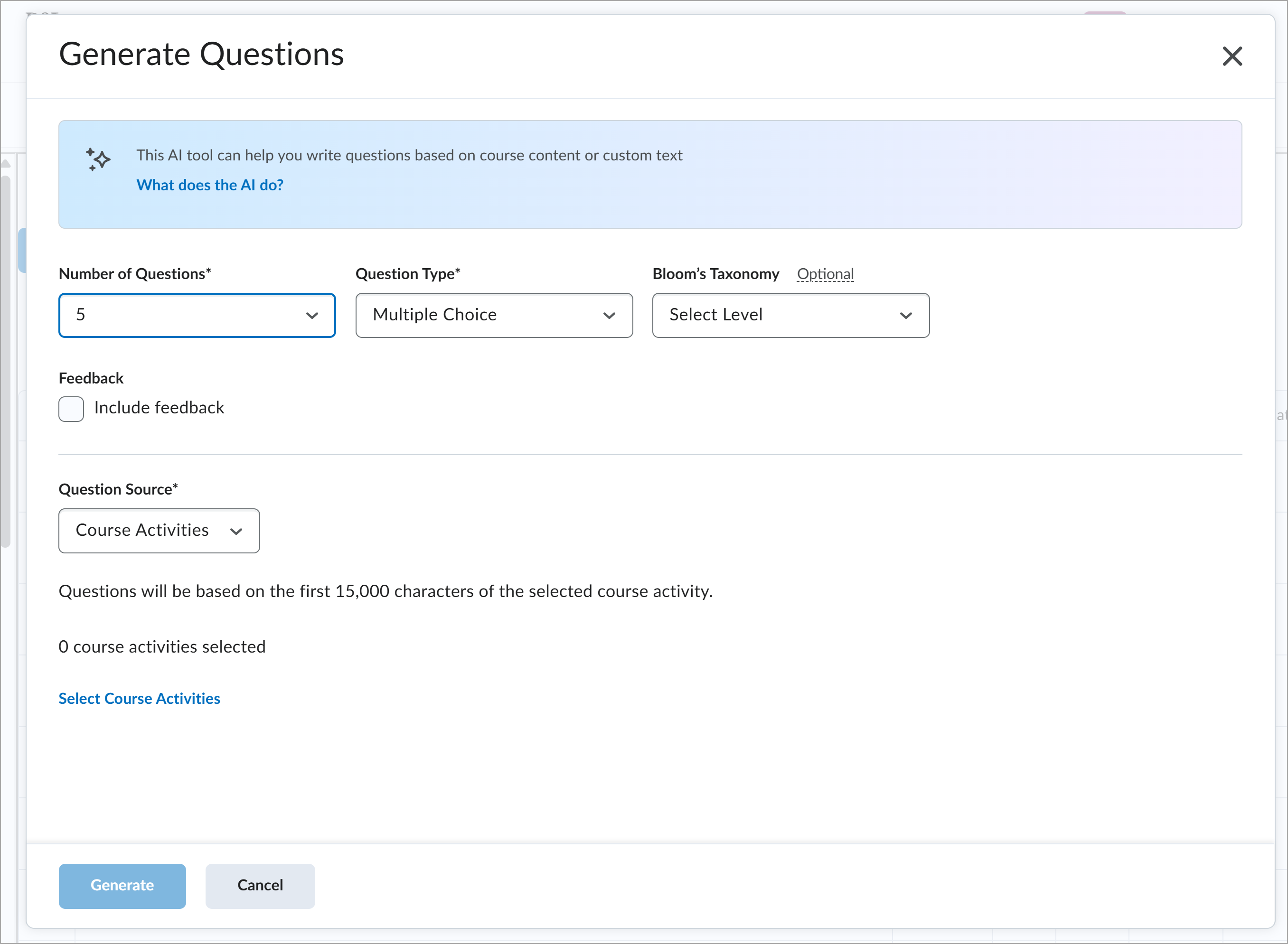
Figure: The updated layout for the Generate Questions dialog.
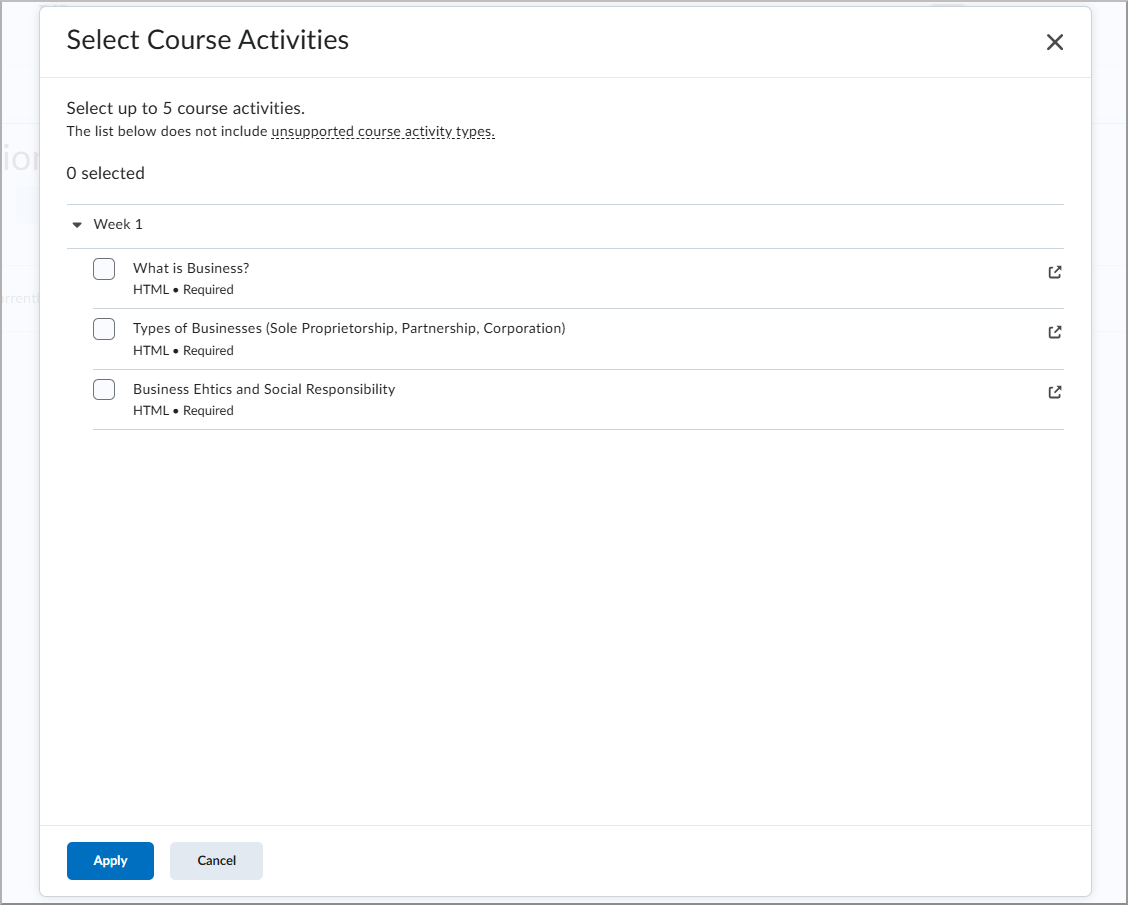
Figure: From Select Course Activities, choose up to five HTML-based course topics by selecting their checkboxes. Click Apply to confirm your selections.
Technical Details
Impact:
- Moderate impact to instructors due to updated layout and expanded content.
- Minimal impact to administrators. There is no change to the generation consumption when generating questions with this update.
Availability:
- This feature is available to all clients using D2L Lumi Pro.
To enable:
- Ensure your organization is entitled to D2L Lumi Pro and the Generative AI tool is enabled.
- Grant the Generative AI > Generate Questions permission to instructors.
- Enable the D2L.Tools.GenerativeAI.isEnabled configuration variable in the appropriate courses.
D2L Lumi Study Support – Improvements to the Select Course Activities dialog | Updated
|
This feature is part of the D2L Lumi Pro for Brightspace add-on solution that must be purchased separately. For more information, contact your D2L Client Sales Executive or Account Manager. |
D2L Lumi Study Support includes an updated Select Course Activities dialog to help ensure instructors select the most relevant activities for AI-powered recommendations. The updated interface improves transparency and aligns with other Lumi Pro workflows such as Lumi Quiz and Lumi Ideas.
Key updates include:
- Icons show whether an activity is hidden.
- Icons show whether an activity has release conditions.
- Unsupported activity types are listed as a tooltip for increased transparency.
Previously, the Select Course Activities dialog did not indicate visibility status or release conditions, warn users about unsupported items, or match the workflow used in other Lumi Pro experiences.
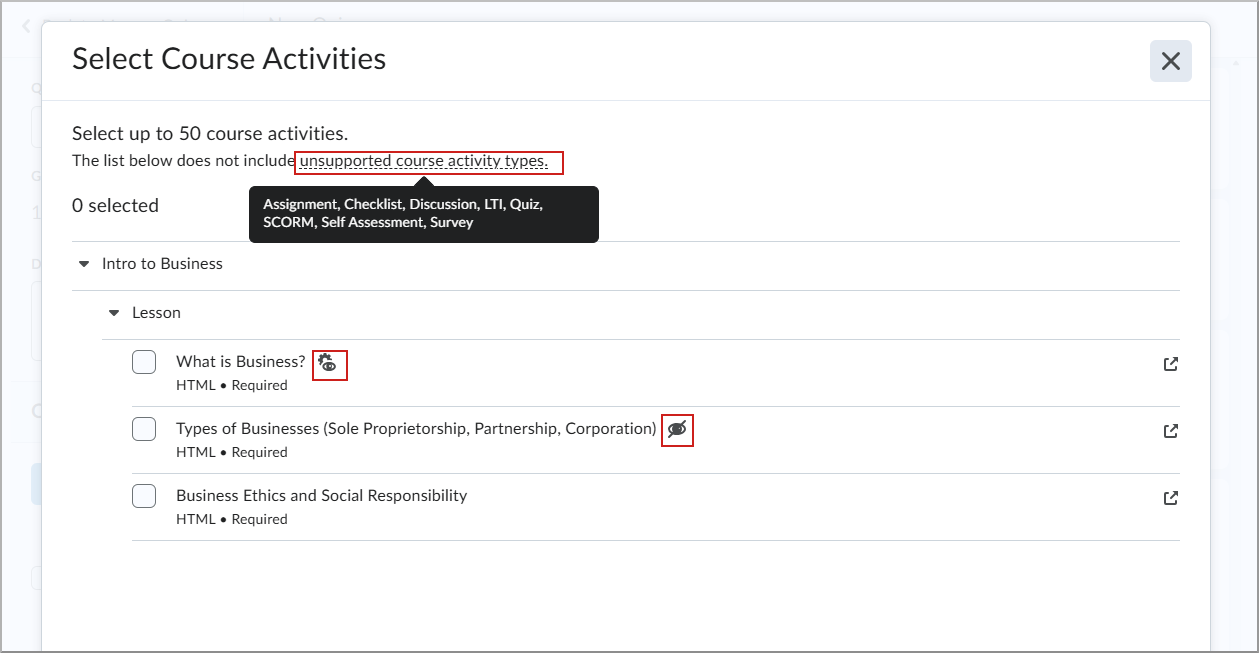
Figure: From the Select Course Activities dialog, choose up to 50 course activities. Click unsupported course activity types to view a list of activities that cannot be selected. Icons indicate whether activities are hidden or have release conditions.
Technical Details
Impact:
- Slight impact to instructors due to new text and icons.
- Minimal impact to administrators. There is no change to the generation consumption with this update.
Availability:
- This feature is available to all clients using D2L Lumi Pro.
To enable:
- Ensure your organization is entitled to D2L Lumi Pro and the Generative AI tool is enabled.
- Grant the Generative AI > Add Study Support on Quizzes permissions to instructors.
- Ensure the D2L.Tools.GenerativeAI.isEnabled configuration variable is enabled in the appropriate courses.
D2L Lumi Summary – Expanded content selection and transparency updates | Updated
|
This feature is part of the D2L Lumi Pro for Brightspace add-on solution that must be purchased separately. For more information, contact your D2L Client Sales Executive or Account Manager. |
Instructors can now select more content for summarization including from nested submodules using an updated Select Course Activities dialog and workflow. Instructors can also preview and adjust source text before summarization occurs. These enhancements improve usability, transparency, and align with other Lumi Pro workflows.
Updates include:
- Support for selecting course activities from nested submodules.
- Icons show whether an activity is hidden.
- Icons show whether an activity has release conditions.
- Ability for instructors to preview and edit source text before summarization.
- Restructured the top AI banner to reduce its height on the page.
- Unsupported activity types are listed as a tooltip for increased transparency.
Previously, Lumi Summary lacked indicators for hidden activities or release conditions, did not support nested submodule selection, and did not allow users to preview or edit source text before summarization.
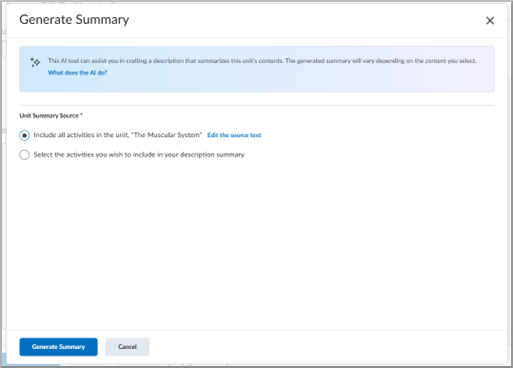
Figure: From the Generate Summary dialog, choose Include all activities in the module or select specific activities. Click Generate Summary to proceed.
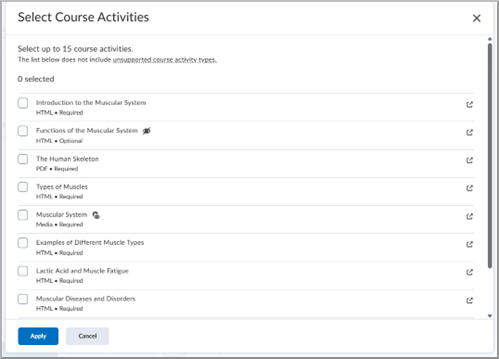
Figure: From the updated Select Course Activities dialog, select up to 15 activities to be used by Lumi Summary.
Technical Details
Impact:
- Moderate impact to instructors due to new selection and editing capabilities.
- Slight impact to administrators. There is no change to the generation consumption with this update.
Availability:
- This feature is available to all clients using D2L Lumi Pro.
To enable:
- Ensure your organization is entitled to D2L Lumi Pro and the Generative AI tool is enabled.
- Grant the Generative AI > Generate Module Summaries permission to instructors.
- Enable the D2L.Tools.GenerativeAI.isEnabled configuration variable in the appropriate courses.
Grade schemes – Distributed administration support for sub-organizations | Updated
Sub-org administrators can now create, edit, and delete Grade Schemes within their sub-organization, providing greater control over local grading practices.
From Grades at the sub-org level, sub-org administrators can create grade schemes that are visible and selectable across all org units in their sub-organization. When the sub-org administrator creates a new grade scheme at the sub-org level, it appears under the organization schemes area in Grades > Schemes tab.
This update supports grading practices tailored to the needs of specific regions, schools, or departments.
Previously, organization grade schemes could only be created at the organization level.
Technical Details
Impact:
- Moderate impact to administrators due to increased control over grading settings within sub-organizations.
Availability:
- This feature is available to all clients.
To enable:
- Grant the Grades > Manage Grade Schemes permission at the required org unit level for the appropriate role.
|
Note: Each customers can grant related permissions to their sub-org administrators appropriate for their organization policy. |
Homepages, Navbars, Themes, and Widgets – Distributed administration support for sub-organizations | Updated
Administrators can now delegate control of Homepages, Navbars, Themes, and Widgets to sub-organization levels, supporting institutions with distributed administrative models.
This update allows sub-org administrators to apply default settings across their child org units, improving local branding and consistency without requiring organization-level changes.
In the Homepages tool, sub-org administrators with appropriate permissions can now set default homepages for their org unit and its associated courses. They can also assign homepage defaults to child org units.
In the Navigation & Themes tool, sub-org administrators can manage and assign default Navbars and Themes across their org unit and associated courses, with similar delegation options for child org units.
Technical Details
Impact:
- Moderate impact to administrators due to new distributed configuration options and delegated control over homepage, navbar, widget, and theme defaults.
Availability:
- This feature is available to all clients.
To enable:
- Grant the required permissions at the sub-organization level for the appropriate roles:
- All permissions at the required org unit level appropriate to the sub-admin's role for Homepages.
- All permissions at the required org unit level appropriate to the sub-admin's role for Navbars.
- This functionality is not dependent on any new or existing configuration variables.
| Note: Each customers can grant related permissions to their sub-org administrators appropriate for their organization policy. |
LTI – Learners can now accept processor EULAs for assignments accessed through Lessons content topics | Updated

|
Important: This feature is only available to clients using the New Content Experience (NCE). Learners submitting assignments through the Classic Content experience do not see end-user license agreement (EULA) links for third-party asset processors. |
Learners can now access the end-user license agreement (EULA) for third-party asset processors when submitting assignments that are accessed through the Lessons tool in the New Content Experience. Building on functionality released in November 2025/20.25.11, EULA links were only shown when accessing assignments directly through the Assignments tool or when the d2l.Tools.Content.LessonsRenderActivitiesInline configuration variable was disabled.
With this update, learners see the processor’s EULA in additional locations when accessing an assignment through Lessons:
- In the assignment’s Instructions section.
- As an inline alert when submitting an assignment.
- In a reminder modal if they attempt to submit without having accepted or declined the EULA.
|
Note: Learners only need to accept the EULA once per third-party processing tool. If the third-party tool updates its EULA, learners are prompted to accept the new agreement. |
Learner access to processing reports generated by external tools depends on each processor’s configuration. In general, learners see report details only when allowed by the external tool and when instructors provide feedback on the submission. Instructors continue to access processing reports in Consistent Evaluation.
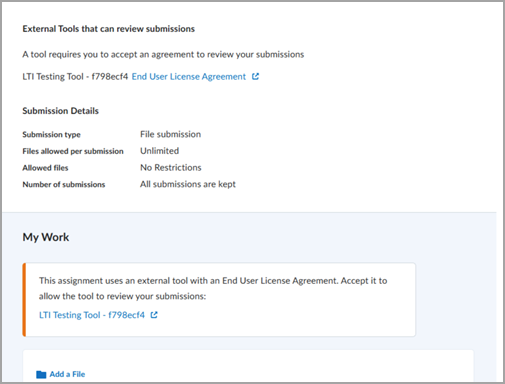
Figure: With this update, learners can view and accept processor EULA links directly in the assignment when it is accessed through Lessons in the New Content Experience.
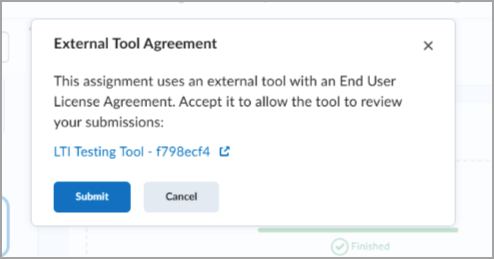
Figure: A reminder modal appears to learners if they have not yet accepted or declined the EULA for an external tool.
Technical Details
Impact:
- Slight impact to instructors and administrators due to updated workflows for learners who must review and accept processor EULAs when accessing assignments through Lessons in the New Content Experience.
- Slight impact to learners who now review and accept processor EULAs when submitting assignments accessed through Lessons.
- Learner visibility of external processing reports continues to depend on each processor’s configuration and whether instructors provide feedback on the submission.
Availability:
- This feature is available only when using the New Content Experience (NCE).
- This feature is not available when using the Learner Experience.
- This feature applies when assignments are rendered inline through Lessons, which occurs when the d2l.Tools.Content.LessonsRenderActivitiesInline configuration variable is enabled at the course level.
To enable:
- This functionality is not dependent on any new or existing permissions.
- To display processor EULA links in Lessons, ensure the d2l.Tools.Content.LessonsRenderActivitiesInline configuration variable is enabled at the course level.
To help administrators manage how learners interact with content outside its availability window, a new configuration variable allows control over content visibility in the New Content Experience (NCE).
By default, content topics outside of set availability dates are hidden from learners. With this update, administrators can choose to:
- Hide content entirely outside availability dates (default behavior).
- Display the topic in the Table of Contents while keeping it inaccessible to learners.
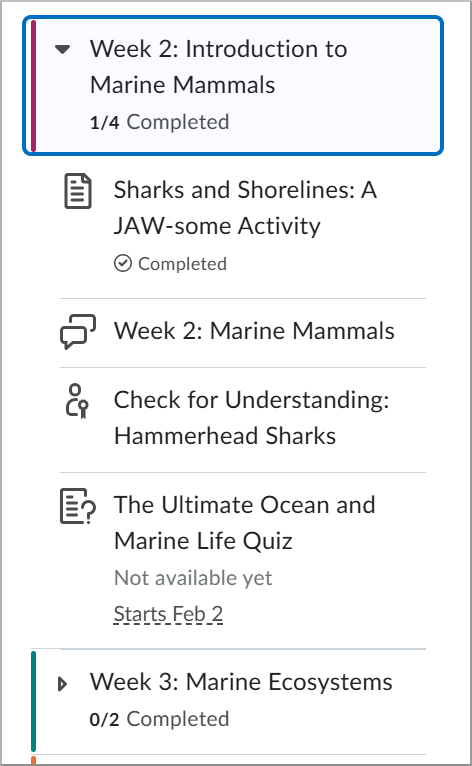
Figure: Table of contents showing module progress and activity availability for learners.
This flexibility helps institutions give learners visibility into past or upcoming content without granting access, improving pacing awareness and supporting varied instructional strategies.
This change also aligns Brightspace behavior with institutional preferences and eases migration from other platforms.
|
Note: This feature only applies to the New Content Experience (NCE). The configuration variable is disabled by default to preserve current behavior. |
This feature implements the following PIE item:
- D12807 (Fix Date Availability Experience in New Content Experience).
Technical Details
Impact:
- Slight impact for instructors and learners due to visibility changes.
- Slight impact for administrators managing configuration at the org unit level.
Availability:
- This feature is available to all clients.
To enable:
- Administrators must enable the following configuration variables:
- d2l.Tools.Content.EnableLessonsEnhancedTOC to use the enhanced the Table of Contents experience.
- d2l.Tools.Content.DisplayContentOutsideofAvailabilityDates to allow topics to appear in the Table of Contents.
- This functionality is not dependent on any new or existing permissions.
Instructors can now require learners to complete a quiz within a single Brightspace login session, helping maintain academic integrity. When this setting is enabled, learners cannot resume the quiz using another browser session. For example, if a learner starts a quiz on a laptop, they cannot continue the quiz on another device such as a smartphone or tablet.
This setting is controlled by d2l.Tools.Quizzes.SingleSessionQuizzes (OrgUnit) configuration variable. By default, this configuration is disabled. Administrators can enable it as needed.
When this configuration variable is enabled, instructors can navigate to the Availability Dates & Conditions section while creating or editing a quiz and select Lock each attempt to a single login session.
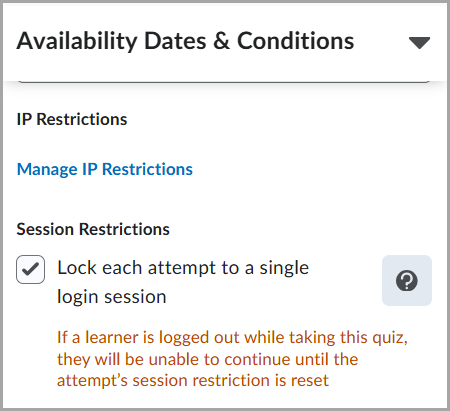
Figure: From the quiz’s Availability Dates & Conditions section, select Lock each attempt to a single login session to restrict attempts to one active session.
|
Note: This setting only restricts access to the quiz. It does not prevent learners from having multiple active sessions in Brightspace. |
This feature implements the following PIE item:
- D11297 (Prevent multiple sessions taking one quiz attempt simultaneously)
Technical Details
Impact:
- Slight impact to instructors, who can now restrict quizzes to be completed within a single Brightspace login session.
- Slight impact to learners who can no longer use multiple devices when completing a quiz.
Availability:
- This feature is available to all clients.
To enable:
- This functionality is dependent on the d2l.Tools.Quizzes.SingleSessionQuizzes (OrgUnit) configuration variable (default: OFF).
- This functionality is not dependent on any new or existing permissions.
11-December-2025 Preview Release Notes published.
31-December-2025 Updated Grade schemes – Distributed administration support for sub-organizations | Updated to clarify language.
31-December-2025 Updated D2L Lumi Quiz – Generate questions from multiple content topics plus other key enhancements| Updated by replacing an image.
01-January-2026 Added tutorial videos updates announcement.
15-January-2026 Removed the Classlist – Export Classlist details to CSV and improved Print output | New release note.