From the  Courses tab in Brightspace Pulse, you can view the courses you are currently enrolled in and access course content. By default, this tab displays when you log in to Brightspace Pulse. In addition, you can view Content module descriptions (if available) and access the course homepage in Brightspace.
Supported content types
When viewing course content in Brightspace Pulse, supported file types include:
- HTML
- PDF (special features such as password protection are unsupported)
- MP4 video (H.264, AAC)
- DOC, DOCX
- XLS, XLSX
- PPT, PPTX
- MP3 audio
- Brightspace Capture audio-video content
Enhanced course tiles
If configured by your administrator, you can view enhanced course tiles that provide details about your assigned courses.
Enhanced course tiles display:
- A Complete status indicator when all items in the course are complete
- An Overdue status indicator when items in the course are not completed by the due date
- An Ends Soon status indicator when a course is close to its end date
- Course update indicators with links to Assignments, Discussions, and Quizzes

View Content module details
A Content module is a stand-alone instructional unit that is designed to satisfy one or more learning objectives in a course. A module consists of one or more topics.
To view Content module details
- Tap the Courses tab. This displays the courses you are currently enrolled in, and a button to access the org homepage in Brightspace.
- Tap a course. The course’s content displays, and a button to access the course homepage in Brightspace.
- From the course Table of Contents, tap a module.
- Tap View description to view the module details.

The content module details open in a web view that displays rich HTML content, including images and functional links.
View scheduling dates for content
View scheduling dates in Pulse to plan your time more effectively with a consistent view of key deadlines. These dates are available when your instructor provides scheduling information.
To view key scheduling dates
- On the content tab, when set up, due dates, start dates, end dates, and availability ranges appear under each content item.
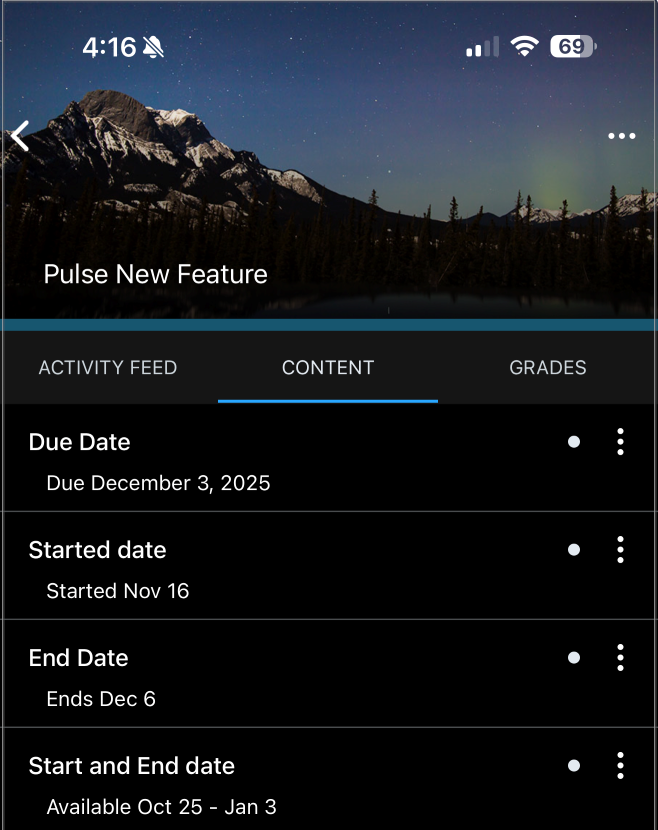
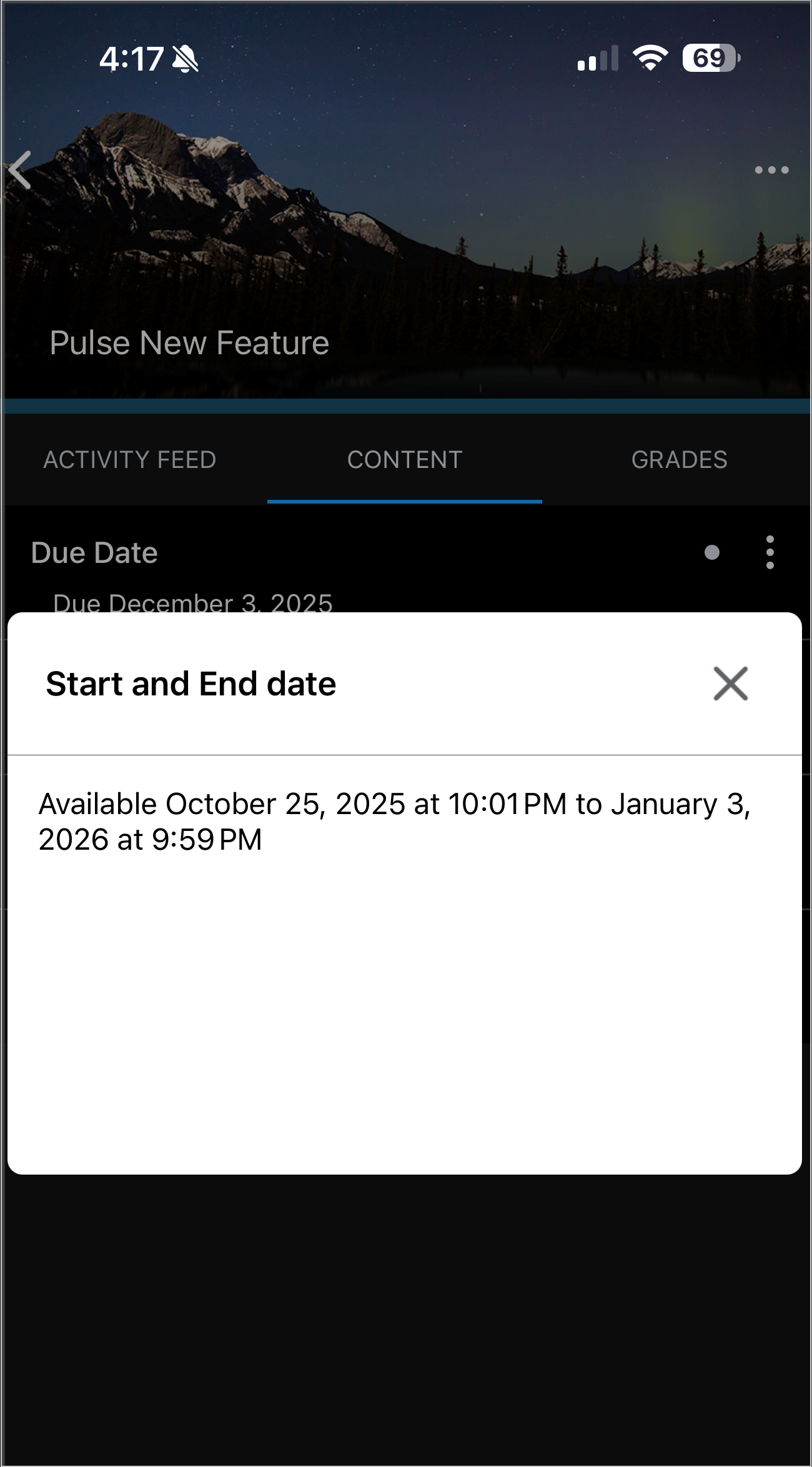
- To view the full due date and time, tap the content item. The Start and End Date dialog will appear.
- To view the full availability range for a content item, including start and end times, tap the three-dot menu. The Due Date dialog will appear.
View topic descriptions
View full HTML topic descriptions that contain enriching course content.
To view topic descriptions
- Tap the Courses tab. This displays the courses you are currently enrolled in, and a button to access the org homepage in Brightspace.
- Tap a course. The course’s content and a button to access the course homepage in Brightspace display.
- Navigate to a course topic.
- Tap the three vertical dots next to a topic.
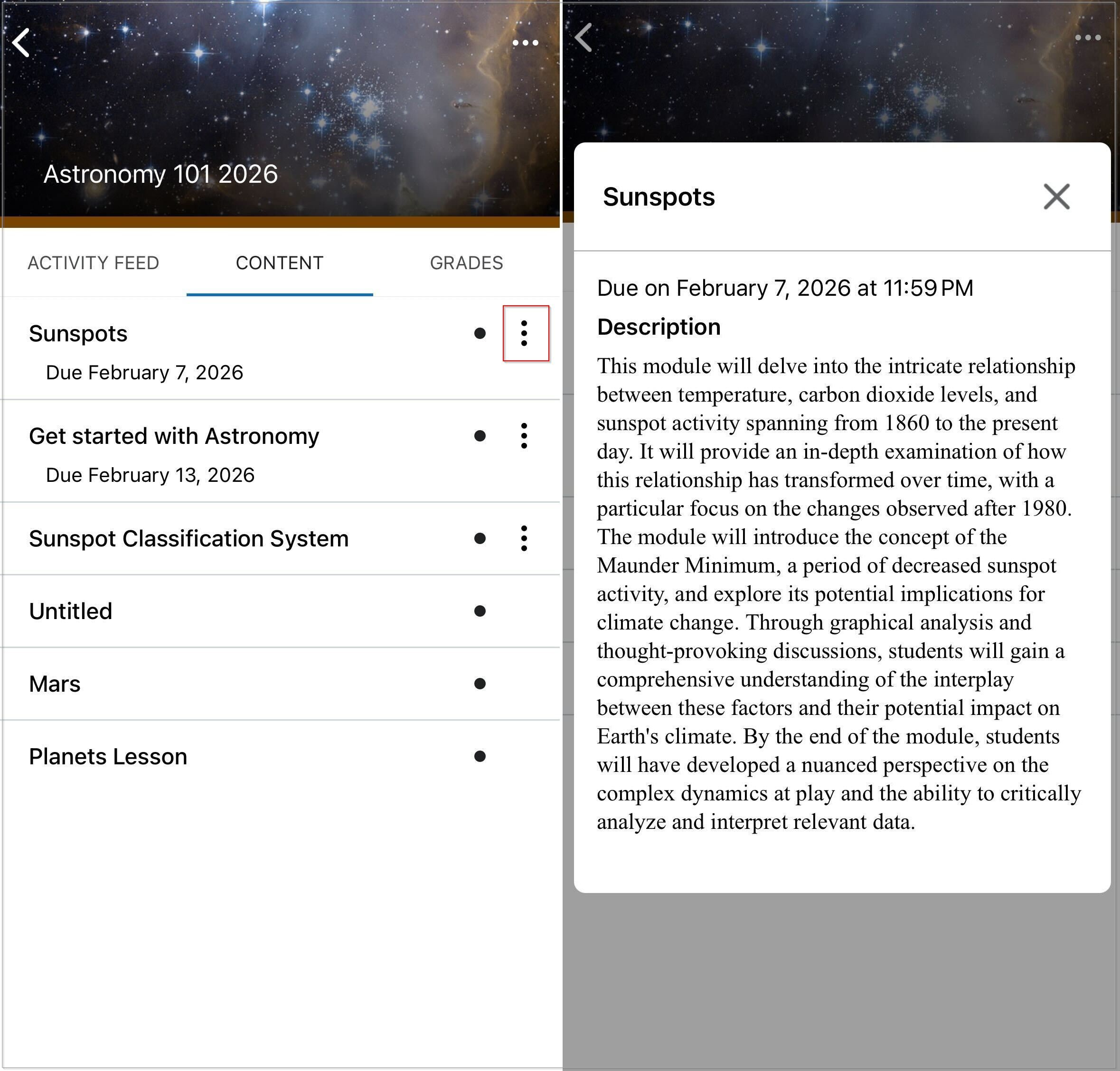
Figure: Click the three vertical dots next to a topic to view content in full.
The topic displays in full HTML format with functional links and content.
Pin and unpin a course
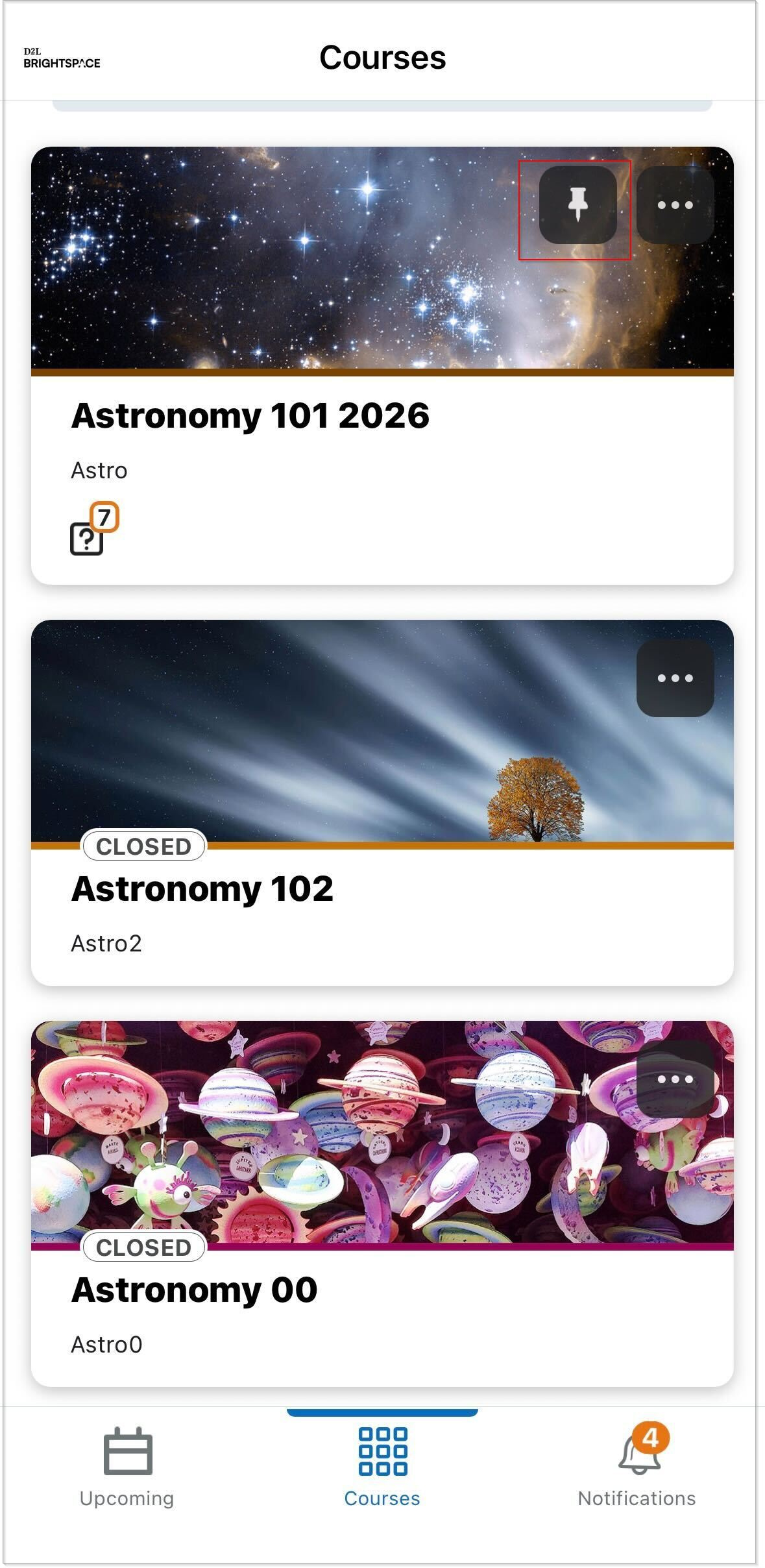
To help you easily find your current courses in Brightspace Pulse, you can pin and unpin courses from the Courses and Course Homepage screens. Pinning a course ensures it remains at the top of the screen for easy access. Pinning or unpinning a course in Brightspace Pulse displays the same pinned or unpinned status in Brightspace.

|
Note: The Courses screen displays all courses you are currently enrolled in, with pinned courses appearing at the top of the list. |
To pin and unpin a course
- Do one of the following:
- From the Courses screen, tap the ellipses (...) icon in a course tile.
- From the Course Homepage screen, tap the ellipses (...) icon at the top of the screen.
From the list of actions, tap Pin or Unpin. A pinned course is denoted by a  Pin icon. Unpinning a course removes the pin icon.
You have pinned or unpinned a course.
Make non-HTML files available for offline viewing
To complete learning activities without an internet connection, you can make non-HTML topic files (like PDFs and MP4s) available for offline viewing in Brightspace Pulse, depending on how the content was added to the course.
|
Notes: - PDF and MP4 topic files made available for offline viewing can only be accessed in Brightspace Pulse. Although these files use the mobile device's storage, they cannot be opened in another app or transferred from the mobile device.
- The number of files available for offline viewing depends on the available storage space on your mobile device.
- For PDF files, special PDF features (such as password protection and printing restrictions) are not supported. Other document types (DOCX, XLSX, PPTX, HTML, and images) are also not supported.
- For MP4 files, streaming video and other video or audio formats (such as MP3) are not supported.
|
To make a content file available for offline viewing
- In Brightspace Pulse, open a topic file containing a PDF or MP4.
- From the ellipsis (...) menu at the top of the page, tap Make available offline.
- Without an internet connection, in Brightspace Pulse, navigate back to the table of contents, and tap the topic file that you have made available offline.
To remove a topic file from offline viewing
From the ellipsis (...) menu at the top of the page, tap Remove from device. The file is no longer available for offline viewing.
To remove all offline content
- Navigate to the top-level for the course.
- Tap the ellipses (...) menu.
- Tap Remove offline course files.
- Tap Yes to confirm removing the course’s offline files.
All content previously made available for offline viewing is removed.