As a , you can access Content in different views, depending on your organization or course:
Learner Experience
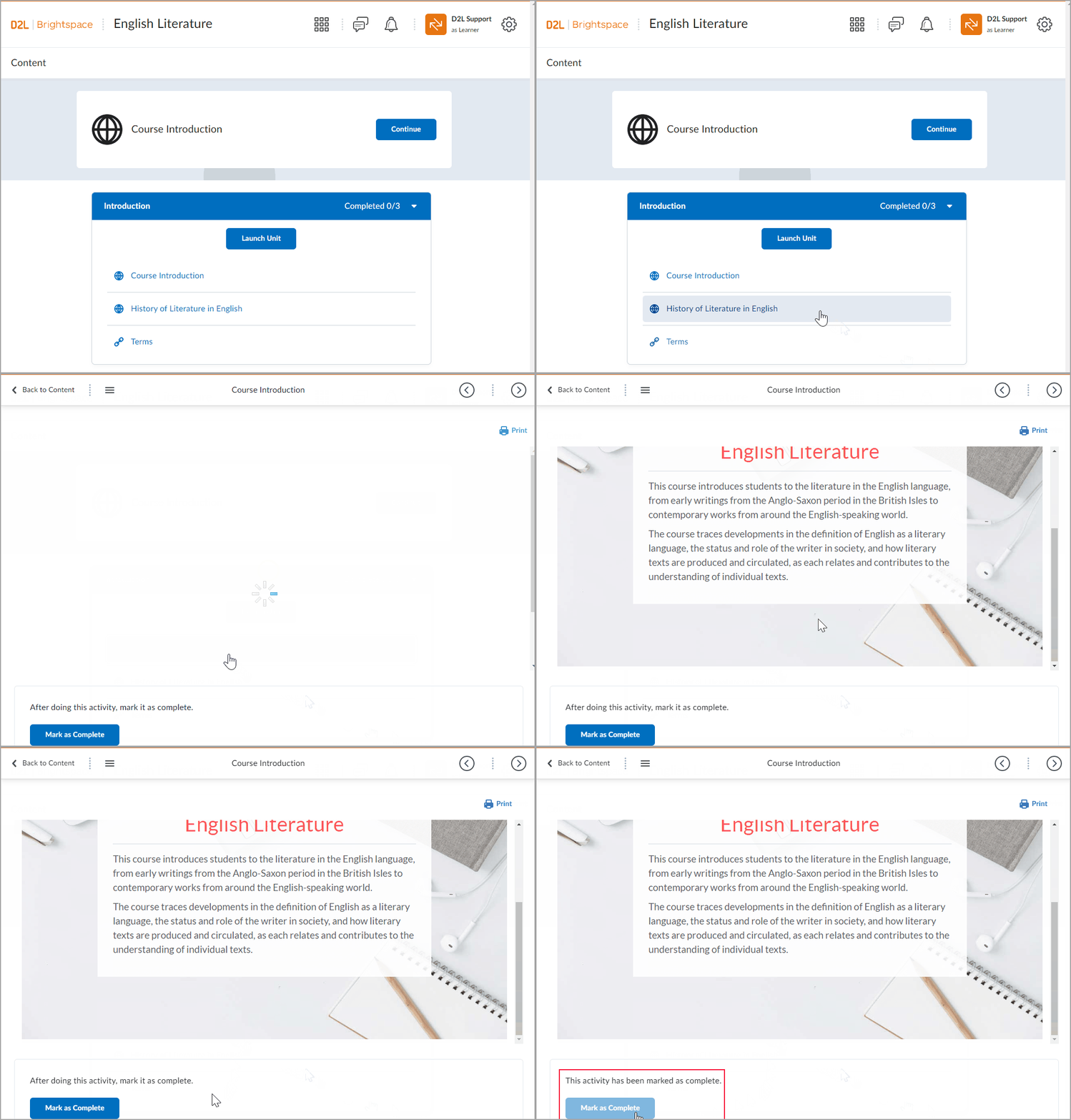
If the content in your course appears like the image below, you are using the Learner Experience.
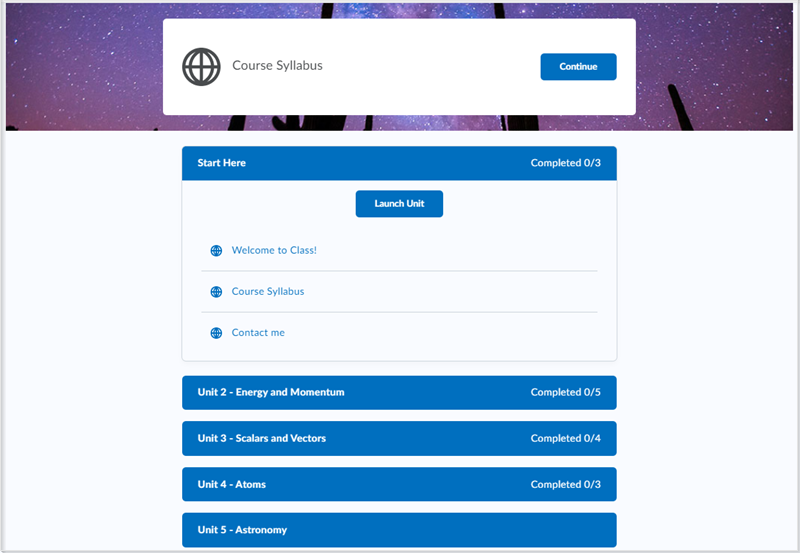
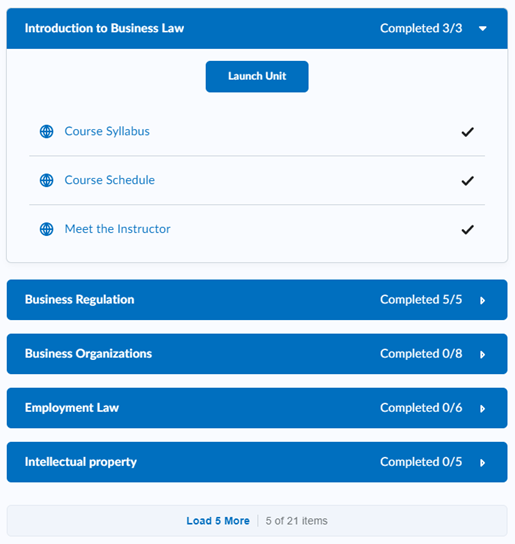
In the Learner Experience, the table of contents allows you to explore all available content (modules, topics, and activities) within the course. You can open any available module without following a specific sequence.
To start and resume your course
- First time: When you enter a course, click the Get Started tile to launch the first module.
- Returning: The Continue tile lets you quickly resume exactly where you last left off. The most recently visited unit and topics expand on the next visit.
- Print or download: You can click Print or Download to continue studying your content offline.
 | Note: Content in unexpanded accordions is not printed. Ensure that you have expanded accordions for any content you want to print. |
To use the Table of Contents (TOC)
- Access the Table of Contents: Select Content from your course navigation bar. The Table of Contents lists all units, lessons, and activities.
- Expand modules: Click on a unit or lesson name in the Table of Contents to expand or collapse its content (topics and activities).
- Load more: If your course has many modules, click Load More at the bottom of the Table of Contents to display the rest of the available content.
- View the module description and topics: Click Launch Unit or Launch Lesson.
Navigate through Content
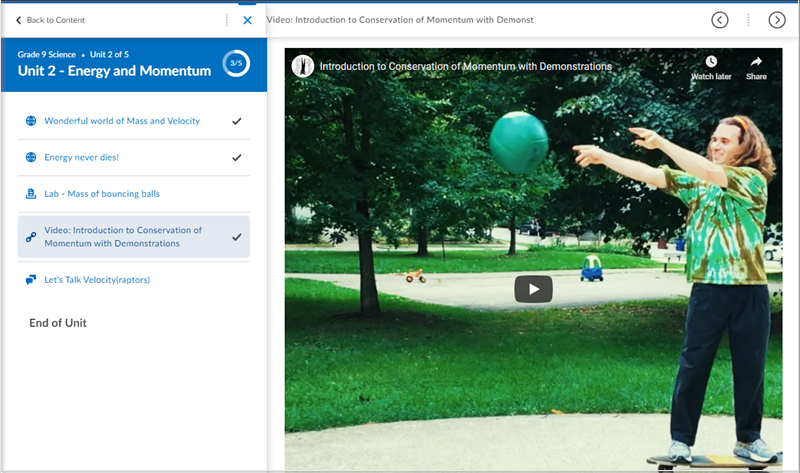
- Sequential navigation: Use the arrow buttons (Previous / Next) in the title bar to move through topics one by one.
- Jump to topic: Click the navigation menu icon within the full-screen viewer to select a specific topic.
- Return to Table of Contents: Click Back to Content to exit the full-screen viewer and return to the main Table of Contents page.
Monitoring progress and completion
- Progress tracking: The Table of Contents displays the number of required activities you have completed for each module. A check mark appears beside completed required topics.
- Mark as complete: You may see a Mark as Complete button at the bottom of the page if your instructor has set the topic as requiring manual completion. Manual completion is available for the following topic types:
- LTI links
- Web links
- Course files
- LOR links
- Click Mark as Complete to manually confirm completion.
 | Important: After you mark a topic as complete, you cannot undo this action. |
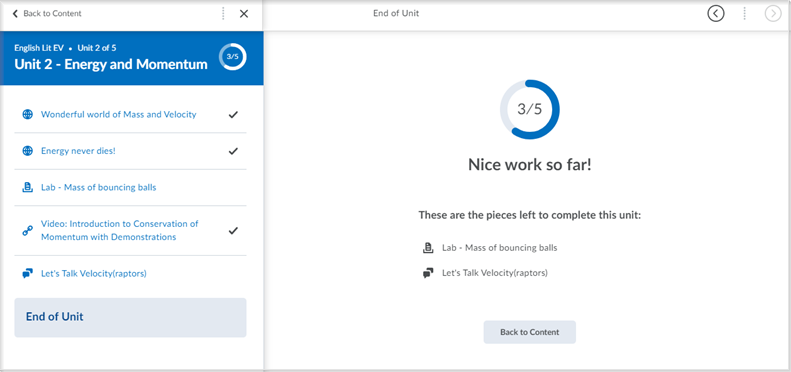
- Module completion: When you finish a module, a summary page confirms your completion status and lists any remaining incomplete items. Ensure that you end the session properly by using the Log Out option.
Video: New Learner Experience
Content Experience
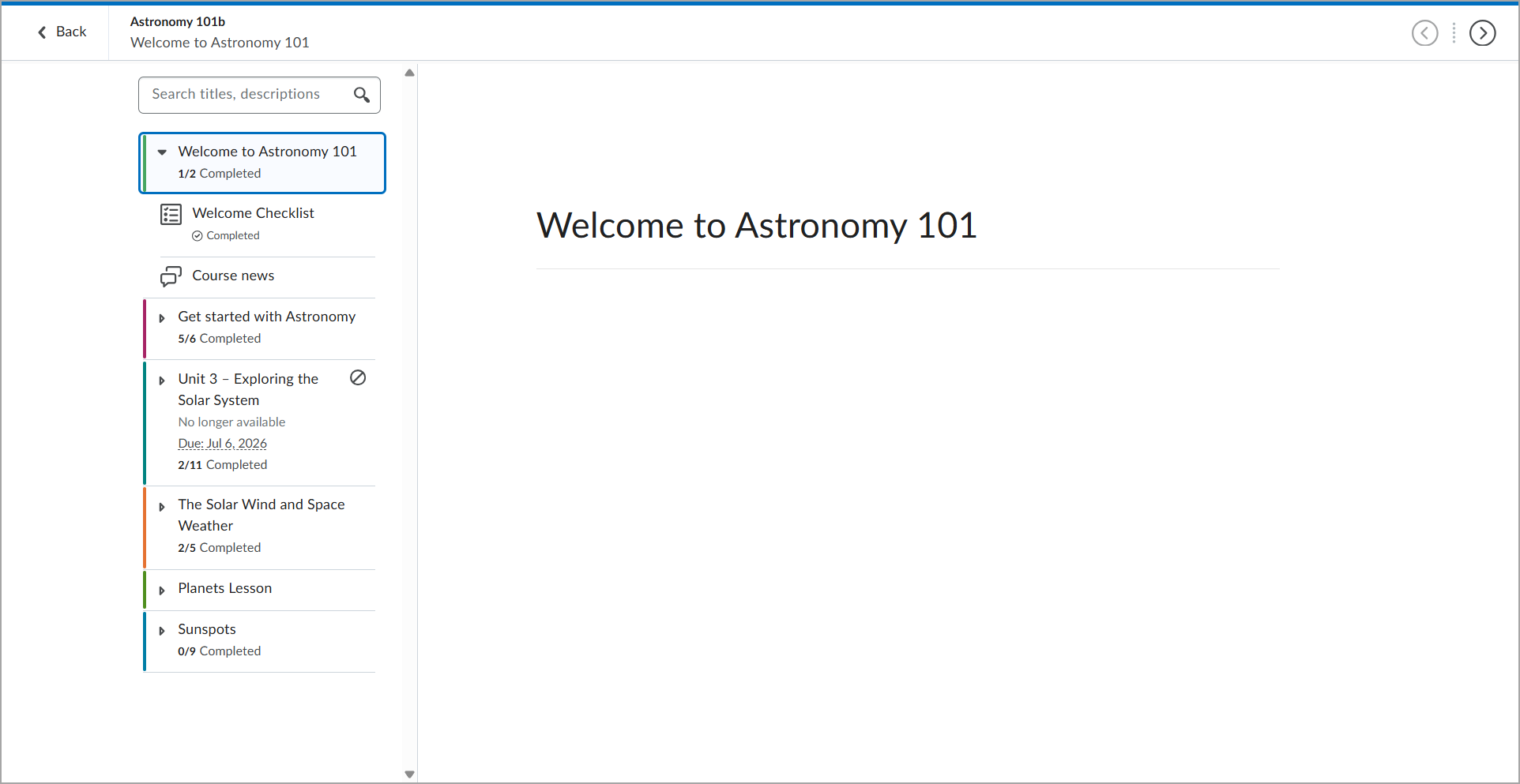
The Content Experience uses a side-by-side layout, with the Table of Contents on the left and content on the right. If your course has this layout and uses color-coded units, as shown in the image below, you are using the Content Experience.
Watch this video to learn how to navigate the Content Experience. Review the written steps below.
Using the Table of Contents (TOC)
- Navigation: Use the Table of Contents on the left to select a module (unit) or topic. The corresponding content appears in the content area. If your instructor has enabled Immersive View, use the slider to adjust the width of the content area.
| Note: Topics outside of set start or end dates are either:- Hidden from the TOC
- Displayed but not available before the start date or after the end date
|
- Module details: Submodules and topics are displayed directly beneath the module you select.
- Topic descriptions: Hover over a topic or activity to view a tooltip with information such as due dates or descriptions (if provided by your instructor). The following topic types can have descriptions if provided by your instructor:
- LTI links
- Web links, including Google Drive, Microsoft OneDrive, and Capture
- Files, including media files but excluding HTML files
- SCORM, including imported content and content from Learning Object Repository (LOR)
- LOR items, such as URLs and files
Monitoring progress
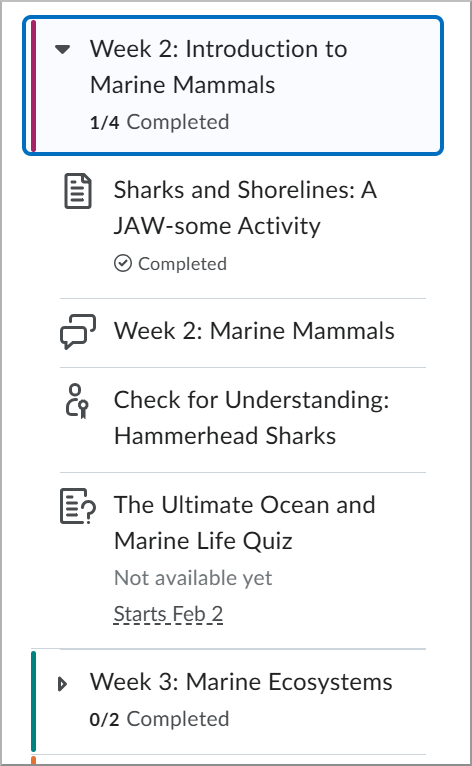
- Fractional progress: The Table of Contents shows your progress with numerical and visual indicators, such as a fraction showing completed items per module.
- Completion terminology varies by activity: Assignments display Submitted, Discussions display Posted, and Quizzes display Attempted.
- Full status: If you need a detailed breakdown of all your course activities and completion statuses (including assignments and quizzes), you must use the Class Progress tool, as the Content view only shows progress for content topics.